The Carrier Quote Builder Lightning Web Component (LWC) is a child component of the Freight Quote Assistant (FQA) LWC. Create Carrier- or Vendor-type Carrier Quotes in the LWC. For more information regarding Vendor-type Carrier Quotes, see the Vendor Quote article.
Select the Carrier Quotes tab in the FQA to create Carrier Quotes.
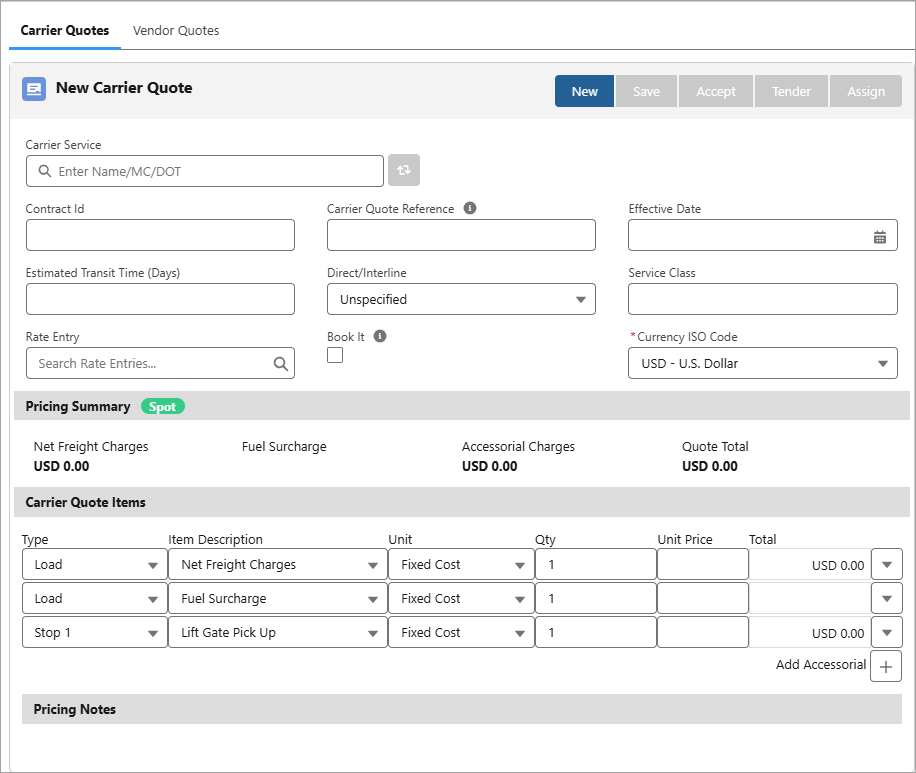
The Carrier Quote Builder LWC allows the user to complete the following actions:
Get a quote from a Carrier.
Save or update a Carrier- or Vendor-type Carrier Quote.
Calculate both amount-based and rate-based quotes dynamically.
Tender a Load to a Carrier.
Assign a Load to a Carrier.
View all existing Carrier Quotes related to the Load.
Carrier Quote Builder LWC Fields
The Carrier Quote Builder LWC displays specific fields necessary to create a Carrier Quote.
Add additional fields to the LWC with the Carrier Quote TMS3 field set.
Field | Description | Required |
|---|---|---|
The specific service the Carrier provides. The list displays all Carrier Services across multiple carriers that meet the following requirements:
| No | |
Contract Id | The contract ID populated from the Contract Id field on the matching Rate Entry and from SMC3 RateWare calls. | No |
Carrier Quote Reference | The contract ID returned from an API quote and is used when tendering the Load to a Carrier. | No |
Effective Date | The date the Carrier Quote goes into effect. | No |
Estimated Transit Time (Days) | The estimated transit time in days for the Load. This value is based on the Service Class. | No |
Direct/Interline | The service information for the Carrier Quote. The following values are available for this field:
Default Value: Unspecified | No |
Service Class | The class of the Carrier Service. | No |
The stored rate entry associated with the Carrier Quote that the quote was based on. | No | |
Book It | This field is checked when a carrier selects the Book It button for this Load on the Carrier Portal or RFQ Load Board. | No |
Currency ISO Code | The currency to use for this Customer Quote. The values available to select come from the Setup → Manage Currencies active currencies list. Default Value: USD - U.S. Dollar | Yes
|
Carrier Quote Items
By default, there are two Carrier Quote Items included in the Carrier Quote: Net Freight Charges and Fuel Surcharge.

Adjust the Unit, Qty, and Unit Price as necessary for each charge.
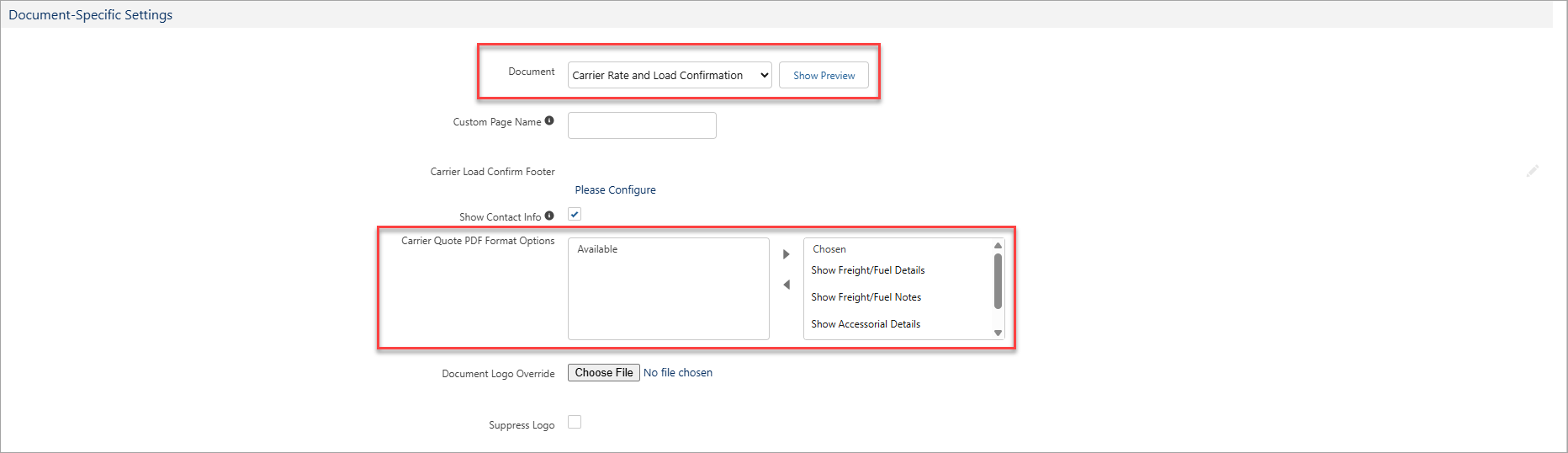
Select the drop-down button by the item to add a note for the specific item. Notes and details are included in the Carrier Rate and Load Confirmation document by default.
To display or hide details and notes about these charges, go to the Document-Specific Settings section in Document Options and adjust the Carrier Quote PDF Format Options field for this document as desired.
Accessorials
Load Accessorials are always included as a Carrier Quote Item charge when building a Carrier Quote. The Type is automatically set to the Stop where the accessorial is applied.
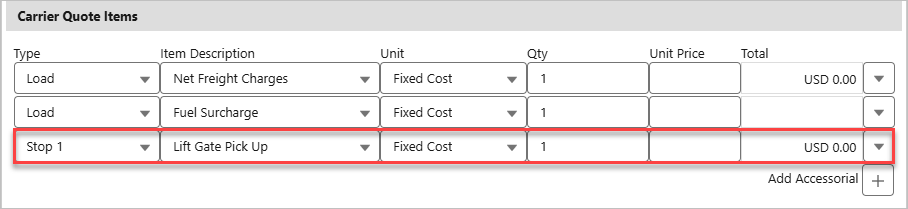
Add additional accessorial charges by selecting the (+) button. Select the Type (Load or Stop-specific), the Item Description (Accessorial).
Selecting the drop-down button by the accessorial item allows you to:
Add the accessorial charge to the Customer Quote Builder LWC as a Customer Quote Item
Delete the accessorial charge from the Carrier Quote
Change the currency for the accessorial charge
Save, View, Refresh, or Get a Quote
Once all fields are adjusted as desired on the LWC, select the Save button to create a new Carrier Quote record. Select the New button to build a new Carrier Quote if desired. The View Quotes and Refresh Quotes buttons appear when the Load has at least one related Carrier Quote record.
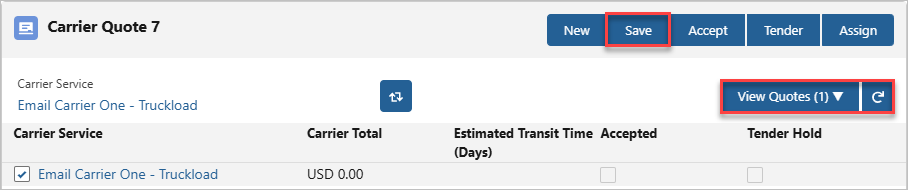
The View Quotes displays the number of Carrier Quote records related to the Load and information, such as:
The Carrier Service that was quoted
The Carrier Quote total
The estimated transit time in days
If the Carrier Quote is accepted
If there is a tender hold on the Carrier Quote
Checking another Carrier Service displays that Carrier Quote record in the LWC.
If a field in the Load TMS11, Stop TMS5, or Line Item TMS2 field sets changes and the Mode has the Rerate Notification box checked, then a red ‘Refresh’ pill appears next to the Pricing Summary.
Select the Refresh Quotes button to rerate the quote and remove the ‘Refresh’ pill. See the Rerate/Rebill article for more information.
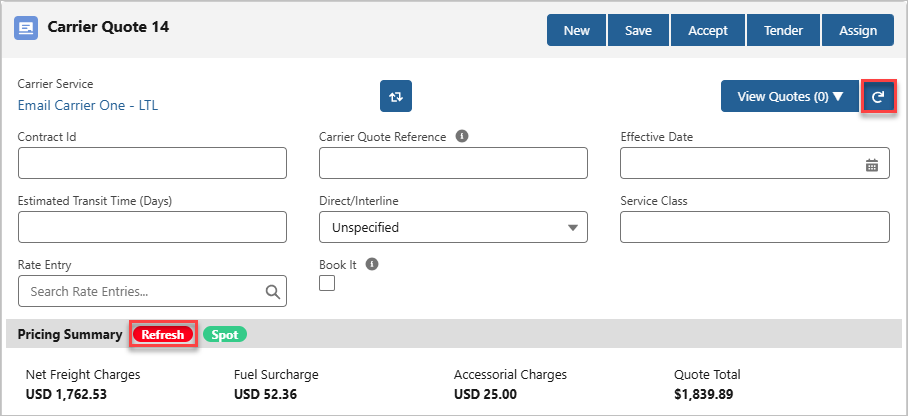
The Get Quote button requests a quote from the Quote Contact of the Carrier Service. A warning displays if the Quote Contact of the Carrier Service is blank.
.png)
After sending a quote to the carrier, the Pricing Summary in the Carrier Quote Builder LWC updates to have the blue ‘Quote Requested’ pill for the Carrier Quote record.
Note: Carrier Services without a Quote Contact do not display the Quote Requested pill.

If the Load Status of the Load was originally Unassigned, the status updates to Quotes Requested. When the carrier submits a quote, the status updates to Quotes Received.
See the Carrier Guest article for more information about how carriers enter and update information.
Accept, Tender, or Assign a Carrier
Once a Carrier Quote is selected, the quote may be Accepted, Tendered, or Assigned to the Carrier from the LWC. Selecting the Accept, Tender, or Assign button updates the Pricing Summary to have the green ‘Accepted’ pill and checks the Accepted field on the Carrier Quote record.
Note: Multiple Carrier- and Vendor-type Carrier Quotes may be accepted on the same Load, but only one carrier can be assigned to a Load.
.png)
Select the Tender button to assign or tender to the carrier with the Send Email LWC. The email is sent to the Tender Contact in the Carrier Quote record. Specific tender information is found in the Carrier Quote record.
Once the email is sent, the Load Status field updates to Tendered.
Request for Quote Note:
Request for Quote (RFQ) emails are limited to a single batch of 40 emails.
RFQ emails are sent as an asynchronous Future Method.
If a Future Method fails while processing the RFQ email send, a Queued Transaction record is created with a Failed status. The email send operation is retried as a Queued Transaction. See Salesforce documentation here.
The Max Pay Amount and Offer Rate are informational Load fields that represent bounds to any quotes from carriers.
If the Carrier Quote Total field is greater than the Max Pay Amount field, the Load cannot be tendered to a Carrier. Add the Max Pay Amount field to the Load Lightning Record Page if you’re encountering errors for large Carrier Quote Total amounts.
Rate Entries
When Rate Entries match to a Load, the TMS automatically requests a quote to the Quote Contact of the Carrier Service on the Rate Entry. A temporary green success message appears, indicating how many quote requests were sent and to which Carrier Services.

Stored Rate Entries
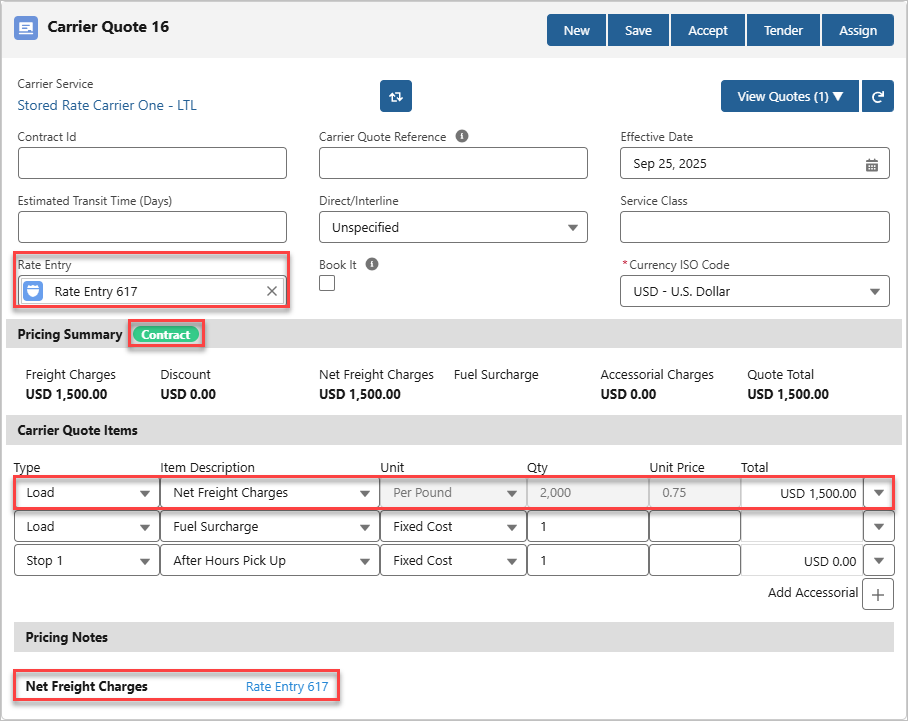
If the Quote Method of the Carrier Service is Stored Rate, a temporary green success message appears indicating how many Carrier Quotes were created with matching stored rate entries.

The LWC also automatically creates a Carrier Quote record for each matching Rate Entry and updates the Carrier Quote Item charge, such as Net Freight Charges.
The Rate Entry field also populates with the Rate Entry that is applied to the Carrier Quote record, and the green pill labeled ‘Spot’ in the Pricing Summary is updated to ‘Contract’. All Rate Entries and the charges they affected are included in the Pricing Notes section of the quote.
Deficit Rating
If a Stored Rate Entry has the Enable Deficit Rating box checked and matches to the Load, then a deficit rate may apply to the Carrier Quote if rating at the next weight tier costs less. See the Rate Entry Detail article to view how to set up a Rate Entry with the deficit rating feature.
The deficit rating is indicated by the note for the charge, using the following format:
“Load weight was {Total Weight of the Load} but rated at {minimum weight of tier used in the Rate Entry}”
.png)
To view deficit-related fields on the Carrier Quote record, complete the following steps:
Click on the Carrier Quote record name.
Select the Setup Gear → Edit Page.
Add the following fields to the Lightning Record Page (LRP):
Deficit Weight
Deficit Rate
Deficit Charge
Adjust the visibility filter for the fields as necessary.
Click Save.
Salesforce Note: The field labels for these deficit-related fields can be changed using Salesforce Translation Workbench.
Customer Portal Note: Use the Carrier Quote TMS6 field set to optionally display these deficit-related fields in the Customer Portal. Set CRUD access appropriately for these fields.
Refresh Note: To add the red ‘Refresh’ pill in the Carrier Quote LWC when the Total Weight changes, add this field in the Load TMS11 field set. This pill will help indicate if a Carrier Quote with a deficit rate needs to be updated.
See the Rerate/Rebill article for more setup information.
.png)
A Carrier Quote Freight Charge Item record is also generated, which displays specific information about the freight charge of the Load without the deficit charge. Locate this record in the Carrier Quote Freight Charge Items related list in the Carrier Quote LRP.
For deficit rates that use the Billable Weight, see the Billable Weight-Based Rate Entries for more information.
Accessorial Rate Entries
Accessorial Rate Entries that match to the Load and Carrier Service apply to the Carrier Quote from the following actions:
When manually creating a Carrier Quote and selecting Save.
When selecting the Accept button for a Carrier Quote.
When tendering a Carrier Quote with the Tender button.
When assigning a Carrier to the Load with the Assign button.
Note: If the matched rate entry is for an accessorial that is not listed in the Carrier Quote Items as a charge and the Accessorial Rate Entry has the Auto-Apply box checked, then it is applied as a charge.
Although Accessorial Rate Entries can apply to the Carrier Quote, it does not populate the Rate Entry field in the LWC and the green pill next to Pricing Summary is ‘Spot’, not ‘Contract.’
.png)
See Rate Entry Detail article for more information about creating Rate Entries and applying them to Carrier Quotes.
Managing Carrier Quotes
Depending on rating integrations and Rate Entries, multiple Carrier Quotes may be available on the Load. Additional Carrier Quotes are stored on the Carrier Quote List LWC.
Loads may only have one assigned carrier. Loads that already have a carrier assigned display the Remove Carrier modal when attempting to assign or tender to another carrier. The first carrier must first be removed before the second is assigned or tendered.
Note: The Remove Carrier modal is the same modal found on the Carrier Banner LWC. Removal email notifications and additional charges may be included when removing the carrier from the Load.
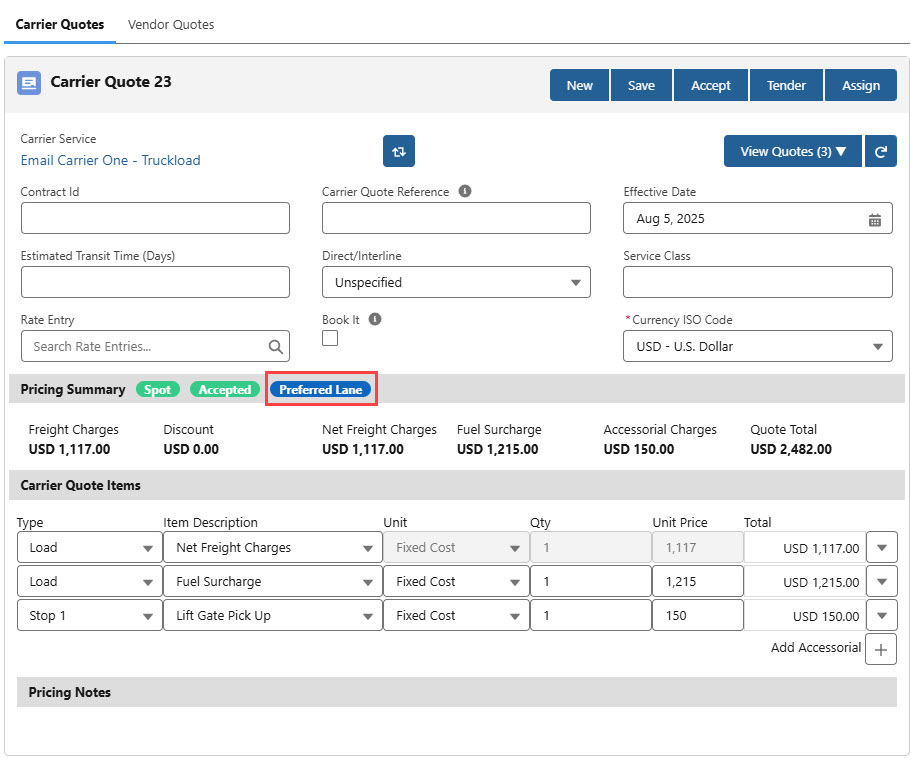
Carrier Quotes that are associated with a customer Lane Preference appear on the Carrier Quote Builder with the blue ‘Preferred Lane’ pill.
Freight Plan Carrier Quotes
Create Carrier Quotes for each Carrier Load in a Freight Plan. Navigate to each Carrier Load to create and view Carrier Quotes, or navigate to the Customer Load.
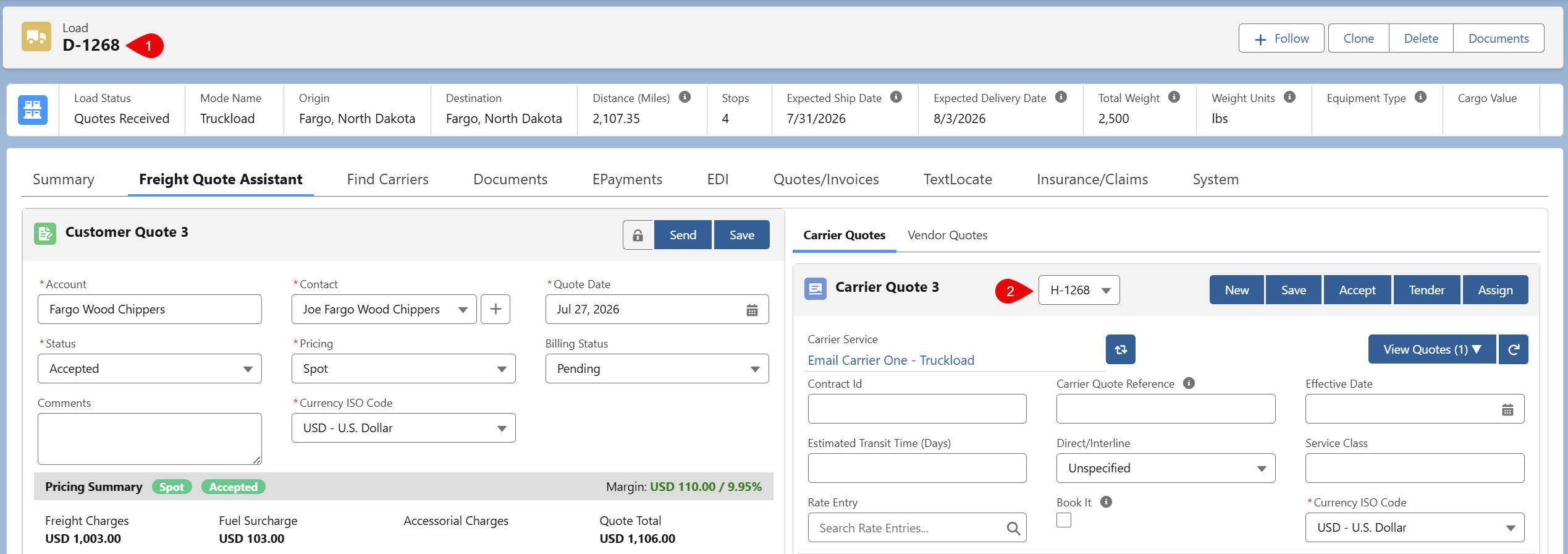
When viewing the Freight Quote Assistant on the Customer Load, an additional drop-down is included for creating Carrier Quotes for each Carrier Load.
The image below highlights the following information.
The original selected Customer Load record.
The selected Carrier Load the Carrier Quote is created for.
From the drop-down, select other Carrier Loads to create additional Carrier Quotes for moving the Customer Load.
Only the applicable Carrier Loads are available from the drop-down, not the Customer Load.
Troubleshooting
Error: Load Must Have a Total Volume
When entering the Freight Quote Assistant (FQA), an error stating that the “Load must have a total volume to calculate Dimensional Weight” may appear.
.png)
This error occurs when a Billable Weight-Based Rate Entry matches to the Load, but the Total Volume field on the Load is blank.
Resolution
Ensure that all Line Items on the Load have a value for the following fields:
HU Count
Length
Width
Height
Note: If the volume of the Line Items is already known without the above values, enter the value in the Volume field for all Line Items and skip to step 3. The Volume is rounded to the nearest whole number.
Check the Auto-Calculate Area and Volume in each Line Item record to automatically calculate and populate the Volume field.
All Volume values from the Load’s Line Items are added together and populate the Total Volume field on the Load.Re-enter the FQA. The Billable Weight-Based Rate Entry now applies to the quote.
For more information about how the volume of a load is calculated, see the Load Calculations article.
Error: Stop # is Missing its Location Account Reference
When tendering or assigning a carrier to a Load, an error stating that a Stop is “missing its location account reference” may appear.

This error occurs because the Stop does not have a value in the Location field. The Load may have been configured with the City/State/Postal Code Stop type in the Stop Configuration.
Resolution
Go to the Load Detail LWC and open the Details section.
Select the pencil icon next to the Location field to edit the Stop information.
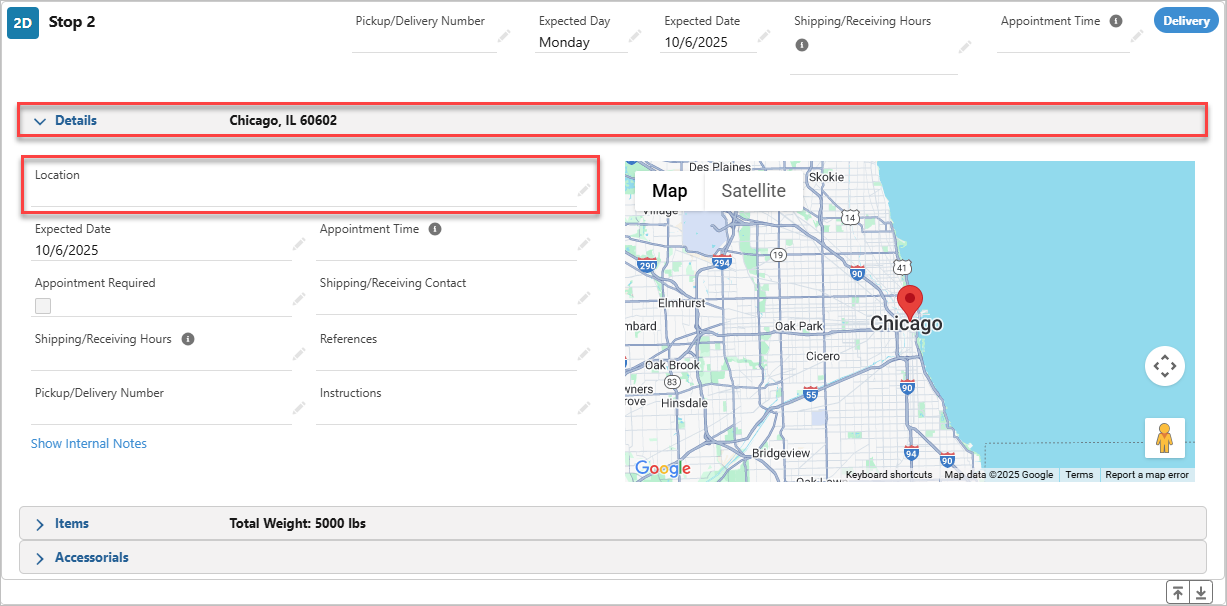
Select an Account for this Stop or create a new Account and Contact.
Click Save.
Carriers can now be tendered and assigned to this Load in the Freight Quote Assistant.