The Customer Quote Builder Lightning Web Component (LWC) is a child component of the Freight Quote Assistant (FQA) LWC.
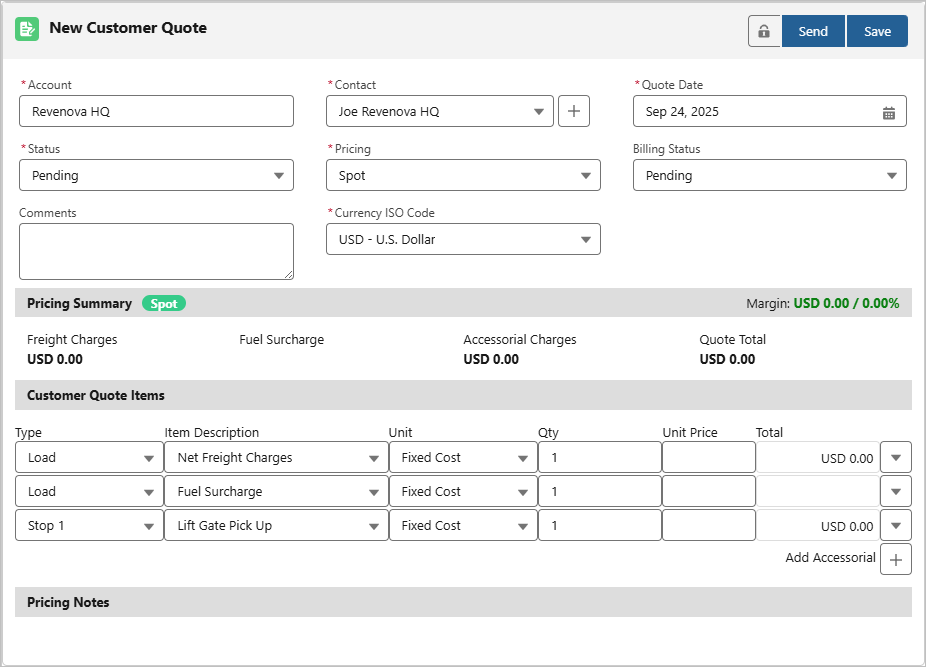
The Customer Quote Builder LWC allows the user to complete the following actions:
Enter and send a Customer Quote to the Contact.
Save or update a Customer Quote.
Calculate both amount-based and rate-based quotes dynamically.
Add accessorial charges to the Load and Customer Quote.
Fleet Management: Price Legs if you have customer stored rates for one or more possible legs of a load route.
Note: The Customer Quote aspects of the component are not visible to shippers.
Customer Quote Builder LWC Fields
The Customer Quote Builder LWC displays specific fields necessary to create a Customer Quote.
Add additional fields to the LWC with the Customer Quote TMS1 field set.
Field | Description | Required |
|---|---|---|
Account | The Customer Account for this quote. Default Value: Customer field on the Load | Yes |
Contact | The Contact to send this quote to. Choose a Contact from the picklist or create a new Contact for the Customer Account with the New Contact (+) button. Default Value: Contact related to the Account field and has the Transportation Role as Quoting | Yes |
Quote Date | The date the quote was created. Default Value: Today’s date | Yes |
Status | The state of the Customer Quote. Choose one of the following values:
Setting the value to Replaced and selecting the Save button reloads the LWC to create a new Customer Quote. Default Value: Pending | Yes |
Pricing | The type of rate quoted. The two values are Spot and Contract. The Spot value indicates that the quote was created manually or based on a marked-up Carrier Quote. The Contract value indicates that the quote is generated based on a matching Freight and Fuel Rate Entry. Default Value: Spot | Yes |
Billing Status | The status of any related Customer Invoices to the quote. This field automatically updates based on the Status field of the Customer Invoice. When the Status field is Pending, Quoted, or Expired, the available values are —None— or Pending. For the other Status values, the available values are:
Default Value: Pending | No |
Comments | Any comments regarding this Customer Quote. | No |
Currency ISO Code | The currency to use for this Customer Quote. The values available to select come from the Setup → Manage Currencies active currencies list. Default Value: USD - U.S. Dollar | Yes
|
Customer Quote Items
By default, two Customer Quote Items are included in the Customer Quote: Net Freight Charges and Fuel Surcharge.

Adjust the Unit, Qty, and Unit Price for each charge as necessary.
Select the drop-down button next to the item to add a note. Notes and details are included in the following documents by default:
Customer Rate and Load Confirmation
Customer Invoice
Customer Invoice Batch
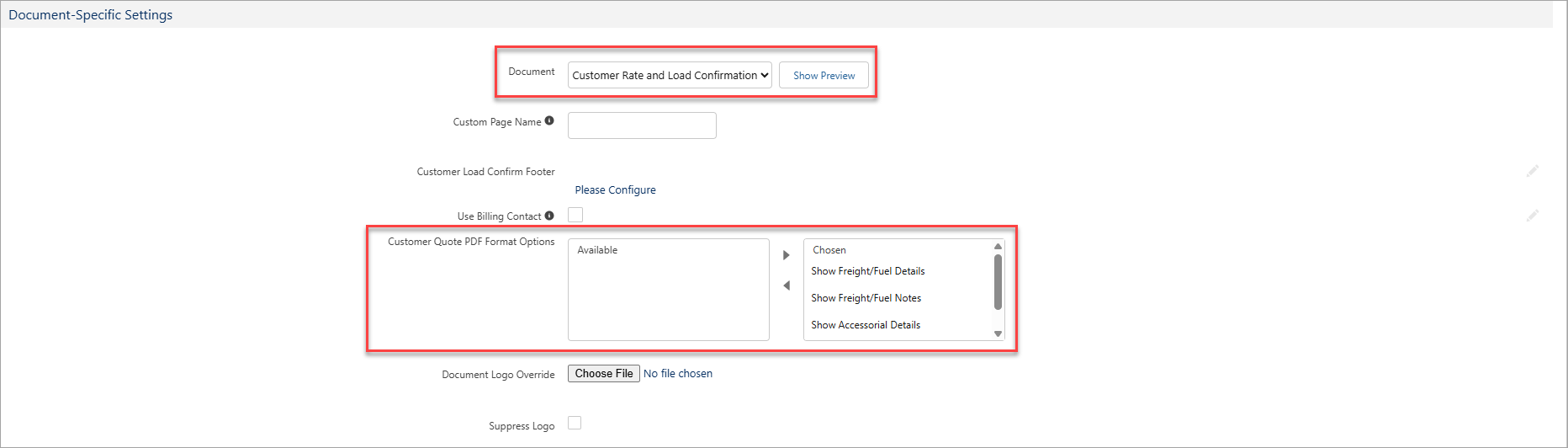
To display or hide details and notes about these charges, go to the Document-Specific Settings section in Document Options and adjust the Customer Quote PDF Format Options field for each document as desired.
Accessorials
Load Accessorials are always included as a Customer Quote Item charge when building a Customer Quote. The Type is automatically set to the Stop where the accessorial is applied.
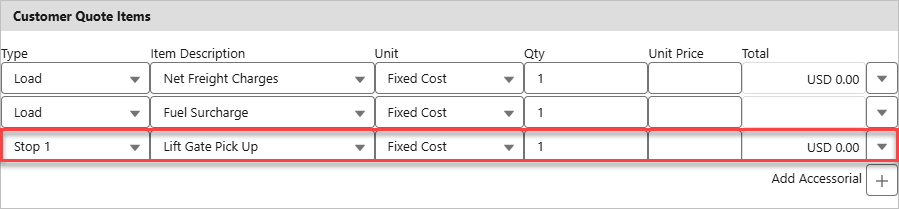
Add additional accessorial charges by selecting the Add Accessorial (+) button. Select the Type (Load or Stop-specific) and the Item Description (Accessorial).
Selecting the drop-down button by the accessorial item allows you to:
Add the accessorial charge to the Carrier Quote Builder LWC as a Carrier Quote Item
Delete the accessorial charge from the Customer Quote
Change the currency for the accessorial charge
Taxes
When applicable Sales Tax records exist for a Customer Quote, the taxes are automatically calculated and included on the Customer Quote Builder and the Customer Quote record.

Click the Update Taxes button when changes are made to Customer Quote pricing to calculate new tax values on the Quote.
Save and Send Customer Quotes
Once you’re done building the Customer Quote, select the Save button to create a Customer Quote record. This action updates the “New Customer Quote” heading to the newly created Customer Quote record and links to it.

If the LWC already has a link to the Customer Quote record, selecting the Save button updates any changes made to that record.
Selecting the Send button first creates or updates the Customer Quote, then opens the Send Email LWC. Once the quote is sent, the Status field updates the value to Quoted.
Locked Customer Quotes
The Customer Quote becomes locked once the Billing Status field is set to Approved, Adjusted, or Invoiced. A blue Locked icon indicates that the Customer Quote is locked and cannot be updated or sent.

Only users with the Lock permission are able to edit or make changes to the Customer Quote. Select the Locked icon to unlock the Customer Quote and use the Update Invoice button to update the Customer Invoice, not the quote. Select the icon again to lock the Customer Quote.
Note: If the Status of the Customer Quote is set to Replaced, the original Customer Quote record is locked.
Rate Entries
When Rate Entries match to a Load, the LWC automatically creates a Customer Quote record and updates the Customer Quote Item charge, such as Net Freight Charges. All Rate Entries and the charges they affect are included in the Pricing Notes section of the quote.
If a Customer Rate Entry matches to the Load and no Accessorial Rate Entries match to a Load Accessorial or the Rate Type of the matching Rate Entry does not include Accessorial, then the Messages field in the Customer Quote populates with the following statement:
“The following accessorials for this load were not included in this quote: {list of unrated accessorials}.”
Warning: Accessorials added to the Customer Quote with the Add Accessorial (+) button are not included in the list.
If a Freight, Fuel, or Freight+Fuel Rate Entry matches to the Load, the Pricing field of the Customer Quote updates the value to Contract. The Rerate button also becomes available if the appropriate permissions are set, which allows the ability to refresh a quote.
See the Rerate/Rebill article for more information.
Note: The Rerate button creates a new Customer Quote record with the refreshed rate and includes all Load Accessorials.
.png)
If a field in the Load TMS11, Stop TMS5, or Line Item TMS2 field sets changes and the Mode has the Rerate Notification box checked, then a red ‘Rerate’ pill appears next to the Pricing Summary.
Select the Rerate button to create a new quote with the updated rate and remove the ‘Rerate’ pill.
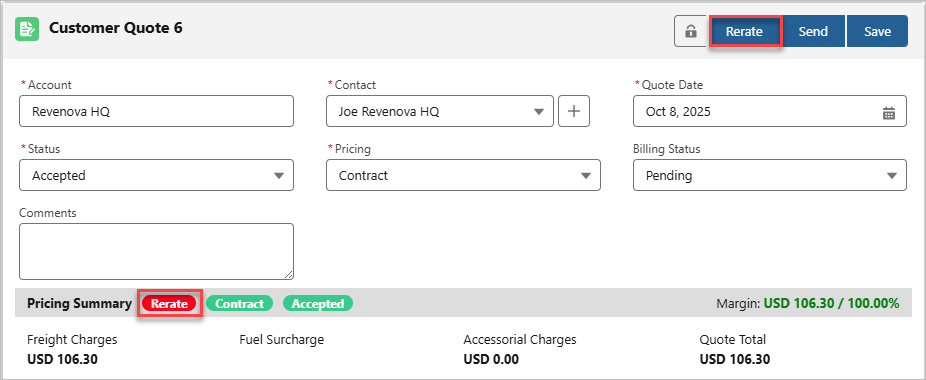
If only Accessorial Rate Entries match to a Load, the Pricing field of the Customer Quote updates the value to Spot, and the Rerate button does not appear.
Note: If both a Freight/Fuel Rate Entry and an Accessorial Rate Entry matches to the same Load, the Pricing field updates the value to Contract and the Rerate button is available.
If an accessorial is added to the Customer Quote and the customer has a matching Customer Accessorial Rate Entry that does not have the Auto-Apply box checked, the accessorial is automatically calculated with a grey toast message.

Note: The Pricing Notes section does not include the Rate Entry used to automatically calculate the added accessorial.
See the Rate Entry Detail article for more information about rate entries.
Deficit Rating
If a Rate Entry has the Enable Deficit Rating box checked and matches to the Load, then a deficit rate may apply to the Customer Quote if rating at the next weight tier costs less. See the Rate Entry Detail article to view how to set up a Rate Entry with the deficit rating feature.
The deficit rating is indicated by the note for the charge, using the following format:
“Load weight was {Total Weight of the Load} but rated at {minimum weight of tier used in the Rate Entry}”
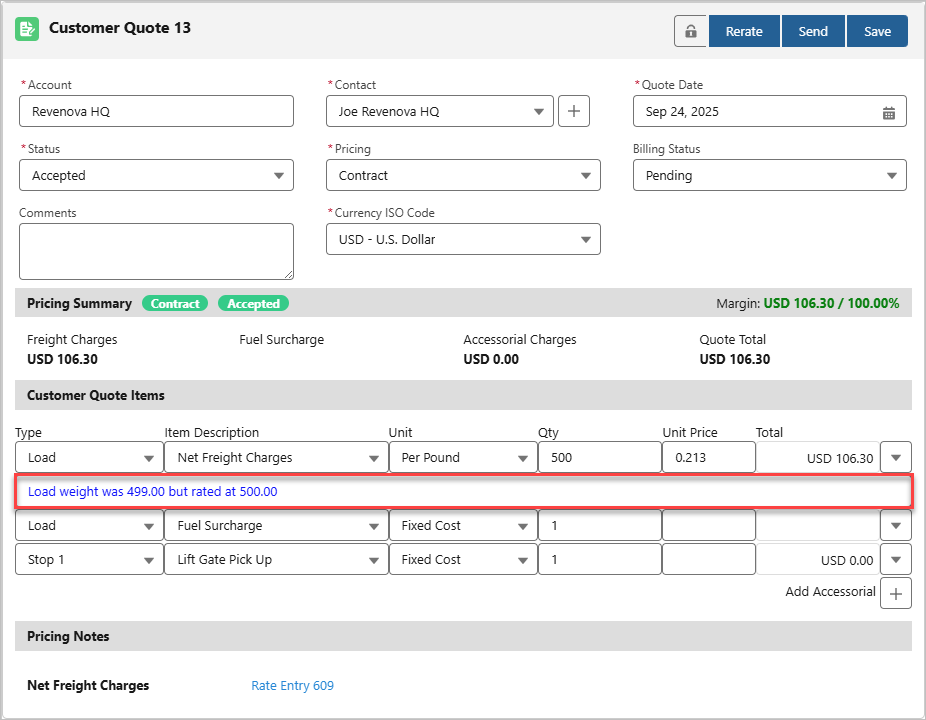
To view deficit-related fields on the Customer Quote record, complete the following steps:
Click on the Customer Quote record name.
Select the Setup Gear → Edit Page.
Add the following fields to the Customer Quote Lightning Record Page (LRP):
Deficit Weight
Deficit Rate
Deficit Charge
Adjust the visibility filter for the fields as necessary.
Click Save.
Salesforce Note: The field labels for these deficit-related fields can be changed using Salesforce Translation Workbench.
Rerate Note: To add the red ‘Rerate’ pill in the Customer Quote LWC when the Total Weight changes, add this field in the Load TMS11 field set. This pill will help indicate if a Customer Quote with a deficit rate needs to be updated.
See the Rerate/Rebill article for more setup information.
A Customer Quote Freight Charge Item record is also generated, which displays specific information about the freight charge of the Load without the deficit charge. Locate this record in the Customer Quote Freight Charge Items related list in the Customer Quote LRP.
For deficit rates that use the Billable Weight, see the Billable Weight-Based Rate Entries for more information.
Carrier Markup Rates
Customer Quotes can have Carrier Markups when the Customer Transportation Profile has a Carrier Markup Group, and Carrier Markups within that group matches to the Load and Carrier Quote.
Note: When Carrier Markups are used on the Customer Quote, the Status field remains in Pending and the Pricing field is Spot.
Create Carrier Markups in the Carrier Markup Group record attached to the Customer Transportation Profile to markup Freight, Fuel, and Accessorial charges in Customer Quotes for a Load. All Carrier Markups and the charges they affect are included in the Pricing Notes section of the quote.
Note: Rate Entries have priority over Carrier Markups. For example, if both a Rate Entry and Carrier Markup match to a Load, the Rate Entry is applied.

Example of a Carrier Markup for Freight Charges adds a 10% markup from the Carrier Quote’s Net Freight Charge of $100.
Inside the Customer Quote record, the following fields are used when Carrier Markups apply:
The Carrier Quote field links to the quote on which the markup was applied.
The Freight Markup field links to the Carrier Markup that was used for the Freight Charges.
The Fuel Markup field links to the Carrier Markup that was used for the Fuel Surcharge.
RateIQ+Markup
The RateIQ+Markup Rate Entry lets you automatically calculate a rate on the Load using RateIQ’s market rates and add markups to the Customer Quote.
To set up this feature, ensure that the following settings are configured:
The Customer Transportation Profile has a Rate Entry where:
Category is set to Customer
Rate Type is set to Freight+Fuel
Rate Method is set to RateIQ+Markup
Status is set to Accepted
The Customer Transportation Profile has a Carrier Markup Group, which contains a Carrier Markup where the Markup Basis is set to the RateIQ value. Ensure that the Mode field has a value, but leave the Carrier Service field blank.
The RateIQ Rate Entry User field in the Global Settings of TMS Admin → Configuration is set to a user who has API credentials to all RateIQ sources.
Warning: If no RateIQ Carrier Markup is found, the Customer Quote is not created based on the RateIQ calculation amount.

Example of RateIQ+Markup Rate Entry on a Customer Quote with a markup only for the Net Freight Charges
Note: The Pricing Notes section shows both the RateIQ+Markup Rate Entry and the Carrier Markup used to generate the total for the cost item.
The Pricing field remains in Spot since the Customer Quote is spot-quoting based on the RateIQ calculations and is shown with the green ‘Spot’ pill next to the Pricing Summary section heading.
Selecting the Rerate button will return a new Customer Quote with matching Rate Entries and Carrier Markups. However, since RateIQ is dynamic, the Net Freight Charges and Fuel Surcharge amounts are likely to change, as the latest RateIQ amounts are gathered and then adjusted by the Carrier Markups that apply.
To view the RateIQ Freight and Fuel charges before the markup was added, click on the Customer Quote record name and locate the following fields:
RateIQ Freight
RateIQ Fuel
RateIQ Total
The RateIQ Total field combines the values of RateIQ Freight and RateIQ Fuel fields.
Refer to the RateIQ+Markup Rate Entries article for more information on how rates are calculated, along with examples of different Markup Types for Carrier Markups and Rate Entries.
Troubleshooting
Error: Load Must Have a Total Volume
When entering the Freight Quote Assistant (FQA), an error stating that the “Load must have a total volume to calculate Dimensional Weight” may appear.

This error occurs when a Billable Weight-Based Rate Entry matches to the Load, but the Total Volume field on the Load is blank.
Resolution
Ensure that all Line Items on the Load have a value for the following fields:
HU Count
Length
Width
Height
Note: If the volume of the Line Items is already known without the above values, enter the value in the Volume field for all Line Items and skip to step 3. The Volume is rounded to the nearest whole number.
Check the Auto-Calculate Area and Volume on each Line Item to automatically calculate and populate the Volume field. All Volume values from the Load’s Line Items are added together and populate the Total Volume field on the Load.
Re-enter the FQA. The Billable Weight-Based Rate Entry now applies to the quote.
For more information about how the volume of a load is calculated, see the Load Calculations article.