Document Options is a feature in TMS Admin that represents a collection of organization logos, email templates, instructional text, terms and conditions, and footer text specific to a Mode and/or User. Documents are generated based on the selected Document Options record.
Note: Only one Document Options record should have the Global Defaults field checked.
Name of Document | Purpose | Associated Document(s) |
|---|---|---|
Bill of Lading (BOL) Email and PDF Documents | These documents provide Carriers with the BOL, or a legally binding agreement and itemized list of shipment goods. | |
This document assists with manual Carrier onboarding. | ||
Carrier Quote Request Email and PDF Documents | These documents are sent to Carriers to request a response with a quote offer for an unassigned Load. | |
Carrier Rate and Load Confirmation Email and PDF Documents | These documents provide Carriers with a RFP and confirms an accepted Load. | |
Customer Invoice Email and PDF Documents | These documents are created for the customer following a Delivered Load Status. | |
Customer Invoice Batch Email and PDF Documents | These documents take all customer invoices and send them in bulk using a batch process. | |
Customer Quote Confirmation Email and PDF Documents | These documents confirm an accepted quote for a customer. | |
Driver/Fleet Driver Load Confirmation Email and PDF Documents | These documents are used in Fleet Management to confirm when a Driver accepted a Load. | |
Carrier Email Loop Emails | These are a group of emails that request specific information such as Carrier documents and a Carrier’s ability to Accept or Decline a Load. |
|
| These documents assist in generating a quarterly fuel tax filing report to track total miles driven across different states and provinces. | |
PAPS Cover Sheets | These documents are used for border crossings for shipments traveling to Canada or Mexico. They are also used as a summary sheet for the shipment that includes a pre-arrival processing system (PAPS) barcode. | |
PARS Cover Sheets | These documents are used for border crossings through Canada specifically and are included with the general shipment paperwork. | |
Remove Carrier Email | This document is used to notify Carriers that they have been removed from a Load. | |
Shipping Labels | These documents are labels that provide information on the details of the shipment’s Stop locations. | |
Vendor Rate Documents | These documents are RFQs from vendors. | |
Warehouse Loading Forms
| These documents are used to prevent loss of movement of shipped goods, including the tracking of accurate location, quantity, and other important details. |
Enter values for all fields on the Global Document Options record.
Document Options Selection Criteria
Document Options Selection Criteria records designate when to use a Document Option record. These criteria are based on the following fields:
Mode
User record field
Common TMS scenarios include the following examples:
One Global Default Document Options record serves for the entire company.
Division/office-specific logos and legal text requiring distinct Document Options records.
Mode-specific logos and legal text for different groups (LTL versus Truckload) within a brokerage.
Create additional Document Options records as required. View and create Document Options by navigating to the TMS Admin → Document Options.
Create Document Options records to control the generation of records. Document Options records from the list allows the user to edit the record fields.
The list of Document Options and Document Options Selection Criterion records are displayed. Document Options Selection Criteria may be used to control the Document Options record to use for a Mode and/or User field.
.jpg)
In the example screenshot, there are two Document Options records and one Document Options Selection Criteria to use the non-Global Default record for a specific user.
This example record indicates that the Division One Document Option record is used when the following occurs:
The Mode is LTL.
The User Division field is LTL.
If this criterion evaluates to False, the Global Document Options record is used to generate documents and emails.
Additionally, Evaluation Order in the Document Options Selection Criteria table helps establish priority of an org’s Document Options order of business.
For example, consider an org with three different types of Document Options based on Mode. If the org’s primary order of business is LTL, Document Options for the LTL Mode should be set to 1. The Evaluation Order can be also established using the User Field Name, which includes a variety of fields to choose from such as city and department.
Use the Up and Down links under the Action column to reorder the Document Options Evaluation Order. The Global Defaults Document Options is the fallback option if no Evaluation Order exists.
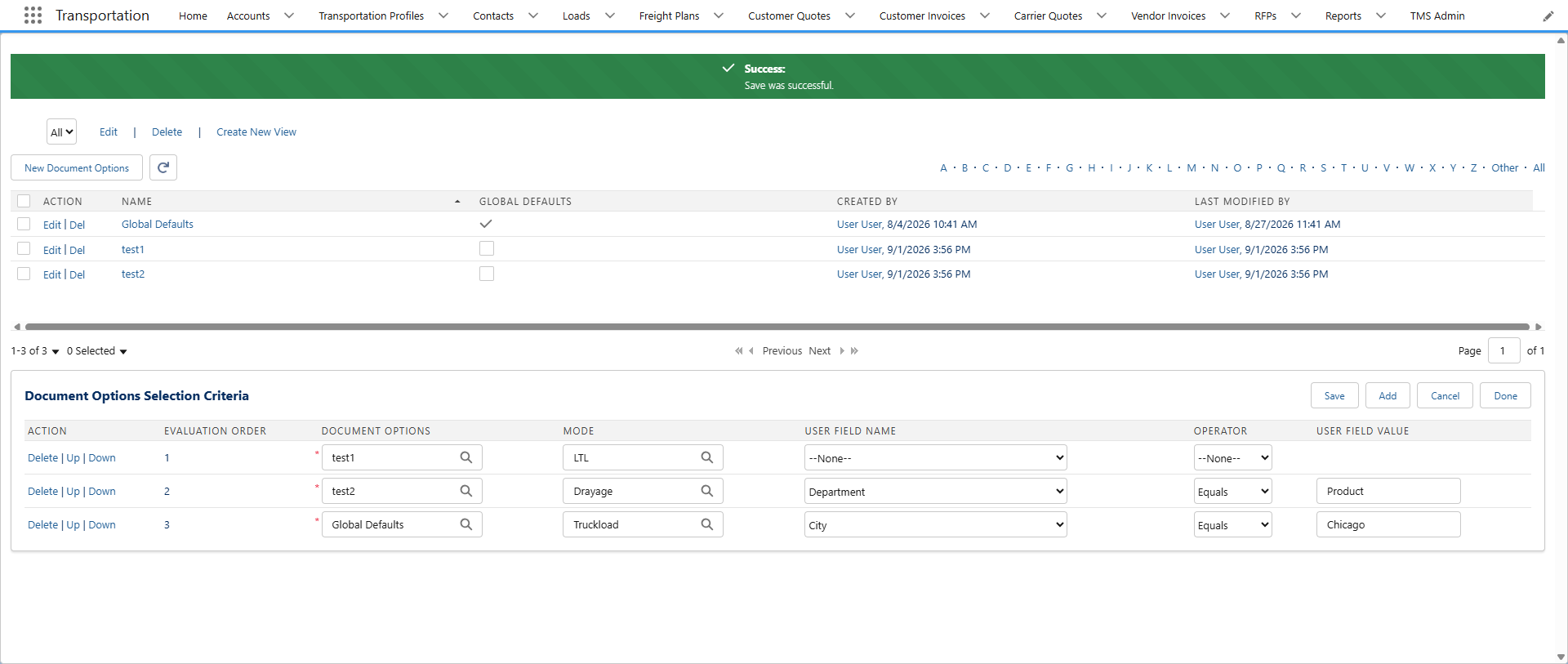
Note: If a User Field Name is selected as the filter for the Document Options Selection Criteria, include an Operator and User Field Value or the criteria rule will not save.
Document Options Cascade
Document Options operate in a “cascade” manner. If a field for a Document Option record is missing, the Global Default record value is used. This allows the creation of limited Document Options records without having to reenter all the Global Default field values required.
For example, if the only difference between the Global Default record and a Mode-specific record is the BOL Legal Text, the only requirement is to enter that one different field on the Mode-specific record.
Document Options’ Fields: General Info
The following fields define the Document Options record.
Field Name | Description | Associated Hidden Fields | Additional Notes |
|---|---|---|---|
Name | A required field that displays the unique record identifier. | ||
Global Defaults | The checkbox that indicates if the Document Option record should apply organization-wide. | Only check one Document Option record. | |
Mask Shipper/Consignee on Carrier RFQ | A checkbox option to hide the Shipper/Consignee’s information on an email-based Carrier Quote request. |
| |
Mask Shipper/Consignee on Carrier Tender | A checkbox option to hide the Shipper/Consignee’s information until a Carrier accepts a Load Tender. |
| The Bill of Lading (BOL) isn’t sent until a Load Tender is accepted if this field is checked. |
No Documents Until Tender Accepted | A checkbox option that doesn’t send quote or tender documents via email until a Carrier accepts a Load Tender. | ||
One-Click Carrier Quote Tender Response | A checkbox option that allows email recipients to Accept or Decline a Load Tender directly from the email. |
| |
One-Click Customer Response | A checkbox option that allows email recipients to Accept or Decline a Customer Quote directly from the email. |
| |
Payment Terms | A picklist to select the type of payment terms for Carriers. |
| Specific to SMC3 EVA quoting |
Document Logo | A location where the organization’s logo image can be uploaded to be included on all documents. |
| |
Document Account | A lookup field that populates the Account Name and Address from the TMS User company referenced on documents. |
| |
Default Carrier Bill To | A lookup field that populates the Load Carrier Bill To field automatically after tendering. | ||
Suppress HazMat Column | A checkbox option to hide the HazMat column for all non-HazMat Load documents. | ||
Suppress NMFC Column | A checkbox option to hide the NMFC columns for all documents if the fields contain no value. | ||
Itemize Carrier Quote Accessorials | A checkbox that requires Carriers to enter itemized accessorial charges on in email Carrier Quotes. | ||
Enable Assign Carrier On Tender Option | A checkbox that assigns a Carrier when a Load Tender email is accepted by the Carrier. | ||
Request Tender Decline Reason | A checkbox that requires a Carrier to enter a reason for declining a Load Tender. | ||
Payer | A picklist to select the type of payers for Carriers. |
| Specific to SMC3 EVA quoting |
Document Production Settings
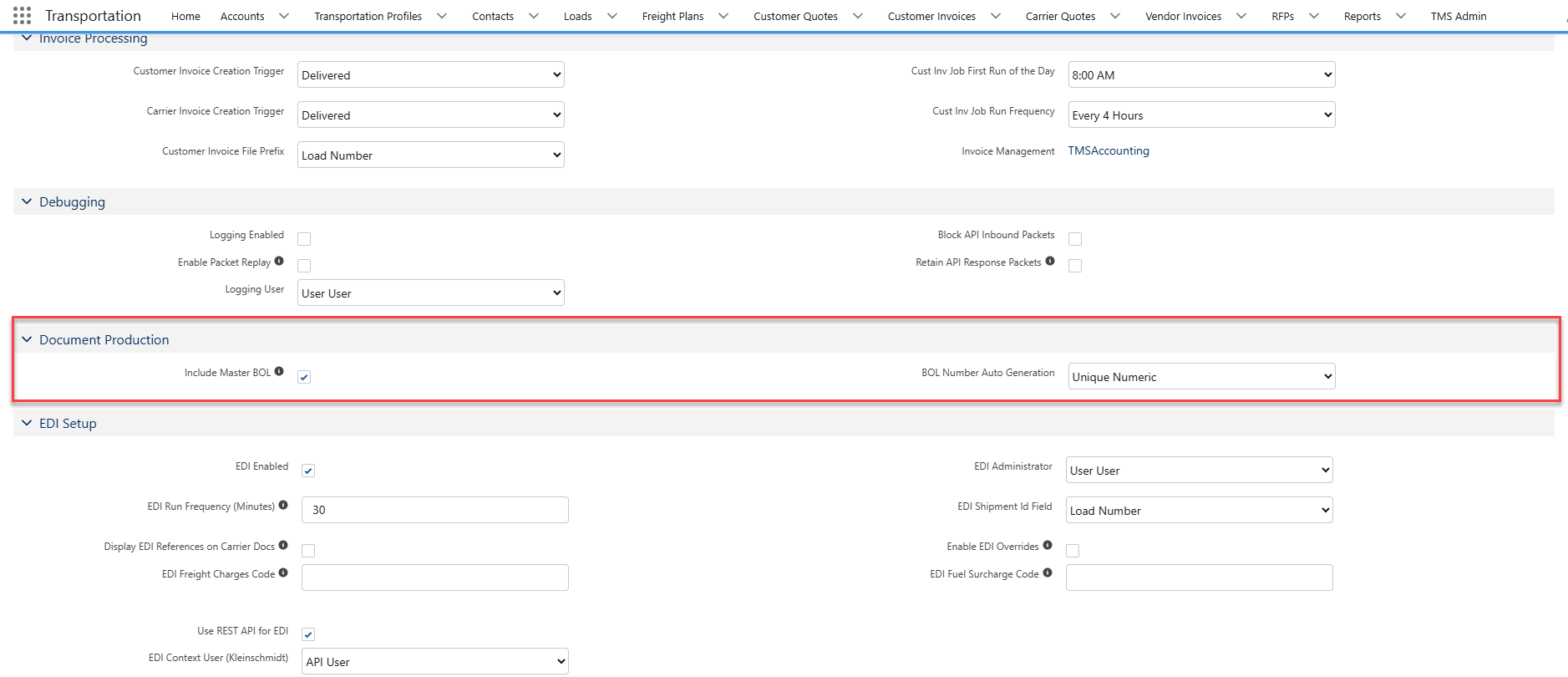
Most document-specific settings are contained in Document Options. However, there are two global settings that are available in the TMS Admin → Configuration:
Include Master BOL
This is a checkbox option. If checked, it’s required to include a Master BOL document and number when multi-stop Load BOL documents are created.
BOL Number Auto-Generation
A picklist that applies when a BOL document and number is generated for a Load. Options include:
None – Use for custom BOL Number generation logic.
Unique Numeric – Default behavior; a unique integer is generated for the BOL Number.
[Load object field] – Select another load object field, such as PO Number or Load Number.
Troubleshooting Document Options Errors
BOL Rendering After Generation
Issue
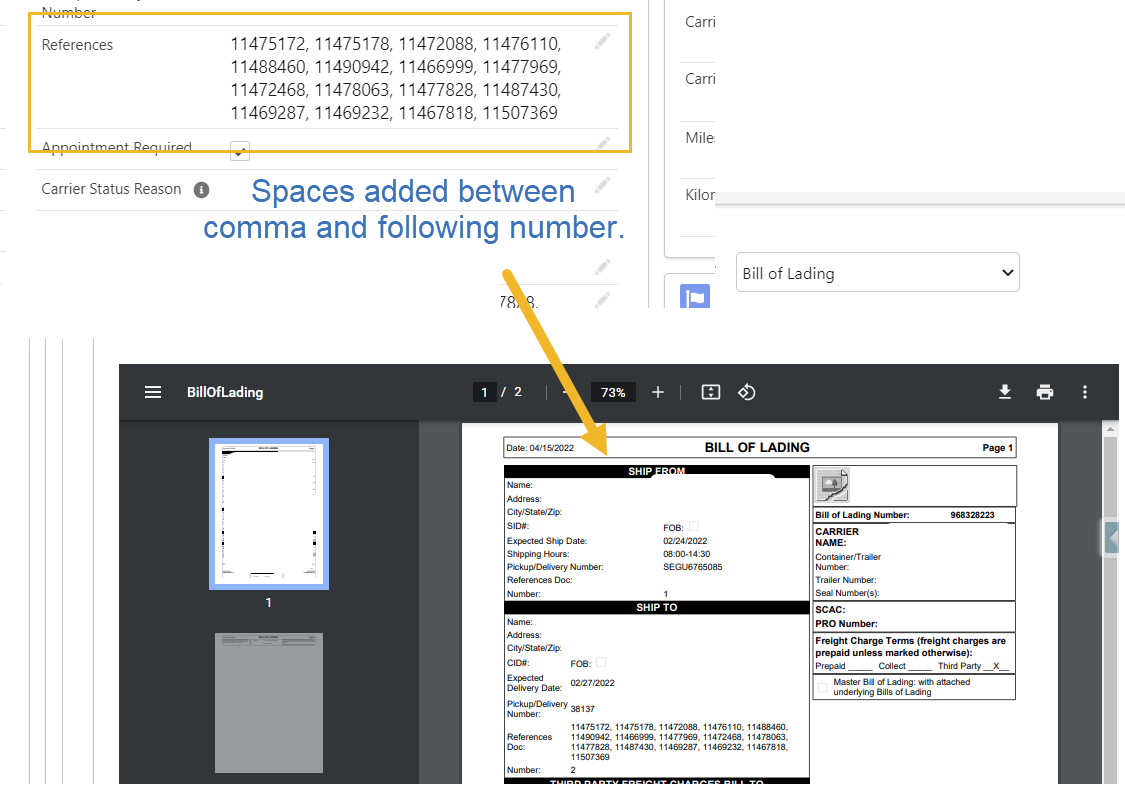
Generating a BOL document doesn’t populate the fields correctly. BOL documents are cut off, and Carrier names aren’t included.
Resolution
When using a string of numbers in any field used on the BOL document, a space must be added between the comma and the following number.
Incorrect Formatting of BOL Document
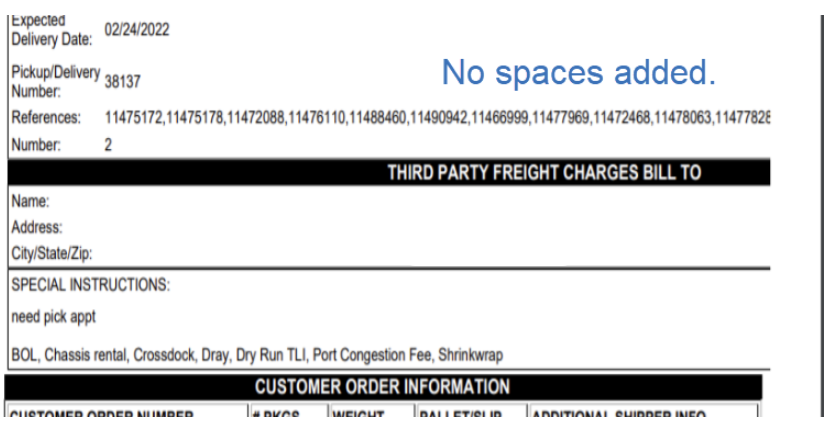
Correct Formatting of BOL Document
Preview Customer Quote Rate Confirmation
Issue
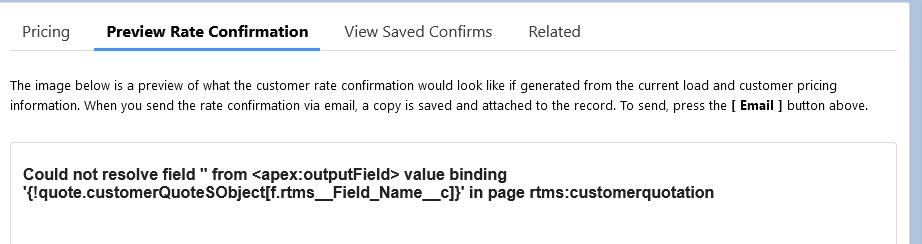
Previewing a Customer Quote Rate Confirmation and a user encounters the “Count not resolve field” from <apex:outputField> value binding” error.
Error: Carrier Quote
Could not resolve field “from <apex:outputField> value binding in page rtms:carrierandloadconfirmation.”
Resolution
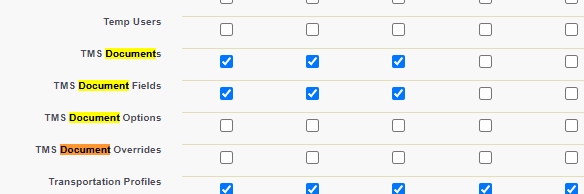
This error occurs when a user profile doesn’t have access to TMS Document Fields.
Navigate to Setup → Profiles.
Select the appropriate profile and click Edit.
Find TMS Document Fields.
Grant Create, Read, and Edit access for the profile.
A permission set may be created and assigned to the user to grant TMS Document Fields access as well.
Content Blocked When Previewing BOL Document
Issue
There is an error when attempting to preview the Bill of Lading document: “This content is blocked. Contact the site owner to fix the issue.”
Resolution
The following changes must be made to the web browser. Please note these errors have been identified in Google Chrome and Microsoft Edge.
Google Chrome:
Access the browser settings.
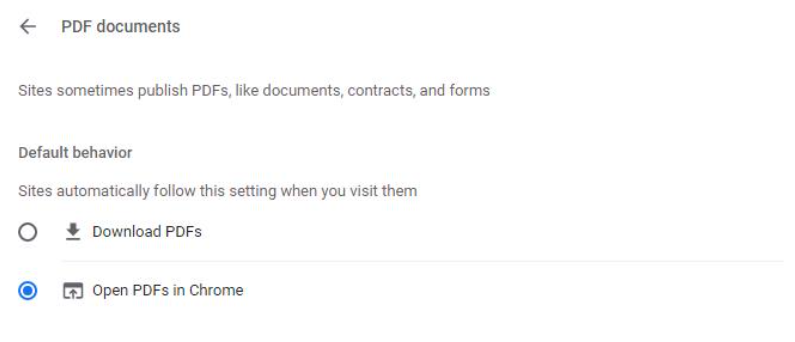
Settings → Privacy and Security → Site Settings → Additional Settings → PDF Documents
Change the settings to open PDFs in Chrome, not to download PDFs.
Microsoft Edge:
Access the browser settings.
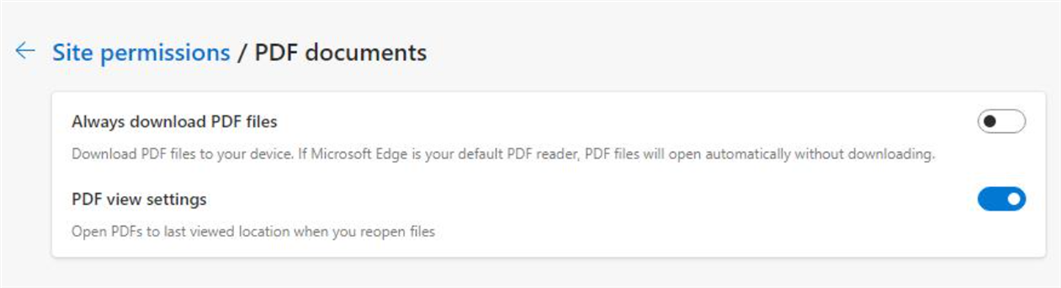
Settings → Cookies and Site Permissions → PDF Documents
Change the settings to turn off Always download PDF files. Turn on PDF view settings.