The Load Posting Lightning Web Component (LWC) enables multiple TMS integrations to post or unpost Loads on load boards. The LWC is located in the Revenova default Load Lightning Record Page (LRP).

Setup
In the Global Settings section from TMS Admin → Configuration, set the following fields:
Load Posting Refresh Interval (Minutes): Select one of the following options: 15, 30, 60, 120, or 240 minutes.
The default value is 120 minutes. Set this value as necessary.
Truck Posting Retention Period (Days): Set one of the following options: 1, 2, 3, 4, 5, 6, or 7 days.
Truck Postings are available for the number of days set in this field.
There are two batch process jobs that run continuously to update information in the Load Postings LWC. The jobs perform the following functions:
LoadAndTruckPostingManagementJob2
Delete stale Truck Postings
Post Auto-Post Loads
Refresh active Load Postings periodically
Purge and recreate active Load Postings each morning
QueuedTransactionJob
Delete Load Postings for covered Loads
The LoadAndTruckPostingManagmentJob2 runs according to the Load Posting Refresh Interval (Minutes) field. Load and Truck Postings are updated according to the values in the Load Posting Refresh Interval (Minutes) and the Truck Posting Retention Period (Days) fields.
Caution: The LoadAndTruckPostingManagementJob is deprecated in the TMS Fall ‘24 release. Run LoadAndTruckPostingManagementJob2 to control Load and Truck Postings. If the LoadAndTruckPostingManagementJob is running, navigate to Setup → Scheduled Jobs and delete the scheduled job before running LoadAndTruckPostingManagementJob2.
Load Board Integrations
For more information, see the individual Load Board articles:
Load Postings Fields
The following table illustrates the Load fields included in Load Board postings when populated.
Field Name | Description | Included in Posting |
|---|---|---|
Max Pay Amount | The maximum amount to pay a carrier for this load. This field is informational only. | |
Offer Rate | The current rate being offered to carriers for this load. | |
Offer Rate Type | The type of offer rate. Values include:
If this field is blank, the default value used is Fixed Cost. | |
Carrier Portal | If checked, the Load is available in the Carrier Portal and the internal RFQ Load Board LWC. | |
Load Posting Description | A short description of the Load Posting | |
Full Truckload | If checked, the Load is a non-LTL mode. | |
Truck Length | The length of the truck. This field is initially populated depending on the length of the Load’s Equipment Type. |
Note: The Load Posting LWC respects the organization field permission settings. Prevent users from editing Load Posting fields by setting permissions for objects or fields as necessary.
To edit any of these fields in the LWC, select the Edit  button to make changes.

Load Postings Actions
The following actions can be done in the Load Postings LWC:
Post a load to a load board using the Post
 button.
Post or remove a load to all available load boards using the Post/Removal All
.png) button.
button.Refresh all Load Postings with the current information in the LWC using the Refresh
 button.
Remove a posting from a single load board using the Remove
 button.

Check the Book It Now box to enable carriers to use the Book It feature on either the Trucker Tools or Truckstop load boards.
Load Statuses
The Load Status field on the Load determines when Loads are posted, refreshed, or removed from the Load Board.
Loads are posted to load boards with the following statuses:
Unassigned
Quotes Requested
Quotes Received
Tendered
Declined
Loads are removed from load boards with the following statuses:
Assigned
Dispatched
In Transit
Delivered
Completed
Cancelled
Expired
Posting Statuses
The current Load Posting state is shown in the Posting Status field on the Revenova default Load Posting Lightning Record Page (LRP). Values include the following:
Posted: The Load Posting is currently active on the load board.
Queued for Unpost: The Load Posting is removed from the load board the next time the job runs.
Unposted: Load Posting was manually removed from the load board.
Expired: Load Posting was removed from the load board automatically by the job.

Auto-Unpost Loads
Loads are set to automatically unpost based on the Time Until Auto Unpost field in the Customer Transportation Profile. Set the number of hours a Load is active on load boards for each customer.
Caution: Enter only whole numbers in the Time Until Auto Unpost field. Decimal numbers are automatically rounded to and operate as the whole number.
The Load Posting LWC displays the Unpost date and time based on the Time Until Auto Unpost value. Hover over the calendar icon to display the date and time. This field is also available in the Load Posting record.

From the Load or Load Posting list views, select the appropriate records. Select the Unpost button to queue the records for removal from the load board. The records are removed the next time the LoadAndTruckPostingManagementJob2 runs.
.jpg)
Load Posting records removed from the list view have the Load Posting Status field set to Queued for Unpost. The records are removed the next time the LoadAndTruckPostingManagementJob2 runs, and the Load Posting Status is set to Unposted.
.jpg)
Load Board Aliases
The TMS supports "aliases" when using Load Board postings. Enter values in the Posting City and Posting State/Province fields. An alias allows small-town locations that are close to larger metropolitan areas to be displayed as the more recognizable location.
Note: The Truckstop Load Board does not support posting aliases.
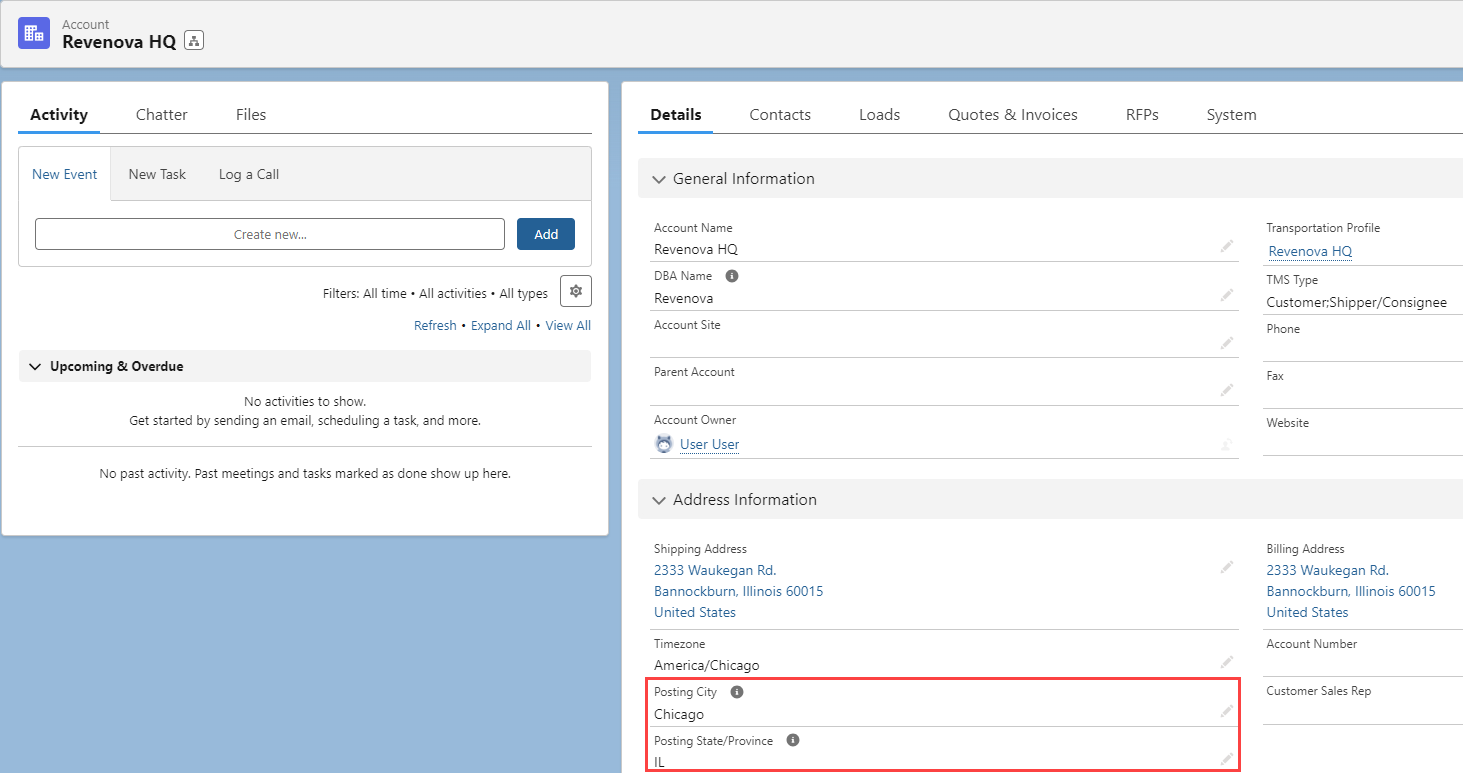
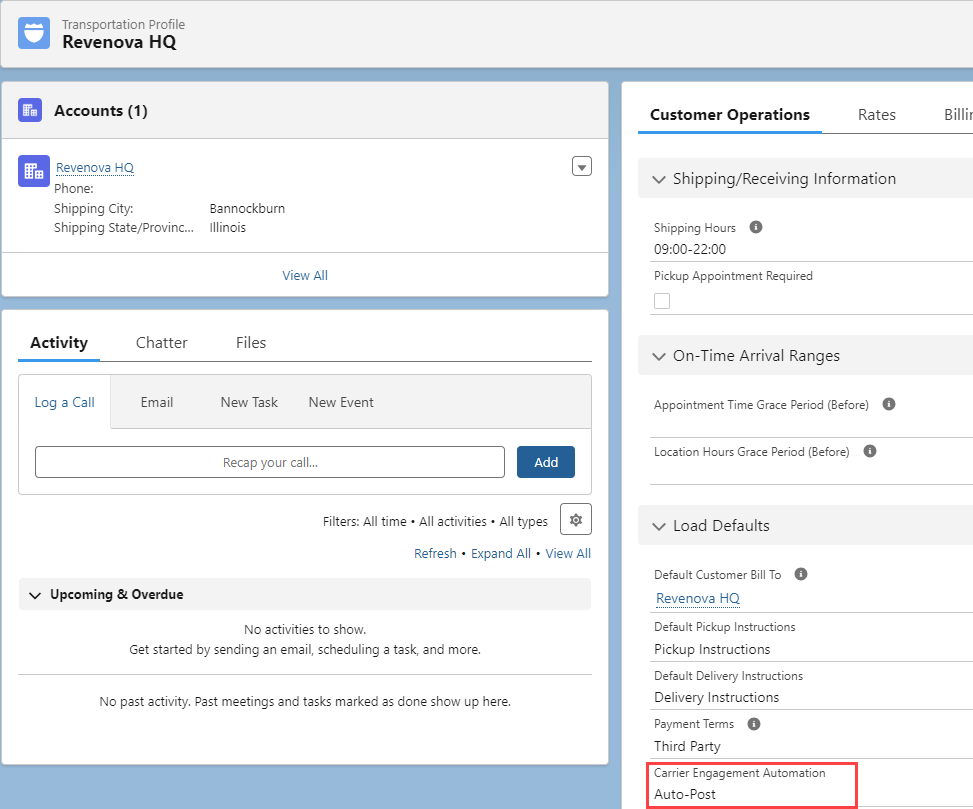
Carrier Engagement Automation
Loads for a customer may be auto-posted to Load Boards. From the Customer Transportation Profile, find the Carrier Engagement Automation field. Choose the Auto-Post value and Save. When selected, loads are posted automatically to any Load Boards that are set up in the TMS.
Multiple Stops with a single Account Location
Loads with the same (within the same postal code) 1st Pickup location and final Delivery locations can’t be posted to Load Boards. An error message is presented to the user attempting to post Loads from the LWC.
In other scenarios, an email is sent to the Carrier Sales Representative on the Load. If no Carrier Sales Representative is available, the Load owner receives the email. The contents of the email describe the Load posting failure with the Load number and all impacted API Load Board partners.
An email is sent when attempting to post Loads from the Load List View or when Auto-Posting is enabled.