Some information in the Customer Transportation Profile is automatically populated in fields for newly created Loads.
The Revenova default Lightning Record Page (LRP) for Customer Transportation Profiles contains fields for managing customers and Stop locations.
Refresh Credit
The Refresh Credit button recalculates the A/R balances and credit limit available for this customer. This calculation overrides the sharing settings for the Load object to provide accurate results.
See the Customer Credit Limit Management article for more information about credit limits.
.png)
Shipping/Receiving Information
The shipping and receiving information fields control the time management of moving Loads to and from a location.

Set the Shipping Hours and Receiving Hours fields to control when shipments may be picked up or delivered at the location. Enter these fields in 24-hour time format—for example, 09:00-22:00.
Check the Pickup Appointment Required or Delivery Appointment Required fields to require an appointment for shipments to this location.
Select an Appointment Method to indicate the preferred communication method for scheduling appointments. The available values are:
—None—
Phone
Email
Website
Auto-Email
Note: The Auto-Email option is used for the AppointmentRequestJob to automatically send Appointment Request emails to Contacts with the Appointments value in the Transportation Role field for this location.
Set the Default Appointment Request Expiration field to control the number of hours an Appointment Request remains active after the email is sent before the request expires. If this field is blank, the logic cascades to the Global Default Transportation Profile.
This optional field only applies when sending Appointment Requests with the following features:
The Load Detail Lightning Web Component (LWC),
The Appointment Setting in the Fleet Management Console or Appointment Console, and
The AppointmentRequestJob batch process.
Fleet-Specific Fields
The Appointment Time Grace Period (Before)/(After) fields are used in the Fleet Management Console to indicate when the Planned Time of Arrival is outside of the Appointment Time Grace Period window. Enter field values in minutes before and after the Appointment Time to determine when a pickup or delivery is outside of the appointment window. If there is no value for these fields, they are treated as 0.
The Location Hours Grace Period (Before)/(After) fields are used as a grace period window in cases when Carriers may arrive before or after the Shipping or Receiving Hours field values. These fields are only referenced when an Appointment Time grace period is not present. The Location Hours Grace Period fields do not impact the Fleet Management Console functionality.
Stop Location Settings
Monitor the status of cargo and expected dwell times for Stop locations by entering default values on the Transportation Profile.

Enter default times (in minutes) into the following fields to populate from the Transportation Profile when creating Loads:
Planned Duration Pickup Preloaded
Planned Duration Pickup Live Load
Planned Duration Delivery Drop
Planned Duration Delivery Live Unload
The default Cargo Status for a Stop location may also be set on the Transportation Profile.
Default Cargo Status Pickup
Preloaded
Live Load
Default Cargo Status Delivery
Live Unload
Drop
Stop location fields are available when configuring the Load by adding the Cargo Status and Planned Duration (Dwell) fields to the Stop TMS1 and Stop TMS3 field sets.
The Stop TMS1 field set is available on the Load Detail LWC. Fields are populated based on the Stop type (Pickup or Delivery).
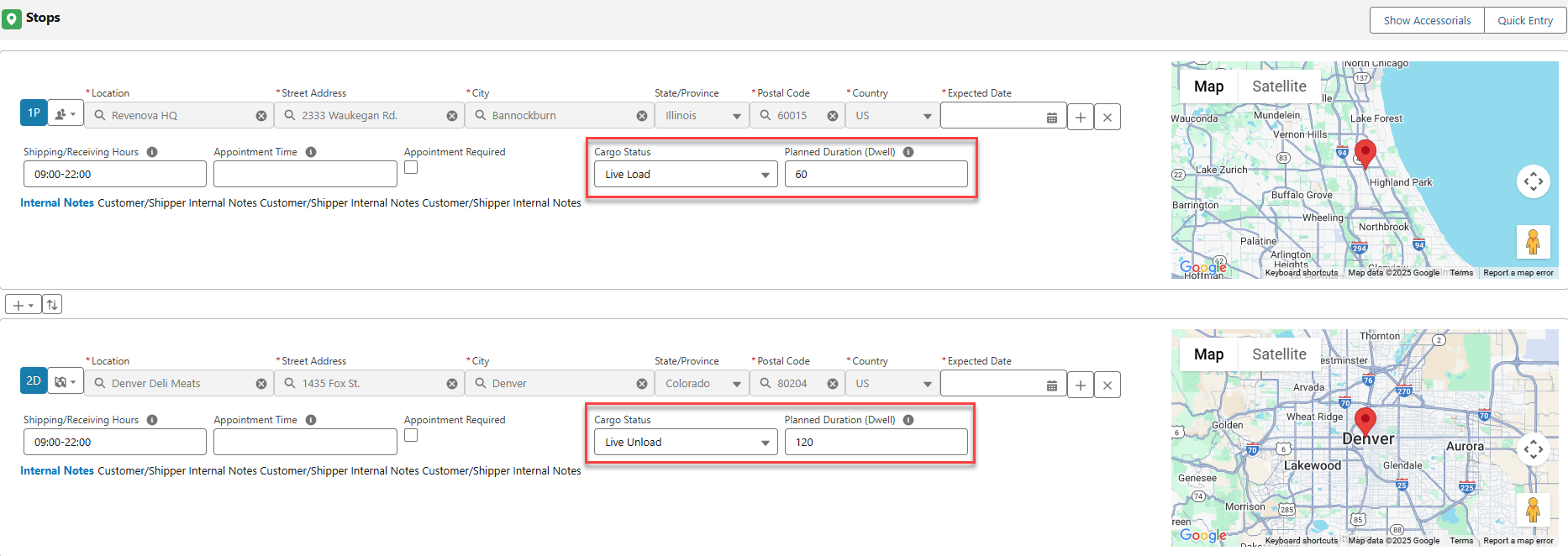
The Stop TMS3 field set is available on the Stop Configuration Detailed LWC. When a Cargo Status value is entered on the Stop Detail LWC, the appropriate Planned Duration field is populated from the Transportation Profile.
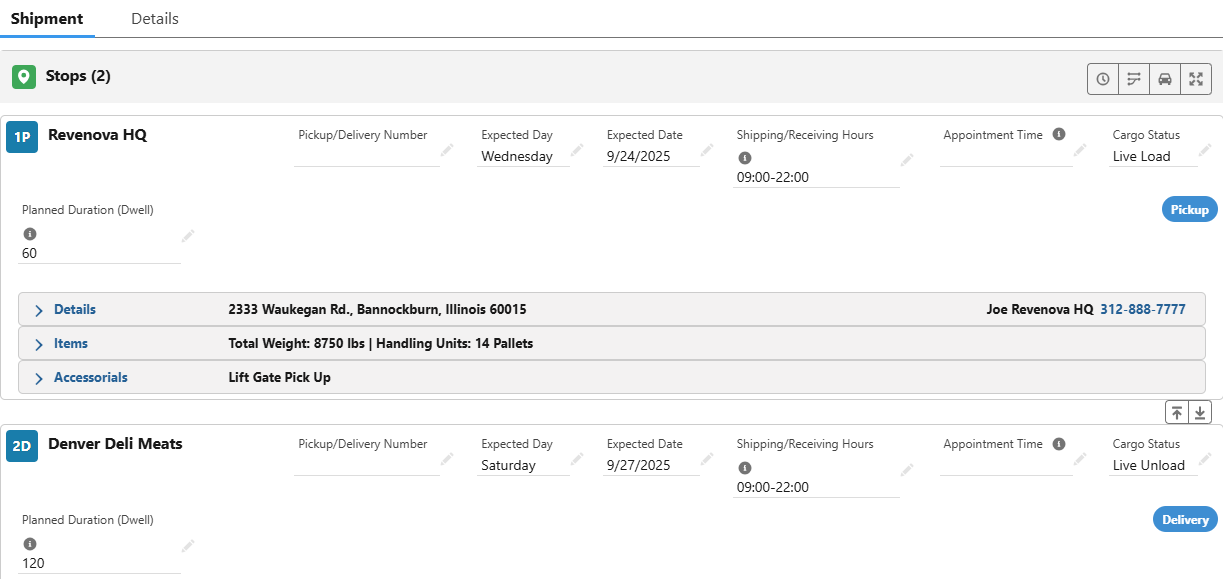
These fields may be manually adjusted during Load creation and configuration without changing the default values on the Transportation Profile.
Fleet Management
When Loads are added to a Trip Plan with Cargo Status and Planned Duration dwell times, these values automatically populate into the Trip Plan.
Change dwell times and the Cargo Status fields on the Trip Plan as necessary.
Note: These changes do not update the default values on the Transportation Profile.
Internal Cargo Insurance Fields
The Internal Cargo Insurance Option and Internal Cargo Insurance Mode fields in the Customer Transportation Profile control the automation for adding cargo insurance to a Load.
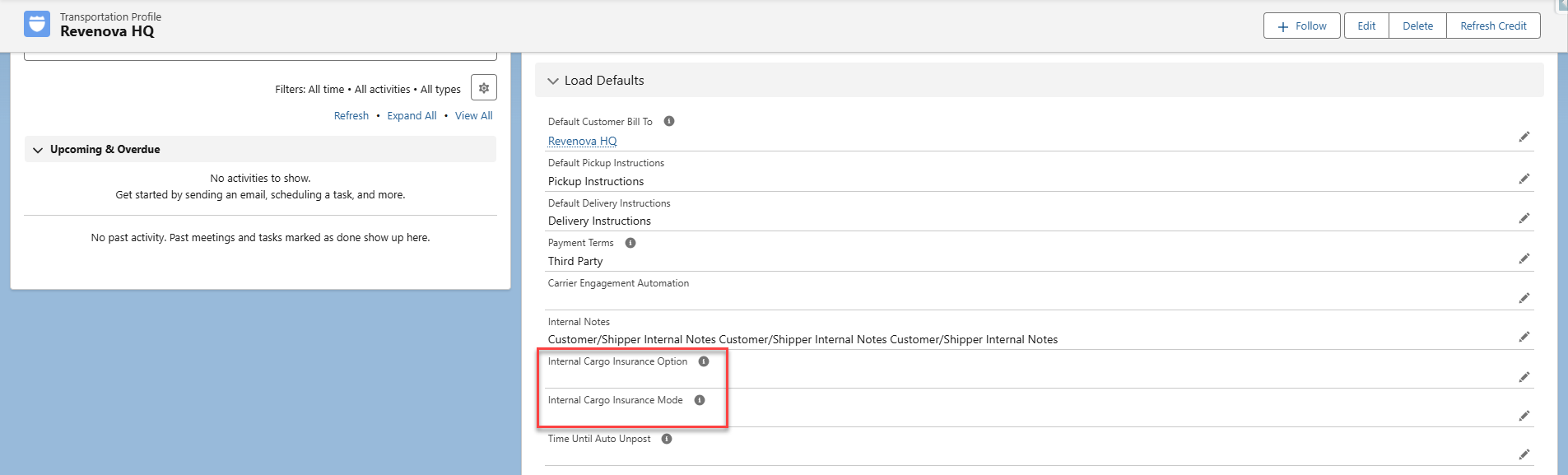
When the Internal Cargo Insurance Option field has a value (Opt In or Opt Out), the Internal Cargo Insurance Mode field becomes required. Select the modes from the multi-select picklist to determine which modes of transportation the automation applies to.
If only one of these fields has a value but not the other, validation prevents the selection from saving. Either add values to both fields or neither.
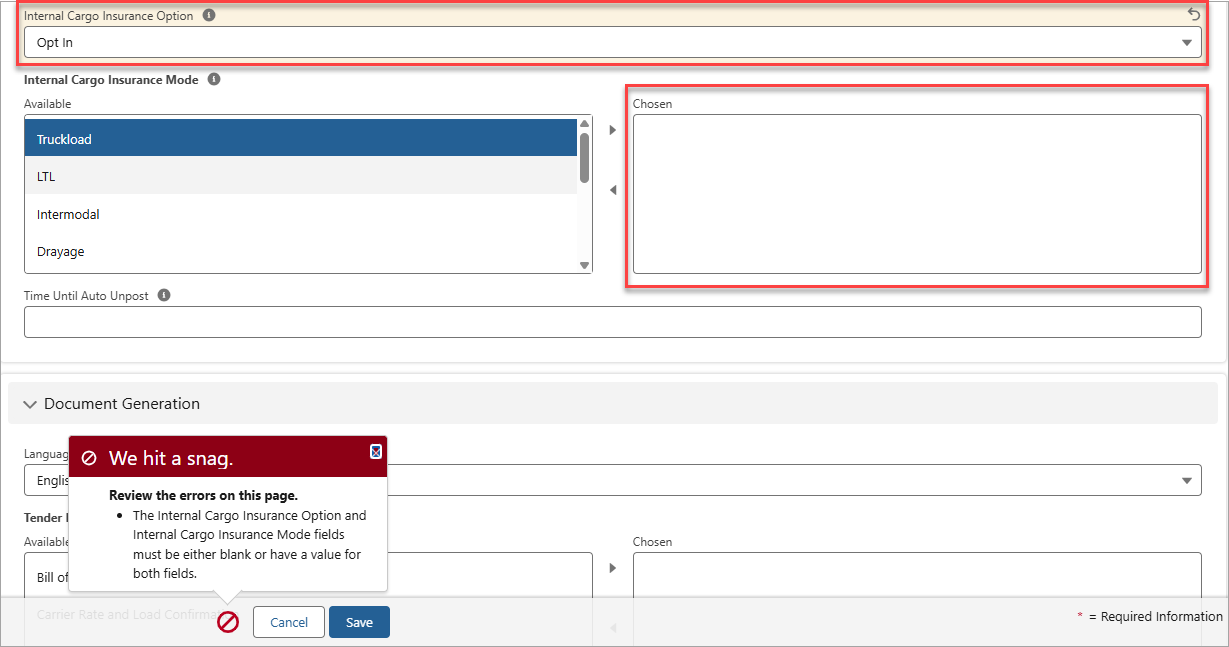
The two values for the Internal Cargo Insurance Option field have different automation processes:
Opt In: A price for cargo insurance is automatically provided, but not automatically authorized. To add the cargo insurance, authorize the policy on the Insurance LWC.
Opt Out: Cargo insurance is automatically added to the Load and applied to the Customer Quote as an Accessorial.
See the Insurance LWC and Falvey Insurance articles for more information.
Automatic Carrier Tracking Fields
This field in the Customer Transportation Profile enables automatic load tracking if the Load has the Automatic Carrier Tracking field set to Enabled.
.png)
The values this field can have are the following:
Global
Enabled
Disabled
When this field is set to Global, the logic cascades to the Global Default Transportation Profile.
If it is set to Enabled, automatic load tracking is enabled if the Load’s Automatic Carrier Tracking field is also set to Enabled. If the field is set to Disabled, then tracking will always need to be manually started on Loads for this customer.
When the field is set to either Enabled or Disabled, the following fields appear in the Customer Transportation Profile:
Automatic Tracking Start Trigger
Automatic Carrier Tracking Enabled Modes
Tracking Provider
Tracking Duration
Tracking Update Interval
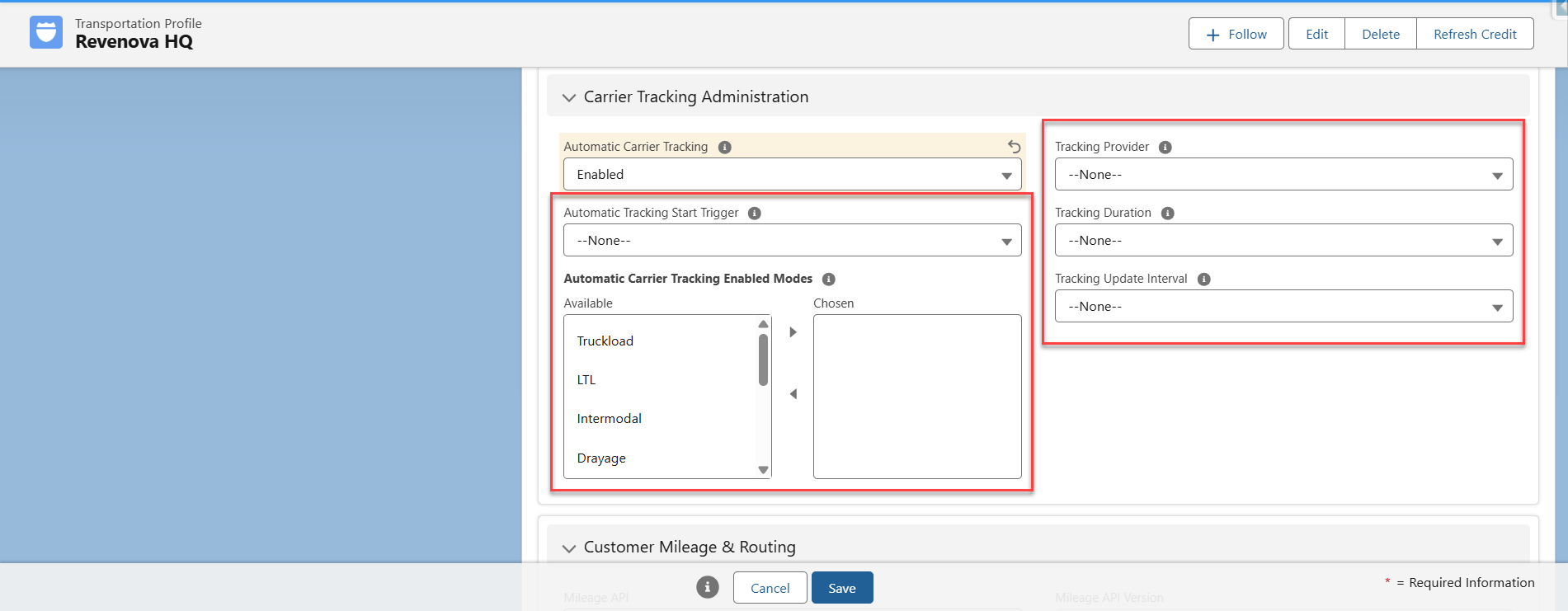
The following table describes each of the previous fields and their descriptions.
Field Name | Data Type | Description |
|---|---|---|
Automatic Tracking Start Trigger | Picklist | The number of hours before the Pickup Appointment time is needed to start the tracking request. |
Automatic Carrier Tracking Enabled Modes | Picklist (Multi-Select) | Establishes the Modes that are eligible for automatic carrier tracking for this customer. |
Tracking Provider | Picklist | The tracking provider used for automatic tracking and the default for all non-LTL loads. |
Tracking Duration | Picklist | Only applicable to tracking sessions with MacroPoint. This amount of time the tracking session remains active. |
Tracking Update Interval | Picklist | Only applicable to track sessions with MacroPoint. The frequency at which tracking updates are sent to the TMS. |
See the Carrier Banner article for more information about automatic load tracking.
Related Lists
The Customer Transportation Profile contains related lists for Default Accessorials, Customer Reference Numbers, Carrier Exclusions, and Customs Brokers.
Select the New button on the related list to create a new record of that type.
.png)
The Docks related list is strictly informational for Trip Planning in Fleet Management.
The Lane Preferences related list includes the Lane Preference for the Transportation Profile. See the Lane Preferences article for more information about creating new records.
Rate Entries
The Customer Transportation Profile has two related lists regarding rate entries: Customer Rate Entries and Carrier Rate Entries.
Select the New button on the related list to create a new record of that type.

Selecting the New button on these related lists will take you to the Rate Entry Detail LWC.
Suppose a Rate Entry record has the Transportation Profile field set to the Customer Transportation Profile and the Category field is set to Customer. In that case, the rate entry will appear in the Customer Rate Entries related list for the Customer Transportation Profile. The same logic works for the Carrier Rate Entries related list if the Category field is set to Carrier.
Artimus™ AI Fields
Two Transportation Profile fields control how the Artimus™ AI handles Load quoting and Truck Posting requests submitted from customers.

Artimus™ AI includes the ability to create Contact records for customers that request Load quotes or send Truck Postings for processing.
Artimus Contact Email Domain: Defines the email domain that a customer must have to automatically generate a Contact record. Load creation emails processed must originate from an email address with the domain specified in the field to generate a Contact record. Enter a domain value without the “@” character. For example, entering “revenova.com” into the field generates a Contact record for all new revenova.com email addresses. This functionality supports the ability for customers who have not interacted with Revenova to request Load quotes.
This field supports multiple domain entries. Separate each domain value with a comma.
To prevent Contact records from automatically generating, leave this field blank.
AI Generated Customer Quote Status: Controls when a customer quote is automatically sent to a customer. If an email requesting a Load quote meets the threshold required to create a Load and matches a customer-stored rate entry, then the customer quote is sent to the customer via the email loop. The quote Status is either Accepted or Quoted, depending on the picklist value set on the Transportation Profile.
Instead of automatically setting the customer quote Status to Accepted, the AI Generated Customer Quote Status field allows for setting the Status to Quoted for Loads generated with Artimus™ AI.
Carrier Markup Groups
Assign or create a Carrier Markup Group to the Customer Transportation Profile to support cost-plus customer quotes.

If the Carrier Markup Group field is blank on the Customer Transportation Profile, the logic cascades to the Global Default Transportation Profile to search that Carrier Markup Group field.
Note: Customers using a RateIQ+Markup Rate Entry must have a Carrier Markup Group that contains a Carrier Markup with a Markup Basis set to RateIQ in order for the Rate Entry to apply to Customer Quotes.
Customer Portal Functions
The Customer Transportation Profile also contains settings for configuring Customer Portal functions.
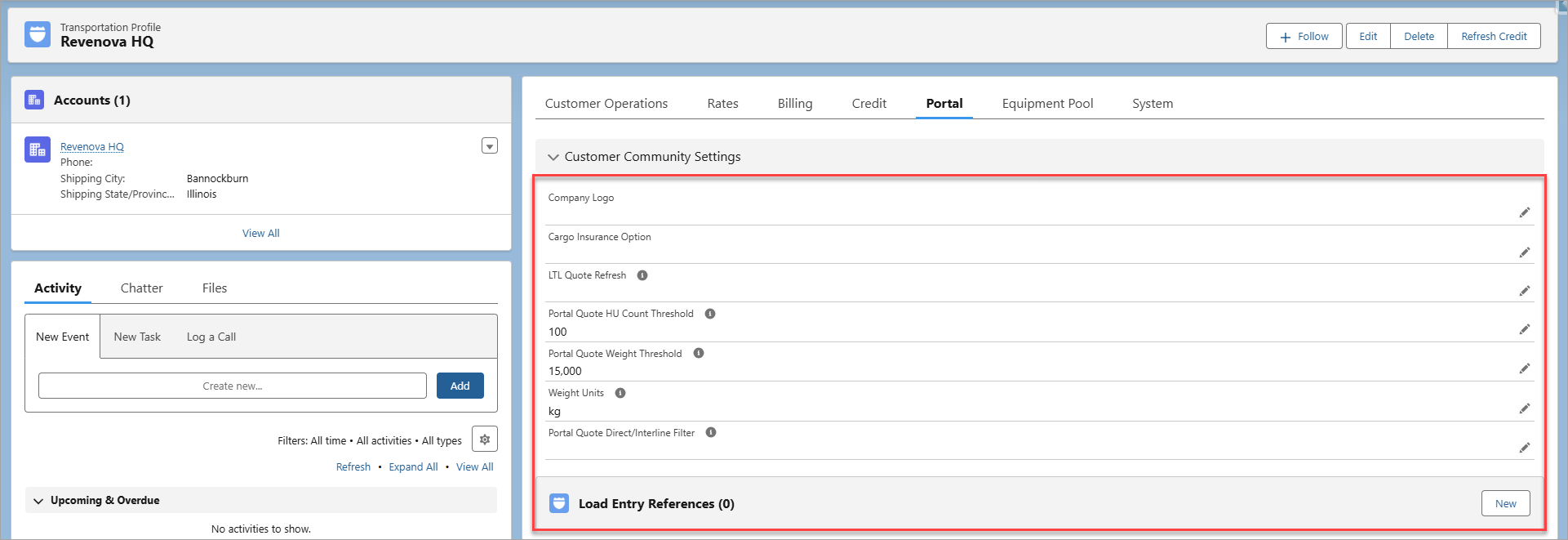
Customer Community Settings Fields
Customer Community Settings impact Experience Cloud Customer Portal Sites.
These fields are used as default settings in the Customer Portal for users using this customer. These settings are also used for the Artimus AI Load Wizard LWC for guests using this customer for Load confirmation.
You can add an image to the Rich Text Editor in the Company Logo field. See the Salesforce Rich Text Editor documentation for more information. The company logo in the Transportation Profile is used in the Customer Shipment Tracking LWC.
The Cargo Insurance Option is a picklist field that determines how cargo insurance operates in the Customer Portal. The following are values that the field can have:
Hide: The Show Cargo Insurance Options field is not visible to the customer in the Customer Portal.
Opt In: The Show Cargo Insurance Options field is checked by default for all quotes in the Customer Portal.
Opt Out: The Show Cargo Insurance Options field is unchecked.
Note: When using insurance automation, set the Cargo Insurance Option field appropriately. If the Cargo Insurance Option field is hidden in the Customer Portal, users are not able to select a value. See the Falvey Insurance and Insurance LWC articles for more information.
Enter the number of minutes into the LTL Quote Refresh field to control how long a quote is available in the Customer Portal before a user must refresh the quotes.
The Portal Quote HU Count Threshold field prevents the user from viewing quotes when the HU Count is greater than the value in this field.
Prevent a user from viewing quotes when the requested weight exceeds the Portal Quote Weight Threshold in the selected Weight Units. The Weight Units field is required. If no value is selected, the user is presented with an error in the Customer Portal.
Filter the available Carrier Quotes displayed to the user with the Portal Quote Direct/Interline Filter field.
Select the appropriate Direct/Interline values to filter out the Carrier Quotes that return and match the selected values. Quotes that match the value are not displayed to the Customer Portal user. Choose from the following values:
Direct
Interline
Partner
Unspecified
See specific integration information for handling Carrier Quote Direct/Interline values:
Load Entry References Related List
The Load Entry References related list allows Customer Portal users to populate load references on the Load Tender page of the Quote Wizard. See the Load Entry References article for more details.
Select the New button on the related list to create a new Load Entry Reference record.