The Revenova integration with TransCore LoadLink allows brokers to seamlessly post Loads to the LoadLink Load Board and view available capacity with hosted Truck Postings.
Post Loads to the LoadLink load board with the Load Posting Lightning Web Component (LWC).
The Carrier Match LWC displays Carrier capacity by displaying both in and out of network Truck Postings.
Setup
Enter Credentials
Enable the LoadLink integration by completing the following steps.
Navigate to TMS Admin.
Select Credentials.
Choose the Authorized Users tab.
Select the user and find the LoadLink (TransCore) section.
Check the Enabled box and the appropriate Load Posting and/or Truck Posting Search checkboxes.
Enter the User ID and Password 1, and Customer Number into the text fields.
Set the Service URL to: https://thelinkfmintegration.loadlink.ca.
Set the Test Service URL to: https://azuatfmintegration.loadlink.ca.
Click the Save button when finished.
User ID | Password 1 | Password 2 | Customer Number |
|---|---|---|---|
User Id (email address) | Required | Required |
Note: LoadLink credentials are user-specific. Clone the original record and select new users, as needed, to enter additional LoadLink credentials. See also the Mass Import feature to bulk add users and LoadLink credentials.
Once the integration with LoadLink is configured, add individual users with the Update User Credentials LWC or the Mass Import feature.
Remote Site Settings
Upgrading from previous versions of the TMS may have outdated information. Check that the Remote Site Settings for the LoadLink integration URL are correct.
Click the Setup gear icon in the top right corner.
From the drop-down, select Setup.
In the Quick Find Toolbar, type Remote Site Settings and select the link.
From the list of remote sites, find TransCore and select the Edit link.
Update the Remote Site URL to: https://thelinkfmintegration.loadlink.ca.
Sandbox orgs may test the integration by creating or updating the test Remote Site with the URL: https://azuatfmintegration.loadlink.ca.
Automation
The LoadAndTruckPostingManagementJob2 batch process creates and deletes Load and Truck Postings for the LoadLink integration. Configure the settings below and run the job to manage Load and Truck Postings.
Load Postings
Control the frequency that Load Postings are refreshed on the LoadLink Load Board by setting the following value on TMS Admin → Configuration.
Load Posting Refresh Interval (Minutes)
Set Loads to automatically post to the LoadLink Load Board by setting the appropriate value on the appropriate Transportation Profile(s). Choose the Auto-Post option for the Carrier Engagement Automation field.
Post all Loads to the Load Board by choosing Auto-Post on the global Transportation Profile.
Post all Loads for a specific customer by choosing Auto-Post on the customer Transportation Profile.
Caution: The LoadLink integration does not support multiple stops for the same Account location.
Truck Postings
Control the length of time that Truck Postings are retained in the TMS from LoadLink by setting the following value on TMS Admin → Configuration.
Truck Posting Retention Period (Days)
Once configurations are set, run the LoadAndTruckPostingManagementJob2 from the Job Monitor.
Using LoadLink Load Board in Revenova
The LoadLink Load board provides Load posting and visibility of geolocation-based Carrier capacity with Truck Postings.
Load Posting LWC: Add and remove load postings from the LoadLink Load Board. When Loads are sent to LoadLink, a Load Posting record is created in the TMS.

Note: A Load must be posted first in order to view available Truck Postings.
Carrier Match LWC: Provides visibility to Truck Postings on the LoadLink Load Board. Truck Posting records are created in the TMS for each Truck Posting received from LoadLink.
.png)
Integration Calls
The following calls control the data that is sent to and received from LoadLink. See the tables for specific field information for each request and response.
Create Load Postings
The Create Load Posting endpoint is called to send TMS Loads to the LoadLink Load Board. Loads may be added individually with the Load Posting LWC button or automatically by the LoadandTruckPostingManagementJob2. When Carrier Engagement Automation is configured, the Load is automatically posted to the Load Board when the Load Status is set to any of the following values.
Unassigned
Quotes Requested
Quotes Received
Tendered
Declined
TMS Operation | Transcore Loadlink Endpoint | Request Type | Response |
|---|---|---|---|
Load Posting LWC button, Post button from Load List view, Carrier Engagement Automation setting (LoadandTruckPostingManagementJob2) | Load Posting | POST | 200: OK |
Additional rate and posting comments may be included directly on the component.
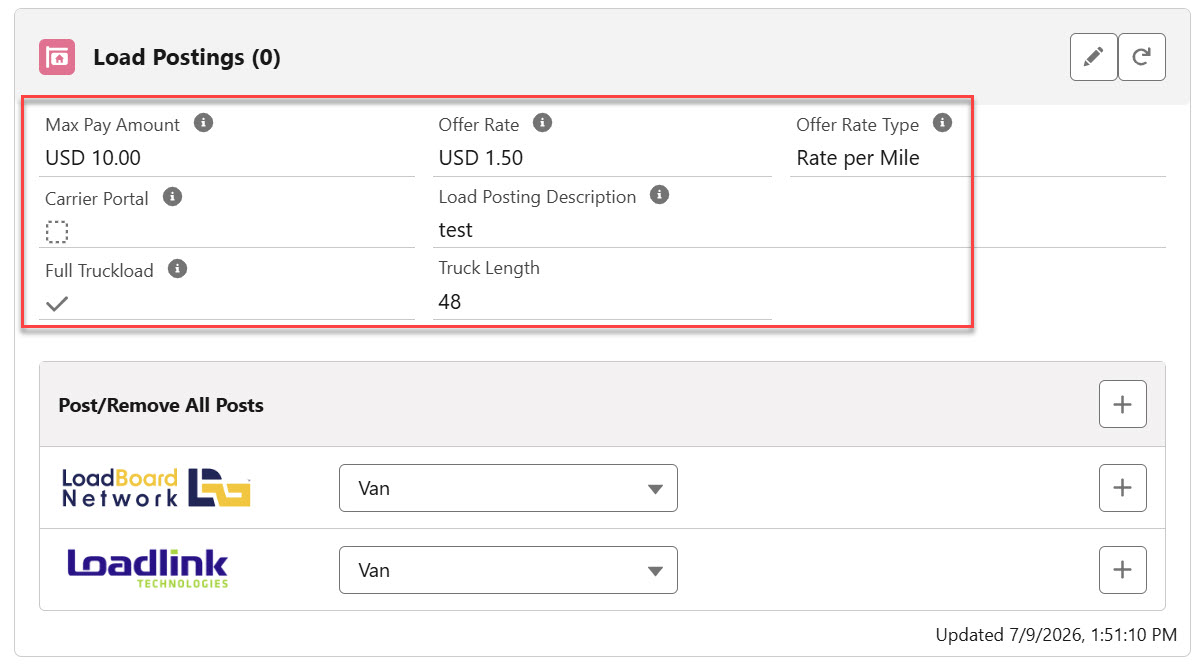
The following TMS fields are included in the Load Posting and sent in the request.
Object | Field | Type | Transcore Loadlink Field |
|---|---|---|---|
Account | Posting City | Text(40) | srceCity, destCity |
Account | Posting State/Province | Picklist | srceSt, destSt |
200 | srceRadius | ||
200 | destRadius | ||
Load | Expected Ship Date | Formula (Date) | dateAvail |
Load | *Linear Feet | Number(10, 2) | vehicleSize |
Load | **Equipment Type | Lookup(Equipment Type) | vehicleType |
Load | ***HazMat | Checkbox | postingAttrib |
Load Posting | Description | Text(200) | comment |
Load Posting | Offer Rate | Currency(16, 2) | comment |
Load Posting | Offer Rate Type | Picklist | comment |
*If the Linear Feet field value is greater than 40, T is sent in the payload to indicate a full Truckload. If the Linear Feet value is greater than 25 and less than 41, or contains no value, L is sent in the payload to indicate LTL. When the Linear Feet field value is less than 25 or contains no value, Q is sent in the payload.
**If the Load does not have an Equipment Type, the Load Posting LWC equipment selection is included.
***If the Load HazMat field is Checked, Z is sent in the payload to indicate a Load with hazardous materials.
Sample Create Load Posting Request Payload
{
  "dateAvail": "2026-07-09",
  "srceCity": "Indianapolis",
  "srceSt": "IN",
  "srceRadius": 200,
  "destCity": "Colorado Springs",
  "destSt": "CO",
  "destRadius": 200,
  "vehicleSize": "T",
  "vehicleType": "V",
  "comment": "L-12: test Offer Rate: USD 1.5 Rate per Mile",
  "postingAttrib": ""
}
Sample Create Load Posting Response Payload
{
  "token": 45402425,
  "custCD": "INTREVO",
  "dateAvail": "2026-07-09T00:00:00",
  "srceCity": "Indianapolis",
  "srceSt": "IN",
  "srceLong": -86.15621185302734,
  "srceLat": 39.76845169067383,
  "srceRadius": 200,
  "destCity": "Colorado Springs",
  "destSt": "CO",
  "destLong": -104.8198013305664,
  "destLat": 38.83522415161133,
  "destRadius": 200,
  "vehicleSize": "T",
  "vehicleType": "V",
  "comment": "L-12: test Offer Rate: USD 1.5 Rate per Mile",
  "productName": "INTEGRATIONAPI",
  "postingAttrib": "",
  "createdBy": 75939,
  "createdOn": "2026-07-09T18:48:08.92",
  "pStatus": "O",
  "initialLeadCount": 0,
  "length": null,
  "weight": null,
  "rate": null,
  "currency": 1,
  "email": ""
}
A Load Posting record is generated and fields are populated from the TMS and the Load Posting response. The Posting Status field is set to Posted.
Object | Field | Type | Transcore Loadlink Field |
|---|---|---|---|
Load Posting | Load Board Posting Id | Text(40) | token |
Delete Load Postings
The Load Posting delete endpoint is called to remove Load Postings from the LoadLink Load Board. Loads may be removed individually with the Load Posting LWC button or by the LoadandTruckPostingManagementJob2 when the Load Status is updated to any of the following values.
Assigned
Dispatched
In Transit
Delivered
Completed
Cancelled
Expired
TMS Operation | Transcore Loadlink Endpoint | Request Type | Response |
|---|---|---|---|
Load Posting LWC button, LoadandTruckPostingManagementJob2, Unpost button on the Load Posting and Load list views | Load Posting Delete | DELETE | 200: OK |
The Load Board Posting Id field is included in the Load Posting Delete request.
Object | Field | Type | Transcore Loadlink Field |
|---|---|---|---|
Load Posting | Load Board Posting Id | Text(40) | token |
No TMS fields are updated from the Load posting Delete Response. A successful 200 response returns.
The TMS sets the Load Posting record Posting Status field is to Unposted.
Get Truck Postings
The Equipment Leads endpoint is called to retrieve Truck Postings available from Transcore LoadLink. In order to view available Truck Postings, a Load must be posted first to the Transcore LoadLink Load Board by making a request to the Create Load Postings endpoint.
Trucks returned in the response from the endpoint appear in the TMS as Truck Posting records in the Carrier Match LWC.
TMS Operation | Transcore Loadlink Endpoint | Request Type | Response |
|---|---|---|---|
Carrier Match LWC | Equipment Leads | GET | 200: OK |
Sample Get Truck Postings Response Payload
[
  {
    "lToken": 1234567,
    "custCD": "TESTTRUCK1",
    "dateAvail": "2026-06-21T00:00:00",
    "srceCountry": 2,
    "srceCity": "Hamilton",
    "srceSt": "ON",
    "srceLong": -79.84861,
    "srceLat": 43.24639,
    "destCountry": 1,
    "destCity": "Chicago",
    "destSt": "IL",
    "destLong": -87.65139,
    "destLat": 41.87444,
    "vehicleSize": "U",
    "vehicleType": "V",
    "comment": "",
    "dfo": 23.1,
    "dirO": "SW",
    "tcc": -1,
    "tcus": -1,
    "equifax": -1,
    "postingAttrib": "A",
    "company": "Test Truck Company 1",
    "phone": "(555) 555-1111",
    "email": "testtruck@gmail.com",
    "createdOn": "2026-06-19T17:35:29.843",
    "dfd": 26.1
  },
  {
    "lToken": 2345678,
    "custCD": "TESTTRUCK2",
    "dateAvail": "2026-06-25T00:00:00",
    "srceCountry": 2,
    "srceCity": "Toronto",
    "srceSt": "ON",
    "srceLong": -79.39306,
    "srceLat": 43.6725,
    "destCountry": 1,
    "destCity": "Indianapolis",
    "destSt": "IN",
    "destLong": -86.15806,
    "destLat": 39.76833,
    "vehicleSize": "U",
    "vehicleType": "V",
    "comment": "",
    "dfo": 26.5,
    "dirO": "NE",
    "tcc": -1,
    "tcus": -1,
    "equifax": -1,
    "postingAttrib": "",
    "company": "Test Truck Company 2",
    "phone": "(555) 555-2222",
    "email": "testtruck2@gmail.com",
    "createdOn": "2026-06-19T17:04:11.7866667",
    "dfd": 206.8
  },
  {
    "lToken": 3456789,
    "custCD": "TESTTRUCK3",
    "dateAvail": "2026-06-22T00:00:00",
    "srceCountry": 2,
    "srceCity": "Toronto",
    "srceSt": "ON",
    "srceLong": -79.39306,
    "srceLat": 43.6725,
    "destCountry": 1,
    "destCity": "Chicago",
    "destSt": "IL",
    "destLong": -87.65139,
    "destLat": 41.87444,
    "vehicleSize": "U",
    "vehicleType": "VR",
    "comment": "",
    "dfo": 26.5,
    "dirO": "NE",
    "tcc": -1,
    "tcus": -1,
    "equifax": -1,
    "postingAttrib": "",
    "company": "Test Truck Company 3",
    "phone": "(555) 555-3333",
    "email": "testtruck3@gmail.com",
    "createdOn": "2026-06-19T16:45:24.997",
    "dfd": 26.1
  },
  {
    "lToken": 4567890,
    "custCD": "TESTTRUCK4",
    "dateAvail": "2026-06-21T00:00:00",
    "srceCountry": 2,
    "srceCity": "Toronto",
    "srceSt": "ON",
    "srceLong": -79.39306,
    "srceLat": 43.6725,
    "destCountry": 1,
    "destCity": "Green Bay",
    "destSt": "WI",
    "destLong": -88.01222,
    "destLat": 44.51194,
    "vehicleSize": "U",
    "vehicleType": "V",
    "comment": "",
    "dfo": 26.5,
    "dirO": "NE",
    "tcc": -1,
    "tcus": -1,
    "equifax": -1,
    "postingAttrib": "A",
    "company": "Test Truck Company 4",
    "phone": "5555554444",
    "email": "testtruck4@gmail.com",
    "createdOn": "2026-06-19T16:32:02.413",
    "dfd": 182.1
  },
]
A Truck Posting record is created for each truck in the TMS with the following fields received from Transcore.
TMS Field Updates
Object | Field | Type | Transcore LoadLink Field |
|---|---|---|---|
Truck Posting | Carrier Name | Text(60) | company |
Truck Posting | Comments | Text Area(255) | comment |
Truck Posting | Contact Email | ||
Truck Posting | Contact Name | Text(40) | company |
Truck Posting | Contact Phone | Phone | phone |
Truck Posting | Currency | Picklist | *USD or CAD |
Truck Posting | Date Available | Date | **dateAvail |
Truck Posting | Date Entered | Date/Time | createdOn |
Truck Posting | Delivery Range (Miles) | Number(10, 0) | dfd |
Truck Posting | Destination | Formula (Text) | Set by the TMS. |
Truck Posting | Destination City | Text(40) | destCity |
Truck Posting | Destination Country | Picklist | destCountry |
Truck Posting | Destination Geolocation | Geolocation | destLat, destLong |
Truck Posting | Destination State | Picklist | destSt |
Truck Posting | Equipment Description | Text(100) | vehicleType |
Truck Posting | Equipment Options | Text(200) | postingAttrib |
Truck Posting | Full/Partial | Picklist | vehicleSize |
Truck Posting | Initial Quantity | Number(6, 0) | Set to 1 by the TMS. |
Truck Posting | Origin City | Text(40) | srceCity |
Truck Posting | Origin Country | Picklist | srceCountry |
Truck Posting | Origin Geolocation | Geolocation | srceLat, srceLong |
Truck Posting | Origin State | Picklist | srceSt |
Truck Posting | Pickup Range (Miles) | Number(10, 0) | dfo |
Truck Posting | Posting | Auto Number | Set automatically by the TMS. |
Truck Posting | Quantity | Number(6, 0) | Set to 1 by the TMS. |
Truck Posting | Source | Picklist | Set to LoadLink by the TMS. |
*Currency is set based on the Destination Country value, USD or CAD.
**The TMS sets this value to today’s date if no value is included.
Character Limits
The following Truck Posting fields are limited to the specified character limit when receiving Truck Posting records from Transcore for improved error handling.
Truck Posting Field | Character Limit |
|---|---|
Carrier Name | 60 characters |
Comments | 255 characters |
Contact Name | 40 characters |
Destination City | 40 characters |
Origin City | 40 characters |
API Field Mapping
The following table is a reference of the objects and fields that are included or updated when using the Transcore LoadLink integration.
Object | Field | Type | Transcore Loadlink Field |
|---|---|---|---|
200 | srceRadius | ||
200 | destRadius | ||
Account | Posting City | Text(40) | srceCity, destCity |
Account | Posting State/Province | Picklist | srceSt, destSt |
Load | Expected Ship Date | Formula (Date) | dateAvail |
Load | Linear Feet | Number(10, 2) | vehicleSize |
Load | Equipment Type | Lookup(Equipment Type) | vehicleType |
Load | HazMat | Checkbox | postingAttrib |
Load Posting | Description | Text(200) | comment |
Load Posting | Offer Rate | Currency(16, 2) | comment |
Load Posting | Offer Rate Type | Picklist | comment |
Truck Posting | Carrier Name | Text(60) | company |
Truck Posting | Comments | Text Area(255) | comment |
Truck Posting | Contact Email | ||
Truck Posting | Contact Name | Text(40) | company |
Truck Posting | Contact Phone | Phone | phone |
Truck Posting | Currency | Picklist | USD or CAD |
Truck Posting | Date Available | Date | dateAvail |
Truck Posting | Date Entered | Date/Time | createdOn |
Truck Posting | Delivery Range (Miles) | Number(10, 0) | dfd |
Truck Posting | Destination | Formula (Text) | Set by the TMS. |
Truck Posting | Destination City | Text(40) | destCity |
Truck Posting | Destination Country | Picklist | destCountry |
Truck Posting | Destination Geolocation | Geolocation | destLat, destLong |
Truck Posting | Destination State | Picklist | destSt |
Truck Posting | Equipment Description | Text(100) | vehicleType |
Truck Posting | Equipment Options | Text(200) | postingAttrib |
Truck Posting | Full/Partial | Picklist | vehicleSize |
Truck Posting | Initial Quantity | Number(6, 0) | Set to 1 by the TMS. |
Truck Posting | Origin City | Text(40) | srceCity |
Truck Posting | Origin Country | Picklist | srceCountry |
Truck Posting | Origin Geolocation | Geolocation | srceLat, srceLong |
Truck Posting | Origin State | Picklist | srceSt |
Truck Posting | Pickup Range (Miles) | Number(10, 0) | dfo |
Truck Posting | Posting | Auto Number | Set automatically by the TMS. |
Truck Posting | Quantity | Number(6, 0) | Set to 1 by the TMS. |
Truck Posting | Source | Picklist | Set to LoadLink by the TMS. |