The SMC3 EVA integration provides full functionality for the entire LTL shipment lifecycle. Users can quote, tender, track, and receive documents from LTL carriers. SMC3 EVA acts as an aggregator providing multiple pricing options within a single unified workflow without having to format requests for each individual carrier.
Follow the links to related information regarding using the SMC3 EVA integration.
Carrier Quoting: Request quotes for contract, volume, dynamic, and/or broker rates.
Automated PRO Assignment: Request a PRO Number that is placed on the Bill of Lading.
Dispatch: Book a Carrier for the Load or cancel Load Tenders.
Status Notifications: Load status updates are sent to the TMS.
Documents: Receive documents from Carriers and process them in the TMS.
Invoices: Receive Invoice data from Carriers and create Vendor Invoice records in the TMS.
Setup
To enable the SMC3 EVA integration for an org, open a case with Revenova Support.
Include the Client ID field provided by SMC3 when creating the case.
The Client ID is registered and is returned with a Revenova-provided password. Enter this password into the Password 3 field on the credential card.
Enter Credentials
Enable the SMC3 EVA integration by completing the following steps.
Navigate to TMS Admin.
Select Credentials.
Select the Global Services tab.
Find SMC3 EVA in the list and open the card.
Check the Enabled and Receive Updates boxes.
Enter the User ID, Password 1, Password 2, and Password 3 into the text fields. Password 3 is provided by Revenova.
Click the Save button when finished.
A success message displays and the Callback Endpoint Created box is Checked.
.jpg)
The Callback Endpoint Created field must be Checked to receive Status, Documents, or Invoice information from SMC3 EVA.
The TMS supports quoting with the SMC RateWare while tendering, tracking, and managing documents with the SMC3 EVA integration. Check the Rateware field to quote with SMC3 RateWare.
Valid credentials are required from an SMC3 EVA subscription. See examples in the table below.
User ID | Password 1 | Password 2 | Password 3 | Customer Number |
|---|---|---|---|---|
Any Value | Client Id | Client Secret | Revenova Provided |
The Client Id, and Client Secret are provided by SMC3. Enter the same credentials for testing in a sandbox. When sandbox testing is complete, turn off the integration. Uncheck the Enabled box on the Credential card in TMS Admin → Credentials in the sandbox environment. Click Save.
SMC3 EVA credentials should only be enabled in production to ensure notifications and documents are sent to the correct environment.
Users of TMS Winter ‘26 and prior should enter their EVA Access ID into the User ID field.
Users of TMS Spring ‘26 and after may enter any value into the User ID so long as there is a value.
Remote Site Settings
Upgrading from previous versions of the TMS may have outdated information. If using additional SMC3 integrations with EVA, check that the Remote Site Settings for the CarrierConnect, EVA, and RateWare URLs are up to date.
Click the Setup gear icon in the top right corner.
From the drop-down, click Setup.
In the Quick Find Toolbar type Remote Site Settings and click the link.
From the list of remote sites find SMC3 and click the Edit link.
Update the Remote Site URLs to match the Service URLs below.
Service URL: https://smc3proxy.revenova.com/
Test Service URL: https://smc3proxy.revenova.com/
Additional Setup
Limit the amount of time TMS Web Service, FQA, and Customer Portal users requesting rate information wait to view quote information.
Set the number of seconds that users wait before displaying quote information.
Navigate to TMS Admin → Configuration, and find the Global Settings section.
Locate the LTL API Timeout Override (Seconds) field.
Enter a value between 1 and 30 seconds into the field. Note that in general, the longer the quote request wait time, the greater the number of quotes returned.
Click Save.
In order to receive documents from SMC3 EVA, confirm the following settings are enabled.
Navigate to Setup → Security → Sharing Settings.
From the Manage sharing settings for: picklist, choose the Load object.
Find the Sharing Rules section and click the New button for Load Sharing Rules.
Enter a Label and Rule Name, such as API.
Enter the following Criteria.
Field: Select a Load field, such as Entry Number.
Operator: not equal to
Value: any random string of characters, such as xzyasdf123.
Set the Share with field to API Site Guest User.
Set the Access Level field to Read Only.
Click Save.
Navigate to Setup → Salesforce Files → General Settings.
Confirm the Allow site guest users to upload files field is Checked.
If not, click Edit.
Check the Allow site guest users to upload files field.
Click Save.
LTL quoting with SMC3 EVA requires several record types to successfully create Carrier Quotes in the TMS. Create and configure the following records as necessary.
Transportation Profiles
Carrier Services
Rate Entries
Document Options
Service Levels
Accessorials with API Accessorials
Accounts
Accounts require Timezone values to process Status updates. Once Account information for Stop locations is added to the TMS, complete the following steps to add Timezone values to each Account. Allow the job to run continuously to update the Timezone as new Accounts are created.
Navigate to TMS Admin → Configuration.
Find the Fleet Management Section.
Confirm FleetManagementJob is selected in the Fleet Management Job field.
Click Save.
Navigate to the Job Monitor LWC, usually on the Home tab.
Find FleetManagementJob in the list of batch processes.
From the carat drop-down, select Run Now.
Wait for the batch process to complete.
Transportation Profiles
Create Transportation Profile records as necessary with configured Carrier Services, Rate Entries, and Document Options to support the desired quoting functionality. Set the corresponding Account TMS Type field for each Transportation Profile based on the quoting selections.
Generate quotes by calling the Aggregate Pricing endpoint. For each customer (Shipper/Consignee) Transportation Profile, add the value in the Customer API Access Id field. This value is created in the SMC3 EVA portal under the Credential Manager.
The TMS Type may be set as Shipper/Consignee.
Generate quotes by calling the 3PL/Broker Pricing endpoint. Enter the Broker SCAC field.
The TMS Type may be set as Carrier (Ground), and/or Vendor.
Configure the Global Transportation Profile to call one or both pricing endpoints. Enter the appropriate Customer API Access ID value to receive aggregate rates. For broker rates, add the broker SCAC value to the Transportation Profile.
The TMS Type may have any combination of Shipper/Consignee, Carrier (Ground), and/or Vendor.
All Carrier Transportation Profiles require a SCAC field value in order to Dispatch the Load to the selected Carrier.
Carrier Services
Carrier Service records are used to determine the Carriers for a given customer and the pricing types they may request. The SMC3 EVA integration with Revenova allows for Contract, Dynamic, Volume, and/or Broker pricing requests. See general Carrier Service setup for additional information.
Quotes are requested and return multiple rates. One Carrier Quote is created for each Carrier Service and Service Class.
Note: Some Carriers do not support both Contract and Dynamic pricing requests. Create Carrier Service and Rate Entry records to request the appropriate pricing requests for each Carrier. Consult Carriers and SMC3 for guidance regarding Carrier pricing support.
Create Carrier Service records for each Carrier and supported pricing requests.
Aggregate Quoting
Enter the following required fields for quoting with SMC3 EVA.
Service Type
Select the Carrier type.
Name
Enter a name for the Carrier Service.
Enabled
Check the field to enable the Carrier Service.
API Provider
Select SMC3 EVA.
Carrier
Choose the carrier Account record for the Carrier Service.
Mode
Select LTL.
Transportation Profile
Choose the Transportation Profile for the carrier.
The Transportation Profile should be for the corresponding carrier Account.
Quote Method
Select API.
Tender Method
Select API.
Status Method
Select API.
Minimum Weight
Set the minimum limit for weight when quoting Loads.
Maximum Weight
Set the maximum limit for weight when quoting Loads.
Weight Units
Loads quoted with SMC3 EVA are requested in pounds. Loads created in kilogram weights are converted to pounds before requesting.
Set the following fields for the required pricing requests. Create a Carrier Service record for each desired pricing request.
For Contract pricing requests, do not Check the VLTL or Dynamic Pricing fields.
For Dynamic pricing requests, Check the Dynamic Pricing field. Do not Check the VLTL field.
For Volume pricing requests, Check the VLTL field. Do not Check the Dynamic Pricing field.
Set any additional Carrier Service record fields as required.
Broker Quoting
Create a Carrier Service record for the Broker and add the Broker’s Transportation Profile to the Carrier Service record.
Set the following field values for the Carrier Service records for Broker Quoting.
Transportation Profile
Choose the Transportation Profile for the Broker.
The Global Transportation Profile or the Broker Transportation Profile are the likely records to select.
Add the SCAC field value for the Transportation Profile.
Broker/3PL
Check the field for broker quoting.
Rate Entries
Carrier contract information is stored within the TMS in Rate Entry records. To return pricing information for a given Carrier, enter the following required field values for the Rate Entry. See Rate Entry information for general setup information.
Aggregate Pricing Rate Entries
Create Carrier Rate Entry records and associate them to the appropriate Customer Transportation Profile.
Transportation Profile
The Customer Transportation Profile (on the Load), a Shipper/Consignee, OR the Global Transportation Profile.
Mode
Must be LTL when quoting with SMC3 EVA.
Lane
Category
Must be Carrier to display additional required fields.
Rate Type
Select Freight+Fuel+Accessorial to include all pricing charges.
Carrier Account Number
Carrier Account Number values are provided by SMC3 or the Carrier.
When the Bill To field is populated, the Carrier Account Number for the Bill To Account is included when requesting quotes.
Status
Rate Entries must be Accepted to generate Carrier Quotes.
Payer
Select the appropriate payer: Shipper, Consignee, or Third Party.
Payment Terms
Select the appropriate payment terms for quoting: Collect, Prepaid, or Third Party.
Currency
Carrier Service
Select the applicable Carrier Service for the Carrier.
Enter any additional field information such as Bill To Account or Payment Terms on the Rate Entry as necessary.
Select a Bill To Account and if necessary enter a Bill To Override to include on the Carrier Quote. The Bill To and Bill To Override fields are included in Aggregate Pricing requests.
3PL/Broker Rate Entries
Create Carrier Rate Entry records per customer and broker request.
Transportation Profile
The Customer Transportation Profile.
Typically, the Global Default Transportation Profile is used.
Mode
Must be LTL when quoting with SMC3 EVA.
Lane
Category
Must be Carrier to display additional required fields.
Rate Type
Select Freight+Fuel+Accessorial to include all pricing charges.
Carrier Account Number
3PL/Broker Pricing requests require the Broker Account Number provided by SMC3 or the Broker.
Enter the Broker Account Number into the Carrier Account Number field.
When the Bill To field is populated, the Carrier Account Number for the Bill To Account is included when requesting quotes.
Status
Rate Entries must be Accepted to generate Carrier Quotes.
Payer
Select the appropriate payer: Shipper, Consignee, or Third Party.
Payment Terms
Select the appropriate payment terms for quoting: Collect, Prepaid, or Third Party.
Currency
Carrier Service
Select the applicable 3PL/Broker Carrier Service.
Note: Rate Entry tariff information only applies when quoting with SMC3 RateWare.
Rate Entry Matching
Rate Entry Direct/Interline fields of a single value (Direct/Interline/Partner/Unspecified) are not filtered by the TMS. Matching based on Mode, Lane, Effective & Expiration Date, etc. is used to determine which Rate Entries are included when requesting rates. The following scenarios determine Rate Entry matching and filtering.
SMC3 EVA returns an Origin Service Detail of Direct, Interline, or Partner. SMC3 EVA returns a Destination Service Detail of Direct, Interline, or Partner.
Rate Entries are matched based on the Direct/Interline field pair and the Origin & Destination Service Detail.
SMC3 EVA returns an Origin Service Detail of Direct & Destination Service Detail of Interline.
Rate Entries with a Single-Value Direct/Interline field of Direct, Interline, Partner, or Null are sent.
Rate Entries with a matching Dual-Value Direct/Interline field are sent.
If the response from the Transit call fails, SMC3 EVA returns blank values for the Origin and Destination Service Detail fields.
The TMS filters out any Rate Entries with Dual-Value Direct/Interline fields.
All Rate Entries with Single-Value Direct/Interline fields are sent to SMC3 EVA.
SMC3 EVA returns an Origin AND Destination Service Detail of Custom.
All Rate Entries with a Dual-Value (example: Direct-Direct) Direct/Interline field are filtered out.
SMC3 EVA returns an Origin OR Destination Service Detail of Custom.
All Rate Entries with a Dual-Value (example: Direct-Direct) Direct/Interline field are filtered out.
Origin Service Detail | Destination Service Detail | Rate Entry Direct/Interline Field |
|---|---|---|
Direct | Direct | Direct-Direct |
Direct | Indirect | Direct-Interline |
Direct | Partner | Direct-Partner |
Indirect | Direct | Interline-Direct |
Indirect | Indirect | Interline-Interline |
Indirect | Partner | Interline-Partner |
Partner | Direct | Partner-Direct |
Partner | Indirect | Partner-Interline |
Partner | Partner | Partner-Partner |
Direct: The originating Carrier is in control of a Load for the entire transit time.
Interline: The Load is transferred to another Carrier in transit.
Partner: The Load is transferred to a Partner Carrier in transit.
Unspecified: The default field value or when the service level is not returned from SMC3.
Rate Entry matching does not occur if:
The Rate Entry does not have a Carrier Service.
The Rate Entry Carrier Service linked to the Transportation Profile does not have a SCAC. The SMC3 Transit call requires a SCAC.
Document Options
The following Document Options fields are included on a Carrier Quote when the corresponding Rate Entry field does not contain a value. These fields are meant to populate Carrier Quote values when Rate Entry field values are not included.
Default Carrier Bill To
Corresponds to the Rate Entry Bill To field. The Bill To field must be blank to use the Default Carrier Bill To field.
Payment Terms
Fields populate on Rate Entry Payment Terms field when no value is present on the Rate Entry.
Payer
Fields populate on Rate Entry Payer field when no value is present on the Rate Entry.
Accessorial Charges
Create Accessorial records with API Accessorial records to support charges from SMC3 EVA.
Entering the following field values for each Accessorial record.
Name the accessorial record.
Select an accessorial Type: Pickup, Delivery, or Load.
Limited Access charges are either Pickup or Delivery.
Create an accessorial record for both stop types to support limited access charges for pickups and deliveries.
Check the Limited Access field for specific limited access accessorial charges.
Check the Customer Portal Selection field to make the accessorial available for Customer Portal users.
Select all applicable Mode types, and include LTL.
Check the Enabled field.
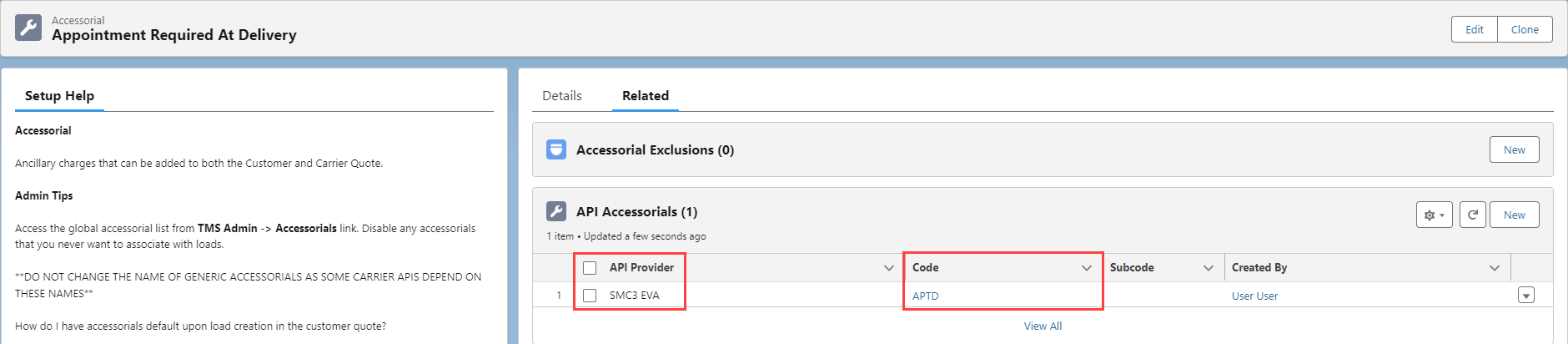
Once the Accessorial record is created, navigate to the API Accessorials related list from the record. Click New.
Enter the applicable SMC3 EVA-provided accessorial code in the Code field.
Choose SMC3 EVA for the API Provider field.
See the list of SCM3 EVA-provided accessorial code fields in the provided table.
Limited Access Accessorial Subcodes
Quoting with the Broker Pricing endpoint supports Limited Access Accessorial charges.
Note: Limited Access Accessorial charges must be assigned to a Stop in order to work correctly with SMC3 EVA quoting.
Create a Limited Access Accessorial record for pickups and another for deliveries to create quotes with limited access accessorial charges.
Enter the following API Accessorial field values for the Limited Access Pickup accessorial.
Accessorial: Limited Access Pickup
API Provider: SMC3 EVA
Code: LTDAP
Subcode: Value from the table.
Enter the following API Accessorial field values for the Limited Access Delivery accessorial.
Accessorial: Limited Access Delivery
API Provider: SMC3 EVA
Code: LTDAD
Subcode: Value from the table.

Service Levels
The SMC3 EVA integration supports requesting non-standard service from LTL Carriers. Select options for delivery dates and times. See more information on Service Levels.
Guaranteed Morning
Guaranteed Noon
Guaranteed End of Day
Standard
Is no Service Level is selected, the default Standard Service Level is sent to SMC3.
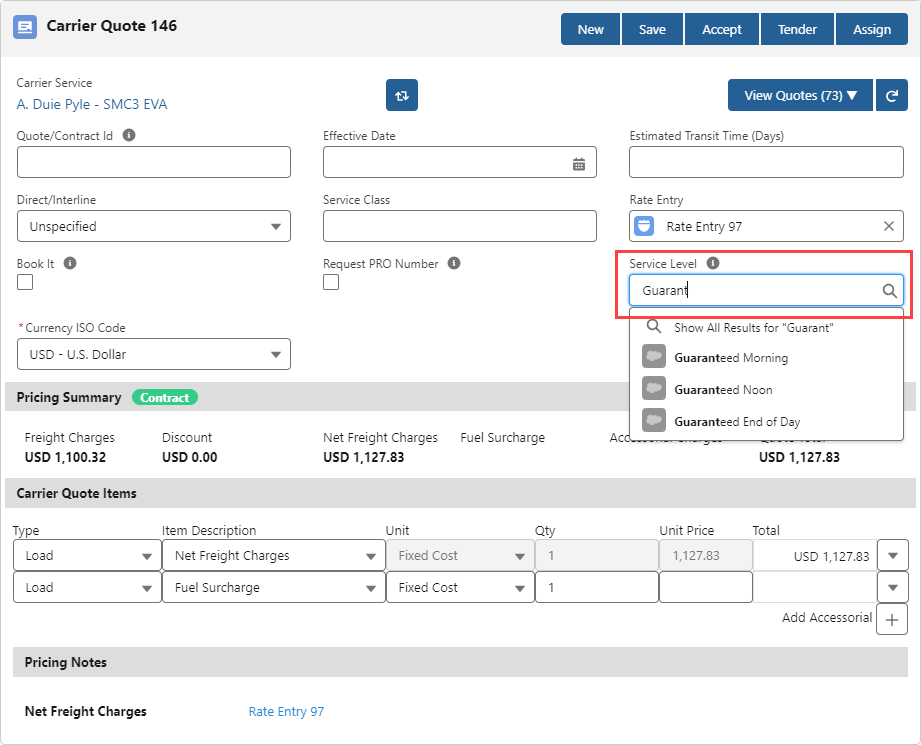
The Service Level field only displays on the Carrier quote builder if the Carrier Service contains SMC3 EVA credentials.
Specify Service Levels on Rate Entries to automatically add Service Levels to quotes. Create Rate Entries for each Carrier Service and add a Service Level as necessary.
When necessary, manually select a Service Level before tendering the Load to the Carrier.
SMC3 EVA API Code | Service Level |
|---|---|
GTD_AM | Guaranteed Morning |
GTD_NOON | Guaranteed Noon |
GTD_PM | Guaranteed End of Day |
STND | Standard |
RateWare Quoting & Tendering/Tracking with EVA
The TMS allows for quoting with SMC3 RateWare while using the SMC3 EVA integration to tender, track, and manage Load documents.
To receive quotes, valid credentials for SMC3 RateWare must be entered on the SMC3 RateWare credentials card.
Follow the setup instructions for SMC3 to enable the integration.
Check the Rateware field on the SMC3 EVA credentials card to enable quoting with SMC3.
Create hybrid Carrier Service records for each Carrier with the following field settings.
Set the Credentials field to the value located on the SMC3 EVA credential card Record Id field.
The API Provider field value is SMC3 EVA.
The Quote Method, Tender Method, and Status Method fields are set to API.

In addition to Carrier Service records, create Rate Entry and Service Level records as necessary for quoting with SMC3 RateWare.
Quotes are returned from SMC3 RateWare and stored on the Load. Once a quote is assigned, the SMC3 EVA integration continues the Load lifecycle. If necessary, create Accessorial Rate Entries to account for additional charges as SMC3 RateWare only supports Freight and Fuel based rates.
Note: Customers currently using RateWare but switching to EVA for quoting must create new Carrier Service and Rate Entry records.
Rate Entries that have a RateWare Carrier Service display the tariff information.
In some cases, Carrier Quotes returned from SMC3 RateWare may not contain a Customer API Access Id field value. When this occurs, the Customer API Access Id value from the Transportation Profile of the matching Rate Entry is added to the Carrier Quote.
SMC3 RateWare does not support rating with accessorial charges. Include additional charges on Loads by creating stored Accessorial Rate Entries. Accessorial services are sent to Carriers during the Dispatch call.
Create new or edit existing Accessorial records.
From the Related tab, click New on the API Accessorial related list.
From the API Provider picklist, select SMC3 EVA.
Add the SMC3 API Accessorial Code.
Click Save.
See SMC3 EVA Accessorial_Codes for a list of supported Accessorial codes when tendering to a Carrier.