Warning
When configuring Digital Experiences, confirm that data is not accessible and is secured within security Profiles or Permission sets and Sharing Settings. Review all security adjustments to ensure that they meet business needs without exposing data unnecessarily.
Set up and configure the email loop for the following guest Experience Cloud Sites as needed. See additional Salesforce information here.
Create a Salesforce Site by completing the following steps.
Navigate to Setup → All Sites and choose Digital Experiences.
Click New to create a new Digital Experience Site.
Create a new Experience Cloud Site using the “Build Your Own (Aura)” template.
Click Get Started.
Enter an appropriate Name for the Site, such as API. Add the name to the end of the URL field in the optional box.
For example: scratch.my.site.com/api
Click the Create button.
Once the site is created, select the Builder link for the Digital Experience Site.

Follow the steps for the relevant Sites below. Once configured, activate each Site. The Status for each Site must be Active for the applicable guest users to use the Site.
Important Settings and Considerations
Test these Experience Cloud Sites thoroughly in a sandbox org first, and then again in the production org.
Note: Email Loop components are designed to only display information when they detect a guest user or customer moving their mouse. This security feature prevents bots from accessing these components.
Public Access Site Setting
Warning: The Public Access in Settings → General should never be checked for the email loop site or any sites using email loops.

Email Loop Sharing Rules
For all guest Experience Cloud Sites, guest users must have access to specific records. Create read-only Sharing Rules from Setup → Sharing Settings for the following objects in order for the guest user to access these records:
Account
Appointment Request
Contact
Load
Freight Plan Load
Customer Quote
Document Options
Mode
Accessorial
Customer Invoice Document
Transportation Profile

Complete the following steps for each of the listed objects:
Select the object in the picklist for the Manage sharing settings for field.
Select New in the Sharing Rules section.
Set the Label and Rule Name for the Sharing Rule.
Select the Guest user access, based on criteria option for the Rule Type.
Enter a criterion such as the following:
Field: Name
Operator: not equal to
Value: any random string of characters
Set the Share with field to Email_Loop Site Guest User.
Set the Access Level field to Read Only.
Select Save.

API Guest Access
When the API Site is created, an API Site Guest User is generated automatically. Complete the following steps to configure the API Guest User access.
Navigate to Setup → Home.
From the Global Search, search for API Site Guest User and select the User record.
Scroll to the Permission Set Assignments section.
Click Edit Assignments.
Search for the TMS API Community permission set in the list of available permission sets.
Select it and click the Add button.
Click Save.
SMC3 EVA Documents
The SMC3 EVA integration requires an additional Sharing Setting to process documents. Create the Sharing Setting by completing the steps below.
Navigate to Setup → Security → Sharing Settings.
From the Manage sharing settings for: picklist, choose the Load object.
Find the Sharing Rules section and click the New button for Load Sharing Rules.
Enter a Label and Rule Name, such as API.
Enter the following Criteria.
Field: Select a Load field, such as Entry Number.
Operator: not equal to
Value: any random string of characters, such as xzyasdf123.
Set the Share with field to API Site Guest User.
Set the Access Level to Read Only.
Click Save.
Carrier Guest Access
Configure the email loop for Carrier Guest user access.
Note: The same Experience Cloud Site may be used as above if it is dedicated solely to the email loop, with Carriers, Customers, and Fleet users interacting with it. If the Email Loop is part of a larger Carrier, Customer, or Fleet Site, keep them distinct.
Create a new standard page with the 1 full-width column layout.
Set the required Name and URL fields to carrierguest (all lowercase, no spaces). Select Create.
Select Settings
 → General tab, and configure the following settings:
Important: Ensure that the Public Access field is unchecked.
Select the profile link in the Guest User Profile section:
In the Setup → Profile page, select View Users.
Select the guest user.
Assign a Revenova TMS license to the guest user.
Create a new permission set based on the TMS Carrier Email Loop permission set.
Note: If you’re using a custom permission set, confirm that the custom permission set contains the Create access on the Load object.
Go to Setup → Permission Sets.
Search for the TMS Carrier Email Loop permission set. Select the Clone link next to the permission set.
Remove the value in the API Name and Label fields.
Enter a new value in the Label field.
Select anywhere outside the field to automatically populate the API Name field based on the new label.
Select Save.
Enable the Create access for the Load object in the new permission set:
Select the new permission set.
In the Apps section, select the Object Settings link.
From the list of objects, select the link to the Loads object.
Select the Edit button.
Enable Create access in the Object Permissions section.
Select Save.

Return to the TMS Carrier Email Loop permission set.
Select the Manage Assignments button.

Select the email loop guest user.
Select the Edit Assignments button in the Permission Set Assignments section.
.png)
Assign the new permission set to the guest user.

Select Save.
Return to the carrierguest page in the Experience Builder for the email loop site.
Select the Page properties icon and set the Page Access to Public.

Select the Components
 setting.
Search for and drag the Carrier Guest Lightning Web Component (LWC) onto the page.
Set the component properties as desired:
showDeliveredLoads: When checked, this field displays Loads with the Delivered status in the Carrier Guest LWC.
loadLookbackPeriod: Set a value in this field to control the number of days of Loads to include in the Carrier Guest LWC.
Load Results List Size: Set a value in this field to control the number of Loads per page displayed in the RFQ Load Board LWC. The default value is 25.

Select Publish → Publish → Got It. Wait to receive the Site Published Successfully email.
In your org, navigate to TMS Admin → Configuration.
Set the Public Carrier Site URL to the carrierguest page. Include the full URL to the page you created.
Example:
https://power-page-9666-dev-ed.scratch.my.site.com/email/s/carrierguestGo to Setup → Salesforce Files → General Settings, and ensure that the Allow site guest users to upload files field is checked.
Go to Setup → Trusted URLs, and add a new trusted URL to enable the display of Google Maps with the following fields:
API Name: GoogleMap
Check all boxes in the CSP Directives section.
.png)
Select Save.
Add fields to the Load TMS12 field set to control the 4-column header field section.
Add fields to the Load TMS13 field set to control the 1-column header field section.
Add fields to the Load TMS30 field set to include them in the Carrier Guest LWC. When fields are present in this field set and a value is added to the Carrier Quote Tender Expiration Date field, the Tender Expiration is displayed to the user in the carrier email loop. The expiration date does not display when the tender is accepted or declined.
Note: The Queued Transaction job must be running to process Carrier Quote submissions from the carrier guest email loop.
RFQ Load Board LWC Setup
To enable access to the RFQ Load Board LWC for specific carriers in the carrier guest email loop, go to each Carrier Transportation Profile (or from a list view) and check the Enable RFQ Load Board box.
Note: Carriers must accept a Load tender first before they may access the RFQ Load Board LWC.
The RFQ Load Board LWC requires Read permissions for the following objects in the cloned TMS Carrier Email Loop permission set:
Accessorial Exclusions
Carrier Exclusions
Zones
*Truck Postings
*Contact
*Artimus Note: For accessing the RFQ Load Board LWC by sumbitting truck postings via Artimus™ AI, make sure that the Truck Postings object and its fields has Read permissions in the cloned permission set. The Contact object must have Read object permissions as well.
Complete the following steps to enable the Read permission for each object:
Go to Setup → Permission Sets.
Search for and select the permission set controlling the carrier email loop. (This permission set was cloned from the TMS Carrier Email Loop.)
In the Apps section, select the Object Settings link.
For each object previously listed, perform the following steps:
From the list of objects, select the link to the object.
Select the Edit button.
Enable Read access in the Object Permissions section.
Check the Read Access box in the Field Permissions section.

Select Save.
Select the Object Settings link in the navigation breadcrumb to return to the list of objects in the permission set

Customer Guest Access
Create a partner Experience Cloud Site (“Customer Service”) for customer guest user access.
Create a new standard Site page (1 full-width section) with name and URL of customerguest.
From the Builder click the left side Settings snowflake → General tab:
The Public Access checkbox should NOT be checked.
.png "Settings - 1(1).png")
Click the Guest User Profile link:
Click on View Users:
Assign a Revenova TMS license to the guest Site user.
Assign the TMS Customer Email Loop permission set.
Select the customerguest page properties.
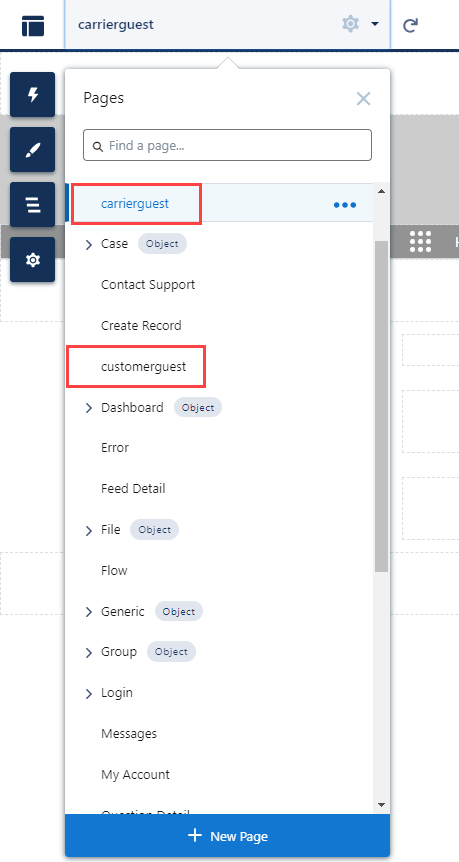
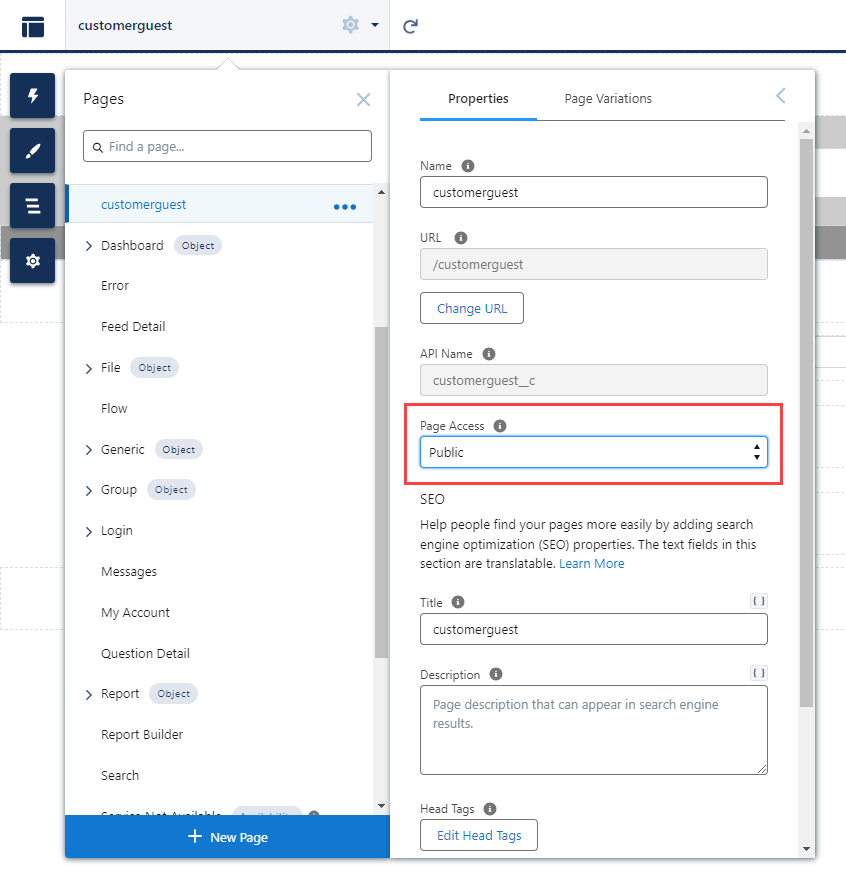
Set the Page Access field to Public.
Drag the Customer Guest LWC component onto the page. Add other useful customer-related information as desired. The Customer Guest LWC has two properties:
Allow Search: Check this property to provide the URL to this page and allow the customer to search for loads anonymously.
Load Field Set Name: the name of a CUSTOM field set on the Load with the fields that the Customer Shipment Tracking will display. If left blank, the BOL Number, PRO Number and Load Number are displayed.
Publish and Activate the Site.
From TMS Admin → Configuration set the Public Customer Community URL to the new created Site. Include the full URL to the page you created.
Example: https://full-revesc1.cs64.force.com/email/s/customerguest
Note: Ensure the permission set used for the Customer Guest Email Loop has access to the following Apex classes:
rtms.AILoadWizardController (for Artmus AI only)
rtms.ALKMapController2
rtms.CustomerQuoteAcceptDeclineController
rtms.CustomerShipmentTrackingController
rtms.LightningUtilController
rtms.LoadMapController2
rtms.LoadTrackingLogController2
Fleet Guest Access
Create a partner Experience Cloud Site (“Customer Service” template) for Fleet guest user access.
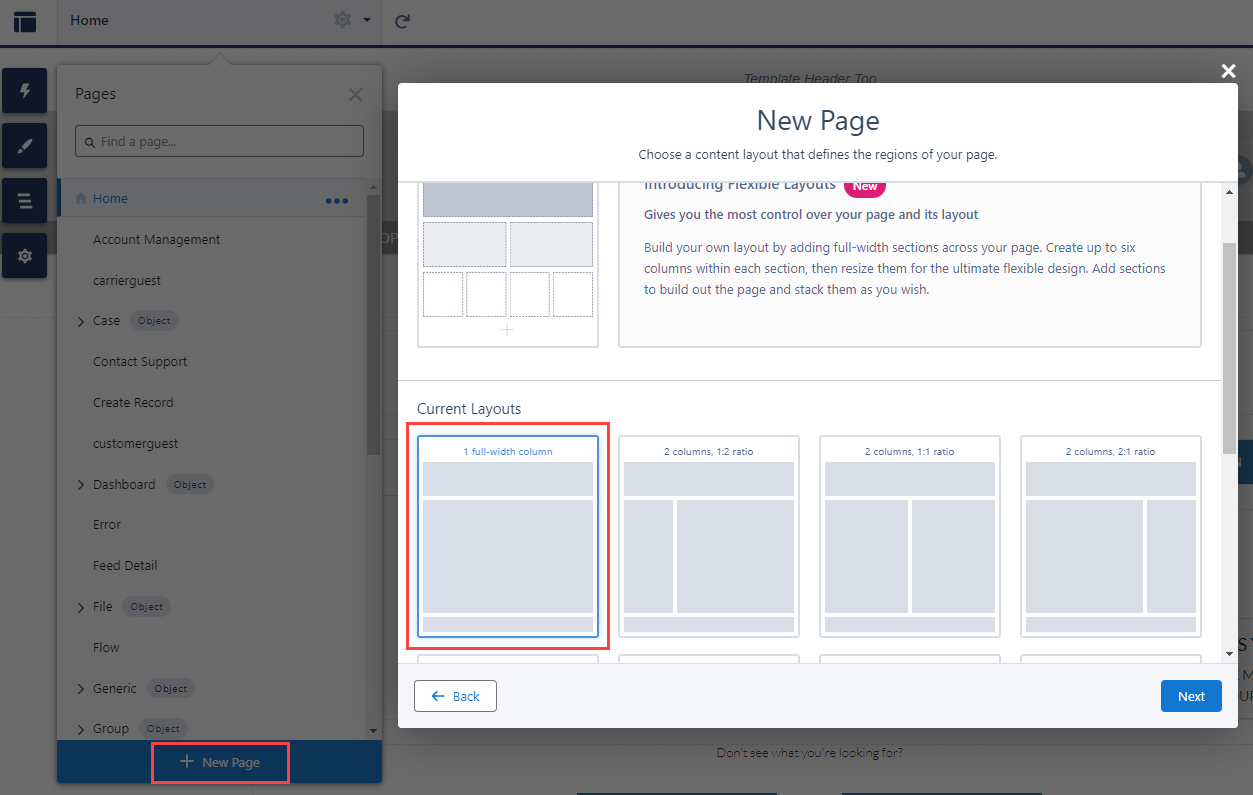
Create a new standard Site page (1 full-width section) with name and URL of fleetguest.
From the Builder click the left side Settings snowflake → General tab:
The Public Access checkbox should NOT be checked.
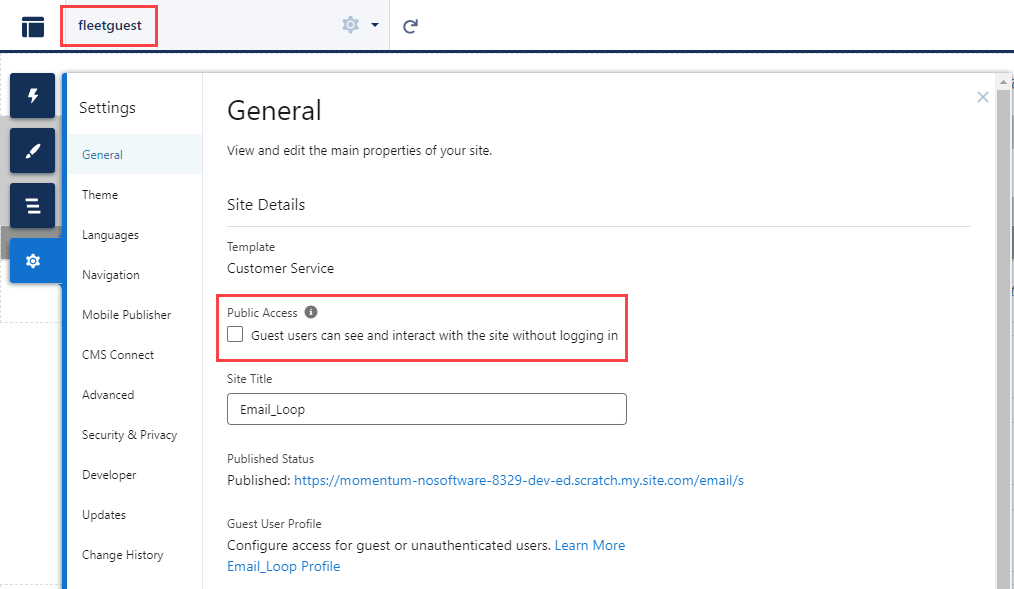
Click the Guest User Profile link:
Click on View Users:
Assign a Revenova TMS license to the guest Site user.
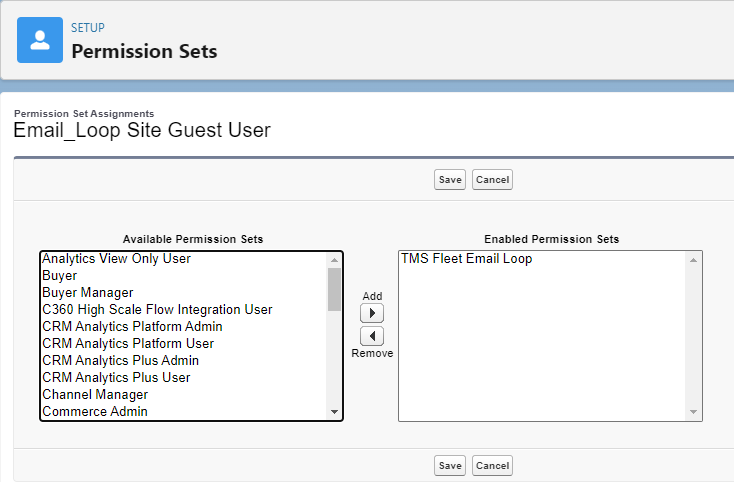
Assign the TMS Fleet Email Loop permission set.
Select the fleetguest page properties.
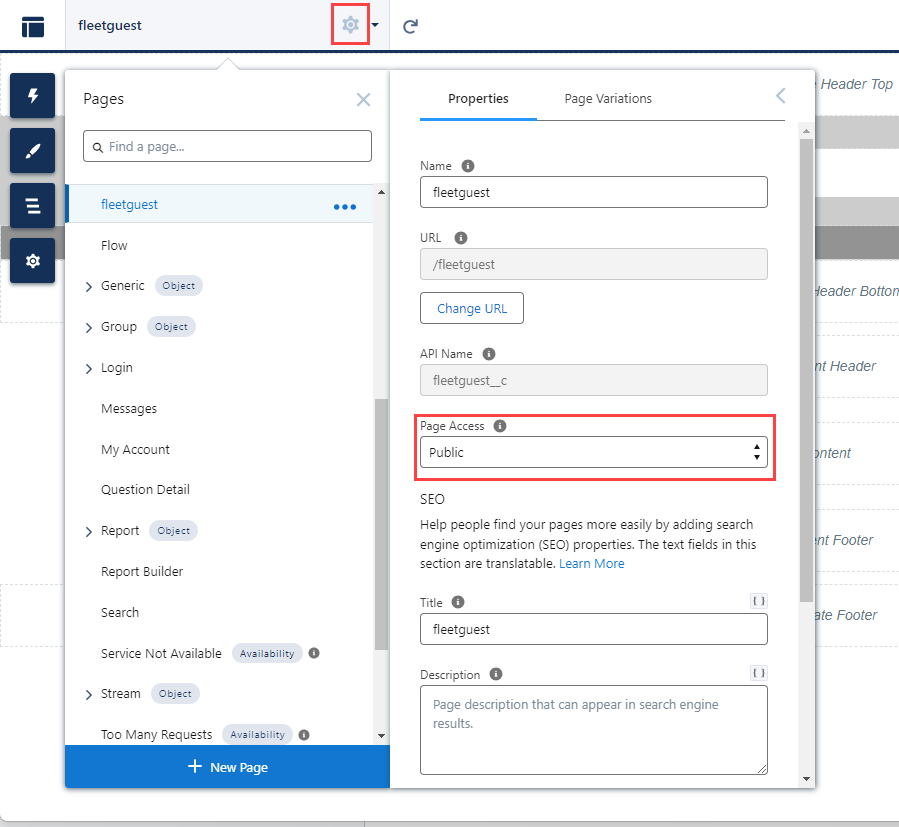
Set the Page Access field to Public.
Drag the Fleet Driver Confirmation LWC component onto the page. Add other useful carrier-related information as desired.
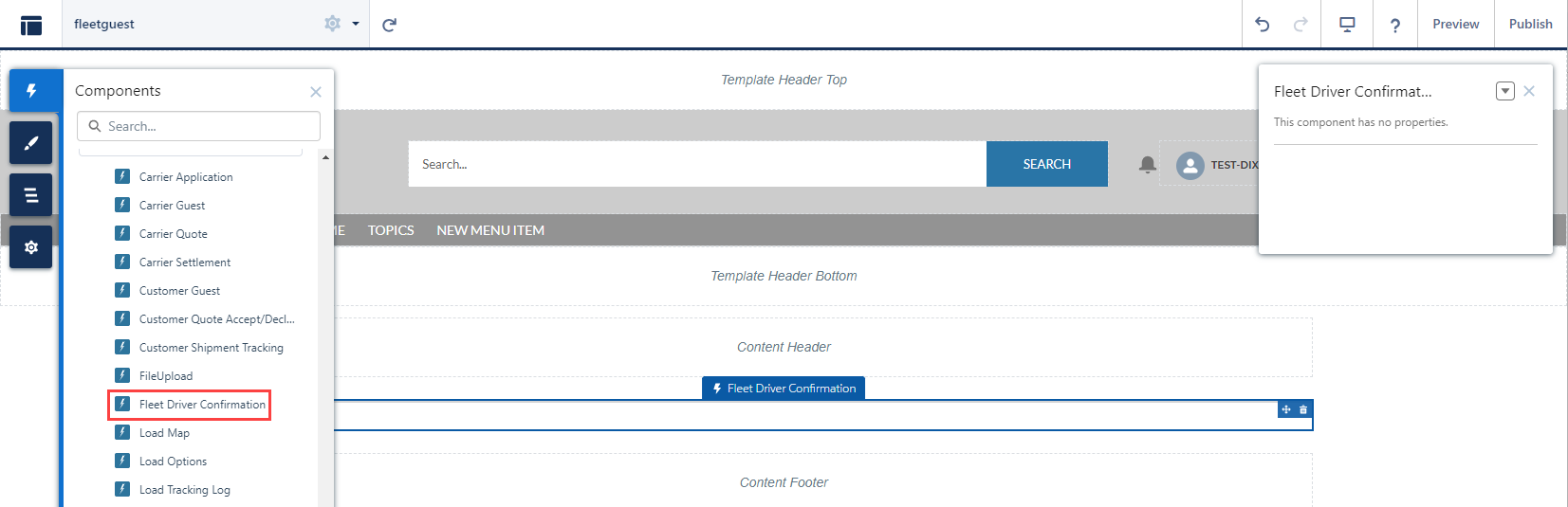
Publish and Activate the Site.
From Setup → Sharing Settings and create Sharing Rules for the following objects.
Trip Plan
Fleet Asset
From TMS Admin → Configuration set the Fleet Community URL to the new page URL. Include the full URL.
Example: https://full-revesc1.cs64.force.com/email/s/fleetguest
From Setup → Salesforce Files → General Settings check the Allow site guest users to upload files field.
From Setup → Security → CSP Trusted Sites add a new trusted site to enabled display of google maps:
Name: GoogleMap
Trusted Site URL: https://maps.a.forceusercontent.com
All Checkboxes checked
Appointment Guest Access
Configure the email loop for appointment guest user access.
Create a new standard page with the 1 full-width column layout.
Set the required Name and URL fields to appointmentguest (all lowercase, no spaces). Select Create.
Select Settings
→ General tab, and configure the following settings:Important: Ensure that the Public Access field is unchecked.
Select the profile link in the Guest User Profile section:
In the Setup → Profile page, select View Users.
Select the guest user.
Assign a Revenova TMS license to the guest user.
Assign the TMS Appointment Request Email Loop permission set.

Select Save.
Return to the appointmentguest page in the Experience Builder for the email loop site.
Select the Page properties icon and set the Page Access to Public.

Select the Components
setting.Search for and drag the Appointment Request Response Lightning Web Component (LWC) onto the page.

Select Publish → Publish → Got It. Wait to receive the “Site Published Successfully” email.
In your org, navigate to TMS Admin → Configuration.
Set the Public Appointment Community URL to the appointmentguest page. Include the full URL to the page you created.
Example:
https://power-page-9666-dev-ed.scratch.my.site.com/email/s/appointmentguest
Community Text Fields Setup
From TMS Admin → Document Options, configure the community informational text fields:
Customer Guest
Customer Quote Landing Page Message
Customer Load Confirm Accept Message
Customer Load Confirm Decline Message
Carrier Guest
Carrier Book It Message
Carrier Quote Submit Message
Carrier Quote Footer
Carrier Load Tender Instructions
Carrier Load Tender Footer
Carrier Quote Tender Landing Message
Carrier Load Confirm Accept Message
Carrier Load Confirm Decline Message
RFQ Load Board LWC Title
Carrier RFQ Load Board Instructions
Carrier Posting Load Board Instructions
Carrier Load List Instructions
Carrier Stop Status Instructions
Carrier Stop Status Footer
Carrier Settlement Instructions
Fleet Guest
Driver Decline Message
Note: This message displays on the Driver Decline modal when a Driver declines a Trip Plan.
Appointment Guest
Appointment Confirmation Instructions
Supported Fields
The following fields support the email loop functionality:
Customer Quote
Accept Link
Decline Link
Carrier Quote
Book It
Tender Contact
Tender CC List
Load
Hashcode
Note: This field is used to secure the URLs of the email links for this object.
Carrier Quote Link
Tender Accept Link
Tender Decline Link
Carrier Status Link
Carrier Settlement Link
Customer Tracking Link
Stops
Driver Name
Driver Phone
Driver Fields Note: The Driver Name and Driver Phone fields may supersede the Driver lookup field for some customers.
Email Templates
Update the URL links when updating or customizing email templates as necessary.
Lightning Email Templates
Access the Lightning Email Templates by opening the App Launcher and searching for and selecting Email Templates. The email templates in the following table are the RevenovaTMS Default Email Templates.
Email Template | Button | URL Link |
|---|---|---|
Customer Rate and Load Confirmation - LEX2 | Accept | {{{rtms__CustomerQuote__c.rtms__Accept_Link__c}}} |
Decline | {{{rtms__CustomerQuote__c.rtms__Decline_Link__c}}} | |
AI Customer Rate and Load Confirmation - LEX2 | Continue | {{{rtms__AIParsedTextRecord__c.rmts__Customer_Link__c}}} |
Quotation Request - LEX2 | Submit Quote | {{{rtms__Load__c.rtms__Carrier_Quote_Link__c}}}&c={{{Recipient.Id}}} |
Load Tender - LEX2 | Accept Quote | {{{rtms__Load__c.rtms__Tender_Accept_Link__c}}} |
Decline Quote | {{{rtms__Load__c.rtms__Tender_Decline_Link__c}}} | |
Load Tender Updated Documents - LEX2 | Update Status | {{{rtms__Load__c.rtms__Carrier_Status_Link__c}}} |
Load Tender with Assignment - LEX2 | Update Status | {{{rtms__Load__c.rtms__Carrier_Status_Link__c}}} |
Load Status - LEX2 | Update Status | {{{rtms__Load__c.rtms__Carrier_Status_Link__c}}} |
Load Status Batch - LEX2 | Update Status | {{{rtms__Load__c.rtms__Carrier_Status_Link__c}}} |
Carrier Document Request - LEX2 | Upload Documents | {{{rtms__Load__c.rtms__Carrier_Settlement_Link__c}}} |
Carrier Load Board - LEX2 | Continue | {{{rtms__TruckPosting__c.rtms__Carrier_Load_Board_Link__c}}} |
Fleet Driver Confirmation - LEX2 | Trip Details | {{{rtms__TripPlanDriver__c.rtms__Driver_Confirmation_URL__c}}} |
Appointment Request - LEX2 | Respond | {{{rtms__AppointmentRequest__c.rtms__Appointment_Response_URL__c}}} |
Customer Shipment Tracking LWC
Instructions to use the Customer Shipment Tracking LWC (part of the Customer Guest LWC):
Add the Company Logo field (Transportation Profile) to the Carrier and Shipper/Consignee page layouts so the appropriate customer and carrier logos can be uploaded.
Add the “Show Carrier on Shipment Tracking” field (Mode) to the page layout so the appropriate modes show the carrier logo (or name if no logo) in the LWC.
A custom email template and workflow need to be created. Add a custom formula field on the Customer Quote object that references the rtms__Load__r.rtms__Customer_Tracking_Link__c field. The custom email template can then use this formula field on the Customer Quote object to provide a link to the load for tracking purposes.
The Customer Shipment Tracking LWC is supported for email integration support. Complete the setup steps to use the Customer Shipment Tracking component in supported email inboxes.
Miscellaneous
Note that the template links above are no longer dependent on the proper sequence of button clicks to use them. They can be used/sent at any time.
Note that all customer and carrier actions are now processed by the QueuedTransactionJob which runs every minute. From Setup → Scheduled Jobs or the Performance IQ LWC, start the job if you have not already.
IMPORTANT: For the three guest Experience Cloud Sites above, guest users must have access to the records.
API Community – No sharing rules required
Carrier Application