Warning: DO NOT CHANGE THE NAME OF THE COMMON ACCESSORIALS. SOME CARRIER APIs DEPEND ON THESE NAMES TO FUNCTION PROPERLY.
Accessorial charges are extra fees that Carriers add to the base rate of a Load. Accessorial charges are typically used to purchase extra work, special gear such as liftgates, and additional Load movement time.
Accessorial charges are universal aspects of the TMS when tracking the lifecycle of a Load and are manually or automatically associated with Loads, quotes, and invoices. Depending on the type of accessorial, they can function differently.
Object Name | Description | Relation to Other Fields, Records, or LWCs |
|---|---|---|
Accessorial | A global list of common accessorial charges defined in the TMS for Load quoting and tendering. | Load Configuration (LWC); Load Detail (LWC); Carrier and Customer Quote FQA (LWC) |
A list of accessorial charges intended to exclude specific Carriers from being assigned to a Load based on the accessorial. | Transportation Profile (record) | |
API Accessorial | Versions of common accessorial charges that call specific Carrier aggregation APIs. | Accessorial Detail Object (record) |
Carrier Quote Accessorial | Stored, API-based, or entered accessorial charges manually or automatically applied to Carrier Quotes when creating or configuring a Load. | Carrier Quote FQA (LWC) |
Customer Invoice Accessorial | Associated accessorial charges for a customer invoice manually or automatically generated from a Load. | Quotes and Invoices (LWC) |
Customer Quote Accessorial | Associated accessorial charges for a Customer Quote manually or automatically generated from a Load. | Customer Quote FQA (LWC) |
Default Accessorial | Accessorial charges automatically added to a Load during creation or configuration using the Pickup and Stop locations. | Transportation Profile (record); Provider (field)
|
Load Accessorial | Common accessorial charges optionally associated with a Load during creation or configuration. | Load Configuration (LWC); Load Detail (LWC) |
Trip Plan Leg Accessorial | Accessorial charges associated with a trip plan leg that assists with issuing payment to Drivers. See Trip Planning for more information. | Trip Plan Segments (LWC); Trip Plan Leg (LWC)
|
Vendor Invoice Accessorial | Associated accessorial charges for Line Items in received Vendor or Carrier invoices manually entered into the TMS. | Quotes and Invoices (LWC) |
Access the global accessorial list by navigating to the App Launcher → TMS Admin → Accessorials. Disable any accessorial charges that shouldn’t be associated with Loads.
Carrier Service Considerations
Although accessorial charges can be added, API-based Carrier Quotes (usually for LTL carriers) can’t process user-added accessorial charges.
API-based Carrier Service accessorial charges (usually for LTL carriers) are pre-determined. These accessorial charges are defined by the Carrier integrations. When creating new Carrier Services, use the Transportation Profile to include accessorial Rate Entries for specific Carriers.
Limited Access Accessorials
Limited access accessorial charges are a type of accessorial on a Stop location that has limited access. Generally, limited access accessorial charges are applied when the Pickup or Delivery Stop has uncommon or difficult access such as the airport.
Control accessorial charges for limited access Load Pickup and Delivery Stop locations. Accessorials in the Rate Entry Detail create specific pricing for each Limited Access Accessorial.
Create accessorial records for each type of Limited Access Accessorial.
Navigate to App Launcher → TMS Admin → Accessorials.
Click the New Accessorial button.
Enter a Name for your accessorial.
Select a Type (Pickup, Delivery, or Load). Typically, all Limited Access Accessorials are Pickup or Delivery.
Select the appropriate Mode(s), check the Enable box, and check the Pre-Quote box.
Check the Limited Access box.
Click Save.
If accessorial records exist, select Edit to modify or update the record’s information.
Note: The Customer Charge Code text field is only applicable to EDI 210 Transactions.
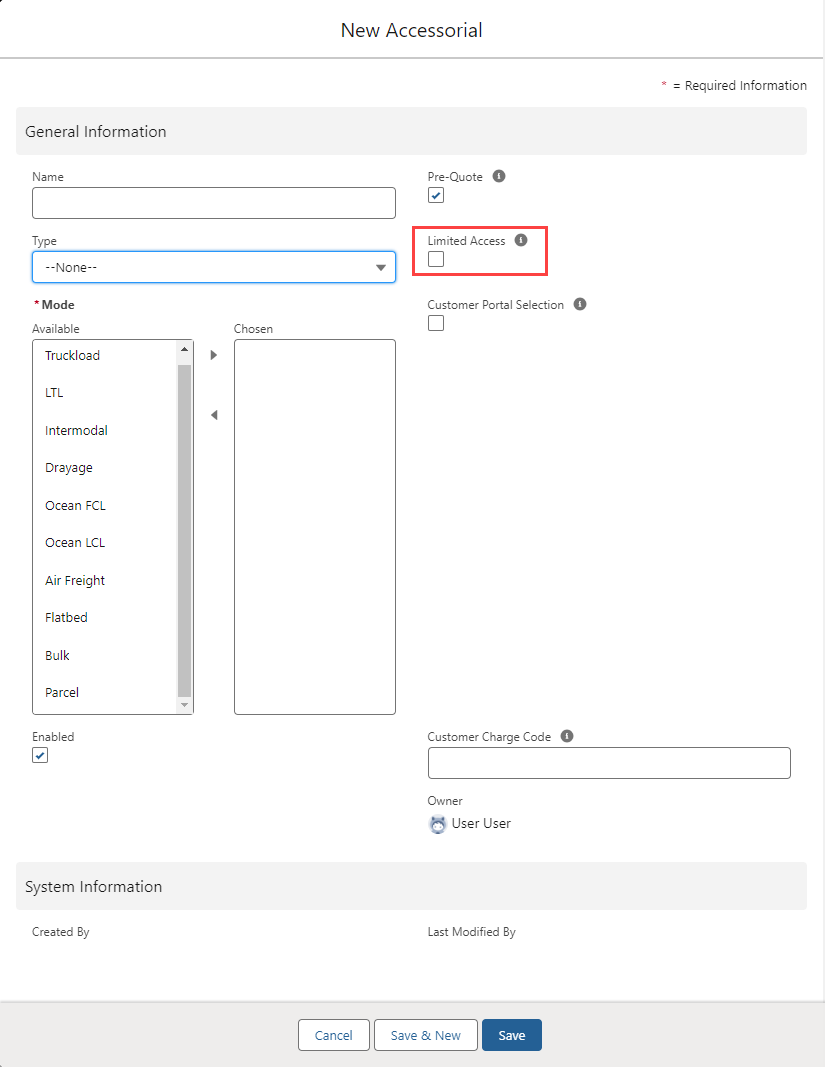
Note: If a particular accessorial isn’t available during Load creation, confirm that the Pre-Quote box is checked on the accessorial record.
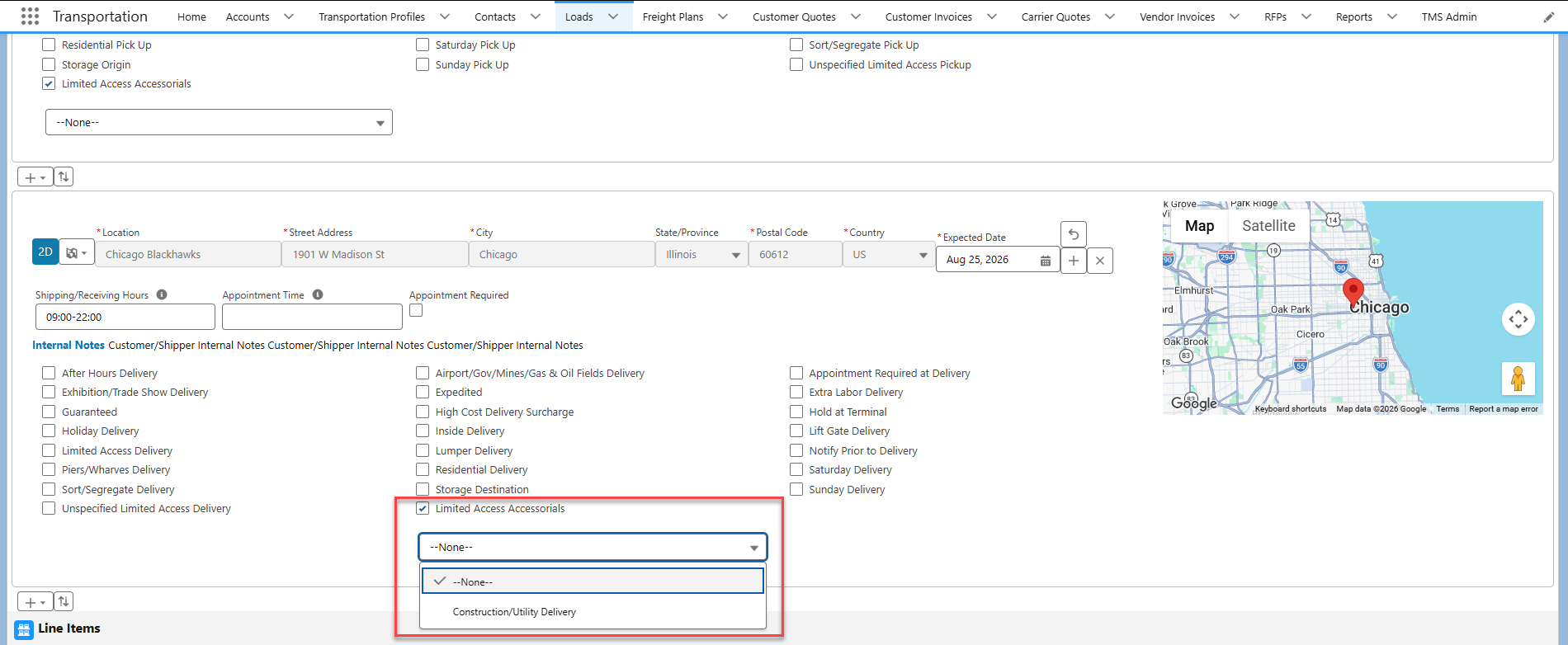
Once the accessorial records are created and enabled, they are available during Load creation on the Stop Detail LWC by navigating from the Detail Entry → Show Accessorials.
The Limited Access Accessorials checkbox is always last in the list of available accessorial charges. Limited Access Accessorial charges can also be added in or removed from the Load Detail LWC.
When the Limited Access Accessorials box is checked, a picklist displays with the available accessorial charges.
Limited Access type accessorial charges are available in the Customer Portal if this box is checked on the Accessorial record. These accessorial charge(s) appear in the Quote Wizard. Limited Access Accessorial charges also appear in the FQA for both Customer and Carrier Quotes.
Select a different accessorial charge in the Item Description picklist by clicking the Item Description option to modify this Line Item.
.png)
Note: Limited Access Accessorial charges are only related to the Stop type. For example, Pickup Limited Access Accessorial charges display on Pickup Stops.
Only 1 Limited Access Accessorial can be selected for each Stop location during Load creation. To include additional charges for a Stop, create Default Accessorials on the Transportation Profile.
Multiple Default Accessorial charges can be associated with a Stop location. If more than one option is a Limited Access Accessorial, the accessorial is selected from the picklist in alphabetical order. All accessorial charges are added to the Load Accessorial related list.
Uncheck the box to remove a Limited Access Accessorial from the Load.
Additional Accessorial Settings in TMS Admin
TMS Admin includes other types of accessorial settings depending on the scenario of the Load. For example, you can apply a Carrier Removal Accessorial if a Carrier is removed from the Load. Locate these settings by navigating to the App Launcher → TMS Admin → Configuration → Global Settings.
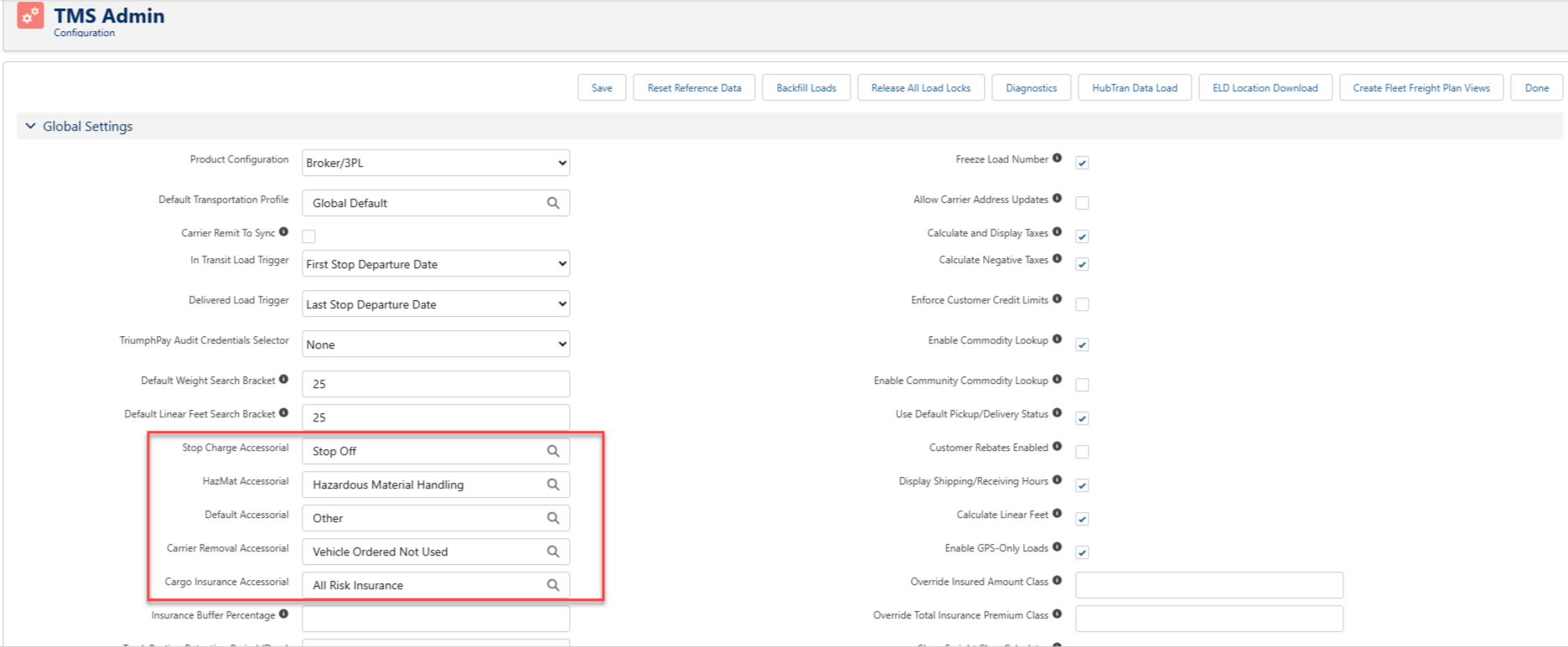
Additional accessorial types are as follows:
Cargo Insurance Accessorial
An accessorial automatically added for Customer Quotes if an insurance premium was requested. This field only appears when the accessorial is sent through a API Provider.
Carrier Removal Accessorial
An accessorial automatically added for Carrier Quotes if the Carrier is removed from a Load.
Default Accessorial
An accessorial used for quoting integrations, such as Banyan and Project44, to apply an accessorial that wasn’t listed in the TMS. Like Stop Charge Accessorials, this accessorial can be automatically applied through customer and Carrier stored Rate Entries. The default value is “Other.”
An accessorial automatically added for HazMat Loads that can be found and edited in the Load Detail Line Items.
Stop Charge Accessorial
An accessorial automatically added to customer and Carrier stored Rate Entries. It’s used for stop charges, and the default value is “Stop Off.”
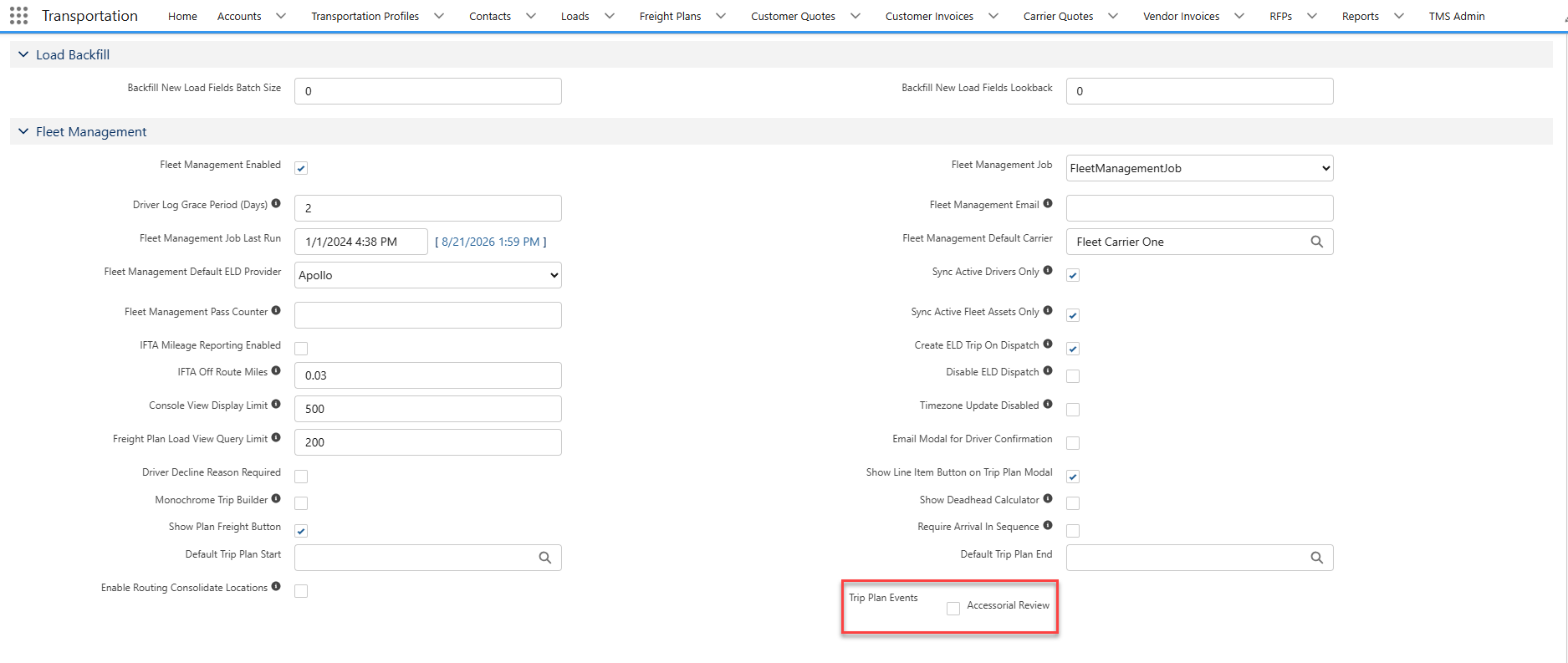
For Fleet Management, enable the Accessorial Review checkbox for Trip Plan Events in the TMS Admin → Configuration → Fleet Management section.
The Trip Plan Events Accessorial Review checkbox is used when accessorial charges are included in a Load or Trip Plan Leg to generate Trip Events.
API Accessorials
API accessorial records are detail records of the Accessorial object.
The API accessorial record contains information for sending, receiving, and interpreting the accessorial to an integration partner for quoting. Some accessorial and API accessorial records are created during initial TMS installation and/or upgrades for certain integrations. Integration partners may add support for additional accessorial charges.
Create API Accessorial records to include additional accessorial charges in calls to integration partners. API Accessorial records are created on the Accessorial from the related list.
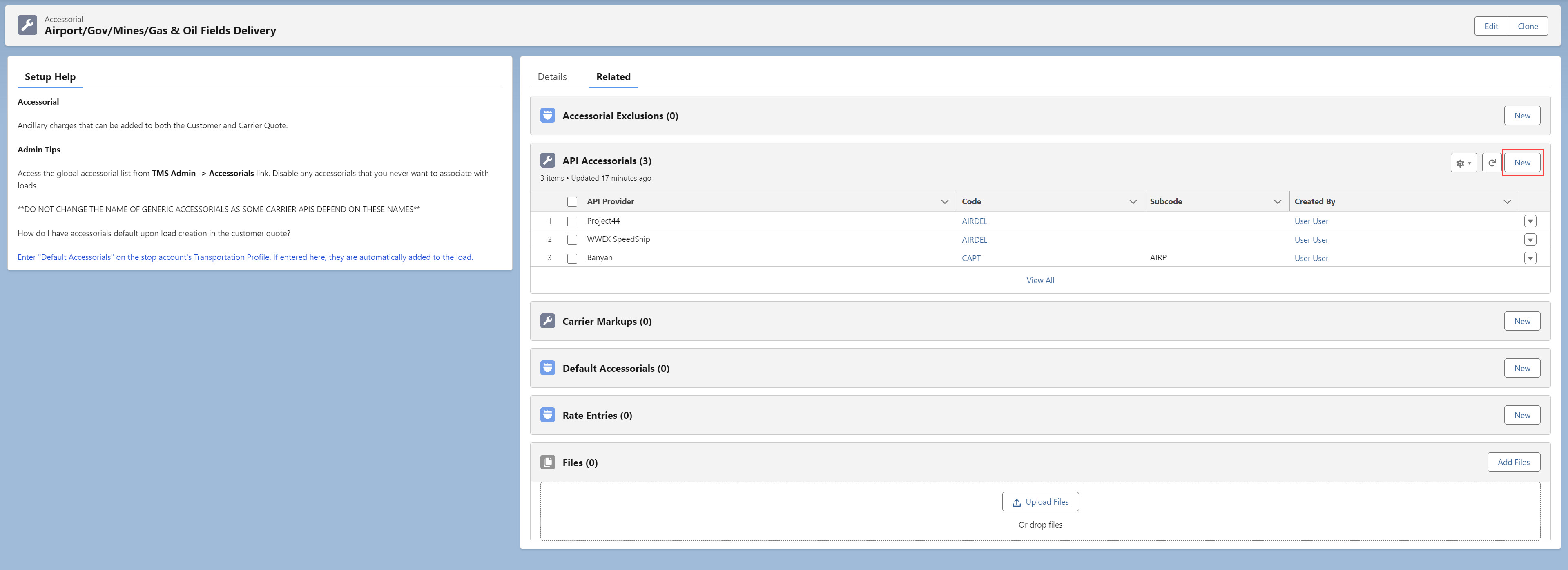
Click New on the related list.
Select the API Provider from the picklist.
Enter the Code value.
If necessary, enter the Subcode.
Click Save.
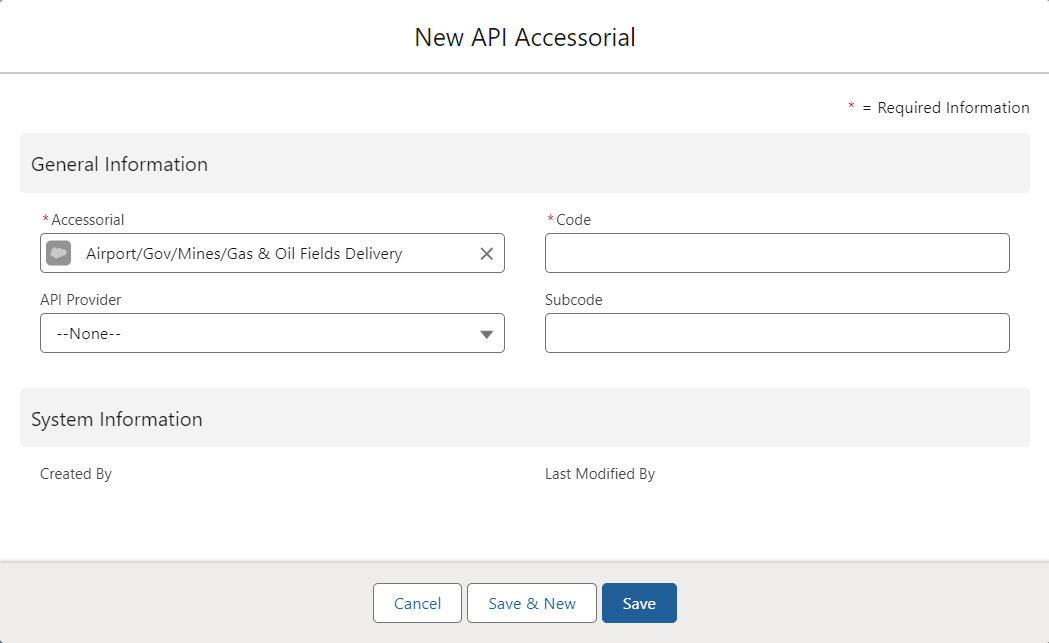
Note: Before creating API accessorial records, consult with the integration partner to obtain the Code and Subcode fields. While this is not an exhaustive list, some common accessorial Load quoting API Providers are: