Configure, customize, and manage Customer Invoice documents under TMS Admin.
Summary
All customer invoice attachments are managed by the Customer Invoice Documents configuration page. The Customer Invoice Documents page allows flexibility when attaching Load-related documents to the customer invoice.
For information on customer-specific invoice settings see Setup Customer-Specific Customer Invoice Documents.
See Setup Customer-Specific Customer Invoice Documents for information for attaching another document automatically to a customer invoice.
For example, customers requiring a tender sheet for billing and attaching that document to the invoice every time.
Customer Invoice Documents Overview
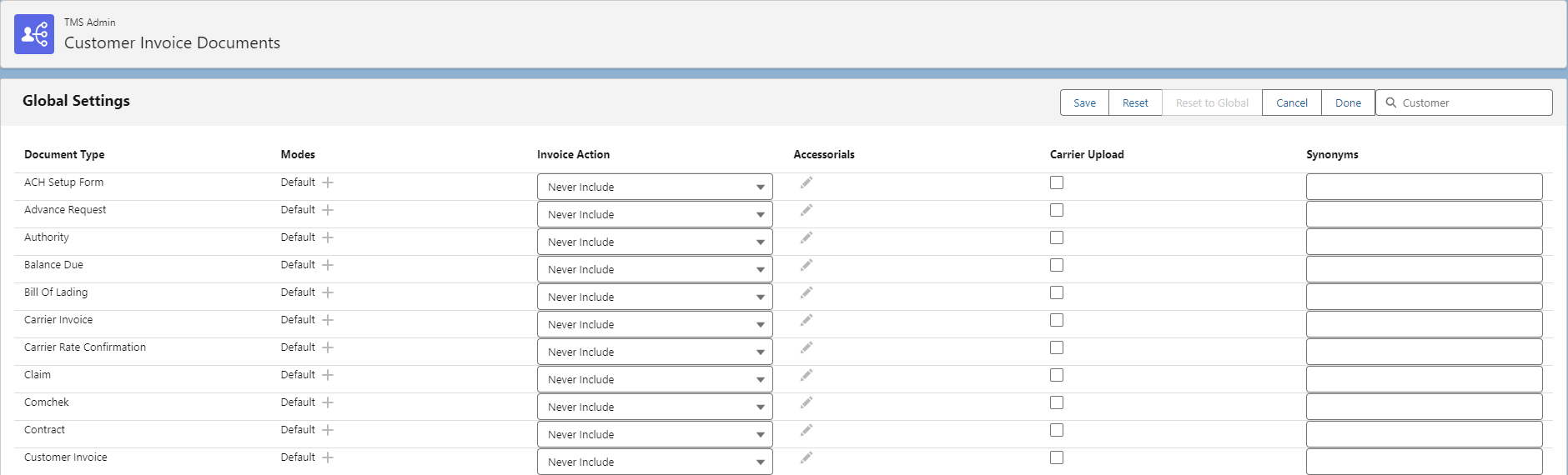
From the TMS Admin tab, select the link for Customer Invoice Documents.
The initial list of Document Type is the Global Settings List. The configurations within this list apply to ALL customers unless Customer-specific configurations are made.
Modes: Mode-specific documents may be set up by adding the Mode to the Document Type row.
Invoice Actions may be set for each document on this page to allow flexibility.
Never Include: the specific document is never included/attached to the Customer Invoice.
Always Include: the specific document is always be included/attached to the Customer Invoice.
Include if Present: if this document is present and related to the Load, it is included/attached to the Customer Invoice.
Include if Accessorial Present: if the specific Accessorial is present (selection is made from the Accessorial column to the right), this document is included/attached to the Customer Invoice.
Include if POD: if the POD document is available, this document is always included/attached to the Customer Invoice.
Carrier Upload: If checked, this provides the Carrier the opportunity to upload the specific documents through the Carrier Guest Page/”Email Loop” when providing the final Load status.
When setup is complete, click Save.
Additional fields may be added to the customer invoice by adding fields to the Customer Invoice TMS1 field set.
There is a limit of 12 fields that may be added to the Customer Invoice TMS1 field set. If more fields are required, request a custom document to manage fields that display on the customer invoice.
Customer-Specific Customer Invoice Documents
On the top right of the Customer invoice Documents page, search for and enter a Customer Account. Configure Customer-specific Customer Invoice Document settings.
Select the desired Customer and configure the documents. This page is identical to the initial Global Settings page and the configurations follow the same concept.
When all changes are completed, click Save.
If the Customer Account Name is listed on the top of the page, the customer is not using the Global Defaults and has specific settings applied. If a customer has no specific configuration, Account Name (uses Global Defaults) is displayed.
Customer invoices also have the ability to ignore required invoice documents. See the Customer-Specific Invoice Attachments article for more information.

Carrier Quote Attachment Viewer
The Carrier Quote record page layout contains the CarrierQuoteAttachmentViewer VisualForce Page. Customer Invoice Document requirements are displayed on the Page. The following logic determines how attached files are checked as Required, Present, or Both for the corresponding Load.
If a customer does not have a specific requirement, the Global Default is used. The following functionality for each document is set based on the following selected actions.
The action is Always Include, Always Include POD, or Include if Accessorial Present, then the Required column is Checked.
The action is Include if POD or Always Include POD, then the image files attached to the Load are evaluated to match the verbiage of the Document Type and if the file name contains “-POD.”
For matching files, the Present column is Checked.
Example: “Delivery Receipt” Customer Invoice Document record is identified with Include if POD. The TMS checks that a compatible image type document with “Delivery Receipt-POD” is included on the Load.
When a matching file is attached to the Load, the Present column is Checked.
The action is Always Include, Include if Present, or Include if Accessorial Present, then the TMS checks for an attached image type document with a file name with the same verbiage as the selected Document Type.
When a matching file is attached to the Load, the Present column is Checked.
Document Type
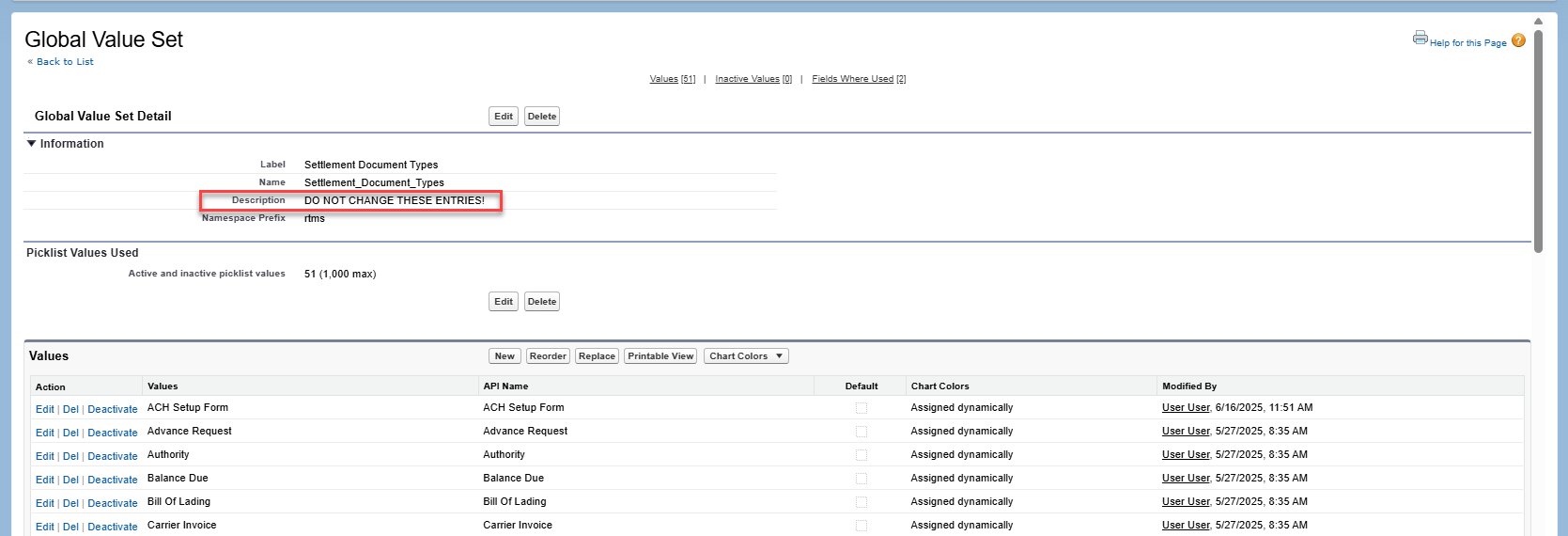
The Document Type list is based on the Document Type picklist field in the Customer Invoice Documents object.
You may add values to this picklist or deactivate values if they are not used.
Do this by going to Setup → Object Manager → Customer Invoice Document → View Settlement Document Types Value Set under Values.
Warning: Do not edit or delete any of the existing picklist values. Only add to the existing list of values or deactivate values you do not use. Deactivating a value moves that value into the Inactive Values section and can be activated again.
Web Service
Customer Invoice Documents may be submitted to the TMS through a Web Service. See the Web Service for specific setup information.
The supported Document Types may be queried with the ReferenceDataService web service.
Documents with the Is POD field True and a matching Customer Invoice Document type have the “-POD” suffix appended to the end of the file name.
The POD functionality is only applicable when uploading files to the Load object. When a POD document is uploaded to an object that is not a Load, the document file is uploaded to the object and the following error is returned: “Unable to mark document as a POD since it is not associated with a Load.”
Example
Bill of Lading-01-POD.png
Bill Of Lading-02-POD.png
Salesforce prevents .PDF documents from processing via the Customer Invoice Document functionality. Users are displayed an “Unable to mark a PDF file as proof of delivery” error. Note that .PDF documents are still uploaded to the TMS successfully, but without the “-POD” added to the file.
Only .JPEG and .PNG file types are supported for the Customer Invoice Document process.
Files sent to the web service for both generic file names and Customer Invoice Document names follow the convention: {File Name}-{increment}.{File Type}.
The increment increases whenever another document is added with the same File Name.
Example
Bill of Lading-01.png
Bill of Lading-02.png
Payload test-01.png
Payload test-02.png