The Fleet Management Module provides you the ability to manage Fleet operations and displays information such as Drivers and Fleet Assets. Revenova TMS customers can conduct both Brokerage and Fleet Management tasks in one place.
Fleet Management requires an API connection to your ELD provider. To help with this connection, the Fleet Management Module has prebuilt integrations with a wide range of ELD providers to allow you to establish that connection effortlessly. See the Fleet Integrations Setup for more information.
Fleet Management Overview
The Fleet Management Console allows you to complete four primary functions.
Function | Description |
|---|---|
Manage your fleet of drivers and assets, and prepare them for trip assignments:
| |
Create and manage your trip assignments, and monitor trip events:
| |
Create and manage complex LTL freight movements for a Fleet:
| |
Manage trip appointments for your fleet:
| |
Manage your Fleet Assets and view their location history:
|
Fleet Management Setup
Set up the User Permissions, the Chatter Feed Tracking, and configure settings in TMS Admin for Fleet Management.
User Permissions
Go to the User records to assign the appropriate permissions for each Fleet Management user. Complete the following steps to do so:
Add the Fleet Permissions field to the User page layout, if not already included on the page:
From Setup → Object Manager, select the User object.
Select the User Page Layouts tab, the User Layout.
Add the Fleet Permissions field to the page layout.
Click Save.
Provide the appropriate Fleet Permissions to each Fleet Management user:
From Setup → Users, select the User record and select Edit.
In the Additional Information section, use the arrow buttons to move the appropriate permissions from Available to Chosen for the Fleet Permissions field:
Fleet Management - (Read Only or Read/Write)
Trip Planning - (Read Only or Read/Write)
Appointment Scheduling - (Read Only or Read/Write)
Equipment Management - (Read Only or Read/Write)
Click Save.
.png)
Note: The Read Only permission removes the top banner buttons from the Fleet Management Console. To restrict additional information, set user permissions accordingly.
Optional Chatter Feed Tracking
Note: Skip this optional setup step if it was completed in the initial TMS installation.
Enable the Chatter features across Fleet Management by setting up Feed Tracking.
Go to Setup → Feed Tracking.
For each of the following objects, check the Enable Feed Tracking box and select Save:
Driver
Fleet Asset
Load
Trip Plan
TMS Admin Configuration
Set the following fields in TMS Admin → Configuration when setting up Fleet Management for the first time. For more information about each field, see the TMS Admin Fleet Management article.
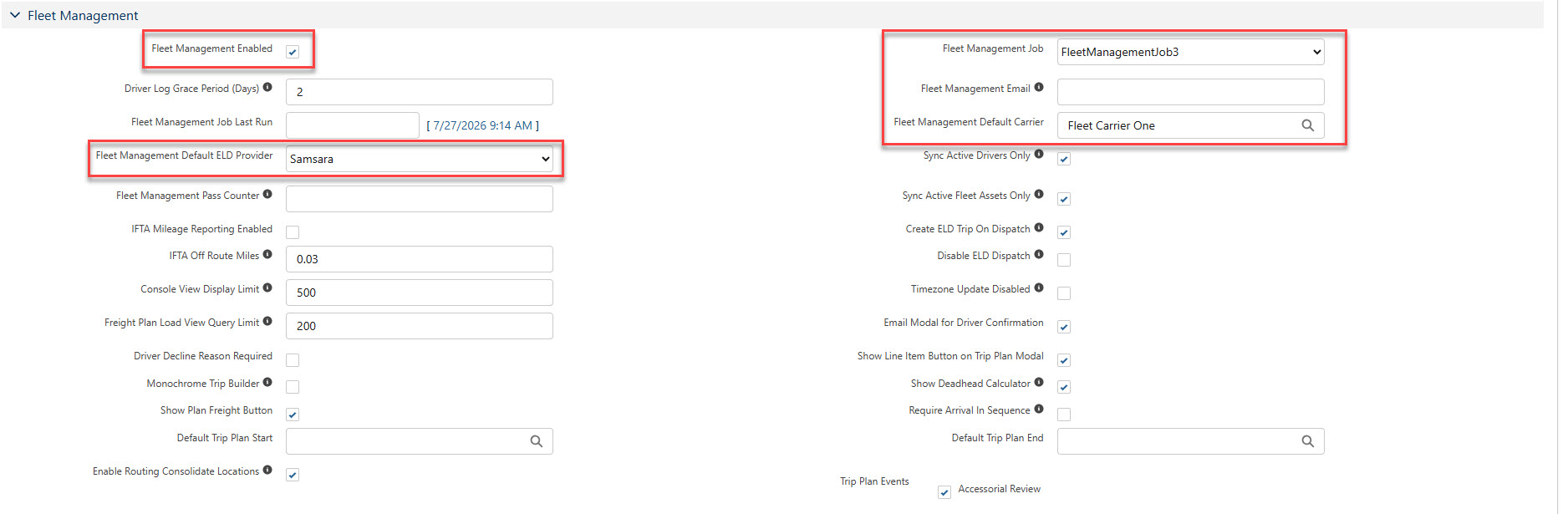
Fleet Management Enabled: Check this box to enable Fleet Management in your org.
Fleet Management Default ELD Provider: Set the default ELD provider for Fleet Asset and Driver records when the ELD Brand field is not populated during creation.
Fleet Management Job: Select FleetManagementJob4 if you plan to use Catena to connect your ELD providers or FleetManagementJob3 if you plan to use a direct integration with Samsara.
Only one Fleet Apex Job can run at a time. See the Fleet Integrations Setup section for more information on connecting ELD providers.
Note: FleetManagementJob and FleetManagementJob2 are deprecated. Catena integration users should use FleetManagementJob4 and Samsara integration users should use FleetManagementJob3.
Fleet Management Email: Enter the email address to send errors to from the running Fleet Management Job selected.
Fleet Management Default Carrier: Set the default Carrier Account for new Fleet Asset and Driver records when the Company/Division field is not populated during creation. New Contact records associated with a Driver set this as the Account Name.
Set the remaining fields as necessary. Select Save to save the updated settings.
Additional Setup
Create and configure the Fleet Email Loop to send and receive Driver confirmations once you begin creating Trip Plans.
Create Docks and Equipment Pool records in the Shipper/Consignee (Customer) Transportation Profile as needed.
Create or update Zones with the Fleet box checked to manage Fleet operations using Zones.
If you plan to generate state reports for IFTA reporting, see the IFTA Mileage and Tax Reporting article for setup instructions.
Fleet Objects List
Set the appropriate CRUD access for each Fleet-specific object for each profile or permission set listed in the following table.
Account ELD | Load Involved |
Checklist Item | Persistent Page |
Complex Datatable View | Persistent Page Complex Datatable |
Dock | Person Involved |
Driver | Service Item Master |
Driver Assignment | Service Order |
Driver Log | Service Order Item |
Driver Log Entry | Service Order Template |
Equipment Pool | Service Order Template Item |
Fleet Asset | Trip Event |
Fleet Calendar Entry | Trip Plan |
Fuel Card | Trip Plan Driver |
Fuel Card Advance | Trip Plan Leg |
Fuel Card Transaction | Trip Plan Leg Accessorial |
Fuel Card Transaction Line Item | Trip Plan Leg Asset |
Incident | Trip Plan Segment |
Inspection Report | Trip Plan State Report |
Inspection Report Template | Vehicle Involved |
Insepction Report Template Item | Violation |
Fleet Integrations Setup
Recommended Fleet Integrations Setup
Before configuring the integrations for TMS, follow these recommended steps for bringing ELD data into Revenova TMS:
Reach out to your ELD provider to get an ELD test account or sandbox. This will allow you to test the end-to-end process without impacting your operations.
Ensure that the driver and vehicle data in your ELD system is accurate and up-to-date. Revenova will use that information to create Drivers and Fleet Assets in the TMS, so it’s important that the data is cleansed and prepared for import.
Connect with a Revenova representative to complete the Trimble Maps integration setup.
Configure any applicable integrations for Fleet Management in the TMS:
Catena ELD Aggregator (formerly Axle) or Samsara (direct integration)
Warning: The Catena and Samsara integration cannot be both enabled at the same time due to the Fleet Management Job 4 (Catena) and Fleet Management Job 3 (Samsara) Apex Jobs.
ELD Provider API Creation Field Mapping
The following tables illustrate what fields are inserted (or populated) for each object from the ELD provider to Revenova TMS when running the appropriate Fleet Management Job for the first time.
See the Catena ELD Aggregator article for more information about what fields are also updated after the TMS record is created or what fields the TMS updates in the ELD provider environment.
Orgs using the Samsara integration directly with the TMS should see the Catena - Samsara Reference article for an in-depth review of which fields are populated in the TMS.
Disclaimer: The TMS makes calls to Catena’s endpoints, and in turn Catena makes API calls to your ELD provider. However, depending on your ELD provider, some fields are not passed through Catena to the TMS. The following tables illustrate all the possible fields that may be inserted from your ELD provider into Revenova TMS.
Fleet Asset
The fields inserted (I) by your ELD provider are populated in the newly created Fleet Asset record in the TMS. The TMS sets the Status field to Available when the vehicle is active in the ELD provider and the Type field to Tractor for these new records.
TMS Admin Note: Fleet Assets are created in the TMS based on the status received from the ELD provider and the Sync Active Fleet Assets Only field in the Fleet Management section of TMS Admin → Configuration.
When this field is checked, only Fleet Assets set as Active in the ELD provider environment will have new records created in the TMS.
Once the new Fleet Asset records are inserted into the TMS, you can later:
Update vehicles’ Fleet Asset Name and License Plate Number from the TMS to the ELD provider
Get the latest vehicle locations from the ELD provider
TMS Field | ELD Provider | Revenova TMS |
|---|---|---|
Company/Division | TMS sets this to Fleet Management Default Carrier, if any. | |
ELD Brand | I | If null, TMS sets this to Fleet Management Default ELD Provider. |
ELD ID | I | |
ELD Serial Number | I | |
Fleet Asset Name | I | |
License Plate Number | I | |
Status | If active, TMS sets this to Available. | |
Type | TMS sets this to Tractor | |
Vehicle Make | I | |
Vehicle Model | I | |
VIN | I | |
Year | I |
Driver
The fields inserted (I) by the ELD Provider are populated in the newly created Driver record in the TMS. Any Drivers (and their associated Contact records) that don’t exist in the TMS are created as well.
TMS Admin Note: Fleet Assets are created in the TMS based on the status received from the ELD provider and the Sync Active Drivers Only field in the Fleet Management section of TMS Admin → Configuration.
When this field is checked, only Drivers set as Active in the ELD provider environment will have records created in the TMS.
Once the new Driver records are inserted along with their new associated Contact records into the TMS for the first time, you can later:
Create new Driver records in the TMS and send them to the ELD provider
Update the Driver records in the TMS and send them to the ELD provider
Get the Hours of Service (HOS) availability from the ELD provider
Get HOS Logs from the ELD provider
Field | ELD Provider | Revenova TMS |
|---|---|---|
Activation Status | If active, TMS sets this to Available. | |
CDL # | I | |
CDL Country | I | |
CDL State/Province | I | |
Company/Division | TMS sets this to Fleet Management Default Carrier, if any. | |
Confirmation Method | TMS sets this to Email | |
Contact | TMS creates a new Contact record | |
Cycle Override | I | |
Drivers License Country | I | |
Driver Name | I | |
Driver Ruleset Override | TMS sets this to Checked | |
ELD Brand | I | If null, TMS sets this to Fleet Management Default ELD Provider. |
ELD Enabled | TMS sets this to Checked | |
ELD ID | I | |
Phone | I | |
Rest Break Override | I | |
Restart Override | I | |
Status | TMS sets this to Available | |
Timezone | I | |
*Type | TMS sets this to either Employee or Independent Contractor | |
Username | I |
*See the Fleet Management Job 4 documentation for information on how the TMS sets the value (Employee or Independent Contractor) for the Driver Type field.
Contact
Note: If a newly created Driver has the same name as an existing Contact record, that Driver is paired to the existing Contact record.
The Driver Phone and Email fields are populated from the existing Contact record. Both Phone and Email fields match for the paired Driver and Contact record.
The following table illustrates the fields populated for new Contact records created alongside Driver records.
Field | ELD Provider | Revenova TMS |
|---|---|---|
Account Name | TMS sets this to the Fleet Management Default Carrier value, if any. | |
Citizenship Country | TMS sets this to the default value of the Citizenship Country field. | |
Mailing Address | TMS sets this to the Default Country/Territory in Setup → State and Country/Territory Picklists. | |
Name | I | |
Phone | I | |
Transportation Role | TMS sets this to Driver |
Fleet Apex Jobs
There are three Fleet Management Jobs that each run continuously to keep the TMS and your ELD provider information in sync every 15 minutes:
FleetManagementJob: Deprecated. Samsara integration users should use FleetManagementJob3.
FleetManagementJob2: Deprecated. Catena integration users should use this to sync their ELD providers’ data with TMS.
FleetManagementJob3: A faster and efficient version of the original FleetManagementJob for Samsara integration users. Sync Samsara data with TMS using this Apex job.
FleetManagementJob4: A faster and efficient version of the original FleetManagementJob2 for Catena integration users. Sync Catena data with TMS using this Apex job.
Depending on the selected value of the Fleet Management Job field in TMS Admin Configuration, that job will have the Status “Not Running or Scheduled,” while the other Fleet Management Jobs will have the Status “Not Applicable” in the Job Monitor LWC.

Once all setup steps have been completed, run the appropriate Fleet Management Job in the Batch Process Monitor by opening the drop-down and selecting the Run Now action.
If errors occur while the job is running, those error messages are sent to the email address provided in Fleet Management Email in TMS Admin Configuration.
Next Steps
Now that the data between your ELD providers and Revenova TMS is in sync, start managing your fleet operations in the TMS by creating Fleet Management Console Views.