Complex multi-modal or LTL Loads are managed in the TMS for both Brokerage and Fleet configurations with Freight Plans. The Trip Builder component is used in the Fleet Management Console to connect Freight Plans to Trip Plans for movement by the Company fleet. See conceptual Freight Plan information here. For simple examples of Freight Planning in the Fleet Management Console, see the Freight Plan Workflow.
The Trip Builder component is primarily used in Phase 2 of the Freight Plan Workflow for creating and managing Freight Plans. Two primary tasks are completed in the Trip Builder.
Merge or consolidate Carrier Loads with new or existing Trip Plan Segments.
Reorder Trip Plan Segments and Legs.
Setup
The Trip Builder is a powerful component for managing freight movements. Configure the following field sets to view required field information in the Fleet Management Console and the Trip Builder.
Confirm the following settings to use Freight Planning in the Fleet Management Console.
Configure the following fields for Freight Plan workflows.
Navigate to TMS Admin → Configuration.
Find the Fleet Management section.
Confirm Show Plan Freight Button is Checked.
Search for and add a Default Trip Plan Start and/or Default Trip Plan End field to automatically populate these fields creating Trip Plans. See the Segment section below for information on how these fields function.
Click the Create Fleet Freight Plan Views button to generate one Customer Load and one Carrier Load view in the Fleet Management Console. These views serve as default views to help get started with Freight Plans in the Fleet Management Console.
The user that clicks the button is set as the owner of the view records.
If the user that clicks the button is already the owner of at least one Fleet Load view type, a Carrier Loads view is not generated.
If the user is already an owner of at least one existing Freight Plan Load view, a Customer Loads view is not created.
Continue Fleet Freight Plan setup, as necessary.
Navigate to TMS Admin → Configuration.
Find the Freight Plan section.
Confirm Freight Plans Enabled is Checked.
Select the applicable Freight Plan Cost Allocation Method for the desired business use case.
Freight Plan Cost Allocations are only relevant when moving multiple Customer Loads on a single Carrier Load.
The Carrier Load must have a Quote associated with it. The cost form the Carrier Load is allocated onto the Customer Load.
If desired, Check the Monochrome Freight Planner to remove colors in the Freight Plan Console.
Check each Freight Plan Stop TMS Type to include it when searching and adding Stops to Freight Plans.
So long as the Account contains at least one of the selected TMS Type values, that Account is available for selection.
The Trip Plan Leg Start Type and End Type are derived from the TMS Type of the Account the Stop represents, but they do not have the same value. The Leg Start and End Type defines the context of each Leg based on the TMS Type.
Create Freight Plan Load, Carrier Load, and Trip Plan views in the Fleet Management Console.
In order to view Carrier Loads in Fleet Management Console Load views, confirm the view filtering is configured to display Carrier Loads.
Field Sets
Add to or remove fields from the following field sets to control field values that are displayed or are copied when certain tasks are completed.
Line Item TMS3
Fields in this field set automatically sync any Line Item record changes between Customer and Carrier Loads in a Freight Plan.
Any changes made to Line Items on the Trip Planner update the Carrier Load(s) and corresponding Customer Load.
This field set does not impact functionality for adding or removing Line Item records individually.
Load TMS1
Fields in this field set are displayed on the Load Configuration component when creating Loads.
It is recommended to add the Fleet field and Check it when manually creating Loads.
Setting the Fleet field allows for more precise filtering in the Fleet Management Console views.
Load TMS25
Fields in this field set are displayed as column headers in the Customer Load section of the Freight Plan Console.
Adding many fields to this field set likely results in required horizontal scrolling to view information.
Any fields added to this field set appear in the Brokerage Freight Plan Console.
Load TMS26
Fields in this field set are displayed as column headers in the Carrier Load section of the Freight Plan Console.
Adding many fields to this field set likely results in required horizontal scrolling to view information.
Any fields added to this field set appear in the Brokerage Freight Plan Console.
Load TMS27
Fields in this field set are displayed on the Carrier Load component when created new Carrier Loads.
It is recommended to add the Fleet field and Check it when creating Carrier Loads.
Setting the Fleet field allows for more precise filtering in the Fleet Management Console views.
Load TMS41
Fields in this field set are displayed as column headers in the selected Loads section of the Trip Builder.
Add fields to view Load information when consolidating Carrier Loads into Trip Plan Segments.
The following fields are included in the field set by default.
Origin
Expected Ship Date
Destination
Expected Delivery Date
Customer
Load Status
Cargo Value
Stop TMS9
Fields in this field set automatically copy from a Customer Load to the Carrier Load(s) when the Carrier Loads are created.
Include the following fields to automatically include Stop location field dwell and Cargo Status values on the new Carrier Loads.
Due Out Date
Due Out Date
Cargo Status
Planned Duration
This field set automatically copies the included fields when the Trip Builder consolidates multiple Carrier Loads into a single Carrier Load to add it to a Trip Plan Segment.
Stop TMS11
Fields in this field set automatically update Customer Load Stop fields from the Carrier Load Stop field updates.
The Catena integration does not update the Carrier Load Stops on the Trip Plan Segment and therefor does not update on the Customer Load. The Trimble integration does not update Stops directly based on Arrival and Departure updates.
The Samsara integration directly updates Carrier Load Stop information on the Trip Plan Segment and therefor does update on the Customer Load.
Add the same Stop location fields from Stop TMS9 to the field set to sync the fields from the Customer Load to the Carrier Loads.
Due Out Date
Due Out Date
Cargo Status
Planned Duration
Stop TMS15
Fields in this field set are displayed as column headers for each Carrier Load Stop.
Add fields to view Stop information when consolidating Carrier Loads into Trip Plan Segments.
See the Field Set Summary for field set descriptions and visual examples.
Recommended Practices
Carrier Loads
Split Customer Loads into Carrier Loads instead of creating two separate Trip Plan Segments with separate Load Stops from non-Freight Plan Loads. In other words, Carrier Load Stops should not be separated from one another. Splitting Customer Loads across Trip Plan Segments should only be completed using Carrier Loads.
Previously, users could add Load Stops from non-Freight Plan Loads to separate Trip Plan Segments.
Instead, split Customer Loads into Carrier Loads before assigning them to Trip Plan Segments.
The Trip Builder does not allow adding Stops from the same Carrier Load to 2 separate Trip Plan Segments.
Carrier Loads on a Trip Plan Segment
Set the following filters to find Carriers Loads that are not yet planned.
For non-Fleet Loads, set the Fleet Load Status to no value.
For Fleet Loads and Fleet Loads set the Fleet Load Status to Unplanned.
Set the following filters to find Carrier Loads that are planned.
For Fleet Loads and non-Fleet Loads set the Fleet Load Status to Partially Planned.
Customer Loads
The Fleet Load Status field does not update on the Customer Load. The Carrier Load is directly related to the Trip Plan Segment.
The Customer Load field on the Trip Plan Leg displays the Customer Load for the corresponding Customer Load Stop for the end of the Leg.
Example: If a Leg ends at Illinois Terminal as a Carrier Load Stop, it does not display the Customer Load at Illinois Terminal as it is not a Customer Load Stop.
Drivers
Selecting multiple Drivers from a Driver view with a Carrier Load from another view and choosing the Plan Trip button opens the Trip Builder. However, only one Driver is included in the Trip Builder component.
A Driver included in a multi-Driver Assignment that is selected with a Carrier Load and choosing the Plan Trip button opens the Trip Builder. Again, only one Driver is included in the Trip Builder component.
Trip Plan Legs
Each Trip Plan Leg is designed to capture the distance between the previous Trip Plan Leg End and the next Stop in the Trip. Trip Plan Legs always start at the same location that the previous Leg ended.
Trip Plan Segments
Users are recommended to enter values for the Start Location and End Location for the Trip Plan Segment within the Trip Builder. These fields are optional, but allow for adding Terminal or other locations to the beginning or end of the Trip Plan Segment.
Adding new Carrier Loads to an existing Segment adds the entire Carrier Load to the Trip Plan Segment.
The Pickup(s) and Delivery(ies) for the Carrier Load can be re-ordered for cases when Stops from the same Carrier Load are not intended to happen in direct succession.
Stops can’t be re-ordered to place a delivery at the start of a Trip Plan Segment.
When a single Carrier Load is removed from a Trip Plan Segment, update the corresponding Trip Plan.
The Trip Plan Status is set to Load Changed when any Stop location or Number is changed.
Remove any unnecessary Stops.
Building Trips
When creating Trip Plan Segments in the Trip Builder, it is recommended to add a pickup location. Adding a pickup location to the first Leg in the Segment allows the TMS to track the deadhead miles from the Driver’s previous location to the start of the new Segment.
Trip Plan views contain a derived field called Build Trip. This field allows for adding one-to-many Carrier Loads to an existing Trip Plan from the Fleet Management Console.
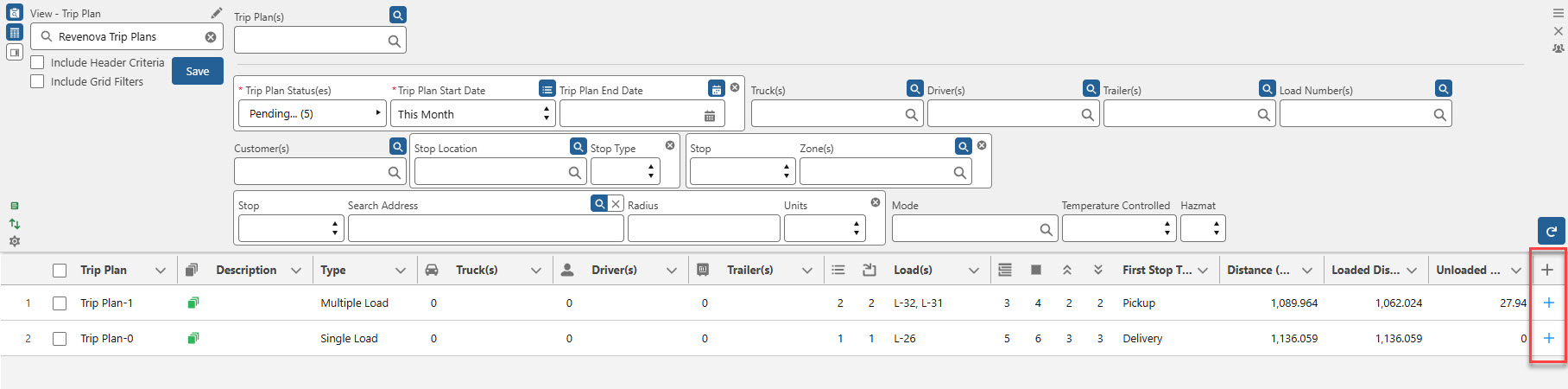
Any record selections from the various views (Drivers, Fleet Assets, Loads, etc.) are always ordered the same as the row order. For example, when selecting multiple Drivers, the Driver closest to the top of the list is inserted first.
Trip Builder Component
The Trip Builder component is displayed by Checking a Carrier Load(s) and choosing the Plan Trip button or by selecting a Carrier Load and choosing the Build Trip button in the Trip Plans view.
Select Loads and click Plan Trip.
When only Carrier Loads are selected, the Trip Builder opens with the Loads displayed in the Selected Loads section.
When only Customer Loads are selected, the Trip Planner opens with the first selected Load added to the Trip Plan Segment.
Only the first Customer Load is selected based on the row number.
When a mix of Carrier and Customer Loads are selected, the Trip Builder opens with only Carrier Loads displayed in the Selected Loads section.
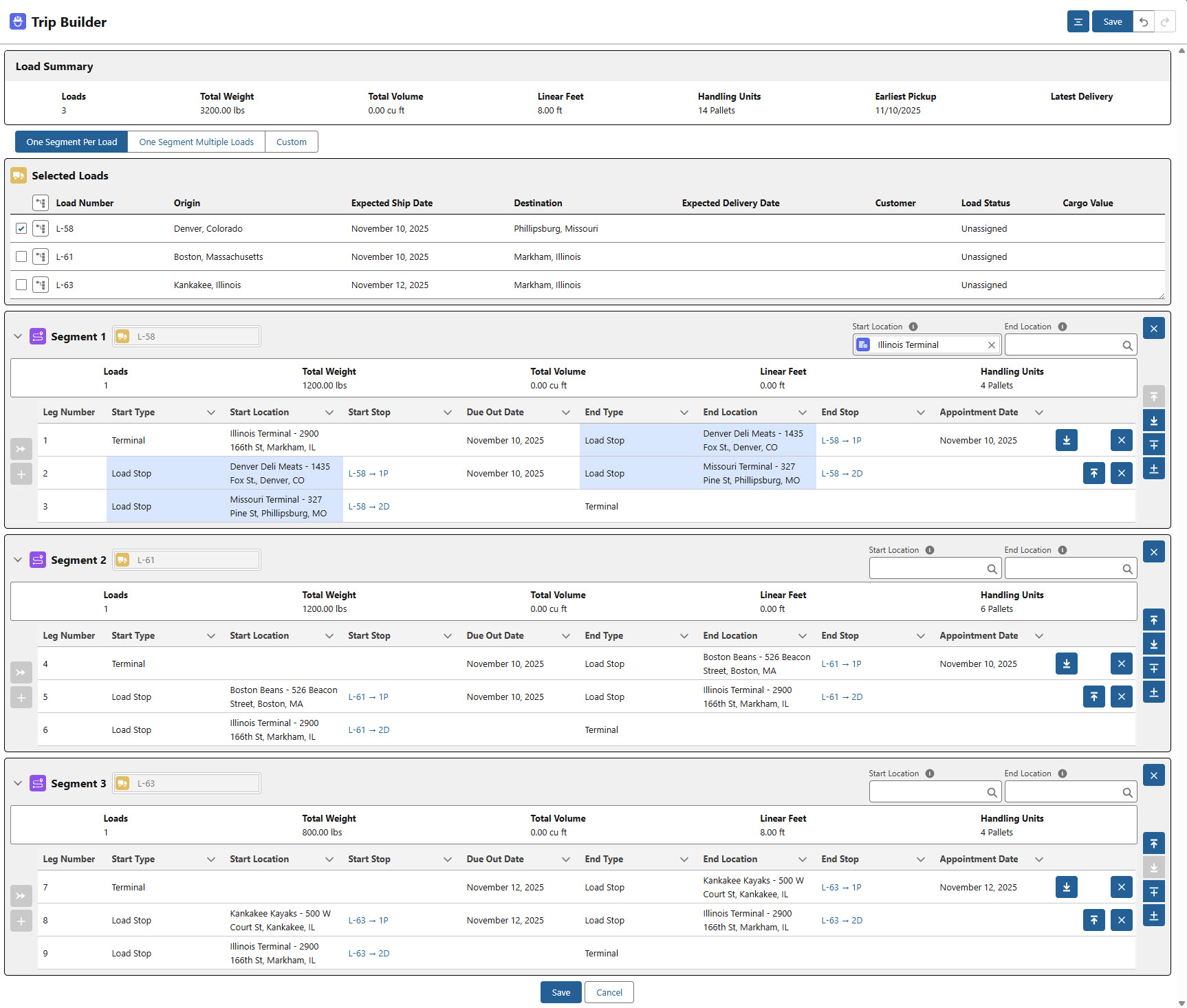
The Trip Builder banner contains the following buttons for managing Trip Plan Segments.

The Expand All
 and Collapse All
  buttons show or hide Load and Trip Plan Segment information in the Builder.
The Save
 button saves the current state of the Trip Builder allowing the user to return to the Fleet Management Console.
The Undo
 button revert the last action taken on the Builder.
This button are not available unless an action was taken or after a user clicks Save.
The Redo
 button re-completes the last action by the user.
This button are not available unless an undo action was taken or when a user clicks Save.
Selecting Carrier Load(s) with Driver(s) and/or Fleet Asset(s) from the Fleet Management Console views includes them on the Trip Builder as read-only fields.

When selected with an existing Trip Plan, the Driver and/or Fleet Asset do not update the existing Driver and/or Fleet Asset already on the Segment.
It is recommended to add Drivers and Fleet Assets to Trip Plans with the Trip Planner, not the Trip Builder.
Load Summary
The Load Summary section contains information for each of the Carrier Loads included in the Selected Loads section.

The following columns are displayed and values are calculated.
Loads
The number of Loads included in the Selected Loads section.
Total Weight
The sum of the weight of the Selected Loads.
Total Volume
The sum of the Total Volume field from each Selected Load.
Linear Feet
The sum of the Liner Feet fields from each Selected Load.
Handling Units
The HU Count and Handling Units value from each Selected Load.
Earliest Pickup
the earliest Expected Ship Date on any of the Selected Loads.
Latest Delivery
The latest Expected Delivery Date on any of the Selected Loads.
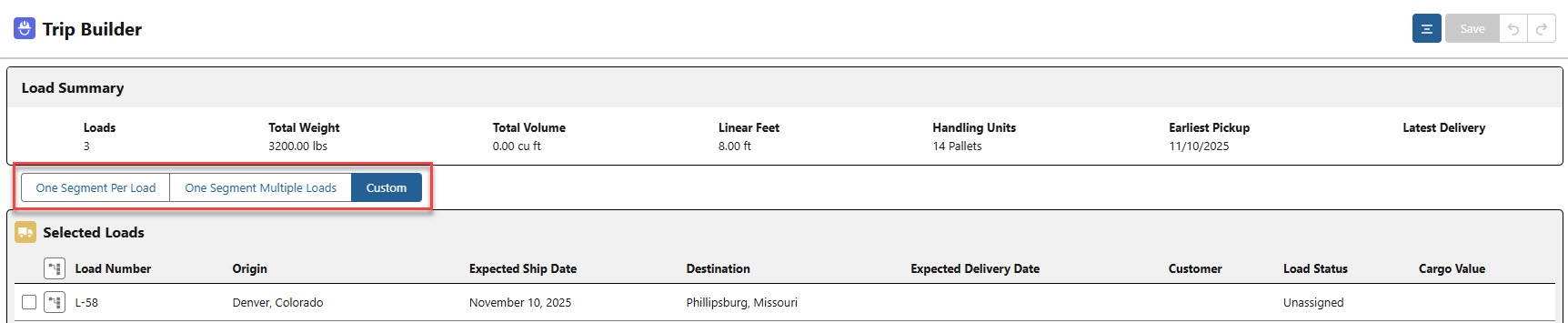
Below the Load Summary, three buttons control the Trip Format.
Use one of the three buttons to add Load Stops to Trip Plan Segments, as necessary.
One Segment Per Load
Each Selected Load is completed in a single Trip Plan Segment containing all of the of Stops for the Load.
One Segment Multiple Loads
A Driver handles all Selected Loads on one Trip Plan Segment.
All Stops are added to a single Trip Plan Segment beginning with Pickup locations. After completing all Pickup locations, Deliveries are performed in the order they were selected. The following example below shows the order of pickup/delivery.
L-11 - 1P Revenova HQ
L-12 - 1P Chicago Pizza
L-11 - 2D Denver Deli Meats
L-12 - 2D Fargo Wood Chippers
The One Segment Multiple Loads button is not available when a Trip Plan record already exists.
Custom
Custom is the default setting when opening the Trip Builder.
Selected Loads
The Selected Loads section of the Trip Builder contains a list of the Loads and the related Stops selected from the Fleet Management Console. The columns are controlled by Load Field Set TMS41 and by default include the following fields.
Origin
Expected Ship date
Destination
Expected Delivery Date
Customer
Load Status
Cargo Value
Add Load fields to the field set, as necessary.

Carrier Loads are selected by Checking the box to the left of the Load Number. Select the Load to begin adding it to a Trip Plan Segment. Note that individual Stops are not added to a Trip Plan Segment. The entire Carrier Load is added to the Trip Plan Segment.
Click the Expand  button view Stops for each Carrier Load.

Stops that are included on a Trip Plan Segment are highlighted in blue.
In the monochrome Trip Builder, added Stops are shaded.

Stops for Loads that are already merged with an existing Trip Plan Leg end or start location are highlighted in green.
In the monochrome Trip Builder, merged Stops are diagonally shaded.

Un-Check the Load to remove the Stop highlights.
Stop columns are determined by the Stop TMS15 field set. The following fields are included in the field set by default. Any additional fields added to the field set are lookup fields that link to the record page.
Location
A hyperlink that opens the Account location record.
Address
Expected Date
Shipping/Receiving Hours
Shipping/Receiving Contact
A hyperlink that opens the Contact record.
Segment(s)
The Segment section contains all of the Load and Stop information for each Trip Plan Segment created from the Selected Loads. The individual Trip Plan Segments each include all Trip Plan Legs within the Segment. When creating Segments in the Trip Builder, there must be a Load on the Segment and it must start with a pickup and end with a delivery.

Expand or collapse each Segment information with the caret next to the Segment name.
Two lookup fields at the top of the section allow for searching for locations. It is recommended to have values for both the Start Location and End Location fields.
Start Location
The Start Location field is added to the beginning of of the first Trip Plan Segment. Leg 1 begins at the Start Location and the Leg ends at the first Load Stop in the Trip Plan Segment.
If the Start Location has no value, Leg 1 begins with the first Stop in the Segment. The Leg ends at the second Load Stop in the Trip Plan Segment.
When the Trip Plan Segment is the first Segment in a Trip Plan, the Start Location is the default value set in TMS Admin → Configuration. See Setup above.
Search and replace the value from the lookup field or delete the value for the Trip Plan Segment as desired.
Deleting the value for the Trip Plan Segment deletes the Leg that begins with the Start Location.
End Location
The End Location field is added to the end of the last Trip Plan Segment. The final Leg on the Segment begins at the Last Load Stop and the Leg ends at the End Location.
If the End Location has no value, the final leg ends with the last Stop in the Segment. The final Leg on the Segment begins with the last Load Stop and the Leg ends at the last Load Stop in the Segment.
When the Trip Plan Segment is the last Segment in a Trip Plan, the End Location is the default value set in TMS Admin → Configuration. See Setup above.
Search and replace the value from the lookup field or delete the value for the Trip Plan Segment as desired.
Deleting the value for the Trip Plan Segment deletes the Leg that ends with the End Location.
The locations selected in the Start Location and End Location fields are not included as Stops on the Carrier Load.
Individual Trip Plan Segments are listed with the Trip Plan Legs. The following columns include Leg information for adding Carrier Loads to Trip Plan Segments.
Leg Number
Start Type
Start Location
Start Stop
A hyperlink that opens the Stop record.
Due Out Date
End Type
End Location
End Stop
A hyperlink that opens the Stop record.
Appointment Date
A summary of the information for each Trip Plan Segment is included above the Trip Plan Legs. The following information columns are included.
Loads
The number of Loads in the Segment.
Total Weight
The total weight of Loads in the Segment.
Total Volume
When calculated, the total volume for Loads in the Segment.
Linear Feet
When calculated, the linear feet for Loads in the Segment.
Handling Units
The total HU Count and Handling Unit type for Loads in the Segment.

Segment Buttons
Use the Merge and Add buttons to consolidate Carrier Loads into Trip Plan Segments.
The Merge
 button adds the Carrier Load to the selected Trip Plan Segment.
 This action is available when at least one of the Stops on the Carrier Load has a location that is present in the Trip Plan Segment.
The Trip Builder automatically matches Load Stops to locations on the Trip Plan Legs.
The Start Type and End Type for the carrier Load are changed to Load Stop and a pickup/delivery number is inserted.
The Merge function is designed to allow users to add Carrier Loads to existing Trip Plans that were created before the Load.
Load Stops cannot be merged into existing Load Stops. The Merge feature consolidates Stops with a Start Type or End Type of ‘Location.’ Merging additional Load Stops with a Start Type or End Type of ‘Load Stop’ is not permitted.
Once merged, Load records are included in the header at the top of the Segment section.
Stops on the Carrier Load that do not have a matching location on the Trip Plan Segment create a new Trip Plan Leg.
Merge Priority for Repeat Locations
If a Carrier Load contains a Stop location that matches multiple locations on a given Trip Plan Segment, the Trip Builder merges each Load Stop with the first matching location it finds in the Segment, beginning with Leg 1.
This functionality provides flexibility for Round Trip Loads.
The Add
 button adds the Selected Load to an existing Trip Plan Segment.
 This action creates a new Trip Plan Leg for the Stops on the selected Load.
This action does not override any existing Trip Plan Leg.
Add Carrier Loads to Segments
Add Carrier Load to Trip Plan Segments.
When multiple Carrier Loads are added to a single Trip Plan Segment, the added Carrier Loads are combined to a single Carrier Load.
The single Carrier Load is then added to the Trip Plan Segment.
New Carrier Loads may be added to this single Carrier Load, as necessary.
Select a Carrier Load from a Fleet Loads view.
Select the + button for the Trip Plan to add the Carrier Load to.
This is the Build Trip Derived Field in the Trip Plan view.
The Trip Builder opens with the Carrier Load that is already related to the Segment displayed in the Selected Loads section. This Load is already on a Trip Plan and cannot be selected by Checking the box next to it. The Selected Loads section also displays any Carrier Loads selected from the Fleet Management Console prior to clicking the + button.
Add the Carrier Load to the Segment.
Click Save.
The existing Carrier Load is updated to include the new Carrier Load.
When the Trip Plan Segment contains multiple consecutive Load Stops that are associated with the same location, the Stops are combined into a single Stop on the resulting Carrier Load. For example:
Select two Carrier Loads that are both delivering to Revenova HQ.
Rearrange them on the Trip Plan Segment so that both deliveries to Revenova HQ are one after the other.
Click Save in the Trip Builder to combine the Stops to avoid redundant Stops on the resulting Carrier Load.
Line Items for individual Carrier Loads are added to the combined Carrier Load.
Each Line Item record maintains the reference to the Customer Load Line Item.
Use the reorder buttons to move Trip Plan Segments and Legs in the Trip Builder.
The Trip Builder provides flexibility to build complex Trip Plan Segments. There is no validation for the order of Stops in a Trip Plan Segment as they relate to Carrier Load Stop order.
 Move Leg Up.
 Move Leg Down.
 Remove the entire Carrier Load and Stops from the Trip Plan Segment.
 Add a Trip Plan Segment above.
 Add a Trip Plan Segment below.
As Trip Plan Legs are moved, the following logic controls the related records.
Trip Plan Leg Assets
The Trip Plan Leg Asset (including Fleet Asset and Cargo Status fields) remains associated with the Stop at the end of the Trip Plan Leg.
Trip Plan Leg Accessorials
The accessorial charge remains associated with the Stop at the end of the Trip Plan Leg.
Trip Plan Leg Accessorial records are stored on the Trip Plan. They are not stored on or related to the Load
Add Loads to In Progress Segments
Loads may be added to Trip Plan Segments that are already Dispatched to the Driver. Carrier Loads may only be added to Segments that have an existing Load if that Load is a Carrier Load. Add Loads to an In Progress Trip Plan Segment by completing the following steps.
Check the Carrier Load to select it from the Load view.
Check the Trip Plan from the view.
Choose the + button for the Build Trip Derived field.
The Trip Builder opens with the Load and the Trip Plan.
Arrange the Segment(s) and Leg(s) as required.
Click the Add (or Merge) button to add the Carrier Load to the Segment.
The Merge button is used when the Segment the Carrier Load is added to already contains a Stop that matches the location of the new Load Stop.
Save the updated Segment(s).
The Trip Planner opens.
Follow the same workflow for the Driver by clicking the Confirm Driver button.
Note that when Carrier Loads are consolidated onto a Trip Plan Segment in the Trip Builder, the existing Carrier Loads are deleted. These Carrier Loads are replaced with a new Carrier Load(s) record and associated Trip Plan Segment(s) for moving the freight.
Remove Carrier Loads
Carrier Loads may be removed from a Trip Plan Segment before the Trip is saved.
Remove Carrier Loads from a Trip Plan Segment with the Trip Builder. Edit the Trip Plan by removing a Load from the existing Trip Plan Segment.
The order of Load Stops may be changed in the Trip Builder.
These changes do not update the associated Load.
Changing the Stop order on the Load record does not automatically update the Trip Plan.
A new Carrier Load is created to include the new Stops.
The Due Out Date column is filled by the Stop Expected Date when the location is converted to a Load Stop.
To prevent Trip Plan issues, Trip Plan Segments cannot be saved in an incorrect configuration. The Trip Builder prevents saving Trip Plans by hiding the Save button in the following scenarios.
The final Stop for a Trip Plan Segment is a pickup.
The first Stop for a Trip Plan Segment is a delivery.
A Trip Plan Segment must have at least one complete Leg.
Once Carrier Loads are assigned to a Trip Plan Segment and saved, they are combined into a single Carrier Load. This new Carrier Load may only be removed from the Trip Plan Segment from the Trip Planner, not the Trip Builder.
Freight Plan Status Flows Reference
Action | Fleet Load Status | Customer Load | Carrier Load | Trip Plan Status | Trip Plan Segment Status | Driver Confirmation Status |
|---|---|---|---|---|---|---|
Create Load | N/A | Unassigned | N/A | N/A | N/A | N/A |
↓ | ||||||
Add Load to Trip Plan with multiple Customer Loads | N/A | Unassigned | Unassigned | Pending | Pending | Pending |
↓ | ||||||
Request Driver Confirmation by Email Loop | Partially Planned | Unassigned | Tendered | Pending | Pending | Requested |
↓ | ||||||
Request Driver Confirmation manually | Partially Planned | Unassigned | Unassigned | Pending | Pending | Requested |
↓ | ||||||
Driver Accepts | Planned | Assigned | Assigned | Configured | Configured | Accepted |
Driver Accepts, additional Segments not Configured | Partially Planned | Assigned | Assigned | Pending | Pending | Accepted |
↓ | ||||||
Driver Declines | Partially Planned | Assigned | Quotes Received | Pending | Pending | Declined |
↓ | ||||||
Segment Dispatched | Dispatched | Assigned | Dispatched | Dispatched | Dispatched | Accepted |
Segment 1 Dispatched, additional Segments not Configured | Partially Planned | Assigned | Dispatched | Pending | Pending | Accepted |
↓ | ||||||
Undispatch | Partially Planned | Assigned | Assigned | Pending | Pending | Pending |
Undispatch multiple Segments | Partially Planned | Assigned | Assigned | Pending | Pending | Pending |
↓ | ||||||
Arrival Date Populated on Trip Plan Leg with First Load Stop | Dispatched | Dispatched | Dispatched | Dispatched | Dispatched | Accepted |
↓ | ||||||
Departure Date Populated on Trip Plan Leg with First Load Stop | Dispatched | In transit | In Transit | Dispatched | Dispatched | Accepted |
↓ | ||||||
Arrival Date Populated on Trip Plan Leg with Last Stop | Dispatched | In Transit | In Transit | Dispatched | Dispatched | Accepted |
↓ | ||||||
Departed final Trip Plan Stop | Pending Final | Delivered | Delivered | Pending Final | Pending Final | Accepted |
↓ | ↓ Manual Step ↓ | |||||
Load Finaled | Final | Completed | Completed | Completed | Completed | Accepted |