The Fleet Management Console displays Driver, Fleet Asset, Load, Map, and Calendar view information for managing Fleet operations. Four primary functions are completed with the Fleet Management Console. The banner contains a picklist with the options below. This article details the available functions for creating and using Fleet Management Console views. For initial setup information, see the article for the Fleet Management Module.
Follow the links to Trip Planning, Appointment Setting, and Equipment Management for specific view information.

Best Practices
Messaging
Two messages are displayed to users when performing search queries and displaying record results in the Fleet Management Console. Further configure filtering to limit the number of record results for improved performance.
Too Many Results: “The initial query for [View Name] returned too many results. Modify the filters to improve the search.”
No record results are displayed in the Fleet Management Console.
Console View Display Limit: “The display limit for [View Name] has been reached. Some rows are not displayed.”
Add filtering to view the desired record results.
Number of Views
Limit the number of views that are displayed in the Fleet Management Console as they directly impact the performance of the Console. Only display views specific to the task to increase performance. For example, some scenarios with recommended views are provided.
For assigning Tractors/Power Units and Drivers to one another:
An unseated Drivers view.
Available and unseated Fleet Assets view.
A Calendar view, if necessary.
A Map view, if necessary.
For Truckload Trip Planning:
A Seated/Unseated Drivers view. OR
A Fleet Asset (Tractors/Power Units) view.
An Unplanned Loads view.
A Trip Plans view.
For LTL Trip Planning:
A Seated/Unseated Drivers view. OR
A Fleet Asset (Tractors/Power Units) view.
An Unplanned Loads view.
A Freight Plans view.
A Trip Plans view.
Filtering
Each view type contains primary and secondary filtering for searching Fleet Management records. Set primary filter criteria to return desired records from database queries. Sub filters only act on the returned records.
Primary Filters
Sub Filters

Each view contains a line separating the primary filters from the sub filters.
Number of Records
Make frequent use primary filters for each view. Column filters that are based on packaged fields narrow the initial query. Non-database or derived fields do not. This improves the loading time to see records in the views. Do not create “open-ended” views that return all records for that view - for example, all Loads in a Load view. A strategy to prevent this is to use the Fleet field as a filter to only display Loads that are Fleet Loads.
Number of Columns
Limit the number of columns in a view as they impact the performance of returning and displaying records. Increase the performance when refreshing views by limiting the number of columns displayed in the view.
Query Limits
Limit the number of records that return for a single query. Two TMS Admin → Configuration fields limit the number of records to increase the speed to display them in the Console views. Use caution when decreasing the number of results. Set filters and ordering priority to ensure records are not overlooked.
Datatable View Query Limit
Decrease the value of the results returned to improve performance.
The default value is 500.
Freight Plan Load View Query Limit
Specific to records in the Freight Plan Load grid view.
Decrease the value of the results returned to improve performance.
The default value is 200.
Return more results in views by increasing the field values.
Internet Speed
Slower internet connections may impact performance and view loading speeds.
Zone Logic
Create Zones with the Fleet box Checked to include Zones when managing a Fleet. The movement of Fleet Assets into and out of (inbound/outbound) Zones may be used to filter Fleet Assets. Zone searches are batched to the PC Miler integration in requests of 500. Geocodes are only requested for Fleet records that do not contain an address. The following record types are located in a particular Zone based on the following rules.
Appointments
The appointment Account location.
Drivers
Seated Drivers: the current Truck location.
Unseated Drivers: the Driver Domicile.
Equipment (Trailers/Chassis/Containers)
Equipment is attached to a truck: the current Truck location.
Equipment is not attached to a truck: the last Drop Off location.
Fleet Assets (Trucks/Box Truck/Tractors/Power Units)
Fleet Assets not on a Trip Plan or Dispatched on a Load: current Truck location.
Fleet Assets on a Trip Plan: final Planned Truck location.
Loads
Loads not on a Trip Plan: Origin Pickup location.
Loads on a Trip Plan: any Pickup location.
Trip Plans
Trip Plan Legs: Set with Stop selection pairing.
Trip Plan Load Stops: Set with Stop selection pairing.
Manage Views
The Fleet Management Console Lightning Web Component is the primary component for performing Fleet activities. It allows for highly customizable views to display relevant Fleet operation information. A Fleet Management Console View consists of a specific type and is associated with filters. The filters on a view contain customizable search criteria to easily find the Drivers, Fleet Assets, Loads, Maps, and Calendars to complete Fleet Management tasks.
Users with the Fleet Management - Read Only setting are not able to interact with the buttons in the top banner.
Create, Clone, Edit, and Delete views to display Fleet information as required.
When the Fleet Management Console is first opened, no views are selected. Choose a view type from the drop-down.
Fleet Management
Trip Planning
Appointment Setting
Equipment Management
Select the View Manager button to list, create, view, and manage views.
.jpg)

Manage views with the following icons.
Check the box(es) to select a view or views.
Checked views display in the Fleet Management Console.
Checking or Unchecking views automatically updates and refreshes the Fleet Management Console.
The pencil icon
 edits the existing view.
The multiple icon
.jpg "image(1).png") clones the view.
clones the view.The X icon
.png "image(2).png") deletes the view.
deletes the view.
Select a Driver, Fleet Asset, or Load record and choose the Chatter icon to open the Chatter feed for that record.
.jpg)
Views may only be created, cloned, edited, or deleted one at a time. Click Save for the current view before continuing to another.
Choose the Refresh button button to update any view changes for all views in the Fleet Management Console.

View the record Detail page for each Driver, Fleet Asset, or Load by clicking the blue link in the Name column.
The following icons allow for managing views.
Check the box(es) to select a view or views.
Checked views display in the Fleet Management Console View Manager.
Checking or Unchecking views automatically updates and refreshes the Fleet Management Console.
The pencil icon
opens the View Editor to edit the view.The multiple icon
clones the view.A duplicate view is created
The trash icon
 deletes the view.
The Database View Query Limit field under TMS Admin → Configuration controls the number of query results for views. The default value is 500. Reduce the field value to increase performance when querying records in Fleet Management Console views.
Create
Choose type of view and select the New button to open the View Editor and create a new view.
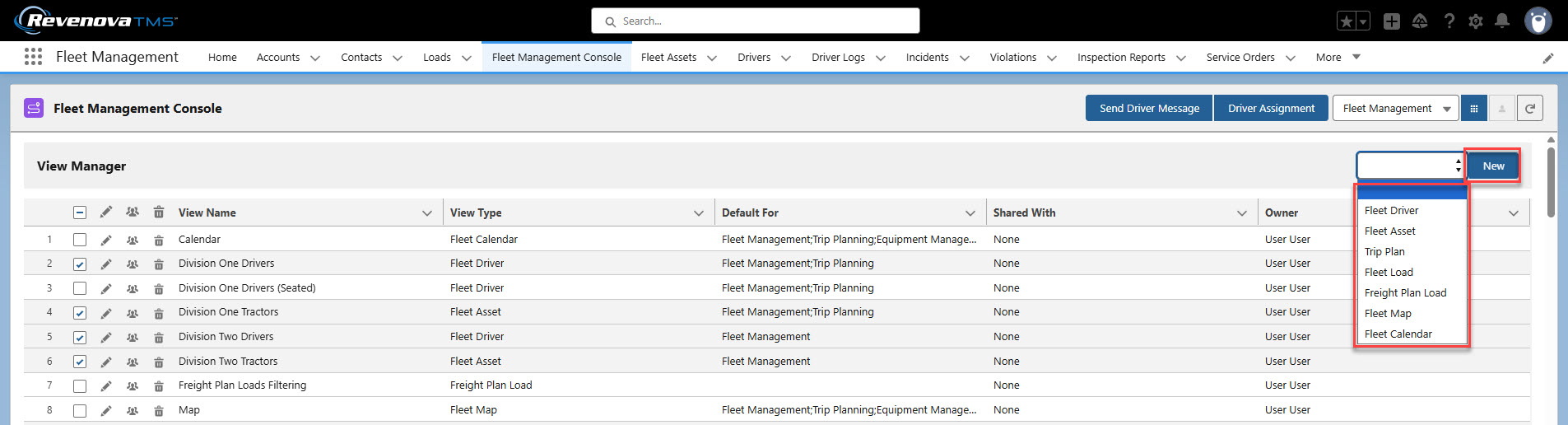
Enter the following information in the View Editor to create the new view.
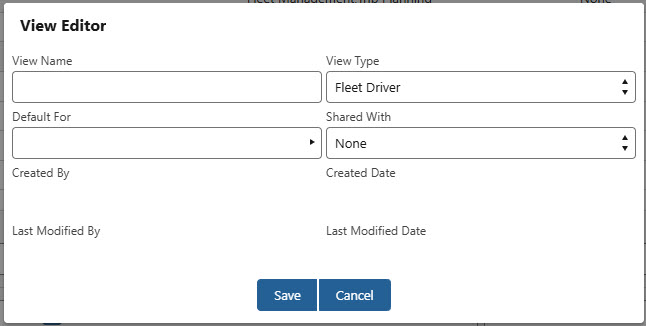
View Name
Enter a name for the view.
View Type
Select the type of view to create.
Fleet Driver
Fleet Asset
Trip Plan
Fleet Load
Freight Plan Load
Fleet Map
Fleet Calendar
Note that certain views are limited to particular Fleet Management functions. See the table below for the available view types.
Default For
Select Fleet Management, Trip Planning, Appointment Setting, and/or Equipment Management to set when the view is the default.
Shared With
Select the Group(s) to share the view.
Views may only be shared with Users that are added to the Public Group directly. The Group Member Type must be User. Sharing by any of the following selections does not share the View.
Roles
Roles and Internal Subordinates
Roles, Internal and Portal Subordinates”
Public Groups
Use caution when sharing views. A user may only view columns and fields in a view when they have the appropriate object and field permissions.
Click Save when finished creating the view.
The following view types are available for each of the following Fleet Management functions.
Fleet Management | Trip Planning | Appointment Setting | Equipment Management |
|---|---|---|---|
Fleet Driver | Fleet Driver | Appointment Setting | Fleet Equipment |
Fleet Asset | Fleet Asset | Fleet Map | |
Trip Plan | Trip Plan | ||
Fleet Load | Fleet Load | Fleet Calendar | |
Freight Plan Load | Freight Plan Load | ||
Fleet Map | Fleet Map | ||
Fleet Calendar | Fleet Calendar |
View Editor
Edit existing views with the View Editor.

Open the editor by clicking the pencil.jpg) icon to edit an existing view.
icon to edit an existing view.
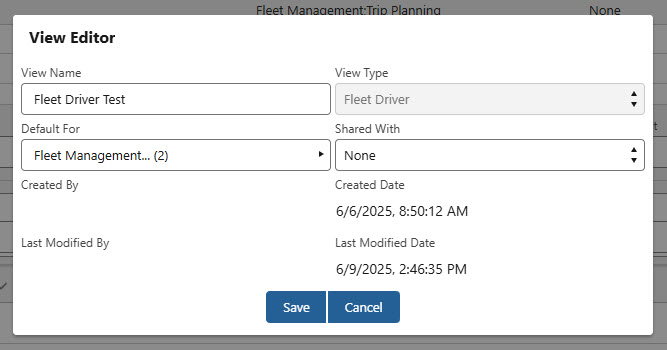
Change the View Name, Default For, or Shared With fields as necessary and click Save.
The Shared With field is a Public Group. Add users individually to the group. Selecting groups of users does not share views. See Salesforce documentation for more information on creating Public Groups. If a Fleet Management view is not shared with a Public Group, it is a private view.
Once views are created, Check the box(es) in the View Manager to display the desired views.
View Controls
Control each view with the following icons.
The Header
 icon expands and collapses the view to show or hide header filter fields.
The Grid
.jpg) icon expands and collapses the grid section to show or hide records that meet filter criteria.
icon expands and collapses the grid section to show or hide records that meet filter criteria.The Detail
.jpg) icon opens the detail view for Load and Trip Plan views.
icon opens the detail view for Load and Trip Plan views.Open the View Editor with the Edit
 icon.
icon.Check
 Include Header Criteria to save all filter data in the view header.
Check
 Include Grid Filter criteria to save all of the following settings.
Saves all grid column sort criteria.
Saves all grid column selection and order criteria.
Saves all column logic filters.
Saves column sizing.
Saves the number of rows in the view.
Column value filters are not saved.
The Display Text Headers
 and Display Image Headers
  icons switch the grid column headers between images and text.
When image headers are displayed, the grid column filtering is limited.
Image headers allow for a greater number of column headers to display in the grid view.
The Sort
 icon allows for sorting the grid column order.
Configure columns with the Grid Column Selection
 icon.
icon.Click the Reorder
 icon to adjust the order of the views.
Move views up and down in the list as necessary and click Save.
The X
 icon removes the view.
The remove action does not delete the view.
The Clone
 icon creates a copy of the current view.
The Refresh
 icon refreshes the current view grid data.
Use the Save and Refresh buttons when updating the filter criteria for views. Records that meet or do not meet updated filter criteria are displayed after refreshing. Views do not refresh on Save or Save and Close.
Grid Filtering
Grid Column Selector
Customize the field columns for managing records in the grid view. Add field(s) to the Columns column to control view fields in the grid view. Custom fields are supported in the Fleet Management Console grid filtering.
Each view type contains a unique list of available fields that may be selected as column headers.
The example image below contains the options to sort the grid records for Fleet Assets.
Click the Grid Column Selector
.jpg) button to open the Grid Column Selector for a view.
button to open the Grid Column Selector for a view.Search object fields for desired fields.
The object available is set by the type of view.
Add or remove Derived fields to the Columns column. See each view type below for a list of the Derived fields available.
Add Derived fields to the Columns column by clicking the + icon.
Derived fields included as columns are noted with the checkmark
 icon.
icon.Remove Derived fields from the Columns column with the — icon.
Derived fields are queries and are not stored as object fields.
Add fields from the Fields section to include them in the Columns list. Fields included as columns are noted with the checkmark
icon.Add fields to the Columns column by clicking the + icon.
Move fields up or down in the Columns column by clicking the field and dragging it up or down the list.
Remove fields from the Columns column with the — icon.
When removed, fields no longer appear as columns for records in the grid.
Close the Column Selector View modal with the X icon.
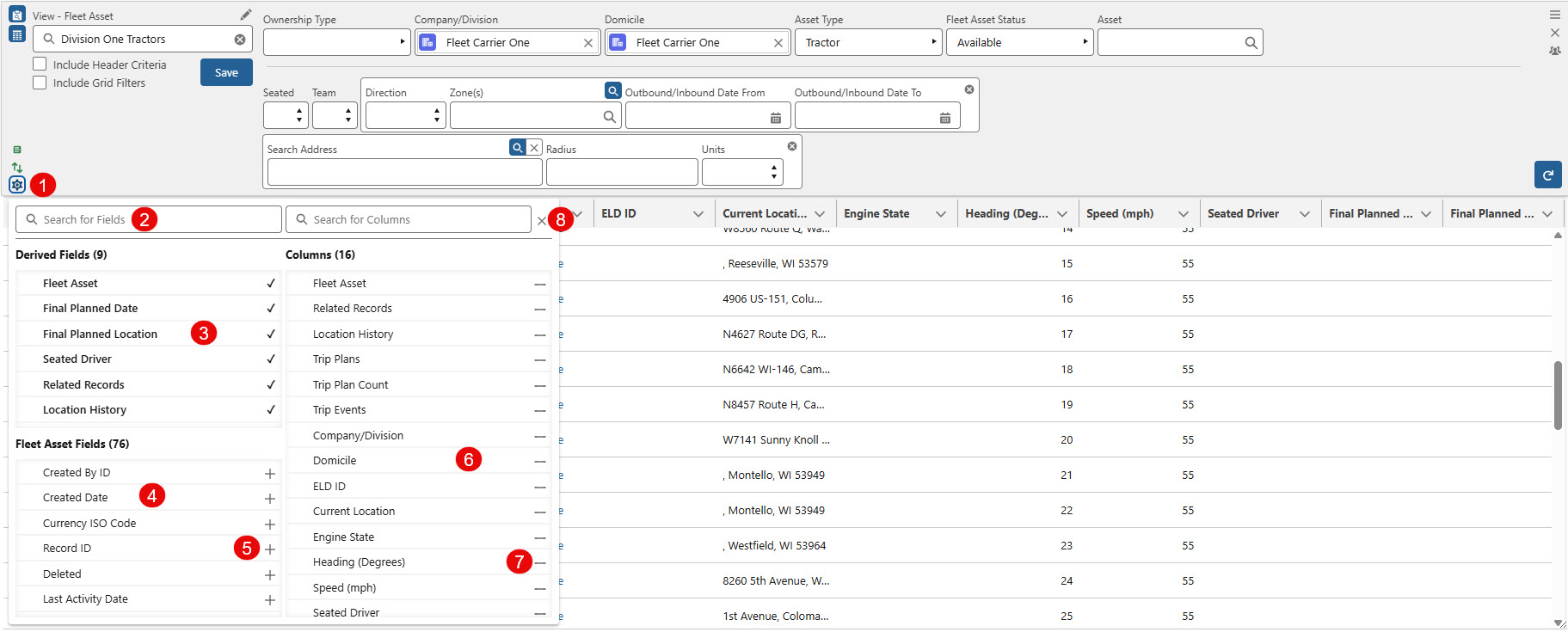
The number of columns that can display in a view depends on the columns selected. Views with too many columns do not save. It is recommended to have fewer than 35 columns.
Grid Column Sorting
Customize the fields that control the sorting of records in the grid view. Add field(s) to the Order By column to control the sorting of fields in the grid view. Fields added to the Order By column do not appear in the grid view.
The example image below contains the options to sort the grid records for Fleet Assets.
Click the Sort
.jpg) button to open the Grid Column Sort for a view.
button to open the Grid Column Sort for a view.Search object fields for desired fields.
The object available is set by the type of view.
Add Derived fields to the Order By column.
Derived fields are queries and are not stored as object fields.
Add fields from the Fields section to include them in the Order By list. Fields included for sorting are noted with the checkmark
icon.Add sorting fields to the Order By column by clicking the + icon.
The arrow icons determine whether the column is sorted in ascending order (up arrow) or descending order (down arrow) based on that field.
The list of fields determines the order that records are sorted in the grid.
Move fields up or down in the Order By column by clicking the field and dragging it up or down the list.
Remove fields from the Order By column with the — icon.
When removed, fields no longer determine the sort order for records in the grid.
Close the column sort modal with the X icon.
.jpg)
Column Options
Each column in the grid contains additional features for viewing and filtering records.
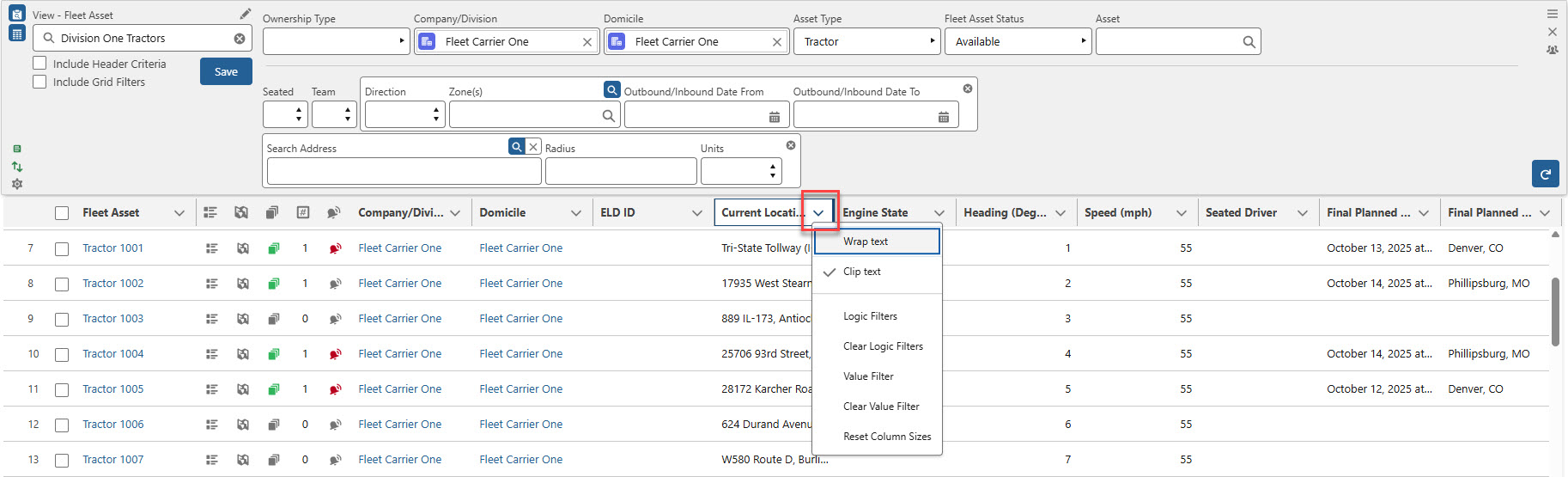
Click and drag the line between columns to resize the column.
The grid may be expanded to increase the number of visible rows. Click and drag the resize
 icon in the bottom right corner of the grid.
Select the down arrow to expand the view for each column in the grid.
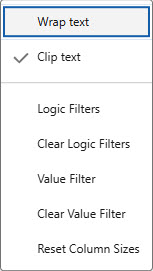
The following filter actions are available.
Wrap Text
Column widths adjust to fit text.
Clip Text
Column widths are static and hide longer column names.
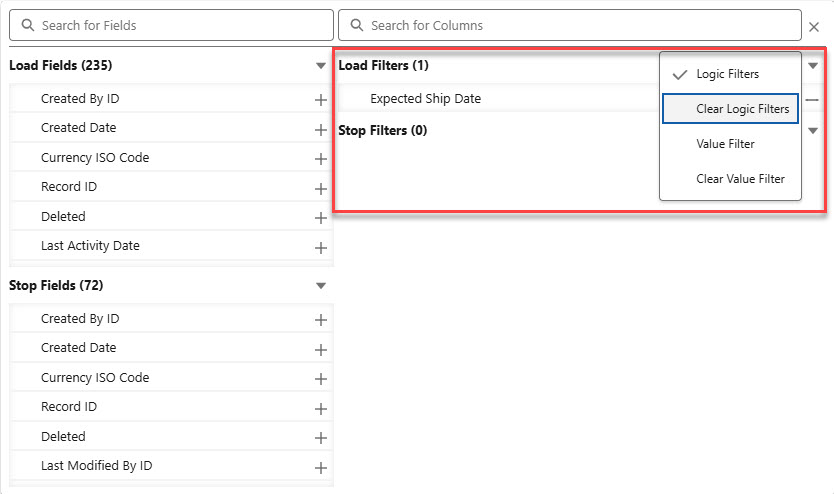
Logic Filters
Add filters to each column to further refine searching for records.
Setting a filter automatically refreshes the records displayed in the grid.
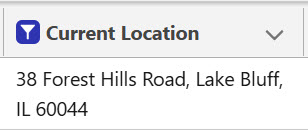
Active filters appear with a blue and white icon.
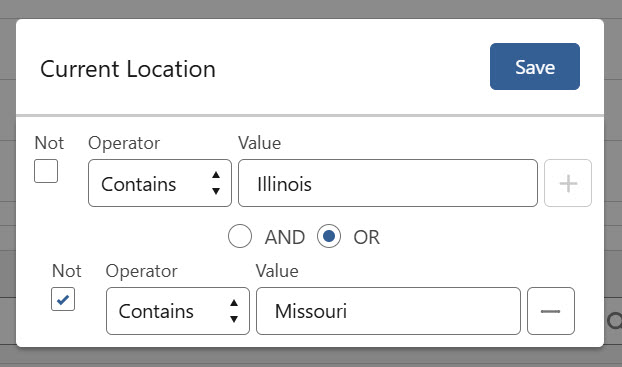
Logic filters may have one or two criteria.
Add a second filter with the + icon.
Select either AND or OR to determine the logic.
Remove the second filter with the — icon.
Clear Logic Filters
Removes the logic filter.
Value Filter
Create a list of records found in the column. Select records as necessary to view them in the grid.
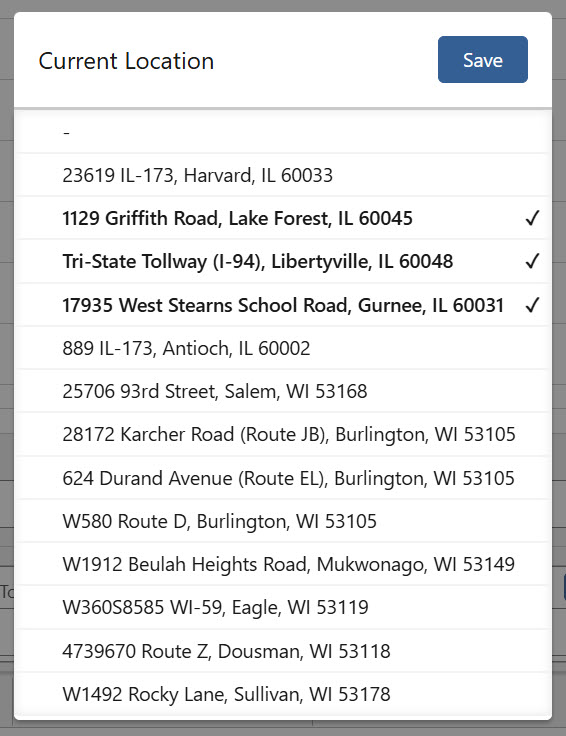
Clear Value Filter
Removes the set value filter.
Reset Column Sizes
Returns the column to the default settings.
See Salesforce information for column filtering for each operator type. All column filters are case-insensitive.
Value In (The Value In operator acts as a multi-select Equals operator that provides the ability to return all record values that match the filter(s).)
Clone
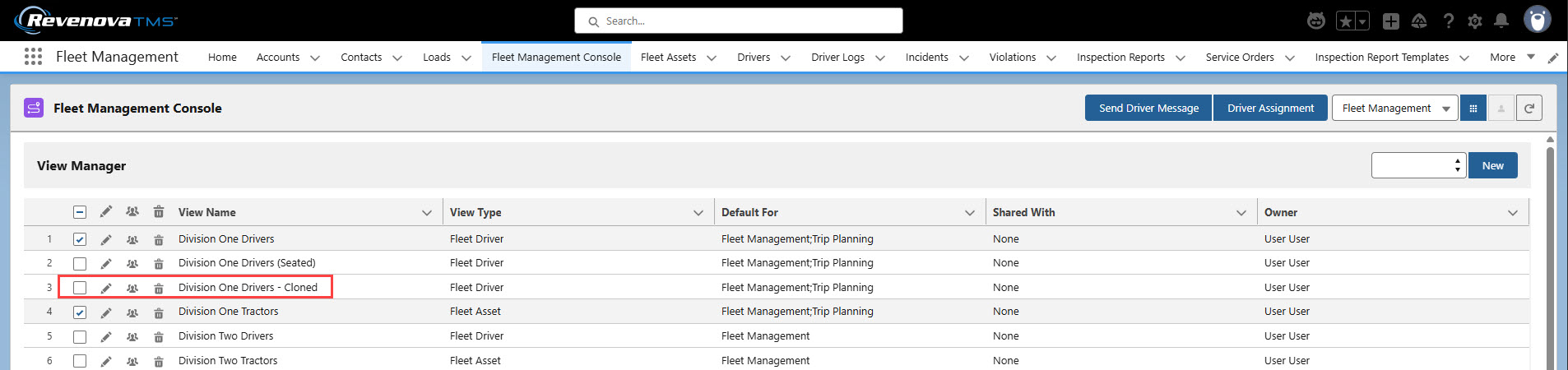
Click the multiple.jpg) icon to clone an existing view. Cloned views have the “- Cloned” suffix added to the View Name. Edit the cloned view as necessary.
icon to clone an existing view. Cloned views have the “- Cloned” suffix added to the View Name. Edit the cloned view as necessary.
Delete
Click the  icon to delete an existing view. If restoring a deleted view from the Recycle Bin, only restore the Complex Datatable View record. Do not restore Persistent Page records.
Fleet Management Functions
Fleet Management actions are completed by selecting the banner icons for the record or records from each view. Each icon opens a modal or component to complete a specific task.

Click the box on the left to select all records in the view. When multiple records are selected, Uncheck the box to un-select all of the records in the view.
The Related Records
 icon opens the Fleet Related Records component that displays Trip Plan Related records for the view type.
 Add fields for each object to the appropriate Field Sets to view additional field information when viewing this component.
Each Related Record supports the Chatter feature for more efficient communication.
.jpg)
The Location History
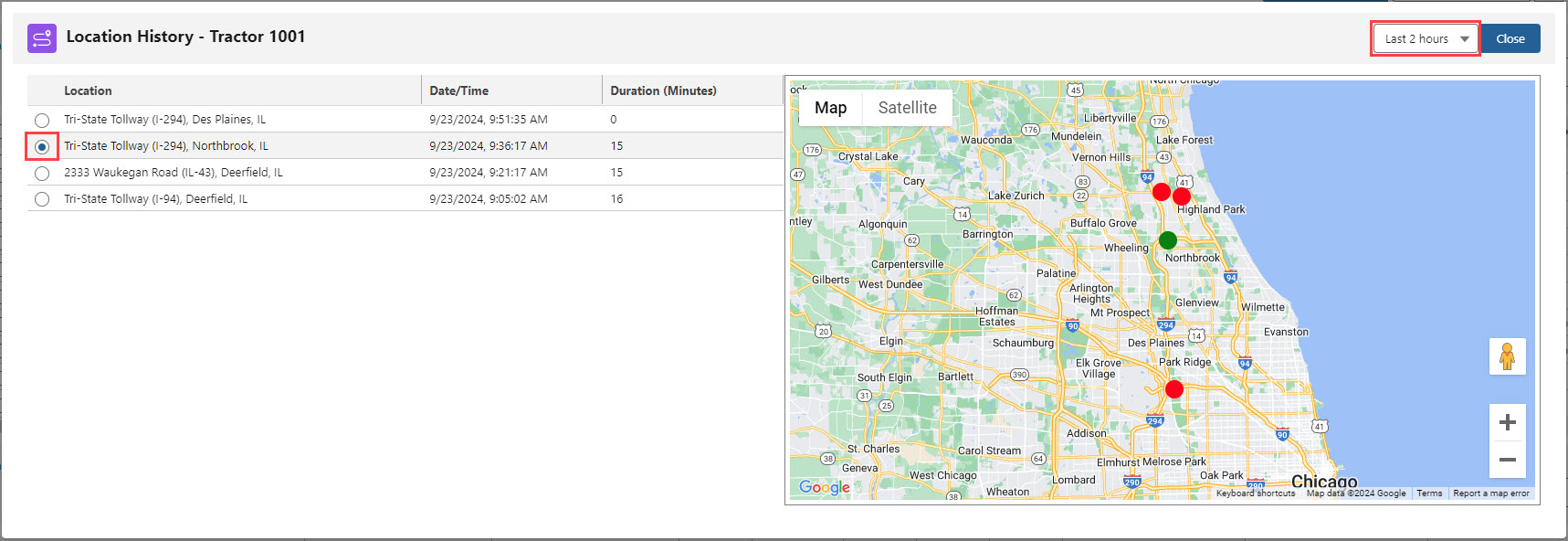
 icon opens the Fleet Location History component. The component displays the location and movement history for a Driver, Fleet Asset, or Load. Driver locations update when seated in a Fleet Asset (Tractor/Power Unit/etc.).
Location and movement history is displayed for the previous 24 hours. Select a value less than 48 hours from the drop-down to view more precise location information.
The location history for the selected record is displayed on the map. Choose a location with the radio button. A chosen location appears on the map as a green dot.
The Duration (Minutes) column shows the time between the position update and the time change. If a Fleet Asset is not moving, the location does not change. The time is monitored by the TMS.
Click Close to return to the Fleet Management Console.
The Trip Plans
 icon opens either the Fleet Trip Planner component or the Fleet Trip Plan List component.
The Fleet Trip Planner LWC opens for any Drivers, Fleet Assets, or Loads with 0 or 1 associated Trip Plan. See Trip Planning documentation for more information.
.jpg)
The Fleet Trip Plan List LWC displays the associated Trip Plans for the record. To view the Fleet Trip Plan List LWC, a Driver, Fleet Asset, or Load must be associated with 2 or more Trip Plans.

The Active Trip Plan Count
 /
/ column displays the number of Trip Plans that occur within the filtered date.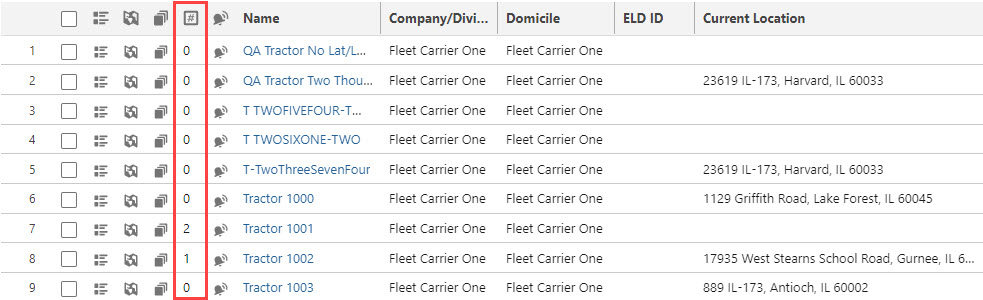
The Trip Events
 icon opens the Fleet Trip Event Viewer component. If there is an Alert associated with the Driver, Fleet Asset, or Load, the bell icon changes to the color to red. Trip Events with a value in the Addressed By field do not appear in the active alerts modal. View addressed Trip Events by creating a tab with the Trip Event object. When all Alerts associated with a Driver, Fleet Asset, or Load, the icon returns to the Trip Events bell icon.
Trip Events must have the Is Alert field Checked to change the Console icon. All Events with the Is Alert field Checked must be resolved to change back to the original gray bell color.
Click the Add button to manually create a Trip Event record.
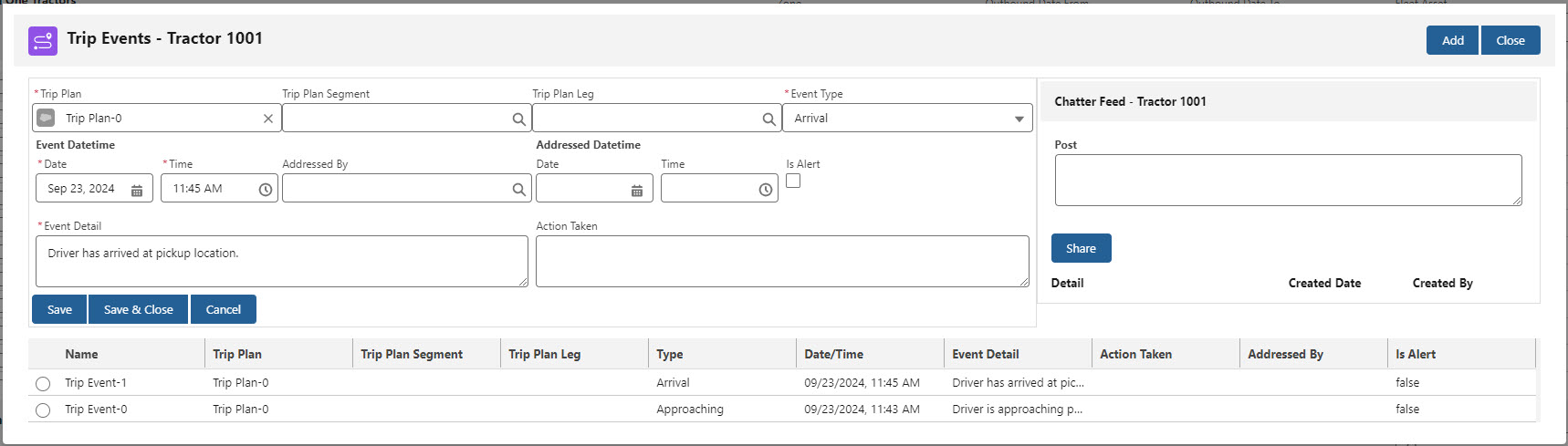
Trip Events are also populated automatically and by the Trimble Maps integration.
Select the Trip Event radio button to view the record details for that Trip Event.
The Trip Plan Status field is set to Load Changed and outlined in yellow. The following scenarios set the Load Changed Status.
A Load has a new Last Stop added.
Any Load Stop location changes.
Any Load Stop Number changes.
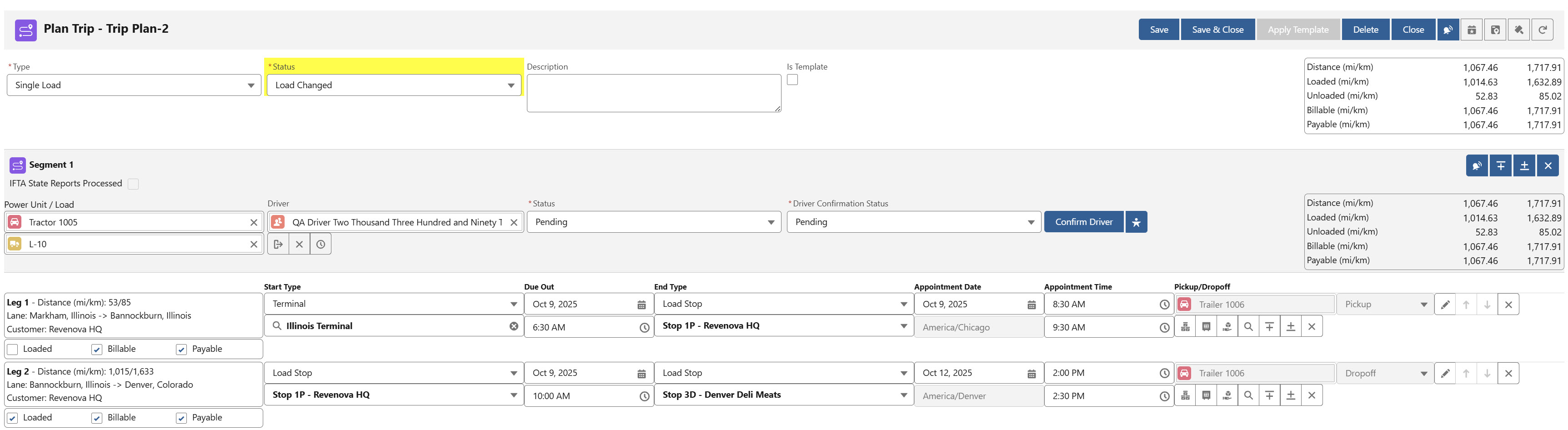
Enter Event Details and/or the Chatter feed and describe the actions taken. Save the Event when finished.
The Is Addressed field is set to Checked.
When the Trip Event is addressed, the Trip Plan Status field is set to Configured.
See Trip Planning for information on manually creating Trip Event records. It is recommended to create Trip Events from the Trip Plan record directly and not through the Trip Events icon in a view.
View Types
The Primary and Sub filter search criteria are unique to each view type and are described below. Some searches are unique and may not be combined with other search types.
Clear any existing group searches with the Clear button found in each group search box.

To increase performance, views do not refresh when saving. Frequently refresh views to see the latest records that meet view criteria.
Driver Views
Driver views provide a list of the Drivers for managing Fleet operations. Filter Driver records with the following primary filtering fields.
.jpg)
Driver Type
Endorsements
Driver Status
Domicile
Team
No value returns all results.
The Load Team field must be Checked to return Yes results.
Company/Division
Manager
A lookup to the User record.
Driver
A lookup to the Driver record.
This filter type is exclusive. No other filters may be used when searching by Driver.
Search within the returned Driver records with the following sub filters. The filters listed follow the criteria below.

Driver Assignment Search
Seated
No value displays all results.
Zone Search
Drivers are displayed based on the following matching criteria.
Inbound/Outbound Zone Search
Based on the Direction and Date Range
Driver
Inbound
Based on the first Trip Plan Segment end location.
Trip Plan Legs of Segments containing one of the Drivers with an End Date within the Date Range.
Outbound
Based on the last Trip Plan Segment end location.
Trip Plan Legs of Segments containing one of the Drivers with a Start Date within the Date Range.
No Direction
The geolocation of the Power Unit on Trip Plan Segments containing one of the Drivers within the Date Range.
Zone
Select one or multiple Zones.
Outbound/Inbound Date From
Outbound/Inbound Date To
Address Search
Radius Search
When searching for Drivers with the Address Search, the following logic determines the Driver location.
Drivers with an active Driver Assignment are returned based on the Geolocation field of the assigned Tractor/Power Unit.
Drivers with no active Driver Assignment, but are on an active Trip Plan Segment, are returned based on the Geolocation field of the Segment Tractor/Power Unit.
Drivers with no active Driver Assignment or active Trip Plan Segment are returned based on the Driver Domicile.
Additional Grid Filtering is available by Derived Fields and Driver object fields.
Derived Fields
The following Derived fields are available for Driver views.
Fleet Driver
The Driver record Name.
Final Planned Date
The last Trip Plan Leg End Date for the Driver on the Trip Plan.
Final Planned Location
The End Location of the last Trip Plan Leg for the Driver on the Trip Plan.
Seated Power Unit
The current active Driver on the Fleet Asset.
Related Records
The related records for the Driver.
Location History
Trip Plans
Trip Plan Count
The number of Trip Plans the Driver is associated with.
Trip Events
Selecting multiple Drivers from a Driver view with a Carrier Load from another view and choosing the Plan Trip button opens the Trip Builder. However, only one Driver is included in the Trip Builder component.
A Driver included in a multi-Driver Assignment that is selected with a Carrier Load and choosing the Plan Trip button opens the Trip Builder. Again, only one Driver is included in the Trip Builder component.
Driver Confirmation
Confirm Drivers for a Trip Plan Segment on the Trip Planner LWC. See Trip Planning for more information.
Driver records must have a Confirmation Method of Email to receive Fleet Driver Confirmation emails.
The Driver Activation Status field is tied to the Driver Status field. Driver’s with an Activation Status of Available must also have a Status of Available to display (when filters allow) in Driver views on the Fleet Management Console.
Driver’s with a Deactivated Activation Status do not display in Driver views.
Driver’s with a Status of Unavailable do not display in Driver views.
Send Fleet Messages
Messages may be sent to Driver(s) from the Fleet Management module.
.jpg)
Check each Driver to send a message.
Click the Send Driver Message button.
Enter the message to send the Driver(s).
Click the Send button.
Outbound messages to drivers are sent immediately when the Send button is clicked.
The Catena or Samsara credentials card must be enabled to enable the message functionality.
Fleet Asset Views
Fleet Asset views show the Tractors/Power Units that fulfill the filter requirements for a given view. Filter Fleet Asset records with the following primary filtering fields.

Ownership Type
The Ownership Type filter allows for filtering Fleet Assets based on the Asset Ownership Type field value.
Add Fleet Asset Asset Ownership and Asset Ownership Type field values to search and order records that may not be company owned. Sort based on the following ownership types.
Company Owned
Owner Operator
Agent
Company/Division
Domicile
Asset Type
Fleet Asset Status
Asset
This filter type is exclusive. No other filters may be used when searching by Asset.
Search within the returned Fleet Asset records with the following sub filters. The filters listed follow the criteria below.

Driver Assignment Search
Seated
No value displays all results.
Driver/Co-Driver Search
Team
No value displays all results.
The Load Team field must be Checked to return Yes results.
Zones
Fleet Assets are displayed based on the following matching criteria.
Inbound/Outbound Zone Search
Direction
Fleet Asset searches are based on Direction and Date Range.
Inbound
Based on the first Trip Plan Segment end location.
Trip Plan Legs of Segments that contain one of the Fleet Assets with an End Date within the Date Range.
Outbound
Based on the last Trip Plan Segment end location.
Trip Plan Legs of Segments that contain one of the Fleet Assets with a Start Date within the Date Range.
No Direction
Fleet Asset geolocation.
Zone
Select one or multiple Zones.
Outbound/Inbound Date From
Outbound/Inbound Date To
Radius Search
Inbound and outbound matches for Fleet Assets (Truck/Tractor/Power Unit/etc.) are determined by the final Trip Plan date and location.
Inbound and outbound matches for Fleet Assets that are not trucks (equipment, etc.) are determined by the final Trip Plan date and location of the associated truck.
Additional Grid Filtering is available by Derived Fields and Fleet Asset object fields.
Derived Fields
The following Derived fields are available for Fleet Asset views.
Fleet Asset
The Fleet Asset record name.
Final Planned Date
The last Trip Plan Leg End Date for the Fleet Asset on the Trip Plan.
Final Planned Location
The End Location of the last Trip Plan Leg for the Fleet Asset on the Trip Plan.
Seated Driver
The current active and seated Driver on the Fleet Asset.
Related Records
The related records for the Fleet Asset.
Location History
Trip Plans
Trip Plan Count
The number of Trip Plans the Fleet Asset is associated with.
Trip Events
Freight Plan Load Views
Create Freight Plan Load views that provide the ability to search for Customer Loads in a Freight Plan. The Customer Loads returned are those that have a Freight Plan Build Status of Partially Planned OR are planned for delivery to an intermediate Carrier Stop location in the date range set in the view filters. Filter Freight Plan Loads based on the Carrier Load Inbound or Outbound for Customer Loads in the grid.
Freight Plan Load views are a powerful tool that provide an overview of the status and progress of all Carrier Loads moving the Customer Load.
See the following for term descriptions and examples of Freight Planning.
Use the following primary filters to return Load records.
Return fewer, more relevant Load records by searching for Freight Plan Loads by using primary and sub filters. For example, select a Location to view Loads moving through that Location to view the status or may need additional planning.

Mode
Multi-select Mode values.
Temperature Controlled
No value returns all results.
The Load Temperature Controlled field must be Checked to return Yes results.
HazMat
No value returns all results.
The Load HazMat field must be Checked to return Yes results.
Fleet
Single selection type.
No value returns all results.
Add the Fleet field to the Load TMS1 field set to include it on the Load Configuration LWC.
Load Status
Multi-select Load Status values.
Unplanned (This is a derived field, not a picklist value.)
Locations that are a Pickup Stop for the Customer Load function as described below.
The outbound Load Status is Unplanned when no Carrier Load is created to cover the Stop.
Locations that are intermediate Carrier Load locations function as described below.
The inbound or outbound Load Status is Unplanned when no inbound or outbound Carrier Load is created to cover the location.
Locations that are a Delivery Stop for the Customer Load function as described below.
The inbound Load Status is Unplanned when no Carrier Load is created to cover the Stop.
Unassigned
Quotes Requested
Quotes Received
Tendered
Assigned
Dispatched
In Transit
Delivered
Completed
Cancelled
Declined
Expired
Fleet Load Status
Unplanned
Partially Planned
Planned
Dispatched
Terminal Transfer
Pending Final
Final
Team
No value returns all results.
The Load Team field must be Checked to return Yes results.
Customer
Multi-select Customer Account values.
Customer Load
Single selection type.
Only returns Customer Loads, no Carrier Loads.
Further refine searches for Freight Plans with the following sub filters. The filters listed follow the criteria below.

Freight Planning
Location(s)
The Account location of the intermediate Carrier Load Stop for the Customer Load Pickup or Delivery.
Carrier(s)
Multi-select lookup for Carriers on Freight Plan Loads.
Inbound Load Status
Multi-select of Load Status picklist values and the Unplanned derived field status.
An Unplanned status refers to the Customer Loads moved with an outbound Carrier Load created from the location with no inbound Carrier Load.
The Load Status is for the Carrier Load with the Customer Load freight inbound to the location.
Outbound Load Status
Multi-select of Load Status picklist values and the Unplanned derived field status.
An Unplanned status refers to the Customer Loads moved with an inbound Carrier Load created from the location with no outbound Carrier Load.
Freight Plan Build Status
Multi-select of the picklist values for the following.
Partially Planned is the initial value when the Freight Plan is created.
Planned includes all Customer Load Pickup and Deliver Stop locations and all intermediate Carrier Load Stops that have a Carrier Load covering them.
Covered includes all Stop locations covered by a Carrier Load and Carrier Loads with an Assigned Load Status value or beyond (Dispatched, In Transit, Delivered, or Completed).
Customer Load Origin Date
The Origin Date From field refers to the Customer Load Expected Ship Date.
When only the Origin Date From field is used all Loads (from the date) return in the filter from the Origin Date From field.
The Origin Date To field sets a date range.
When the Origin Date To field contains a value this limits the search to a specific date range.
Customer Load Destination Date
The Destination Date From field refers to the Customer Load Expected Delivery Date.
When only the Destination Date From field is used all Loads (from the date) return in the filter from the Destination Date From field.
The Destination Date To field sets a date range.
When the Destination Date To field contains a value this limits the search to a specific date range.
Customer Load Destination Address
This filter type is exclusive. It may not be used with the Customer Load Destination Zone filter.
A radius search from the Customer Load Destination Address.
A Stop, Address, Radius, and Units selection must be entered for Customer Load Destination Address radius matching functionality.
Units
No value uses Miles by default.
Miles
Kilometers
Customer Load Destination Zone
This filter type is exclusive. It may not be used with the Customer Load Destination Address filter.
Multiple Zones may be selected for searching/filtering.
Customer Load EDI
No value displays all results.
The Load EDI Provider field must have a value to display for Yes selections.
The Load EDI Provider field must have no value to display for No selections.
Additional Grid Filtering is available by Derived Fields and Load object fields.
Derived Fields
The following Derived fields are available for Inbound and Outbound Carrier Loads moving Customer Loads into and out of a location.
All other Load fields refer to the Customer Load.
Freight Plan
The Freight Plan associated to the Load.
View the Freight Plan in the console by clicking the Freight Plan
 icon.
icon.
Final Planned Date
The last Trip Plan Leg End Date for the Freight Plan.
Final Planned Location
The End Location of the last Trip Plan Leg for the Freight Plan.
Related Records
The related records for the Freight Plan.
Location History
Freight Plan Build Status
Updates made on the Freight Plan Console change the Freight Plan Build Status synchronously.
If the Carrier Load Status changes (for example when a Load is Assigned to or a Carrier is removed from the Load), the Freight Plan Build Status updates for all Freight Plans that include the Carrier Load.
Freight Plan Build Status values represent the following.
Partially Planned is the initial value when the Freight Plan is created.
Planned is set when all Customer Load Pickup and Delivery Stops and all intermediate Carrier Load Stops are covered by a Carrier Load. Not all Carrier Loads are in an Assigned status.
Covered is set when all Stops are covered by a Carrier Load and all Carrier Loads are at least Assigned or Dispatched, In Transit, Delivered, or Complete.
Inbound/Outbound Locations
A lookup to the intermediate Carrier Stop location selected in the Location(s) field in the sub filter criteria.
Inbound Carrier Load(s)
A lookup to the Carrier Load moving the Customer Load into the location.
When the Inbound or Outbound location is the Pickup of the Customer Load is the origin, otherwise the Carrier Load number is displayed.
Any associated Trip Plan for the Carrier Load is displayed with the green Trip Plan icon with the count for the Carrier Load.
Outbound Carrier Load(s)
A lookup to the Carrier Load moving the Customer Load out of the location.
Inbound Carrier(s)
Outbound Carrier(s)
Inbound Load Status
The Load Status of the Carrier Load moving the Customer Load into the location.
Outbound Load Status
The Load Status of the Carrier Load moving the Customer Load into the location.
Inbound Expected Ship Date
The Expected Ship Date of the Carrier Load moving the Customer Load into the location.
Outbound Expected Ship Date
The Outbound Expected Ship Date of the Carrier Load moving the Customer Load out of the location.
Inbound Expected Delivery Date
The Expected Delivery Date of the Carrier Load moving the Customer Load into the location.
Outbound Expected Delivery Date
The Expected Delivery Date of the Carrier Load moving the Customer Load out of the location.
Inbound Fleet Load
Outbound Fleet Load
Detail View
Use the Freight Plan Customer Load Detail View mode by selecting the Detail View Mode .jpg) button in the Freight Plan Load view header.
button in the Freight Plan Load view header.

Check each Freight Plan Customer Load to view the Detail Mode for those Loads as shown in the screenshot below. When one Freight Plan Customer Load is selected, the view splits the screen to display the Detail view section to the right.
Click the dropdown arrows in the Detail Mode view to display the Stops for the selected Freight Plan Load.
View the Line Item information for a Stop by choosing the dropdown arrow for that Stop.
Add field columns in the detail view with Load, Stop, and Line Item field sets. Fields add to the Load TMS39 field set that contain a timezone are based on the user’s browser timezone. (For example, the Last Location Update Sent field.)

Load Views
Create Load views for filtering Load records. As Loads are assigned to and dispatched on Trip Plans, they filter onto and off of the views created.
Create Load views for LTL/Freight Plan workflows displaying Carrier Loads ready for consolidation, or are not yet added to a Freight Plan. As Carrier Loads are planned and added to Freight Plans they become visible in Freight Plan Load views. There are a number of filters that may be applied to display Carrier Loads independent of Customer Loads.
Filter Load records with the following primary filtering fields.

Mode
Singular search.
Temperature Controlled
No value returns all results.
The Load Temperature Controlled field must be Checked to return Yes results.
HazMat
No value returns all results.
The Load HazMat field must be Checked to return Yes results.
Fleet
No value returns all results.
Add the Fleet field to the Load TMS1 field set to include it on the Load Configuration LWC.
Load Status
Unassigned
Quotes Requested
Quotes Received
Tendered
Assigned
Dispatched
In Transit
Delivered
Completed
Cancelled
Declined
Expired
Fleet Load Status
Unplanned
Partially Planned
Planned
Dispatched
Terminal Transfer
Pending Final
Final
Team
No value returns all results.
The Load Team field must be Checked to return Yes results.
Customer
This filter type is exclusive. No other filters may be used when searching by customer.
Load
This filter type is exclusive. No other filters may be used when searching by Load.
Inbound and outbound zone matches for Loads are determined by the final Stop location.
Search within the returned Load records with the following sub filters. The filters listed follow the criteria below.

EDI Loads
EDI
No value displays all results.
Yes displays Loads with the EDI Provider field populated.
No displays Loads with no value in the EDI Provider field.
Stops
Stop Location
A lookup to the Stop Account.
Stop Type
No value displays all results.
Date Ranges
Outbound Date From
Enter a date for single date matching.
May be combined with Inbound Date From/To ranges.
Outbound Date To
May be paired with Outbound Date From to search a range.
Inbound Date From
Enter a date for single date matching.
May be combined with Outbound Date From/To ranges.
Inbound Date To
May be paired with Inbound Date From to search a range.
Match criteria for Date ranges are based on the following Inbound/Outbound criteria.
Non-Trip Plan Loads
Outbound based on the Load origin.
Inbound based on the final Load destination.
Trip Plan Loads
Outbound based on the first Trip Plan Segment Leg end type.
Inbound based on the final Trip Plan Segment end location.
Zones

Direction
No value displays all results.
Zone(s)
Lanes
Search a Lane by entering an Origin and Destination with a radius and unit of measurement.

Origin Address, Destination Address
Search only an Origin, a Destination, or both.
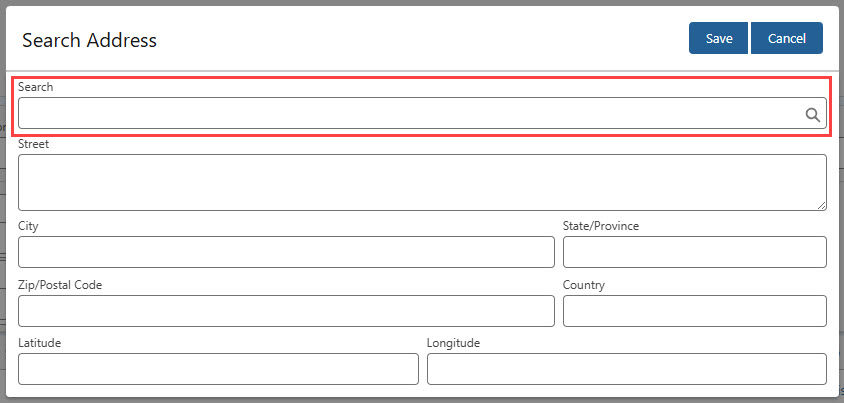
The Origin city is the Load Shipper Account.
The Destination city is the Load final Stop Account.
The Search field uses Google search to find an address.
The Street, City, State/Province, Zip/Postal Code, Country search uses PC Miler to find an address.
Enter latitude and longitude coordinates to search for specific geolocations.
Radius
Limited to a maximum of 1000 units.
Units
No value uses Miles by default.
Miles
Kilometers
Additional Grid Filtering is available by Derived Fields and Load object fields.
Check the Show Load Summary field to view the Load Summary banner above the record grid view.

Derived Fields
The following Derived fields are available for Load views.
Load
The Load record name.
Final Planned Date
The last Trip Plan Leg End Date for the Load on the Trip Plan.
Final Planned Location
The End Location of the last Trip Plan Leg for the Load on the Trip Plan.
Related Records
The related records for the Load.
Location History
Trip Plans
Trip Plan Count
The number of Trip Plans the Load is associated with.
Trip Events
For Loads not yet in a Freight Plan and will proceed through the Freight Plan workflow, set view settings to the following.
The Load Status is Unassigned.
Add the In Freight Plan field to the grid columns.
In Freight Plan is False.
For Freight Plan Load Views
The Inbound Load Status is Unassigned or Outbound Load Status is Unassigned displays all Freight Plans with at least one Carrier Load that is not yet Assigned.
Add Date and Location information as needed to filter the appropriate Load records.
For other Fleet Load Views set the following values to show all Carrier Loads not added to a Trip Plan.
The Customer Load is False.
Fleet is No.
Detail View
Use the Load Detail View mode by selecting the Detail View Mode button in the Fleet Load view header.

Check each Load to view the Detail Mode for those Loads as shown in the screenshot below. When one Load is selected, the view splits the screen to display the Detail view section to the right.
Click the dropdown arrows in the Detail Mode view to display the Stops for the selected Load.
View the Line Item information for a Stop by choosing the dropdown arrow for that Stop.
Add field columns in the detail view with Load, Stop, and Line Item field sets. Fields add to the Load TMS39 field set that contain a timezone are based on the user’s browser timezone. (For example, the Last Location Update Sent field.)

Trip Plan Views
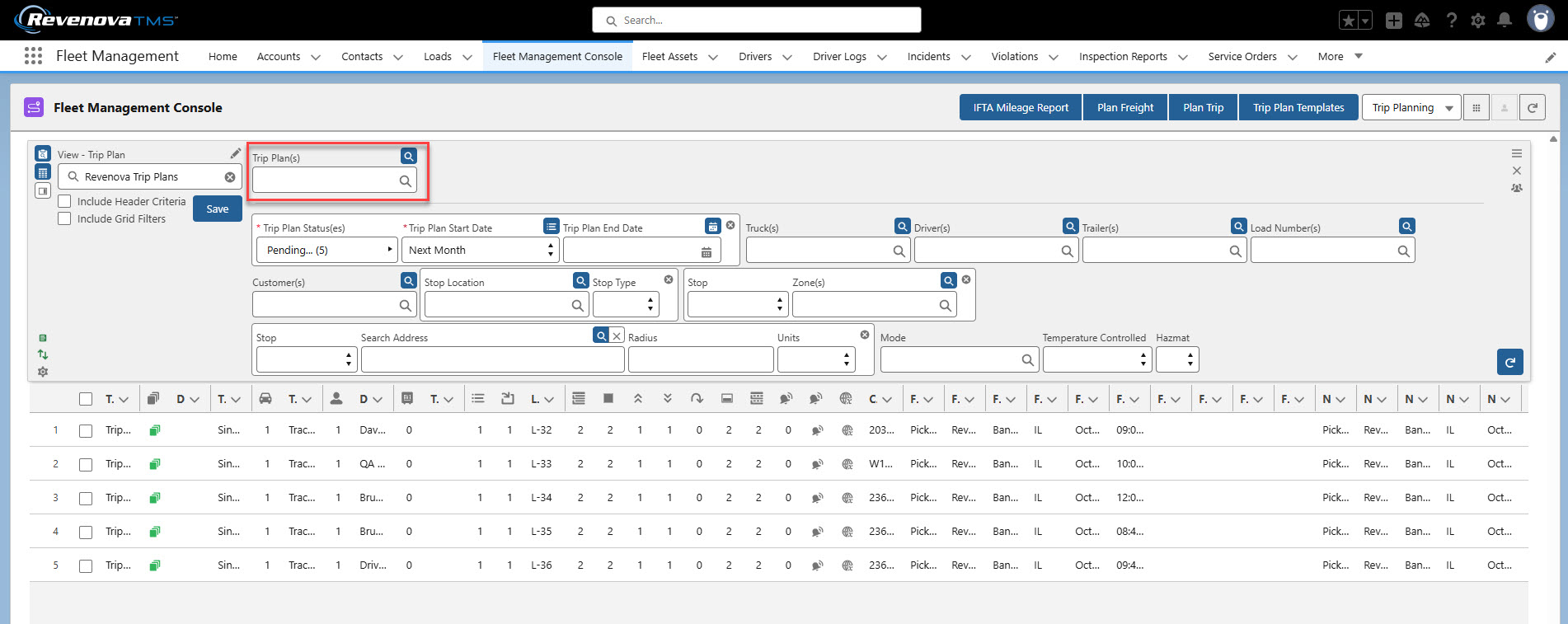
Trip Plan views show the Trip Plans that meet the filter criteria for a given view. Use the primary filter to search for one or many Trip Plan(s).
Trip Plan
Singular search.
Search within the returned Trip Plan records with the following sub filters. The filters listed follow the criteria below. Two fields are required to load the grid view of matching Trip Plan records.
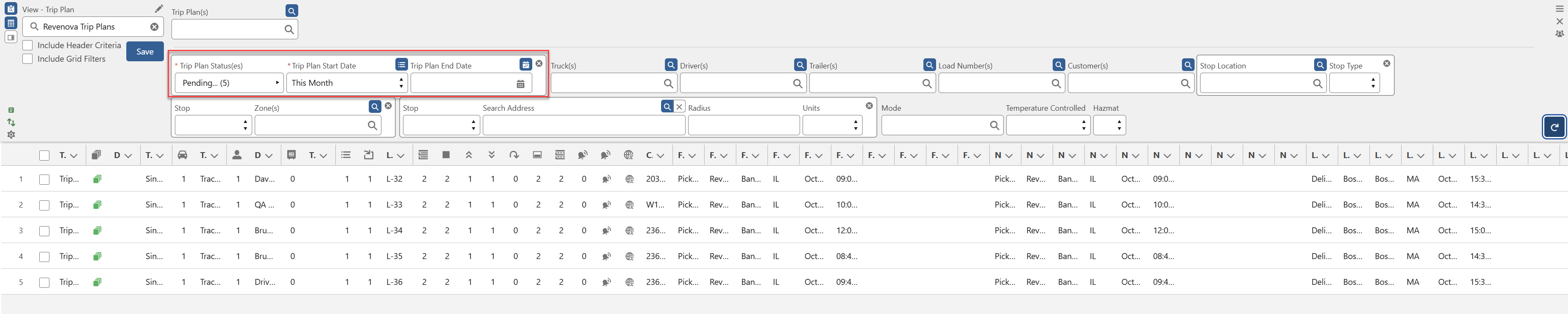
Trip Plan Status(es)
Required to return Trip Plan search results.
The following Trip Plan Statuses are available for searching.
Pending
Load Changed
Configured
Dispatched
Pending Final
Completed
Cancelled
Trip Plan Start Date
Required to return Trip Plan search results.
Trip Plans are filtered based on the Trip Plan Start Date/Time field. This field is calculated as follows.
At the Trip Plan Leg level, the Leg Start Date/Time field is derived from the Due Out Date and Due Out Time.
If the Due Out Time and Due Out Time fields have a value, they are set as the Leg Start Date/Time.
If the Due Out Time is missing, the Start Date/Time is set to 12:00.
If the Due Out Date has no value, the Start Date/Time has no value.
At the Trip Plan Segment level, the Segment Start Date/Time field is a roll-up summary field and calculated as follows.
The MIN of the Start Date/Time from all the associated Leg records. The earliest Leg Start Date/Time is the Start Date/Time of the Segment.
At the Trip Plan level, the Plan Start Date/Time field is a roll-up summary field and calculated as follows.
The MIN of the Start Date/Time from all the associated Segment records. The earliest Segment Start Date/Time is the Start Date/Time of the Plan.
Switch between list
 and calendar
  searches with the Mode button.
List view selection values
No Selection
Yesterday
Today
Tomorrow
Last Week
This Week
Next Week
Last Month
This Month
Next Month
Calendar view selection
.jpg)
Trip Plan End Date
Trip Plans are filtered based on the Trip Plan End Date/Time field. This field is calculated as follows.
At the Trip Plan Leg level, the Leg End Date/Time field is derived from the Appointment Date, Appointment Start Time, and Appointment End Time.
If the Appointment Date and Appointment End Time fields have a value, they are set as the Leg End Date/Time.
If the Appointment End Time is missing, the Appointment Start Time is used.
If the Appointment Start Time and Appointment End Time have no value, the End Date/Time uses 12:00 as the value.
At the Trip Plan Segment level, the Segment End Date/Time field is a roll-up summary field and calculated as follows.
The MAX of the End Date/Time from all the associated Leg records. The latest Leg End Date/Time is the End Date/Time of the Segment.
At the Trip Plan level, the Plan End Date/Time field is a roll-up summary field and calculated as follows.
The MAX of the End Date/Time from all the associated Segment records. The latest Segment End Date/Time is the End Date/Time of the Plan.
No value displays all results.

Further refine filters with lookup fields to the following multi-select record types.
Truck(s)
Driver(s)
Trailer(s)
Load Number(s)
Customer(s)
A lookup to the Load customer included on the Trip Plan.
Filter Trip Plans by location with the Stop Location, Zone, and Radius search fields.

Stop Location Search
Results are returned based on the Accounts for Stop locations.
The Trip Plan Leg End Location and End Type are a Load Stop.
Stop Type
Pickup
Delivery
Stop Zone Search
A Stop Zone Search cannot be performed together with a Radius Address Search.
Select the Leg or Stop value from the Stop picklist dropdown. Results are returned based on the following.
First Leg
The first Leg of the Trip Plan.
Next Leg
The next Leg on the current Trip Plan Segment that does not have an Arrival Date.
If all Trip Plan Segments have an Arrival Date field value, results are returned based on the first Leg of the Segment.
Last Leg
The last Leg of the last Trip Plan Segment.
First Load Stop
The first Load Stop of the Trip Plan.
Next Load Stop
The next Load Stop on the current Trip Plan Segment that does not have an Arrival Date.
Last Load Stop
The last Load Stop of the last Trip Plan Segment.
Zone
The geolocation of the Trip Plan Leg end.
A Stop and Zone selection must be entered for Zone matching functionality.
Radius Address Search
A Radius Address Search cannot be performed together with a Stop Zone Search. Stop type, Address, Radius, and Units values are all required to return results.
Select the Leg or Stop value from the Stop picklist dropdown. Results are returned based on the following.
First Leg
The first Leg of the Trip Plan.
Next Leg
The next Leg on the current Trip Plan Segment that does not have an Arrival Date.
If all Trip Plan Segments have an Arrival Date field value, results are returned based on the first Trip Plan Leg.
Last Leg
The last Leg of the last Trip Plan Segment.
First Load Stop
The first Load Stop on the Trip Plan.
Next Load Stop
The next Load Stop on the current Trip Plan Segment that does not have an Arrival Date.
Last Load Stop
The last Load Stop of the last Trip Plan Segment.
Search Address
Radius
The Radius returns results when combined the Stop type and a single Address location selection.
Limited to a maximum of 1000 units.
Units
No value uses Miles by default.
Miles
Kilometers
A Stop, Address, Radius, and Units selection must be entered for Stop radius matching functionality.
Additional filtering is provided for the following fields.

Mode
Singular search.
A lookup to the Load with the Mode included on the Trip Plan.
Temperature Controlled
No value displays all results.
The Load Temperature Controlled field must be Checked to return Yes results.
HazMat
No value displays all results.
The Load HazMat field must be Checked to return Yes results.
Additional Grid Filtering is available by Derived Fields and Trip Plan object fields.
Derived Fields
The following Derived fields are available for Trip Plan views.
Trip Plan
Record name
Trip Plan Link
Truck Count
Total number of unique Trucks on the Trip Plan.
Truck(s)
Record name(s)
Driver Count
Total number of unique Drivers on the Trip Plan.
Driver(s)
Record name(s)
Trailer Count
Total number of unique Trailer/Chassis/Containers used on the Trip Plan.
Trailer(s)
Record name(s)
Segment Count
Total number of Segments on the Trip Plan.
Load Count
Total number of Loads on the Trip Plan.
Load(s)
Record name(s)
Leg Count
Total number of Legs on the Trip Plan.
Stop Count
Total number of Load Stops on the Trip Plan.
Pickup Count
Total number of Load Stop pickups on the Trip Plan.
Delivery Count
Total number of Load Stop deliveries on the Trip Plan.
Drop Count
Total number of Load Stop drops on the Trip Plan.
Stops Remaining
Total number of Load Stops without a Departed Stop Status.
Legs Remaining
Total number of Legs without a Departure Date/Time.
Active Alert Count
Total number of Active Alerts on the Trip Plan.
Active Alerts are when the Is Alert field is Checked and the Addressed By field does not have a value.
View addressed Trip Events by creating a tab with the Trip Event object.
Active Alert(s)
Border Crossings
Total number of border crossings on the Trip Plan.
A border crossing occurs when the Trip Plan Leg End Type is Border Crossing.
Clicking the icon opens the Manifest Manager and passes the Trip Plan into the component.
Current Location
The current location including the address, city, state, and postal code.
First Stop Type
Pickup or Delivery based on the Leg end Load Stop action.
Non-Load Stops are based on action.
Pickup
Hooked
Dropoff
First Stop Customer
The Load Stop Account name.
First Stop City
First Stop State
First Stop Date
The Trip Plan Appointment Date.
First Stop Time
The Trip Plan Appointment Start Time.
First Stop PTA Date
First Stop PTA Time
First Stop ETA Date
First Stop ETA Time
Next Stop Type
The next Leg on the Trip Plan without an Arrival Date.
Pickup or Delivery based on the Leg end Load Stop action.
Non-Load Stops are based on action.
Pickup
Hooked
Dropoff
Next Stop Customer
The Load Stop Account name.
Next Stop City
Next Stop State
Next Stop Date
The Trip Plan Appointment Date.
Next Stop Time
The Trip Plan Appointment Start Time.
Next Stop PTA Date
Next Stop PTA Time
Next Stop ETA Date
Next Stop ETA Time
Last Stop Type
Pickup or Delivery based on the Leg end Load Stop action.
Non-Load Stops are based on action.
Pickup
Hooked
Dropoff
Last Stop Customer
The Load Stop Account name.
Last Stop City
Last Stop State
Last Stop Date
The Trip Plan Appointment Date.
Last Stop Time
The Trip Plan Appointment Start Time.
Last Stop PTA Date
Last Stop PTA Time
Last Stop ETA Date
Last Stop ETA Time
Build Trip
Select Carrier Loads from Load views to open them in the Trip Builder to add them to Trip Plans.
When selecting multiple Trip Plans, Carrier Loads are only added to the first Trip Plan selected, by row number.
Detail View
Enter Detail View mode by any combination of selecting Trip Plans and selecting the Detail View  button in the Trip Plan view header.
Resize the Detail view by clicking dragging the header section to the left or right.

Check each Trip Plan to view the Detail Mode for those Trip Plans as shown in the screenshot below. When at least one Trip Plan is selected, the view splits the screen to display the Detail view section to the right.
Click the dropdown arrows in the Detail Mode view to display the Trip Plan Segment(s) for the Trip Plan.
View the Trip Plan Leg information for a Trip Plan Segment by choosing the dropdown arrow(s) for that Segment.
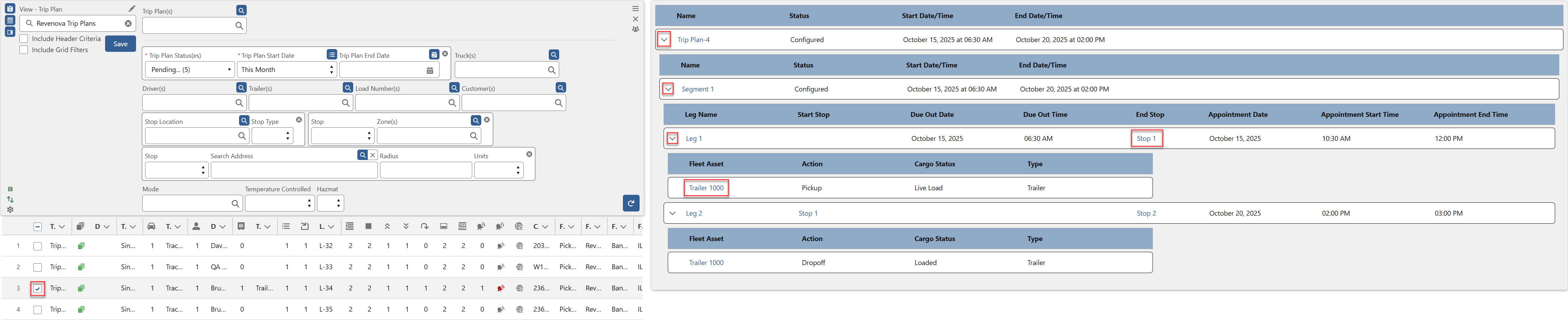
Hyperlinks to the Stop and Fleet Asset (Trailer) records are provided in the Detail view.
View additional fields by adding field column headers in the detail view with Trip Plan, Trip Plan Segment, Trip Plan Leg, and Trip Plan Leg Asset field sets.
Appointment Views
Appointment views provide a list of the Appointments by Zone, by Location, and/or Appointment Status. See more Appointment Setting information here.
When searching for Loads, all Loads are returned and displayed to the user, even when not included on a Trip Plan.
Create an Appointment view by selecting Appointment Setting from the Fleet Management Console header. From the View Manager header, choose Appointments and click New.

Enter a View Name, if necessary select Appointment Setting under Default For, and any groups to share the view under Shared With.
Click Save to finish creating the view.

Appointment views support custom fields. Create custom Trip Plan Leg, Load, Stop, and Line Item fields to filter appointments.
The highlighted fields of the Appointment view act as primary filters. They limit the Stop locations shown, allowing you to focus on appointments that match the selected filter criteria.

Appointment Status
Select one or more Appointment Statuses to filter the Appointment Console and display only Stops that match the selected Statuses.
The following values are available.
Unmade
Requested
Confirmed
Appointment Required
Choose an Appointment Required to only show Stops that either require or do not require an appointment in the Appointment Console.
No value returns all results.
Yes
No
Appointment Method
Select one or more appointment methods to filter the Appointment Console and display only Stops that match the chosen methods.
The following values are available.
Phone
Email
Website
Appointment Start Lead Time (Days)
Determined by the current date.
A Lead Time of 1 day is the day following the current date.
A Lead Time of 15 days is 15 days from the day after the current date.
Use Negative numbers to find missing appointments in the past.
-10 searches the past 10 days to find appointments that are not set.
Appointment End Lead Time (Days)
Determined by the current date.
A Lead Time of 1 day is the day following the current date.
A Lead Time of 15 days is 15 days from the day after the current date.
Use Negative numbers to find missing appointments in the past.
-10 searches the past 10 days to find appointments that are not set.
Customer
Select multiple Customer records to filter the Appointment Console and only display Loads associated with those Customers.
A lookup to the Customer Account record.
Load
Multi-select Load records.
Search by Load Number to view all Stop locations associated with that Load.
Load Status
Select one or more Load Status(es) to filter the Appointment Console and only display Loads that match the selected statuses.
No value displays all results.
Multi-select Load Status values.
Unassigned
Quotes Requested
Quotes Received
Tendered
Assigned
Dispatched
In Transit
Delivered
Completed
Cancelled
Declined
Expired
Location(s)
Choose one or more locations to only show Load Stops associated with the selected locations in the Appointment Console.
Multi-select Location records.
Driver
Choose one or more Drivers to only display Loads assigned to the selected Drivers in the Appointment Console.
Multi-select Driver records.
Trip Plan
Select one or more Trip Plans to filter the Appointment Console and display only Loads associated with the chosen Trip Plans.
Multi-select Trip Plan records.
This search is not recommended for Brokerage-only TMS users.
Power Unit
Choose one or more Power Units to show only Trip Plan locations assigned to the selected Power Units in the Appointment Console.
Multi-select Fleet Asset records.
This search is not recommended for Brokerage-only TMS users.
Trip Plan Leg, Load, or Stop fields added with Logic filtering are also included with the initial database queries described above. See the Logic Filtering section below for additional information.

Search within the returned Appointment records with the following sub filters. The filters listed follow the criteria below.

Zone
Select one or more Zones to filter the Appointment Console and display only Loads Stops within the chosen Zones.
Multi-select Zone records.
The geolocation of the Load delivery Stop.
A Stop and Zone selection must be entered for Zone matching functionality.
Address Search
Radius Search
The timezone displayed in the Appointment view is from the Stop. If the Stop timezone does not have a value, the timezone of the Stop location is displayed.
Additional filtering
Control search and filtering by setting the following criteria.
Configuration
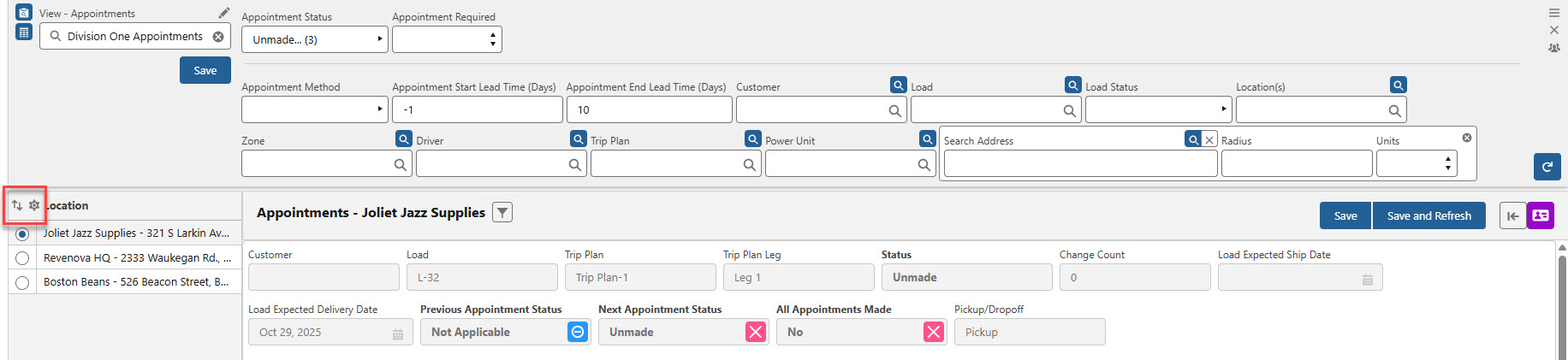
Click the Configuration icon above the list of locations to choose which fields are displayed in the Appointments section. Fields can be added or removed as needed.
Hide Stop Appointments
When checked, only Loads included on a Trip Plan Leg appear in the appointment list.
Load, Stop, and Line Item fields remain available in the Order-By and Configuration sections.
Appointment Filtering is only available by Load and Stop fields. See below for examples.
Hide Trip Plan Leg Appointments
When Checked, any appointments associated with a Trip Plan Leg and not linked to a Load do not appear in the Appointment List.
Trip Plan Leg fields are not available to add as columns. For Trip Plan Leg fields already included in columns, a triangle warning is displayed on the field. See the Order-By section below for an example.
This setting is recommended for Brokerage customers.
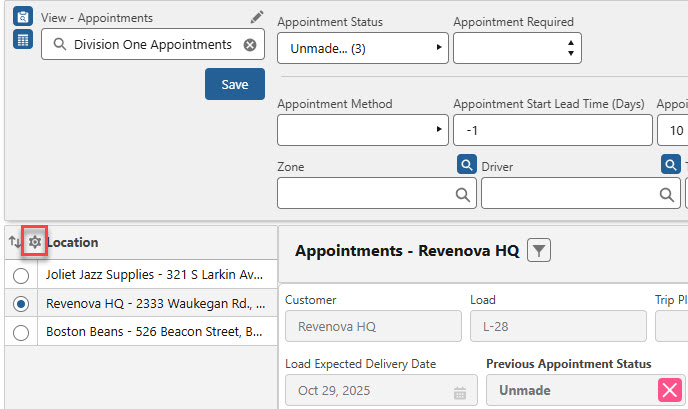
Sort the appointments in the Appointment view by Derived Field (see below), Trip Plan Leg, or Stop fields to control the order in which the appointments are displayed.
Derived Fields (Derived and Trip Plan Leg Columns)
Trip Plan Leg Fields (Derived and Trip Plan Leg Columns)

Click the Load Details drop-down to view Load, Stop, and Line Item fields associated with the appointment.
Load Fields (Load Columns)
Stop Fields (Stop Columns)
Line Item Fields (Line Item Columns)

When the Load is on a Trip Plan, the Stop detail only displays the End Stop of the appointment.
When the Load is on a Trip Plan, the Line Item detail only displays the information picked up or delivered for that End Stop.
When Load, Stop, or Line Items are updated, use the Refresh button to see Load, Stop, or Line Item field changes. When the Appointment view is refreshed the section must be opened again.
Load, Stop, and Line Item records are hyperlinked. Click the link to view the Load, Stop, and Line Item record.
Logic Filtering
Logic filtering criteria are included in the primary filter database queries.
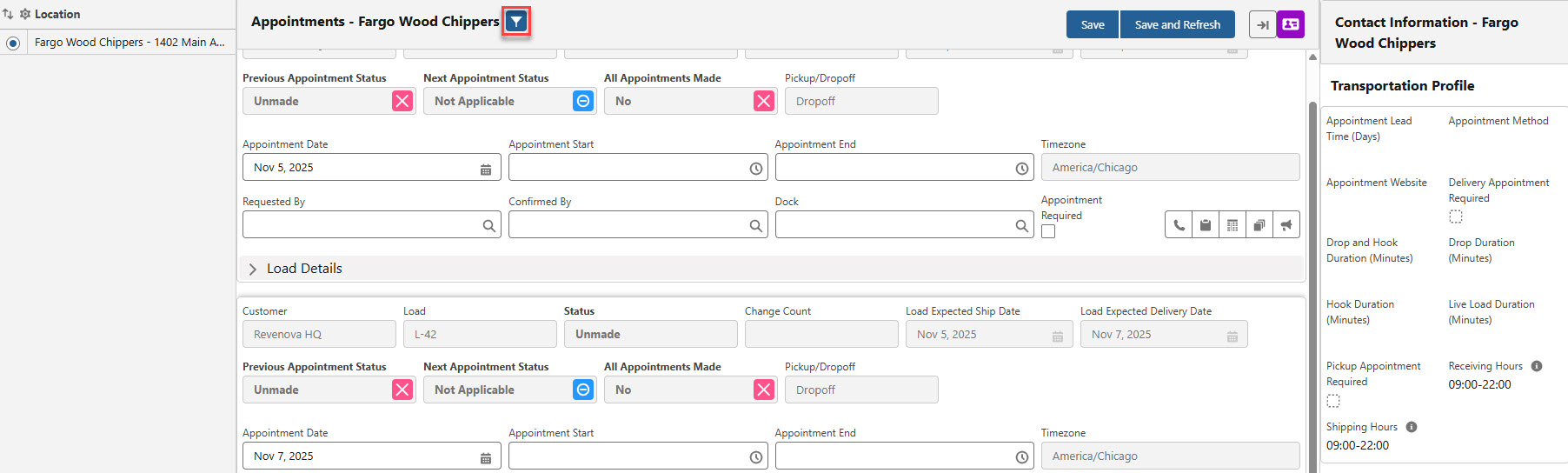
Select a Location from the list and then click the Filter button to further refine the appointment location information displayed.

Add field filtering by clicking the filter button. Fields from the following objects provide additional search and filtering for the location.
Load
Stop
Trip Plan Legs
Trip Plan Leg fields are only available when Hide Trip Plan Leg Appointments is not Checked.
Brokerage-only TMS users likely should not filter on Trip Plan Leg fields.
Logic filters may be applied by selecting the down caret from the filter field.
When appointments are filtered by selected logic fields, the Filter button is blue.
Apply and remove logic filters to identify appointments as necessary.
Additional appointment filtering is available by Derived Fields and Trip Plan Leg object fields.
Derived Fields
The following Derived fields are available for Appointment views.
Trip Plan Leg
If an appointment Stop is not associated with a Trip Plan, the field is displayed with a blank value.
This Derived field is not recommended for Brokerage-only TMS users.
Customer
Load
Load Expected Ship Date
Load Expected Delivery Date
Trip Plan
This Derived field is not recommended for Brokerage-only TMS users.
Status
Unmade
Requested
Confirmed
Not Applicable
Change Count
The count of times an appointment is updated.
Previous Appointment Status
If no Load is associated, the label is Previous Leg Appointment Status.
When Appointment values are changed, click Save & Refresh to update and view changes.
Next Appointment Status
If no Load is associated, the label is Next Leg Appointment Status.
When Appointment values are changed, click Save & Refresh to update and view changes.
All Appointments Made
If no Load is associated, the label is All Leg Appointments Made.
When Appointment values are changed, click Save & Refresh to update and view changes.
Pickup/Dropoff
Determined by the Pickup Stop and Delivery Stop fields on the Line Item record.
Order-By
Click the Order-By icon to open a menu to select the criteria used to determine the sorting order of appointments.
Select which fields are displayed and their order from the Derived Field, Load, Stop, Line Item, and Trip Plan Leg objects. This also includes any custom fields for those objects.
When no fields are selected for the Order-By field selector, the following order is used to filter appointments.
Location Name
End Stop Location Name
End Expected Date/Time
Add or remove fields from the appointment list and Load Details section with Derived Fields, Trip Plan Leg, and Stop fields.
When the Hide Trip Plan Leg Appointments field is not Checked, Trip Plan Leg fields may be added to the columns.
If the Hide Trip Plan Leg Appointments field is Checked while sorting by Trip Plan Leg fields, a warning appears next to the field in the Order By Columns section. This happens because the Hide Trip Plan Leg Appointments setting hides Trip Plan Leg appointments, but sorting by Trip Plan Leg fields requires those same appointments to be visible.
Filtering by Location
Select a Location from the list and then click the Filter button to future refine the appointment location information displayed. The filter icon appears in blue when value or logic filters are in use.

Choose Load and/or Stop field filtering fields.
Any existing Trip Plan Leg filters remain applied when filtering. Remove them if necessary. No Trip Plan Leg Filters are displayed when no Trip Plan Leg filters are applied.
Equipment Management Views
Equipment Management views allow for managing Trailers, Chassis, Containers, and Pool information. Select Equipment Management from the banner picklist and create Equipment Pool views as needed.
Search within the returned Appointment records with the following sub filters. The filters listed follow the criteria below.
Equipment Management contains two grid headers.
Equipment Management Header
The grid contains the Equipment Pool location information.
Equipment Management Detail Header
The grid contains the Fleet Assets located within the Equipment Pool.
.jpg)
Equipment views include a map with terminal locations. Filter by Power Unit, Load, Location, and distance. Choose the appropriate selections for Equipment Type, Equipment Pool Type, Location, Location Type ,and/or Zone(s) to view Fleet records that meet the criteria.
The following rules determine the location of a Fleet Asset for Location, Zone, and Inbound/Outbound view searching and filtering.
Location
Fleet Assets that are hooked to a Power Unit/Tractor update their location based on the Power Unit/Tractor location.
The Fleet Asset geolocation updates as the Power Unit/Tractor geolocation updates.
Fleet Assets that are dropped at an Account location such as an Equipment Pool.
The Fleet Asset geolocation updates to the Account location.
If a Trailer or Container has an ELD device, the geolocation is updated based on the ELD information.
If a Trailer or Container does not have a tracking device, the geolocation updates with the Power Unit/Tractor location.
Fleet Assets that are not hooked to a Power Unit/Tractor, the geolocation is the current Account location.
Fleet Assets hat are not hooked to a Power Unit/Tractor and not located at an Account location are located at the last geolocation.
A reverse address lookup provides the current address from the geolocation.
Click a Terminal location on the map or select the radio for a location from the list. The location address is provided when clicked on the map.
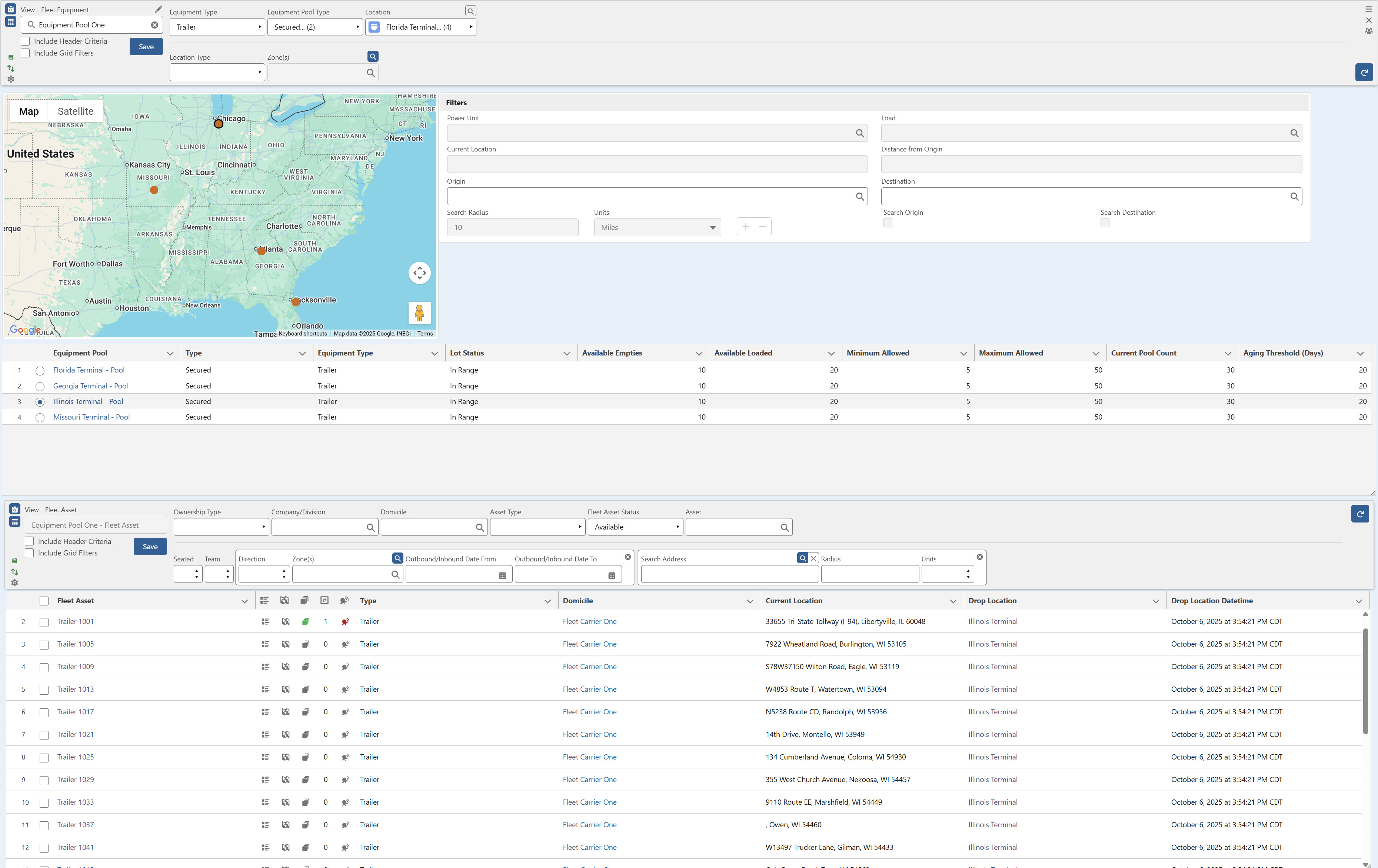
Search by Origin or Destination (when Checked), by Account location, and by Fleet Asset in the particular grid section.
Filter available Fleet Assets in the Equipment Manager Detail section for the selected location with the following primary filter fields.

Ownership Type
Company/Division
Domicile
Asset Type
Fleet Asset Status
Asset
This filter type is exclusive. No other filters may be used when searching by Asset.
Search within the returned Fleet Asset records with the following sub filters. The search filters function as described below. Select the criteria to filter the available equipment displayed in the grid.

Seated
No value displays all results.
Team
No value displays all results.
The Load Team field must be Checked to return Yes results.
Inbound/Outbound Zone Search
Direction
Fleet Asset Dispatched
Inbound
Based on the first Trip Plan Segment end location.
Outbound
Based on the last Trip Plan Segment end location.
Fleet Asset not Dispatched
Current Fleet Asset location.
Zone
Select one or multiple Zones.
Outbound/Inbound Date From
Outbound/Inbound Date To
Radius Search
Use the Refresh icon when updating the search and filter criteria to view the Fleet Assets that meet the criteria.
See Equipment Management for more information.
Additional Grid Filtering is available by Derived Fields and Equipment Pool object fields.
Derived Fields
Created By ID
Created Date
Currency ISO Code
Record ID
Deleted Last Activity Date
Map
Map view functions below are available when Fleet Management, Trip Planning, or Equipment Management is selected from the picklist on the top banner.
The Fleet Management Console map displays Drivers, Fleet Assets, and Loads based on the specific views and filters selected.
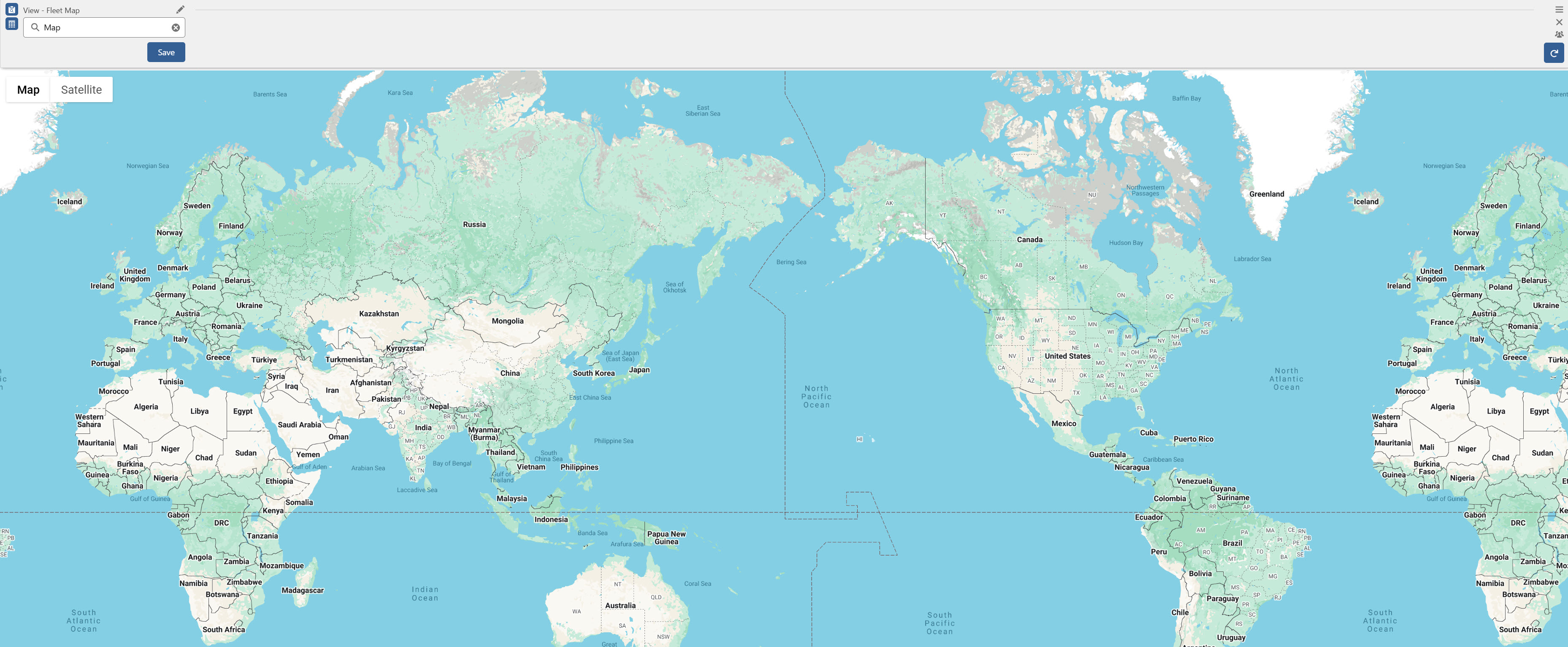
Check Drivers, Fleet Assets (Tractors), and Loads from multiple views to locate them on the map. As records are selected, the map automatically updates and zooms to display the most recent location of each record.
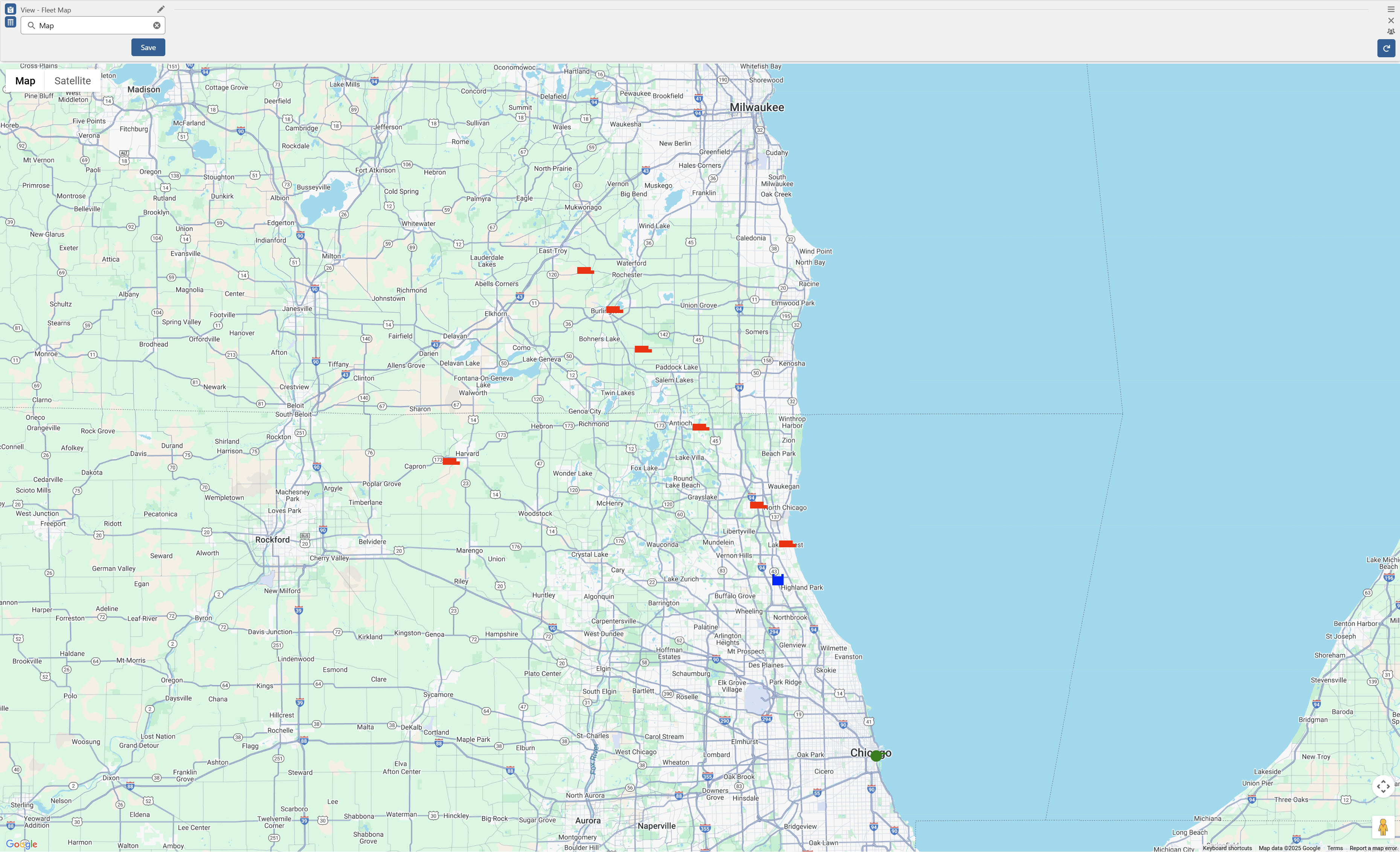
Drivers appear on the map with a green icon.
Fleet Assets (Tractors) appear on the map with a red icon.
Loads appear on the map with a blue icon.
Click each Driver, Fleet Asset, or Load to view additional record information. When a record is selected on the map to display details, any additional records are Unchecked.
Calendar
Select a Calendar tab to view the availability of Drivers, Fleet Assets, and Loads.
Check the appropriate Drivers, Fleet Assets, and Loads from available views to display on the calendar.
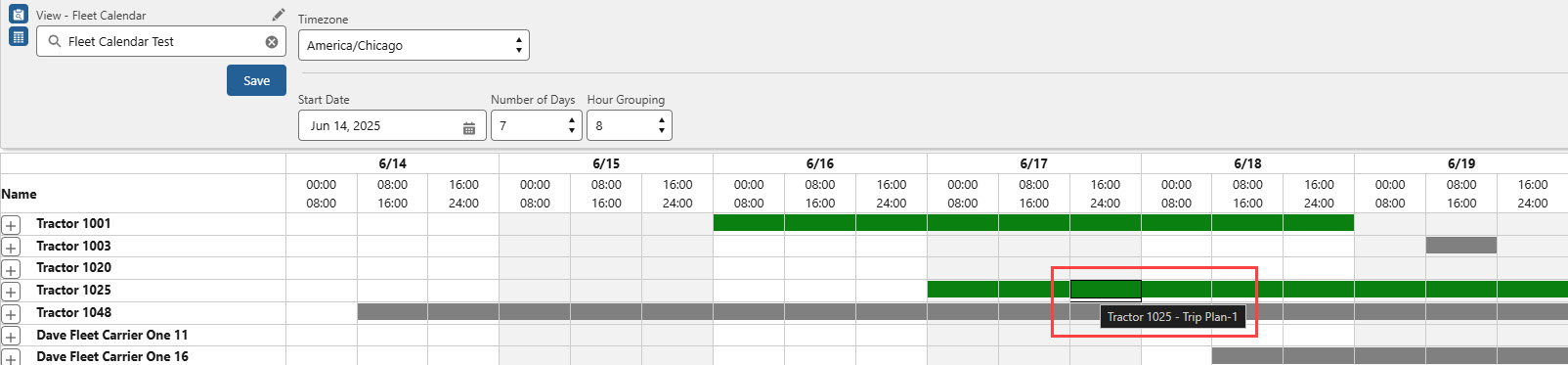
Drivers and Fleet Assets associated with a Trip Plan appear on the Calendar in shades of green.
Loads not associated with a Trip Plan appear in the calendar in blue. Once a Load is associated with a Trip Plan, the Load appears in green. The following criteria control how Loads appear in the Calendar.
Loads without Expected Dates for the Stops do not appear in the calendar.
The starting date on the calendar is the Expected Date for the first Stop. The starting time is the Appointment Time of the Expected Date for the first Stop.
If no Appointment Time is set for the first Stop, 12:01 a.m. is used for the calendar time.
The ending date on the calendar is the Expected Date for the last Stop. The ending time is the Appointment Time of the Expected Date for the last Stop.
If no Appointment Time is set for the last Stop, 11:59 p.m. is used for the calendar time.
Click the green bar for a Load to open and view the associated Trip Plan.
Loads may span across multiple Trip Plan Segments. Each Trip Plan Segment is separated by a divider(s), but the Load appears as one continuous bar.
Other Calendar Entries are displayed in shades of gray.
From the Calendar view header, choose a Timezone, Start Date, a Number of Days, and the Hour Grouping size to filter time period.

Click the + button to add a Calendar Entry for a Driver or Fleet Asset. Additional Calendar Entries stack vertically when dates and times overlap for a single Driver or Fleet Asset.

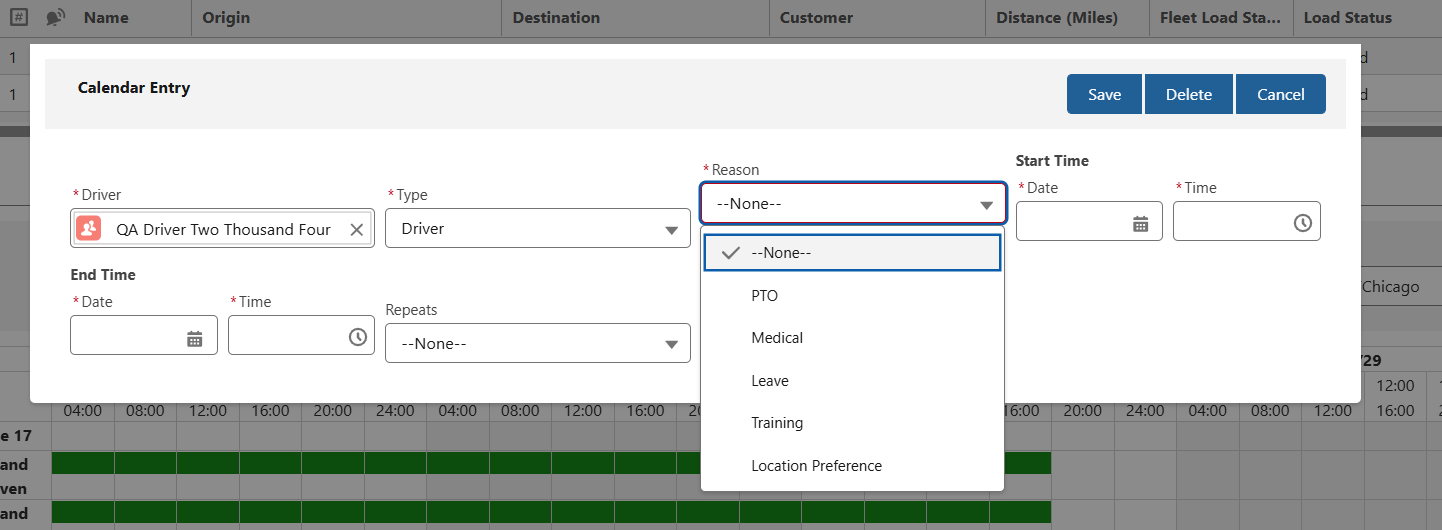
Loads cannot be created from the calendar in the Fleet Management Console.
Hover over a Trip Plan or Calendar entry to view additional information.
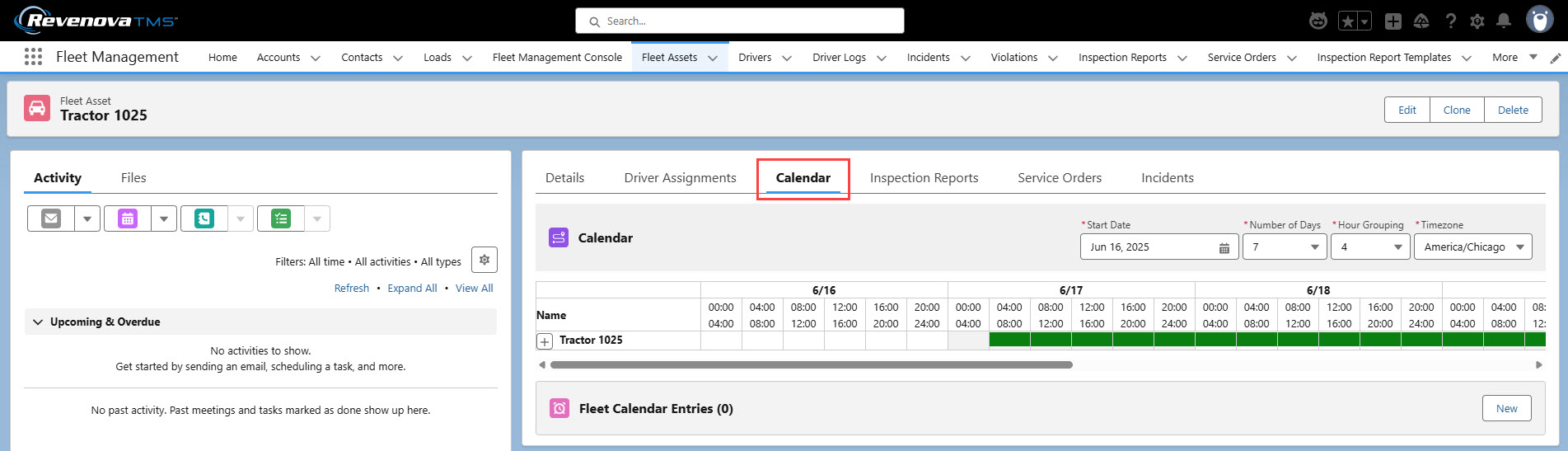
Driver and Fleet Asset detail pages also contain specific entries on the Calendar tab. Fleet Calendar Entries may be added from the record detail page on the related list.
The Fleet Load Status must be Configured on the Trip Planner for Trip Plan calendar entries to populate on Drivers or Fleet Asset records.
Driver Assignment
Driver Assignments refer to long-term pairing or “seating” of a Driver to a Fleet Asset (a Tractor or Power Unit), typically in the case of an owner-operator. Creating Trip Plans and adding a Driver or Fleet Asset that is a component of a Driver Assignment adds both records to the Trip Plan.
Select a Fleet Asset (Tractor) and click the Driver Assignment button to open the Fleet Driver Assignment Lightning Web Component. This LWC displays existing Driver Assignment records and allows users to create, modify, or delete existing Driver Assignments. If multiple Fleet Assets are Checked when clicking the Driver Assignment button, the Driver(s) are only assigned to the first Fleet Asset.
Driver records must be created first before creating Driver Assignments. See additional information for creating Drivers here.
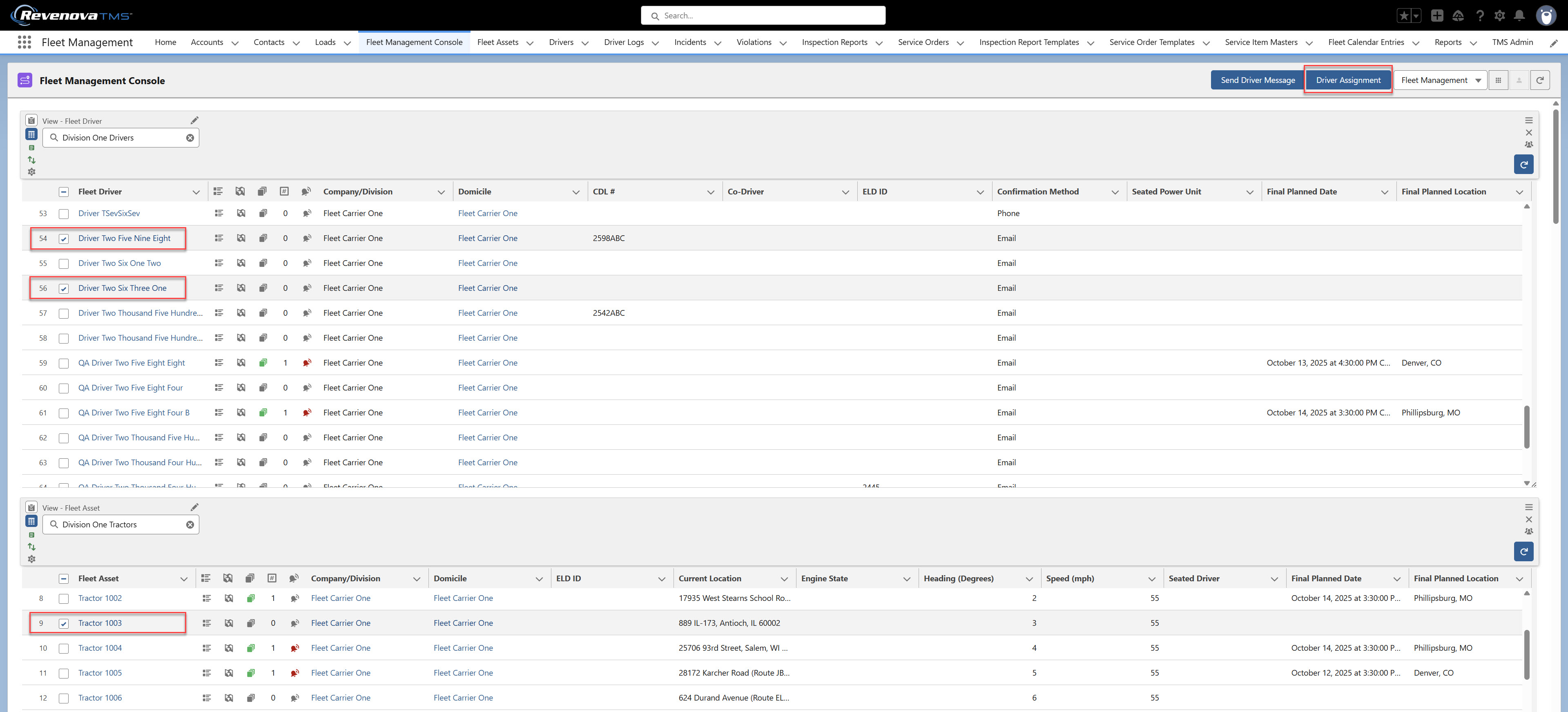
One or Two Drivers may be assigned to a single Fleet Asset (Tractor).
Driver records with a populated Co-Driver field are considered a Team. Assigning the Driver to a Fleet Asset assigns both Drivers. The Driver Type column displays Team instead of Solo.
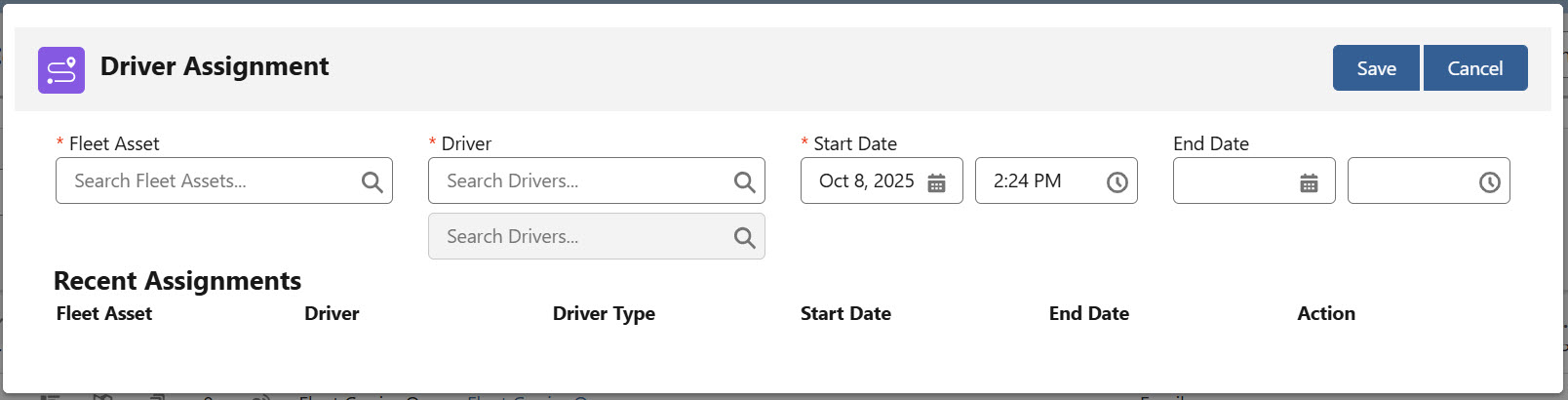
Driver Assignments continue indefinitely if no End Date is provided.
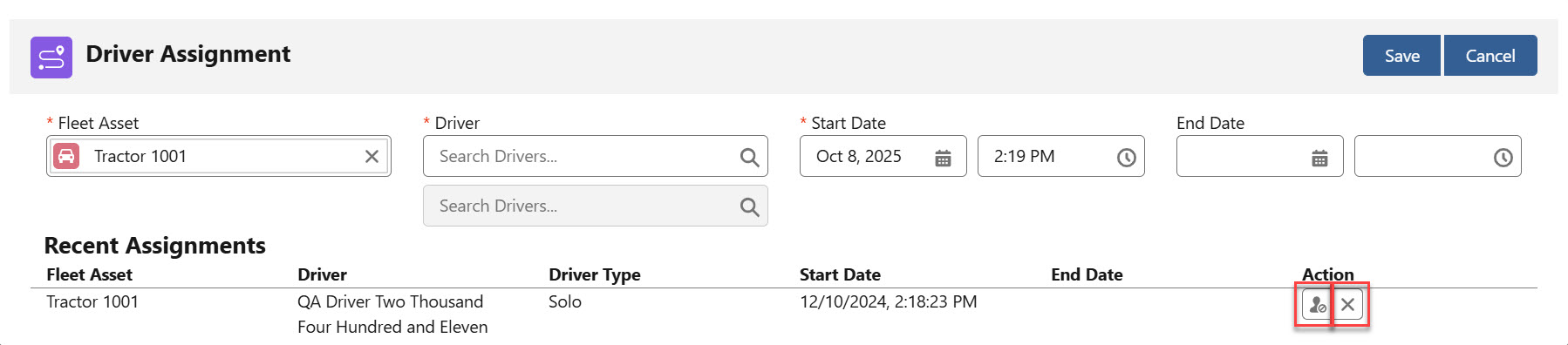
Drivers may be removed from a Driver Assignment with the Unassign  button or the Delete
  button.
If a Driver is assigned to another Fleet Asset, the TMS automatically unassigns the Driver from the existing Assignment. The Driver is then assigned to the Fleet Asset of the new Driver Assignment.
When Unassigning a Driver Team, both drivers must be Unassigned from the Fleet Asset.
Historical Driver Assignments are listed for the Fleet Asset.
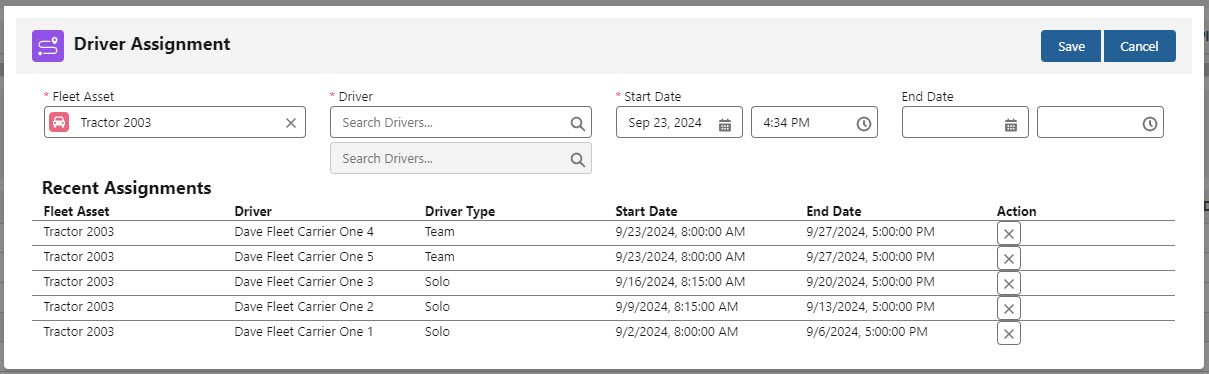
Driver Assignment records are available on the Driver and Fleet Asset records. Always edit and delete Driver Assignments from the Fleet Driver Assignment LWC and not any of the related lists on the records.