The following Lightning Web Components (LWCs) are used when using Artimus™ AI.
Use the Text to Load and Text to Truck Posting LWCs on the home page, custom app pages, or in the utility bar to generate Load and Truck Posting records from the inputted text. If a Load record is created, the AI Created Load LWC displays within the record, providing information about the text entered and the values inserted into the fields.
The AI Load Wizard LWC displays in customer guest email loops, allowing the customer to edit the Load information and generate quotes to accept or decline.
Text to Load LWC
Add the Text to Load LWC to the home page, utility bar, or custom app page as desired. The Text to Load LWC allows users to enter Load details for a customer and automatically generate the Load record and send an email to the customer with Artimus™ AI.
The Text to Load LWC is supported for email integration support. Complete the setup steps to use the Text to Load component in supported email inboxes.
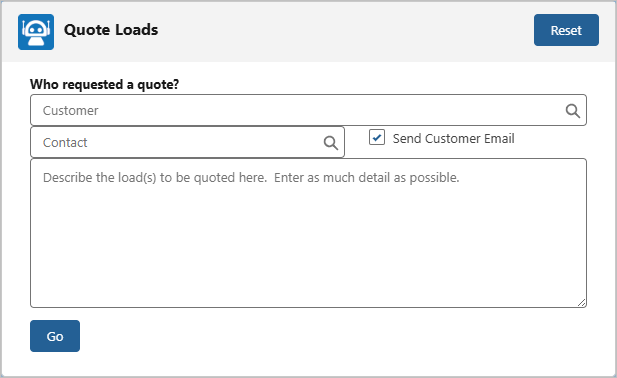
Search for and select the Customer Account in the first box.
Only Accounts that have the TMS Type field with the Customer value are displayed in the list.Enter the Customer Contact in the second box.
Automatically send an email to the customer when the Send Customer Email box is checked.
The Queued Transaction Job must be running for the email to be sent to the customer confirming the load configuration.
The TMS attempts to match Customer Rate Entries with the Load details, then presents a list of Customer Quotes to the customer for acceptance or rejection.
Enter a detailed description of the Loads, including origin and destination information, line items, and any other Load information. The more details added, the better the response.
Select Go to generate Load records.
When Artimus™ AI processes the request, the results are available for review in the AI Console.
Caution: If the description does not contain Line Item information, no Load record is created an an email is not sent, even if the Send Customer Email box is checked.
This logic also applies to customers who use the Artimus email service either directly or with the Forwarding Email Domains setting in the AI Console Configuration.
Created Loads
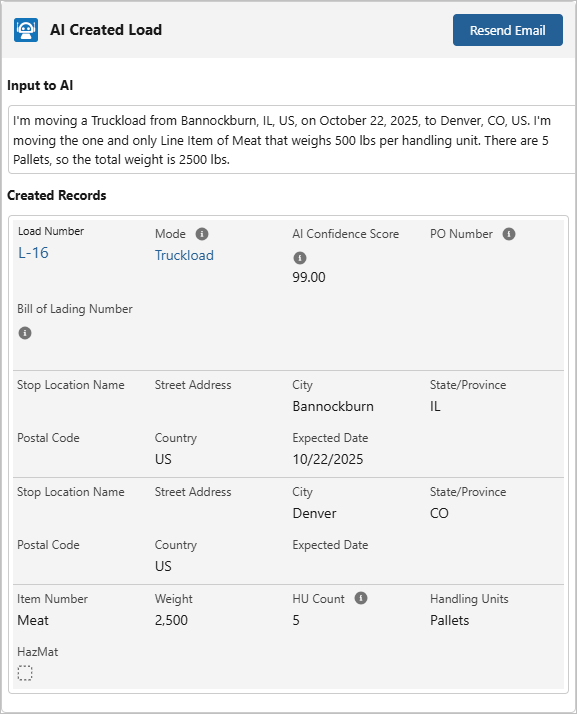
When Load records are created based on the description, the Created Loads section displays detailed information about the generated records.
Load records are generated if all required fields are processed with values and the confidence score of the AI Parse Text Record for the Load type surpasses the Load Creation Threshold set in the Global Parameters of the AI Console Configuration.
Caution: Artimus AI can only create Load records with a single Pickup Stop and single Dropoff Stop. Loads with multiple stops described in the description will not have a record created. Artimus cannot add Accessorials to the Load or Stops; however, the customer can add Accessorials in the AI Load Wizard LWC.
.png)
The Load, Stop, and Line Item fields defined in the AI Console Configuration are processed by Artimus AI based on the Mode identified. Those fields are then inserted into the created Load records.
Note: Account Stops are not created through Artimus AI. However, Artimus will capture the Stop Location Name and Street Address to and attempt to match an Account with the same name and address if it already exists in the TMS.
Text to Truck Posting LWC
Add the Text to Truck Posting LWC to the home page or another page as desired. The Text to Truck Posting LWC enables users to enter Truck Capacity details for a carrier and automatically generates Truck Posting records with Artimus AI.
The Text to Truck Posting LWC is supported for email integration support. Complete the setup steps to use the Text to Truck Posting component in supported email inboxes.

Search for and select the Carrier Service.
Search for and select a Contact related to the carrier, if desired.
Enter a description of the capacity. You may enter multiple Truck Postings in the description.
Select Go to generate Truck Posting records.
When Artimus™ AI processes the request, the results are available for review in the AI Console.
Created Truck Postings
When Truck Posting records are created based on the description, the Created Truck Postings section displays detailed information about the generated records.
Truck Posting records are generated if the required fields are processed with values, and the confidence score of the AI Parse Text Record for the Load type surpasses the Truck Posting Creation Threshold set in the Global Parameters of the AI Console Configuration.
Caution: Artimus processes only AI-enabled Equipment Types. Check the AI Enabled box for each Equipment Type that Artimus should process. Only include Equipment Types that are used for business needs. At least one Equipment Type must be AI-enabled to generate Truck Posting records.
.png)
The following fields are required information in the description in order to create Truck Posting records:
Available Date
Number of Trucks
Origin City
Origin State
Origin Country
Truck Type
Field Reference
The following fields are also able to be processed by Artimus™ AI:
Carrier Name
Destination City
Destination Country
Destination State
Equipment Type
MC Number
US DOT Number
Note: Additional Truck Posting fields do not have values inserted based on the text entry from the Text to Truck Posting LWC or received emails.
Carrier Load Board
The TMS can send carriers access to the RFQ Load Board LWC when all the following actions are true:
The Carrier Load Board email template is set in TMS Admin → Document Options.
A Contact was selected in the Text to Truck Posting LWC.
The Carrier Transportation Profile associated with the Carrier Service has the Enable RFQ Load Board box checked.
The Truck Postings automatically created were above the threshold value in the Truck Posting Creation Threshold field in the AI Console Configuration page.
Note: If the Truck Posting is not created by Artimus—that is, the AI Confidence Score is below the Truck Posting Creation Threshold—no email is sent to the Contact.
(image of LEX2 email template)
Note: If a Truck Posting was generated by a Contact sending a message directly to the Artimus Truck Posting email handler, the Contact’s email address matches to a carrier Account, and all the previously listed actions are true, the email sender will receive the Carrier Load Board email from the TMS.
If the email sender is not associated with any Account, the Carrier Load Board email is not sent, and the Inbound Email provides the same information in the Error Details field.

AI Created Load LWC
The AI Created Load LWC is available on the Load Lightning Record Page for Loads created with Artimus™ AI. The input is provided to confirm that the Load fields are correct.
Select the Resend Email button to resend the email to the customer (either who emailed Artimus or the Contact selected in the Text to Load LWC). A green success toast will display the email address that the email was sent to.
Note: This LWC displays when the AI Generated field in the Load record is checked.
AI Load Wizard LWC
The AI Load Wizard LWC is a part of the Customer Guest LWC for Customer Guest Email Loops. This LWC appears when the email recipient selects Continue in the AI Customer Rate and Load Confirmation email.
.png)
The default fields Artimus processes for LTL Modes in the AI Load Wizard LWC
The fields displayed on the LWC are determined by the AI Console Configuration settings and are Mode-specific. The title and text that are in blue are determined by the custom messages in Document Options.
Note: The Site Security Model selected in the AI Console Configuration determines what locations a customer can view.
Location Note: Artimus™ AI attempts to match the Pickup and Delivery locations to existing Shipper/Consignee Accounts based on the name, address, city, and state from the original text to Artimus. The postal code is ignored in this process.
Artimus assigns an Account if there is only one Account matching the provided information. If there is more than one possible matches, some of the location information is provided in the fields of the LWC, but the user will need to update the Location Name field and search for the Account.
If the Street Address, City, State/Province, Postal Code, and Country fields become greyed out, this indicates that the Pickup/Delivery Stop is referring to an Account.
The Additional Services section lets customers add Accessorials to the Pickup Stop, Delivery Stop, or the Load. Check the Accessorial Type, then check the applicable accessorials to add them to the Load.

Note: Only the customer can add Accessorials to the Load. Artimus does not process Accessorials in neither the inbound email handler nor in the Text to Load LWC.
If the customer edits any of the Load information in this LWC, the Get Quotes button is replaced with a Save and Cancel button, with Artimus noting that the Load needs to be rerated after the changes are saved.

AI Customer Quote List
The AI Customer Quote List LWC is a part of the AI Load Wizard LWC. When the customer selects the Get Quotes button, the TMS searches for matching stored rate entries or carrier markup rates and generates Customer Quotes.
For non-LTL Modes, only one quote that uses a customer Rate Entry is available to accept or decline. Add fields to the Customer Quote TMS2 field set to include additional fields for the quote.
.png)
Single Customer Quote for non-LTL Loads
Accessorial Note: If the Rate Type of the customer Rate Entries do not include Accessorials, such as Freight+Fuel, Freight, or Fuel, was used to generate the Customer Quote, and the customer adds accessorials in the AI Load Wizard LWC then rerates the quote, the Messages field displays with the following statement:
“The following accessorials for this load were not included in this quote: {list of unrated accessorials}”
Pricing Note: The RateIQ+Markup Rate Entry uses Spot pricing, not Contract, because it’s using the RateIQ Calculation for the Load at the time the quote was generated.
For LTL Modes with multiple quotes available, the customer can accept a quote or decline all Customer Quotes presented in the list.
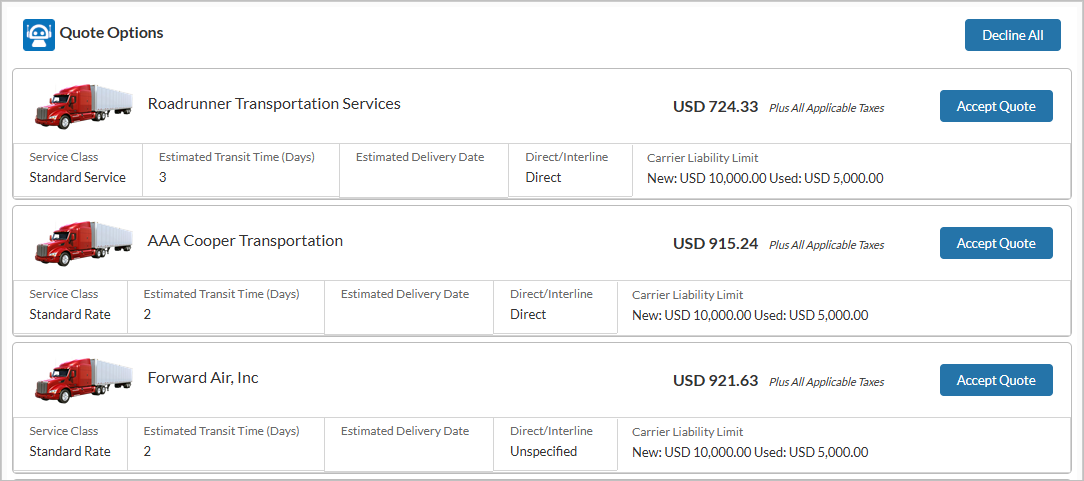
Multiple Customer Quotes for LTL Loads
If the Display Customer Quote Taxes box is checked in the AI Console Configuration, the quote total and applicable taxes are combined and displayed as a single price.

Add fields to the Carrier Quote TMS6 field set to include additional fields for each quote option.
If the Contact is also a Customer Portal user, the Show Itemized Charges in Portal and Customer Portal Quote Visibility are also applied in the LWC. If not, then the email loop guest security settings are used.

If changes are made on a field in the LWC that is also in the Load TMS11, Stop TMS5, or Line Item TMS2 field sets, then a red ‘Rerate Needed’ pill appears next to the Customer Quotes affected. Select Save, then Get Quotes to get new Customer Quotes for the Load.

When a customer accepts a quote from the list, a green ‘Accepted’ pill appears next to the quote, and an email is sent with the Customer Rate and Load Confirmation attachment. Additionally, the Status field on the Customer Quote is set to Accepted and the Sales Status field on the Load is set to Won.

When a customer declines all quotes from a list, Artimus displays the Artimus Customer Quote Decline response and no actions are available in the LWC. Additionally, the Status field on the Customer Quote is set to Rejected and the Sales Status field on the Load is set to Lost.
A confirmation email is sent to the customer with the Customer Rate and Load Confirmation document attached.
AI Load Wizard Error Messages

This error displays when the customer reopens the link where the URL has been forged or the Load Status is one of the following values:
Tendered
Assigned
Dispatched
In Transit
Delivered
Completed
Canceled

This error displays when the quote the customer accepted or declined no longer exists or has the Status set to Expired in the TMS for an LTL Load.