The Carrier Transportation Profile is used to store and analyze carrier information, serving as the home page for the TMS Carrier Management function.
Review Button
The Review button allows you to access the latest FMCSA data and risk categorizations for this Carrier Transportation Profile when enabled by the SaferWatch, RMIS, Highway, or MyCarrierPortal API.
.png)
Related Lists
The Carrier Transportation Profile contains related lists for Carrier Services and Accessorial Exclusions.
Select the New button on the related list to create a new record of that type. Each button on the related list opens a corresponding modal to make that new record.
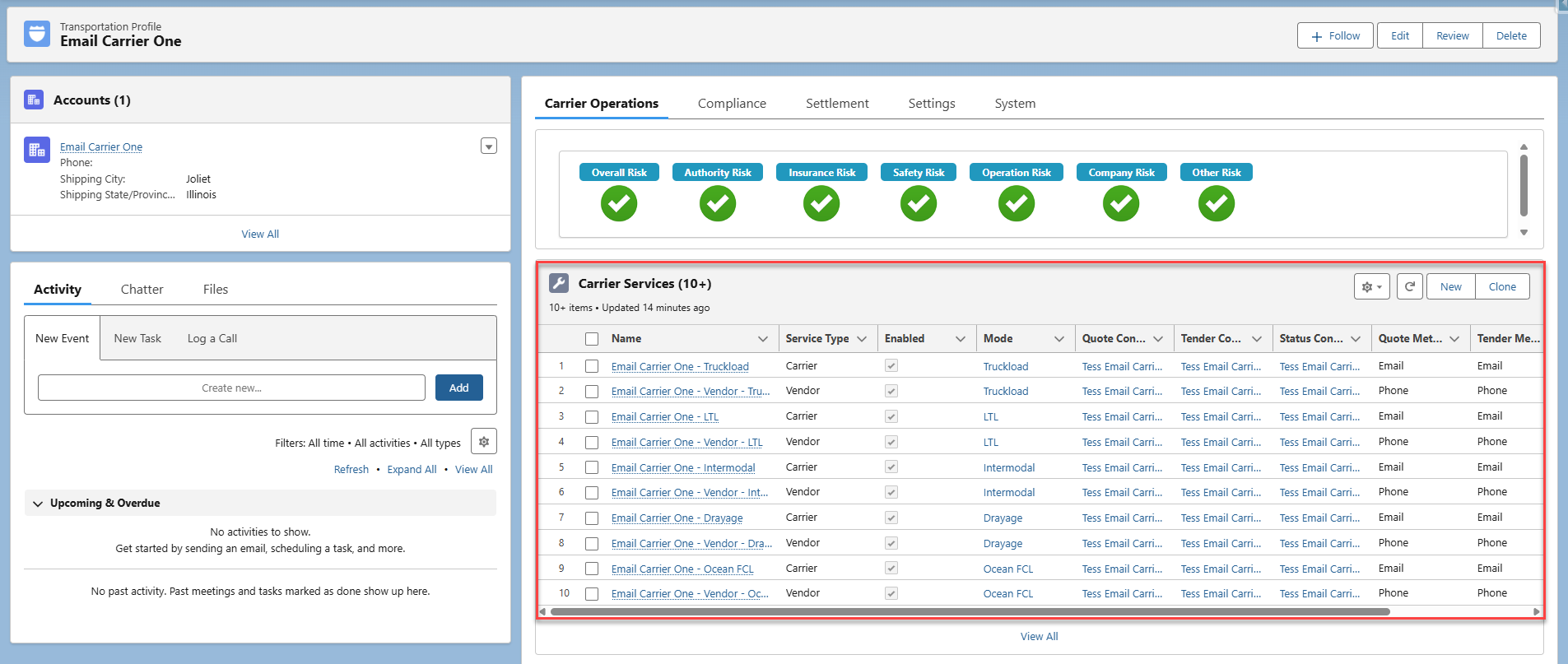
Carrier Service records outline the various types of services (Carrier or Vendor), Modes, and Contacts for quoting and tendering.
Refer to the Carrier Service Setup article for details on creating carrier services for a carrier or vendor.
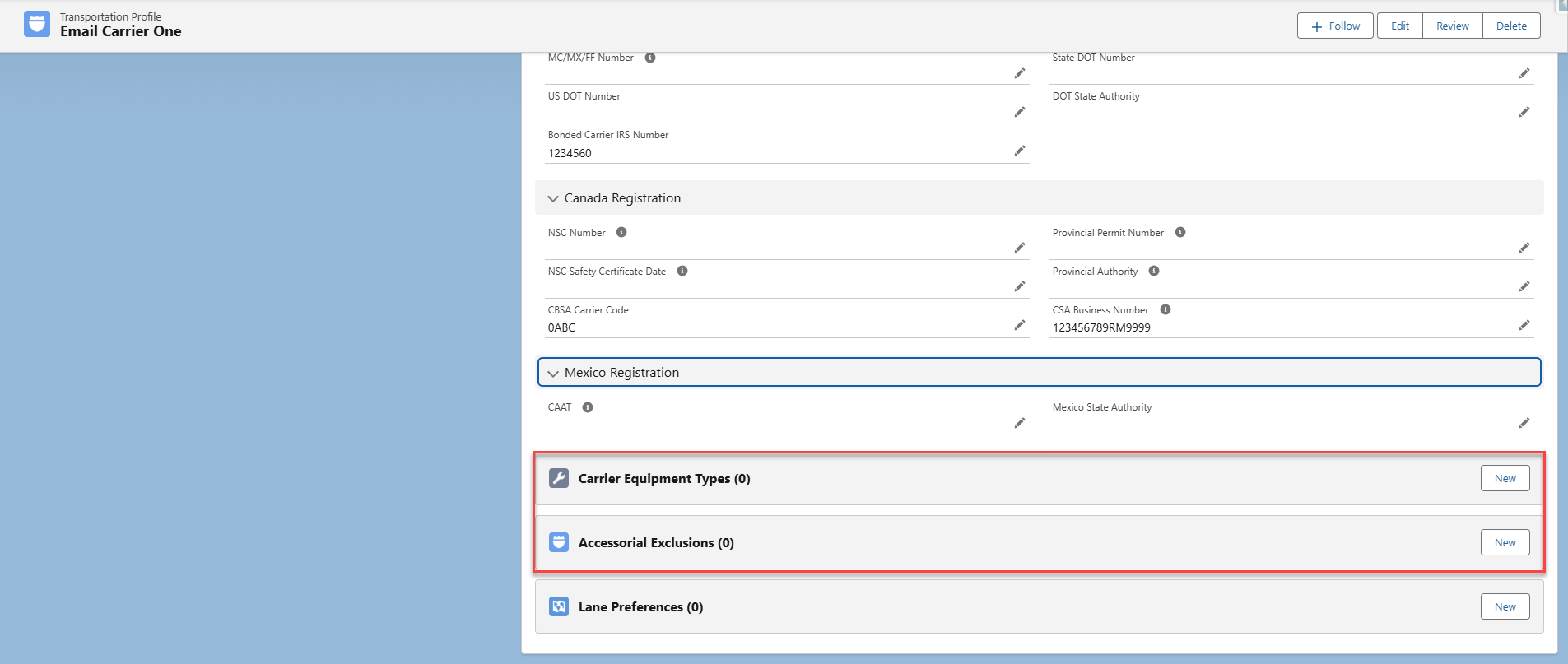
Carrier Equipment Type records help track which equipment types are available with this carrier and the quantity available. These records are auto-generated when a carrier is tendered to a Load with an Equipment Type. See the Carrier Management article for more information.
Accessorial Exclusions prevent quotes from being returned for carriers that do not support specific accessorial charges or cannot meet the load requirements.
The Lane Preferences related list includes the Lane Preference for the Carrier Transportation Profile. See the Lane Preferences article for more information about creating new records.
Insurance Policies
The Carrier Transportation Profile also has the Insurance Policies related list.
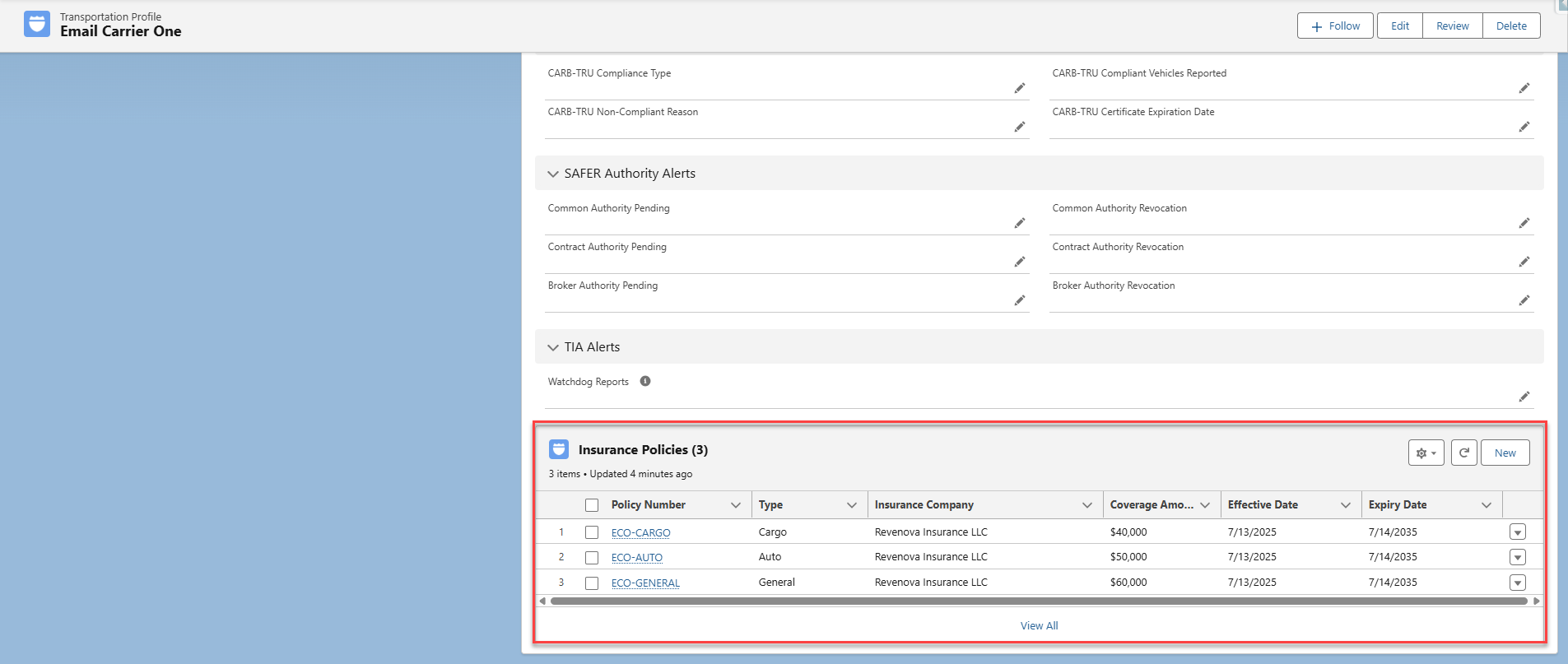
When a Carrier Quote is generated for a Load, all active insurance policies that are Cargo types are listed in the Insurance Lightning Web Component (LWC) on the Freight Quote Assistant. Find more information about cargo insurance in the Falvey Insurance article.
TMS Auto-Reject Carrier Flow Template
The TMS Auto-Reject Carrier Template flow evaluates the risk fields, the RMIS Certified field, the Temporary Approval Expiration date, and the Blocked Carrier checkbox and appropriately updates the Carrier Review Status. This flow automatically invalidates carriers when they are out of compliance.
Warning: Confirm that the TMS Auto-Reject Carrier flow or an equivalent method is active to invalidate unacceptable carriers. Go to the Carrier Transportation Profile Setup article to see the instructions for creating and activating the flow.
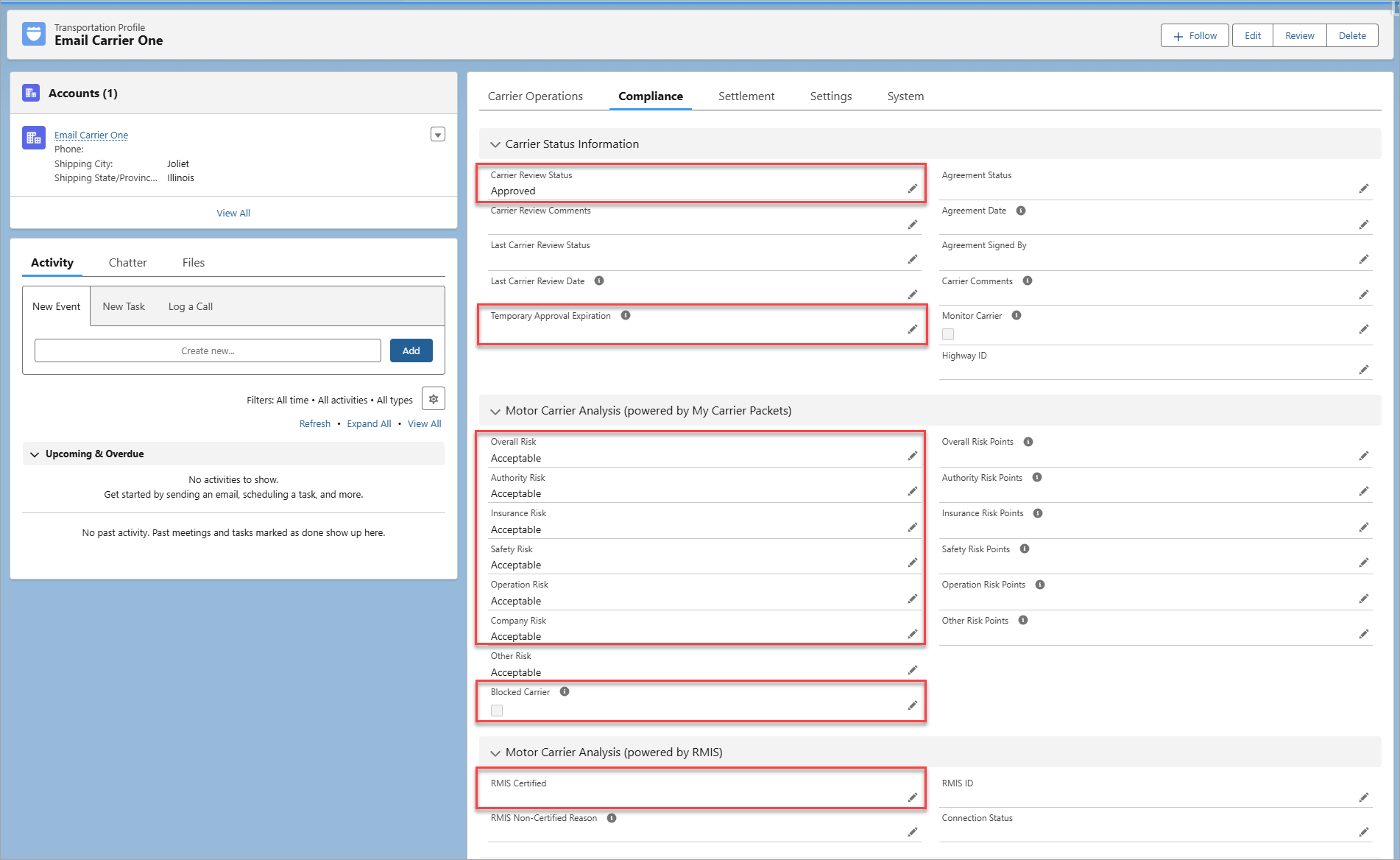
Note: The Other Risk field on the Carrier Transportation Profile does not factor into the packaged TMS Auto-Reject Carrier Template flow. Incorporate these fields as desired by creating a new Flow with the TMS Auto-Reject Carrier Template.
Carrier Remittance
The Carrier Transportation Profile contains information regarding carrier remittance and impacts the Load and Vendor Invoices.
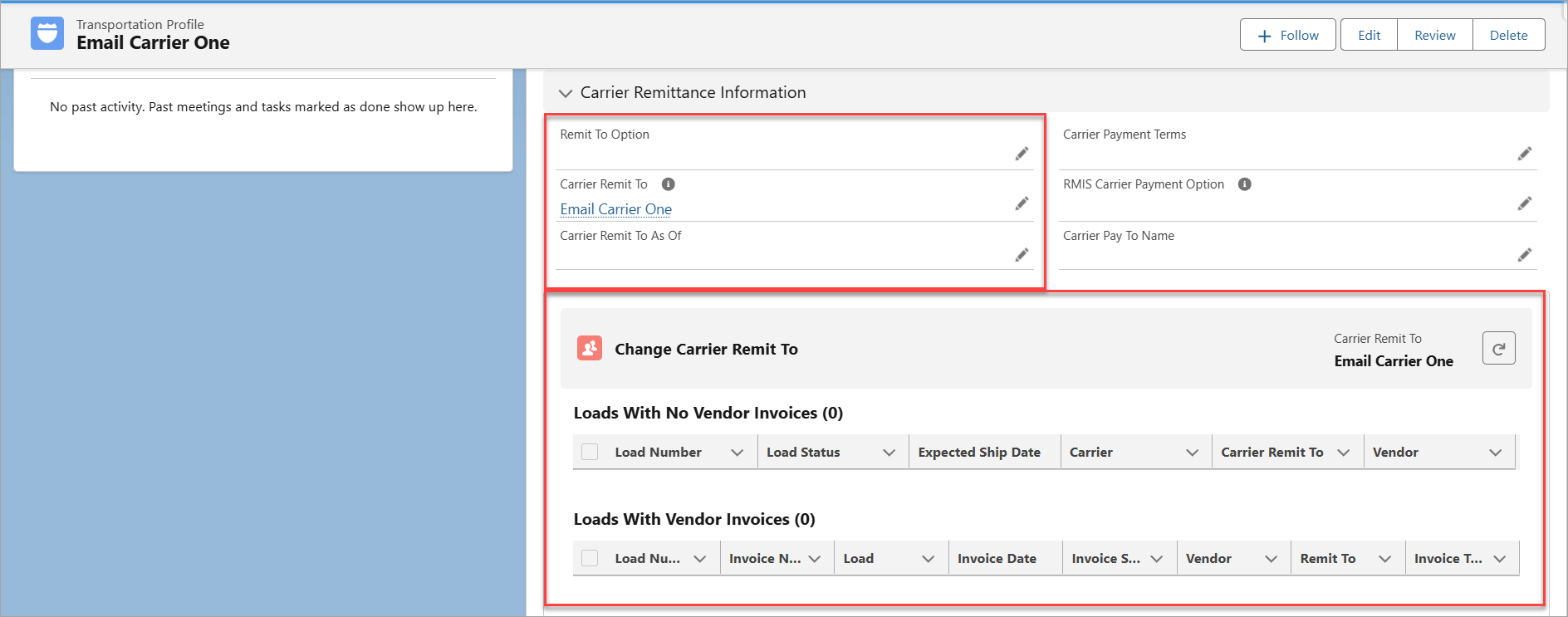
Remit To Fields
The Remit To Option field provides information on whether the remitting payment of an invoice is to the carrier or a factoring company. The values are either Direct or Factor.
The Carrier Remit To field is an Account lookup that references either a factoring company or the carrier if they receive payments. The value in this field is populated to the Load record when it is tendered to a Carrier and when Vendor Invoices are generated.
The Carrier Remit To As Of field automatically enters the date and time when the Carrier Remit To field changes.
Carrier Remit To Admin LWC
The Carrier Remit To Admin LWC tracks the value of the Carrier Remit To for Loads and Vendor Invoices with a different Carrier Remit To. If the Carrier Remit To changes in the Carrier Transportation Profile, this LWC allows mass updates to the Carrier Remit To fields in Loads and Vendor Invoices.
For more information about this LWC, see the Carrier Remit To Admin article.
Carrier Settings
The following sections contain information about settings that are configured in the Carrier Transportation Profile:
Company Logo
Enable RFQ Load Board
Barcode Generation
Company Logo
You can add an image to the Rich Text Editor in the Company Logo field. See the Salesforce Rich Text Editor documentation for more information.
The company logo in the Transportation Profile is used in the Customer Shipment Tracking LWC.
.png)
Enable RFQ Load Board
Check the Enable RFQ Load Board field to provide carriers with the ability to access the RFQ Load Board Lightning Web Component (LWC) in the Carrier Guest email loop when they accept a load tender or submit a truck posting with Artimus™ AI.
Refer to the Email Loop Setup documentation for additional setup information for the RFQ Load Board LWC in the carrier guest email loop.

Barcode Generation
The barcode fields in the Carrier Transportation Profile determine how the barcode renders in documents and shipping labels.
The Tec-IT integration automatically populates these fields with values. Refer to the Tec-IT Barcode Generation article for instructions on using the integration to create and regenerate barcodes.
.png)
Fleet Management
Trip Management
Control the Trip Notifications that generate Trip Events for a Trip Plan with the following fields. Trip Notifications are sent from Trimble and generate Trip Events based on the selection below.
Choose the desired alert types to generate Trip Events in the Fleet Management Console.
Trimble Trip Management Alerts
PTA
PTA Alerts (Planned Time of Arrival) are based on the Stop location Appointment Time Grace Period (Before) and (After) fields set on the Customer Transportation Profile.
Stop Status
Weather
Out of Corridor
Out of Route
Traffic Incidents
Approaching
Dwell Exceeded
Unplanned Stops
Trip Event Notifications may be turned on or off at the individual Trip Plan Segment level. See Trip Plan Segment information to change notification settings for individual Trip Plan Segments.
Enter a number of minutes in the Alert Suspension Minutes field to pause a Notification Type after it is received. Any Trip Notifications received from Trimble within this time period do not generate a Trip Event. Use this field to limit the number of Trip Events that are generated for the listed Alert Types in the Fleet Management Console.
Alert Suspension Minutes
PTA
Weather
Out of Route
Out of Corridor
Traffic
The following Alert Types cannot be suspended.
Stop Status
Approaching Stop
Dwell Exceeded
Unplanned Stop
Related Lists
The following related lists on the Carrier Transportation Profile are used for Fleet Management to validate Trip Plans and determine when to notify the user about a Fleet-related record.

Trip Plan Validations
Create a Trip Plan Validation record to warn or prevent users from dispatching a Trip Plan Segment based on conflicting information on the Driver, Fleet Asset, or Trip Plan. These validations appear in the Trip Planner LWC when opening or saving a Trip Plan, or when dispatching a Trip Plan Segment.
Click the New button to open the New Trip Plan Validation modal.
Caution: Only create Trip Plan Validation records that primarily apply for this Company/Division. The number of validations impacts the speed at which the Trip Planner LWC is opened and saved.
The most impactful validation types are:
Overlapping Trip Plans
Calendar Events
Trailer Action
Enter a descriptive title for the Trip Plan Validation Name field to describe the validation rule. The Company/Division field is auto-populated with the current Carrier Transportation Profile.
For the Alert Type field, the Soft value issues a warning but allows the user to continue dispatching a Trip Plan Segment, whereas the Hard value prevents the dispatch. The default value for the Alert Type field is Soft.
Select the Validation Type for this record. Refer to the following Validation Type Table to see the validation rules that can be applied to a Trip Plan, and refer to the Validation Type Logic to see how these validation rules are triggered in the Trip Planner LWC.
Warning: For the Dispatch - Preloaded Trailer and Single Dispatch validation types, the Alert Type field must be set to Hard. The TMS will prevent saving these validations with a Soft alert type.
.png)
Click Save when done. The records in the related list show the name, validation type, alert type, and the users who created and last modified the record.
.png)
Warning: To delete a Trip Plan Validation record, all associated Trip Plan Validation Logs must be deleted first. Run the DataCleanupJob to automatically remove logs that have not been modified in the last 30 days.
Expand the accordion below to view the table that describes what each Validation Type checks for in a Trip Plan.
View Validation Type Table
Validation Type | Description |
|---|---|
Overlapping Trip Plans | Checks that any Driver, Fleet Asset, and/or Load does not have dates that overlap with other Trip Plans with at least one Configured or Dispatched Trip Plan Segment. |
Calendar Events | Checks that any Fleet Calendar Entry’s date range for a Driver or Fleet Asset that is also on a Trip Plan Segment does not overlap with the segment’s Start and End Date/Time fields. |
Out of Service | Checks that the date in the Out of Service Date field on the Fleet Asset record does not occur before the End Date/Time of the Trip Plan Segment. |
Registration Expiration | Checks that the date in the Registration Expiration field on the Fleet Asset record does not occur before the End Date/Time of the Trip Plan Segment. |
License | Checks that the date in the Drivers License Expiration field on the Driver record does not occur before the End Date/Time of the Trip Plan Segment. |
Medical Cert | Checks that the date in the Medical Card Expiration Date field on the Driver record does not occur before the End Date/Time of the Trip Plan Segment. |
Hazmat Cert | Checks that the date in the Expiration Date field on the Travel Credential record for the Driver does not occur before the End Date/Time of the Trip Plan Segment with a HazMat Load. Travel Credential Types to Check:
|
CDL | Checks that the date in the CDL Expiration Date field on the Driver record does not occur before the End Date/Time of the Trip Plan Segment. |
T-Endorsement for Towing Double/Triple Trailers | Checks that the date in the Expiration Date field on the Travel Credential record for the Driver does not occur before the End Date/Time of the Trip Plan Segment. Travel Credential Type to Check:
|
Tanker | Checks that the date in the Expiration Date field on the Travel Credential record for the Driver does not occur before the End Date/Time of the Trip Plan Segment. Travel Credential Types to Check:
|
Border Crossing | Checks that the date in the Expiration Date field on the Travel Credential record for the Driver does not occur before the End Date/Time of the Trip Plan Segment. Travel Credential Types to Check:
|
Port | Checks that the date in the Expiration Date field on the Travel Credential record for the Driver does not occur before the End Date/Time of the Trip Plan Segment. Travel Credential Type to Check:
|
Employment Status | Checks that the Activation Status field on the Driver record is set to Active. |
Dispatch - Preloaded Trailer | Checks that the Trailer (or any Trip Plan Leg Asset) has the Action set to Pickup is within a 1-mile radius from that Trip Plan Leg’s End Location based on the geolocations of the Leg and Asset before dispatching the segment. |
Single Dispatch | Checks that the Driver or Power Unit is dispatched to only one Trip Plan Segment at a time. |
Driver Unavailable | Checks that the Status field on the Driver record is set to Available. |
Trailer Action | Checks the following actions for Trailers (or any Trip Plan Leg Assets):
|
Fleet Notifications
Create a Fleet Notification record to alert users to potential Trip Plan issues based on information from Driver or Fleet Asset records. These notifications are found on the Fleet Notifications Logs tab on the Trip Event Viewer LWC.
Click the New button to open the New Fleet Notification modal.
Caution: Only create Fleet Notification records that primarily apply for the Drivers and Fleet Assets for this Company/Division.
If a Fleet Notification record is created where the related field is not used, affected Drivers or Fleet Assets will receive a notification with the message “{Fleet Notification Type} expiration date is missing” in the Message column.
Enter a descriptive title for the Fleet Notification Name field to describe the notification. The Company/Division field is auto-populated with the current Carrier Transportation Profile.
Select the Notification Type for this record. Refer to the following Notification Type Table to see the notifications that can be sent in the Fleet Trip Event Viewer LWC, and refer to the Notification Type Logic to see how these notifications are triggered.
Add a number to the Days Out field to indicate how far from today’s date to check if a notification should be sent.
.png)
For example, if the number of days out is 5 for a Notification Type that checks the CDL Expiration Date for a Driver, then any Driver on a Trip Plan with a CDL set to expire within 5 days will trigger a Fleet Notification.
Click Save when done. The records in the related list show the name, notification type, days out, and the users who created and last modified the record.

Warning: To delete a Fleet Notification record, all associated Fleet Notification Logs must be deleted first. Run the DataCleanupJob to automatically remove logs that have not been modified in the last 30 days.
Expand the accordion below to view the table that describes what each Notification Type checks for to display in the Trip Event Viewer LWC.
View Notification Type Table
Notification Type | Description |
|---|---|
Registration Expiration | Checks the Registration Expiration field on the Fleet Asset record. |
Next 90 Day Inspection | Checks the Next 90 Day Inspection field on the Fleet Asset record. |
Next Annual Inspection | Checks the Next Annual Inspection field on the Fleet Asset record. |
Out of Service | Checks the Out of Service Date field on the Fleet Asset record. |
Hazmat Cert | Checks the Expiration Date field on one of the following Travel Credential records related to the Driver:
|
CDL | Checks the CDL Expiration Date field on the Driver record. |
License | Checks the Drivers License Expiration field on the Driver record. |
Medical Cert | Checks the Medical Card Expiration Date field on the Driver record. |
Next Physical Date | Checks the Next Physical Date field on the Driver record. |
Passport | Checks the Expiration Date field on one of the following Travel Credential records related to the Driver:
|
TWIC | Checks the Expiration Date field on the following Travel Credential records related to the Driver:
|
N - Tanker Non-Dangerous Liquid or Gas | Checks the Expiration Date field on one of the following Travel Credential records related to the Driver:
|
X - Combines Hazmat and Tanker | Checks the Expiration Date field on the following Travel Credential records related to the Driver:
|
T - Endorsement for Towing Double/Triple Trailers | Checks the Expiration Date field on the following Travel Credential records related to the Driver:
|
TSA Certification | Checks the Expiration Date field on the following Travel Credential records related to the Driver:
|
SF-86 - Gov’t Security Clearance | Checks the Expiration Date field on the following Travel Credential records related to the Driver:
|
Forklift | Checks the Expiration Date field on the following Travel Credential records related to the Driver:
|
Learner’s Permit | Checks the Expiration Date field on the following Travel Credential records related to the Driver:
|
Work Visa | Checks the Expiration Date field on the following Travel Credential records related to the Driver:
|
FAST - Free and Secure Trade | Checks the Expiration Date field on the following Travel Credential records related to the Driver:
|