Use Artimus™ AI to automatically create Load and Truck Postings from customer emails.
Contact a Revenova representative for pricing information.
Complete the following steps to set up Artimus™ AI.
Enter Credentials
Enable the integration with OpenAI by completing the following steps:
Navigate to TMS Admin.
Select Credentials.
Select the Global Services tab.
Find OpenAI in the list and open the card.
Check the Enabled box.
Enter Revenova in the User ID text field.
Enter the provided password into the Password 1 text field.
Click the Save button when finished.
Valid credentials are provided by Revenova. The User ID and Password 1 are required fields.
User ID | Password 1 | Password 2 | Customer Number |
|---|---|---|---|
Revenova | API Key (provided by Revenova) |
Remote Site Settings
Check the Remote Site Settings when upgrading from a previous TMS release. Verify they match the Service and Test Service URLs provided. If the Remote Sites do not exist, create them following the steps:
Click the Setup gear icon in the top right corner.
From the drop-down, click Setup.
In the Quick Find Toolbar, type Remote Site Settings and click the link.
From the list of remote sites, find OpenAI. Confirm the Remote Site URL is: https://api.openai.com.
If no Remote Site exists, create it for the Service URL.
Click the New Remote Site button.
Enter OpenAI_Service into the Remote Site Name box.
Enter https://api.openai.com into the Remote Site URL box.
Confirm Active is Checked.
Click Save.
If no Remote Site exists, create it for the Test URL.
Click the New Remote Site button.
Enter OpenAI_Test into the Remote Site Name box.
Enter https://api.openai.com into the Remote Site URL box.
Confirm Active is Checked.
Click Save.
Service URL: https://api.openai.com
Test Service URL: https://api.openai.com
Create Email Services
Create an Email Service to receive and process customer email requests. Load and Truck Postings each require their own individual Email Service.
Navigate to Setup and search for Custom Code and select Email Services.
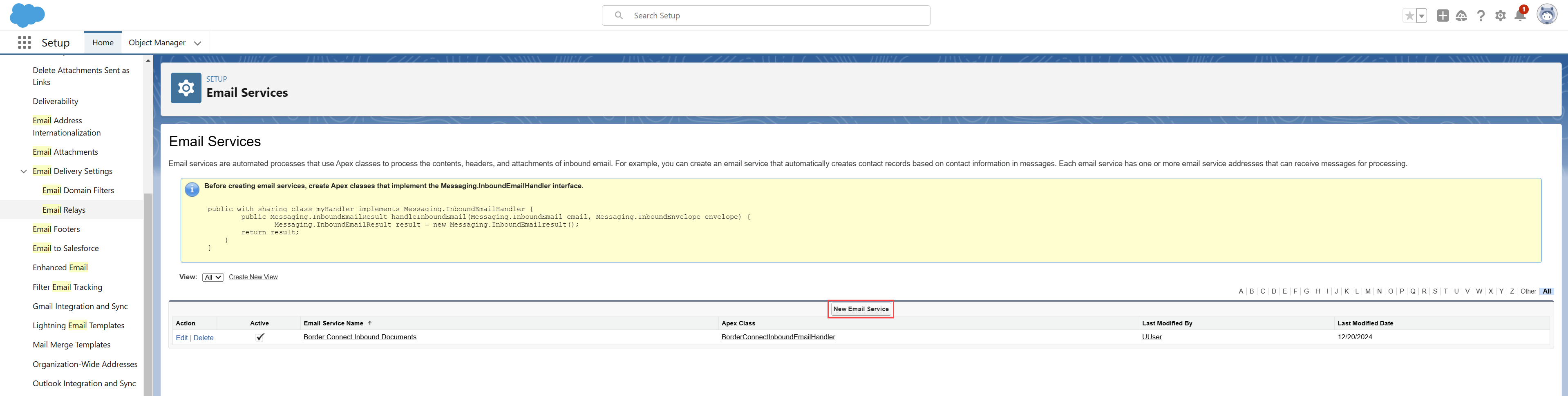
Choose the New Email Service button.
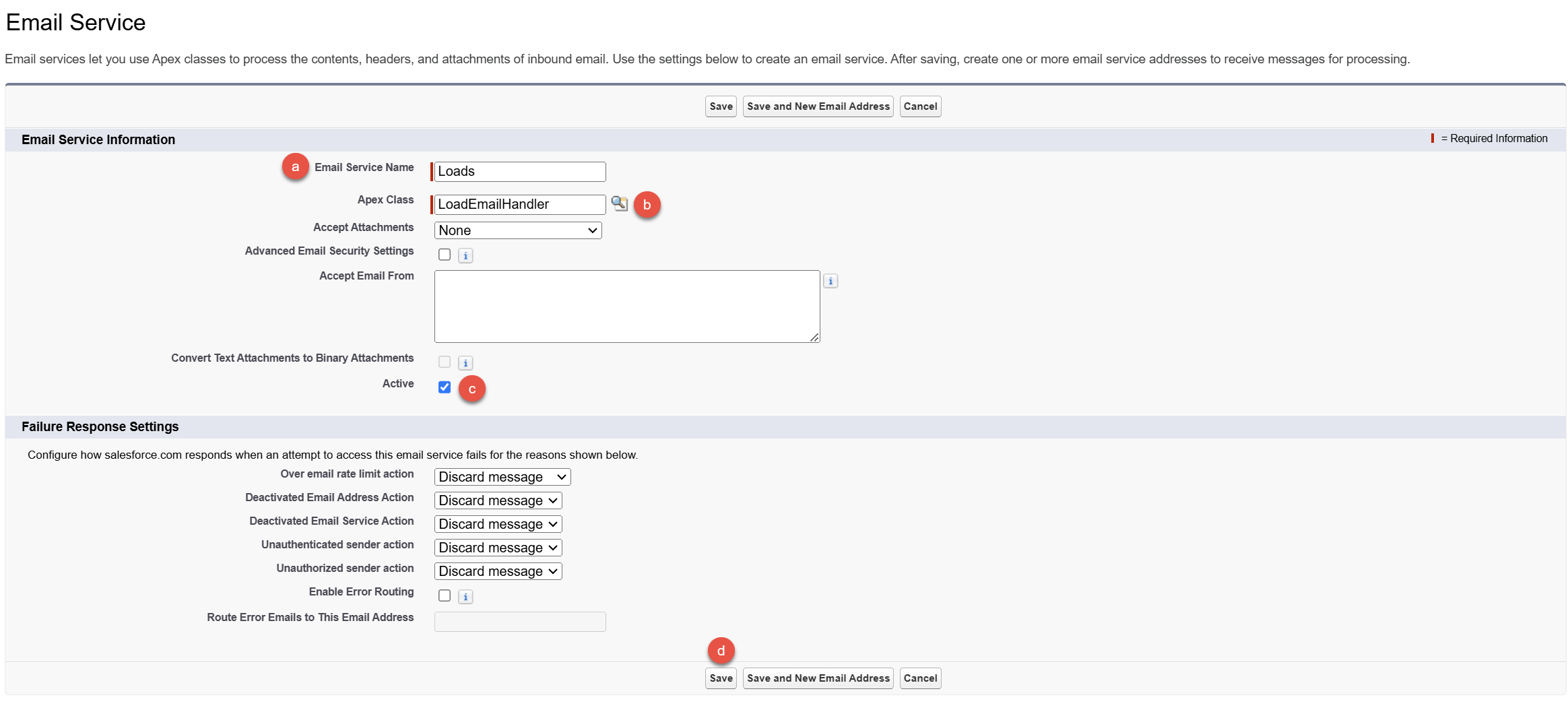
Name the Email Service according to the record type to process. The example below is named “Loads.”
Click the search icon to select the appropriate Apex Class.
Load emails are processed by the LoadEmailHandler class.
Truck Posting emails are processed by the TruckPostingEmailHandler class.
Check the Active box.
Click Save.
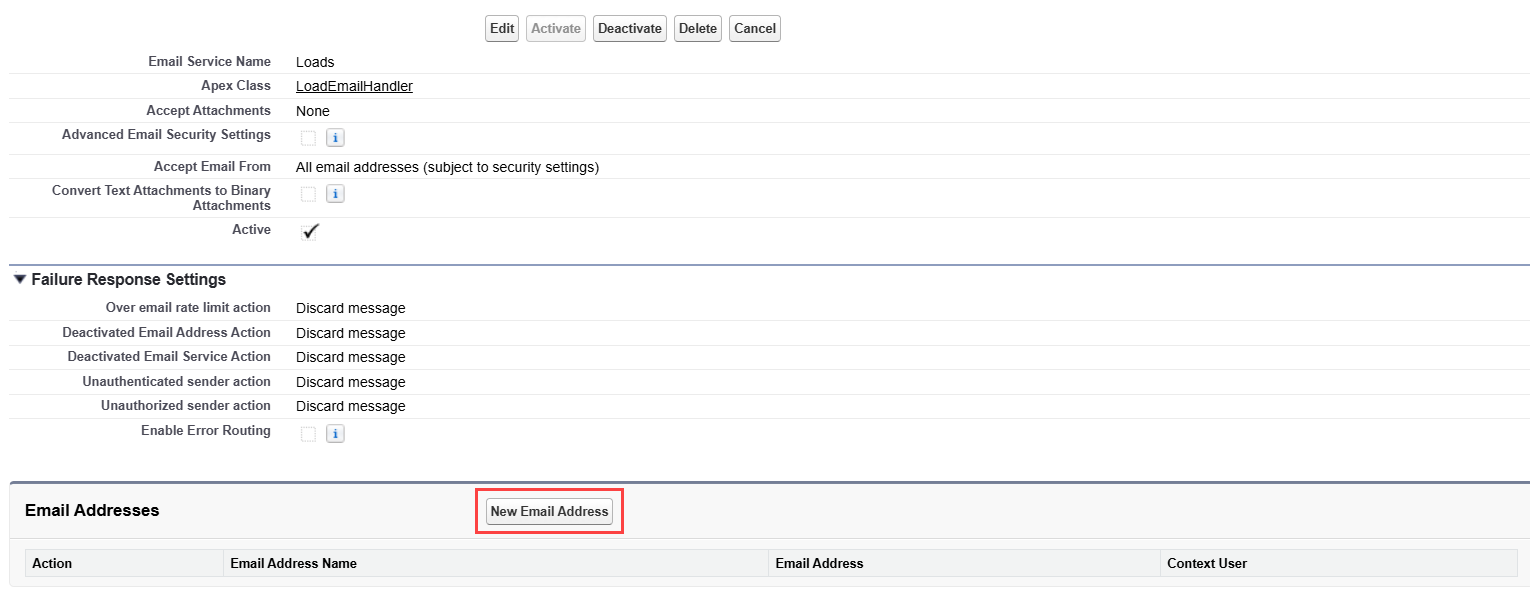
In the Email Addresses section, click the New Email Address button.
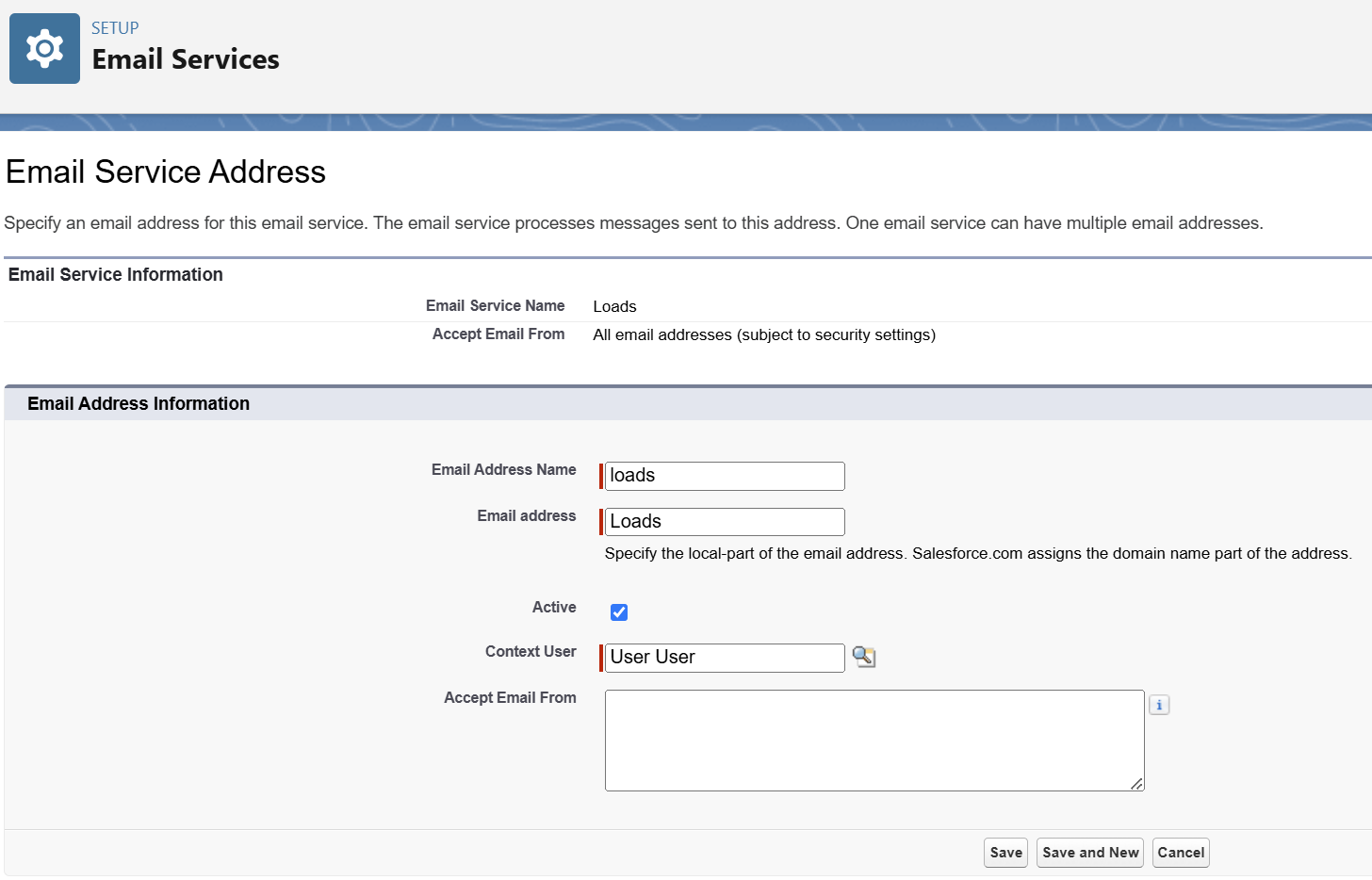
Enter an Email Address Name (loads is shown above).
Delete the value in the Email Address field and enter loads.
Check the Active box.
Delete everything in the Accept Email From field.
Click Save.
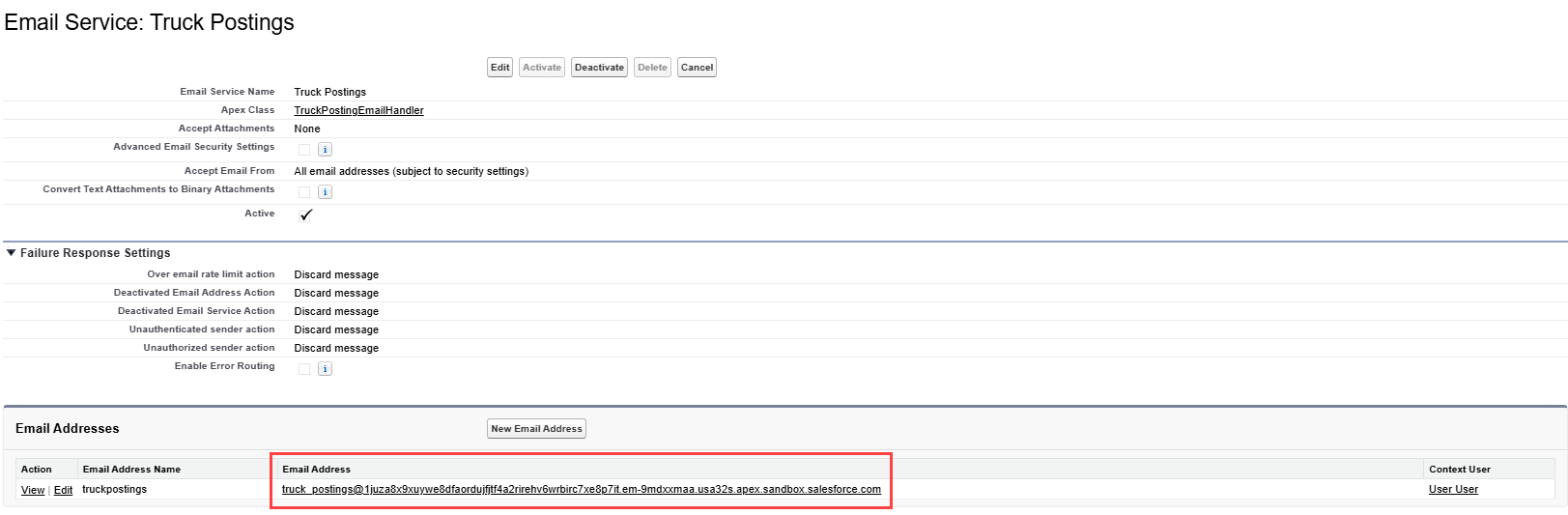
Salesforce creates and adds the domain to the end of the Email Address field.
Provide the generated email address to customers for them to send email submissions. If you prefer to have the customers send an email to a Contact’s domain instead, use the Forwarding Email Domains setting in the AI Console Configuration. Emails received at this address are processed to create Load (or Truck Posting) records by Artimus™ AI.
Email Address domains are generated by Salesforce to be lengthy as a security measure. The email domain cannot be changed.
Set the Accept Attachments field to All to attach all non-image file attachments from emails to the AI-generated Load record. Set to None to exclude all attachments.
.png)
Complete the setup again for Truck Postings, replacing Loads with Truck Postings.

Create Sharing Rules
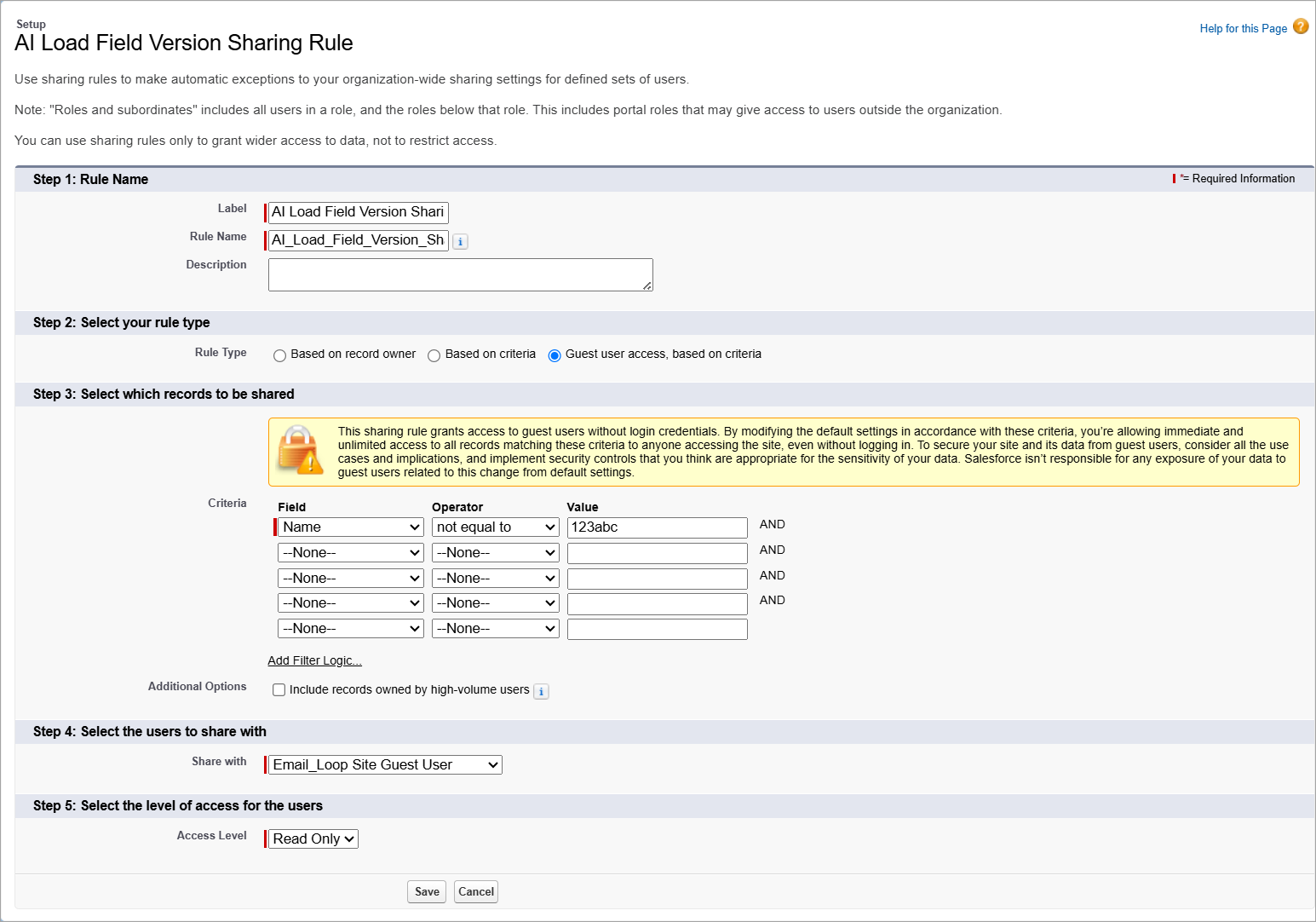
Create two read-only Sharing Rules from Setup → Sharing Settings for the AI Load Field Version and AI Parsed Text objects in order for email loop users to view the AI Load Wizard LWC:
Select New in the Sharing Rules section.
Set the Label and Rule Name for the Sharing Rule.
Select the Guest user access, based on criteria option for the Rule Type.
Enter a criterion such as the following:
Field: Name
Operator: not equal to
Value: any random string of characters
Set the Share with field to Email_Loop Site Guest User.
Set the Access Level field to Read Only.
Select Save.
Ensure that Sharing Rules are enabled for all other objects mentioned in the Email Loop Setup article as well.
Inbound Emails
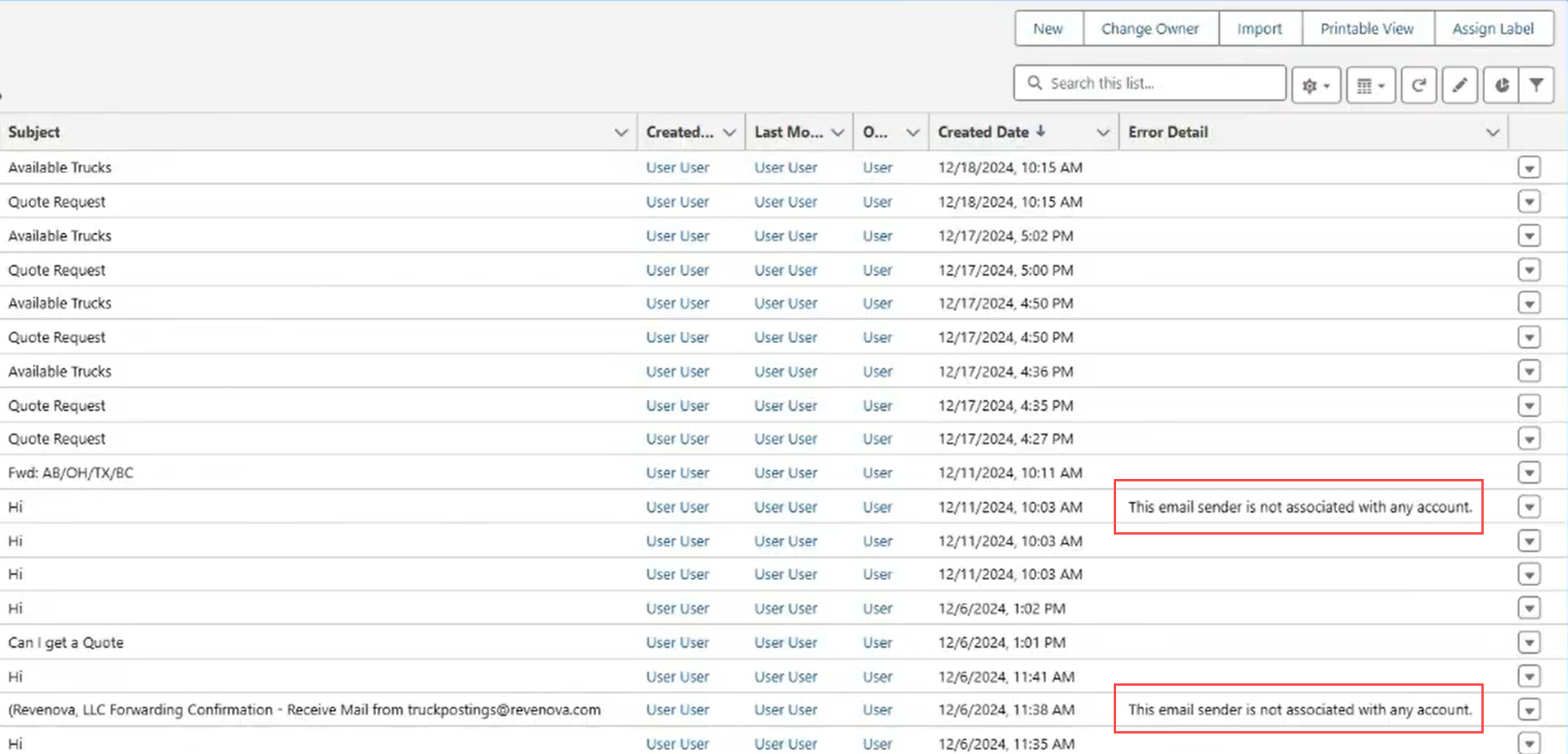
From the App Launcher, search for Inbound Emails to view any emails that were not sent for processing. When errors are corrected, the email message must be resent to attempt processing again.
Note: Email attachments can be processed and attached to the created Load record when the Accept Attachements field for the email service is set to All.
Errors are displayed in the list view with additional detail.
Common errors may include “This email is not associated with any account,” “There is no AI Model selected for use on the AI Console configuration popup,” and other messages.
Note: Customers or carriers attempting to email Artimus™ AI to create a Load or Truck Posting must have a Contact record associated with an Account. That Contact must include the address they are emailing from.
To auto-create new Contacts from inbound emails, set the Artimus Contact Email Domain field in the Customer Transportation Profile with the email domains to match. If an inbound email for Load creation matches one of the domains is received but is not an existing Contact, the Contact will be created, associated with the Account, and the email will be processed. Inbound emails for Truck Posting creation will not create a Contact.
If no AI model is selected, navigate to the AI Console and click the Configuration button. Save the configuration settings to begin processing email messages.
Additional Setup
Navigate to Setup → Object Manager and select the Truck Posting object. Ensure that the Allow Activities field is Checked for the Truck Posting object by selecting Edit in the Details page.
Navigate to TMS Admin → Modes and Check the AI Enabled box to include those Modes when generating Load and Truck Postings. Only include Modes that are specific to the business needs.
Note: When generating Load and Truck Postings, the AI language model makes a best guess to determine the Mode based on the Modes with the AI Enabled field checked. Select the fewest Mode types as necessary.
Navigate to TMS Admin → Equipment Types and Check the AI Enabled box to include Equipment Types when generating Truck Postings. Only include Equipment types that are specific to the business needs.
Note: When generating Truck Postings, the AI language model makes a best guess to determine the Equipment Type based on the records with the AI Enabled field checked. Select the fewest Equipment Type types as necessary.
Navigate to TMS Admin → Document Options and set the AI Customer Load Confirm and AI Customer Load Confirm Accept email templates. In the same location, customize the Artimus AI responses for the AI Load Wizard LWC in the customer guest email loop.
Note: Ensure that the Allow Activities field is Checked for the AI Parsed Text Record object in Setup → Object Manager by selecting Edit in the Details page.
Navigate to TMS Admin → Document Options and set the Carrier Load Board email template and the Load Board fields for the RFQ Load Board LWC in the carrier guest email loop.
Add the Text to Load and/or Text to Truck Posting Lightning Web Components (LWCs) to the desired home page, custom app pages, or to the utility bar.
The AI Generated Customer Quote Status field in Customer Transportation Profile controls when a customer quote is automatically sent to a customer. If an email requesting a Load quote meets the threshold required to create a Load and matches a customer-stored rate entry, then the customer quote is sent to the customer via the customer guest email loop. The quote Status is either Accepted or Quoted, depending on the picklist value set on the Transportation Profile.
Note: Instead of automatically setting the customer quote Status to Accepted, the AI Generated Customer Quote Status field allows for setting the Status to Quoted for Loads generated with Artimus™ AI.
The Artimus Contact Email Domain field in the Customer Transportation Profile defines the email domain that a customer must have to automatically generate a Contact record. Load creation emails processed must originate from an email address with the domain specified in the field to generate a Contact record. Enter a domain value without the “@” character. For example, entering “revenova.com” into the field generates a Contact record for all new revenova.com email addresses requesting Load quotes.
Notes
This functionality supports the ability for customers who have not interacted with Revenova to request Load quotes or create Truck Postings.
This field supports multiple domain entries. Separate each domain value with a comma.
Add the AI Created Load LWC to the Load Lightning Record Page (LRP) or custom Load LRP. The Revenova default Load Lightning Record Page only displays the component when a Load is AI-generated. Add the following component visibility filters when adding the LWC to a Lightning Record Page. These filters allow for only showing the LWC for AI-generated Loads.
Record > AI Generated Equal true
Record > Load Status Equal Unassigned
Record > Load Status Equal Quotes Requested
Record > Load Status Equal Quotes Received
Record > Load Status Equal Cancelled
Record > Load Status Equal Expired
Show component when: The filter logic is met:
Filter logic: 1 AND (2 OR 3 OR 4 OR 5 OR 6)
Add fields to the Load TMS3 field set as needed. This controls which fields are displayed in the Created Records section of the AI Console for Loads.
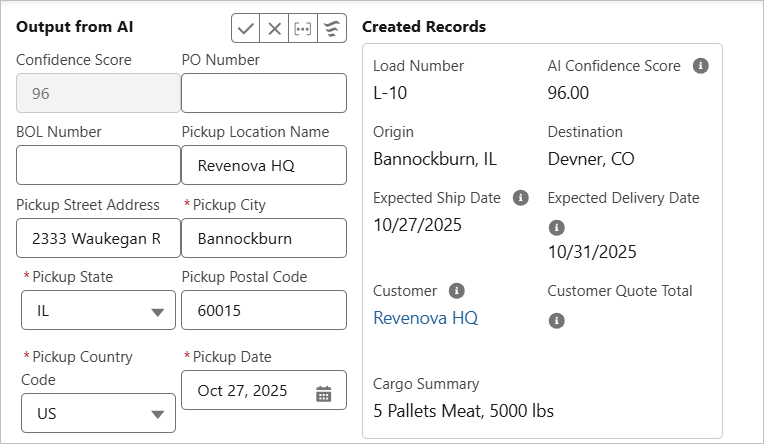
Add fields to the Truck Posting TMS2 field set as needed. This field set controls which fields are displayed in the AI Console under the Created Records section for Truck Postings.
Configure the AI Console with an AI Model, Field Version, Threshold Settings, Default Record Owner, and Site Security Model to begin processing requests with Artimus AI.
Run the Queued Transaction job or confirm the job is running to send customer emails regarding load configuration and available quotes for the Load.
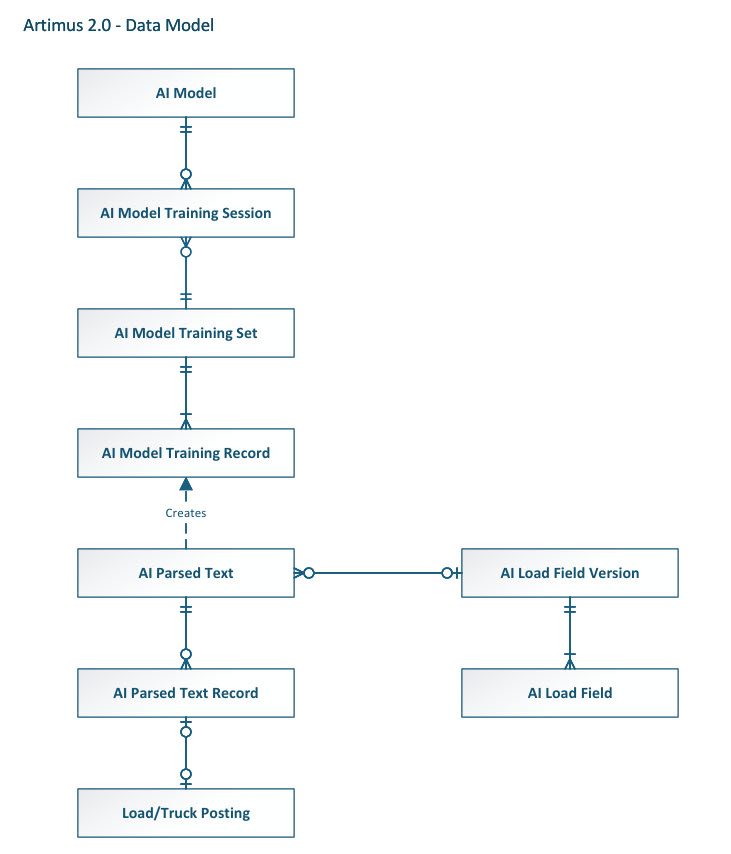
Data Model