The Customer Guest operates as an unauthenticated user for the Email Loop site. Additionally, the Customer Guest user can view Lightning Web Components (LWCs) that allows users to access Load tracking information (Customer Guest LWC) or Accept or Decline quotes (Customer Quote Accept/Decline LWC).
The Customer Guest LWC and the Customer Quote Accept/Decline LWC involve customers in the Load lifecycle in a contained yet meaningful way.
Configure messages for Customer Guest users by navigating to the TMS Admin → Document Options.
Warning: When creating the Digital Experiences pages within the Email Loop site for Customer Guest users, it is not mandatory to use the same page naming conventions Revenova recommends. The customerguest page within the Experience Builder can be named to align with specific business needs. However, the LWCs cannot be renamed.
See the Email Loop Setup article for more information on creating an Email Loop Digital Experiences Site Guest pages.
See the Digital Experiences Sites article for more information on creating Digital Experiences Sites.
Sharing Rules
Configure sharing rules by navigating to Setup → Security → Sharing Settings. The following sharing rules are set for Customer Guest users:
Object Name | Access Level |
|---|---|
Account | Read |
User | Read |
Accessorial | Read |
Carrier Markup | Read |
Carrier Markup Group | Read |
Commodity | Read |
Customer Invoice Document | Read |
Customer Quote | Read |
Document Options | Read |
Equipment Type | Read |
Freight Class Calculation | Read |
Freight Plan | Read |
Fuel Index | Read |
Lane | Read |
Load | Read |
Mode | Read |
Portal Configuration | Read |
TMS Document | Read |
Transportation Profile | Read |
Permission Set Access
Warning: The TMS supports specific default objects and fields to ensure LWCs accurately render with the applicable information. Ensure that Read-only access is provided to the Account and Contact objects.
Change or create custom permissions for objects and fields to best fit business needs by cloning the permission set and navigating to Setup → Users → Permission Sets → TMS Customer Email Loop → View Summary. Additionally, because the object and field permissions are provided for external access, take caution when editing object and field permissions to ensure sensitive data is not compromised.
When the Customer Guest user is automatically created after the creation of the Email Loop Digital Experiences Site, the TMS Customer Email Loop permission set is assigned within the Email Loop Digital Experiences Site.
The TMS Customer Email Loop permission set grants the Customer Guest user limited Read and Create permissions on specific objects and fields to process data from transactions that match to fields populated in the TMS.
Send Customer Load Tracking Link
The Customer Guest LWC allows customers to track their Load by entering the Load Number in the Search bar. Within the Detail tab of the Load Summary, customers have an assigned Load tracking link that can be sent to them.
This can be accomplished via two methods:
Create a custom email template and flow that references the Load and Customer Tracking Link fields on the Customer Quote object
Manually copy the link from the Detail tab on the Load Summary and include in a customer support representative (CSR) outbound email
For more information on the Customer Guest Load tracking setup, see the Customer Guest Shipment Tracking article.
Quotes
Customer Guest users can Accept or Decline Customer Quotes in the Customer Quote Accept/Decline LWC created in the Freight Quote Assistant (FQA).
Decline Quotes
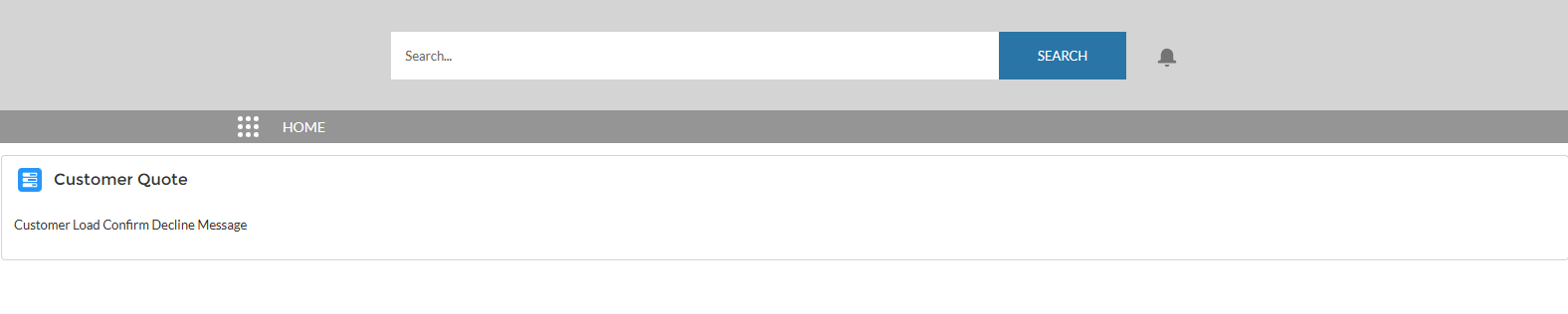
Similarly, when the Customer Guest user declines the quote, a message appears that confirms the declined Customer Quote on the Load.
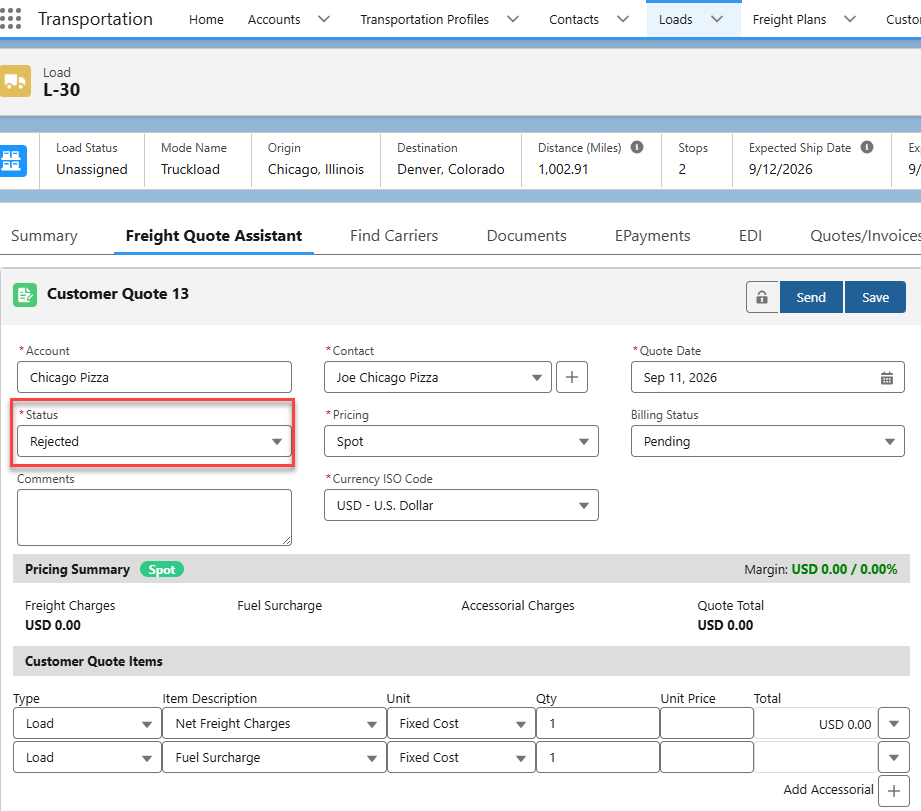
 After accepting or declining the Customer Quote, the Status field in the Customer Quote in the FQA automatically changes from Quoted to Accepted or Rejected.
Additionally, the Customer Banner in the Load Summary displays a red pill showing the Load quote was Lost.
Expired Quotes
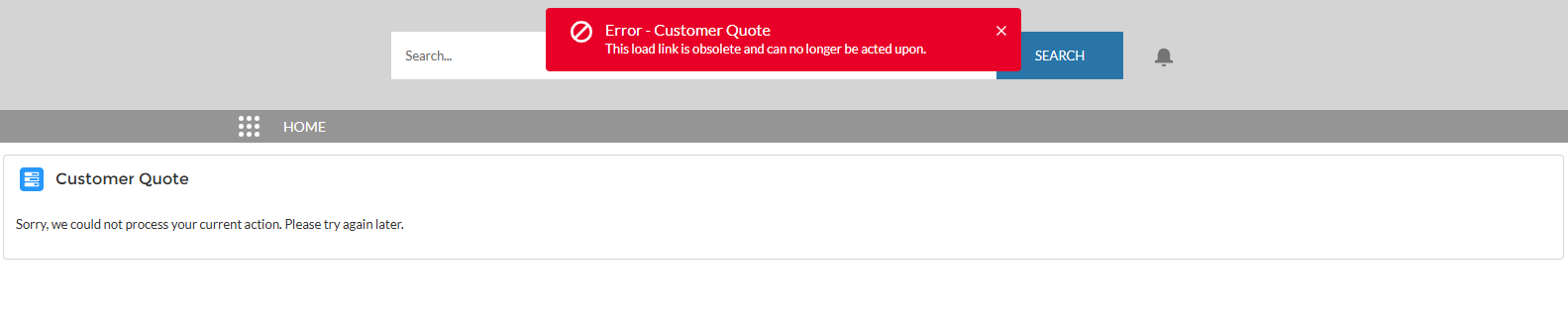
When a Customer Quote expires, two messages appear:
An error Toast Message appears that states, “This load link is obsolete and can no longer be acted upon.”
A message appears in the Customer Quote Accept/Decline LWC that states, “Sorry, we could not process your current action. Please try again later.”
Set an expiration date on a Customer Quote to display to Customer Guest users.
Create a Customer Quote in the FQA tab of the Load.
Click the Customer Quote [#] link.
In the Customer Quote Lightning Record Page (LRP), navigate to the Summary → Quote Info → Expiration Date field.
Enter an expiration date.
The time field automatically defaults to 12:00 PM and corresponds to the org’s time zone. This field can be edited.
Click Save.


