Freight Plans allow you to create and manage complex load execution plans that include multiple carriers, multiple modes of transportation, and cross-dock locations. Freight Plans also allow for detailed tracking, updating, and costing of complex moves, such as:
Load consolidations
Cross-border moves with carrier hand-offs at the border
Hub-and-spoke pickup and delivery stops with cross-dock locations in between
Multi-carrier and multi-mode loads
Freight Plans consist of the following:
One Customer Load to be covered by the Freight Plan
One or more created Carrier Loads to cover the Customer Load
Note: A Carrier Load can be shared across Freight Plans. See the Freight Plan Examples section for more information about sharing a Carrier Load across multiple Freight Plans.
Freight Plan Definitions
To better understand Freight Plans, there are two Load categories to know: Simple Loads and Complex Loads.
Simple Loads are Loads that have one (1) customer and one (1) carrier that have the same Stops along a route. These Loads will always have a 1:1 customer-carrier relationship.
Complex Loads are loads for which one (1) customer may have multiple carriers that may make additional stops, such as at a cross-dock along the customer’s route. Freight Plans help you to plan and manage these Complex Loads.
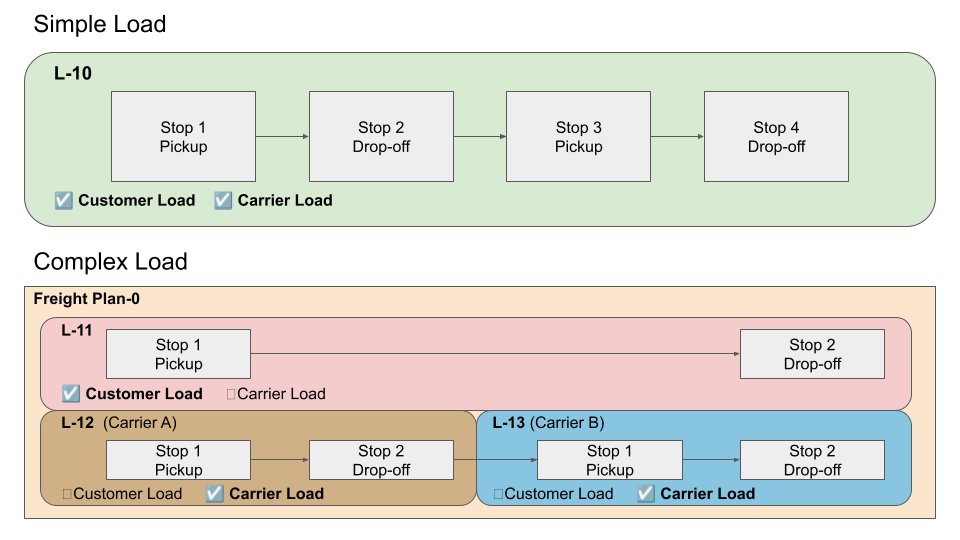
Load Note: There are two fields on the Load object: Customer Load and Carrier Load. These checkbox fields are used to identify the type of Load the record is (Customer or Carrier) along with the In Freight Plan checkbox to identify if the Load is in a Freight Plan.
These terms are used throughout the articles discussing Freight Plans. Revisit these terms as needed to remember their meaning and relationship with Freight Plans.
Term | Definition | Freight Plan Relationship |
|---|---|---|
Customer Load | This load contains the Stop information that the customer views when shipping the load—that is, the pickup and the delivery stops. Only the pickup and delivery that the customer is requesting are indicated on the Customer Load record. All customer-related documents (quotes and invoices) are done on the Customer Load record.
| 1:1 |
Carrier Load | This load contains all the Stop information that the carrier makes when shipping the load. Carrier Loads move the Customer Load from pickup to delivery. Only the stops that the carrier is responsible for are indicated on the Carrier Load record. All carrier-related documents (quotes and invoices) are done on the Carrier Load record. Each carrier on the Freight Plan generates a separate Bill of Lading (BOL) document.
| 1:n |
Cross-Dock | A Stop location where shipments are unloaded from incoming trucks and reloaded onto outbound trucks. | 1:n |
Note: Simple Loads have both the Customer Load and Carrier Load boxes checked. Complex Loads have only either box checked (Customer or Carrier, not both).
TMS Admin Setup
Freight plan configuration settings can be found in the TMS Admin → Configuration.
Freight Plan Fields
Configure the following fields in the Freight Plan section:

Field Name | Field Description | Field Type | Field Options |
|---|---|---|---|
Freight Plans Enabled | If checked and the Freight Plan Management batch job is not running or scheduled, the Batch Process Job Monitor LWC shows the Status with a red icon. | Checkbox | |
Monochrome Freight Planner | If checked, all covered Loads on the Freight Planner LWC share the same color. When unchecked, covered Loads on the Freight Planner LWC appear as different colors. | Checkbox | |
Freight Plan Cost Allocation Method | Determines how Carrier Load costs are allocated to customer Loads in a Freight Plan. | Picklist |
|
Freight Plan Stops - TMS Type | Determines what TMS Types are included as lookup values on Freight Plan Stops. | Checkbox(es) |
|
Additionally, create freight plan views by clicking the Create Fleet Freight Plans Views button in the Configuration Header above the Global Settings banner.
Freight Plan Workflow
This workflow describes the fundamental process of creating a Freight Plan. The Freight Plan Console Lightning Web Component (LWC) is used for freight planning of Complex Loads.
Note: This workflow and examples describe Freight Plans in its simplest form. Freight Plans can be more complex depending on the goal for moving Customer Loads.
For more information about additional and in-depth features not described here, see the Freight Plan Console article.
Create a Freight Plan
To get started, create or select one-to-many Load records to be freight-planned. Then, navigate the Freight Plan Console LWC to begin creating Freight Plans with the Load records in the Load View.
You can add additional Load records to be freight-planned using the Add Load Number search field.

Note: The Freight Plan Console can show multiple Freight Plans all in one place. Each Customer Load in the Load View with matching Carrier Loads resembles one (1) Freight Plan. See the One Carrier Load and Multiple Freight Plans example that uses two (2) Freight Plans but both can be viewed at the same time in the Freight Plan Console.
Add Additional Stops
Add additional stops, such as cross-docks, for the Carrier Load to make for the Customer Loads with the Freight Plan Template LWC. Select the Show Filter/Template Panel icon  to open the Freight Plan Template LWC. Add the stops to apply in the Freight Plan Console.
TMS Admin Note: The Stop locations in the Freight Plan Template are filtered by the Freight Plan Stops - TMS Type field in TMS Admin → Configuration. Only Accounts with the same TMS Type selected are available to select when adding Stops in the Freight Plan.
Once the template is configured, select the Refresh button to apply the template. These added stops will appear in the Load Detail LWC of the Carrier Loads records once created.
.png)
Create Carrier Loads
Select the checkbox in the Pickup column for a Stop, then click the Create/Add to Carrier Load drop-down button for the Delivery of another Stop, and select the New Load action to create a Carrier Load or add it to an existing Carrier Load.
.png)
When you create a new load, the New Carrier Load Information modal opens. Select a Mode and additional information for the new Carrier Load. Click Save to create the Carrier Load and close the modal, or select Save & View Stops to view and reorder the Stops for the Carrier Load.
.png)
Create or add all necessary Carrier Loads to transport the Customer Load from Customer Pickups to Customer Deliveries. Enter the Expected Ship Date and Expected Delivery Date for each Carrier Load.
Select the red Refresh Mileage button for Carrier Loads to update their mileage. Click Save to save any updates made to the Carrier Loads from the Freight Plan Console.
Note: If the Monochrome Freight Planner checkbox is unchecked, then the Carrier Loads are color-coded on the Freight Plans.
.png)
Carrier Load Actions
Once the Carrier Loads are created, you can open the Carrier Quote LWC in a modal to generate and manage Carrier Quotes for the Load with the Carrier Quote action button  .
.

Another action is to rearrange the Stops for the Carrier Load in the Move Stops modal. Select the View Stops action button  and rearrange the order of Stops as needed.
The Line Item TMS13 field set displays fields of all Line Items associated with a Stop. Add fields to this field set to display this information in the Move Stops modal. The fields will only display if they contain values, except for boolean fields, which will display either true or false depending on whether it is checked.
Caution: Line Item lookup fields, such as Pickup Stop, Delivery Stop, Load, and HazMat Contact, along with custom lookup fields should not be added to this field set since it will display the SFID instead of the name.
.png)
Click Save to update the order.
Note: The first stop must be a Pickup Stop and the last stop must be a Delivery stop. Warning messages will display indicating if the order of stops need to be adjusted.
Consolidate All Customer Loads to One Carrier Load
When multiple Customer Loads are in the Freight Plan Console and a Freight Plan Template is not applied, they can be consolidated into a single Carrier Load using the Consolidate All button.
.png)
This consolidates all Customer Loads into a single Carrier Load—that is, the Carrier Load is shared among multiple Freight Plans. See the One Carrier Load and Multiple Freight Plans example to see how Loads are consolidated and the concept behind it.
Freight Plan Cost Allocation
Carrier Load costs can be allocated to Customer Loads in a Freight Plan set in TMS Admin → Configuration:
Weight: Costs are based on the weight of each Line Item as a percentage of the total for that Carrier Load.
Linear Feet: Costs are based on the linear footage of each Line Item as a percentage of the total for that Carrier Load.
Handling Unit Count: Costs are based on the proportional Handling Unit Count of each Customer Load in the Freight Plan.
Packaging Unit Count: Costs are based on the proportional Packaging Unit Count of each Customer Load in the Freight Plan.
Distance-Weighted Handling Unit Count: Costs are first allocated based on the proportional Carrier Load mileage, then based on the proportional Handling Unit Count.
Distance-Weighted Packaging Unit Count: Costs are first allocated based on the proportional Carrier Load mileage, then based on the proportional Packaging Unit Count.
See the Freight Plan Console for example calculations for Distance-Weight Handling/Packaging Unit Count cost allocation method.
Freight Plan Examples
These Freight Plan examples demonstrate the few basic concepts of using Freight Plans for Complex Loads. Use these examples to understand how to use a Freight Plan and how it appears in the Freight Plan Console.
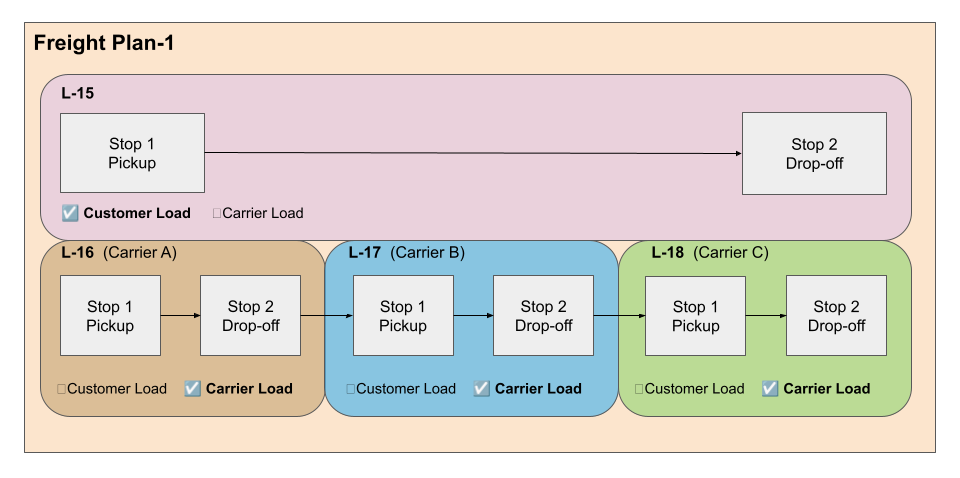
One Customer Load and Multiple Carrier Loads
A Customer Load can be moving from one country to another, and different carriers are needed to transport the shipment. While the customer sees the shipment in transit, the original carrier may stop at cross-docks and ports of entry and pass the shipment to another carrier.
Concept Model
TMS Freight Plan Console

One Carrier Load and Multiple Freight Plans
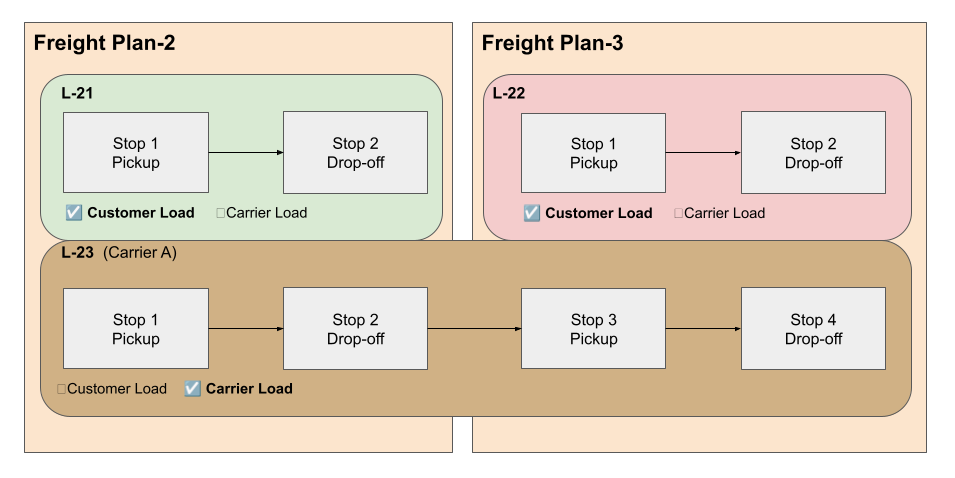
If two customers have an LTL shipment, their shipments can be consolidated to be moved by the same carrier. This means that one Carrier Load can move across multiple Freight Plans.
Note: While there are technically two Freight Plans that uses the same Carrier Load, it may be easier to view this as one Carrier Load with multiple Customer Loads in one Freight Plan.
Concept Model
TMS Freight Plan Console

Freight Plans in Fleet Management
In the Trip Planning function of the Fleet Management Console, the Plan Freight button opens the Freight Plan Console LWC to plan freight movements for Fleet Loads. Select Fleet Loads or add them in the Freight Plan Console modal with the Add Load Number search.

The Trip Plan workflow is performed through the following phases:
Phase 1: Create Loads to be freight planned
Phase 2: Build Freight Plans in the Fleet Management Console and create Carrier Loads
Phase 3: Create a Trip Plan using the Carrier Loads in the Trip Builder LWC
Phase 4: Execute the trip with the Trip Planner LWC
Note: This section is Phase 2 of building Trip Plans in the Fleet Management Console, which allows more flexible planning of Loads before executing the plan.
Add Additional Stops
Add additional stops, such as cross-docks, for the Carrier Load to make for the Customer Loads with the Added Stops search.
Click the Search icon to switch between searching for Stops to add and managing the added Stops in the Freight Plan Console.
When the icon is blue .png) , you can search for and add additional Stops to the Freight Plan. When the icon is white
, you can search for and add additional Stops to the Freight Plan. When the icon is white  , you can view or remove the added Stops in the Freight Plan.
.png)
TMS Admin Note: The Stop locations in the Freight Plan Template are filtered by the Freight Plan Stops - TMS Type field in TMS Admin → Configuration. Only Accounts with the same TMS Type selected are available to select when adding Stops in the Freight Plan.
Create Carrier Loads
Select the checkbox in the Pickup column for a Stop, then click the Create/Add to Carrier Load drop-down for the Delivery of another Stop and select the New Load action to create a Carrier Load or add it to an existing Carrier Load.
.png)
Note: The Consolidate All button is not available in the Freight Plan Console in Fleet Management, but can be accomplished by selecting all checkboxes in the Customer Pickups column, then selecting any of the of the drop-down buttons in the Customer Deliveries column to create a new Carrier Load.
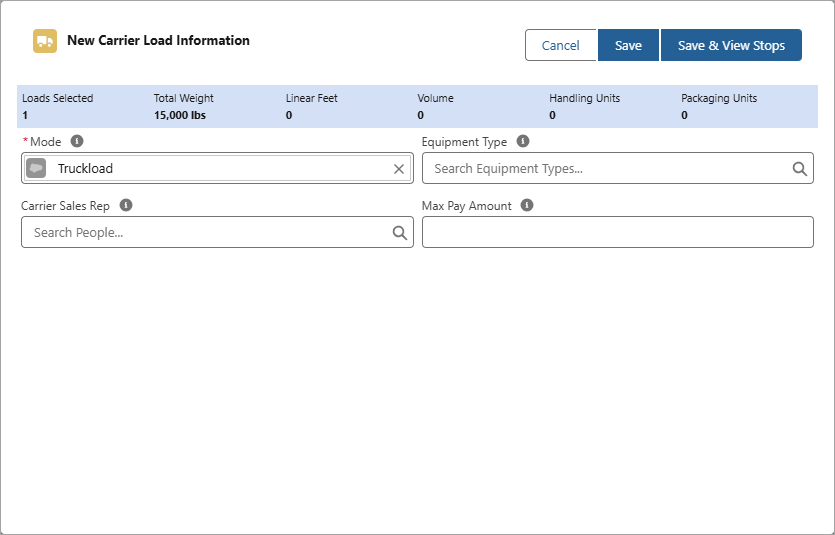
When you create a new load, the New Carrier Load Information modal opens. Select a Mode and additional information for the new Carrier Load. Click Save to create the Carrier Load and close the modal, or select Save & View Stops to view and reorder the Stops for the Carrier Load.
Create or add all necessary Carrier Loads to transport the Customer Load from Customer Pickups to Customer Deliveries. Enter the Expected Ship Date and Expected Delivery Date for each Carrier Load.
Select Save to save any updates made to the Carrier Loads from the Freight Plan Console.
Note: If the Monochrome Freight Planner checkbox is unchecked, then the Carrier Loads are color-coded on the Freight Plans.
.png)
Carrier Load Actions
Once the Carrier Loads are created, you can rearrange the Stops for the Carrier Load in the Move Stops modal with the View Stops action button .png) .
.
The Line Item TMS13 field set displays fields of all Line Items associated with a Stop. Add fields to this field set to display this information in the Move Stops modal. The fields will only display if they contain values, except for boolean fields, which will display either true or false depending on whether it is checked.
Caution: Line Item lookup fields, such as Pickup Stop, Delivery Stop, Load, and HazMat Contact, along with custom lookup fields should not be added to this field set since it will display the SFID instead of the name.
.png)
Click Save to update the order.
Note: The first stop must be a Pickup Stop and the last stop must be a Delivery stop. Warning messages will display indicating if the order of stops need to be adjusted.
Click Done when you’re finished creating Freight Plans for Fleet Loads to return to the Fleet Management Console. Refresh the Fleet Management Console to update the Trip Planning views.
Next Steps in Fleet Management
Customize and configure the Freight Plan Console LWC with field sets listed in the Freight Plan Console Configuration section as desired. For example, you can add the Fleet boolean to the Load TMS27 field set to identify new Carrier Loads as Fleet-specific.
After configuring the Freight Plans for Fleet Management, Phase 3 is to use the Trip Builder LWC to plan a trip with the newly created Carrier Loads.
Batch Processes
Once you have created Freight Plans, there are two batch processes to manage them: FreightPlanManagementJob and RecurringLoadScheduleJob. The following table provides details for these batch processes:
Job Name | Function | Run Time | Schedule Time |
|---|---|---|---|
FreightPlanManagementJob | Calculates Freight Plan cost allocations and status. | Active: Runs the job immediately | Active: Schedules the job for 5 p.m. |
RecurringLoadScheduleJob | Clone recurring Loads and Freight Plans based on creation schedules. | Active: Runs the job immediately | Active: Schedules the Job for 4 a.m. |
To set up the FreightPlanManagementJob, go to the Batch Process Monitor and select Run Now or Schedule for this job.
To set up the RecurringLoadScheduleJob, do the following steps:
Create a Recurring Load Schedule record in TMS Admin → Recurring Load Schedules.
In the record, add the Freight Plan in the Recurring Freight Plans related list to apply the schedule to.
Once done, go to the Batch Process Monitor and select Run Now or Schedule for this job.
Next Steps
Customize and configure the Freight Plan Console LWC with field sets listed in the Freight Plan Console Configuration section as desired.