The following document provides an overview of the process for managing Freight Plans in the Fleet Management Console. See the Getting Started with Freight Plans document for a description of terms and concepts referenced when managing Freight Plans.
The examples provided are for informational purposes to demonstrate relatively simple (not necessarily practical) use cases. The Fleet Management Console provides flexible tools for building Freight Plans with increased complexity, as necessary.
For specific component functionality, see the following documents for more information related to Freight Plans in the Fleet Management Console.
Fleet Management Console Views
Create Views to find the Drivers, Fleet Assets, and various types of Loads required to build Freight Plans.
Add Carrier Loads to Trip Plan Segments so they can be assigned to a Driver and Power Unit/Tractor.
Execute Trip Plan Segments by assigning and dispatching Drivers and Fleet Assets.
The following image describes the LTL process flow for moving Loads.
.jpg)
Freight Plan Console
The Fleet Management Console contains a streamlined version of the TMS Brokerage Freight Plan Console. This console is used in Phase 1 of Freight Planning as demonstrated in the Workflow below.
When a user selects the Plan Freight button, the Freight Plan Console displays. The Console is split into two main sections.
Customer Loads
Add additional column headers with the Load TMS25 field set. The fields below are included in the field set.
Customer
Mode
Expected Ship Date
Carrier Loads
Add additional column headers with the Load TMS26 field set. The fields below are included in the field set.
Load Status
Carrier
Total Weight
Stops
Equipment Type
Vendor Quote Total
Add fields to the New Carrier Load modal (shown below) with the Load TMS27 field set.
The following actions are available in the Freight Plan Console.
Add Stops to the Console so they may be be added to Carrier Loads.
Search for additional Customer Loads to plan.
Delete existing Carrier Loads.
Remove Customer Loads from existing Carrier Loads.
Add Customer Loads to existing Carrier Loads.

Add Loads to the Freight Plan Console by searching and selecting records in the Add Load Number field.

Once selected, Loads appear in the Customer Loads section of the Freight Plan Console.
Show or hide the field set fields with the left and right arrows to view relevant Customer and Carrier Load information.

Find a specific Customer Load with the Search Customer Loads box. Enter the Load Name to find it in the Customer Load list.

Select the Customer Load(s) to move with a Carrier Load and select the drop-down. Choose New Load to create a new Carrier Load.

The New Carrier Load modal displays. Additional fields may be added to the modal with the Load TMS27 field set. The Mode field is required.
Click Save to create the New Carrier Load.
Click Save & View Stops to display the Stop modal. Move Stops up or down with the arrow buttons.
The Line Item TMS13 field set displays fields of all Line Items associated with a Stop. Add fields to this field set to display this information in the Move Stops modal.
The fields will only display if they contain values, except for boolean fields, which will display either true or false depending on whether it is checked.
Caution: Line Item lookup fields, such as Pickup Stop, Delivery Stop, Load, and HazMat Contact, along with custom lookup fields should not be added to this field set since it will display the SFID instead of the name.
.png)
When Carrier Loads are created, the following actions are completed.
The original Load is converted to a Customer Load.
A Carrier Load is created.
Both the Customer Load and Carrier Load are added to the Freight Plan.
Records are still created if the Freight Plan Console is closed.
Find a specific Carrier Load with the Search Carrier Loads box. Enter the Load Name to find it in the Carrier Load list.

Set the Expected Ship Date and Expected Delivery Date fields as necessary.
Click the Save button that appears next to the Carrier Load Search filter field to save the entered dates.
Complete the following actions as necessary to continue managing Customer and Carrier Loads on the Freight Plan Console.
Remove (Customer) or Delete (Carrier) Loads with the
 icon next to each Customer or Carrier Load.
Re-order Pickup and Delivery Stops with the Sort by Carrier Load button.
Hide Pickup or Delivery Stops with the Collapse button.
View the Stop modal to re-order Stops with the View Stops button.
When managing multiple Freight Plan records, clicking the page number allows for switching between pages of records.
When finished creating Freight Plans, click Done.

Workflow
Managing Fleet Freight Plans occurs in three distinct phases. Each phase outlines the steps necessary to move freight.
Create Carrier Loads to plan the movement of freight.
Assign Carrier Loads to Trip Plans with the Trip Builder.
Set the Drivers, Appointments, and Fleet Assets needed to Dispatch the Trip Plan Segment.
Phase 1: Planning Freight
Plan Freight: Planning the movement of the freight through the network. This process involves moving the Load from the Shipper to the Consignee and inserting the terminals, cross dock locations, and warehouses needed to route the freight. In Revenova, this process is completed by creating Carrier Loads to move the Customer Load from pickup to delivery.
Open the Fleet Management Console.
Navigate to a Fleet Load view.
Select one or more Loads that require planning.
Click the Plan Freight button to open the Fleet Freight Plan Console modal.

Create Carrier Loads to add the selected Loads to a Freight Plan based on the following cases.
No added Stops
Check the box for the Pickup Stop for a single Load.
Click the drop-down for the final Load location.
Select New Load to create a single Carrier Load for the single Customer Load.
Repeat steps i-iii for additional Loads.

Added Stops
Add necessary Stops to move the Loads.
Search for the Stop location(s) in the Added Stops search field.
Select the desired Stop location to add it to the Freight Plan.
Click the magnifying glass icon to add more Stop locations to the Freight Plan Console. When the icon is blue, search for additional locations.

Select the pickup Stop for a single Load.
Check the box for the pickup Stop for the Load.
Click the drop-down for the Stop.
Select New Load to create a Carrier Load from the pickup for the added Stop.
OR
Check the box next to all pickup Stops for a single Load.
Click the drop-down for the added Stop.
Select New Load to create a combined Carrier Load from the pickups for the added Stop.
Any Stops added for existing Customer and Carrier Loads are displayed in the added Stops field when the Loads are opened in the modal.
Enter details for the new Carrier Load.
Enter the Mode and any additional fields in the New Carrier Load modal.
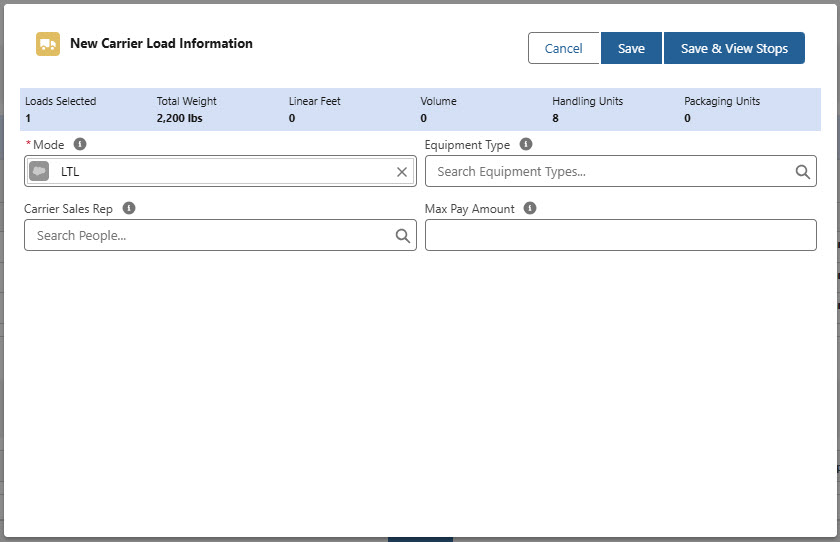
Click Save to create the new Carrier Load and return to the Freight Plan Console.
Click Save & View Stops to view the Move Stops modal.
.png)
Use the arrow buttons to move the Stop order for the Carrier Load.
The Line Item TMS13 field set displays fields of all Line Items associated with a Stop. Add fields to this field set to display this information in the Move Stops modal.
The fields will only display if they contain values, except for boolean fields, which will display either true or false depending on whether it is checked.
Caution: Line Item lookup fields, such as Pickup Stop, Delivery Stop, Load, and HazMat Contact, along with custom lookup fields should not be added to this field set since it will display the SFID instead of the name.
Click Cancel to return to the Freight Plan Console.
Select Save to keep any Stop order changes and return to the Freight Plan Console.
Create additional Carrier Loads as necessary to move the selected Customer Loads.
Carrier Loads are listed below the Customer Loads on the Freight Plan Console.

Set the Expected Ship Date and Expected Delivery Date fields for the Carrier Loads directly from the Freight Plan Console.
When finished setting the Expected Ship Date and Expected Delivery Date fields, click Save.

When finished creating Carrier Loads, click Done.
The Freight Plans are now created and the Planning Freight phase is complete.
Summary of Phase 1
Loads were split into Customer and Carrier Loads in the Fleet Freight Plan Console. Carrier Loads may now be added to Trip Plans.
Phase 2: Planning Trips
Plan Trips: Create the itinerary for the Carrier Loads by assigning them to Trip Plans. This process is completed in the Trip Builder. Trip Plans are created to move the Load with a Driver and Power Unit/Tractor. The Trip Builder allows you to build Trip Plans out of Carrier Loads so that they may be completed.
Create Load views for LTL/Freight Plan workflows by displaying Carrier Loads ready for consolidation, or are not yet added to a Freight Plan. As Customer Loads and Carrier Loads are created, they become visible in Freight Plan Load views. Each row in the view is a Customer Load and the sub-rows represent the Stops on the related Carrier Loads. There are a number of filters that may be applied to display Carrier Loads independent of Customer Loads.
This phase is completed in the Trip Builder by completing the following actions.
Merge Loads with existing Trip Plans.
Create new Trip Plans for Loads.
Reorder Stops.
Update existing Trip Plan Segments with new Loads.
The following example demonstrates combining multiple Carrier Loads into a single Trip Plan Segment. Several other configurations are supported, as well.
Example 1
The following example demonstrates combining multiple Carrier Loads into a single Trip Plan Segment.
Return to the Fleet Management Console and select Trip Planning.
Navigate to a Load view and filter to display Carrier Loads ready for consolidation.
Select one or more Carrier Loads from the Load view.
Click the Plan Trip button to open the Trip Builder component.
.jpg)
The Trip Builder component is split into 3 main sections for managing the Carrier Loads and associated freight.
The top component contains the summary of all Loads selected.
The middle section contains each individual Carrier Load originally selected for the Trip Builder above.
The bottom section contains all of the Load Stop information for all Loads added to the Trip Plan Segment.
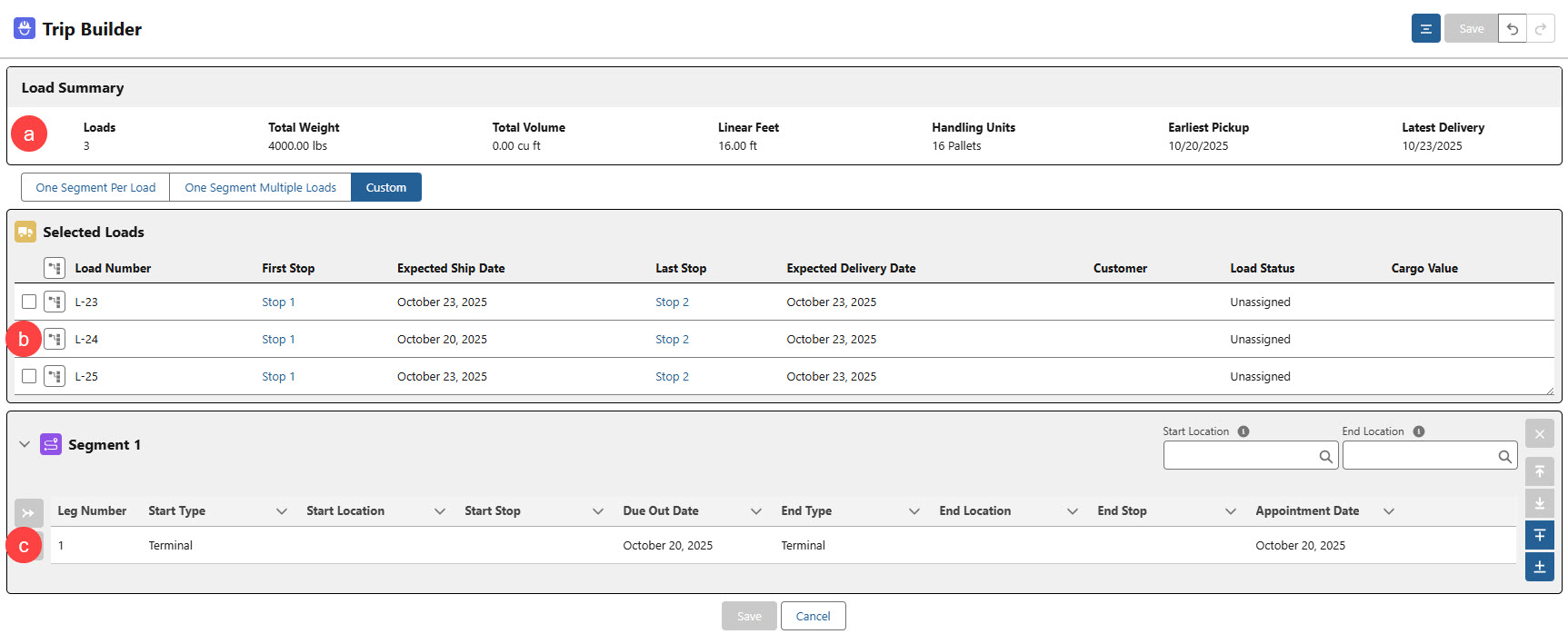
Add Loads to the Trip Plan Segment by completing the following actions.
Check the box for the Load.
Click the + add icon to add the Load to the Trip Plan Segment.
Continue adding Carrier Loads to the Trip Plan Segment as necessary.
ORClick the One Segment Multiple Loads button to add all Carrier Loads to the Trip Plan Segment.
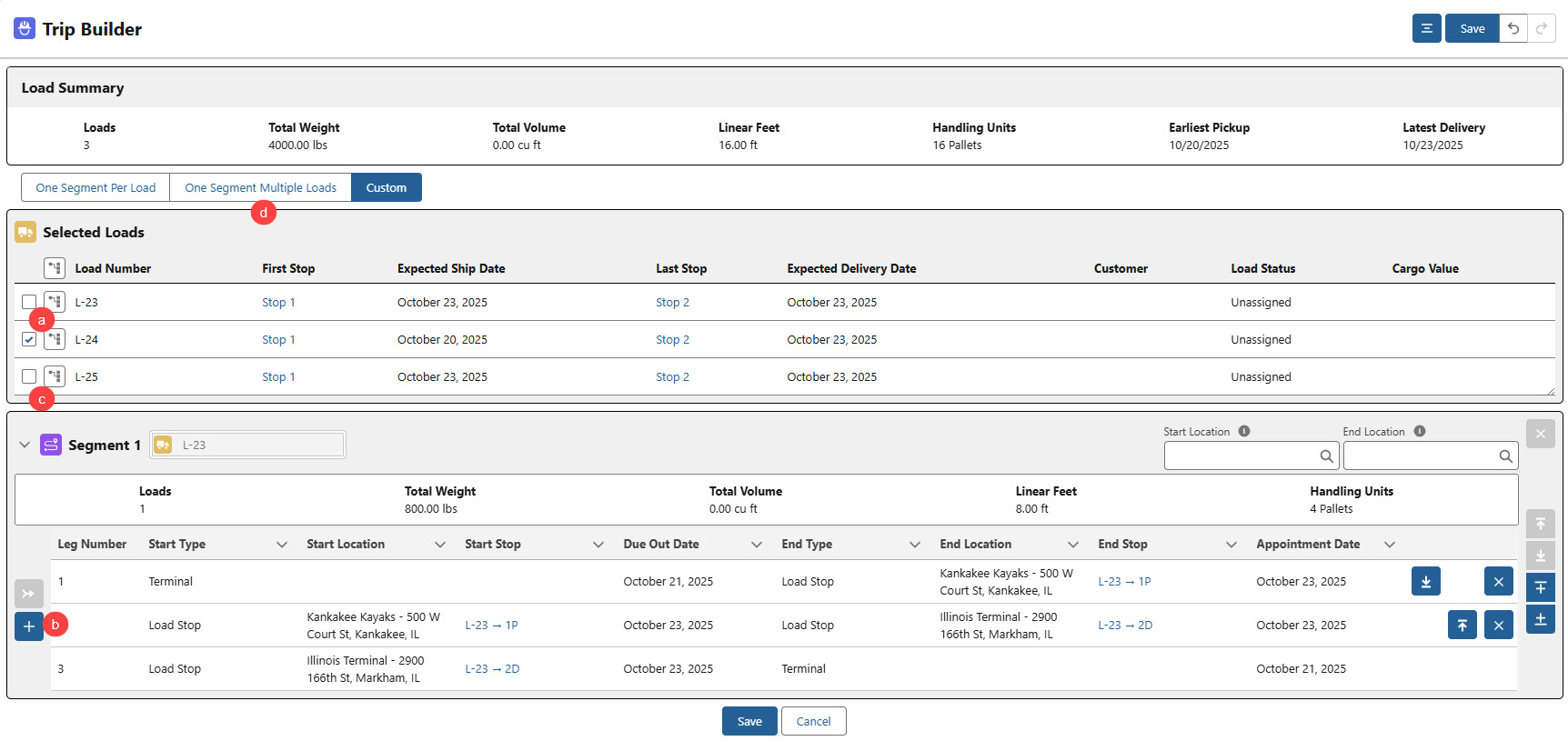
When Loads are added to the Segment, move Stop locations as necessary.
Use the Up/Down arrow buttons to move Stops.
Line up overlapping/identical Stop locations.
Remove Legs with the X button.
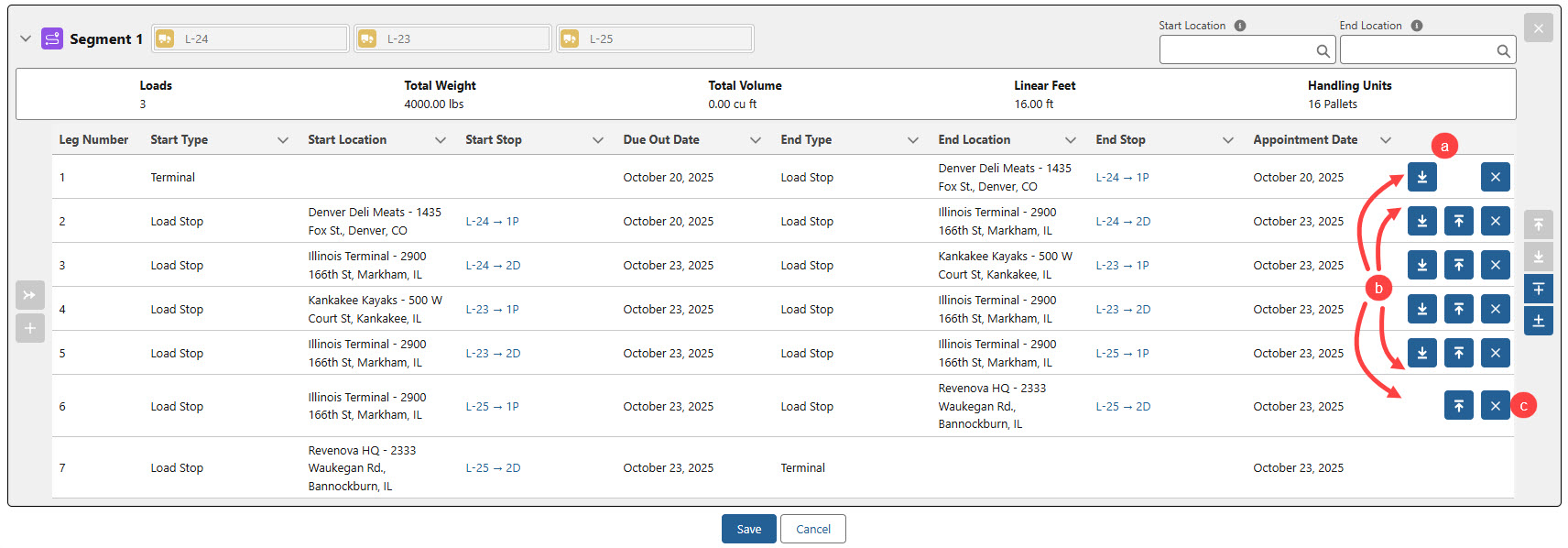
When finished, click Save to create the Trip Plan.
The Trip Plan component opens with the newly created and configured Trip Plan.
Example 2
The following example demonstrates splitting a single Customer Load into two or more Carrier Loads.
Create 2 Carrier Loads as demonstrated above in the Freight Plan Console.

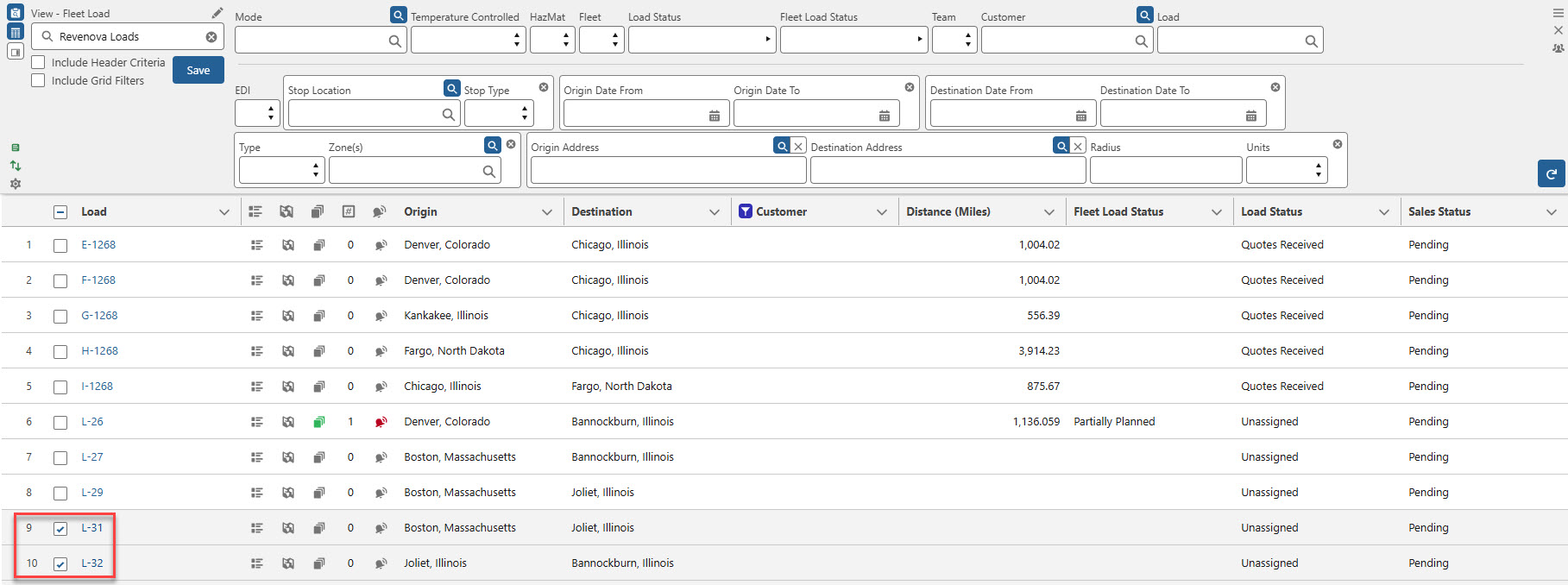
Select the 2 new Carrier Loads in a Freight Management Console Load view. Click the Plan Trip button to open the Trip Builder.
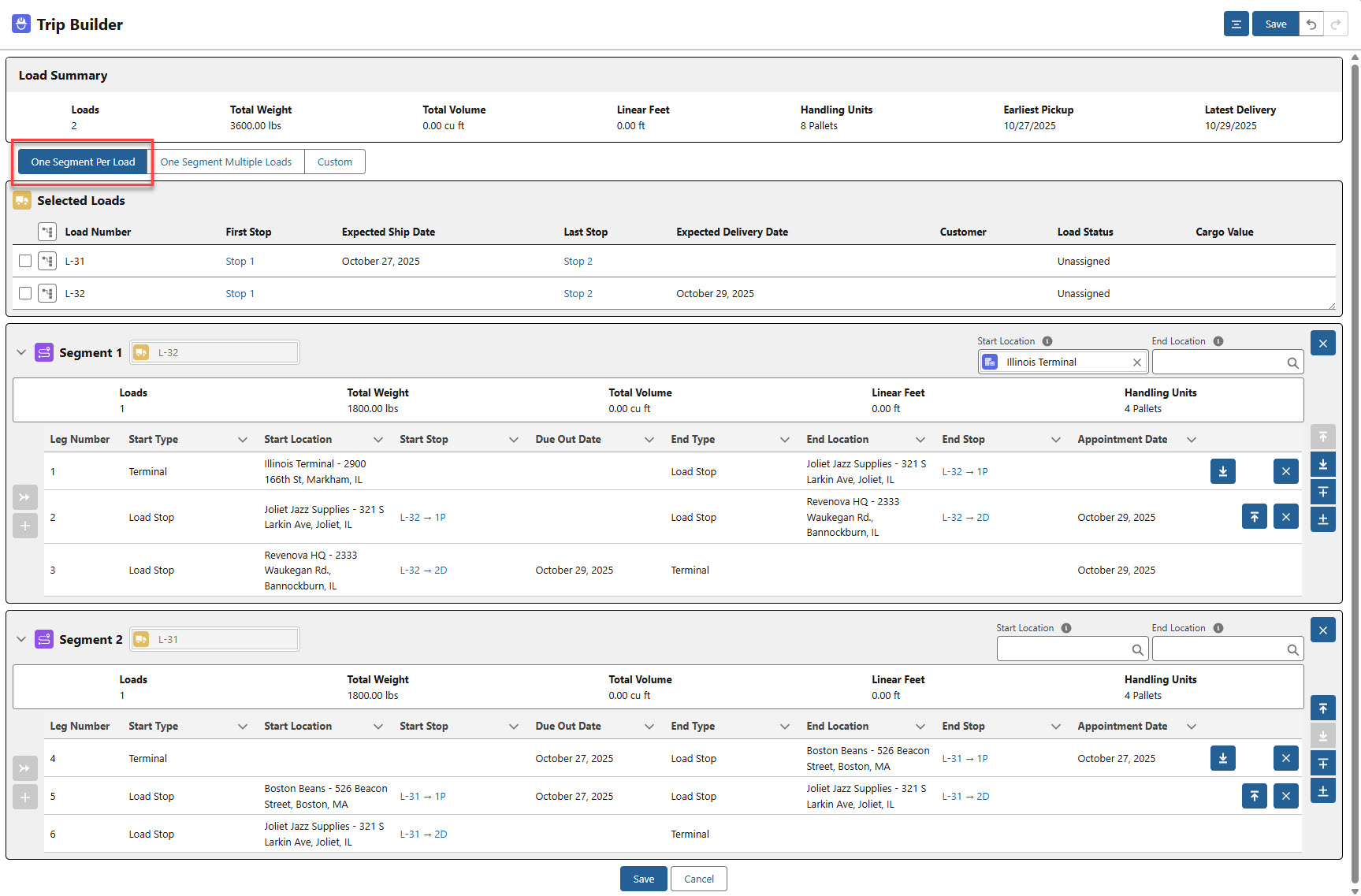
From the Trip Builder, click the One Segment Per Load button to add each Carrier Load to a separate Trip Plan Segment.
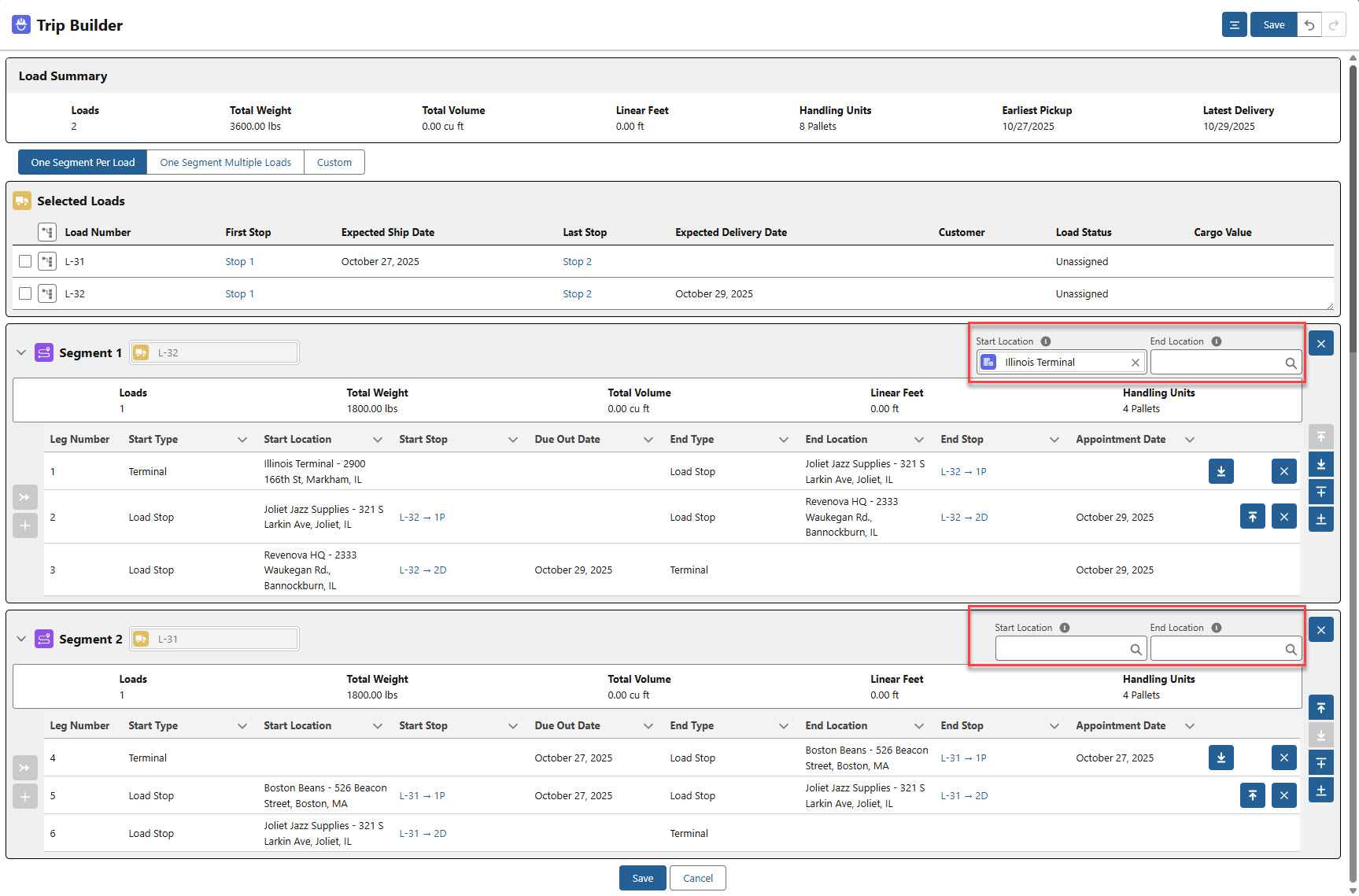
Add an optional Start or End Location for each Trip Plan Segment, if necessary.
Click Save to create the Trip Plan and open the Trip Planner.
The Trip Planner is displayed with the Trip Plan Segment(s) created from the Trip Builder.
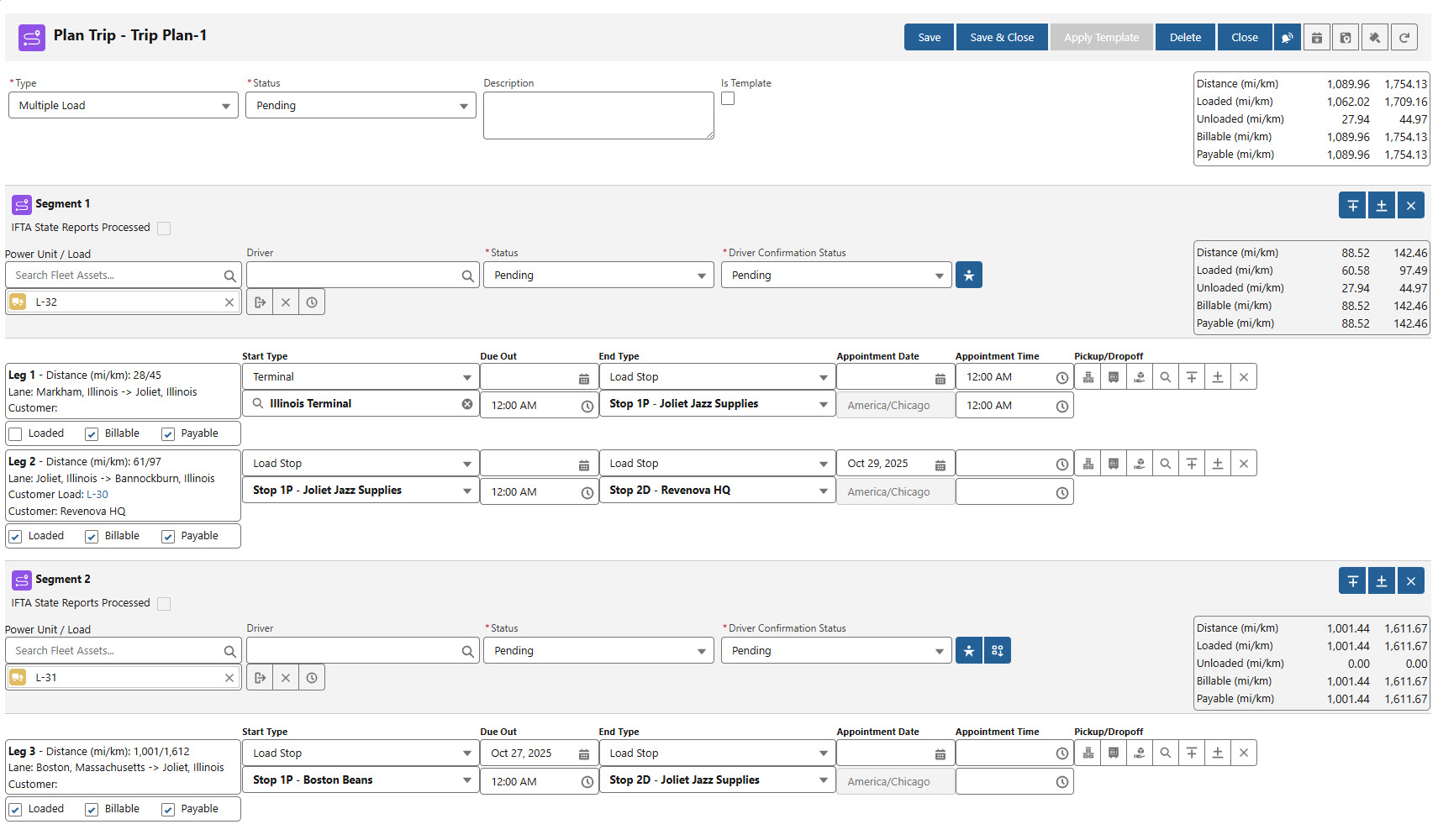
Note that when Carrier Loads are consolidated onto a Trip Plan Segment in the Trip Builder, the existing Carrier Loads are deleted. These Carrier Loads are replaced with a new Carrier Load(s) record and associated Trip Plan Segment(s) for moving the freight.
Summary of Phase 2
The Trip Builder component connected the Carrier Loads created in Phase 1 and added them to a Trip Plan Segment(s) where Drivers, Fleet Assets, and Appointments may be set to move the freight.
Phase 3: Executing Trip Plans
Execute Trip Plans: Manage the Driver, equipment, and scheduling to move the freight on the Trip Plan Segment. This phase is completed from Fleet Management Console views, the Freight Plan Console, and the Trip Planner by completing the following actions.
Assign Drivers.
Schedule Appointment Dates and Times.
Locate available Trailers, Chassis, or Containers.
Dispatch the Trip Plan Segment.
Complete the following steps for configuring Trip Plans.
Navigate to the appropriate Fleet Management Console view to continue the Trip Planning process.
Choose the Power Unit/Tractor required to move the Load.
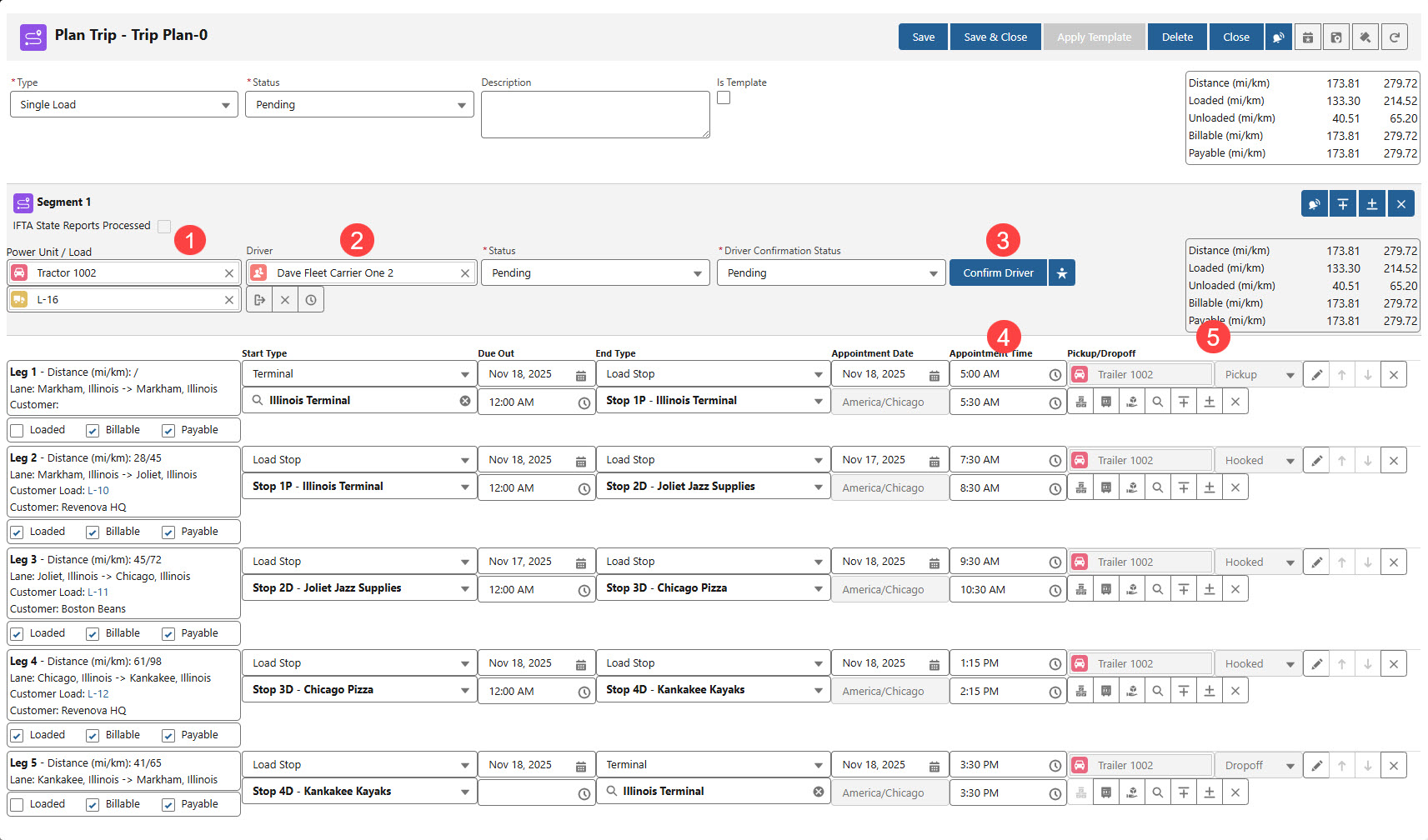
Select an available Driver to complete the Trip Plan Segment.
Confirm the Driver is able to move the freight.
Set the Appointment Times as necessary for each Trip Plan Leg in the Segment.
Add or remove equipment for each Trip Plan Leg, as required.
When completed, click the Dispatch button to send the route to the Driver and begin moving the freight.
Special Considerations
Adding another Customer Load to an existing Carrier Load on a Trip Plan Segment.
Instead of adding the new Customer Load to an existing Carrier Load from the Freight Plan Console, use the Trip Builder to ensure the Load is incorporated into the Segment correctly.
First, create a new Carrier Load from the new Customer Load.
Select the Carrier Load and click the + build trip button for the appropriate Trip Plan.
Use the Trip Builder to add the Carrier Load to the existing Segment.
The Fleet Management Console displays a warning that Load Stops have changed.
Follow the Phase 3 workflow above to incorporate more Customer Loads into planned Trip Plans.
The Trip Builder only opens when a Carrier Load is selected.
Summary of Phase 3
Phase 3 is the execution of the Trip Plan. Drivers were assigned, Appointments were scheduled, and Fleet Assets were added to Dispatch the Trip Plan Segment.
Assign a Driver.
Schedule Appointments.
Add a Power Unit/Tractor.
Set the Equipment and Cargo Status.
Dispatch the Trip Plan Segment.