The Credentials Page Lightning Web Component (LWC) contains two tabs, both containing the login information for various components of the TMS.
Authorized Users
Global Services
Authorized Users
The Authorized Users tab contains a list of the users in the organization and a search text field to easily specify users.

User-specific credentials may be added for the following integrations:
DAT (DAT 2 contains credentials for the DAT REST API endpoints)
Refer to the linked information for setup and credential requirements for each integration, as applicable. From the drop-down button to the right of the user’s row, Clone or Delete the user record.
Note: Individual credentials for Truckstop Load Posting and LoadLink can also be updated with the Update User Credentials LWC on the Home Page.

Mass Import Credentials
The Mass Import button enables the uploading of user-specific credentials for the DAT 2, Truckstop Load Posting, Truckstop Truck Search, Truckstop Rates, and LoadLink integrations.
This Mass Import function completes the following actions:
Add new Authorized Users
Update User credentials
Delete credentials (and Users)

Select the Mass Import button to open the Import User Credentials modal.
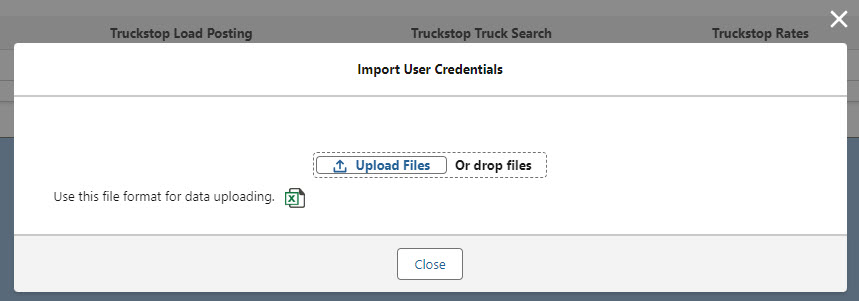
Click the file icon to download the provided CSV template. Open the file.
Each row contains credential information for a single user.
Each row contains 5 types of credentials, but not all are required. Complete only those needed.
Note the columns designated as needed.
Add values for each required field (Salesforce Username, DAT Enabled).
Follow the remaining instructions and add values as necessary.
Save the template as a CSV file.
Click the Upload Files button and select the CSV file. Or, drag the file onto the modal.
Uploading the file begins the User Credential Upload Job.
Insert (Add)/Upsert (Update)
The User Credential Upload job adds any new Salesforce Usernames to the list of Authorized Users.
The job validates the Enabled AND Test Mode columns for each integration first. These columns must have a value of TRUE or FALSE. Any other values are considered invalid, and the job will fail that user/row.
Note: The IP Packet Range field is inserted when a new credential is inserted. No validation occurs on these fields and they are not required. Insert and Upsert credentials are completed even when an IP Packet Range not entered.
If populated correctly, the remaining credential information is added, updated, or deleted as entered. The job assumes this information was entered correctly. Example: the DAT Enabled and DAT Test Mode columns are validated as correctly filled in. The job expects the rest of the DAT columns to contain correct information.
Only rows containing a valid Salesforce Username for an existing user AND correct Enabled/Test Mode information are processed.
When a credential contains a TRUE Enabled value, the job uploads it for that integration.
When a credential contains a FALSE Enabled value, the job ignores it for that integration.
Delete
When a credential contains a true Delete Access value, the job deletes only the credentials for that integration.
When all 5 credential records are deleted for a user, that user record is also deleted.
When the User Credential Upload Job completes, the user who originally uploaded the .CSV file receives an email. This email contains processing statistics, including the number of successful rows completed and the number of rows that contained errors. A description of any errors is also included.
Note: A single file can contain rows to insert, rows to upsert (update), and rows to delete. Rows do not need to be separated into files based on action.
When completing multiple actions in a single CSV file (particularly inserts and upserts), it is recommended to insert any new credentials first before upserting (updating) the credentials.
Global Services
The Global Services tab contains a list of the supported integrations that may be accessed organization-wide. The credentials entered for these integrations apply to all users in the organization for access. Click the link for the appropriate integration and enter the required setup and credential information.
Note: Refer to the documentation for the integrations to see more specific setup information.
Search for an integration by name in the text field on the right. Click the name to open the card enter the information as necessary.
Cleo (Deprecated EDI integration)
Custom EDI (Deprecated EDI integration)
HubTran (TriumphPay Audit)
Kleinschmidt (Deprecated EDI integration)
MyCarrierPackets (MyCarrierPortal)