The Revenova integration with DAT provides access to Load Board, Truck Postings, and Market Rate information directly in the TMS. Information from DAT is available in the Carrier Match Lightning Web Component (LWC), the Load Posting LWC, and the RateIQ LWC.
Note: With the Revenova Winter ‘25 release, the DAT integration now calls their updated REST endpoints. In order to enable this functionality, contact DAT to acquire new credentials for these endpoints. Enter these credentials on the DAT 2 credentials card. Individual user passwords may be updated with the Mass Import Credentials function.
Automatically send load and rate information to DAT using the DAT Contribute API when shipments are completed.
Caution: If you’re transitioning from the custom flat file integration to DAT Contribute, contact Revenova Support to turn off that custom integration and email dataops@dat.com to inform DAT of the transition.
Setup
Configure and assign all available Platform Caches for TMS use. Complete the following steps.
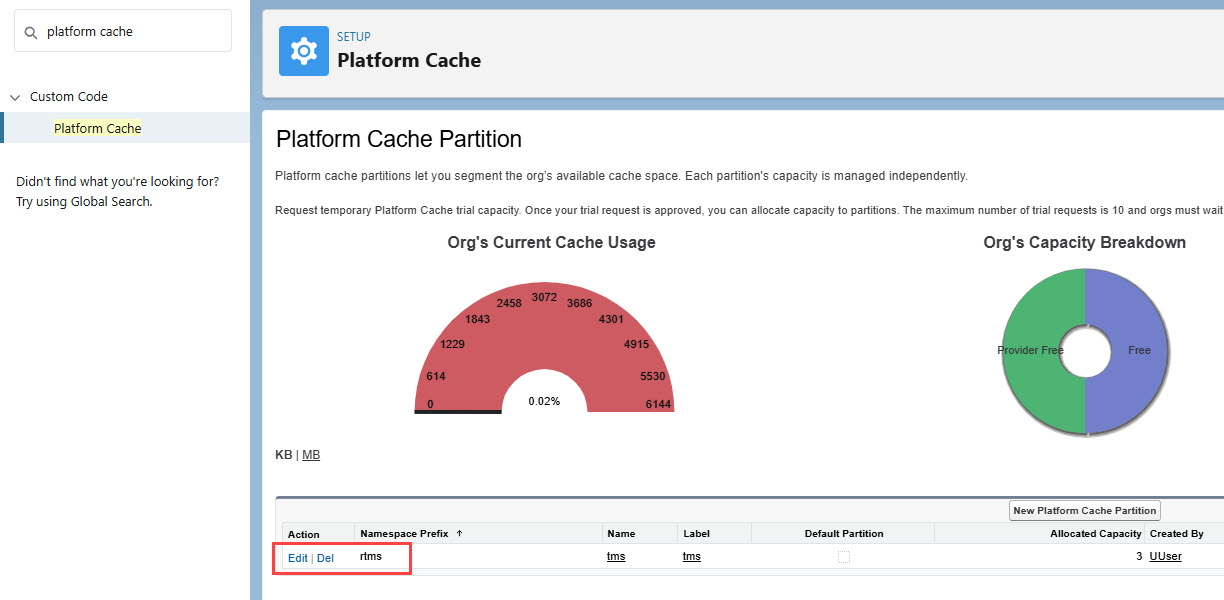
Navigate to Setup → Platform Cache.
Click the Edit link for the rtms record.
From the Org Cache Allocation section, find the Organization field.
Enter 3. If necessary, enter 0 in Provider Free.
Click Save.
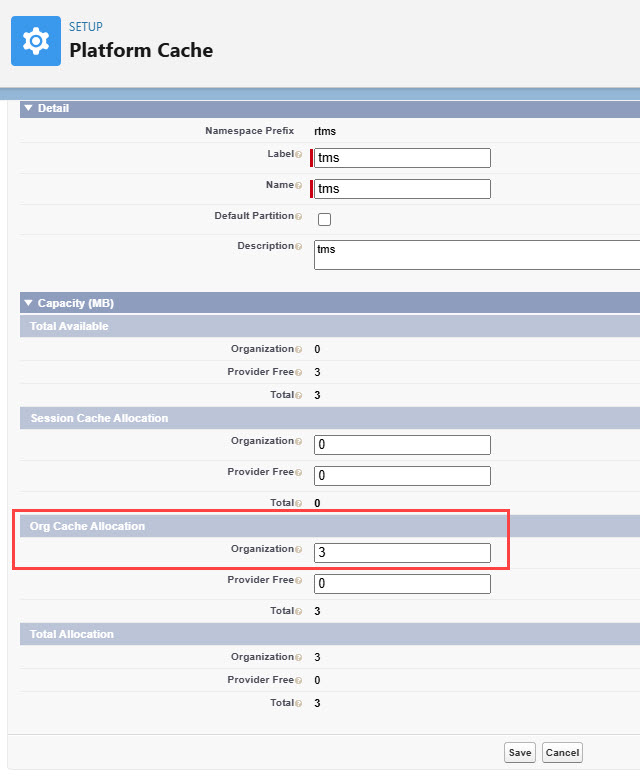
Confirm all available platform cache is assigned to tms. The image below shows all available platform cache assigned to tms.
.jpg)
Caution: Customer orgs may have multiple Salesforce packages installed that require platform cache. In these cases, allocate as much as possible of the platform cache to the TMS.
Enter Credentials
Note: DAT credentials are required for both organization-wide and user-specific. Clone the original record and select new users, as needed, to enter additional DAT credentials. See also the Mass Import feature to bulk add users and DAT credentials.
Organization-Wide Credentials
Enable the DAT integration by completing the following steps.
Navigate to TMS Admin → Credentials.
Select the Global Services tab.
Find DAT 2 in the list, then open the card by selecting its name.
Check the Enabled box for the DAT 2 card.
Check the DAT Contribute API box to use the feature if desired.
Enter the User ID and Password 1 into the text fields.
Click the Save button when finished.
User ID | Password 1 | Password 2 | Customer Number |
|---|---|---|---|
Required; Revenova Service Account | Required; Password |
Individual Credentials
From TMS Admin → Credentials, navigate to the Authorized Users tab.
Select the user to open the individual integration credentials.
Check the Enabled box and the appropriate Load Posting, Truck Posting Search, or Truck Rates boxes.
Enter the individual user credentials in the User ID and Password1 fields.
Click Save when finished.
Clone the original record and, as needed, select new users to enter additional DAT credentials.
See also the Mass Import feature to bulk add users and DAT credentials.
User ID | Password 1 | Password 2 | Customer Number |
|---|---|---|---|
Required; Login Username from DAT account | Required; Password from DAT API (Connexion login credentials) |
Note: The Connexion Login Username and password is NOT the same as the email address/username used to log in to the DAT portal.
Remote Site Settings
Upgrading from previous versions of the TMS may have outdated information. Check that the Remote Site Settings for the DAT integration URL are up to date.
Click the Setup gear icon in the top right corner.
From the drop-down, click Setup.
In the Quick Find Toolbar type Remote Site Settings and click the link.
From the list of remote sites find DATREST and click the Edit link for each of the 8 URLs.
Set the following Service URLs to the following if necessary.
DATREST Analytics: https://analytics.api.dat.com.
DATREST Freight: https://freight.api.dat.com.
DATREST Identity: https://identity.api.dat.com.
DATREST Network: https://network.api.dat.com.
Set the following Test Service URLs to the following if necessary.
DATREST Analytics Test: https://analytics.api.staging.dat.com.
DATREST Freight Test: https://freight.api.staging.dat.com.
DATREST Identity Test: https://identity.api.staging.dat.com.
DATREST Network Test: https://network.api.dat.com.
DAT Portal Settings
Manage user profiles and login/password through the DAT Portal.
Log in to the DAT Portal website.
Only Full Authority contacts have access to User Management.
Manage users, reset passwords, set the Preferred Contact Method, and perform related tasks. The Preferred Contact Method must be set in the DAT Portal and in the TMS.
After setting or uploading individual user credentials, the Preferred Contact Method (Email, Primary Phone, Alternative Phone) must be set on each user credential card. The default selection is Email.
Users will need the API (Connexion) license that allows access to the DAT API. To view and manage integration credentials, see DAT support.
Using DAT in Revenova TMS
Caution: The DAT integration does not support multiple stops for the same Account location.
Visibility to truck postings, load to truck ratios, and historical spot rates.
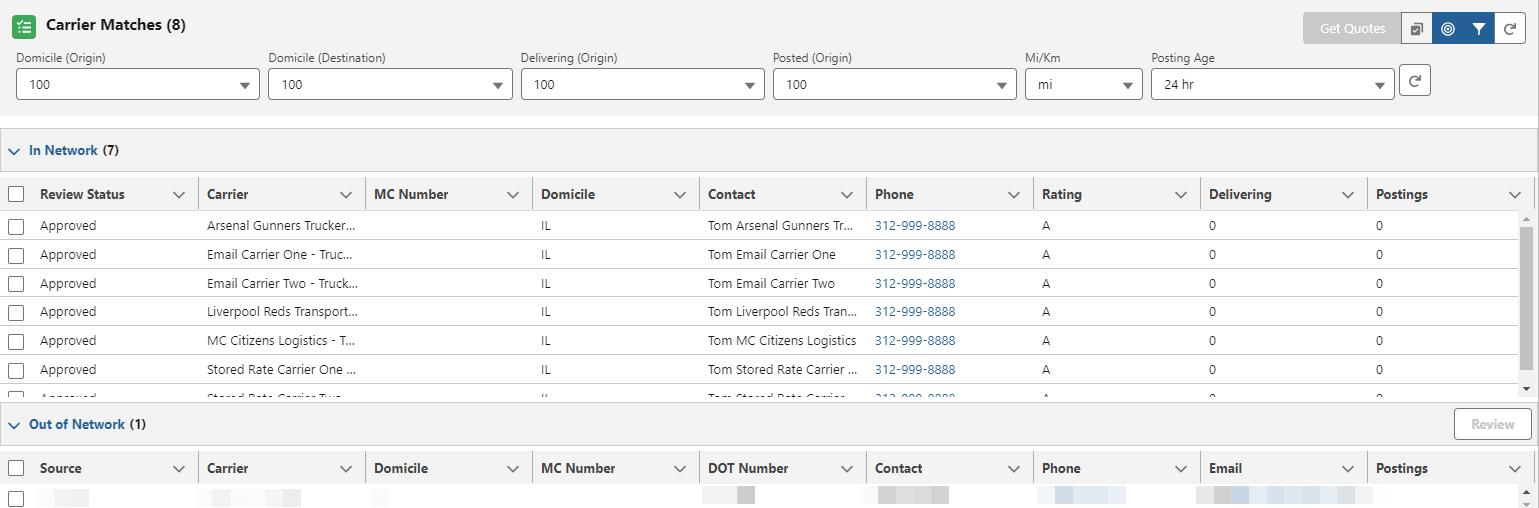
Carrier Match LWC: View truck postings.
Request quotes from one to many in-network Carriers.
Initiate your Carrier setup process with out-of-network Carriers.
RateIQ LWC: Visibility to DAT with Average Spot Rates.
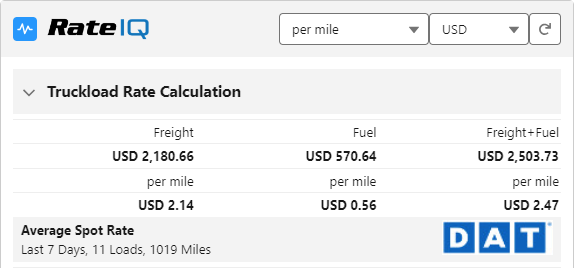
Note: Web service calls for current and historical rates are cached to reduce usage charges.
Carrier Rate History: Visibility to average monthly rates.
Load Posting LWC: Add or remove Load postings on a Load by Load basis.
Required fields: Origin and Destination Postal Codes for locations, Expected Ship and Expected Delivery Dates.

The following fields are sent to DAT when posting a Load.
LTL or Truckload Mode
Description (70 character limit)
Equipment Type
Ship From Address
Posting City/Actual City
Posting State/Actual State
Postal Code
Country
Offer Rate (if included on the Load)
Offer Rate Type (if Offer Rate is entered. Default Offer Rate Type is per mile.)
Truck Length
Weight in lbs
Expected Ship Date (availability/earliest element)
Note: Updates to the Load Board posting are controlled by the Load Posting Refresh Interval (Minutes) field under TMS Admin → Configuration. This field is the time period for refreshing and sending updates to the Load Board.
Load Posting Defaults
After Equipment Type records are created, set the default values when posting Loads to various Load Boards. A Visualforce Page on the Equipment Type record allows for setting default values when posting Loads to DAT.
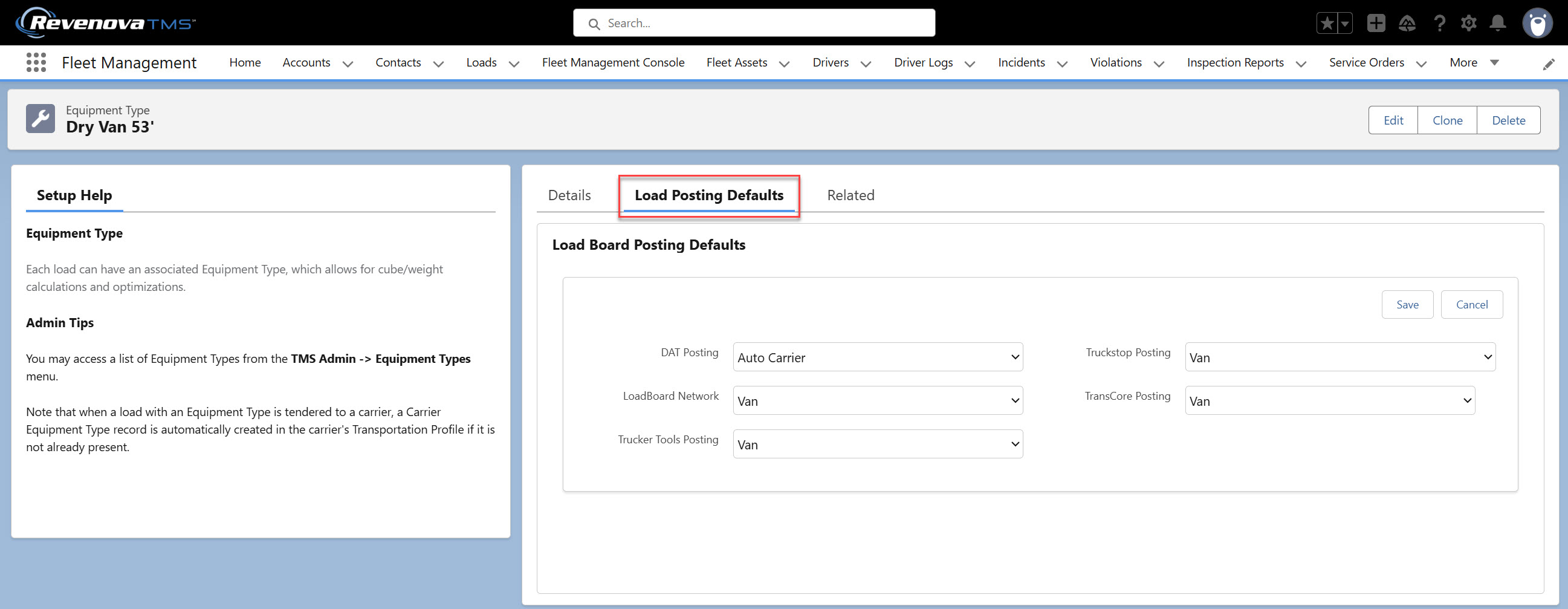
Enter the default values in to the fields and click Save.
Note that the default values saved are formatted to send to DAT.
DAT Contribute API
The DAT Contribute API integration allows users to send completed shipments from the TMS to DAT, contributing their rate information to the DAT platform and receiving credits.
Mode Configuration
Set the DAT Mode field for each mode that should be sent to the DAT Contribute API in TMS Admin → Modes.
Caution: If a mode does not have a value in the DAT Mode field, then the load and rate information is not sent to DAT for Loads using that mode.
For the modes packaged in the TMS, the DAT Mode field is set by default as shown in the following table.
Mode Name | DAT Mode Value |
|---|---|
Truckload | TL |
LTL | LTL |
Intermodal | INTERMODAL |
Drayage | DRAYAGE |
Ocean FCL | OCEAN |
Ocean LCL | OCEAN |
Air Freight | AIR |
Flatbed | TL |
Bulk | TL |
Parcel | PARCEL |
If you want to change these values from the default or set the DAT Mode to something more accurate for custom Modes, additional options include:
PARTIAL
OVERWEIGHT
RAIL
BARGE
CPU (short for Customer Pickup)
DEDICATED (dedicated shipper or broker)
FULL
Currency Setup
The DAT Contribute API integration can only send rate information in USD.
To use this feature, ensure that the USD - U.S. Dollar is an active currency in the org by going to Setup → Manage Currencies and selecting the Manage Currencies button.
If USD is a deactivated currency in an org, currency exchange rates are used to convert the Load currency to USD. The USD value is sent to DAT.

Using DAT Contribute
Load and rate information are sent to DAT when the Load Status moves to Completed.
The following are conditions that need to be met in order for the TMS to process information before sending it to DAT:
The Load has a Mode
The Load has an accepted Carrier Quote
The Load is not a Customer Load in a Freight Plan
Refer to the API Field Mapping section in this article to see what fields are required to send in order to successfully submit rate information to DAT.
Once the load and rate information are sent to DAT, the Contribution APIs Sent To field on the Load record includes the DAT value.
Exclude Loads from DAT Contribute
To exclude Loads that have a Mode that also has a value in the DAT Mode field, Check the Exclude From Rate Contribution field on the Load record.
Tip: Create a custom flow or workflow process to automatically Check this field based on specific criteria.
Example Request
TMS Operation | DAT Contribute Endpoint | Request Type | Response |
|---|---|---|---|
Load Status moves to Completed | Broker Contributions | POST | 201: Success 401: Authentication Error |
Sample Payload
{
    "loadId": "L-10",
    "charges": {
        "totalAmountPaidByBrokerUsd": 808.9,
        "linehaulAmountPaidUsd": 965.2,
        "linehaulAmountPaidByCustomerUsd": 200.2,
        "fuelSurchargeAmountPaidUsd": 145.25,
        "fuelSurchargeAmountPaidByCustomerUsd": 145.25
    },
    "loadDetails": {
        "equipmentTypeBrief": "FLATBED",
        "mode": "TL",
        "freightValueUsd": 18000,
        "hazmat": false,
        "piecesOrPallets": 16,
        "weightPounds": 18000,
        "freightClass": 50,
        "cubicFeet": 1800,
        "linearFeet": 24
    },
    "pickupSchedule": {
        "actualPickupDate": "2026-04-25"
    },
    "deliverySchedule": {
        "actualDeliveryDate": "2026-04-27"
    },
    "origin": {
        "city": "Denver",
        "stateOrProvince": "CO",
        "zip": 80014
    },
    "destination": {
        "city": "Seattle",
        "stateOrProvince": "WA",
        "zip": 98101
    },
    "order": {
        "spotMarket": true,
        "orderBookDate": "2026-04-15",
        "practicalMiles": 1300,
        "totalPickups": 1,
        "totalDrops": 1
    }
}
API Field Mapping
TMS Object | TMS Field | DAT Field | Required | Notes |
|---|---|---|---|---|
Load | Name | loadId | ||
Carrier Quote | (Carrier Quote Total - Accessorial Charges) | charges.totalAmountPaidByBrokerUsd | ✅ Yes | |
Carrier Quote | Net Line Haul | charges.linehaulAmountPaidUsd | ||
Customer Quote | Net Line Haul | charges.linehaulAmountPaidByCustomerUsd | ❌ No | |
Carrier Quote | Fuel Surcharge | charges.fuelSurchargeAmountPaidUsd | ❌ No | |
Customer Quote | Fuel Surcharge | charges.fuelSurchargeAmountPaidByCustomerUsd | ❌ No | |
Equipment Type | Category | loadDetails.equipmentTypeBrief | ✅ Yes | If the Equipment Type on the Load or the Category field is blank, the value sent to DAT is VAN. |
Mode | DAT Mode | loadDetails.mode | ✅ Yes | This value is taken from the Mode field on the Load record. |
Load | Cargo Value | loadDetails.freightValueUsd | ❌ No | |
Load | Hazardous Materials | loadDetails.hazmat | ❌ No | |
Line Item | Packaging Unit Count | loadDetails.piecesOrPallets | ❌ No | Calculated as a rollup of the Handling Unit Count on all Line Items. |
Load | Total Weight | loadDetails.weightPounds | ❌ No | |
Line Item | NMFC Class | loadDetails.freightClass | ❌ No | |
Line Item | Volume | loadDetails.cubicFeet | ❌ No | |
Load | Linear Feet | loadDetails.linearFeet | ❌ No | |
Load | Expected Ship Date | pickupSchedule.actualPickupDate | ✅ Yes | |
(Last) Stop | Arrival Date | deliverySchedule.actualDeliveryDate | ❌ No | |
(First) Stop | City Index | origin.city | ✅ Yes | |
(First) Stop | State Index | origin.stateOrProvince | ✅ Yes | |
(First) Stop | Postal Code | origin.zip | ❌ No | |
(Last) Stop | City Index | destination.city | ✅ Yes | |
(Last) Stop | State Index | destination.stateOrProvince | ✅ Yes | |
(Last) Stop | Postal Code | destination.zip | ❌ No | |
Carrier Quote | Rate Entry | order.spotMarket | ✅ Yes | If the Rate Entry field is populated, the data is sent with the value true. Otherwise, false. |
Load | Tender Accepted Date | order.orderBookDate | ❌ No | |
Load | Distance Miles | order.practicalMiles | ❌ No | |
Load | order.totalPickups | ❌ No | Calculated as a rollup of Pickup Stops. | |
Load | order.totalDrops | ❌ No | Calculated as a rollup of Dropoff Stops. |
LTL and PARTIAL Required Fields
Depending on the DAT Mode field on the Mode record (either LTL or PARTIAL), additional fields, beyond those in the previous table, are required to successfully send data to DAT.
DAT Mode | TMS Object | TMS Field | DAT Field | Notes |
|---|---|---|---|---|
LTL | Load | Total Weight | loadDetails.weightPounds | The TMS converts the Total Weight value to pounds if the Weight Units is not lbs. |
Line Item | NMFC Class | loadDetails.freightClass | This field takes the first Line Item that has an NMFC Class. If no Line Items have an NMFC Class, DAT does not process the data received. | |
PARTIAL | Line Item | Volume | loadDetails.cubicFeet | This field assumes the volume is calculated in cubic feet. |
Load | Linear Feet | loadDetails.linearFeet | This field is auto-calculated for Line Items when configuring a Load that has these values:
If multiple Line Items have a Linear Feet value, the Load field takes the sum of those values. |
DAT Error Messages
User triggers the following error:
Error
DAT:Message from Load Board: Error: 101000010 - Authentication failure
This error may occur when attempting to setup DAT credentials. This error is sent by DAT because the user does not have a valid Connexion license within DAT. This error is usually resolved once the license is in place.
Note: The credentials for logging in to DAT may be different from the Load board credentials entered in the TMS.
Confirm with DAT that your organization has a Connexion license set up. If no direct DAT contact is available, email customer.solutions@dat.com.