The Carrier Guest Lightning Web Component (LWC) enables Carriers to enter Driver information, send status updates, upload documents, and view settlement information without requiring a login to the Email Loop site.
Throughout the Carrier Portal, there are text areas to instruct the Carrier Guest user.
Note: Configure the messages, instructions, and footer text displayed in this LWC in the Community Configuration section in the TMS Admin → Document Options.
See the Email Loop Setup article for more information on creating and configuring Digital Experiences Site pages.
Permission Set Access
Warning: The TMS supports specific default objects and fields to ensure LWCs accurately render with the applicable information. Ensure that Read-only access is provided to the Account and Contact objects.
Change or create custom permissions for objects and fields to best fit business needs by cloning the permission set and navigating to Setup → Users → Permission Sets → TMS Carrier Email Loop → View Summary. Additionally, because the object and field permissions are provided for external access, take caution when editing object and field permissions to ensure sensitive data is not compromised.
The Carrier Guest user operates like an unauthenticated user. When the Carrier Guest user is automatically created after the creation of the Email Loop Digital Experiences Site, the TMS Carrier Email Loop permission set is assigned to the Email Loop Digital Experiences Site.
The TMS Carrier Email Loop permission set grants the Carrier Guest user limited Read and Create permissions on specific objects and fields to process data from transactions that match to fields populated in the TMS.
Carrier Guest User LWCs
The Carrier Guest displays multiple LWCs to guest users. The following are LWCs the Carrier Guest user can view.
Request for Quote (RFQ)
Use the Carrier Quote LWC to enable Carriers view, accept, or decline a quote. Quote requests are sent from the TMS, and Carriers can submit a quote with their proposed terms using the submitCarrierQuote LWC.

Number | Field(s) Name | Field(s) Description | Notes |
|---|---|---|---|
1 | Load Summary | Load fields are displayed in this 4-column section. Add fields to the Load TMS12 field set to include additional fields to this section. | |
2 | Load Posting Description | Load fields are displayed in this 1-column section. Add fields to the Load TMS13 field set to include additional fields to this section. | |
3 | Load Accessorial Charges | Any accessorial charges associated with the Load that appears as gray pills. | |
4 | Submit Carrier Quote Charge Information | Proposed Carrier charges to tender the Load, including freight charges, fuel surcharges, and accessorial charges. |
|
5 | Carrier Total Amount | A calculated field that populates the sum of the Carrier’s proposed total amount for freight, fuel, and accessorial charges. |
|
6 | Submit Button | Sends the Carrier Quote to the TMS. |
|
7 | Legal or general text related to the submitCarrierQuote LWC. |
Once a quote is submitted, the Carrier Guest user receives a success message. The quote is then processed as a Queued Transaction and is available in the Carrier Quote List.

If a Carrier attempts to submit a quote for a Load already assigned to another Carrier, the following message appears in the Carrier Quote LWC:

Accept/Decline Load Tender
Load tenders are sent from the TMS, and Carriers may Accept or Decline the tender in the Carrier Accept/Decline Tender LWC.

If the Carrier accepts the tender and the Enable RFQ Load Boards field isn’t checked in their Carrier Transportation Profile, the Carrier Accept/Decline Tender LWC displays an acceptance message:

If the Carrier declines the tender, the Carrier Accept/Decline Tender LWC displays a decline message:

If the Carrier attempts to Accept or Decline the tender but the Load has been already accepted, declined, or assigned to another Carrier, an error message states that the Load link is obsolete:

Load Field Sets
If the Load Field Set TMS30 has no added fields, a Carrier is directed to the Tender Accept/Decline page with the message above depending on if the Carrier clicked Accept or Decline.
If the Load Field Set TMS30 has added fields, the Carrier is directed to a more detailed version of the Tender Accept/Decline page after clicking either the Accept or Decline link. Additional information and/or input fields are available to the Carrier, and the Carrier can Accept or Decline the Load tender on this page.
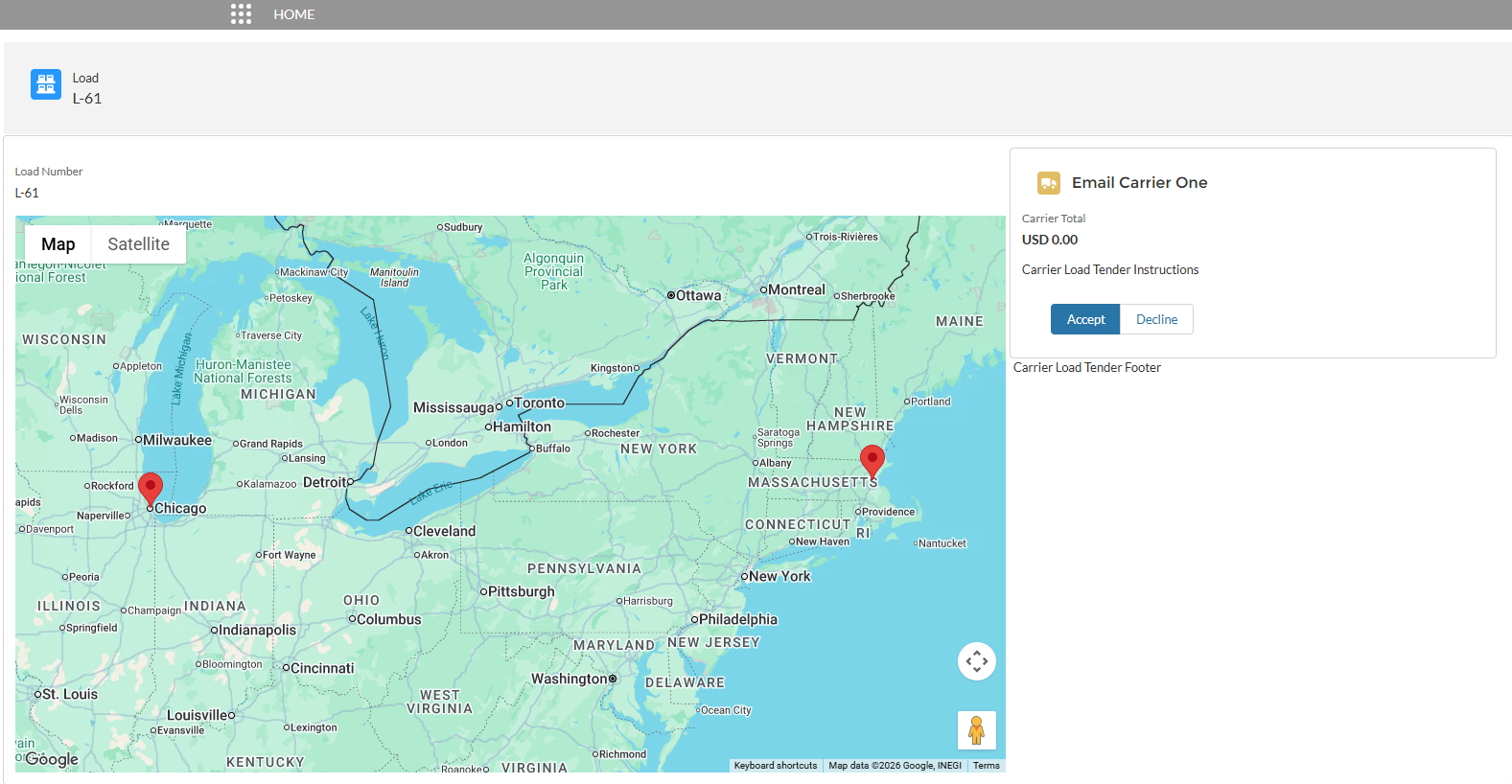
The detailed Tender Accept/Decline page can be customized with the following features.
Load field set TMS30 is the output fields displayed in the four-column section on the left.
Load field set TMS31 is the output fields displayed in the one-column section on the left.
Load field set TMS32 is the Load input fields displayed on the right.
Custom Mode-specific field sets may be used (e.g. TMS30 Truckload).
The Load Tender Page Settings field on the Carrier Service object provides the ability to set the following:
Email Signature: The Carrier Quote Tender Accepted By and Tender Accepted By Email fields are displayed and required prior to Tendering the Load.
Carrier Details: the input fields from TMS32 are visible.
Additionally, the Carrier Guest user requires additional permissions on the Detailed Tender Accept/Decline page.
Load input fields: Create permissions on the Load object and Edit permissions to all fields in field set TMS32.
Accepted by fields: Create permissions on the Carrier Quote object and Edit permissions to the Carrier Quote Tender Accepted By and Tender Accepted By Email fields.
Decline fields: Create permissions on the Carrier Quote object and Edit permissions to the Carrier Quote Tender Declined Reason and Tender Declined Comments fields.
Warning: If a Carrier clicks on Accept/Decline links, and the following error appears:
Error - Carrier Tender INVALID_FIELD: rtms_Load__r.SystemModstamp, rtms_Carrier_Service__r.rtms_Carrier_r.Name^ERROR at row 1This error message is permissions-related.
The Email Guest User is missing the TMS Carrier Email Loop Permission Set and Read-only access for the Account object.
The Carrier Guest Site user may need access to the following Apex Classes:
rtms.CarrierLoadListController
rtms.CarrierQuote
rtms.CarrierQuoteController
rtms.CarrierSettlementController
rtms.CarrierTenderAcceptDeclineController
rtms.LightningUtilController
rtms.StopStatusController
rtms.Constants
Ensure any corresponding Email Loop Permission Sets are chosen in the Members section of the Email Loop site.
Request Carrier Status
Loads with an In Transit status can be submitted in the Assigned Loads LWC.
The Carrier’s Status can be retrieved in two ways:
Manually providing the Carrier with the Carrier Status Link located in the Load Summary Details Tab
Clicking the Request Carrier Status button
 on the Load Summary record.
The first page is the Carrier Load List LWC, comprised of all Loads assigned to the Carrier. This list is split into In Transit and Delivered Loads.
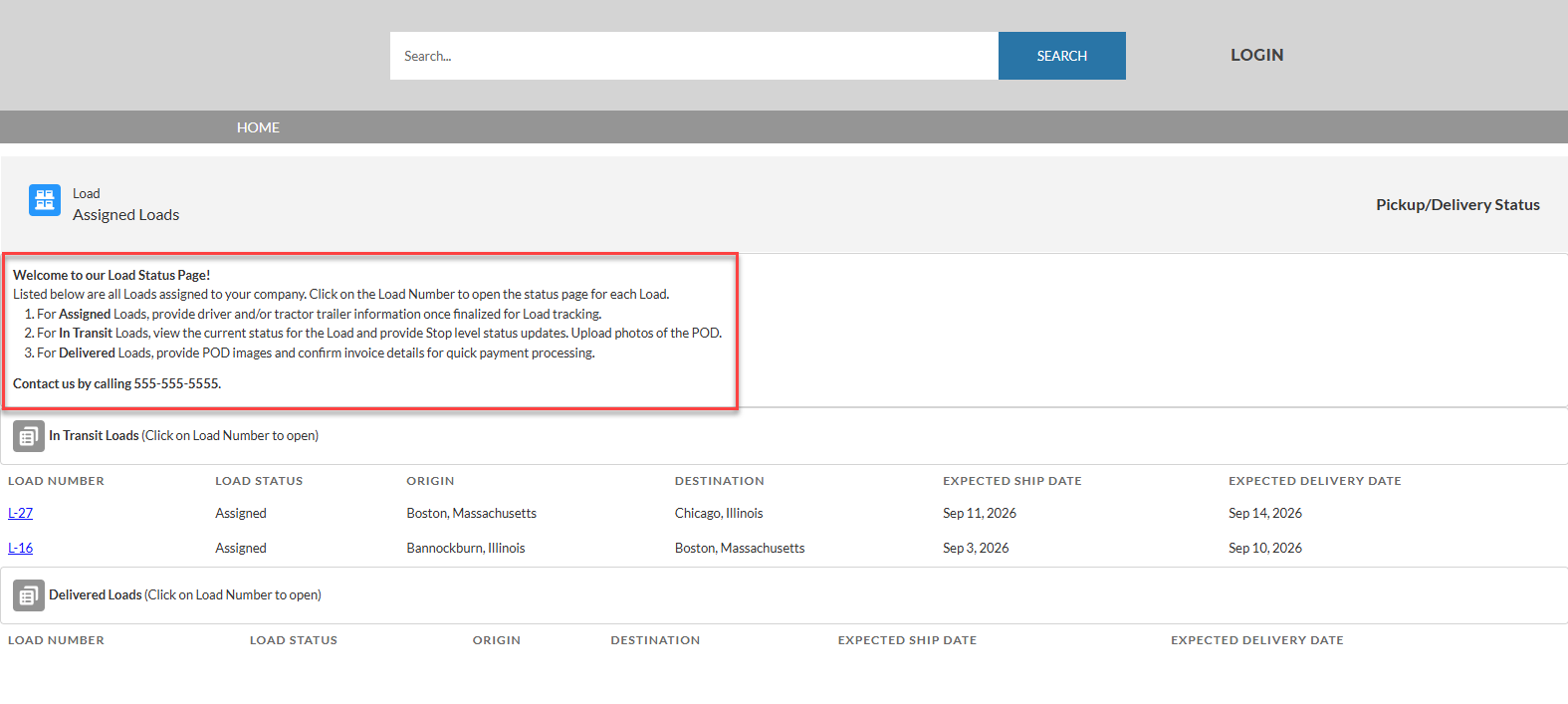
Click the Load Number link to view Load updates.
Once a Load record opens, the following actions can be taken:
Add or update Driver information
Add or update Load statuses
Add and upload Load documents
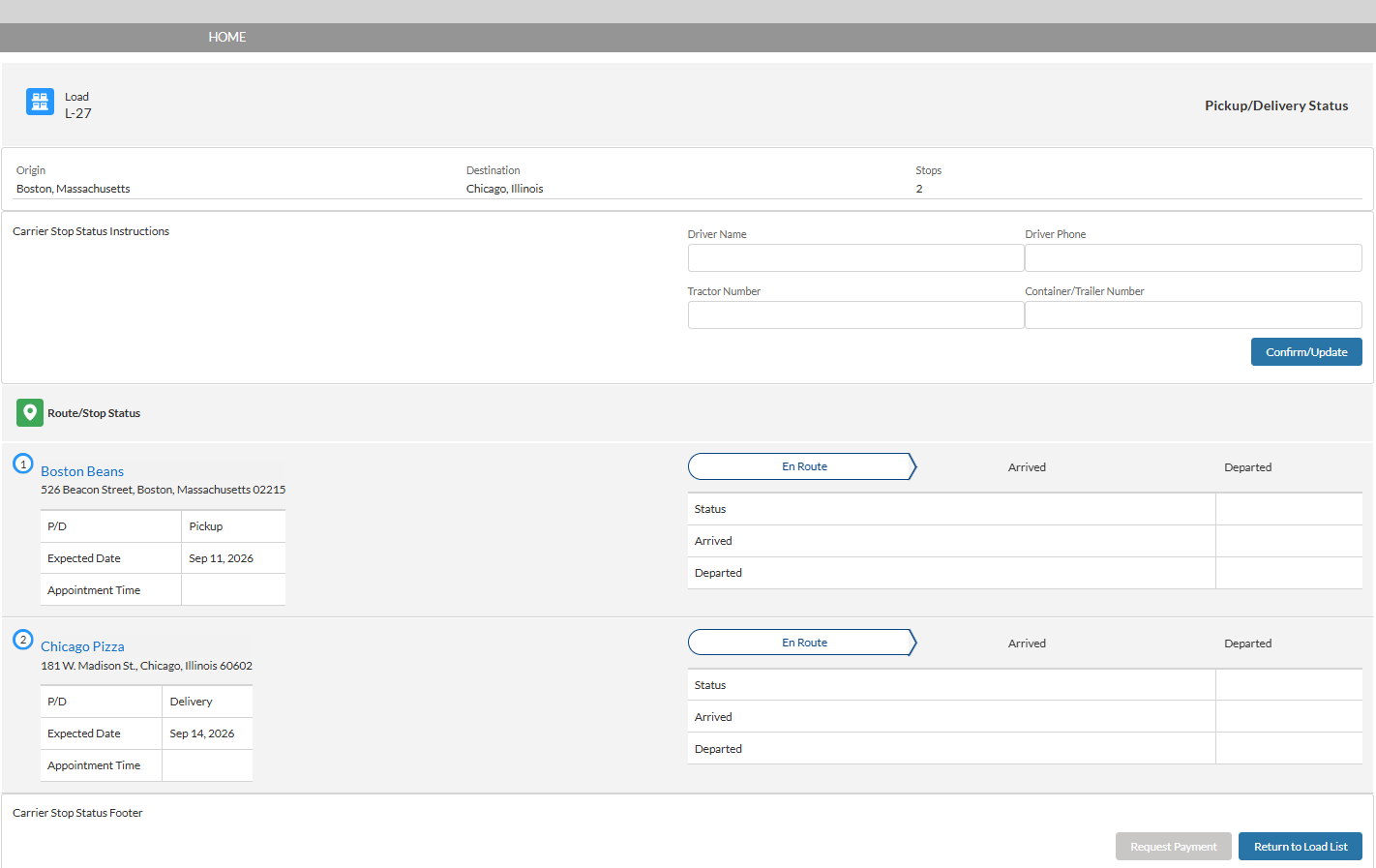
The Carrier can click the Return to Load List button to return to the Carrier Load List LWC.
Stop Status
Carriers can submit updated Stop location information on the Route/Stop Status LWC.
Click the En Route/Arrived/Departed stage on the Load path to enter Load status information.
Enter all necessary information in the Route/Stop Status fields. Include additional Comments as applicable.
Click Send Update.
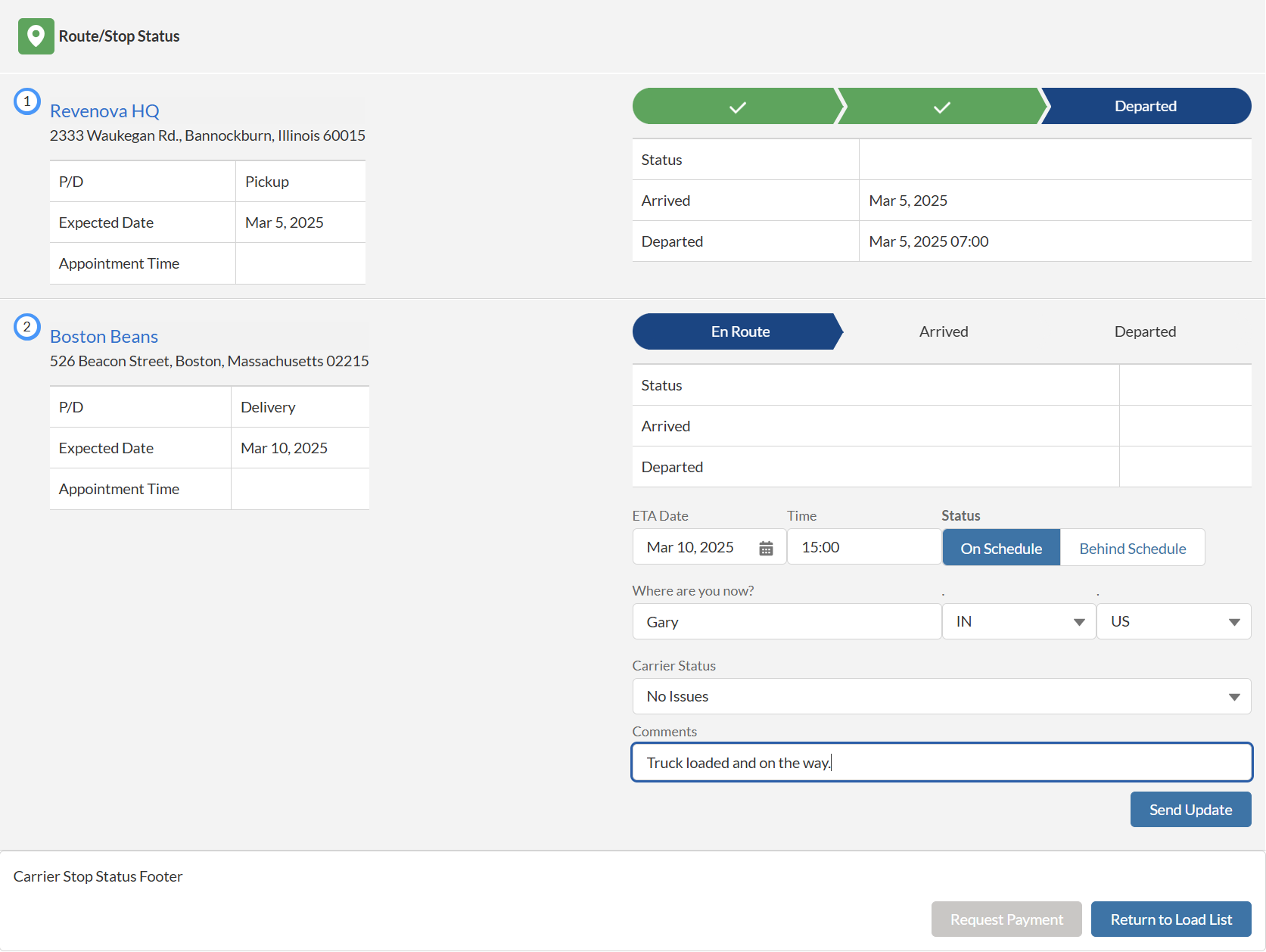
Load and Stop status information submitted in the Route/Stop Status LWC updates the Last Tracking Update field.
Tracking Updates
When Carriers provide a Stop status, specific fields are displayed by default and are provided as tracking updates within the TMS.
Stop Status Selected by User | Fields Displayed by Default | Updated TMS Fields |
|---|---|---|
En Route | Where are you now?
|
|
Arrived | Arrival Date and Arrival Time |
|
Departed | Arrival Date, Arrival Time, Departure Date, and Departure Time |
|
Carrier tracking updates are processed by the QueuedTransactionJob. Default values aren’t available in the Carrier Guest LWC until the batch job completes processing updates.
Upload Load Documents
Depending on the configuration of the document settings, Load documents may be uploaded when the Load Status is Delivered. When the Carrier selects a Load with a Delivered status, the option to upload documents is available.
From TMS Admin → Customer Invoice Documents list, set the Carrier Upload field to checked to allow Carriers to upload select documents and document types. Each file is limited to a size of 2GB.
Select the appropriate document type from the picklist.
Click Upload Files to select an image or drop files into this space.
The Stop Status LWC supports uploading the following image types:
PNG
JPG
GIF
Click Send Update.
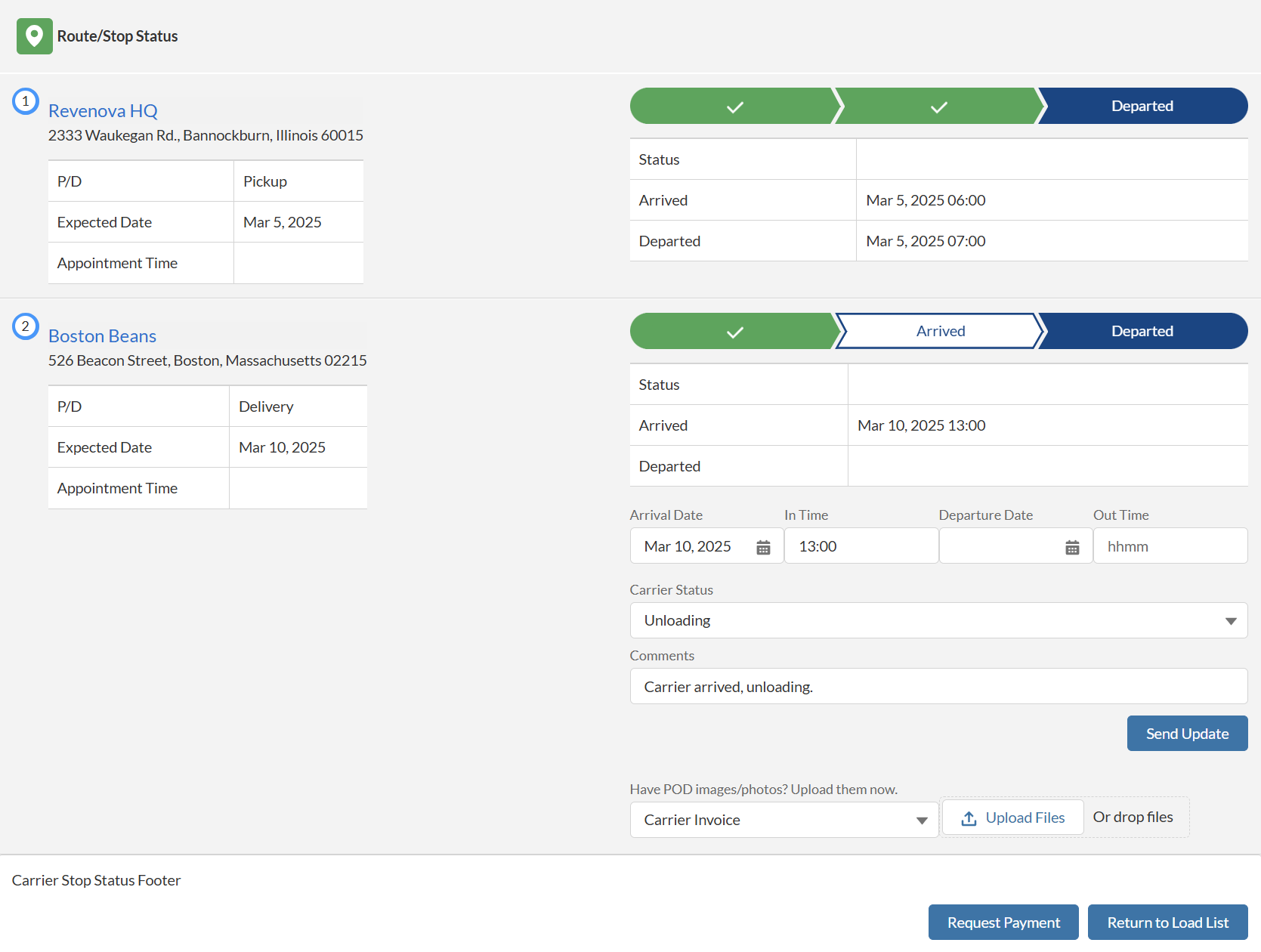
When Carriers upload documents, the Load Carrier Uploads field is set to POD, BOL, or Invoice depending on the file type selection.
Files are named based on the Document Type and File Type selected in the component.
Example: <Document Type>.<uploaded file type>, such as Carrier Invoice.png.
All image files are evaluated to determine if the Customer Invoice Document requirements are met.
When all criteria are met, the Customer Invoice Documents Received field is checked.
For Delivery Receipt file selections, the Load POD Received field is checked.
Carrier Settlement
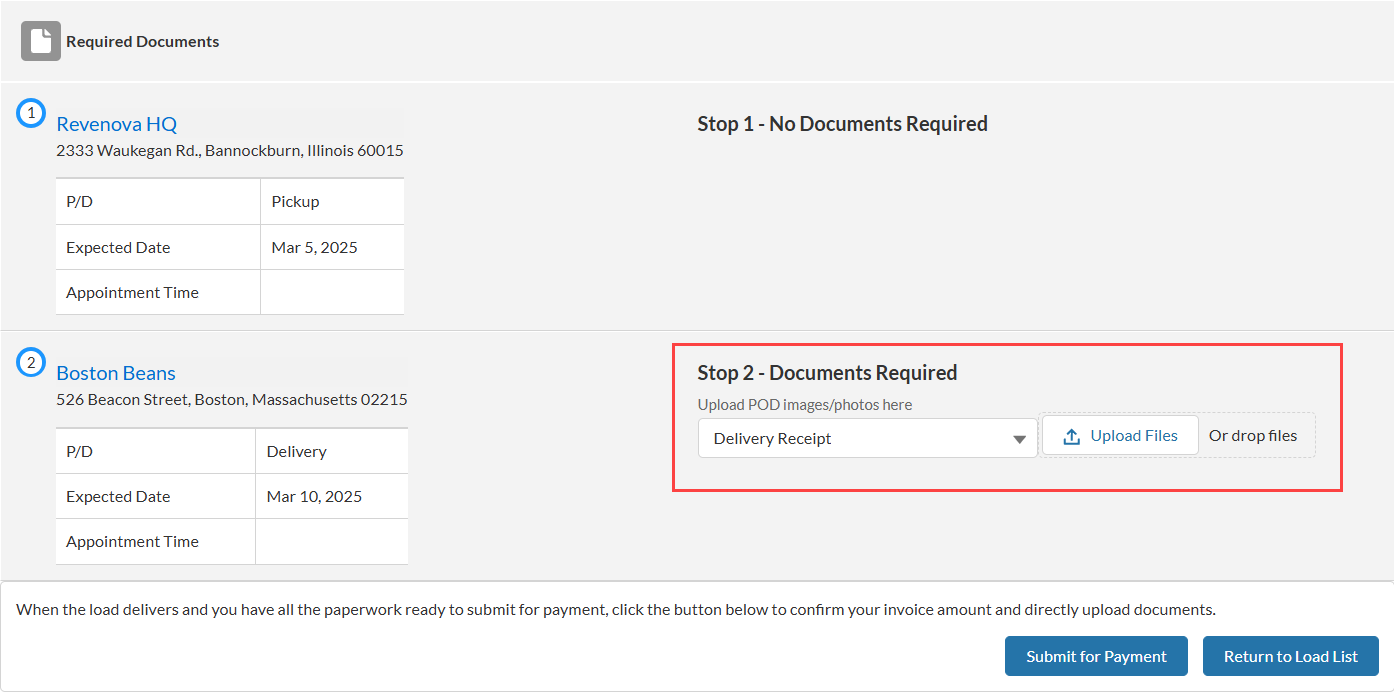
Use the Carrier Settlement LWC to prompt Carriers to upload documents and request payment. Once the Carrier chooses the Request Payment button or the Load is Delivered, Carriers see the Carrier Settlement LWC.
Carriers may enter invoice information and upload invoice documentation.
Each file is limited to a size of 2GB.
Click the Upload Files button under the Attach Invoice field.
Select the appropriate invoice file to submit for the Load.
The Carrier Settlement LWC invoice attachment supports uploading the following file types:
PNG
JPG
GIF
PDF
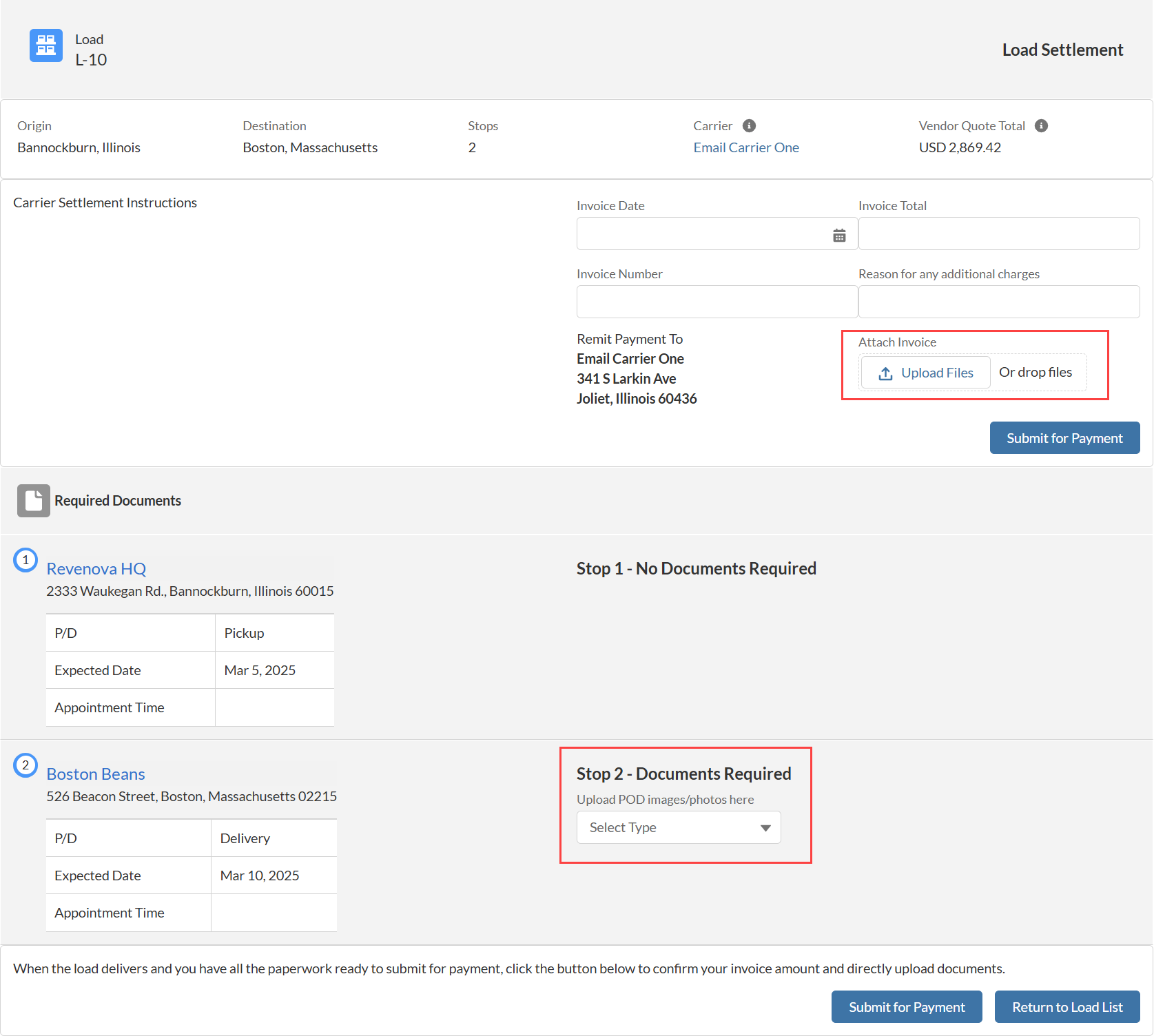
When Carriers upload documents, the Load Carrier Uploads field is set to POD, BOL, or Invoice depending on the file type selection.
Files are named based on the Document Type and File Type selected in the component.
Example: <Document Type>.<uploaded file type>, such as Carrier Invoice.pdf.
All image files are evaluated to determine if the Customer Invoice Document requirements are met.
When all criteria are met, the Customer Invoice Documents Received field is checked.
For Delivery Receipt file selections, the Load POD Received field is checked.
Carriers can upload additional required documents on the Carrier Settlement LWC. For example, Stop-specific POD documents may be required. The options available in the picklist is determined by the Global Default Customer Invoice Document settings.
Any selections on the Global Default with the Carrier Upload field checked appears in the picklist.
Select the document type from the picklist.
Select the appropriate image to submit for the Load.
The Carrier Settlement LWC required documents section supports uploading the following file types:
PNG
JPG
GIF
When a Carrier attached all required documents, they can select Submit for Payment to send all attached Load financial documentation for approval.