The Carrier Guest Lightning Web Component (LWC) enables Carriers to enter Driver information, send status updates, upload documents, and view settlement information without requiring a login to the Email Loop site.
Carrier Guest LWCs
View and use the following LWCs to submit quotes, accept or decline Load Tenders, submit Carrier Status update, and request payment.
Request for Quote (RFQ)
View, accept, or decline a quote in the Carrier Quote LWC. Additionally, submit a quote with their proposed terms using the submitCarrierQuote LWC.
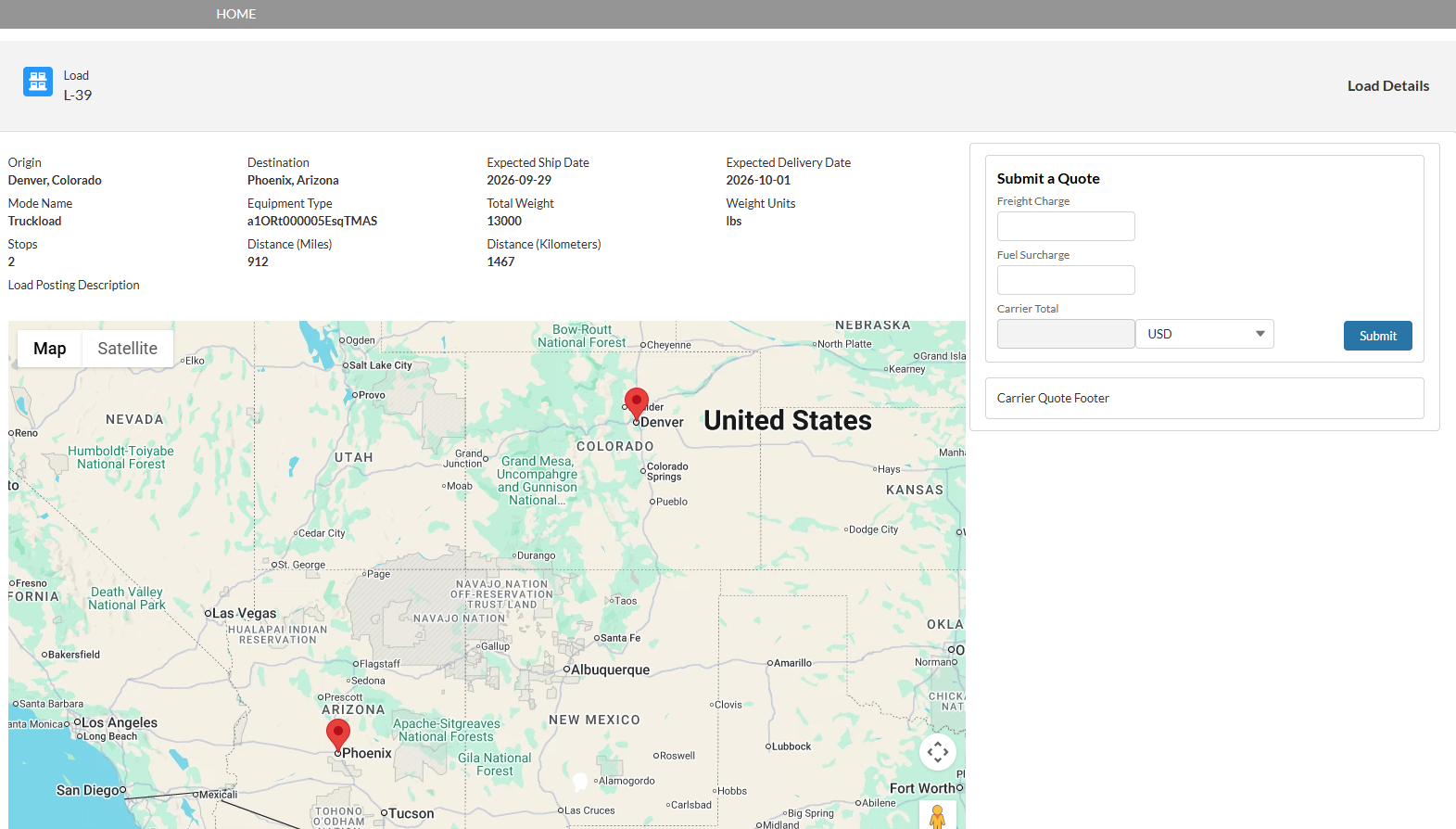
Once a quote is submitted, a success message appears. The quote is then available in the Carrier Quote List.

Submitting a quote for a Load already assigned to another Carrier renders the following message in the Carrier Quote LWC:

Accept/Decline Load Tender
Accept or Decline the Load tender in the Carrier Accept/Decline Tender LWC.

If the Load tender is accepted and there’s no access to the RFQ Load Board, the Carrier Accept/Decline Tender LWC displays an acceptance message:

If the Load tender is declined, the Carrier Accept/Decline Tender LWC displays a decline message:

If there’s another attempt to Accept or Decline the Load tender but the Load has been already accepted, declined, or assigned to another Carrier, an error message states that the Load link is obsolete:

Request Carrier Status
Loads with an In Transit status can be submitted in the Assigned Loads LWC.
The first page is the Carrier Load List LWC, comprised of all Loads assigned to the Carrier. This list is split into In Transit and Delivered Loads.
.png)
Submit a Carrier Status and add/update other information by completing the following steps:
Click the Load Number link to view Load updates.
Once a Load record opens, the following actions can be taken:
Add or update Driver information
Add or update Load statuses
Add and upload Load documents
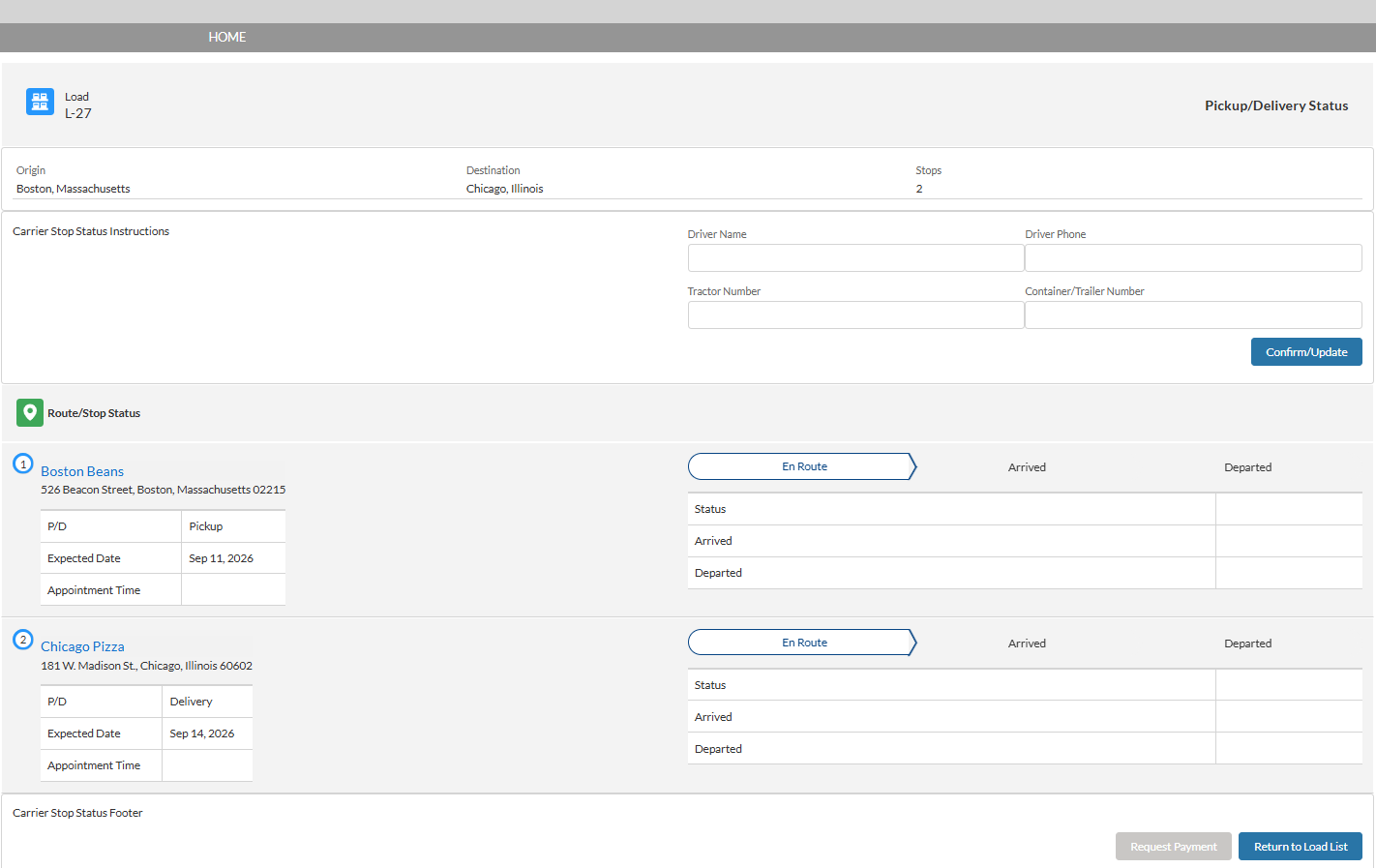
Click the Return to Load List button to return to the Carrier Load List LWC.
Stop Status
Submit updated Stop location information on the Route/Stop Status LWC.
Click the En Route/Arrived/Departed stage on the Load path to enter Load status information.
Enter all necessary information in the Route/Stop Status fields. Include additional Comments as applicable.
Click Send Update.
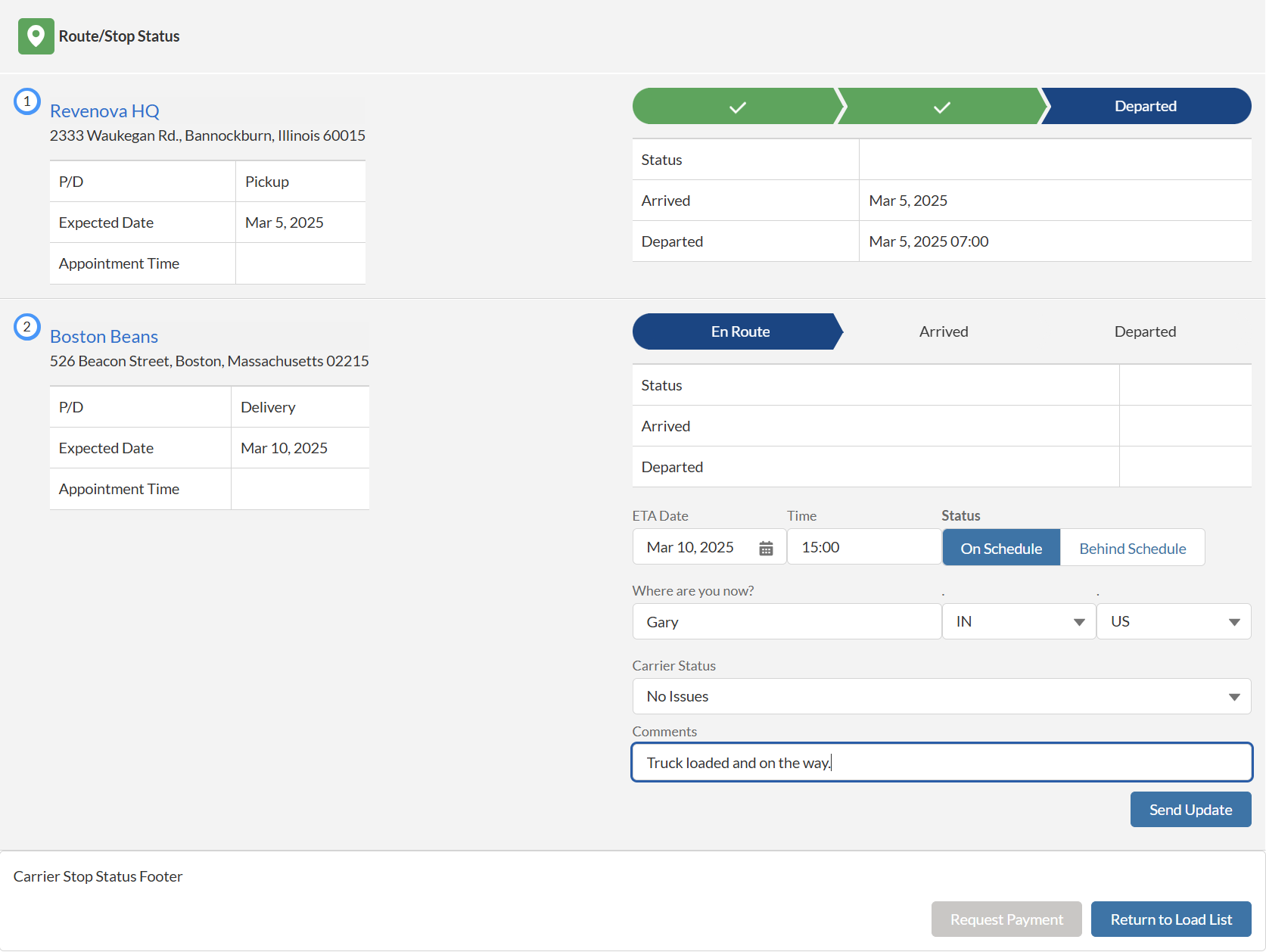
Load and Stop status information submitted in the Route/Stop Status LWC updates the Last Tracking Update field.
Upload Load Documents
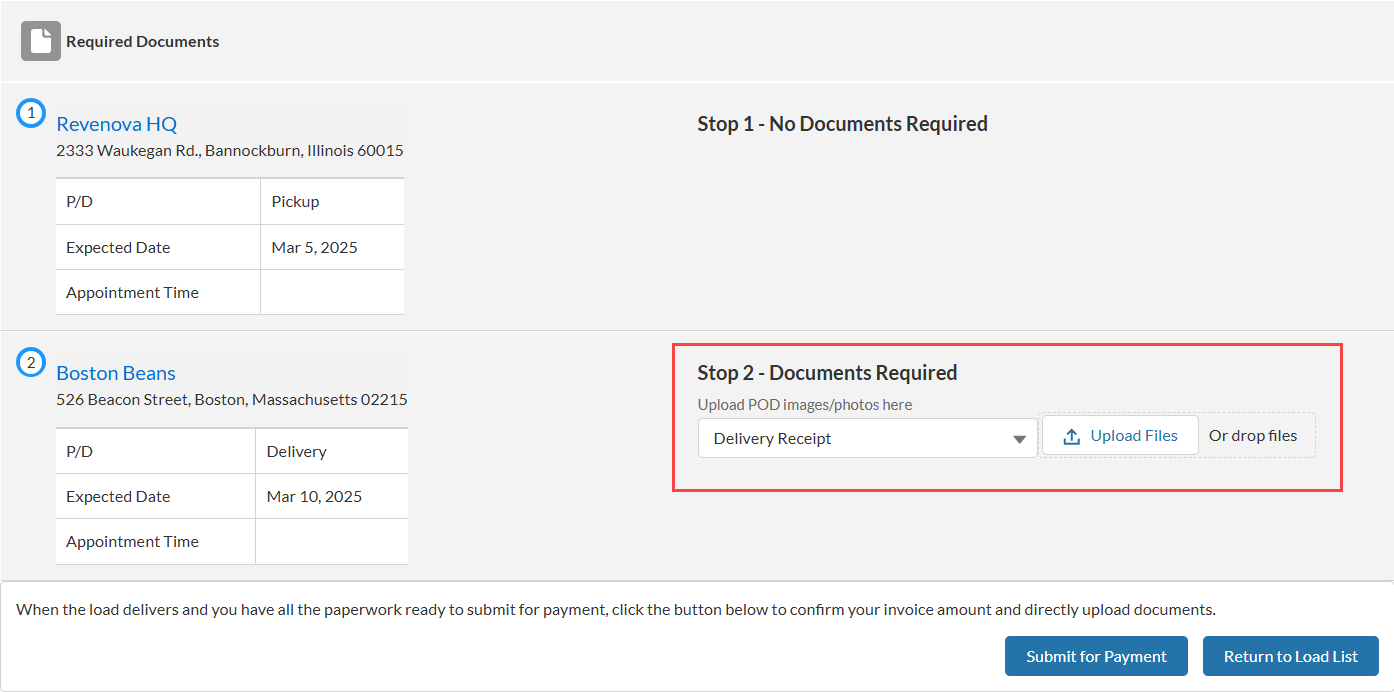
Once a Load has a Delivered status, the option to upload documents is available.
Each file is limited to a size of 2GB.
Select the applicable document type from the picklist.
Click Upload Files to select an image or drop files into this space.
The Stop Status LWC supports uploading the following image types:
PNG
JPG
GIF
Click Send Update.
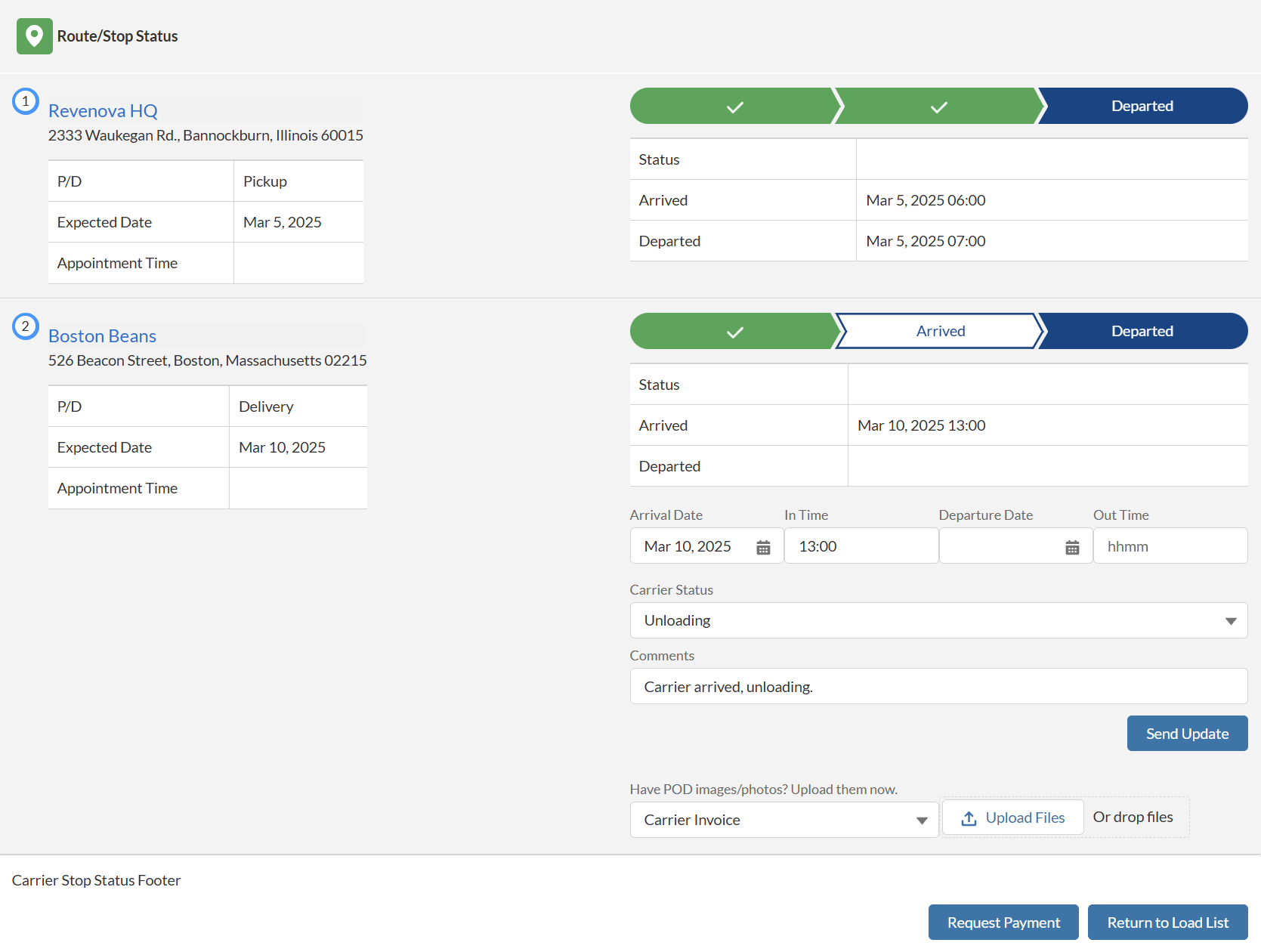
When uploading documents, the Load Carrier Uploads field is set to POD, BOL, or Invoice depending on the file type selection.
Carrier Settlement
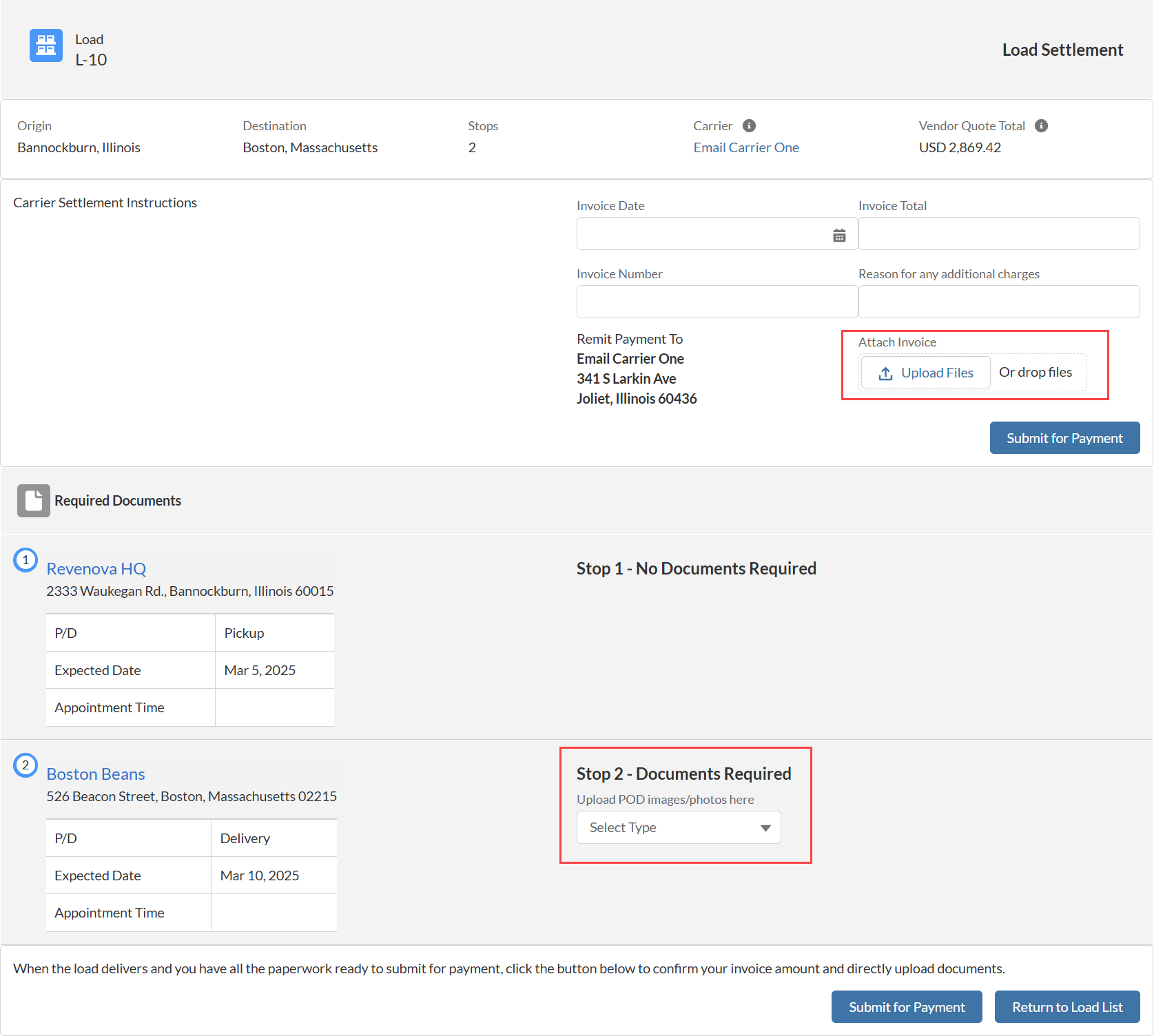
Upload documents and request payment in the Carrier Settlement LWC. After selecting the Request Payment button or if the Load has a Delivered status, the Carrier Settlement LWC appears.
Enter invoice information and upload invoice documentation.
Each file is limited to a size of 2GB.
Click the Upload Files button under the Attach Invoice field.
Select the appropriate invoice file to submit for the Load.
The Carrier Settlement LWC invoice attachment supports uploading the following file types:
PNG
JPG
GIF
PDF
When uploading documents, the Load Carrier Uploads field is set to POD, BOL, or Invoice depending on the file type selection.
Upload additional required documents on the Carrier Settlement LWC. For example, Stop-specific POD documents may be required.
Select the document type from the picklist.
Select the appropriate image to submit for the Load.
The Carrier Settlement LWC required documents section supports uploading the following file types:
PNG
JPG
GIF
When all required documents are attached, select Submit for Payment to send all attached Load financial documentation for approval.