For information regarding Freight Plan Console terms and setup information, see Getting Started with Freight Plans.
The Freight Plan Console Lightning Web Component (LWC) contains several child LWCs for managing Freight Plans in the TMS. The TMS has multiple field sets that provide additional field customization for managing Freight Plans.
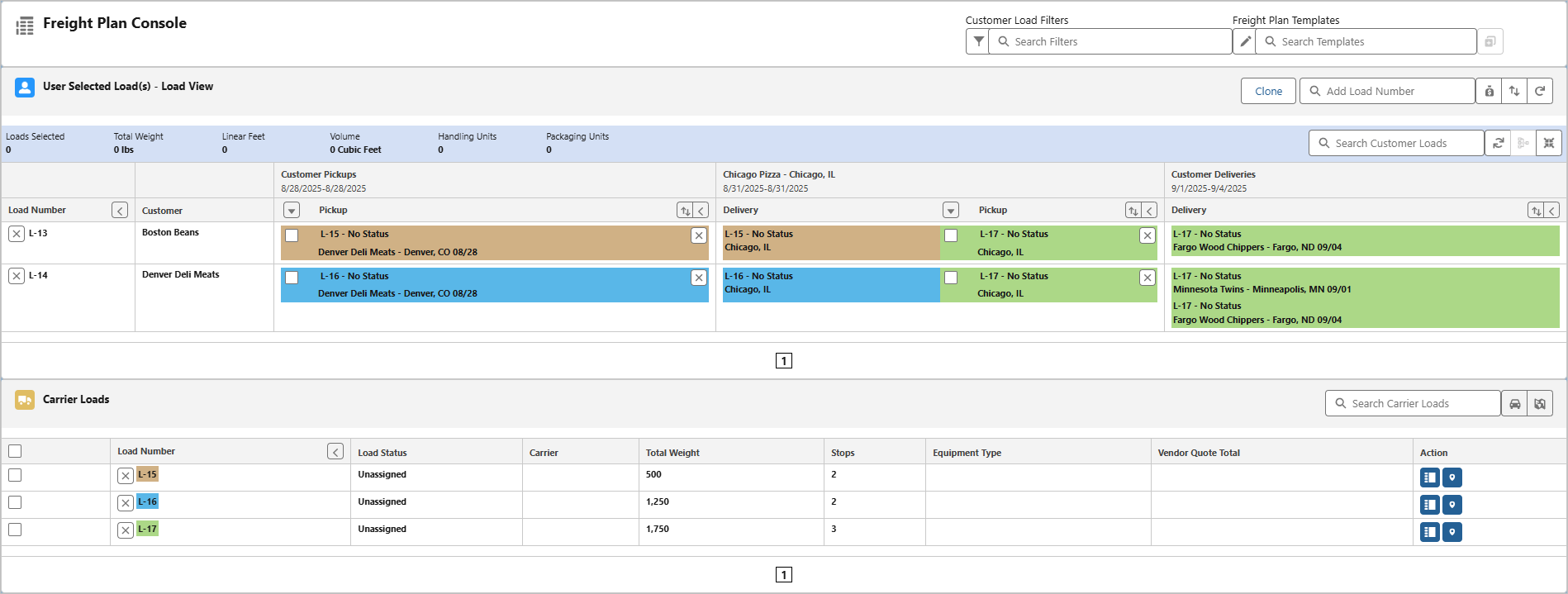
The child components include the following.
Freight Plan New Carrier Load LWC
Freight Plan Financial Summary LWC
See the Freight Plan Console Configuration section to read the field set descriptions.
Important Considerations
Freight Plan Carrier Loads cannot be tendered if they contain Line Items for a Customer Load on a credit hold.
Master Book Scheduling
Loads and freight plans can be scheduled to repeat on weekly or bi-weekly basis using the Master Book Scheduling feature. To create a schedule, click on the TMS Admin → Recurring Load Schedules link
Recurring Freight Plans – The freight plans to be cloned according to the schedule.
Scheduled Freight Plans – The cloned freight plans based on schedule execution.
Think of Recurring Loads and Recurring Freight Plans as “cookie cutters” and Scheduled Loads and Scheduled Freight Plans as “cookies” made from them.
The FreightPlanManagementJob sets the All Loads Quoted and All Loads Invoiced checkboxes to Checked when the following is true.
All Loads Quoted: All Loads in the Freight Plan contain Accepted Customer quotes (customer Loads) and Accepted Carrier Quotes (Carrier Loads).
All Loads Invoiced: All Loads in the Freight Plan contain a Customer Invoice (customer Loads) and Vendor Invoice (Carrier Loads).
Freight Plans support using the same location more than once in a single Load.
Roundtrip Customer Loads added to a single Carrier Load are shown as separate delivery Stops on the Carrier Load.
The same Account location may be used as a Pickup for Customer Load 1 and a Delivery location on Customer Load 2. Both Loads are assigned to a single Carrier Load. The Carrier Load displays each Pickup and Delivery Stop as a separate Stop location with the appropriate Line Items.
A single Delivery location may be used in several individual customer Loads. The Delivery location for each customer Load has a separate delivery date and appointment times. This Delivery location is combined into one Stop on the Carrier Load with the earliest delivery date and first appointment time from the customer Loads. All pickup numbers are displayed on the Carrier Load.
Vendor Quote costs are allocated to Loads based on the following criteria.
For Customer Loads, 100% of the cost is applied to the Customer Load.
For Carrier Loads, the cost is distributed to the related Carrier Loads based on the Freight Plan Cost Allocation method.
Freight Plans
Freight Plans allow you to create complex, multi-carrier, multi-mode, and cross-dock load execution plans.
See the Getting Started with Freight Plans for more information.
Freight Plan Console
The Freight Plan Console is where all freight planning occurs.
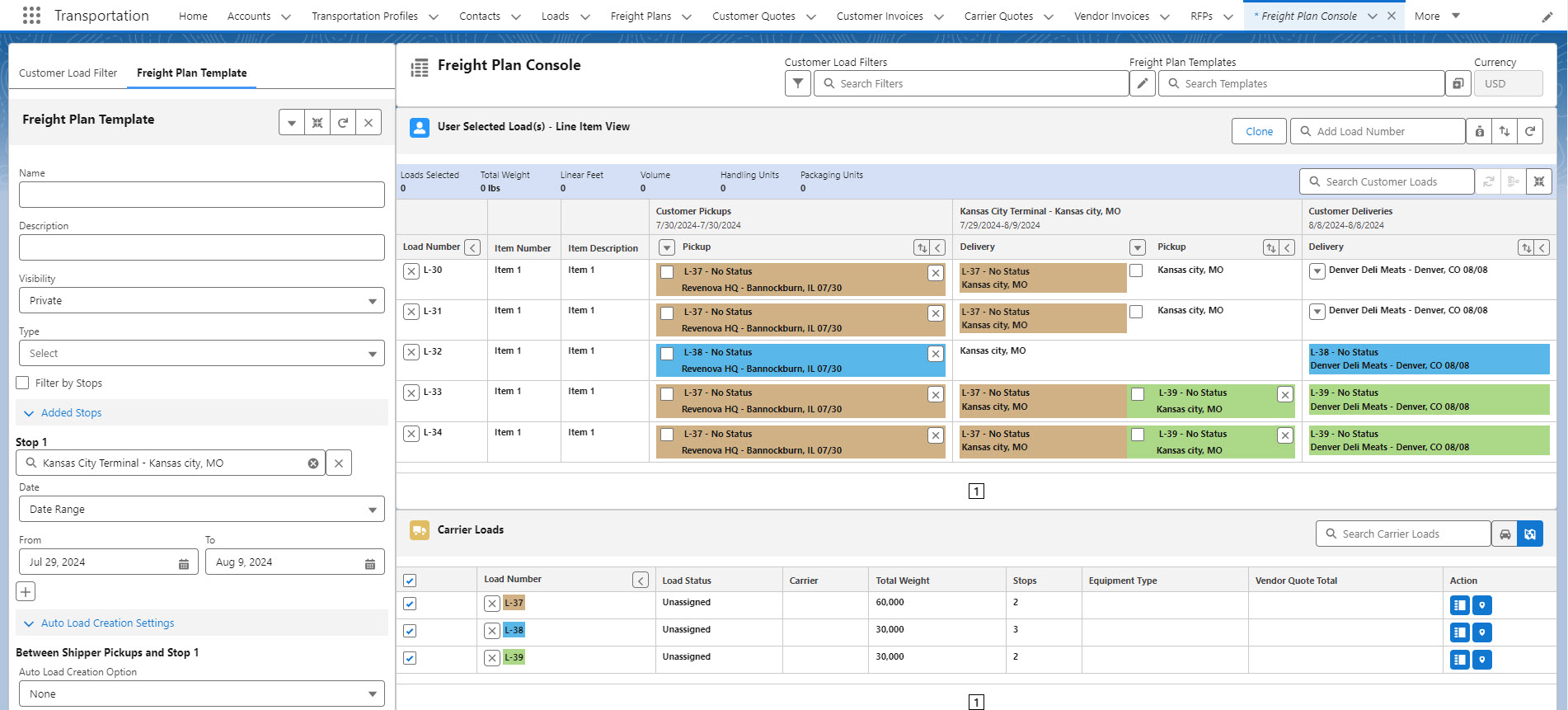
Access to the Freight Plan Console is provided by performing the following actions.
Clicking on the Freight Plan Console tab.
Clicking on the Add Freight Plan button icon on the Load Detail LWC.
Clicking the New button from the Freight Plan tab.
Clicking on an existing Freight Plan.
Selecting several Loads on the Load List View and clicking the Freight Plan button.
Salesforce limits list view record selections to 200 at one time. Selecting Loads to view in the Freight Plan Console is limited by other factors, as well.
Orgs with 100,000 to 999,999 Load records may select up to 200 Loads.
Orgs with 1,000,000+ Load records may only select approximately 192 Loads.
A typical freight planning session consists of the following steps.
Retrieving all relevant customer loads that are to be freight planned.
Adding cross-dock stops, as needed.
Combining customer loads into carrier loads.
Freight can be planned at the load or line item level. This allows for “load splitting” whereby one customer's load’s line items are on different carrier loads.
The Loads listed in the Freight Plan Console are all Customer Loads that met the criteria defined in the Customer Load Filter. These are Loads added from the list view or from the Load lookup field.
Create Freight Plans
Select one or more Customer Loads using the checkbox.
Above the selected customer Loads, the Total Loads, Weight, Linear Feet, Volume, Handling Units, and Packaging Units fields are calculated.
Select the Create/Add To Carrier Load button (triangle icon) next to the appropriate Delivery Destination and click New Load.
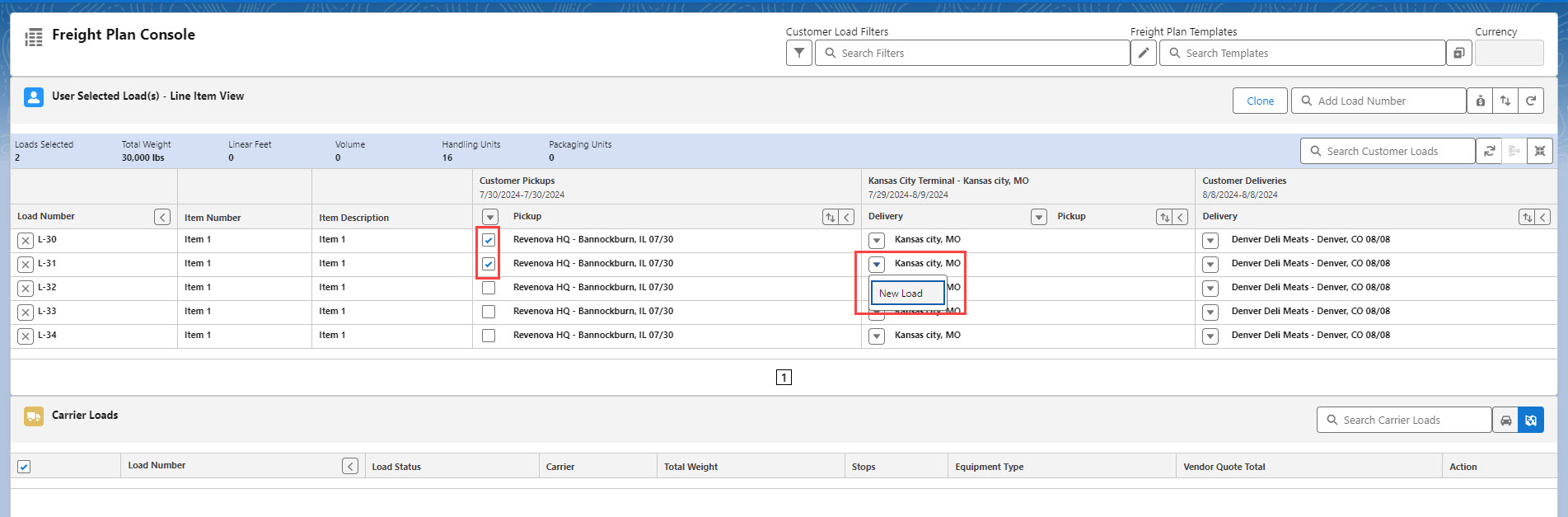
The New Carrier Load Information modal opens. Select the appropriate Mode.
If fields are added to Load field set TMS27, those fields display in this section.
Click Save to return to the Console.
Click Save & View Stops to view the Move Stops modal.
If fields are added to the Line Item TMS13 field set, those fields display in this modal if they contain a value. The exception is for Boolean fields, which display either “true” or “false” depending on whether the field is Checked.
Caution: Line Item lookup fields, such as Pickup Stop, Delivery Stop, Load, and HazMat Contact, along with custom lookup fields should not be added to this field set since it will display the SFID instead of the name.
If needed, Stops can be reordered from this modal.
.png)
Repeat steps 1-5 to plan any remaining customer Loads.
Each Carrier/Customer Load pair or set is color-coded and indicates separate Loads.
Click the X to the left of the Customer Load to remove it from the Carrier Load.
This action does not interrupt or “break” the Load.
Click the X to the left of the Carrier Load to delete.
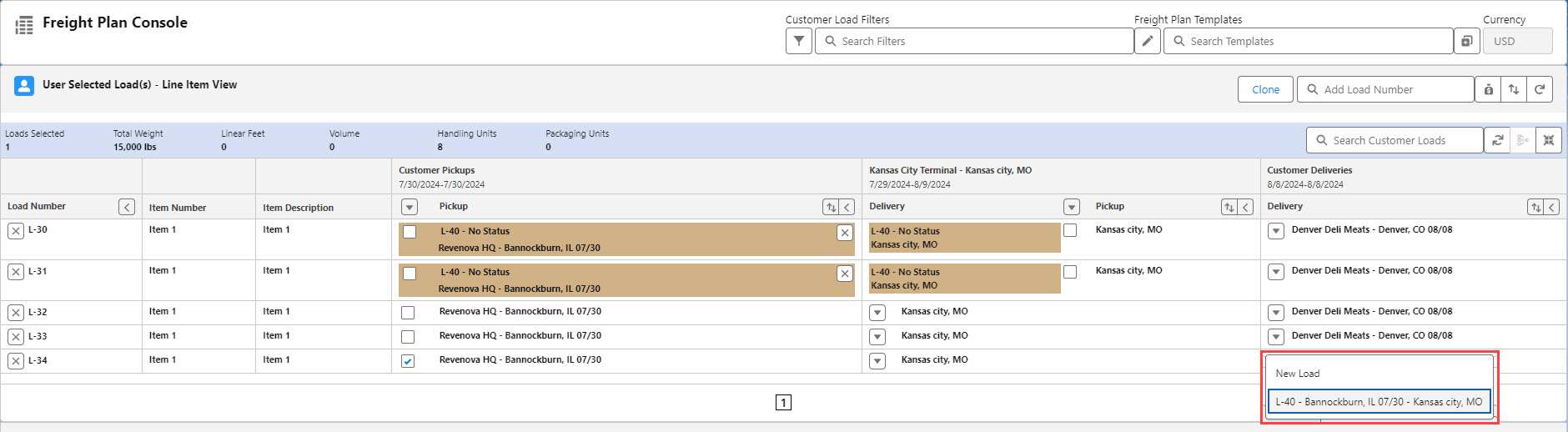
Once created, Carrier Loads appear in the Carrier Loads section of the Freight Plan Console.
Add existing Carrier Loads to the Freight Plan with the search bar field.
Click the car icon button to refresh the mileage data when changes are made to the Carrier Loads.
Select any combination of the Carrier Loads by Checking the field.
Click the Map icon button to show the Load routes on the map.
The Expected Ship Date and Expected Delivery Date fields for each Carrier Load may be entered.
View the Carrier Quote for a Carrier Load with the Carrier Quote button.
Review or move Stop locations with the Stop action button.
This button opens the same Stop component from initially creating the Carrier Load.

Clone Freight Plans
Create identical Freight Plans with the Clone button found on the View Banner of the Freight Plan Console.
Note: Freight Plans may be cloned by Load or by Line Item. When selecting a Line Item, all Line Items included on that Load are also Checked automatically.
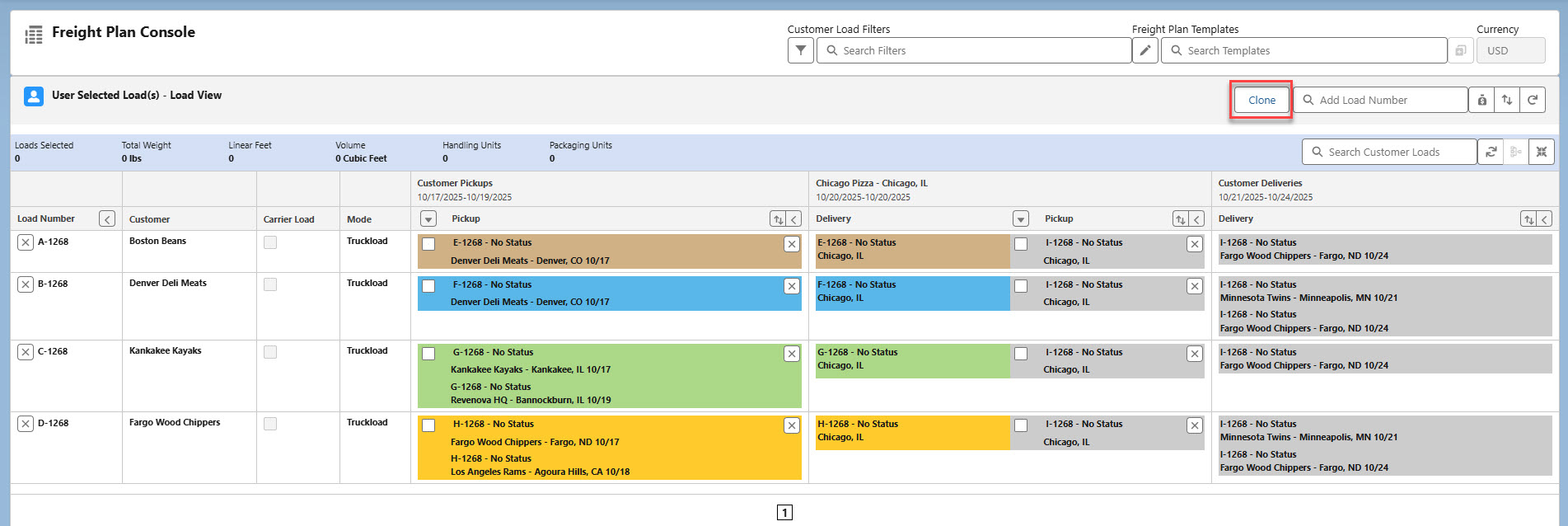
Click Clone.
Check each Customer Load to include it in the Clone action.
The associated Carrier Loads are automatically selected for each included Customer Load.
Check the Customer Quotes and/or Carrier Quotes to include in the Clone action.
Select Save to create the cloned Freight Plan or Cancel to return to the Console.
Line Item TMS10 Field Set
Additional Line Item fields in this field set will also be cloned to the new Freight Plan for each Load selected.

Vendor Quotes are not included in the Freight Plan Clone functionality.
When complete, a success message displays with the new Freight Plan.
Customer Loads must have an associated Carrier Load to include them in a Freight Plan clone operation.
The following logic determines the Stop Expected Dates for each Load in a cloned Freight Plan.
The first Pickup Stop for all Customer and Carrier Loads are searched.
Each Stop is compared and the earliest date is selected.
The earliest Pickup Stop date is compared to the current date to determine the number of offset days.
All Freight Plan Stop Expected Dates are offset by the number of days.
Choose Save or Cancel to return Freight Plan Console functionality. While performing clone functionality much of the Console is read-only.
Carrier Stop Detail Component
This component should be placed on the Load page layout and have a filter so it is only visible for customer loads in a freight plan:
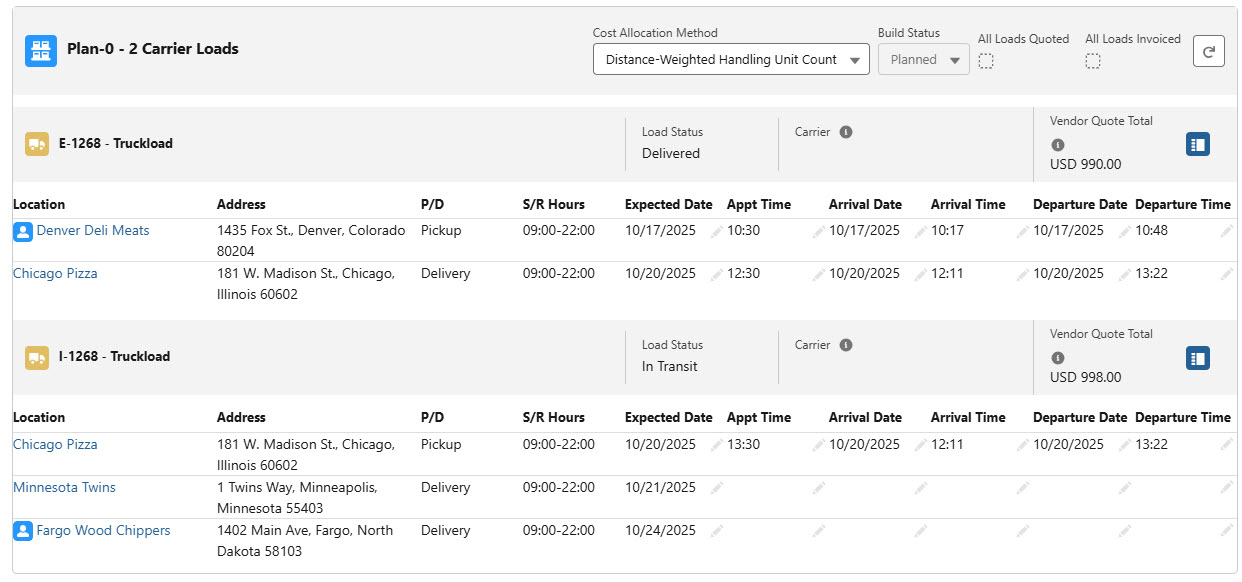
Freight Plan Console Configuration
The following configuration settings are available for the freight plan console:
Load TMS24 Field Set: Display additional fields in the Auto Load Creation Settings section of the Freight Plan Template.
Load TMS25 Field Set: Display additional columns in the Customer load list of the Freight Plan Console in the absence of a filter.
Load TMS26 Field Set: Display additional columns in the Carrier load list of the Freight Plan Console in the absence of a filter.
Load TMS27 Field Set: Display additional fields when creating Carrier loads in the Freight Plan Console.
Line Item TMS5 Field Set: Displayed on the Freight Plan Console customer line item list as additional fields.
Customer Load Filters also define which fields are displayed in the customer and carrier load lists.
See the Field Set Summary for more information regarding these field sets.
Freight Plan Cost Allocation
Configure the Freight Plan Cost Allocation method in TMS Admin → Configuration. See the Getting Started with Fleet Management article for definitions of each method.
Distance-Weighted Handling Unit & Packaging Unit Count
All Customer Load Line Items are allocated to the Carrier Loads.
Calculating the Distance-Weighted Handling & Packaging Unit Count is the same with only the Handing Unit and Packaging Unit information differing. The example below demonstrates calculating with Handling Units.
The Distance-Weighted HU Count is found using the following calculations.
The calculation to find the percentage cost for each Line Item in the customer Load.
The percentage cost for each customer Load Line Item is added together.
The total percentage cost of all customer Load Line Items is multiplied by the Carrier Quote (or Carrier invoice) total.
The calculated result from Step 3 is divided by the percentage cost from Step 1.
Example calculations are shown below.
3 Freight Plans hold 3 Customer Loads (L14, L15, L16) and 1 Carrier Load. The Carrier Load consists of all the Customer Loads.
The Carrier Load contains 5 Stops (4 legs). Carrier Load = 6059.40 miles.
Step 1: Calculate the percentage cost for each Line Item.
Stop | Stop City | Cumulative Miles | Line Items |
|---|---|---|---|
1P (Stop 1) | Chicago | 0 | Item 1 (L14): 1 HU Stop 1 → Stop 4 Item 2 (L15): 2 HU Stop 1 → Stop 4 |
2P (Stop 2) | Los Angeles | 2013.840 | Item 1 (L14): 2 HU Stop 2 → Stop 5 |
3P (Stop 3) | Denver | 3028.906 | Item 1 (L16): 2 HU Stop 3 → Stop 4 |
4D (Stop 4) | Los Angeles | 4044.739 | Item 1 (L14): 2 HU Stop 1 → Stop 4 Item 2 (L15): 2 HU Stop 1 → Stop 4 Item 3 (L16): 2 HU Stop 3 → Stop 4 |
5D (Stop 5) | Chicago | 6059.403 | Item 1 (L14): 2 HU Stop 2 → Stop 5 |
Leg | Stops | Miles | Total Miles | Leg Distance Proportion (miles/total miles) |
|---|---|---|---|---|
Leg 1 | Stop 1 to Stop 2 | 2013.84 miles | 6059.40 miles | 0.33235 |
Leg 2 | Stop 2 to Stop 3 | 1015.07 miles | 6059.40 miles | 0.16752 |
Leg 3 | Stop 3 to Stop 4 | 1015.07 miles | 6059.40 miles | 0.16572 |
Leg 4 | Stop 4 to Stop 5 | 2013.84 miles | 6059.40 miles | 0.33235 |
Leg | Stops | Leg Distance Proportion (miles/total miles) | Leg Handling Units | Leg HU Proportion (Leg Distance Proportion/Leg HUs) |
|---|---|---|---|---|
Leg 1 | Stop 1 to Stop 2 | 0.33235 | 3 HUs | 0.110783 |
Leg 2 | Stop 2 to Stop 3 | 0.16752 | 4 HUs | 0.04188 |
Leg 3 | Stop 3 to Stop 4 | 0.16572 | 6 HUs | 0.02792 |
Leg 4 | Stop 4 to Stop 5 | 0.33235 | 1 HU | 0.33235 |
Leg | Stops | Leg HU Proportion (Leg Distance Proportion/Leg HUs) | Line Item (Load) | Handling Units | Load Line Item x Proportion of HU |
|---|---|---|---|---|---|
Leg 1 | Stop 1 to Stop 2 | 0.110783 | Item 1 (L14) | 1 HU | 0.110783 |
Item 1 (L15) | 2 HUs | 0.221566 | |||
Leg 2 | Stop 2 to Stop 3 | 0.04188 | Item 1 (L14) | 1 HU | 0.04188 |
Item 1 (L15) | 2 HUs | 0.08376 | |||
Item 2 (L14) | 1 HU | 0.04188 | |||
Leg 3 | Stop 3 to Stop 4 | 0.02792 | Item 1 (L14) | 1 HU | 0.02792 |
Item 1 (L15) | 2 HUs | 0.05584 | |||
Item 2 (L14) | 1 HU | 0.02792 | |||
Item 1 (L16) | 2 HUs | 0.05584 | |||
Leg 4 | Stop 4 to Stop 5 | 0.33235 | Item 2 (L14) | 1 HU | 0.33235 |
Step 2: The percentage cost for each customer Load Line Item is added together.
Load | Line Item Percentages | Total Line Item Percentage |
|---|---|---|
L14 | 0.110783 + 0.04188 + 0.04188 + 0.02792 + 0.33235 | 0.582733 |
L15 | 0.221566 + 0.08376 + 0.05584 | 0.361166 |
L16 | 0.05584 | 0.05584 |
Step 3: The total percentage cost of all customer Load Line Items is multiplied by the Carrier Load quote (or Carrier invoice) total.
Load | Line Item Percentage x Carrier Quote Total | Customer Quote Total |
|---|---|---|
L14 | 0.582733 × 11000 | 6410.086 |
L15 | 0.361166 × 11000 | 3972.826 |
L16 | 0.05584 × 11000 | 614.24 |
Step 4: The calculated result from Step 3 is divided by the total percentage from Step 1.
The TMS rounds these values when calculating.
Total Leg Proportion from Step 1: (0.33235 + 0.16752 + 0.16752 + 0.33235) = .99974
Load | Customer Quote Total / Total Leg Proportion | Distance-Weighted HU Amount |
|---|---|---|
L14 | 6410.086 / .99974 | 6411.753056 |
L15 | 3972.826 / .99974 | 3973.859203 |
L16 | 614.24 / .99974 | 614.3997439 |
Financial Summary
The cost allocation is applied on a Carrier Load leg-specific basis. Those Carrier legs that contain multiple customer Loads use the allocation method selected. Those carrier legs dedicated to a single customer load have all the costs allocated to that customer Load.
Load financial rollup fields DO NOT incorporate this cost allocation. It is available on the Freight Plan Load table in the Quote Cost Allocation and Invoice Cost Allocation fields (for the customer loads).
Click on the Financial Summary icon in the Freight Plan Console to see the Freight Plan Financial Summary LWC which provides the revenue and allocated costs for all Customer Loads in the console.

Freight Plan Data “Sync”
Changes to a line item in a freight plan automatically propagate to “sibling” line items. The fields that propagate are defined in the Line Item TMS3 field set.
Changes to a carrier load stop in a freight plan automatically propagate to “sibling” customer load stops. The fields that propagate are defined in the Stop TMS11 field set.
Object | Field Set | Field Set Description | Required? | Mode-Specific? |
|---|---|---|---|---|
Line Item | TMS3 | Used to synchronize changes to a line item in a freight plan with other “sibling” line items. | N | N |
Line Item | TMS5 | Used on Freight Plan Console customer line item list for 'flex' fields. | N | N |
Load | TMS24 | Used to display additional fields in the Auto Load Creation Settings section of the Freight Plan Console Template panel. | N | N |
Load | TMS25 | Used to display additional columns in the customer load list of the Freight Plan Console in the absence of a filter. | N | N |
Load | TMS26 | Used to display additional columns in the carrier load list of the Freight Plan Console in the absence of a filter. | N | N |
Load | TMS27 | Used to display additional fields when creating carrier loads in the Freight Plan Console. | N | N |
Stop | TMS9 | Used when creating carrier loads using the single freight plan page. Defines which additional fields are copied from the customer load(s) to the carrier load(s). | N | N |
Stop | TMS11 | Used to synchronize changes to a carrier load stop in a freight plan with sibling customer load stops. | N | N |
See the Field Set Summary for more information regarding these field sets.