The Customer Guest allows access Load tracking information and Accept and Decline quotes without login credentials for the Email Loop site.
The Customer Guest LWC allows and the Customer Quote Accept/Decline LWC involve customers in the Load lifecycle in a contained yet meaningful way.
Quotes
Accept or Decline Customer Quotes in the Customer Quote Accept/Decline LWC created in the Freight Quote Assistant (FQA).
Accept Quotes
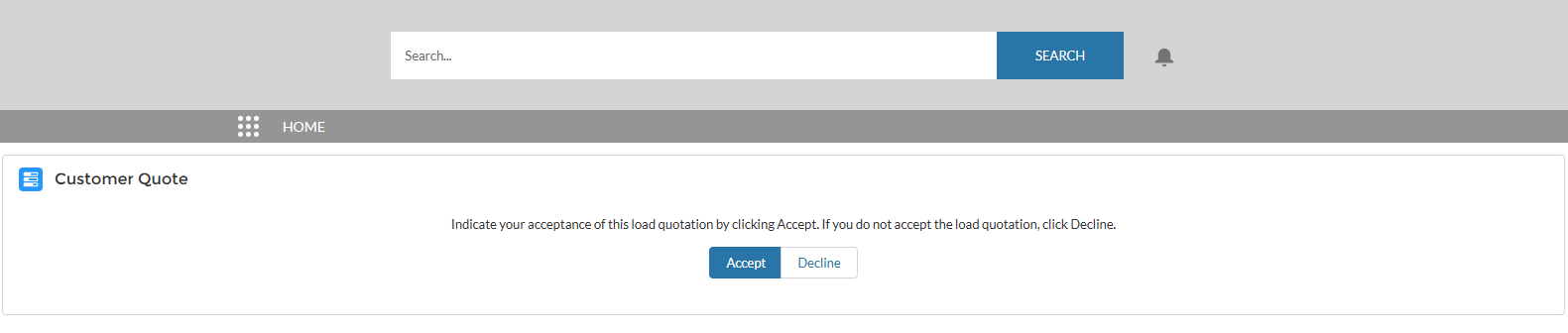
The Customer Guest user receives an email that instructs them to review the submitted Load information. Once they click one (1) of the Accept or Decline links in the email, the Customer Guest user is directed to the Customer Quote LWC.
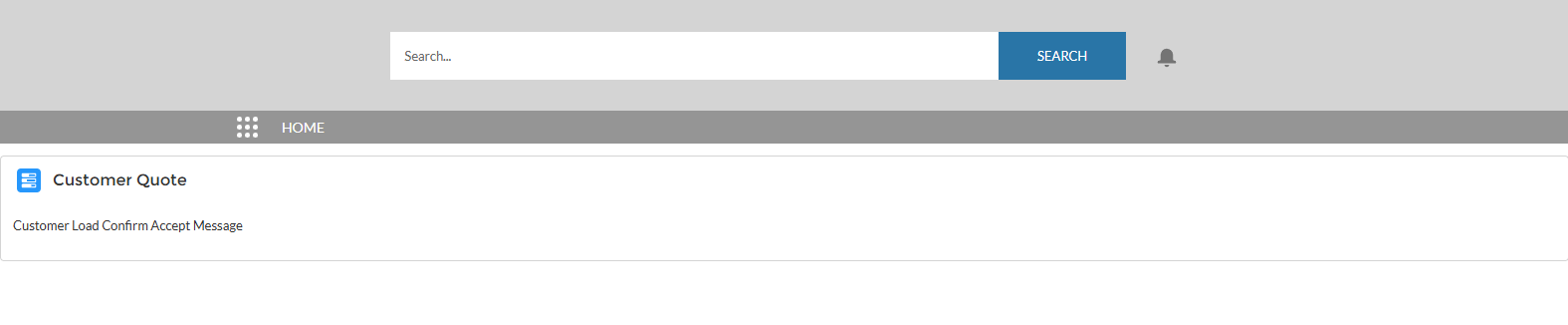
Once the Customer Guest user accepts the quote, a message appears that confirms the accepted Customer Quote on the Load.
Decline Quotes
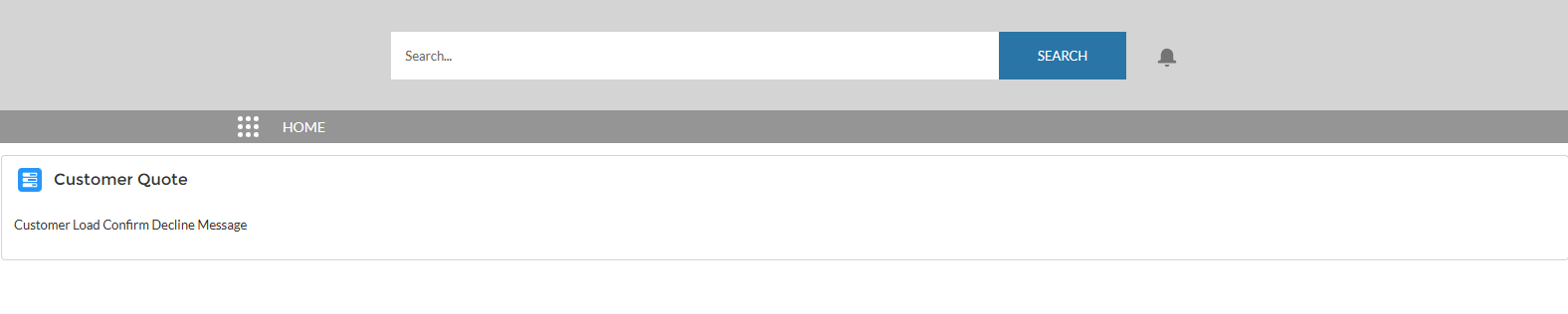
Similarly, when the Customer Guest user declines the quote, a message appears that confirms the declined Customer Quote on the Load.
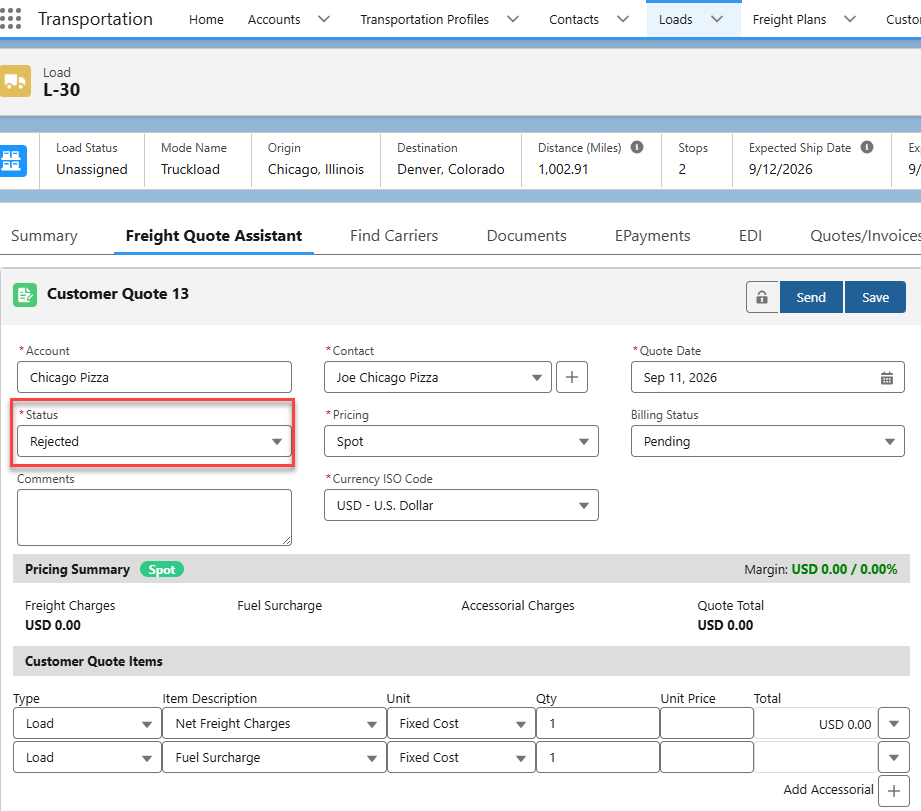
After accepting or declining the Customer Quote, the Status field in the Customer Quote in the FQA automatically changes from Quoted to Accepted or Rejected.
Additionally, the Customer Banner in the Load Summary displays a red pill showing the Load quote was Lost.
Expired Quotes
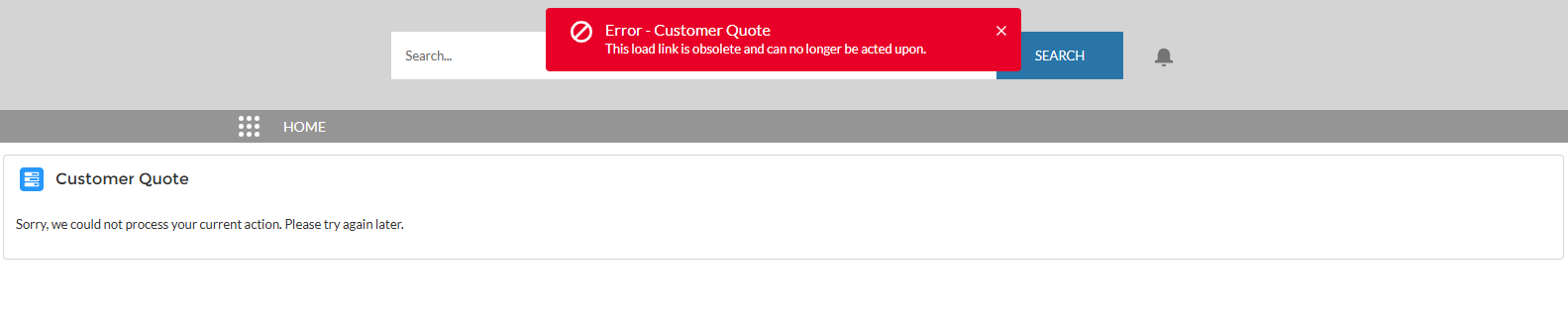
When a Customer Quote expires, two messages appear:
An error Toast Message appears that states, “This load link is obsolete and can no longer be acted upon.”
A message appears in the Customer Quote Accept/Decline LWC that states, “Sorry, we could not process your current action. Please try again later.”
Set an expiration date on a Customer Quote to display to Customer Guest users.
Create a Customer Quote in the FQA tab of the Load.
Click the Customer Quote [#] link.
In the Customer Quote Lightning Record Page (LRP), navigate to the Summary → Quote Info → Expiration Date field.
Enter an expiration date.
The time field automatically defaults to 12:00 PM and corresponds to the org’s time zone. This field can be edited.
Click Save.


