The Quote Wizard Lightning Web Component (LWC) is located in the Customer Portal. There are two child LWCs on the Quote Wizard: the Stop Configuration Portal LWC and the Location Account Name Lookup LWC.
Customer-created LTL and non-LTL Loads follow the same flow through the Quote Wizard LWC:
Configure the load.
Retrieve a list of quotes:
For LTL Loads, a list of marked-up Carrier Quotes from stored rate and API carriers.
For non-LTL Loads, a single Customer Quote from a stored rate.
Select a quote from the list.
Complete the load configuration.
Tender the load.
LTL loads have a status of Tendered or Assigned when both a Customer Quote and a Carrier Quote are accepted. For non-LTL loads, the load is in an Unassigned status with an accepted Customer Quote.
LTL API-quoted loads can be tendered in two ways:
Via an API
Via email
Setup
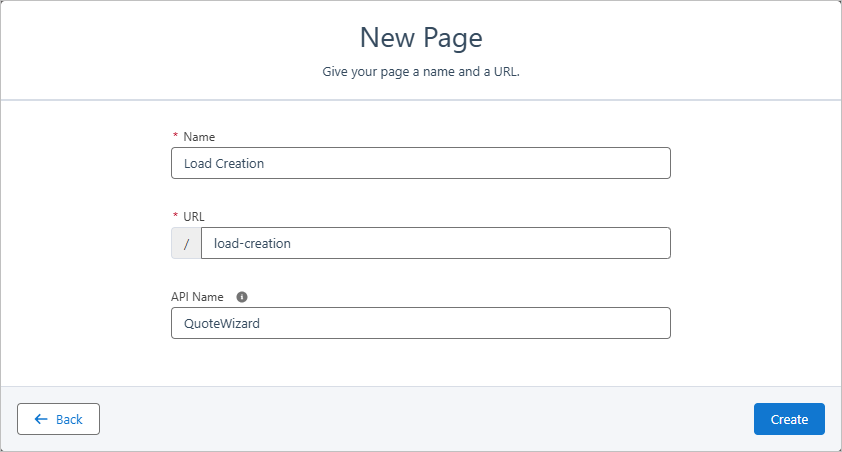
To configure the Quote Wizard LWC, create a new Standard Page in the Customer Portal. The Name and URL of the page can be anything, but the API Name must be QuoteWizard.
Select the Components menu (the lightning bolt), and in the Custom Components section, drag the Quote Wizard LWC onto the page.
See the Customer Portal Configuration article for initial text setup.
Note: If elements in the UI overlap, open the Experience Builder and select Theme → Theme Layout Settings. Increase the Max Page Width with the slider.
.png)
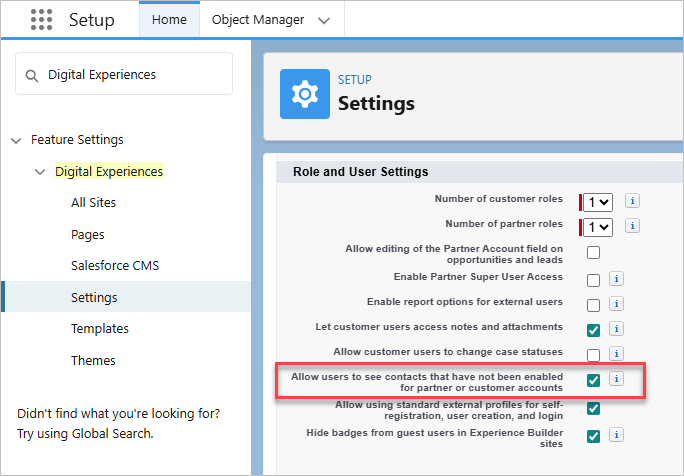
Customer Community Plus license users, by default, don’t have the ability to see all Contacts associated with an Account. To enable users to see Contacts, enable the following setting:
Navigate to Setup.
Search for and select Digital Experiences.
Click Settings.
In the Role and User Settings section, Check the Allow users to see contacts that have not been enabled for partner or customer accounts box.
Mode Selection Page
On the Mode Selection Page, users select a Mode for the new Load.
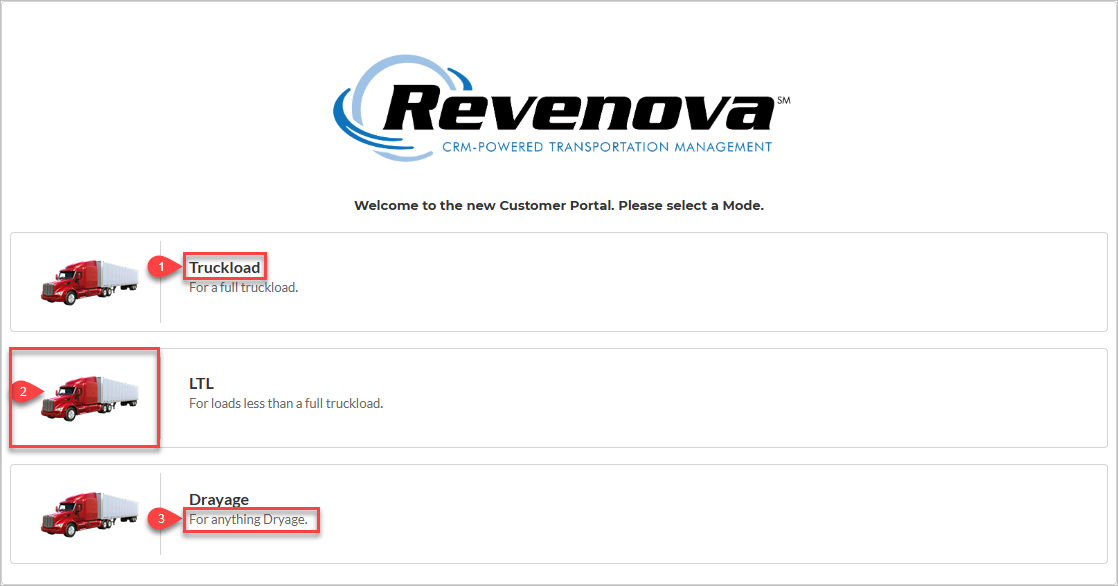
To set up Modes in the Mode Selection Page, go to TMS Admin → Modes and configure the following fields for each record:
Customer Portal Selection: When Checked, this Mode will be available for selection.
Customer Portal Icon: Upload a custom image to use for this Mode. Follow these steps to add the icon:
Upload an image to a publicly accessible document directory in your org.
Enter the Salesforce 18-character ID of the image into the field.
Note: For best rendering, the image should have the following dimensions: Width: 109px, Height: 50px.
Customer Portal Description: Enter a description for this Mode.

Load Entry Page
In the Load Entry Page, users can enter Load, Stop, and Line Item details. Then, they can either get quotes or save the load. Additionally, if an insurance API is enabled, users can select Show Cargo Insurance Options to view the insurance options on their quotes.
Configure the following settings and fields to affect the options on the Load Entry Page:
Icon Number | Fields/Field Set | Setting Location | Description |
|---|---|---|---|
1 | Setup → Object Manager → Load → Field Sets | Add additional fields to the Shipment Details section. Mode-specific field sets are supported. | |
2 | Country Picklist Location and Default Country for Load Creation | TMS Admin → Configuration (Global Settings) | Filter Account addresses by country. See the Country Filtering section in this article. |
3 | New Shipper/Consignee Account | Create Shipper/Consignee Accounts during Load Entry. | |
4 | Setup → Object Manager → Stop → Field Sets | Add additional fields to the Stops section. Mode-specific field sets are supported. | |
5 | Limited Access | TMS Admin → Accessorials | When Checked, a picklist renders with all Limited Access Accessorial charges. |
6 | Customer Portal Selection | TMS Admin → Accessorials | When Checked, these accessorials are available in the Customer Portal. |
7 | Setup → Object Manager → Line Item → Field Sets | Add additional fields to the Line Items section. Mode-specific field sets are supported. | |
8 | Cargo Insurance Option | Display or hide the Show Cargo Insurance Options field with the two links and whether the field is Checked by default or not. |
.jpg)
Currency Note: When creating new Loads in the Quote Wizard, the currency is set by the Default Load Currency field in TMS Admin → Configuration:
In single-currency organizations, the value is the currency of the organization.
In multi-currency organizations, the value is set by the Customer Account record.
See the Currency Settings article for more information about configuring currencies.
Use the  clear button to remove all of the customer field values, as necessary.
Once the load details are entered, select Save to create the Load record and view the load details, or select the Get Quotes button to generate a list of quotes to select from in the Quote Selection Page.
Stop Configuration
Customer Portal users are presented with a Pickup and a Delivery Stop that contain location information, hours and appointment information, and a list of accessorials for each Stop. The Expected Date field is stored in the User’s time zone when creating Loads.
.jpg)
Note: The Stop Configuration in the Quote Wizard is based on the Stop Configuration Detailed LWC. Refer to that LWC article for more information about creating new Stop locations and Stop accessorials.
Create Stop Location Accounts
Customer Portal Users may create new location Accounts for Stops while configuring Loads.
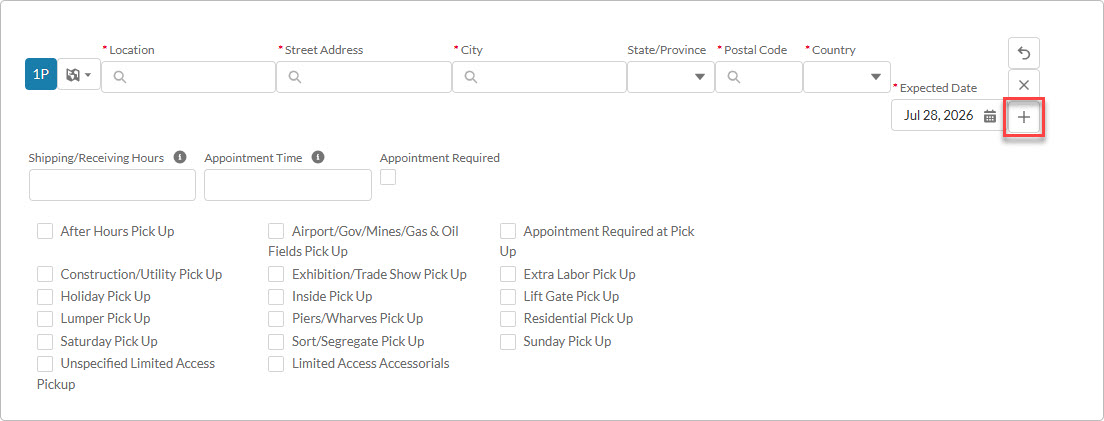
Click the + button in the Stops section to add a new location Account.
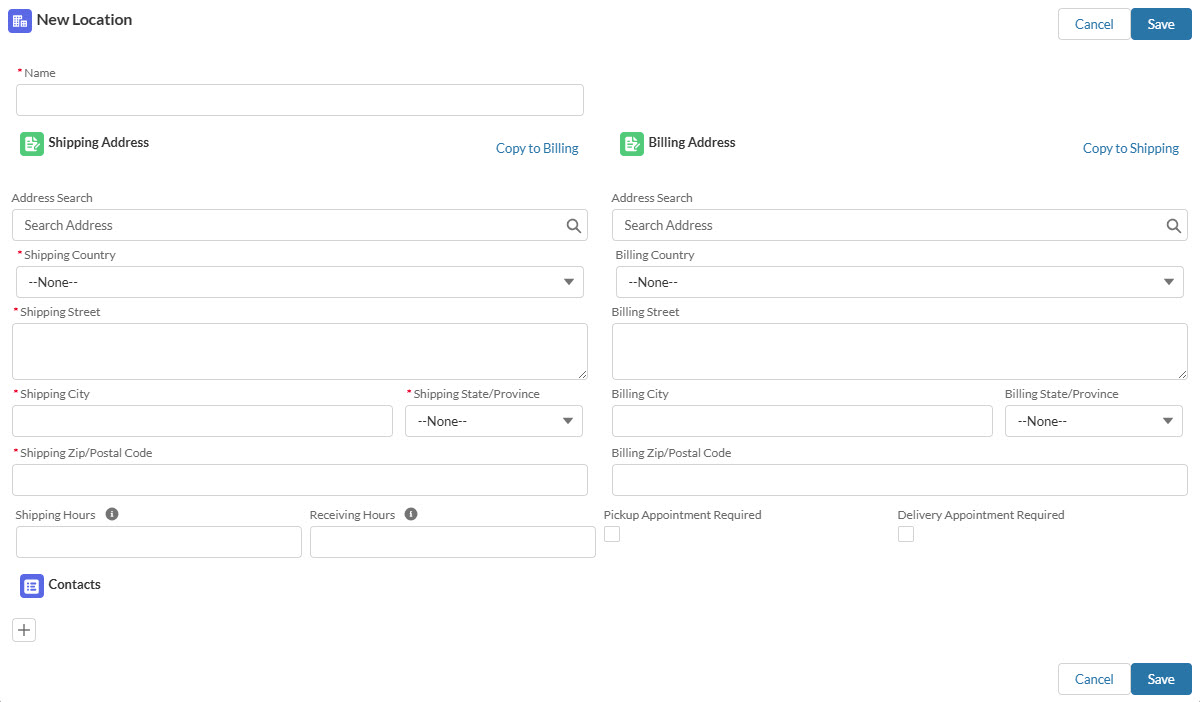
The Address Search field allows for searching and validating addresses with Google.
When completing a shipping address search, the following fields are populated based on the search results.
Shipping Street
Shipping City
Shipping Postal Code
Shipping State
Shipping Country
When completing a billing address search, the following fields are populated based on the search results.
Billing Street
Billing City
Billing Postal Code
Billing State
Billing Country
Creating a new Stop location Account record adds the location to the Stop section as either a pickup or a drop-off location.
Customer Portal Users may add Contacts to the location Account as needed.
Add, Move, and Delete Stops
Select the  button below a Stop and choose either the Add Pickup or Add Delivery option to include additional Stop locations in the route. The Quote Wizard LWC supports creating a Load with the same Account location for multiple Stops.
Note: LTL Modes cannot add additional Stop locations in the Quote Wizard.
Select the Move Stops  button below any Stop to open the Move Stops modal.

Select the Move Down  and Move Up
  buttons to reorder the Stops in the route. Select Done when finished.
Warning: Delivery stops cannot be the first Stop location in a route and Pickup stops cannot be the last Stop location in a route. Warnings appear informing to adjust the order of Stops.
Select the Delete Stop  button to remove a Stop from the route.
Warning: At least one Pickup Stop and Delivery Stop must exist. A warning message appears if you try to delete the only Pickup Stop or Delivery Stop.
Stop Type
Select the Stop Type button next to a Stop to choose how to enter the Stop information. The icon in the button changes depending on the type selected.
.jpg)
Four search options may be selected from the picklist:
 Same as Customer
 Account Address
 City/State/Postal Code
 Geolocation
Same as Customer auto-populates the customer information entered in the Load Configuration LWC. The address fields populate the Shipping Address and do not populate if only the Billing Address fields are entered in the customer’s Account.
The Shipping/Receiving Hours and Appointment Required Stop fields, as well as the Internal Notes, are populated in the Stop Configuration Detailed LWC based on the Customer Transportation Profile.
.jpg)
Account Address renders search fields for Location, Street Address, City, and Postal Code. Entering values in any of the fields displays a list of matching Accounts. Select the Account, and the remaining fields will populate with the information from that Stop location.
The Shipping/Receiving Hours and Appointment Required Stop fields, as well as the Internal Notes, are populated in the Stop Configuration Detailed LWC based on the Transportation Profile related to the Account.
.jpg)
City/State/Postal Code displays search fields for City and Postal Code. The Country field must be selected first in order to search for values in City and Postal Code. Entering values in these fields displays a list of matching location information and populates the remaining fields with the corresponding data.
Note: This option does not relate the Stop to an Account location.
.jpg)
Geolocation allows you to enter a location using its latitude and longitude coordinates. Enter these two fields to enter a Stop location.
Note: This option does not relate the Stop to an Account location.
.jpg)
Each Stop location is displayed on the map to the right of the search fields.
All non-LTL Modes require an expected date for Pickup and Delivery Stops. LTL Modes only require an expected date for Pickup Stops.
Country Filtering
For finer control over Account searching, configure two fields in the Global Settings section in TMS Admin → Configuration: Country Picklist Location and Default Country for Load Creation.
Check the Country Picklist Location box to place the Country field first in the list.
.jpg)
The Default Country for Load Creation picklist contains four options to control account searching when creating Loads:
-- None --
US
CA
MX
Selecting --None-- applies no country filtering when searching Customer Accounts. Selecting a value auto-populates the Country field with that value.
Choose a country from the picklist to limit the account search results to the selected country. For example, selecting US will only return Customer Accounts with a United States billing address.
Hours and Appointments
By default, the following fields are included in the Stop Configuration:
Shipping/Receiving Hours
Appointment Time
Appointments Required
The Same as Customer and Account Address Stop Types populate the Shipping/Receiving Hours and Appointment Required field based on the Customer Transportation Profile related to the Account for the Stop location.
Add an Appointment Time for a Stop location by entering the time in a 24-hour format (for example, 15:30) or as a time period (for example, 15:30-18:00). The colon is optional in both formats.
Warning: If the appointment time does not use the correct format, the Quote Wizard LWC displays an error message and does not save.
Edit these fields as necessary for each Stop.
Quote Selection Page
In the Quote Selection Page, users can select an LTL or non-LTL quote, refresh quotes, return to the Load Entry Page, and filter LTL quotes. Additionally, if API cargo insurance was requested, the user can include or exclude the insurance and see the price difference.
By default, quotes appear to the user with the overall marked-up total.
LTL Loads display a list of marked-up Carrier Quotes from stored rate entries and API carriers:
.png)
If no Carrier Quotes are available for the LTL Load, the user is taken to the Load Tender Page, and the Threshold Surpassed Message is presented with the opportunity to add additional Load information.
Non-LTL Loads display a single Customer Quote from a stored rate entry:
.png)
Note: For Non-LTL Loads, the Quote Selection Page appears if the customer has rate entries that matches the load details entered. If no rate entries match, then the user is taken directly to the Load Tender Page. See the Rate Entry Detail article for more information about stored rate entires.
Quote Filter
Customer Portal users are presented with additional filtering options.
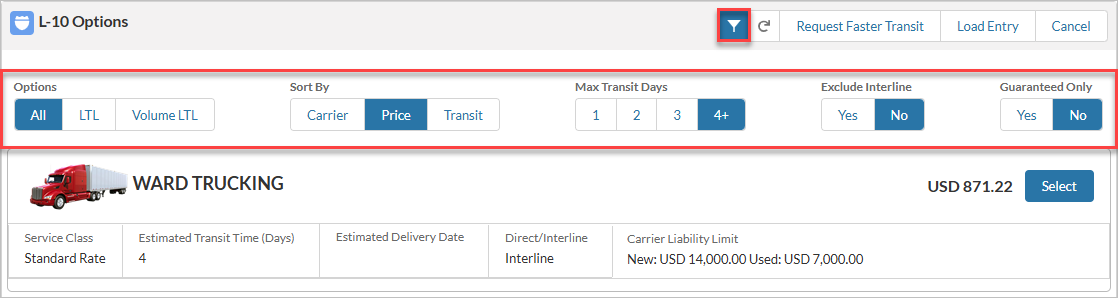
Quotes may be sorted based on the following criteria:
Load Mode: All, LTL, or Volume LTL
Sort By: Carrier, Price, or Transit
Max Transit Days: 1, 2, 3, or 4+
Exclude Interline: Yes or No
Guarantee Required: Yes or No
Selecting a filter automatically updates the list of quotes.
Request Faster Transit
Note: The Request Faster Transit feature is only available for LTL Modes. Go to TMS Admin → Modes and Check the LTL box for each LTL Mode.
The Request Faster Transit feature allows Customer Portal users to request expedited transit time when the carrier's published delivery timeline doesn’t meet their requirements. This eliminates the need to rely on email communication with their customer support representative.
The requests are logged on the Load records and may be used in record-triggered Flows and list views for more efficient management of each request.
When the user clicks Request Faster Transit, a modal appears to enter the Requested Delivery Date, Requested Delivery Time, and Comments fields. These fields are available on the Load record trigger email notifications and available in list views.
.png)
LTL Carrier Quote Configuration
Configure the following settings and fields to affect the options on the Quote Selection Page for LTL Loads:
Icon Number | Fields/Field Set | Setting Location | Description |
|---|---|---|---|
1 | Show Itemized Charges in Portal | Setup → Users | When Checked, each quote displays an Itemized Transaction Details table describing the freight, fuel, and accessorial charges. |
2 | Logo Document Id | Upload a custom image to use for this Carrier Service. | |
3 | Service Notes | Carrier Service | Provide additional information about the Carrier Service. |
4 | Setup → Object Manager → Carrier Quote → Field Sets | Add additional fields to the Carrier Quotes. Mode-specific field sets are supported. | |
5 | Reseller Markup Group | Customer Transportation Profile | Display the Reseller Price based on the Carrier Markup Group selected. If this field is blank, the logic cascades to the Global Default Transportation Profile. |
6 | LTL Quote Refresh | Prevent users from selecting a quote after a certain number of minutes. Users must refresh quotes after the time limit. | |
7 | Portal Quote Direct/Interline Filter | Prevent displaying Carrier Quotes to Customer Portal users based on the Direct/Interline field in the Carrier Quote. See the Direct/Interline section for more information. | |
Customer Portal Tender Options | Setup → Users | Control the selections of LTL quotes for each user. See the Customer Portal Tender Options section for more information. | |
Customer Portal Quote Visibility | Setup → Users | Limit LTL quote visibility for each user. See the Customer Portal Quote Visibility section for more information. |
.png)
Direct/Interline
Prevent some Carrier Quotes from displaying to Customer Portal users based on the Carrier Quote Direct/Interline field. Go to the Customer Transportation Profile for the customer of the Load and choose the appropriate values in the Portal Quote Direct/Interline Filter field.
The available values to select are the following:
Direct
Interline
Partner
Unspecified
This filter applies to Carrier Quotes that have an associated Carrier Markup and those that do not.
Note: Carrier Quotes that are hidden from the Customer Portal user are available in the TMS. These quotes have the Filter from Portal field in the Carrier Quote set to Checked.
To display hidden Customer Quotes to the user, go to the Carrier Quote records, Uncheck the Filter from Portal field and select Save. The next time the user selects the Get Quotes button for the Load, the Customer Portal displays the unfiltered Carrier Quote.
Customer Portal Tender Options
The Customer Portal Tender Options picklist field on each customer portal user record controls selections of available LTL quotes.
The following values are available to choose from:
Blank or Any Quotes: The user can select any quote with no other input.
Any Quote With Reason: The user can select any quote, but a reason is required if the quote is not the lowest cost.
Reasons for selecting the quote are managed and stored in the Selection Reason field on that Carrier Quote.
Lowest Quote Only: The user is only allowed to select the lowest cost quote.
Customer Portal Quote Visibility
The Customer Portal Quote Visibility picklist field on each customer portal user record limits LTL quote visibility. Navigate to the user record to control which quotes a portal user may view.
The following values are available to choose from:
—None—: The user sees all quotes.
Lowest Quote Only: The user is only able to see the lowest cost quotes.
Fastest Transit Only: The user is only able to see quotes with the shortest transit times.
All Quotes - Sort by Lowest Cost: The user sees the lowest cost quotes first.
All Quotes - Sort by Fastest Transit: The user sees the shortest transit quotes first. Quotes are next sorted based on cost.
Note: If no transit time is provided with a quote, these options are available at the end of the list, sorted by cost.
Load Tender Page
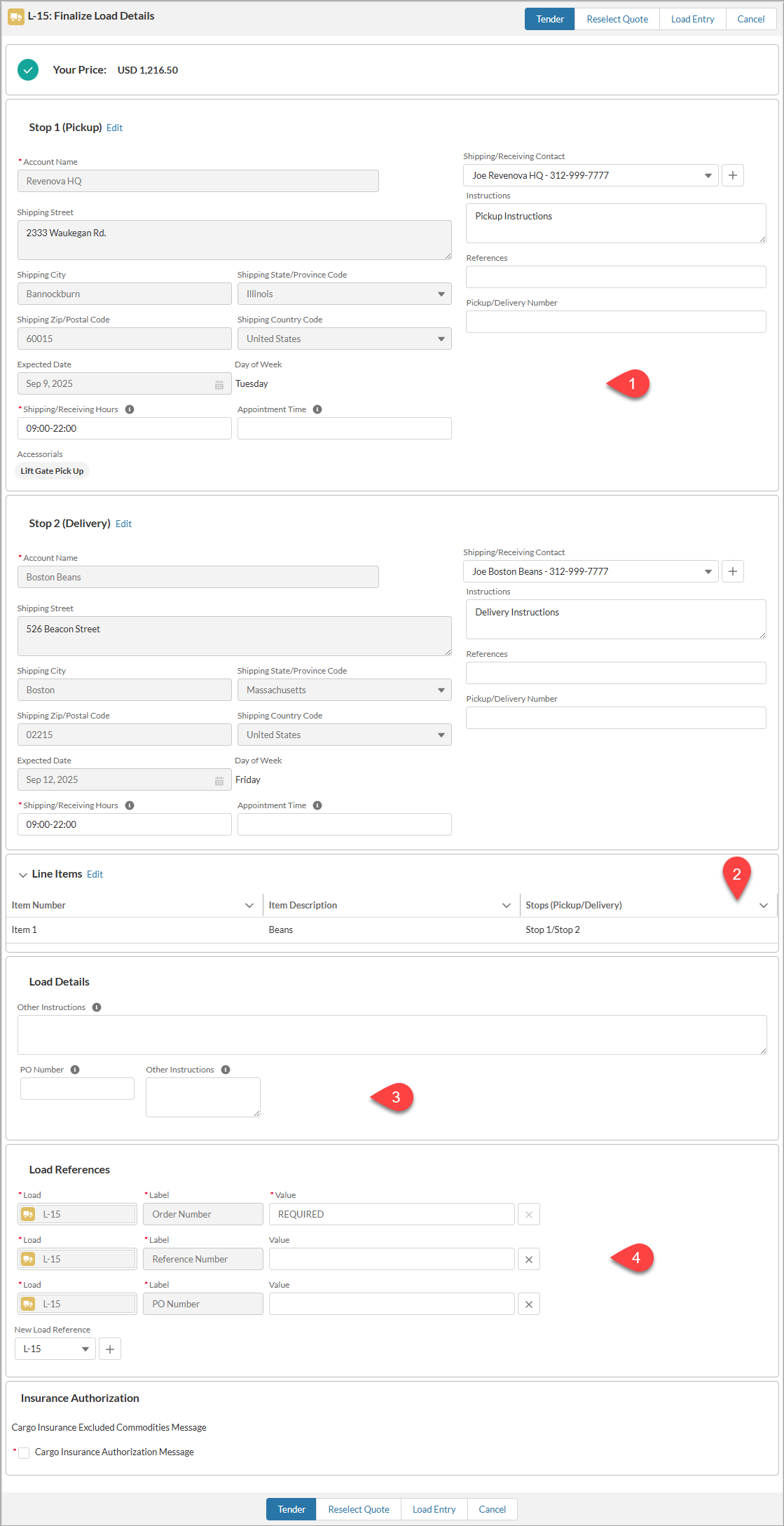
On the Load Tender Page, Customer Portal users can do the following:
Finalize Stop details (Locations and Contacts)
Enter additional Load details
Enter additional Load Entry References
Perform the final authorization for API insurance
This action is available only when the Includes Cargo Insurance Fee field is Checked for the selected quote.
Tender the Load or submit for review
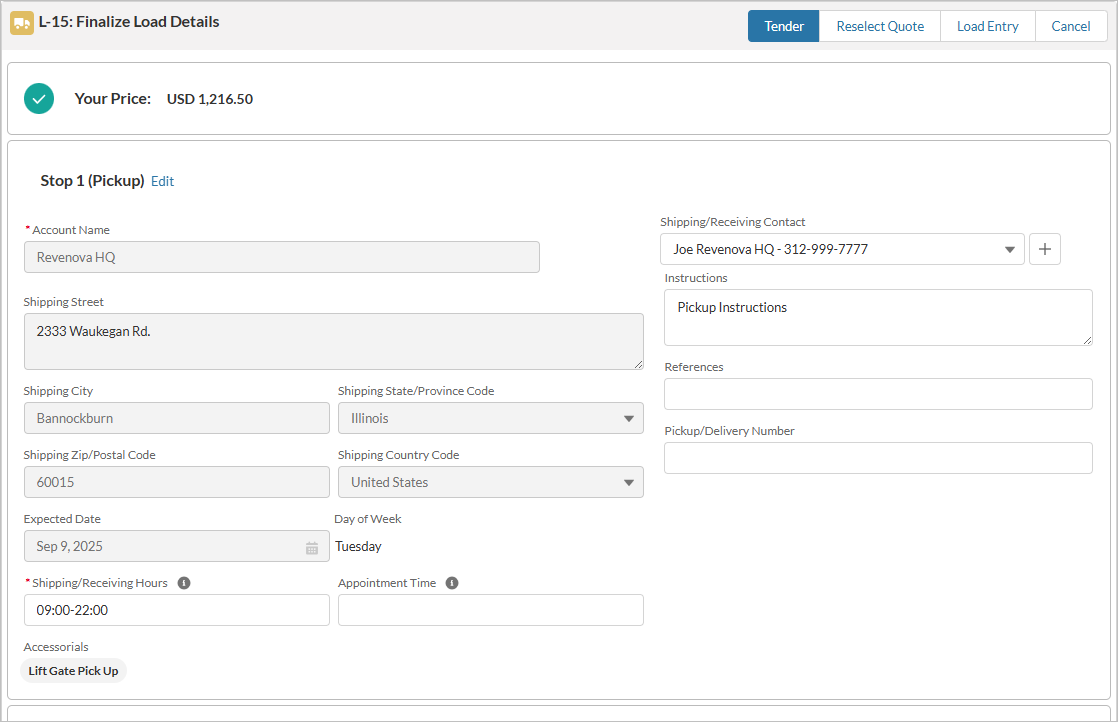
Note: When the Review Before Tender box is Checked on the User record, the Customer Portal user does not see a Tender button. Instead, users select Submit to alert the necessary party that a Load is ready for review.
Users can also navigate back to the Load Entry Page or choose a different quote. Line items, accessorial charges, and the selected quote are displayed on the page for review.
Warning: Customer Portal users receive an error when attempting to Save or Tender a Load with an expected ship date in the past. Adjust this date to tender the Load.
Configure the following settings and fields to affect the options on the Load Tender Page:
Icon Number | Field Set/Records | Setting Location | Description |
|---|---|---|---|
1 | Setup → Object Manager → Stop → Field Sets | Add additional fields to each Stop section. Mode-specific field sets are supported. | |
2 | Setup → Object Manager → Line Item → Field Sets | Add additional columns to the Line Item section. | |
3 | Setup → Object Manager → Load → Field Sets | Add additional fields to the Load Details section. Mode-specific field sets are supported. | |
4 | Load References | Load Entry Reference records that have the Type set to Customer are available to add information in the Customer Portal. If the Load Reference value is not required, you can delete the Load Reference. |
Tender Failures
Warning: If the tender fails, the Customer Portal user is not made aware of the failure. The Customer Portal behaves the same whether the tender succeeds or fails.
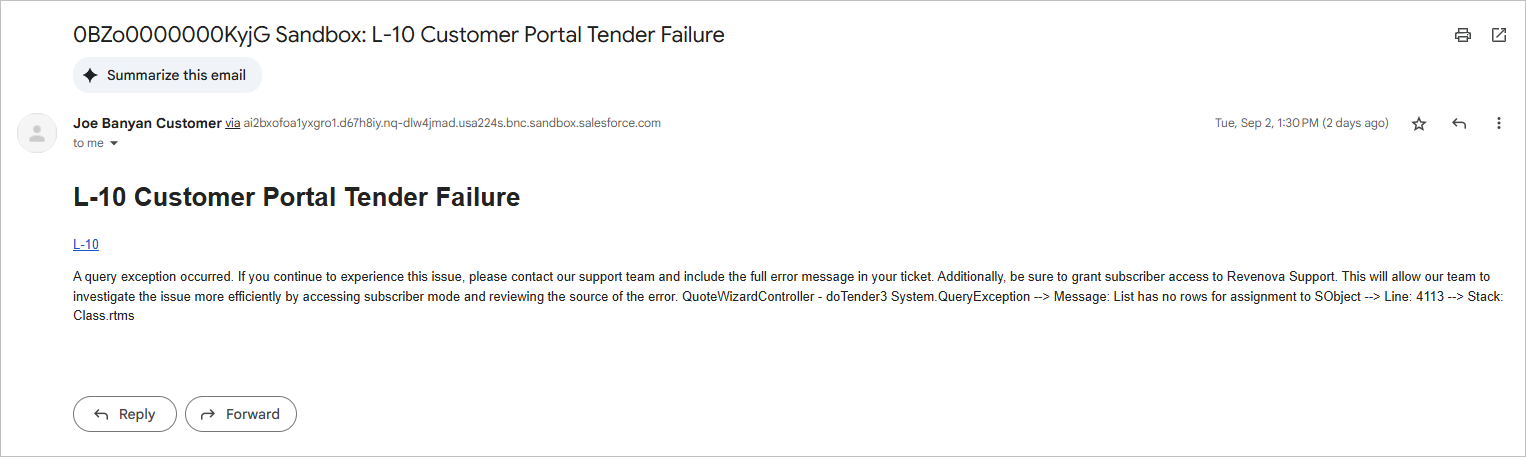
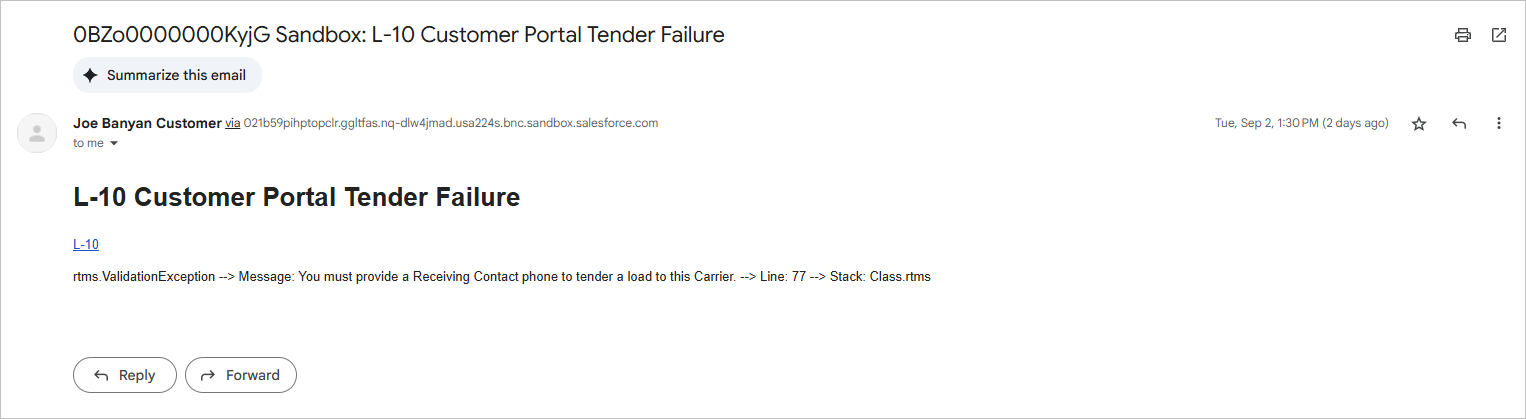
If tendering a Load to a carrier fails, the Load Status remains in Quotes Received, and two (2) alert emails are sent to the email address set in the Tender Failed Alert Email in the Customer Portal Configuration section of TMS Admin → Configuration. Both emails have the same subject line but contain different information regarding the error messages.
The following images are an example of the Customer Portal Tender Failure emails.
The API insurance authorization follows the same behavior. If the API insurance authorization fails, the customer will not see the error, and an alert email is sent to the designated address.