Administer and configure the use of Artimus™ AI from the AI Console. Search the App Launcher and select AI Console.
The following actions may be completed from the AI Console:
Filter and sort requests and responses from OpenAI based on the following criteria:
Filter by record creation status
Filter by record type
Filter by date and time
Create or delete Load and Truck Postings based on the results from AI
Review and update fields
Train custom AI Models based on the results returned from OpenAI

Select individual records in the AI console to view record information and the confidence score.
.png)
Review and correct Load or Truck Posting records as necessary to train a custom AI Model.
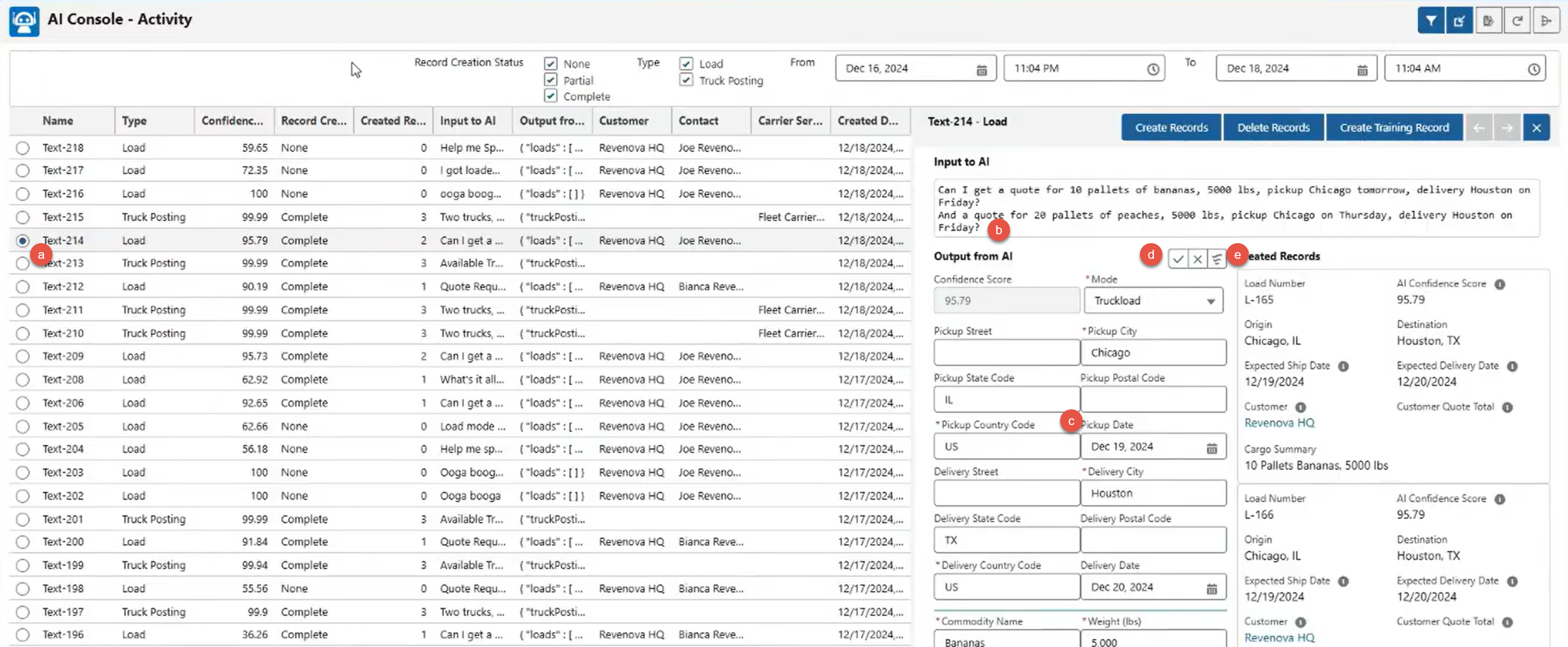
Select a Load or Truck Posting record from the AI Console activity section.
View the input sent to the AI to generate the record.
In the output form AI section, view returned field values.
Update any values that returned incorrectly.
Click the Save button to keep any field changes.
View the JSON payload returned from the AI.
Multiple Load or Truck Postings may be created from one AI request.
Once fields are updated and corrected as necessary, click the Create Records button to generate the Load or Truck Posting.
The AI Model can return “hallucinations” based on the input received. In these cases, the records can be removed.
Click the Delete Records button to remove these records.
Configuration
Select the Configuration  button in the banner to set up the global parameters and AI load fields.
.png)
Warning: Ensure that at least one Mode has the AI Enabled box checked before configuring Field Versions.
Global Parameters
Configure the global parameters of the AI Console by entering a value for the following required fields:
Required Field | Description |
|---|---|
AI Model | The AI model to use for Artimus. Only models that are enabled are included in this list. Default values include:
|
Field Version | The Field Version record to use that defines the fields by Modes to process and populate in the AI Load Wizard LWC. See the AI Load Fields section for more information about setting up Field Versions. Default Value: Revenova Defaults |
Load Creation Threshold | The minimum value the confidence score needs to be for a Load record to be created. |
Customer Quote Creation Threshold | The minimum value the confidence score needs to be for a Customer Quote record to be created. |
Truck Posting Creation Threshold | The minimum value the confidence score needs to be for a Truck Posting record to be created. Default Value: 95 |
AI Console Default Lookback Hours | The number of hours the AI Parsed Text Record will display since its Created Date. The maximum value that can be set is 120. Records older than the number of hours in this field will be hidden in the AI Console. Default Value: 12 |
Default Record Owner | The user who owns the AI-created records. Any Loads or Truck Postings with the AI Generated field checked will have the Created By field set to this user. |
Site Security Model | The security for Account searches in the AI Load Wizard LWC. This field determines what Account locations a customer guest can view. Values include:
See the Site Security Model section for more information on each setting. |
The thresholds for Load, Customer Quote, and Truck Posting creation are compared to the confidence scores available for each record. If the confidence score is greater than the threshold value, the corresponding record is created.
The confidence score represents a best guess that the text input from either an email or from the Text to Load or Text to Truck Posting LWCs was correctly identified. For emails containing incorrect data, the correct result is to not create a record.
Note: In general, the Customer Quote Creation Threshold value should be the highest, followed by the Load Creation Threshold value, then Truck Posting Creation Threshold value.
There are two optional fields in the AI Console configuration: Forwarding Email Domains and Display Customer Quote Taxes.
Enter the email domain in the Forwarding Email Domains field to forward your customer’s emails to Artimus and ignore the domains listed here. Therefore, customers do not need to directly email Artimus with the email addresses created in Email Services. Enter the email domain without the @ symbol. To add multiple email domains, separate each domain with a comma.
Check the Display Customer Quote Taxes field to display tax details in the AI Customer Quote List LWC of the customer guest email loop.
View the number of AI Transactions and AI Training Transactions licensed, used, and remaining.
Site Security Model
Warning: When configuring security settings for Email Loops, confirm that data is not accessible and is secured with Permission Sets and Sharing Settings. Review all profiles and permission set adjustments to ensure they meet business needs without exposing data unnecessarily.
Site Based
The Site Based value means the security setting used for the customer guest email loop site is the same one used for all customers when using the AI Load Wizard LWC. Essentially, customers will be able to either search for all Accounts with the TMS Type as Shipper/Consignee, or nothing at all.
Customer Based
The Customer Based value means the security setting used for the customer guest email loop site is based on matching the Contact to the Account. It uses the union of all the Customer Portal users on that Account.
Suppose Revenova HQ (Account) has two Contacts, Joe and Quinn, and Joe is a Customer Portal user, but Quinn is not. If Customer Based is the selected Site Security Model, the sharing settings associated with Joe are used as the Customer Portal user for Christine, who is interacting with Artimus.
Note: Use the Customer Based option if all Contacts for a Customer Account wants the same experience for searching Stop Accounts in the AI Load Wizard LWC. This option is also a great to use when setting different rules for different Accounts to limit what locations they can see.
User Based
The User Based value means the security setting used for the customer guest email loop site is determined if the customer guest is also a Customer Portal user.
If the customer guest is a Customer Portal user, then the Customer Portal security of that user is used in the Email Loop site. The user’s Customer Portal setting for the Customer Portal Quote Visibility and Show Itemized Charges in Portal are used when displaying a list of quotes in the AI Customer Quote List LWC.
If the customer guest is not a Customer Portal user, the Email Loop guest security is used, which prevents them from searching and reading Account locations.
Note: Use Public Groups and Sharing Rules to set up security for a set of users. See the Artimus AI Setup article for more information about creating Sharing Rules.
AI Load Fields
Create, edit, or delete Field Versions and configure the Field Version by Mode that determines which fields to display and populate.

Create additional Field Versions with the Add Version button. Enter the name and description and select Save. The new Field Version record includes all Modes with the AI Enabled box checked and sets the default fields for each Mode.
Note: Multiple Field Version records can be created, but only the Field Version in the Global Parameters section is the active version. This allows fallback to a previous version if a new Field Version created needs training for parsing AI text.
Select the Edit Version button to update the Field Version name and description.
Remove Modes as necessary by selecting the Mode to remove in the Mode field and then selecting the Remove Mode button.
Caution: Do not remove all Modes in a Field Version. Ensure there is at least one Mode.
Add Modes to a Field Version by selecting the Add Mode button and choosing the Mode to add. Any Modes with the AI Enabled box checked and not a part of the Field Version are available to add.
If you plan for the additional Mode to have the same set of fields and its configuration as an existing Mode in the Field Version, select the Based on field to the existing Mode. Select Save to add the Mode.
Select the Edit Version button to update the current Field Version name and description.
Select the Clone Version button to clone the current Field Version with the same Modes and set of fields.
Note: The Field Version gets immediately cloned with the Name defaulted as “Clone - {Field Version}” with the original description. Give the cloned Field Version a unique name and description, then select Save.
Select the Delete Version button to delete the current Field Version.
Note: At least two or more Field Version records must exist in order for the Delete Version button to be available. If only one Field Version option exist, the button is greyed out.
Mode-Specific Configuration
Each Mode added to the Field Version is inserted with default values for Load, Pickup Stop, Delivery Stop, and Line Item fields.

Some fields are included or excluded depending on whether the Mode has the LTL box checked or not. Use the table to view which fields are included by default for the type of Mode.
Name | Default for Non-LTL Mode | Default for LTL Mode |
|---|---|---|
PO Number | ✅ Yes | |
BOL Number | ✅ Yes | ✅ Yes |
Pickup Location Name | ✅ Yes | ✅ Yes |
Pickup Street Address | ✅ Yes | ✅ Yes |
Pickup City | ✅ Yes | ✅ Yes |
Pickup State | ✅ Yes | ✅ Yes |
Pickup Postal Code | ✅ Yes | ✅ Yes |
Pickup Country Code | ✅ Yes | ✅ Yes |
Pickup Date | ✅ Yes | ✅ Yes |
Delivery Location Name | ✅ Yes | ✅ Yes |
Delivery Street Address | ✅ Yes | ✅ Yes |
Delivery City | ✅ Yes | ✅ Yes |
Delivery State | ✅ Yes | ✅ Yes |
Delivery Postal Code | ✅ Yes | ✅ Yes |
Delivery Country Code | ✅ Yes | ✅ Yes |
Delivery Date | ✅ Yes | |
Commodity Name | ✅ Yes | ✅ Yes |
Commodity Weight (lbs) | ✅ Yes | ✅ Yes |
Commodity Container Count | ✅ Yes | ✅ Yes |
Commodity Container/Type | ✅ Yes | ✅ Yes |
HU Length | ✅ Yes | |
HU Width | ✅ Yes | |
HU Height | ✅ Yes | |
Commodity NMFC Class | ✅ Yes | |
Is HazMat | ✅ Yes | ✅ Yes |
Add Fields
Select the Add  button next to the section header, such as Load Fields, to add more fields to the Category. The following list labels the Salesforce object (also known as a Table) to the Category type:
Load: Load Fields
Stop: Pickup Stop Fields and Delivery Stop Fields
Line Item: Line Item Fields
All fields in the Load, Stop, and Line Item objects are available to add. These fields are used when parsing the prompt text and in the AI Load Wizard LWC for the customer guest email loop.
Delete and Reorder Fields
Remove fields by selecting the Delete  button next to the field. Use the Down
  and Up
  buttons to change the UI order of the fields in the AI Load Wizard LWC.
Field Descriptions
Note: Make sure to select the Save button after configuring all fields for each Mode. If the fields are updated for a Mode but are not saved after chaning the Mode, all changes are lost.
Field Name | Description |
|---|---|
Name | The AI Load Field record name. |
AI Name | The field name passed to the large language model (LLM). The text should be camelCase and should have no spaces. |
AI Description | The prompt that describes the field passed to the LLM and determines which value to assign to the TMS field.
|
Table | The TMS object attached to this field. This field only has one picklist value depending on the section header:
|
Field | The TMS field to insert the value in based on the prompt. This picklist contains all available fields to select that belong to the TMS object (Table). |
Required | Check this field to mark this field as required for the LLM to create a record and in the AI Load Wizard LWC for user input. |
Once all AI Load Fields are configured, select Save to save the configuration settings for each Mode. Ensure that all required fields contain the necessary values to save the settings.