The Load Options Lightning Web Component (LWC) is located in the Customer Portal. It allows users to view and/or send Load documentation, clone Loads, and access the Quote Wizard LWC for the Load.

Load Options Configuration
Load fields can be added on the Load Field Set TMS23.
By default, the documents section includes:
The Bill of Lading tab, which retrieves one non-Carrier, non-signed BOL.
The Proof of Delivery tab, which retrieves all applicable PODs.
The Bill of Lading and Proof of Delivery documents can be sent via email upon availability.
API Insurance Configuration for Load Options
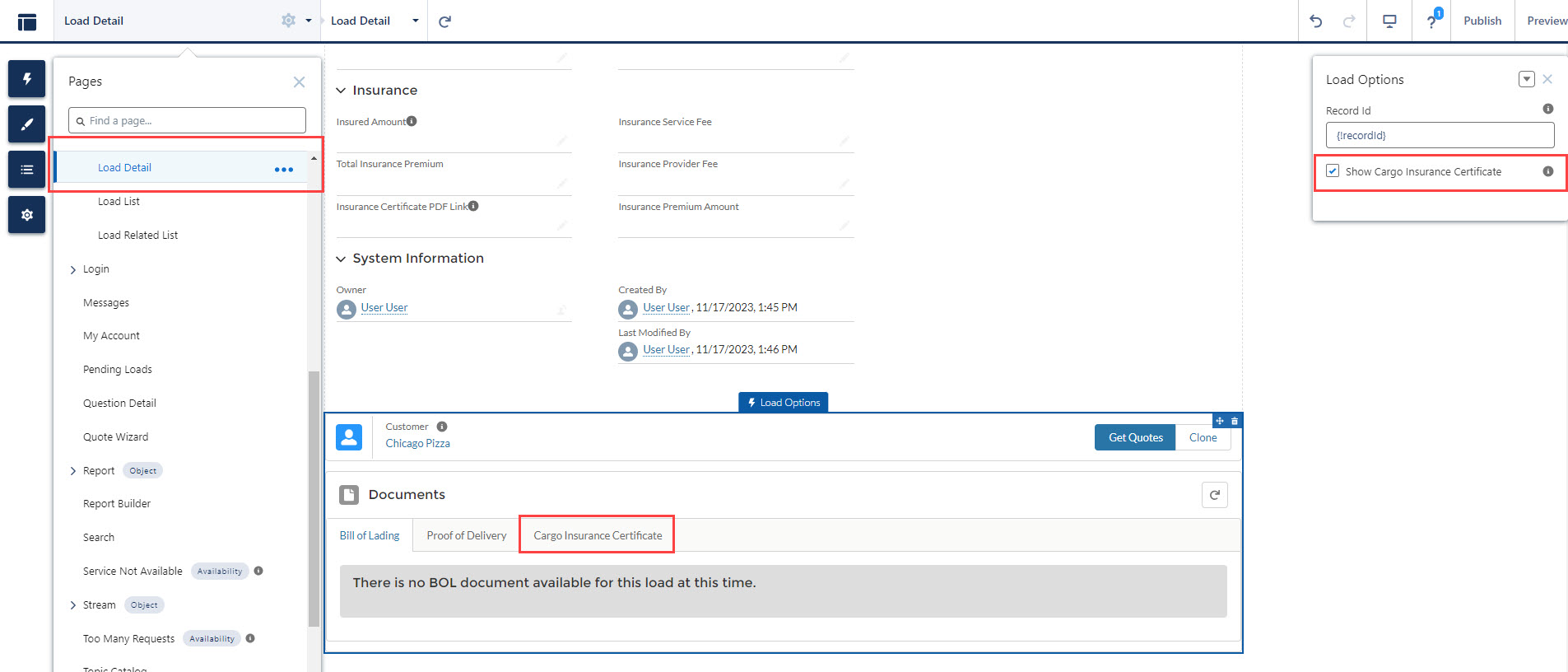
If additional cargo insurance was added to a Load and the Load Options LWC has the Show Cargo Insurance Certificate box checked, the Cargo Insurance Certificate tab will appear on the Load Summary in the Customer Portal.
The Cargo Insurance Certificate tab contains only one link to an insurance certificate.
Note: Only Falvey insurance certificates are currently supported.
For more information on enabling API Insurance, see the Quote Wizard Setup article.
The component can be only used on the Load Detail page and must be configured as follows:
Navigate to Setup → Sites.
Click All Sites.
Click the Builder link to the left of the Customer_Portal site name.
When the Experience Builder opens, from the Menu on the top left side, select the Load Detail page.
Scroll to the bottom of the page and click on the Load Options LWC.
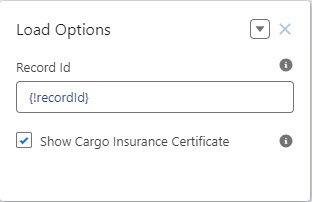
In the right side Load Options panel, set the Record Id as {!recordId}.
Warning: The Record Id {!recordId} must be entered exactly. This value is case sensitive.
Check the Show Cargo Insurance Certificate box.
Click Publish when all changes are complete.