The CustomerMyInvoices is a Visualforce Page (VFP) that allows Customer Portal users to view and search invoices as well as create disputes for invoices.
The CustomerMyInvoices VFP component can be added to the Customer Portal to provide additional billing visibility regarding a Load.
Create a CustomerMyInvoices Page
Add the CustomerMyInvoices VFP in the Customer Portal by first creating a Standard Page.
Although it’s recommended to match the name of the page to the VFP, the name of this page should align with business needs and be easily identifiable if future edits are required.
After creating a Standard Page, create a new tab on the default navigation pane.
In the Customer Portal, click on the navigation pane.
Once the Navigation Menu opens on the right-side, click the Edit Default Navigation button.
Click the + Add Menu Item button.
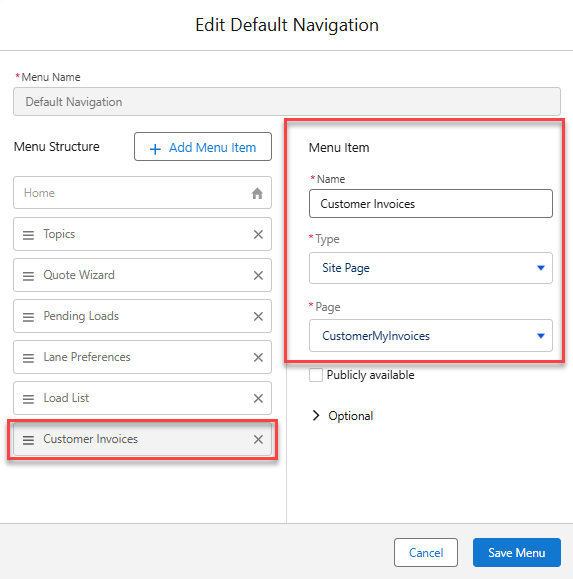
Under the Menu Item section:
Name the new navigation tab.
In the example below, the tab is titled, “Customer Invoices.”
Select Site Page from the Type picklist.
Select the page where the CustomerMyInvoices VFP should live.
In the example below, the page is titled, “CustomerMyInvoices.”
Click Save Menu.
Reorder navigation tabs as applicable.
Add CustomerMyInvoices VFP
Once the new tab appears in the navigation pane, add the VFP component in the Customer Portal page.
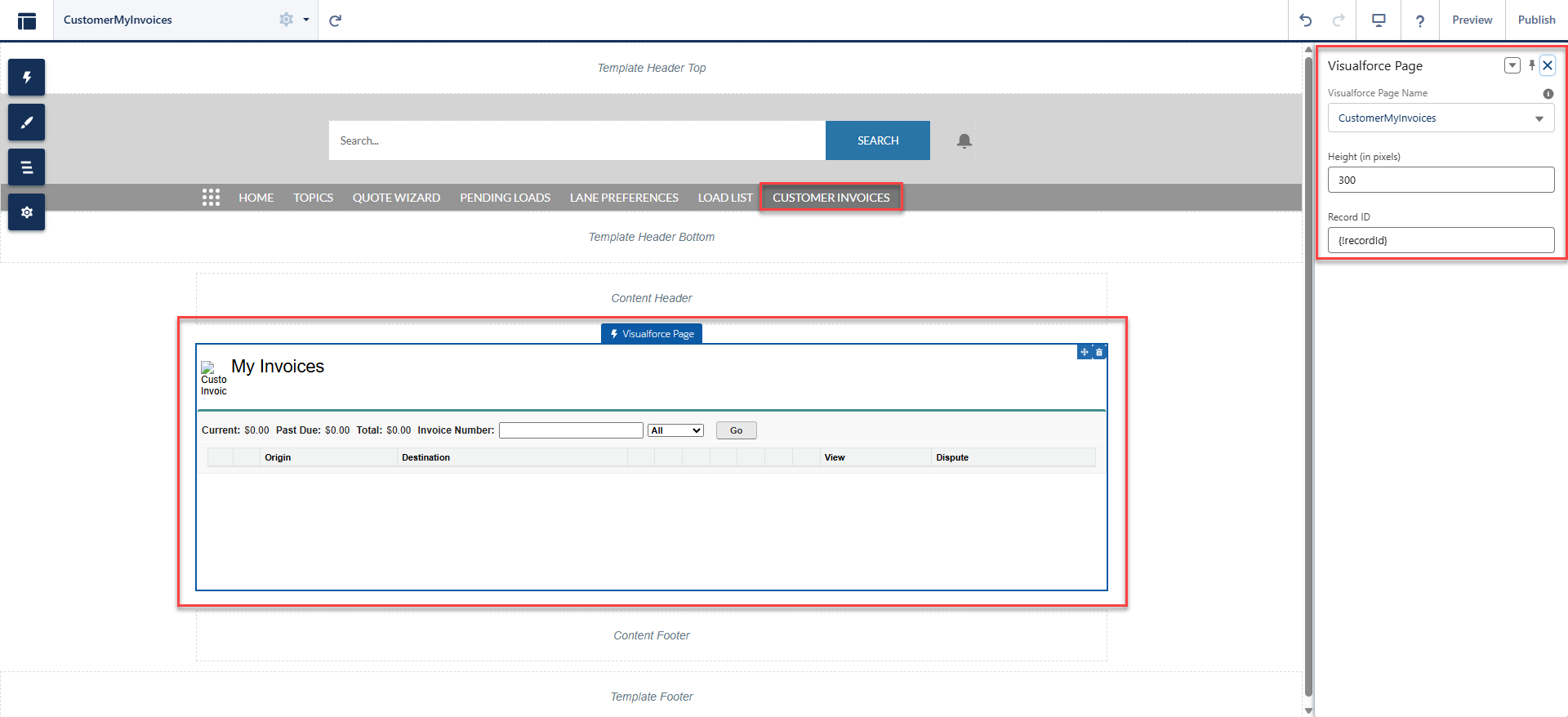
On the left side of the Experience Builder, click Component (lightning bolt).
Search for the Visualforce Page component and drag it on the Customer Portal page.
When the Visualforce page side panel appears on the right side, under the Visualforce Page Name field, search for and select CustomerMyInvoices.
The default height is 300px. Adjust the height of the appearance of the VFP as applicable. Publish the Customer Portal once all changes have been made.
Warning: The Record ID field should include the value {!recordId}, and it’s case sensitive. If the field doesn’t include this relative value, the VFP can’t populate invoices associated with the customer.
Validate MyCustomerInvoices VFP
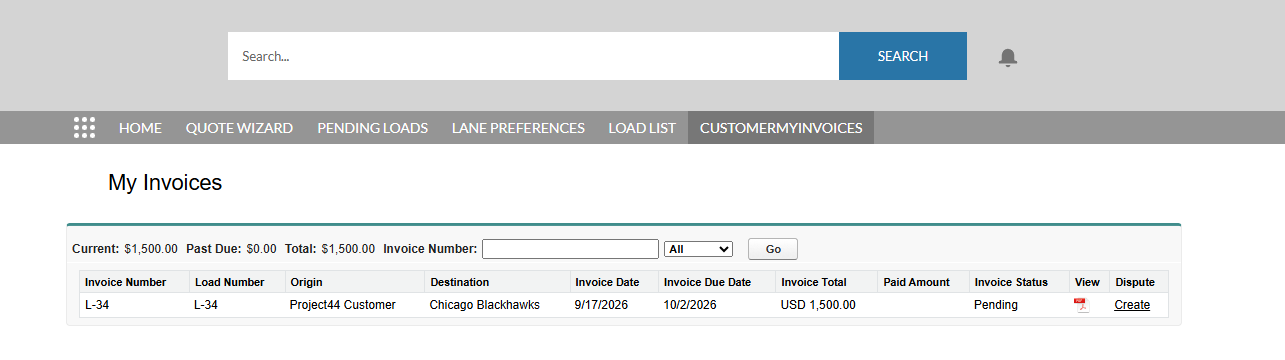
Confirm the MyCustomerInvoices VFP appears to the customer by logging in to experience as a user from a Customer Contact record.
Warning: The TMS Customer Community with Login permission set doesn’t automatically include the CustomerMyInvoices controller and VFP view access out of the box.
Navigate to Setup → Users → Permission Sets, clone the TMS Customer Community with Login permission set, and include the rtms.CustomerMyInvoicesController in Apex Class Access settings and rtms.CustomerMyInvoices in Visualforce Page Access settings.
Keep in mind that to view invoices in a Customer Portal, invoices should be attached to Loads associated with the customer.
The CustomerMyInvoices is a Visualforce Page (VFP) that allows Customer Portal users to view and search invoices as well as create disputes for invoices.
The CustomerMyInvoices VFP component can be added to the Customer Portal to provide additional billing visibility regarding a Load.
Create a CustomerMyInvoices Page
Add the CustomerMyInvoices VFP in the Customer Portal by first creating a Standard Page.
Although it’s recommended to match the name of the page to the VFP, the name of this page should align with business needs and be easily identifiable if future edits are required.
After creating a Standard Page, create a new tab on the default navigation pane.
In the Customer Portal, click on the navigation pane.
Once the Navigation Menu opens on the right-side, click the Edit Default Navigation button.
Click the + Add Menu Item button.
Under the Menu Item section:
Name the new navigation tab.
In the example below, the tab is titled, “Customer Invoices.”
Select Site Page from the Type picklist.
Select the page where the CustomerMyInvoices VFP should live.
In the example below, the page is titled, “CustomerMyInvoices.”
Click Save Menu.
Reorder navigation tabs as applicable.
Add CustomerMyInvoices VFP
Once the new tab appears in the navigation pane, add the VFP component in the Customer Portal page.
On the left side of the Experience Builder, click Component (lightning bolt).
Search for the Visualforce Page component and drag it on the Customer Portal page.
When the Visualforce page side panel appears on the right side, under the Visualforce Page Name field, search for and select CustomerMyInvoices.
The default height is 300px. Adjust the height of the appearance of the VFP as applicable. Publish the Customer Portal once all changes have been made.
Warning: The Record ID field should include the value {!recordId}, and it’s case sensitive. If the field doesn’t include this relative value, the VFP can’t populate invoices associated with the customer.
Validate MyCustomerInvoices VFP
Confirm the MyCustomerInvoices VFP appears to the customer by logging in to experience as a user from a Customer Contact record.
Warning: The TMS Customer Community with Login permission set doesn’t automatically include the CustomerMyInvoices controller and VFP view access out of the box.
Navigate to Setup → Users → Permission Sets, clone the TMS Customer Community with Login permission set, and include the rtms.CustomerMyInvoicesController in Apex Class Access settings and rtms.CustomerMyInvoices in Visualforce Page Access settings.
Keep in mind that to view invoices in a Customer Portal, invoices should be attached to Loads associated with the customer.
.png)