The Load Options Lightning Web Component (LWC) is located in the Customer Portal. It allows users to view and/or send Load documentation, clone Loads, and access the Quote Wizard LWC for the Load.
Load Options LWC
The Load Options LWC has a few features to ensure documentation is received and sent from Carriers. Loads can also be cloned.
Documents
By default, the Documents section includes:
The Bill of Lading tab, which retrieves one non-Carrier, non-signed BOL.
The Proof of Delivery tab, which retrieves all applicable PODs.
Upload BOL and POD documents by completing the following steps:
Locate the Load link and click it to open the Load.
Navigate to the Related tab and scroll down to the Notes & Attachments section.
Upload BOL and POD files.
Once files are uploaded to the Notes & Attachment section, the same files appear in the Files section.
The Bill of Lading and Proof of Delivery documents can be sent via email upon availability.
Use the Refresh button .png) to see updates to submitted documents. Click the Send button to send documents via email.
to see updates to submitted documents. Click the Send button to send documents via email.
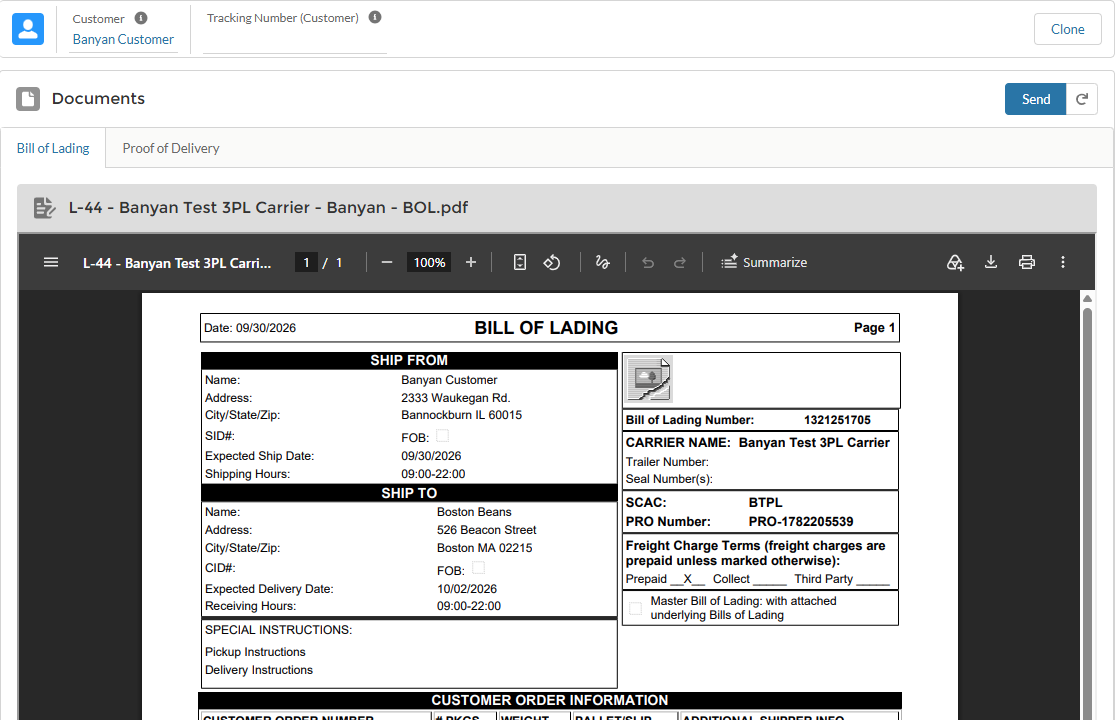
Clone
Create copies of Loads by clicking the Clone button.
In this section, view the Customer and Tracking Number (Customer) fields. Click the Customer link to redirect to the Customer Account.
If an API partner provides updates via a tracking ID, the number appears in the Tracking Number (Customer) field.
Cargo Insurance Certificate
For LTL shipments, check the Show Cargo Insurance Options box to include additional cargo insurance through Falvey. Once inside the Load, the Cargo Insurance Certificate tab appears next to the Proof of Delivery tab in the Documents section.
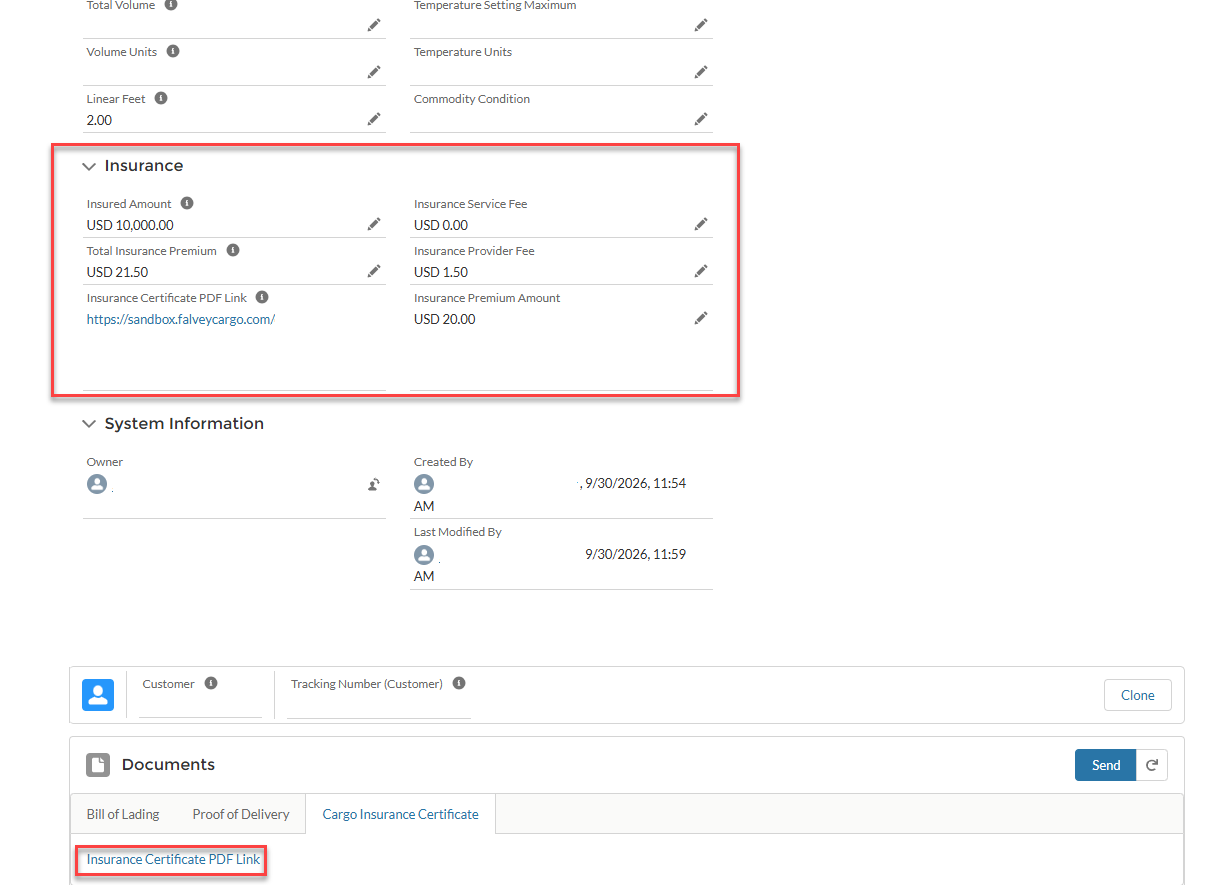
Click the Insurance Certificate Link to view the insurance contract with Falvey.
Warning: Some insurance APIs have restricted cargo which isn’t covered; this is NOT enforced by Revenova. While not an exhaustive list, find commonly excluded commodities in the Cargo Insurance Excluded Commodities article.