The Carrier Application is a Digital Experiences Site used for Carrier onboarding. Configure Sharing Rules, permission sets, and field sets for the Carrier Application to ensure seamless Carrier onboarding.
See the Digital Experiences Site for more information on creating a Carrier Application site.
Note: The Carrier Application supports Carrier onboarding for the TMS Type Carrier (Ground).
Sharing Rules
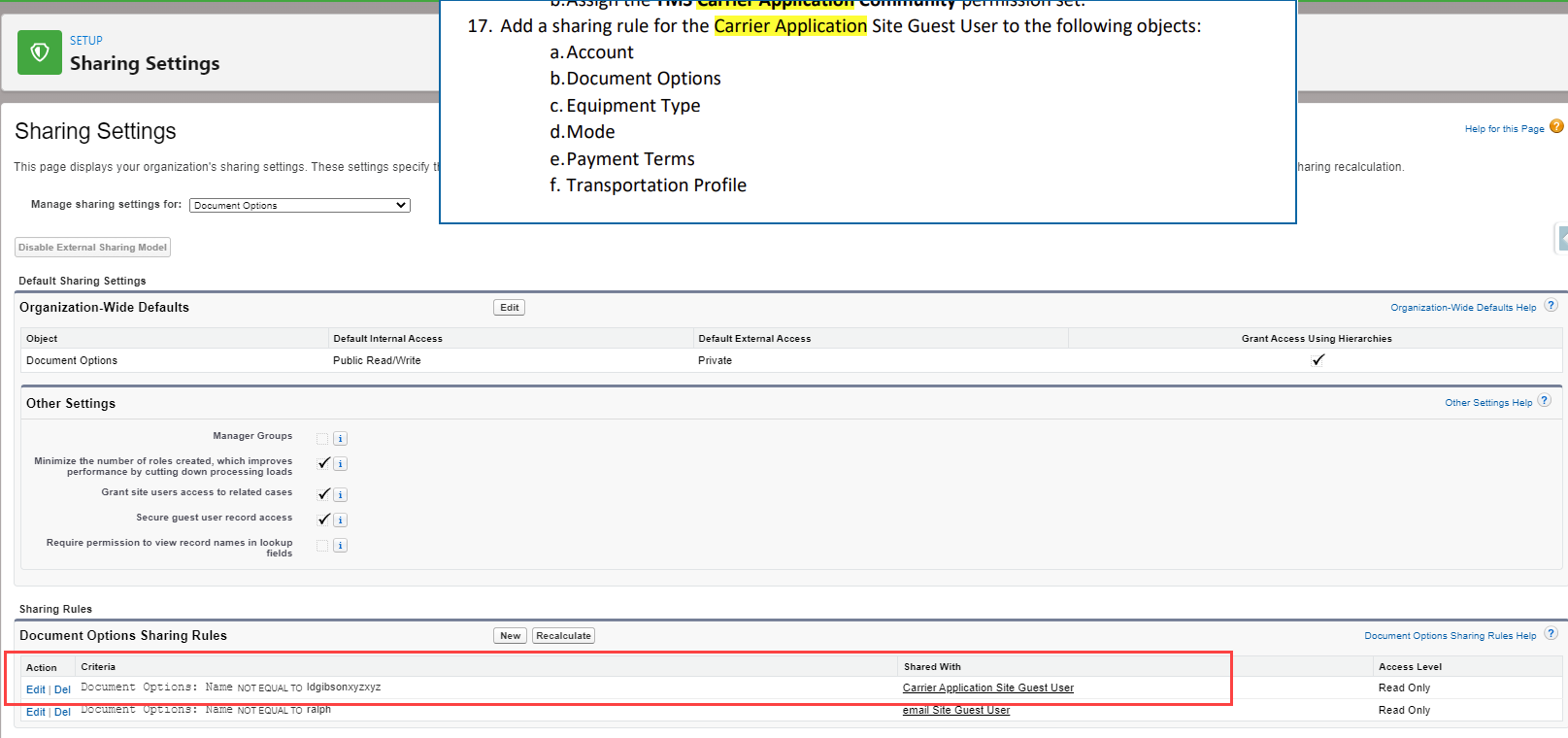
Configure sharing rules by navigating to Setup → Security → Sharing Settings. The following sharing rules are set for Carrier Application users:
Object Name | Access Level |
|---|---|
Account | Read |
Document Options
| Read |
Equipment Type | Read |
Mode | Read |
Payment Terms | Read |
Transportation Profile | Read |
Ensure CRUD access is set for all objects and fields on the Carrier Application.
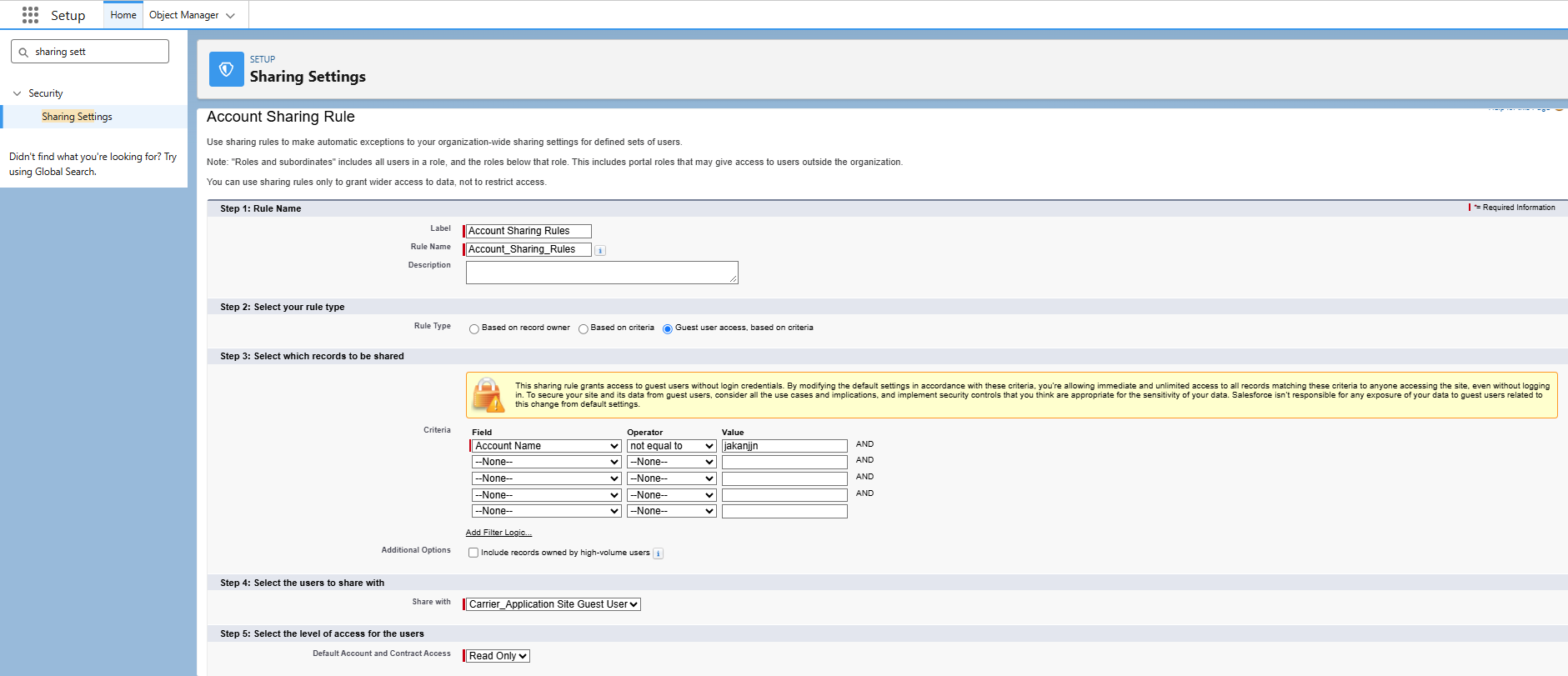
Complete the following steps to create Sharing Rules for each of the listed objects:
Select the object in the picklist for the Manage sharing settings for field.
Select New in the Sharing Rules section.
Set the Label and Rule Name for the Sharing Rule.
Select the Guest user access, based on criteria option for the Rule Type.
Enter a criterion such as the following:
Field: Name
Operator: not equal to
Value: any random string of characters (the example uses 123abc.)
Set the Share with field to Carrier_Application Site Guest User.
Set the Access Level field to Read Only.
Select Save.
Permission Sets
Warning: The TMS supports specific default objects and fields to ensure LWCs accurately render with the applicable information. Ensure that Read-only access is provided to the Account object.
Change or create custom permissions for objects and fields to best fit business needs by cloning the permission set and navigating to Setup → Users → Permission Sets → TMS Carrier Application Community → View Summary. Additionally, because the object and field permissions are provided for external access, take caution when editing object and field permissions to ensure sensitive data is not compromised.
Carrier Application users operate as an unauthenticated user. The TMS Carrier Application Community permission set should be assigned to the Carrier User record and Carrier Application Digital Experiences Site.
The TMS Customer Community with Login permission set grants the Carrier Application guest user limited Read, Create, and Edit permissions on specific objects and fields to process data from transactions that match to fields populated in the TMS and the Carrier Application.
Important Implementation Settings and Considerations
Various settings for the Carrier Application should be configured prior to publishing the site for guest users.
Using the Carrier Application
Existing carriers are able to apply online and sign the application. Additionally, Carriers can upload documents if they already are present in the TMS.
Keep in mind that there is no save and continue later functionality in the Carrier Application.
Field Sets
In the Transportation Profile object, configure the TMS1 field set to provide Carriers the opportunity to enter additional company information such as their US DOT Number.
This field set can be required and is not Mode-specific.
Document Options
To set a specific Document Options record to an office or division, add “?did=[DOCUMENT OPTIONS ID]” to the URL of the Carrier Application. By adding this to the end of the Document Options record, an internal user can test out different ways the Carrier Application can appear for a specific office or division.
Additionally, configure the following fields in Document Options:
Field Name | Field Description | Field Type | Field Options |
|---|---|---|---|
Carrier Application Enable E-Signature | Allows Carriers to provide an e-signature. | Checkbox | |
Carrier Application Start Instructions | Instructions Carriers can view on the Introduction page of the Carrier Application. | Text | |
Carrier Application Country Selection | Countries available where Carrier Applications are accepted. | Multi-Picklist |
|
Carrier Application Country Selection Instructions | Specific instructions for Carriers submitting a Carrier Application depending on their country. | Text | |
Carrier Application Instructions US | Instructions for Carriers in the United States submitting an application. | Text | |
Carrier Application Instructions CA | Instructions for Carriers in Canada submitting an application. | Text | |
Carrier Application Instructions MX | Instructions for Carriers in the Mexico submitting an application. | Text | |
Carrier Application Company Instructions | Instructions for companies associated with the Carrier applying. | Text | |
Carrier Application Contact Instructions | Instructions for contacts associated with the Carrier applying. | Text | |
Carrier Application Insure Instructions | Instructions for insurance companies associated with the Carrier applying. | Text | |
Carrier Application Operational Instructions | Instructions for operational companies (Carrier Services) associated with the Carrier applying. | Text | |
Carrier Application T and C Instructions | Instructions related to the terms and conditions of the application. | Text | |
Carrier Application Terms and Conditions | The legal terms and conditions of the application. | Text | |
Carrier Application Appendix | The legal appendix associated with the terms and conditions of the application. | Text | |
Carrier Application T and C Acknowledgement | Legal acknowledgement agreement of the terms and conditions of the application. | Text | |
Carrier Application Upload Instructions | Instructions related to the documentation uploaded from the Carrier to the Carrier Application. | Text | |
Carrier Application Post Submission Text | Text that appears to the Carrier following the submission of the Carrier Application. | Text | |
Carrier Application Hide Factor Co Entry | The option to prevent Carriers from adding a Factoring Company. | Checkbox | |
Carrier Application Require Bank Account | The option to require Carriers enter bank account information on the New Carrier Page. | Checkbox | |
Carrier Application Payment Method Options | The options available for remitting payment to Carriers. | Multi-Picklist |
|
Carrier Application Reply To Email | The email address of the single user that receives the Carrier Application. | Text | |
Carrier Application Reply To OWEA | The email address of the organization-wide user that receives the Carrier Application. | Picklist |
|
Carrier Application Email Template | The email template used for confirming with Carriers that their application was successfully submitted. | Picklist |
|
Carrier Application Optional Sections | Additional options for Carriers to include or in the Carrier Application. Exclude options in this field by unchecking boxes. | Checkbox(es) |
|
Insurance Type Selection | The category of insurance accepted from the Carrier on the Carrier Application. | Multi-Picklist |
|
Configure these settings for the Carrier Application by navigating to the TMS Admin → Document-Specific Settings.
See the Carrier Application article to view how the above text settings appear in the Carrier Application.
Mode-Specific Documents
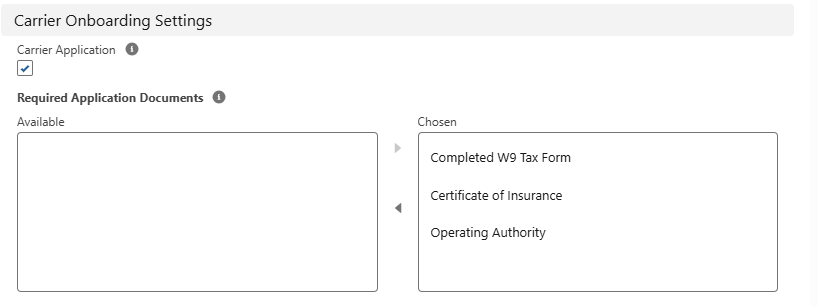
Based on Mode, configure the Carrier Application to require specific documents.
Navigate to the TMS Admin → Modes.
On the Modes Visualforce Page (VFP), choose a Mode and select the Edit link.
Once the Mode modal opens, scroll down to the Carrier Onboarding Settings section.
If not checked, check the box for the Carrier Application field.
From the Available multi-select picklist, choose one or more documents:
Completed W9 Tax Form
Certificate of Insurance
Operating Authority
Click Save.
Multi-Currency Considerations
The TMS can be used in both single- and multi-currency configurations. When manually creating a record, the user is responsible for selecting the appropriate currency.
In multi-currency environments, the following currency code assignments occur for the following TMS auto-created records:
New Record Type | Scenario | Currency Source |
|---|---|---|
Account | Online Carrier Application | Default |
Troubleshooting
When setting up the Carrier Application, an error is presented referring to TMS Admin → Document Options. A Sharing Rule may be missing for the Carrier Guest user.
Issue
When setting up the Carrier Application, if an error is presented "Error: You are missing the Document Options global default record. Please add this record from TMS Admin --> Document Options.", you may be missing the Sharing Rule for the Carrier Guest user.
Resolution
Navigate to Setup → Sharing Settings → and select Document Options.
Setup the Sharing Setting as follows:
Document Options: Name NOT EQUAL TO (any character combination, i.e. XYZXYZ).
Shared with: Carrier Application Guest User/Site Guest User.