PayIQ Program Setup
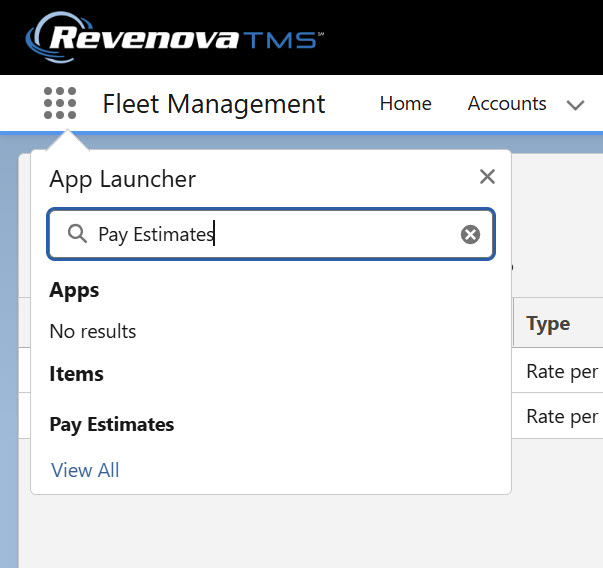
PayIQ Programs define cascading pay structures that determine how employees and/or contractors are paid. PayIQ Programs are available as a tab within the Salesforce system menu.
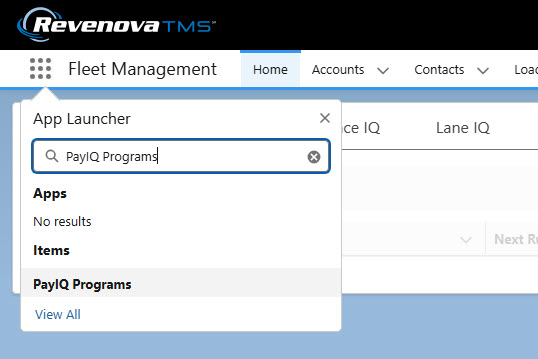
Navigate to the PayIQ Programs list to view any existing or to create new Programs.
Click New to open the PayIQ Program modal and create new PayIQ Program records.

Initial Fields
To create a new PayIQ Program, provide the following fields.
Name (required)
Description (optional)
Pay Schedule (required)
Status (required, Pending is recommended)
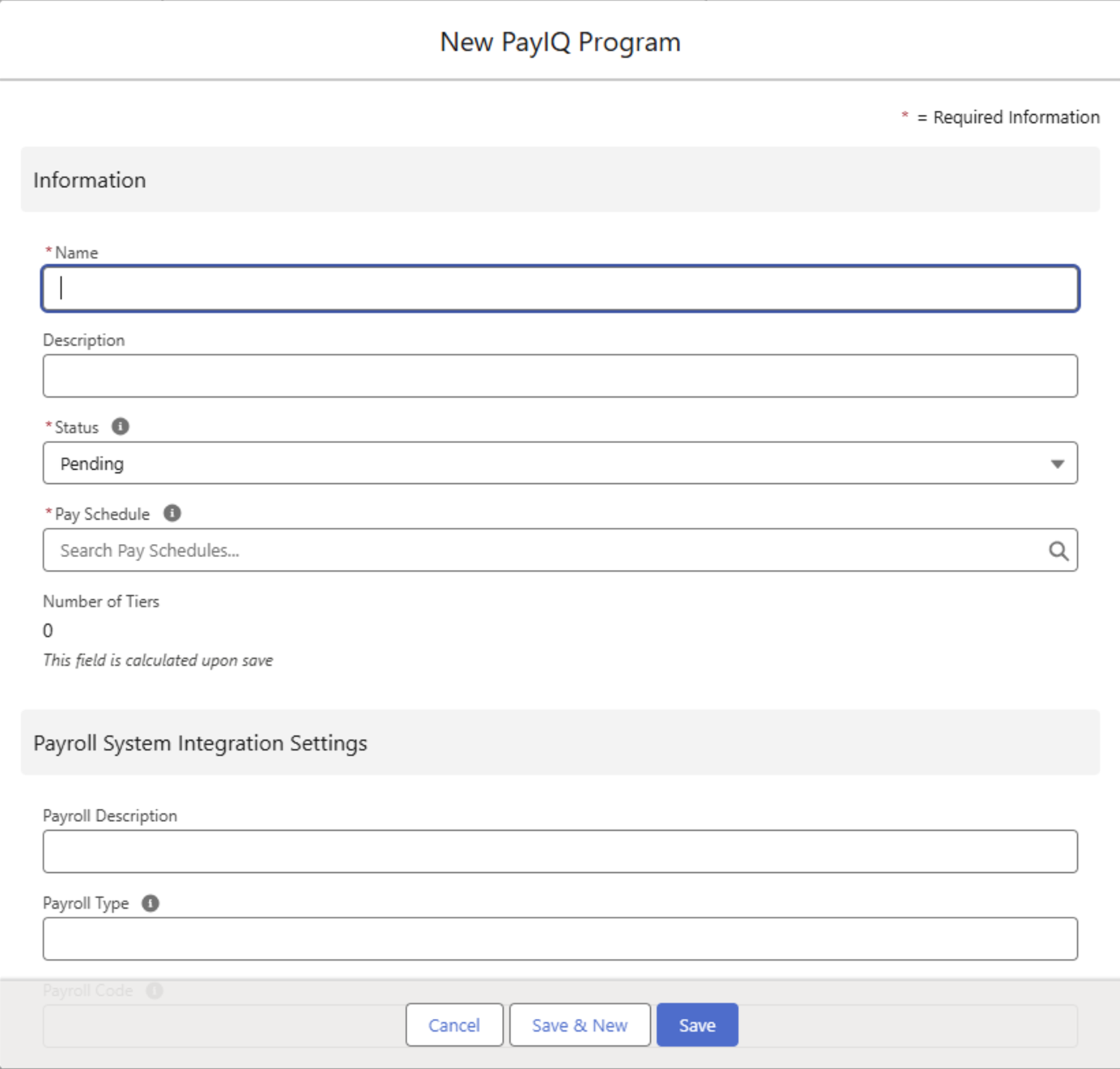
Status: Setting the Status field initially as Pending prevents PayIQ jobs from attempting to run the PayIQ Program. The Status field may be changed to Open once the program is completed and ready for use to generate pay.
Pay Schedule
The Pay Schedule field provides the option to select an existing Pay Schedule or to create a new Pay Schedule.
.png "New Pay Schedule(1).png")
Create a new Pay Schedule and provide a description name. Enter an optional Fiscal Year that the Pay Schedule applies to.
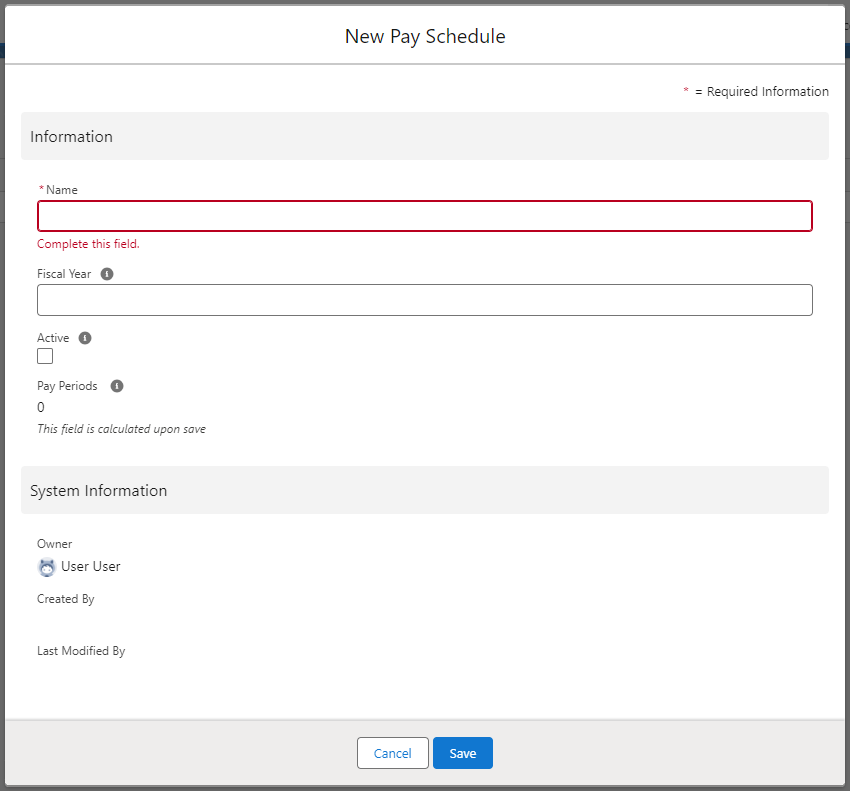
It is recommended to create Pay Schedules with Active Checked. Inactive Pay Schedules are not included when PayIQ jobs run.
Click Save.
Pay Periods
Once a Pay Schedule record is created, add Pay Periods to it. Click the New button to add Pay Periods to a Pay Schedule.
Pay Periods must be created for each and every period that falls within the fiscal year.
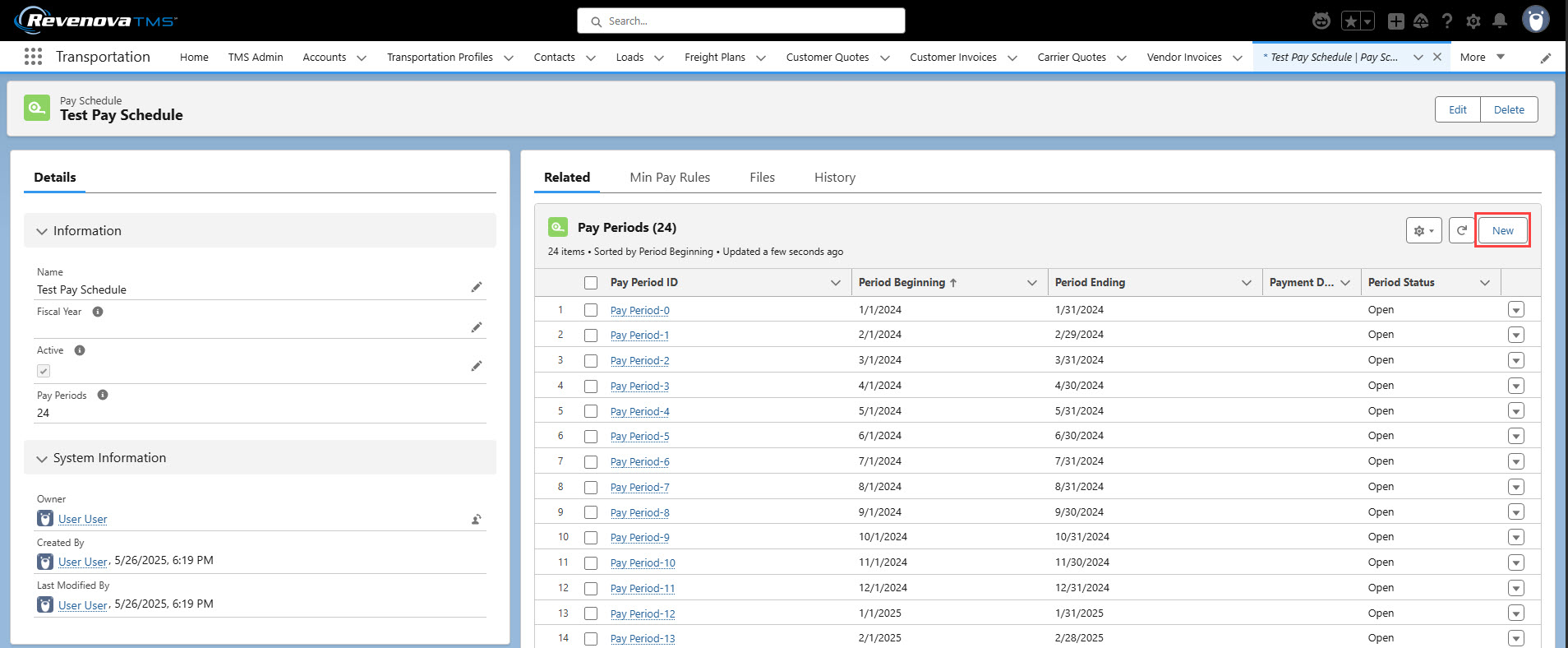
To create a new Pay Period, provide the following fields.
Period Beginning (required)
Period Ending (required)
Payment Due Date (optional)
Period Status (Open is recommended)
In the example below, a monthly Pay Period is shown. Pay Periods are flexible based on the payment schedule of the business.
.png "New Pay Period(1).png")
Set the Period Status field initially as Open. When the PayIQ job runs, closed periods are not included. The Active field is set accordingly upon Save.
Click Save.
It is recommended to close a Pay Period soon after it is completed.
Pay Period records cannot be deleted after a Pay Header record is generated for that Pay Period. Users receive an error when attempting to delete the Pay Period record.
Freight Plan Settings
For the Freight Plan Load Criteria to function properly, the FreightPlanManagementJob must be running. Run or schedule the FreightPlanManagementJob in the TMS with other batch processes. Before running the PayIQ jobs make sure the FreightPlanManagementJob has completed.
If paying off Loads, there are two options within PayIQ Programs to customize how Freight Plan Loads are processed.
Freight Plan Load Criteria
Carrier Load Allocation
Freight Plan Load Criteria
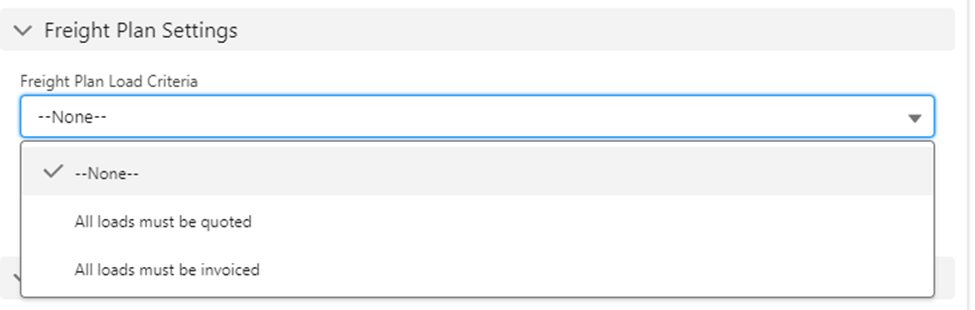
The Freight Plan Load Criteria picklist sets the completeness criteria for freight plans.
Freight Plan Load Criteria includes three options.
—None—: No criteria are applied. Every freight plan is processed by the PayIQ Program so as long as other criteria are met.
All loads must be quoted: Every customer Load must have an accepted customer quote, and every Carrier must have an accepted Vendor quote.
All loads must be invoiced: Every customer Load must have a customer invoice, and every Carrier must have a Vendor invoice.
Carrier Load Allocation
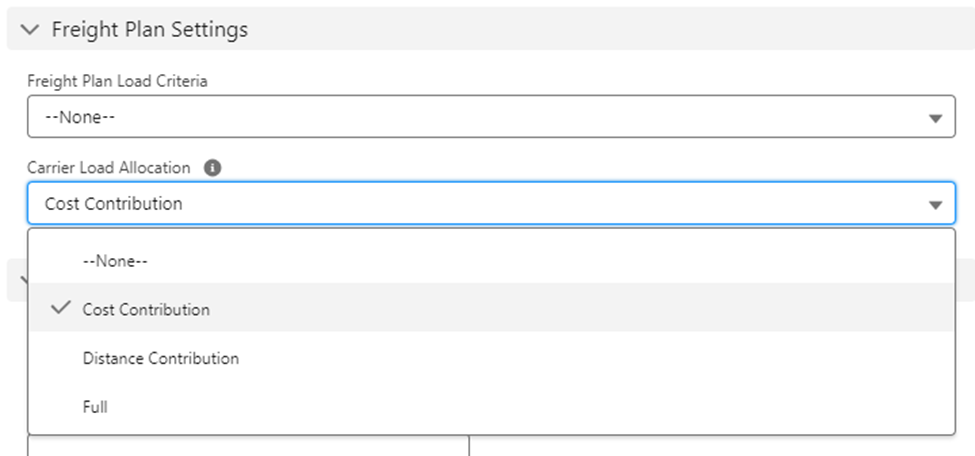
This picklist value determines how to pay Freight Plan Carrier Loads. Carrier Load Allocation criteria includes the following four options.
Depending on configuration, Freight Plans may generate multiple Participant Match and Pay Detail records.
Each Customer Load generates 1 Participant Match and 1 Pay Detail records multiplied by the number of eligible Participants.
Each Carrier Load generates Participant Match and Pay Detail records for each applicable Customer Load multiplied by the number of eligible Participants.
Single Customer Load / Multiple Carrier Loads: 1 Participant Match and 1 Pay Detail records created multiplied by the number of eligible Participants.
Single Carrier Load / Multiple Customer Loads: 1 participant Match and 1 Pay Detail records created for each Customer Load multiplied by the number of eligible Participants.
Multiple Carrier Loads / Multiple Customer Loads: 1 Participant Match and 1 Pay Detail records created for each Customer Load that the Carrier Load in question covers multiplied by the number of eligible Participants.
Example: A Freight Plan contains 3 Customer Loads and 2 Carrier Loads. Customer Load 1 generates 1 Participant Match/Pay Detail records multiplied by the number of eligible Participants.
Customer Load 2 generates 1 Participant Match/Pay Detail records multiplied by the number of eligible Participants.
Customer Load 3 generates 1 Participant Match/Pay Detail records multiplied by the number of eligible Participants.
Carrier Load 1 generates 3 Participant Match/Pay Detail records multiplied by the number of eligible Participants.
Carrier Load 2 generates 3 Participant Match/Pay Detail records multiplied by the number of eligible Participants.
—None—: Carrier Loads are not paid.
Cost Contribution: Carrier Loads are calculated based on the financial cost of each customer Load it covers multiplied by the ratio of the Carrier Load cost / (the customer Load cost + the customer Load cost allocation).
Freight Plan impact on Cost Contribution Ratio
Single Customer Load / Multiple Carrier Loads: Each Carrier Load’s cost contributes a portion of the cost allocation on the Customer Load. This reduces the amount each Carrier Load pays out. from the flat margin/revenue numbers
Single Carrier Load / Multiple Customer Loads: Each Customer Load's cost allocations contributes a portion of the Carrier Load's cost. This increases the amount each Carrier Load pays out from the flat margin/revenue numbers
Multiple Carrier Loads / Multiple Customer Loads: Cost contributions depend on how the Carrier/Customer Loads relate to each other and may vary.
Use Case: Multiple Carriers on the same lane delivering multiple Line Items in the same Delivery.
Distance Contribution: Carrier Loads are paid based on the financial cost of each customer Load covered multiplied by the ratio of the distance it covers / the distance the customer Load covers.
Freight Plan impact on Distance Contribution Ratio
Single Customer Load / Multiple Carrier Loads: Each Carrier Load’s distance contributes a portion of the distance on the Customer Load. This reduces the amount each Carrier Load pays out. from the flat margin/revenue numbers
Single Carrier Load / Multiple Customer Loads: Each Customer Load's distance contributes a portion of the Carrier Load's cost. This increases the amount each Carrier Load pays out from the flat margin/revenue numbers
Multiple Carrier Loads / Multiple Customer Loads: Distance contributions depend on how the Carrier/Customer Loads relate to each other and may vary.
Use Case: When Carrier Loads cover different portions of a Customer Load or a single Carrier covers multiple Customer Load deliveries.
Full: Carrier Loads are paid on the full financial cost of the Freight Plan as determined by each customer Load covered (regardless of cost or distance contribution). Carrier Load Margin/Revenue = Customer Load Margin/Revenue multiplied by 1.
When Full contribution is selected, a Participant Match and Pay Detail records are created for each Customer Load that a Carrier Load covers.
Programs Lightning Record Page
Click on a PayIQ Program to view the PayIQ Programs Lightning Record page. This page contains several related lists as well as the ability to Edit, Clone, or Delete the PayIQ Program.
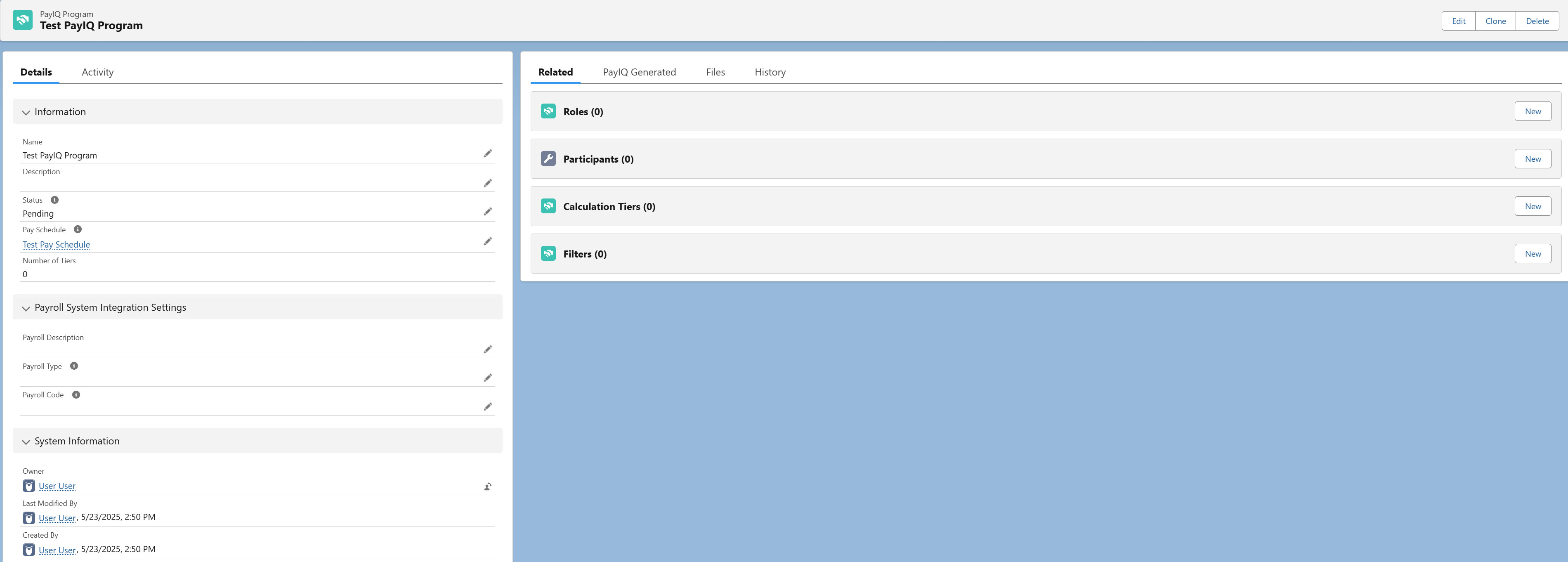
The Clone button copies the Roles, Participants (Users, Contacts, Drivers, Fleet Assets, and Teams), Calculation Tiers, Accessorial Rules, and Filters to the new PayIQ Program. All child objects are copied during the clone process. Cloned programs are named identically to the original PayIQ Program with the addition of a “Clone - “ prefix.

The Delete button removes the PayIQ Program record and all child objects. Participants and Teams do not need to be deleted separately. For PayIQ Programs with more than 10,000 participants they must be deleted manually before deleting the Program.

Roles
Roles define the User, Contact, Driver, or Fleet Asset that are paid based on Load, Driver Log, or Trip Plan Leg fields identifying the individual(s) eligible for pay.
From the PayIQ Program Roles related list, click New.

Roles of the appropriate Type must be created before Participants of that Type may be entered. Tier types also validate that compatible Roles are present.
Parent Object
Select the appropriate record to pay off of in the Parent Object field. Picklist values include the following options.
Load
Driver Log
Trip Plan Leg
Matching Jobs only display on the PayIQ Admin Job Monitor when a Load, Driver Log, or Trip Plan Leg occur for an open PayIQ Program.
Adding an additional Role type to an open PayIQ program after the jobs have already run impacts the history displayed in the Job Monitor. Manually run the jobs or wait for the next scheduled job run to view the corrected job history.
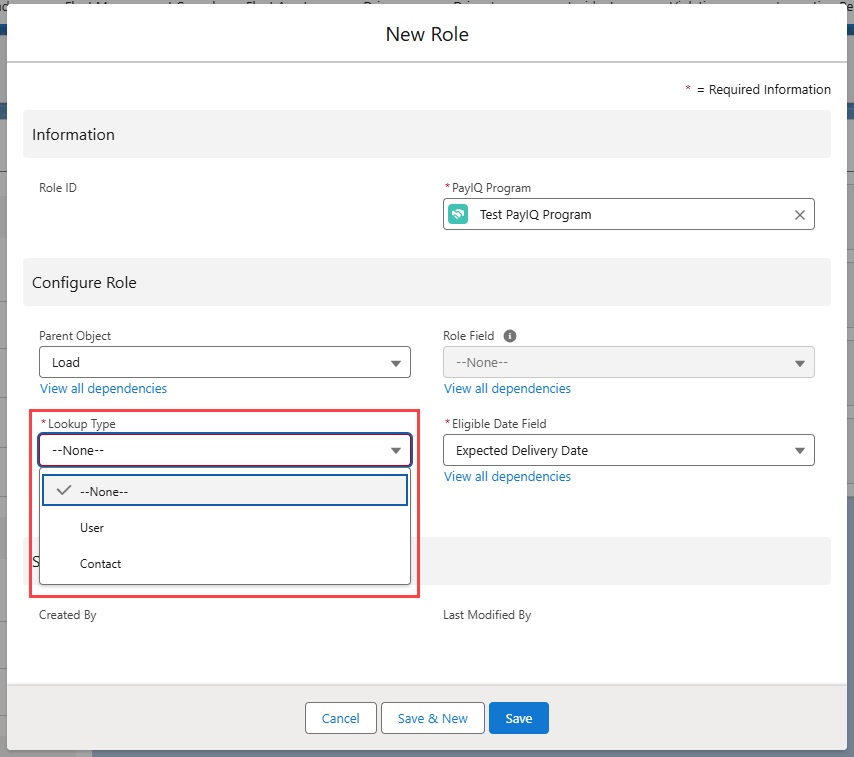
Lookup Type
Select the appropriate type in the Lookup Type field. Picklist values include User and Contact for Loads, Driver for Driver Logs, or Driver and Fleet Asset for Trip Plan Legs. This field is required.
Role Field
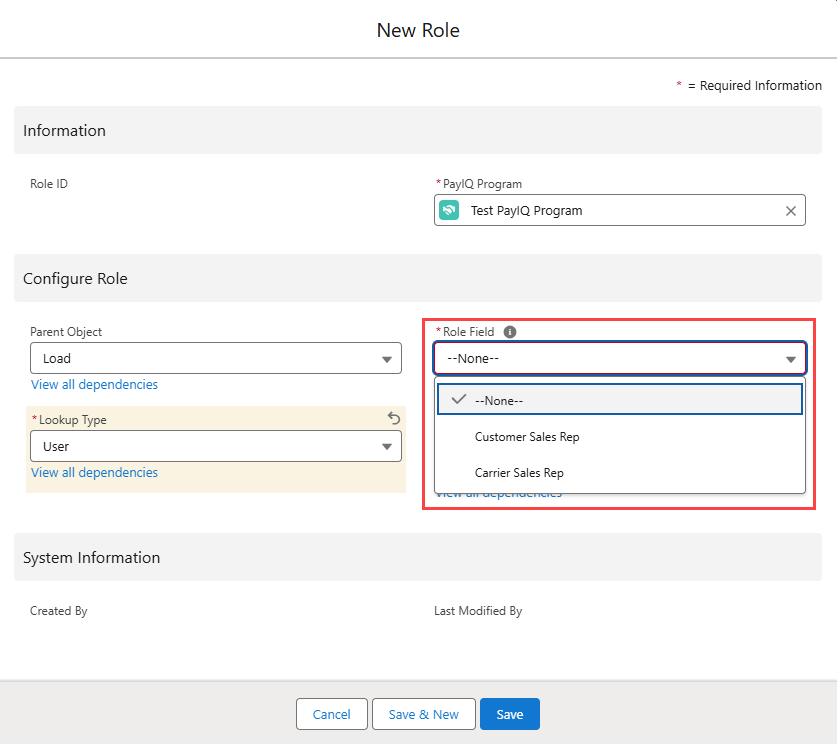
If paying off of a Load, the Role Field determines which Load field the User or Contact is selected from. Two User fields, Carrier Sales Rep and Customer Sales Rep are supported with package installation. One contact field, Sales Lead (Contact) is also included with PayIQ. Available options depend on the lookup type selected. Role Field is a global picklist that may be expanded to support additional Load fields. Role Field is required.
See Custom Roles under the Customizing PayIQ section below to create a custom Load field.
Eligible Date
The Eligible Date field selects which field to use to determine when a record is eligible for payment. This date determines whether the record falls within the Pay Schedule for the PayIQ Program, and which Pay Period to slot the pay for that record into. When a record is matched to a participant, the eligible date also determines if it falls within the effective/expiration date for the participants.
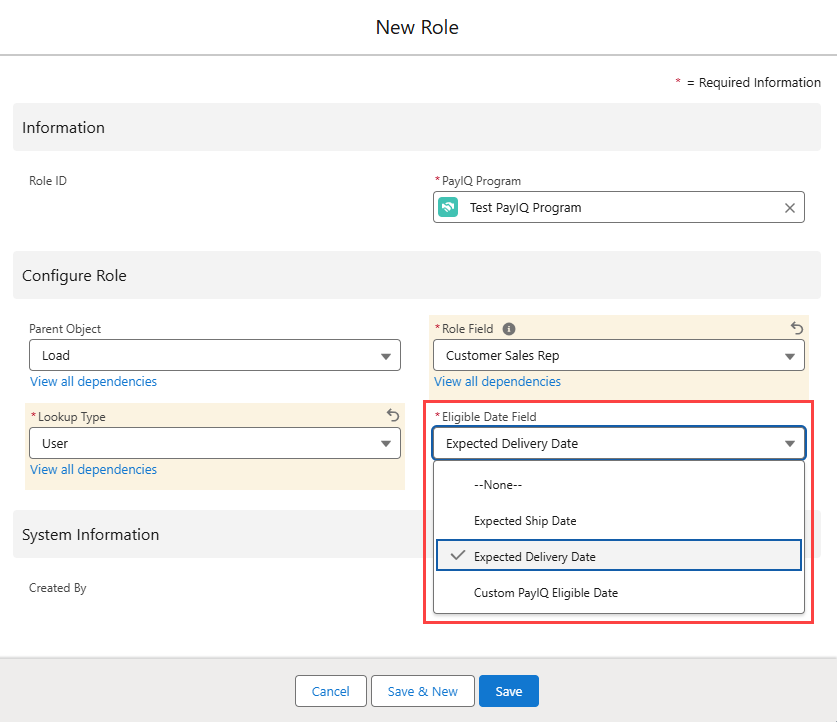
Load: The Expected Ship Date or Expected Delivery Date options are packaged and available to use for the Eligible Date Field. The Custom PayIQ Eligible Date option may be used for supporting other Load dates.
Driver Log: Only Certified as of is a supported Eligible Date Field option.
Trip Plan Leg: The Arrival Date, Departure Date, Last Leg Arrival Date, or Last Leg Departure Date are supported. A Participant Match is created for each leg of a Trip Plan, not just the final Trip Plan Leg in the Trip Plan Segment. The pay for each Trip Plan Leg is calculated individually.
The Eligible Date Field on each Participant Match record determines the Pay Period for that Participant Match. Choosing the Last Leg Arrival/Departure Date as the Eligible Date Field uses that single date for each Trip Plan Leg in the Trip Plan Segment to determine the Pay Period.
See Custom PayIQ Eligible Date under the Customizing PayIQ section below to support a custom date for a Load.
Participants
To include employees and/or contractors in the PayIQ Program, add them as participants. The specific record types of a Participant are either Users, Contacts, Drivers, or Fleet Assets that must be added to the TMS. Teams are comprised of Users and/or Contacts.
See Salesforce documentation for more information on Users and Contacts.
See TMS documentation for more information on Drivers and Fleet Assets in the Fleet Management Console.
Setup Note When configuring PayIQ, confirm the contact information for all User, Contact, Driver, and Fleet Asset records is entered and up to date. Driver confirmations, Pay Estimates, and Settlement Sheets may be sent to the contact information on these records.
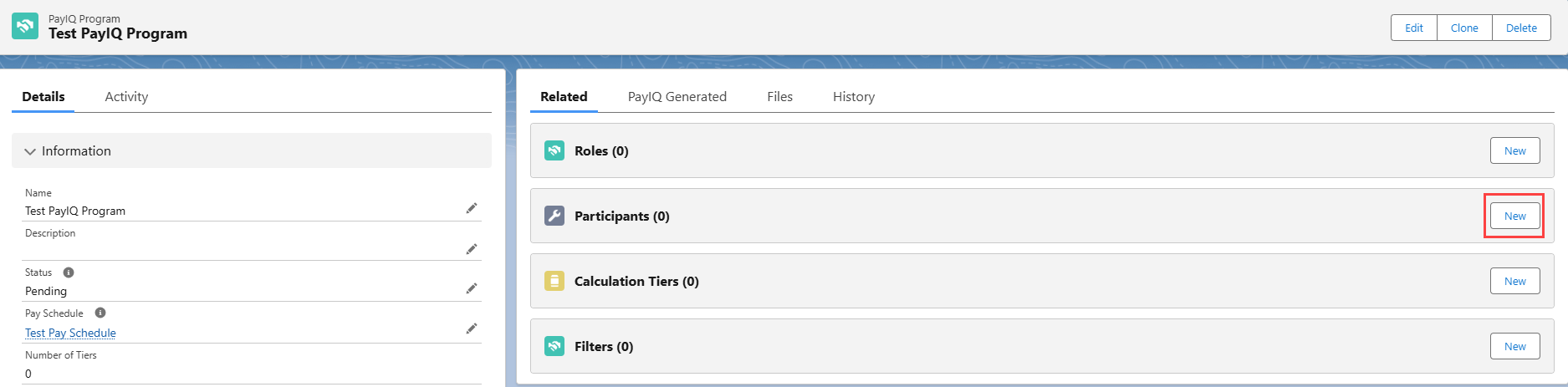
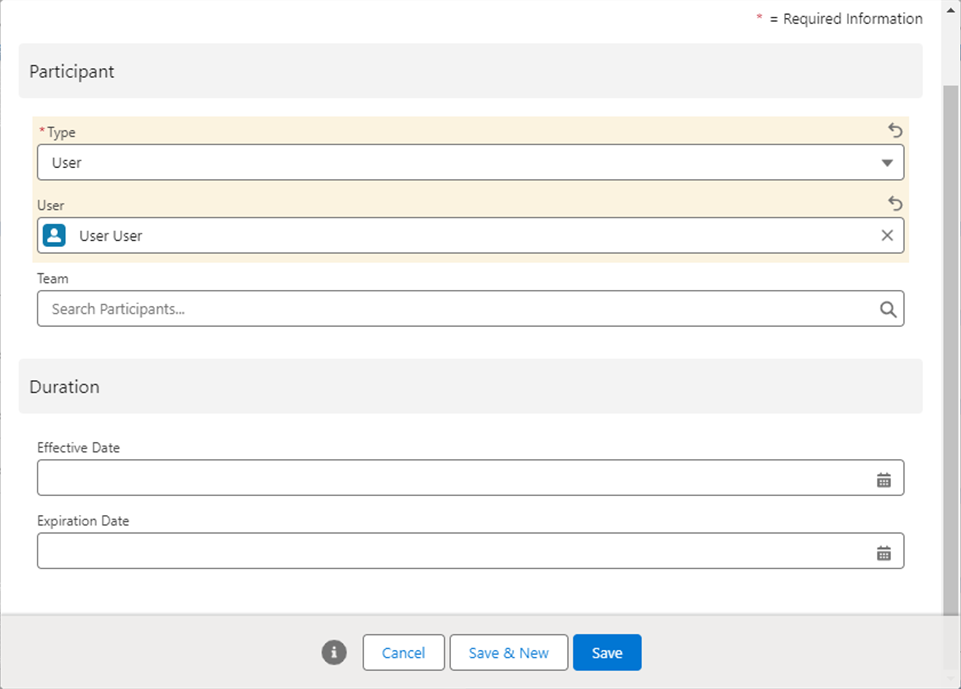
User Participants
Existing internal employees may be added to the PayIQ Program as Type User. Enter and select applicable Salesforce users already created in the org.
Add Users to a Team, if necessary. Set an effective and expiration date for the User based on the terms of their employment. Pay is only be calculated for that User if the eligible date falls within the effective/expiration (inclusive) date range for that User.
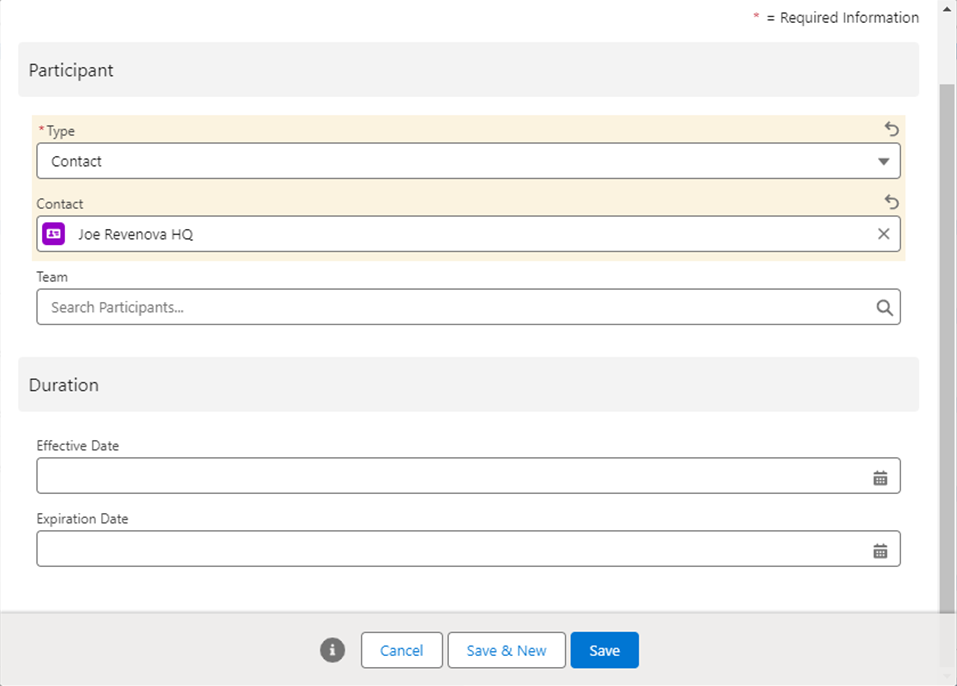
Contact Participants
External contractors may be added to the PayIQ Program as type Contact. Type to add external contractors that exist as salesforce contacts to include in the PayIQ Program. Enter and select any Salesforce contact that is already created in the org.
Add Contacts to a Team, if necessary. Set an effective and expiration date for the Contract, depending on the terms of the Contact’s contract. Pay is only calculated for a contact if the eligible date falls within the effective/expiration (inclusive) date range for that Contact.
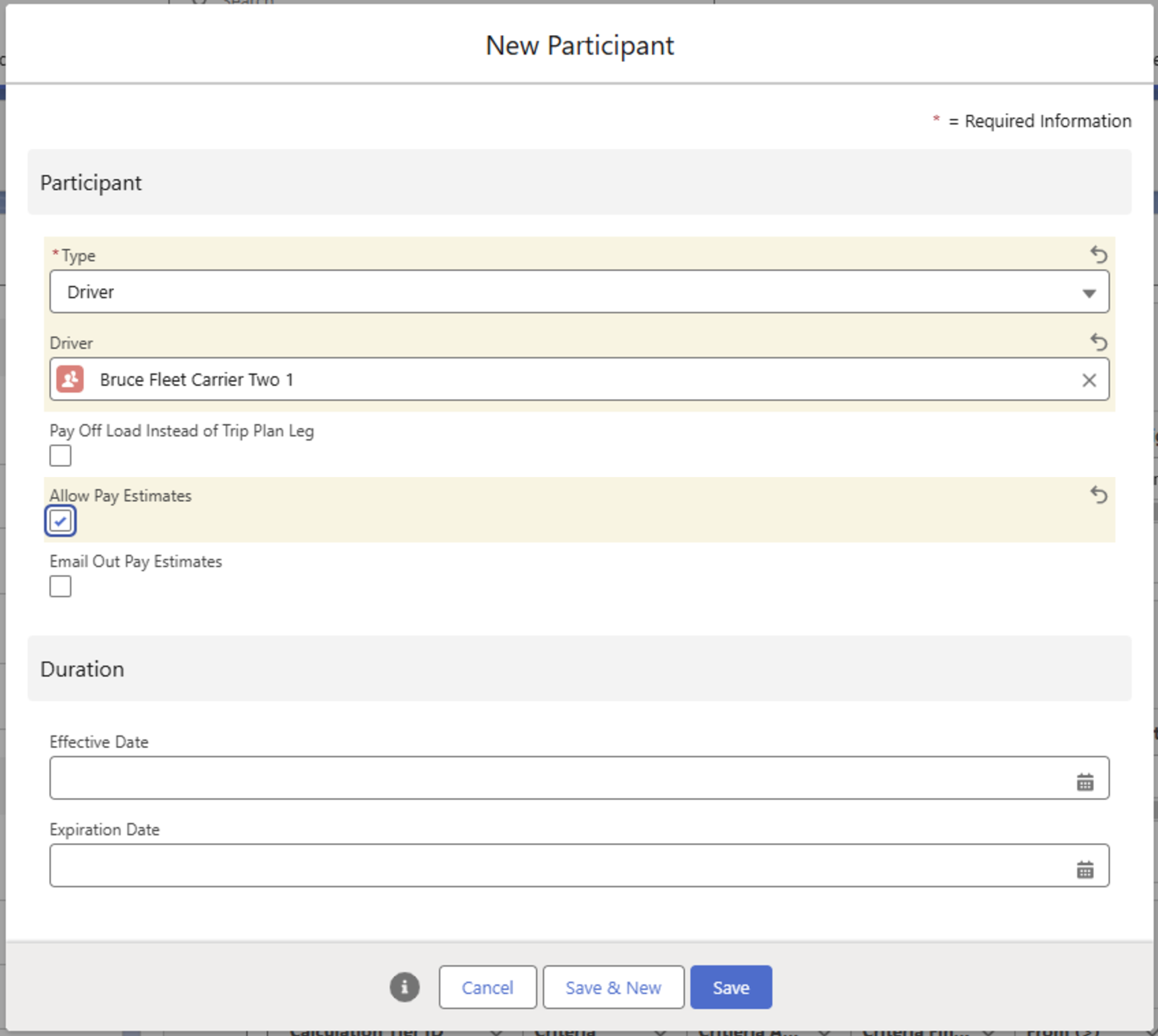
Driver Participants
Existing Drivers may be added to the PayIQ Program as Type. Enter and select applicable TMS Drivers already created in the org. Set an effective and expiration date for the Driver based on the terms of their employment/contract. Pay is only calculated for that Driver if the eligible date falls within the effective/expiration (inclusive) date range for that Driver. If paying off Load metrics instead of Trip Plan Leg metrics, Check the Pay off Load Instead of Trip Plan Leg checkbox. The Allow Pay Estimates checkbox enables the pay estimation process for this participant. If Checked, another option appears for emailing pay estimates. Select this if the pay estimate report should be attached to the Driver Rate Confirmation for this Participant.
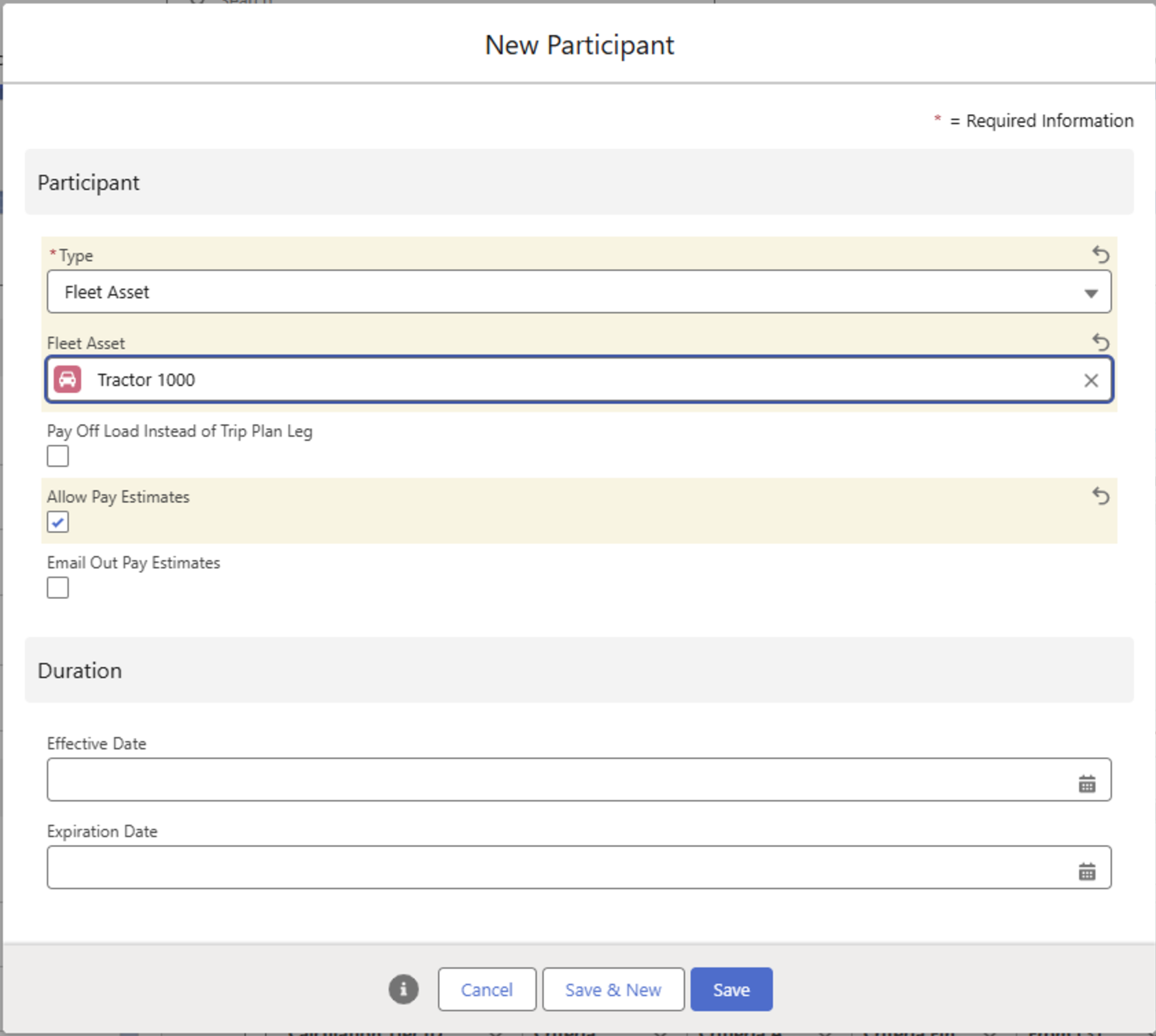
Fleet Asset Participants
Existing Fleet Assets may be added to the PayIQ Program as type Fleet Asset. Enter and select applicable TMS Fleet Assets already created in the org.
Set an effective and expiration date for the Fleet Assets based on the terms of their contract. Pay is only calculated for that Fleet Asset if the eligible date falls within the Effective/Expiration (inclusive) date range for that Fleet Asset. If paying off Load metrics instead of Trip Plan Leg metrics, Check the Pay off Load Instead of Trip Plan Leg checkbox. The Allow Pay Estimates Checkbox enables the pay estimation process for this participant. If Checked, another option appears for emailing out pay estimates. Select this if the Pay Estimate report should be attached to the Driver Rate confirmation for this Participant.
Team Participants
Teams are configured as Participants. When pay is generated for team members, PayIQ respects the effective and expiration dates for team members. A Team evenly splits pay between the Users and Contacts assigned to that team.
Drivers and Fleet Assets may be added to a Program as Participants. They may not be added to a Team.
Example: A Team has 5 members. If any of the Team members match to a Load, all Team members receive 20% calculated pay.
To set up a Team, complete the following steps.
Choose the Participant Type Team.
Enter a descriptive name and click Save.
Once the Team Participant is created, add Users or Contacts as members.
Click New to begin adding members.
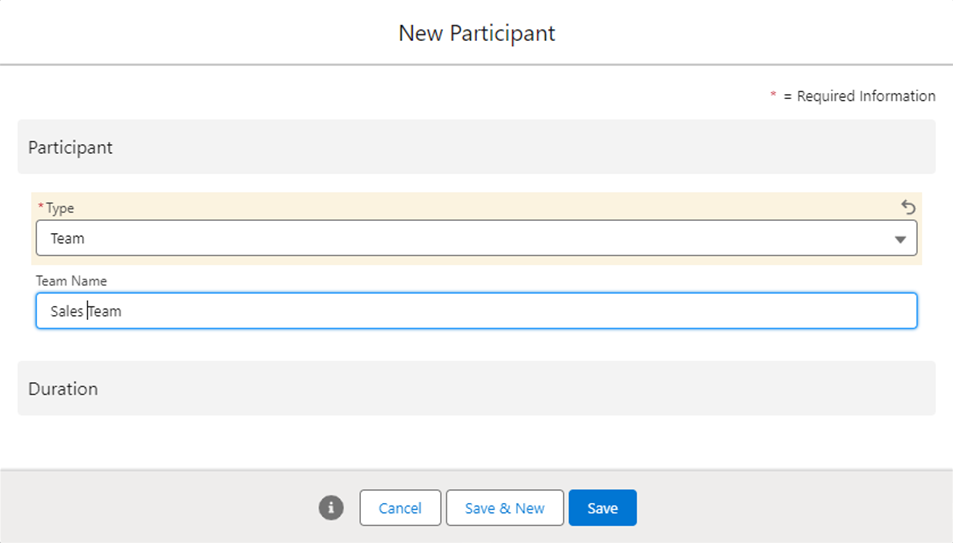

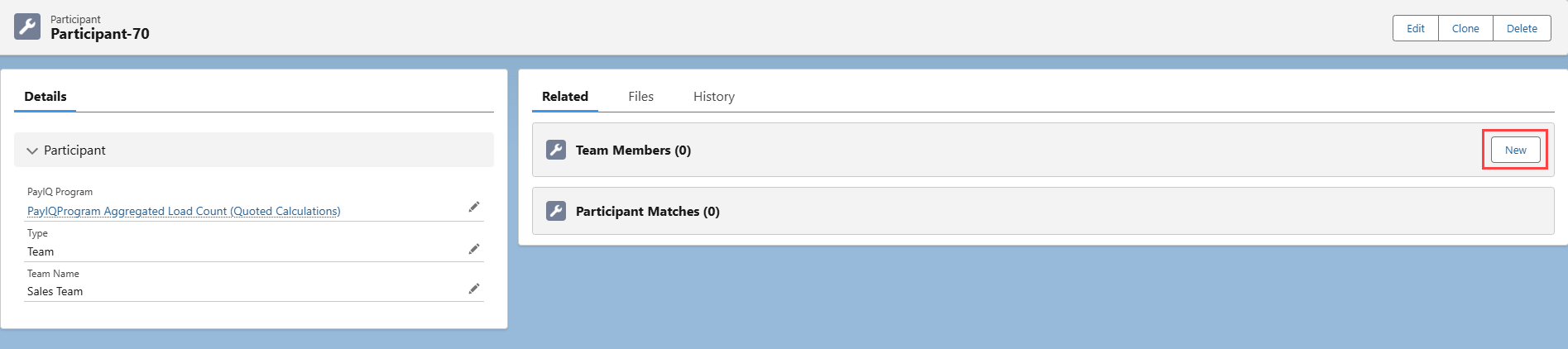
Enter the name of the PayIQ Program the Team and Participant belong to. Teams may be included on multiple PayIQ Programs.
Members may also be added to Teams on the Participant record. Enter and select the appropriate Team field on any Participants.
.png)
New User, Contact, Driver, and Fleet Asset records may be created from the drop-down fields.
Calculation Tiers
When all roles and participants are entered that require a calculated pay, create the pay Calculation Tiers. These tiers define the pay targets, percentages, minimums/maximums, etc. used to calculate pay. Click New on the Calculation Tiers related list.
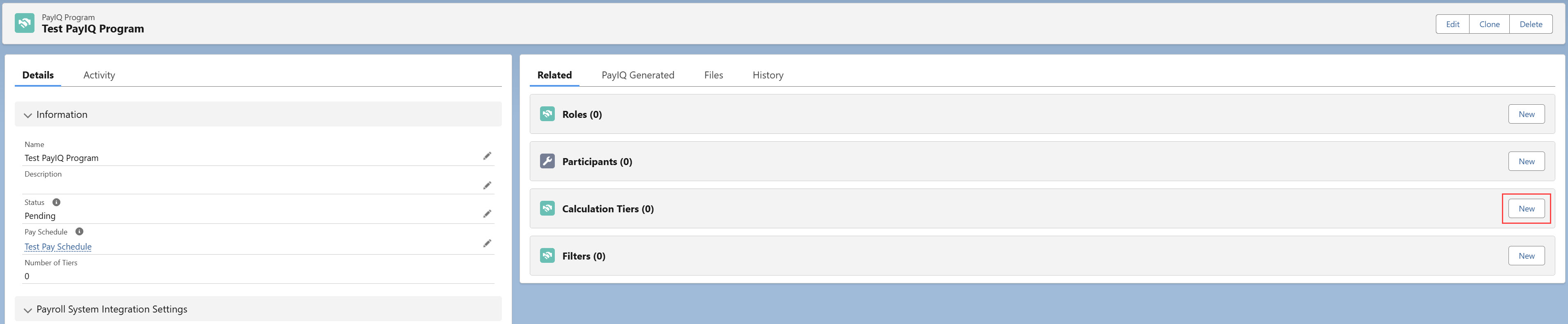
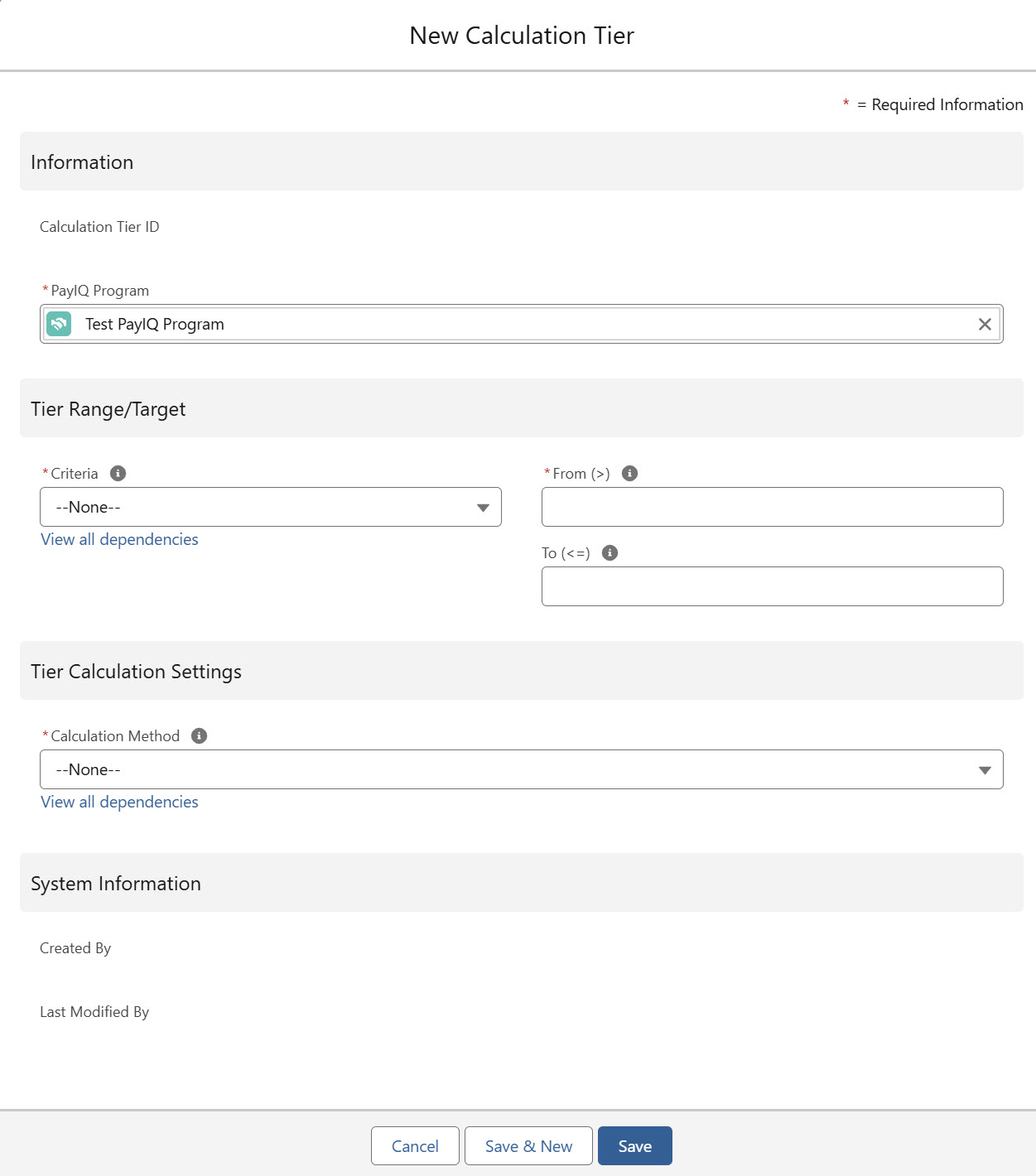
Tier Range/Target
Tier Ranges/Targets define the criteria to determine whether metrics from the Load/Driver Log/Trip Plan Leg fall within the specified range for payout (the pay brackets and/or sales targets to pay).
For example:
Tier 1: Pay 10% if the individual Load’s margin is 0 - $100.
Tier 2: Pay 15% if the margin is $100-$200.
Tier 3: Pay 20% if the margin is $200 or higher.
Criteria
This required picklist selects which metric to use as criteria. Each option functions as follows.
Load Margin - The criteria is based on the Load margin.
Load Margin % - The criteria is based on the Load margin percentage of revenue.
Load Revenue - The criteria is based on revenue, which can be one of the following 4 options based on the Criteria Revenue Number field.
Full Revenue: This is the full revenue for the Load, including all revenue line items (freight charges, fuel charge, and accessorial charges).
Freight Only: This amount includes only the freight charges.
Fuel Only: This amount includes only the fuel charge.
Freight + Fuel: This amount combines freight charges and the fuel charge, but leaves out the accessorial total.
Load Count - The number of Loads covered by this participant within the pay period. Freight Plan Loads are counted individually rather than as a unit. This option is always an aggregate count.
Load Custom Amount - The criteria is based on the selected Criteria Custom Currency field. This option is used if a fully custom amount is needed and is filled in by a trigger or flow. Aggregation per pay period is not supported for this option and is always treated on a Load-by-Load basis.
Rate per Driver Log Hour - The criteria is based on the hours entered on the selected Driver Log fields.
From the multi-picklist Criteria Driver Log Duration field, select the Driver Log fields to collect the hours from. If multiple fields are selected, they are summed together.
Driver Log/Trip Plan Leg Distance (Miles) - The criteria is based on the miles entered on the selected Driver Log fields or based on the calculated Distance (Miles) on the Trip Plan Leg.
From the multi-picklist Criteria Driver Log Distance field, select the Driver Log fields to collect the miles from. If multiple fields are selected, they are summed together.
Driver Log/Trip Plan Leg Distance (Km) - The criteria is based on the kilometers entered on the selected Driver Log fields or based on the calculated Distance (Kilometers) on the Trip Plan Leg.
From the multi-picklist Criteria Driver Log Distance field, select the Driver Log fields to collect the kilometers from. If multiple fields are selected, they are summed together.
.png)
Criteria Financials to Use
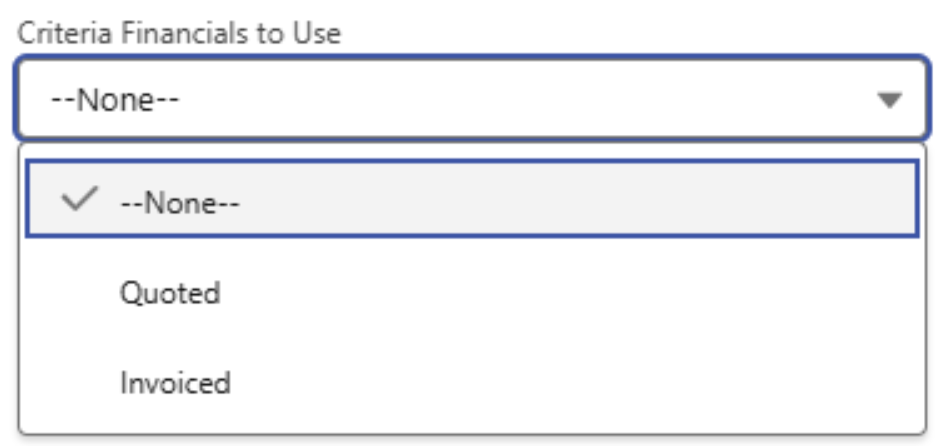
Select whether quoted or invoiced financials are used for margin/revenue. This picklist is only applicable for Margin, Margin %, and Revenue-based criteria.
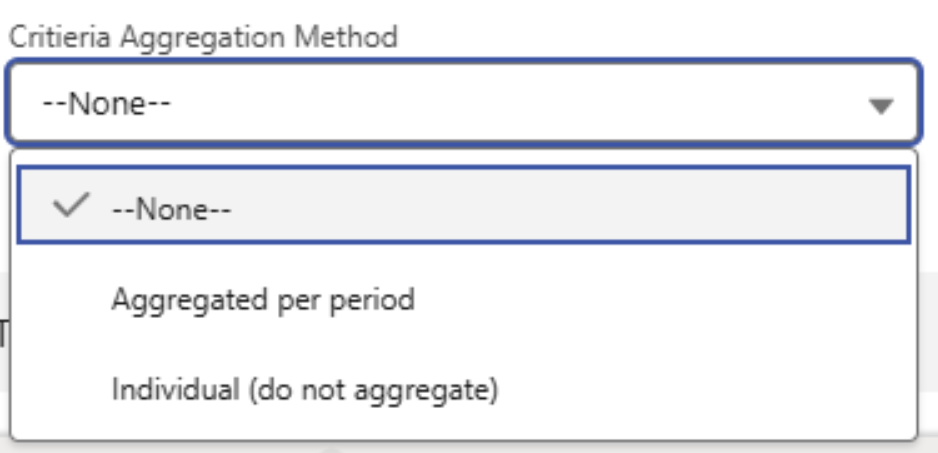
Criteria Aggregation Method
The Criteria Aggregation Method field allows for two options to determine how pay is calculated. The first calculates the aggregate sum values for the given criteria metric. The second calculates each record’s criteria metrics separately. This dropdown is only applicable for Margin, Margin %, Revenue, Hours, Miles, and Kilometers criteria. The selections function as follows.
Aggregated per period: The Generate Tier Pay job performs an aggregate sum of metrics per pay period for criteria considerations. The aggregate covers the entire Pay Period for the participant considered for pay. The aggregate resets if the record falls within the next Pay Period.
Individual (do not aggregate): Each Load’s metrics are considered on an individual basis. No aggregate sum is performed for criteria. This option emphasizes the performance for each Load/Driver Log/Trip Plan Leg rather than the performance over the entire Pay Period.
From (>)
This field defines the lower threshold of this tier. Any criteria that falls below this number does not generate pay unless another tier covers that value. This number is required.
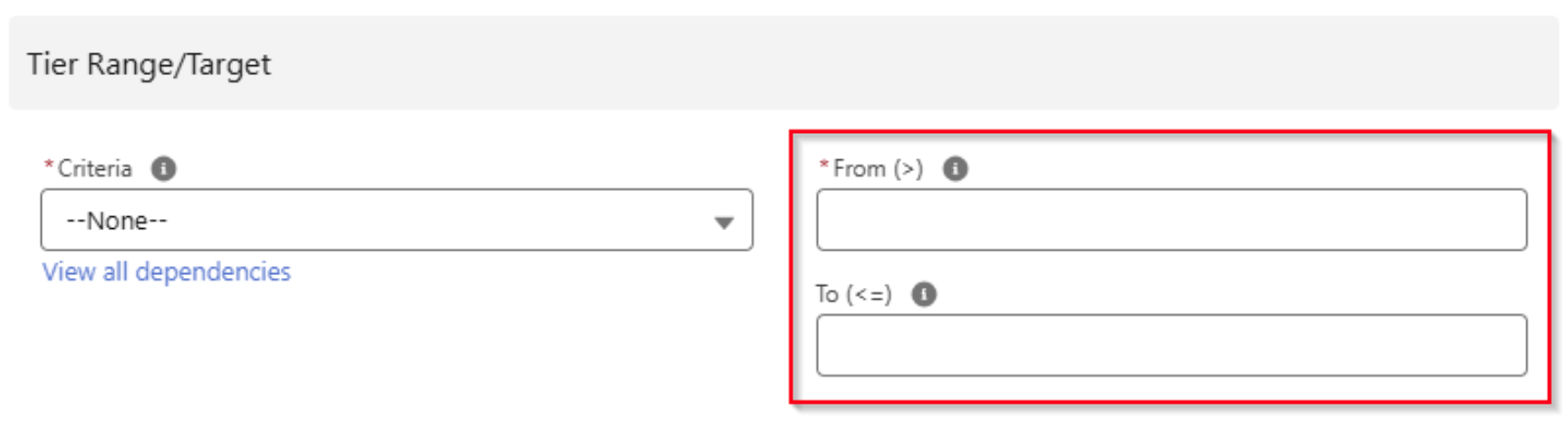
The From value on Margin-based Tiers may be set below 0 to account for Load metrics not covered by customer payments. For example, a TONU (Truck Order Not Used) charge is generally not paid by the customer but impacts Load metrics.
To (<=) This field defines the target threshold of this tier, any criteria that exceeds this number does not generate pay unless another tier covers that value. This number is optional. If blank, the tier is uncapped.
Tier Calculation Settings
This section defines how the final pay calculation is performed to determine the final payout.
Calculation Method
The following calculation methods support negative payouts (a broker/driver owes money back). Calculation Tier(s) must be set up with ranges/targets that account for negative amounts.
Percent of Load Margin
Percent of Load Margin with Min
Percent of Load Margin with Max
Percent of Load Margin (Sliding Scale)
Percent of Load Revenue
Load Custom Amount
The Calculation Method field determines the type of calculation performed to determine pay. This field is required. Options include the following.
Amount per Load: A flat rate payment entered in the Amount field.
Percent of Load Margin: The percentage entered to the Margin from the Load.
Percent of Load Margin with Min: The percentage entered for the Margin from the Load. A minimum payment based on the Min is entered in the Amount field.
Percent of Load Margin with Max: The percentage entered for the Margin from the Load. A maximum payment based on the Max is entered in the Amount field.
Percent of Load Margin (Sliding Scale): The percentage entered for the Margin from the Load. A ratio of Margin/Amount with a maximum set at 1.0. The calculation progressively slides up to the value entered in the Amount field.
Percent of Load Revenue: Applies the percentage entered to the Revenue from the Load, which may be one of the following 4 options based on the Calculation Revenue Number field.
Full Revenue: The full revenue for the Load, including all revenue line items (freight charges, fuel charge, and accessorial charges).
Freight Only: This amount includes only the freight charges.
Fuel Only: This amount includes only the fuel charge.
Freight + Fuel: This amount combines freight charges and the fuel charge, but leaves out the accessorial total.
Percent of Load Custom Amount - Applies the percentage entered to the selected Calculation Custom Currency field. This option is used when a fully custom amount is needed and is filled by a trigger/flow.
Rate per Driver Log Hour - Applies the amount entered as a rate multiplied with the hours entered on the selected Driver Log fields.
From the multi-picklist Calculation Driver Log Duration field, select the Driver Log fields to collect the hours from. If multiple fields are selected, they are summed together.
Rate per Driver Log/Trip Plan Leg Mile - Applies the amount entered as a rate multiplied by the miles entered on the selected Driver Log fields or multiplied by the calculated Distance (Miles) field on the Trip Plan Leg.
From the multi-picklist Calculation Driver Log Distance field, select the Driver Log fields to collect the miles from. If multiple fields are selected, they are summed together.
Rate per Driver Log/Trip Plan Leg Kilometer - Applies the amount entered as a rate multiplied by the kilometers entered on the selected Driver Log fields or multiplied by the calculated Distance (Kilometers) field on the Trip Plan Leg.
From the multi-picklist Calculation Driver Log Distance field, select the Driver Log fields to collect the kilometers from. If multiple fields are selected, they are summed together.
Running Aggregate Calculation Methods
All Running Aggregate Calculation Methods are calculated based on real-time aggregates for paying out Loads. The calculation methods below must be aggregated per Pay Period for the aggregation method to calculate properly. Payouts are based on the entire Pay Period
One-Time Payout at Target - For bonus programs or a payment that is paid once per Pay Period. The One-Time Payout is associated with the Load that met the bonus criteria. Loads that span across multiple
The Calculation Tier From field acts as a greater than or equal to (≤ instead of <).
Set the Revoke Payout If Dipped Under Threshold field to determine whether the bonus is revocable or irrevocable.
Account for negative-amount Loads with this field.
When a payout is revoked, a second negative flat rate payment is created.
Requirements:
The Criteria must be aggregated.
The Margin/Revenue criteria, Load Count, and all Driver Pay Criteria selects are supported. Load Margin % and Load Custom Amount are not supported.
The From field must be positive.
The To field must have no value.
Amount per Load Contributing to Bracket - Once a tier threshold is reached, the Participant is paid a flat amount.
When a Load’s criteria is added to a prior tier and also contributes to the next tier, the flat rate amount is paid.
If negative-amount Load drops the aggregate into another tier, the payout amount is deducted.
Requirements:
The Criteria must be aggregated.
The Margin/Revenue criteria, Load Count, and all Driver Pay Criteria selects are supported. Load Margin % and Load Custom Amount are not supported.
The From field must be positive.
The To field must be positive.
Percent of Load Contribution Within Bracket - The Load’s criteria is added to the running aggregate contributes to a specific tier, a percentage of that contribution within the tier’s range is paid.
Negative-amount Loads are shown as deductions based on the negative contribution to the tier. Multiple tiers may be impacted.
Requirements:
The Criteria must be aggregated.
The Load Margin/Load Revenue criteria are supported. All other types are not supported.
The From field must be positive.
The To field must be positive.
Percent of Load Criteria After Burndown - A percentage of the total non-running aggregate criteria is paid minus the burndown amount when the running aggregate passes the burndown amount.
The first tier From field defines the burndown amount.
Negative-amount Loads that temporarily reduce the aggregated amount below the burndown amount are shown as deductions.
Requirements:
The Criteria must be aggregated.
The Load Margin/Load Revenue criteria are supported. All other types are not supported.
The From field must be positive.
The To field must be positive.
.jpg)
For all Running Aggregate Calculation Methods, the Load order is determined by the following values in the following order.
Eligible Date on the Participant Match (ascending).
Load Created Date (ascending).
Driver Log Created Date (ascending)
Trip Plan Leg Created Date (ascending)
Trip Plan Leg Number (ascending)
Participant Match Date Created (ascending)
The accessorial Payable field does not impact the calculations for the following calculation methods.
Percent of Load Margin
Percent of Load Margin with Min
Percent of Load Margin with Max
Percent of Load Margin (Sliding Scale)
Percent of Load Revenue
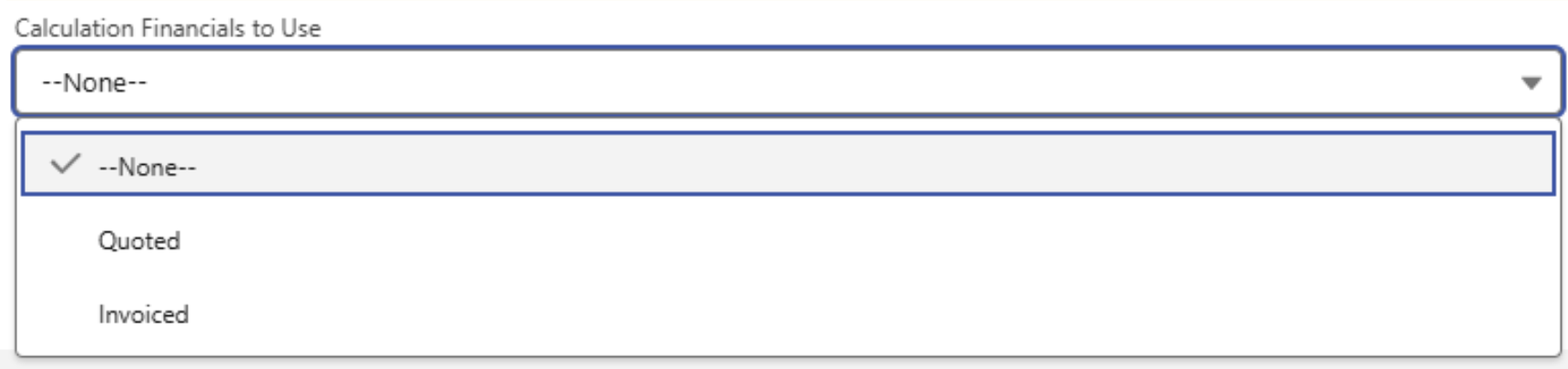
Calculation Financials to Use
Select Quoted or Invoiced financial information to use for margin/revenue calculations. This picklist only applies to the following calculations.
Percent of Load Margin
Percent of Load Margin with Min
Percent of Load Margin with Max
Percent of Load Margin (Sliding Scale)
Percent of Load Revenue based calculations
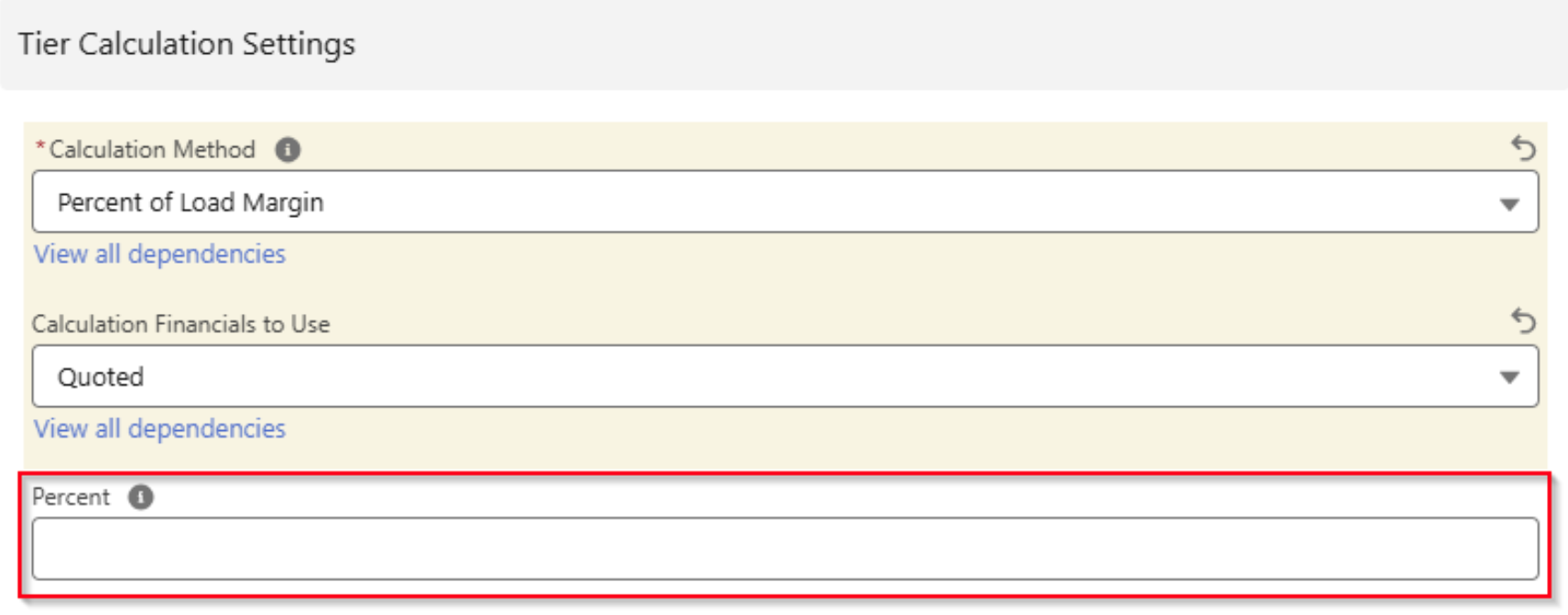
Percent
The percentage value used in calculating pay. This field applies to the following calculations:
Percent of Load Margin
Percent of Load Margin with Min
Percent of Load Margin with Max
Percent of Load Margin (Sliding Scale)
Percent of Load Revenue
Percent of Load Custom Amount
Amount
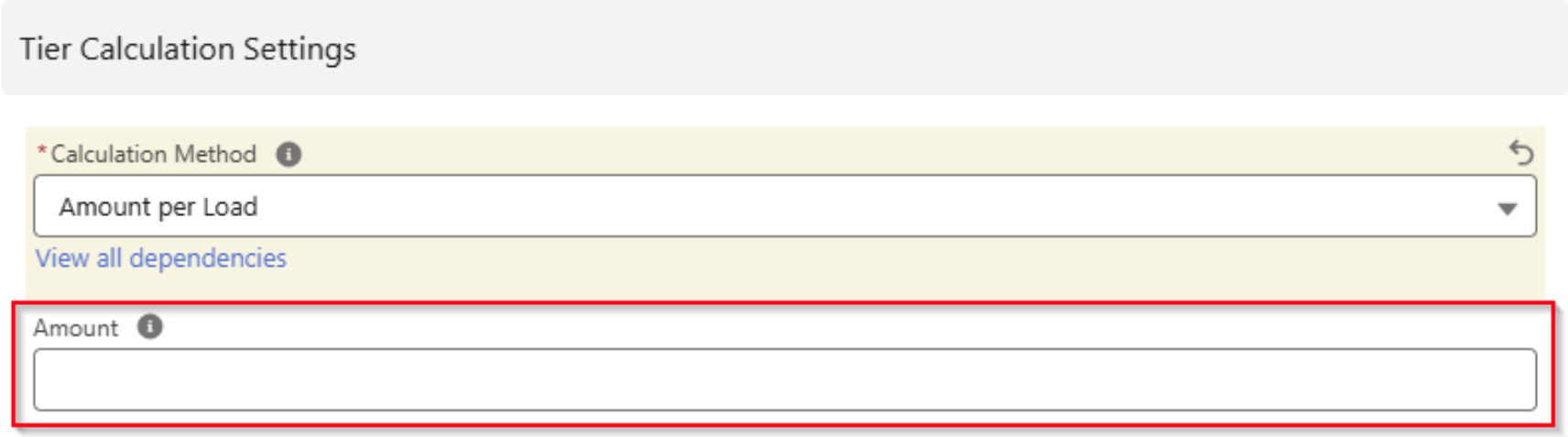
The Amount field defines the following.
The Amount value used for amount per Load calculations.
The Min value for Percent of Margin with Min calculations.
The Max value for Percent of Margin with Max calculations.
The cap value for Percent of Margin (Sliding Scale) calculations.
The Rate for Rate per Driver Log Hour calculations.
The Rate for Rate per Driver Log/Trip Plan Leg Mile calculations.
The Rate for Rate per Driver Log/Trip Plan Leg Kilometer calculations
Calculation Tiers and Calculation Tier metrics are rounded to 3 decimal places before they are sorted into the correct Tiers. This behavior matches what appears in the PayIQ Qualification Logs.
Accessorial Rules
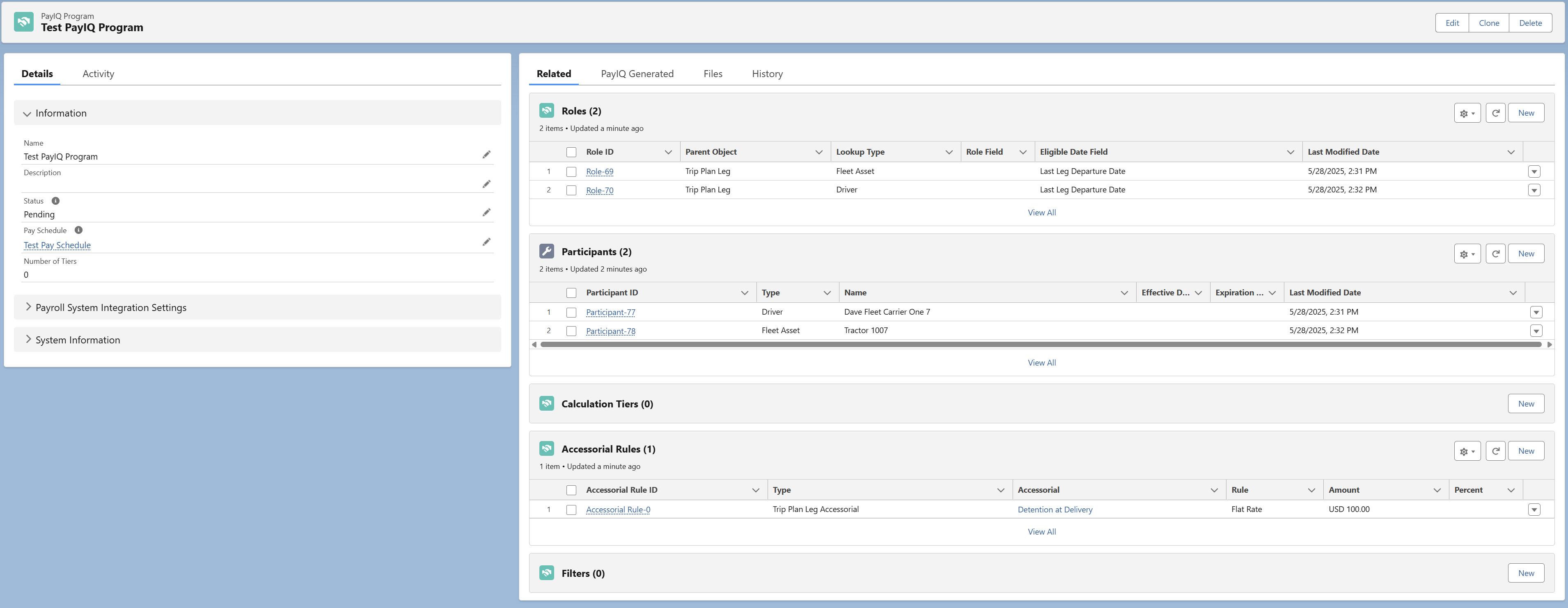
After all roles and participants are entered, create any applicable accessorial rules. These rules define the following.
The accessorial charges that are paid out.
For Quote/Invoice accessorial charges, the portion.
Apply auto-fill rules for Trip Plan Leg accessorial charges.
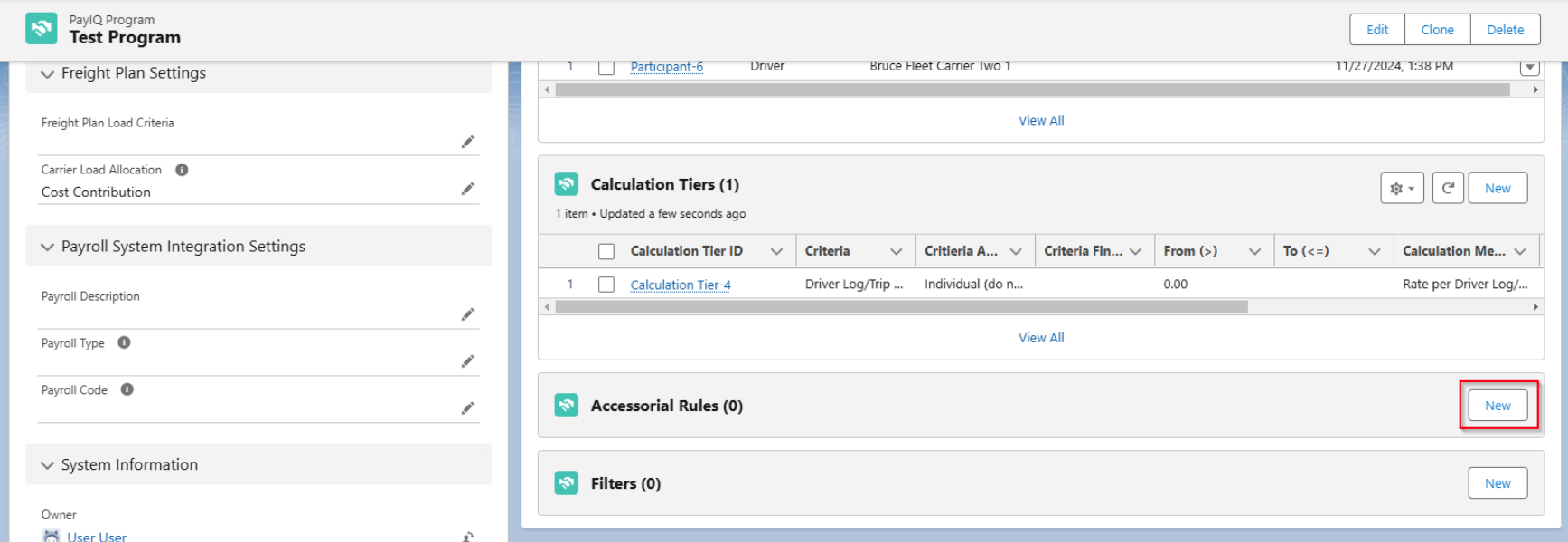
Click New on the Accessorial Rules related list.
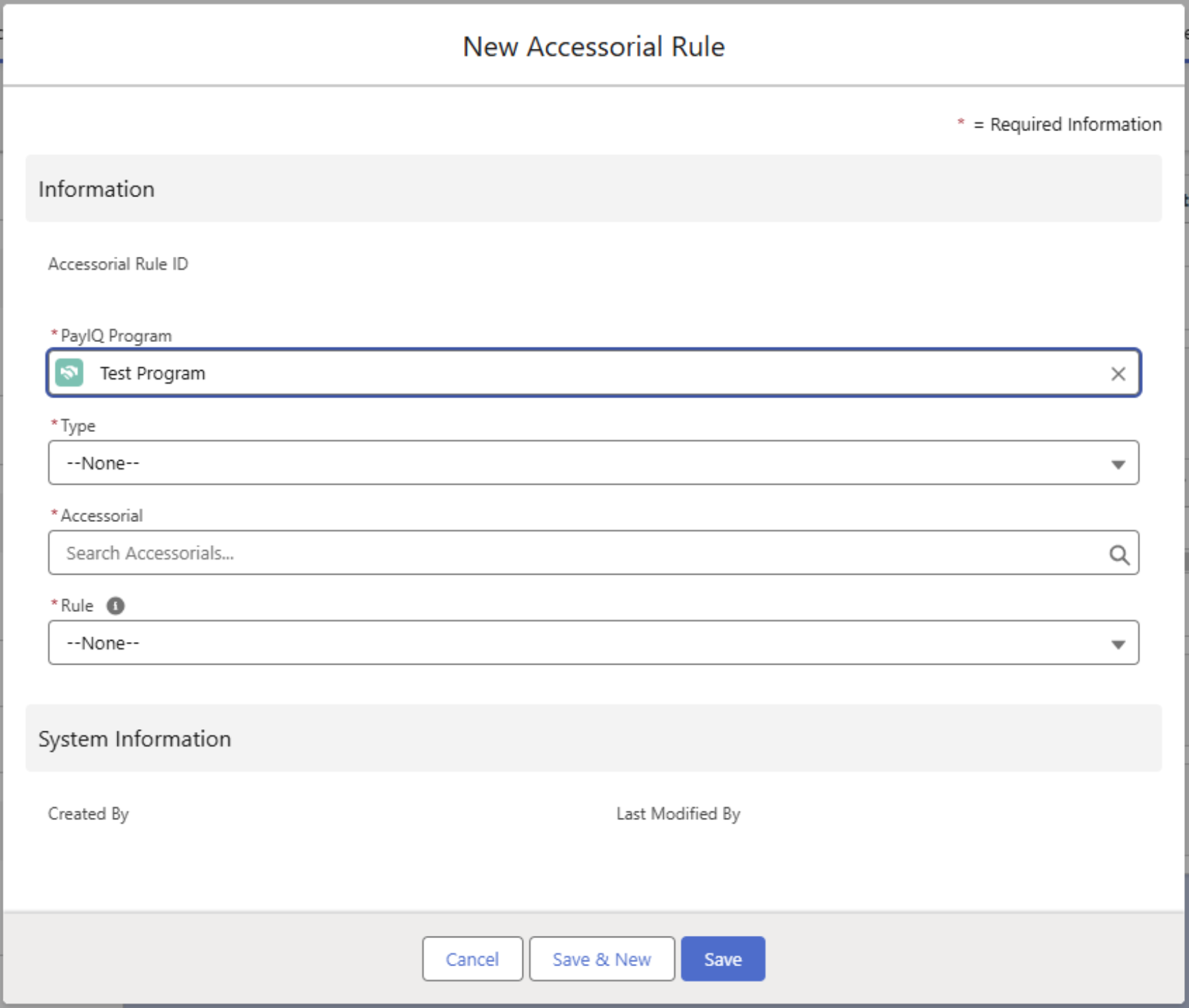
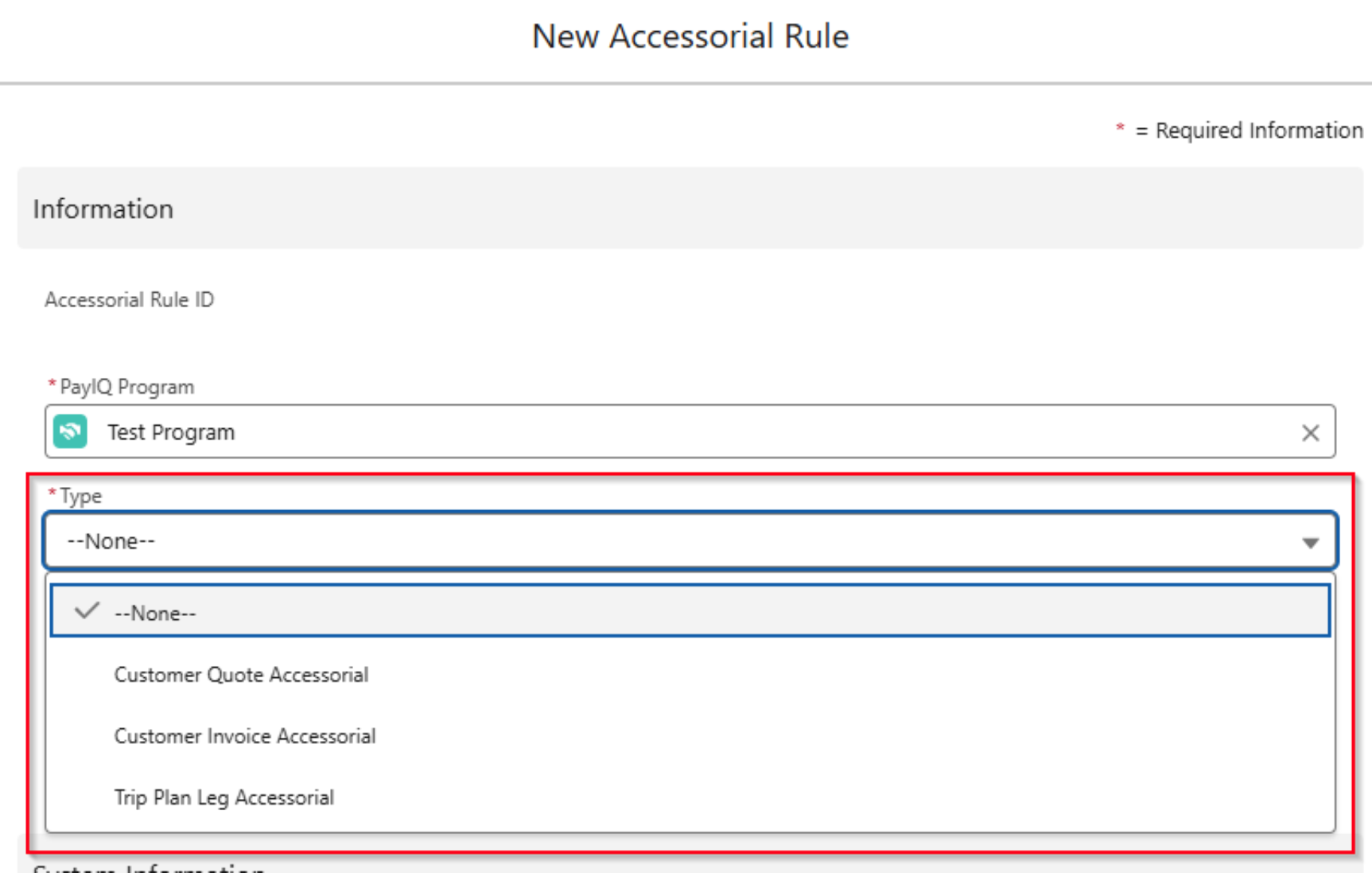
Type
The Type field specifies the accessorial to be paid. Customer Quote or Invoice Accessorial types with multiple accessorial rules create multiple Pay Details for these accessorial rules.
Customer Quote Accessorial - This rule applies and sets the payout for the accessorial on the associated customer quote. Only applicable to Load-based pay.
Customer Invoice Accessorial - This rule applies and sets the payout for the accessorial on the associated customer invoice. Only applicable to Load-based pay.
Customer Quote or Invoice Accessorial types with multiple accessorial rules create multiple Pay Details. For example, a Blind Shipment Accessorial with a Flat Rate rule and a Percent of Accessorial rule generates two Pay Detail records for the same accessorial.
Trip Plan Leg Accessorial - Defines an auto-fill rule for Trip Plan Leg accessorial charges. When paying Trip Plan Leg accessorial charges, every accessorial is paid 100%. This allows for defining auto-fill rules when entering a Trip Plan Leg accessorial to save typing/mouse-clicks. These rules do not affect payout. Only applicable for Trip Plan Leg-based pay.
Do not use multiple rules for the same accessorial charge. The Trip Plan Leg presents a warning when multiple rules exist for an accessorial charge.
Drivers and/or Fleet Assets Participants must be saved on the Trip Plan for a Trip Plan Leg Accessorial rule to auto-fill. Save the Driver or Fleet Asset Participant to the Trip Plan to confirm the Participant and load the default unit price into the Trip Plan Leg accessorial. Adding the Trip Plan Accessorial first does not auto-fill the Trip Plan Leg accessorial values.
Participants matching for Load-based pay (Drivers or Fleet Assets) are not paid on Trip Plan Leg accessorial charges.
Scenario
A scenario may arise when a Driver matches for Load-based pay and is not paid based on the Trip Plan Leg Accessorial. There may be cases where additional payments to the Driver are needed for non-Load-specific items. In this scenario, additional Trip Plan Leg Accessorial charges may be used to account for the additional payments.
Complete 1 of the steps below to pay a Driver or Fleet Asset for both Load-based pay and the Trip Plan Leg Accessorial.
Create 2 PayIQ Program records.
One Program matches Participants for Load-based pay.
One Program matches Participants only for Trip Plan Leg Accessorial charges.
Create 2 Participant records for each Driver or Fleet Asset.
One Participant matches based on the Load-based pay.
One Participant matches for the Trip Plan Leg Accessorial charges.
Use caution to not overlap multiple PayIQ Programs that pay Drivers or Fleet Assets based on Trip Plan Leg accessorial charges. This may result in a Driver or Fleet Asset paid twice for a single Trip Plan Leg Accessorial charge.
Accessorial
This field allows selecting/searching for the appropriate accessorial name the rule applies to. For customer quote/customer invoice accessorial rules, only accessorial charges with accessorial rules defined for them are paid out.
Accessorial rules control how the charge auto-fills the Trip Plan Leg accessorial fields. Trip Plan Leg accessorial charges always pay out 100%, even without an accessorial rule.
Rule
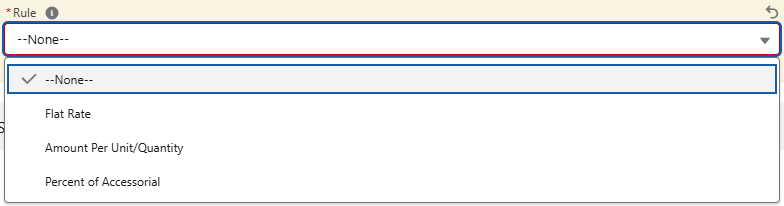
This field defines the payout for customer invoice/quote accessorial rules and defines the type of auto-fill to apply for Trip Plan Leg accessorial charges.
Flat Rate - When using customer invoice/quote accessorial rules, the payout is the amount defined in the accessorial rule for each instance of the given accessorial. For Trip Plan Leg accessorial charges, this auto-fills the Qty to 1 and the unit price to the amount defined.
Amount per Unit/Quantity - When using customer invoice/quote accessorial rules, the payout is the amount defined in the accessorial rule multiplied by the quantity for each instance of the given accessorial. For Trip Plan Leg accessorial charges, this auto-fills the unit price to the amount defined but the Qty is not changed.
Percent of Accessorial - Only used for customer invoice/quote accessorial rules. The payout is the item total of the accessorial multiplied by the percent defined.
Show Accessorials
Add Accessorial charges and qualify them for Driver Settlement directly from the Trip Plan LWC in the Fleet Management Console. Click the Show Accessorials button  to display the criteria for adding the accessorial to the Trip Plan Leg.
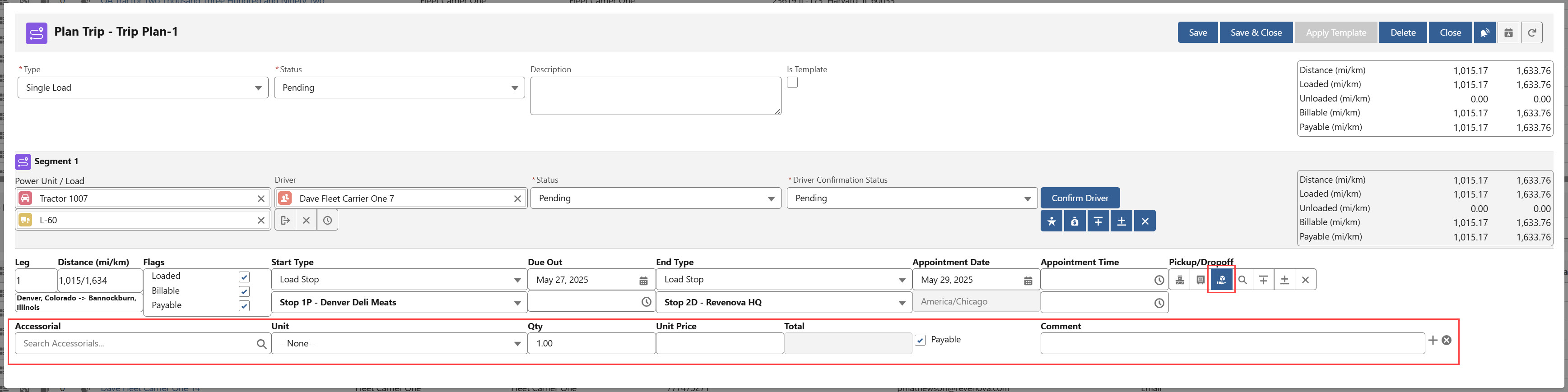
The Show Accessorials button on the Trip Plan Leg is not available until the Trip Plan record is saved.
Enter the following information in the fields.
Accessorial
Unit
Quantity
Unit Price
Payable
Comment
The Quantity and Unit Price fields are rounded to 2 decimal places.
Payable Field

Check the Payable box to qualify the Accessorial charge for Driver Settlement and create the Accessorial Pay Detail record. Drivers and/or Fleet Assets are paid on the accessorial in full.
Calculations from the Load Margin value include the accessorial amount regardless of whether the Payable field is Checked for the accessorial. The Margin/Full Revenue pay options for the Load are not impacted by the Payable field.
The Payable field only controls when accessorial charges are paid by accessorial rules. It does not impact the margin or full revenue pay options for a Load.
Filters
PayIQ Programs may not apply to all records in the system. Some records may be covered by one program and other records covered by another. PayIQ provides general-purpose Filters for accomplishing this purpose. Add filters by clicking New on the Filters related list.
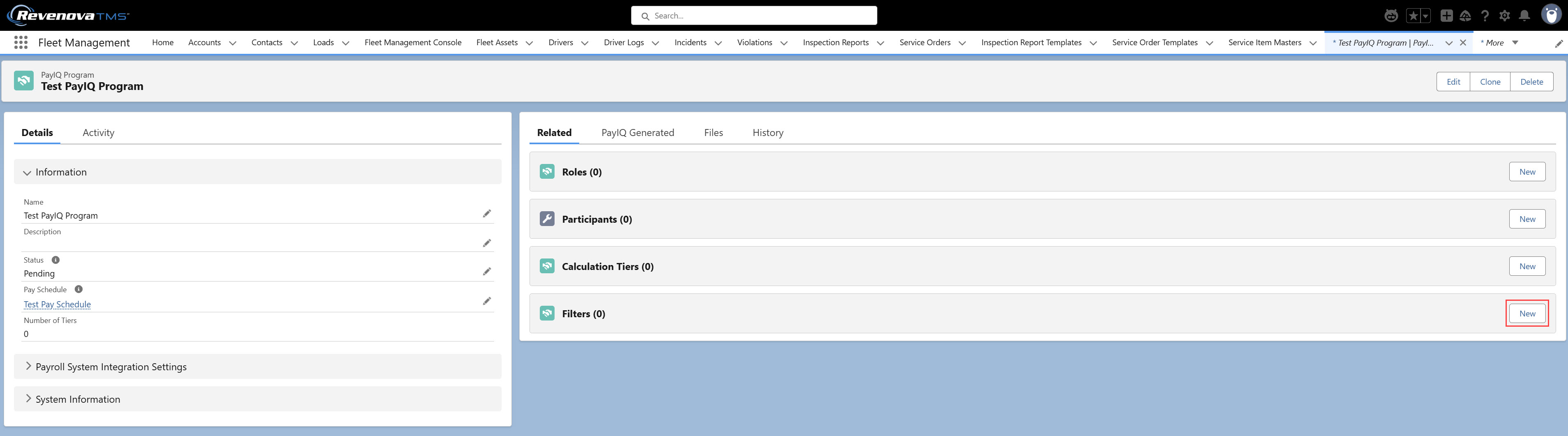
Each Load Filter requires four fields to add a filter to the program.
Table
Field
Operator
Value
Table
Filters may be created for any of the three supported record types for PayIQ: Load, Driver Log, or Trip Plan Leg. This field is required.

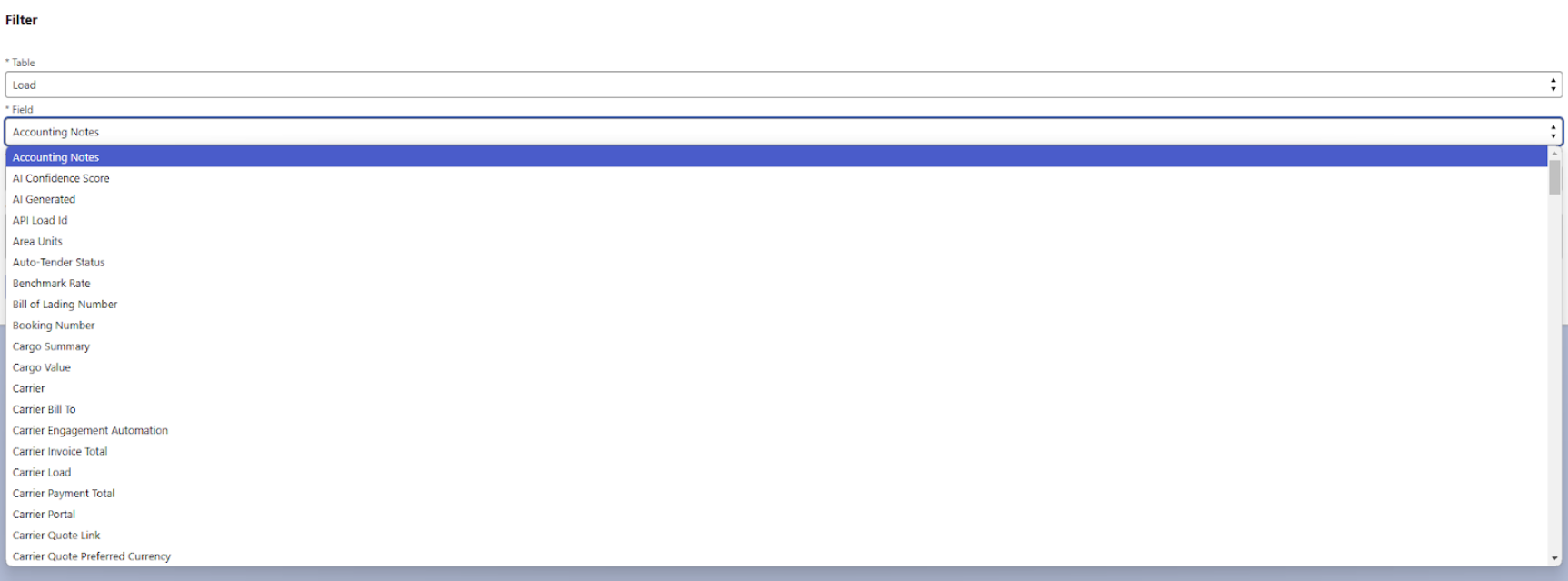
Field
The picklist contains all fields for the table selected, including any custom fields (except the OwnerId field).
Operator
This picklist allows for selecting the operator to apply to the Load field selected above. Each selection functions as described below.
Equal to: Straight equality. For multi-select picklist fields, the order does not matter.
All options selected in the multi-select picklist must match exactly. No more options selected, no fewer. See the examples below.
Category 2; Category 10 — MATCH
Category 3; Category 10 — Not a Match
Category 2; Category 10; Category 11 — Not a Match
Category 3; Category 11 — Not a Match
Not Equal to: Straight inequality. For multi-select picklist fields, the order does not matter.
Contains (Text fields only): Text must contain the value entered.
Contains (Multi-select picklist fields only): The multi-select picklist must contain all of the multi-select picklist selections entered in the value field.
All selections in the list must be present, but other selections may also be present. See the examples below.
Category 2; Category 10 — MATCH
Category 3; Category 10 — Not a Match
Category 2; Category 10; Category 11 — MATCH
Category 3; Category 11 — Not a Match
Equal to Any (Multi-select picklist fields only): The multi-select picklist must contain any one of the multi-select picklist selections entered in the value field.
If any of the selections are in the list, a match occurs. This functions like an OR operation. See the examples below.
Category 2; Category 10 — MATCH
Category 3; Category 10 — MATCH
Category 2; Category 10; Category 11 — MATCH
Category 3; Category 11 — Not a Match
Equal to Any (Picklist and Reference fields only): The picklist or lookup must be equal to one of the selections in the list.
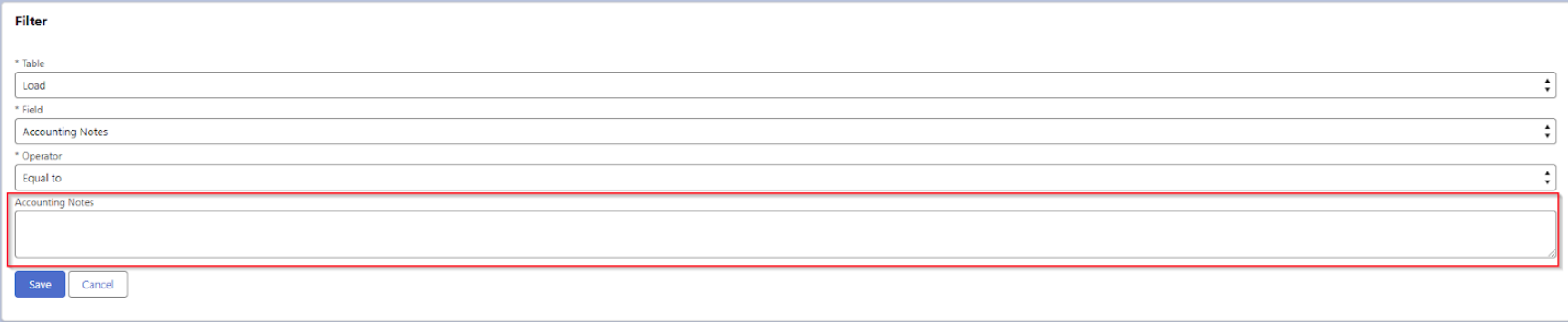
Value
The Value field is labeled according to the field selected.
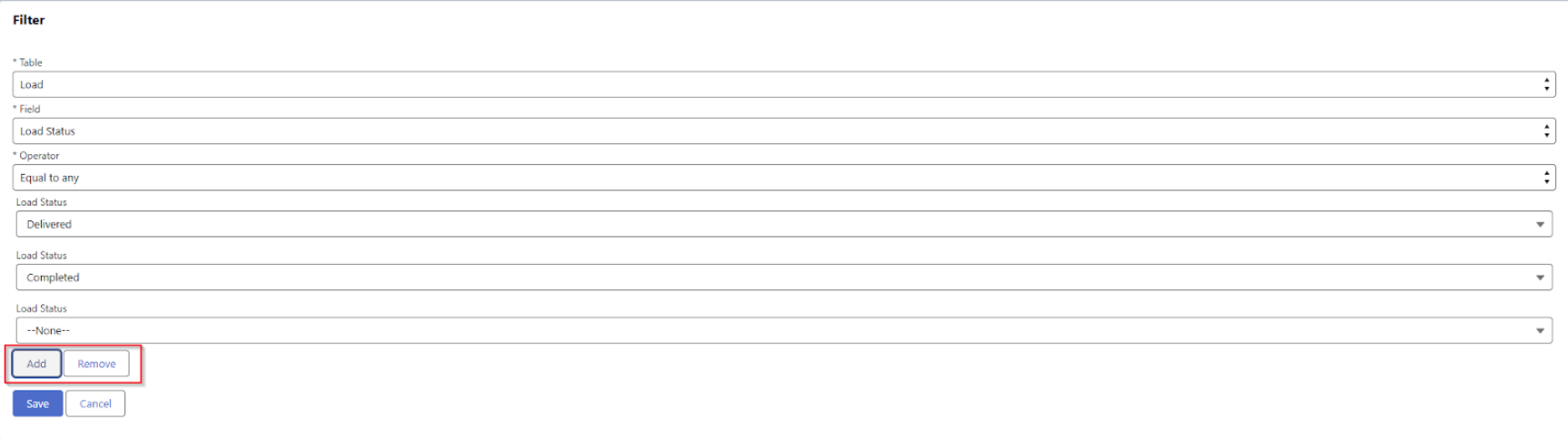
If the field is a picklist or lookup field and the Equal to Any operator is selected, add or remove options with the Add/Remove buttons. At least one value must be selected.
Load, Driver Log, or Trip Plan Leg filters created with datetime fields are saved and compared/matched in GMT. A Load filter created by a user in one time zone only matches to a field entered by a user in another time zone if their GMT values match.
Setting up Minimum Pay Rules
If there is a need to pay employees/contractors a minimum amount each pay period, a Minimum Pay Rule may be created under the Pay Schedule. To create a Minimum Pay Rule, open the Pay Schedule, find the Min Pay Rules tab, and click New on the related list.

Enter the Minimum Pay (Per Period) and select the Payee Type (User, Contact, Driver, or Fleet Asset) and fill in the field that appears below. Choose Save.
This pay rule causes the Generate Adjustments PayIQ job to enter a Pay Adjustment when the Grand Total on the Pay Header is below the amount defined on the minimum pay rule. The Pay Header for the next subsequent period has a corresponding and equal negative Pay Adjustment to account for the loss of revenue.
Entering Pay Advances
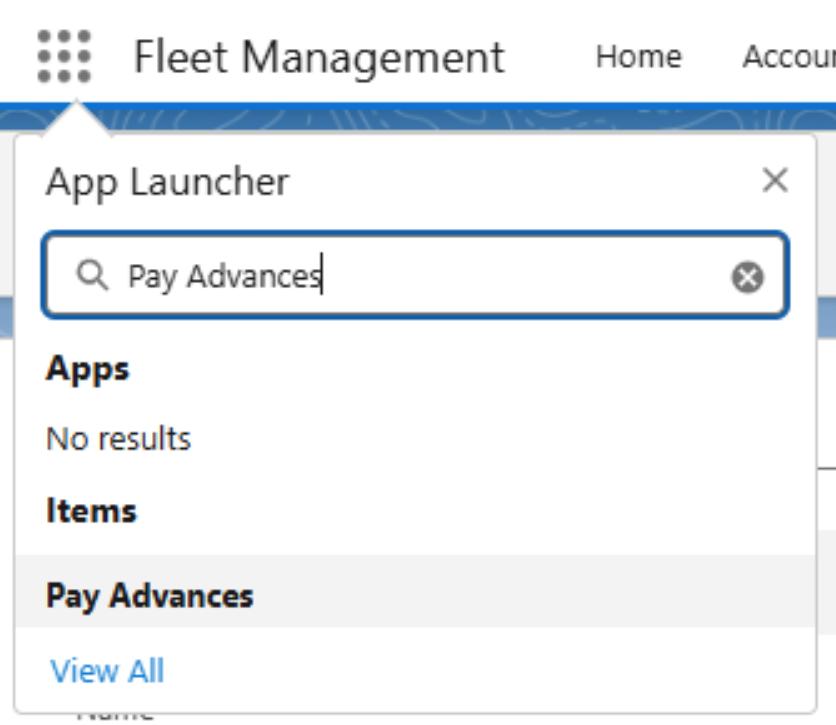
Cases may arise where pay or a charge must be submitted in advance for an employee or contractor. Pay Advances allow for these cases. Enter an addition or deduction in advance and map it to either a single adjustment or add to/deduct from pay on a Schedule. Create a Pay Advance by first opening the Pay Advance tab from the App Launcher.
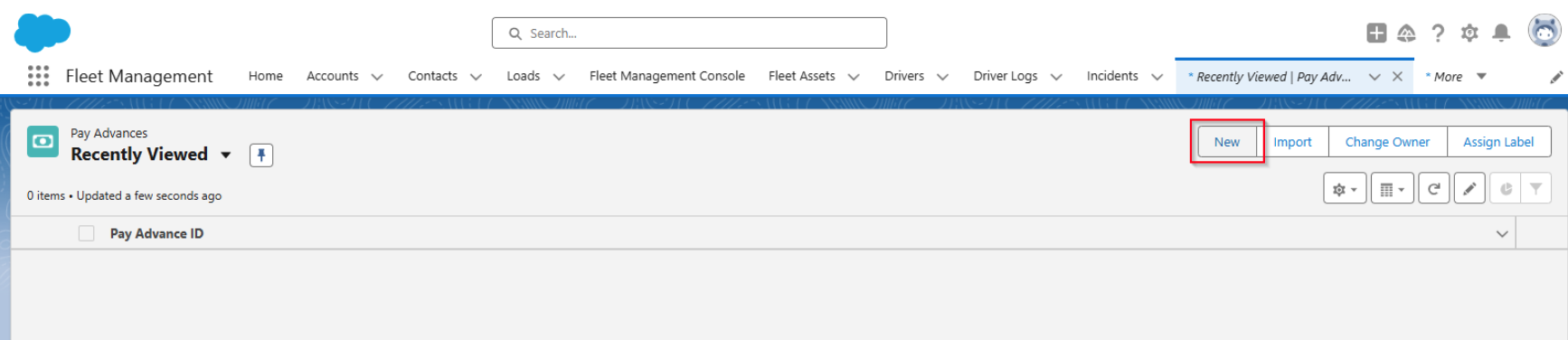
Click New.
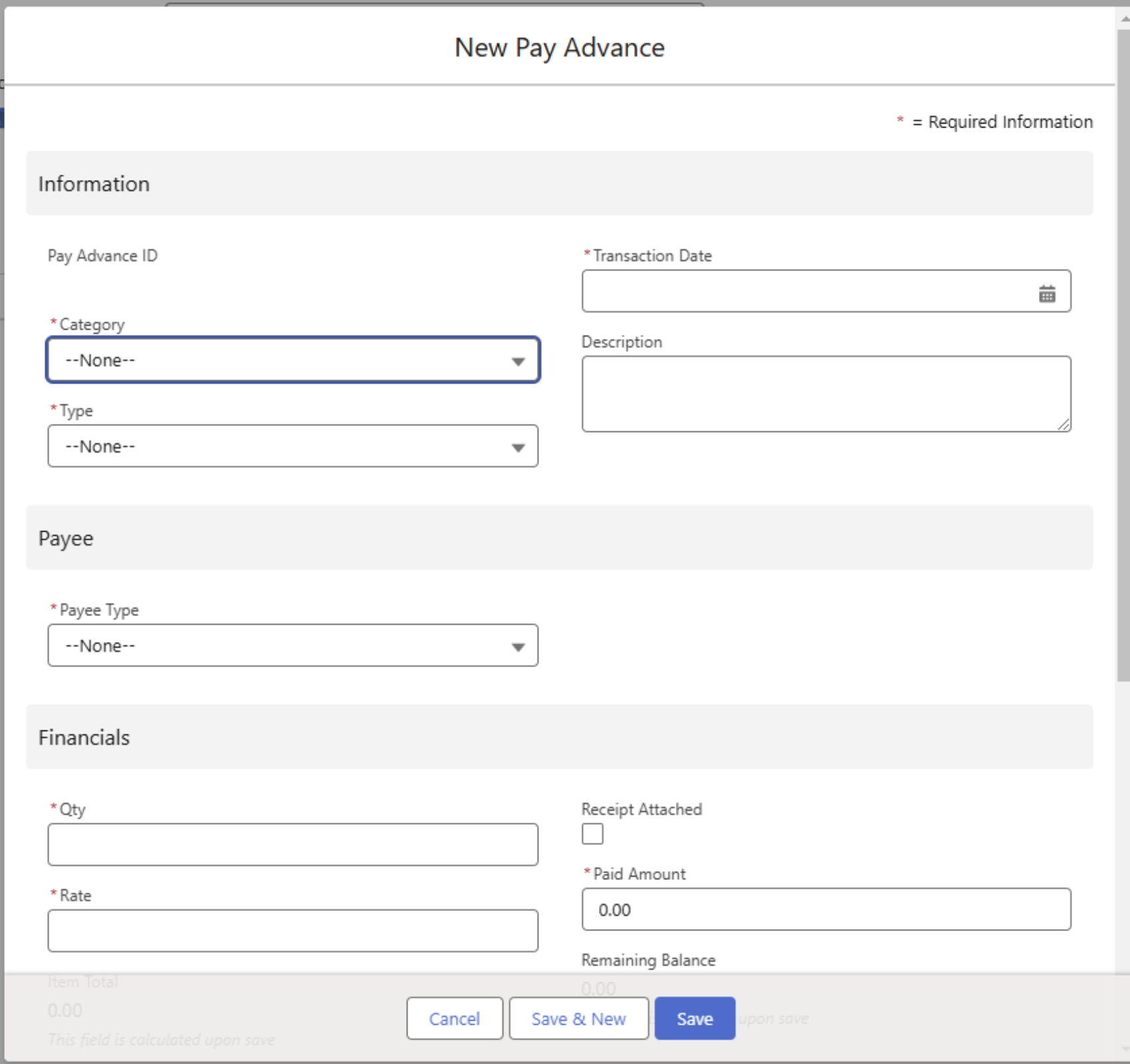
Enter the following fields to create the Pay Advance.
Category: Specifies whether the Pay Advance is an addition or a deduction. (required)
Type: A few common types are listed. When Other is selected, a Description may be entered for that adjustment. (required)
Transaction Date: The date for the Pay Advance. This date determines the Pay Period to start creating adjustments. A tentative future Transaction Date may be entered and updated until the Pay Advance is generated. (required)
Payee Type: The User, Contact, Driver, or Fleet Asset. When selected, a corresponding field appears to enter the appropriate payee.
Qty - The number of Items for the Pay Advance. This value is multiplied by the rate to calculate the total. (required)
Rate - The rate per item. (required)
Receipt Attached - Check the box and save the record to attach a receipt. Attach an image of the receipt.
Paid Amount - Set by the automated process as adjustments are created from the Pay Adjustment to indicate how much was covered. Recommended to leave as 0.00. (required)
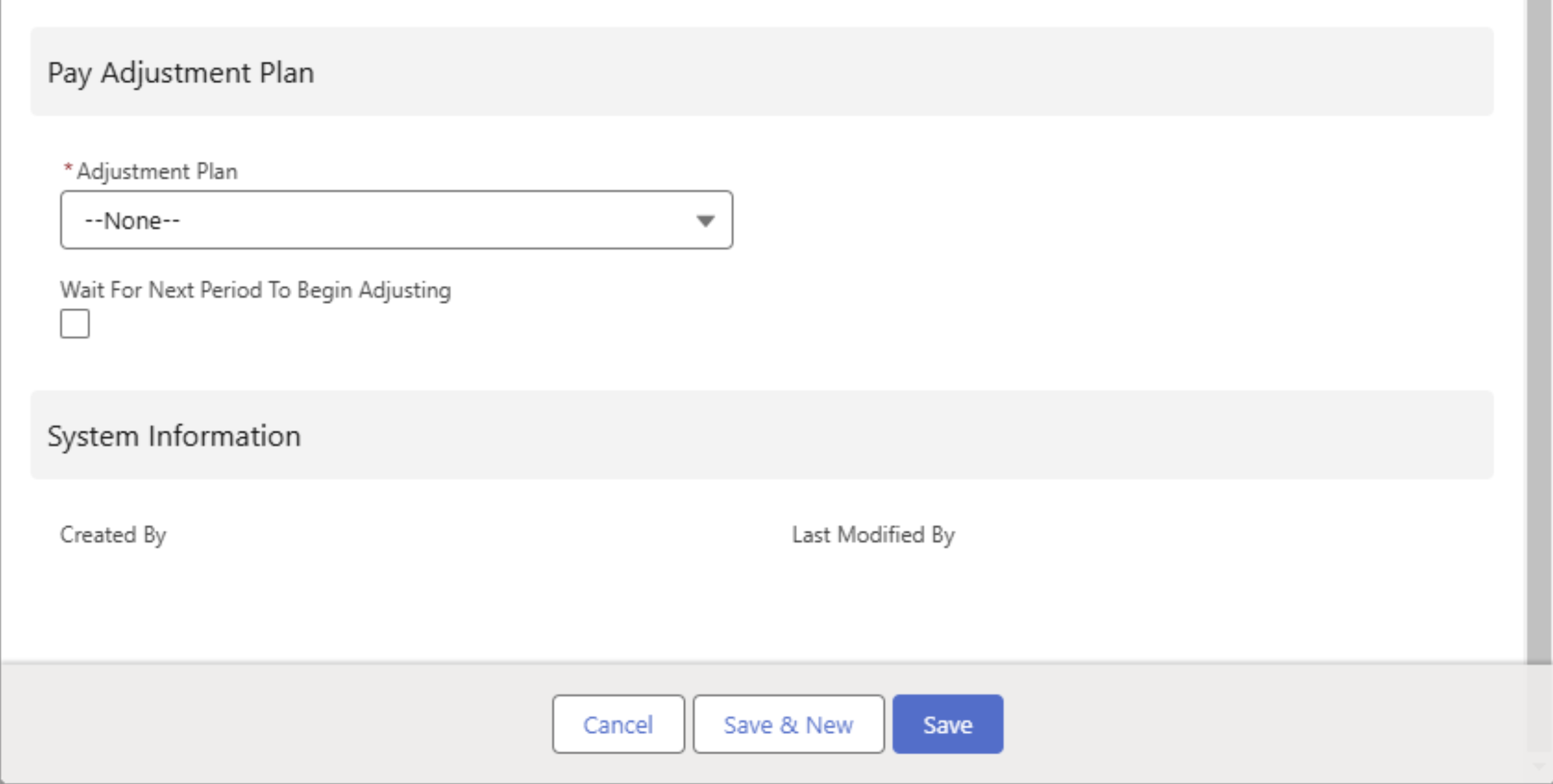
Cloning a Pay Advance record sets the Paid Amount field to 0. If necessary, edit the Paid Amount value after the record is created.
Adjustment Plan - Sets how the Pay Advance is paid out.
Flat Amount - The full amount of the Pay Advance transferred as a Pay Adjustment on the appropriate Pay Period.
Percent per Pay Period - Starting with the first matched Pay Period, a given percent of the Pay Advance total is transferred for each Pay Period until the Pay Advance is covered. The final addition/deduction may be less than the percentage if less than the defined percentage on the remaining balance.
Amount per Pay Period - Starting with the first matched Pay Period, a given amount each Pay Period is transferred until the Pay Advance total is covered. The final addition/deduction may be less than this amount is on the remaining balance.
Estimating Pay
Estimating Pay is only available for Drivers and Fleet Assets. In some cases a Driver or Fleet Asset requires a Pay Estimate as part of the Driver confirmation.
Sharing Settings
In order for Pay Estimates to appear in the Fleet Email Loop, create sharing rules for the Pay Estimate and Pay Estimate Detail objects.
From Setup, search for and select the Sharing Settings link.
In the Manage sharing settings for: drop-down, select the Pay Estimate object.
In the Sharing Rules section, click the New button.
Enter a Rule Name Label to generate the
Select the Guest user access, based on criteria radio button.
Choose a Field from the list of Criteria and select an Operator with a nonsensical Value. See the screenshot below for an example.
In the Share With drop-down, select Email_Loop Site Guest User.
Confirm the Access Level is set to Read Only.
Click Save.
The Sharing Rule also applies to the Pay Estimate Detail object. This object does not require a sharing rule as it is a Master-Detail relationship to the Pay Estimate object.
Repeat the steps from the Manage sharing settings for: drop-down for the PayIQ Program object.
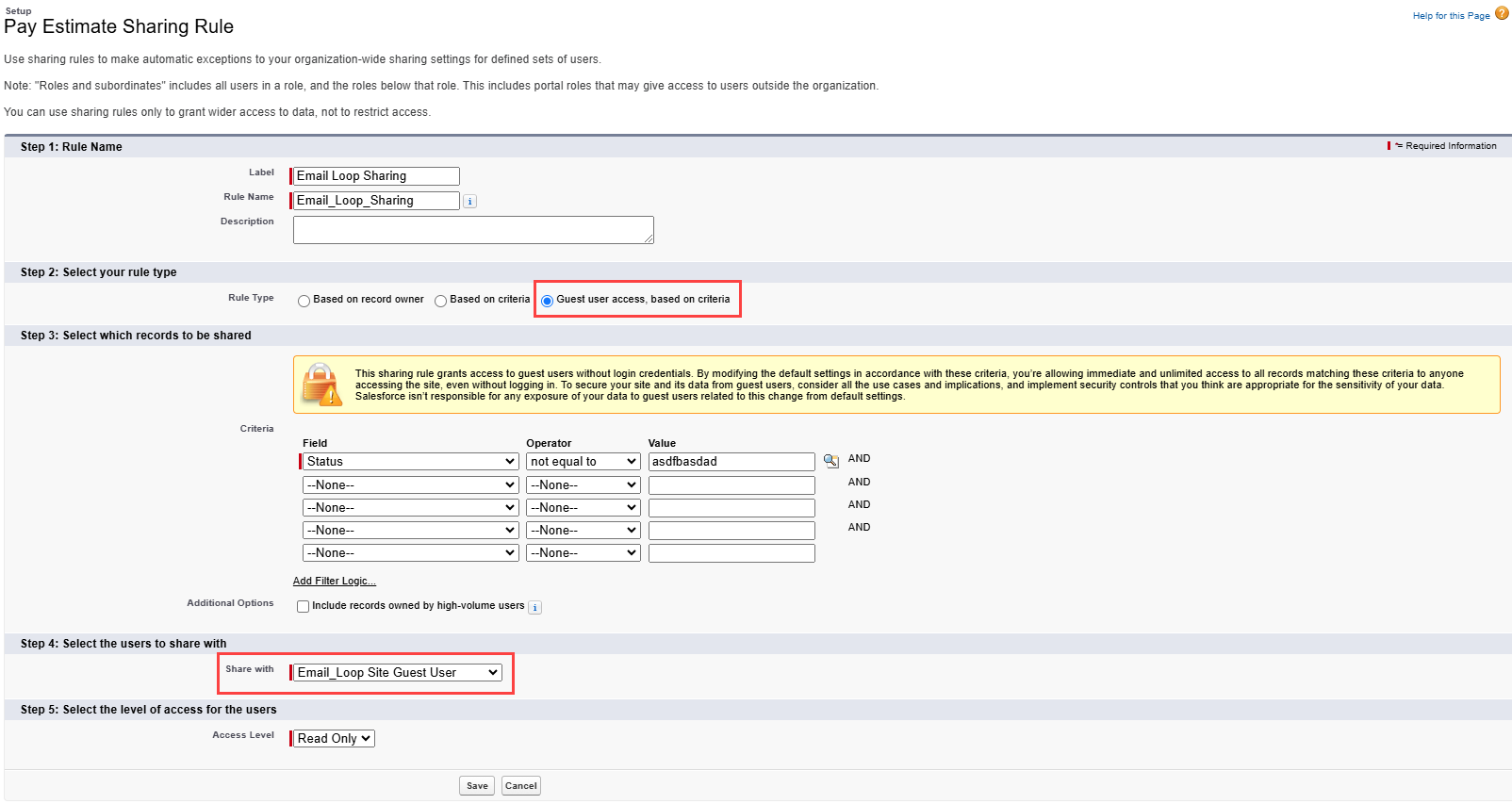
PayIQ Program Setup
To create Pay Estimates, a PayIQ Program with the following characteristics is required.
Driver Log and/or Trip Leg Roles
Driver and/or Fleet Asset Participants matching the Driver(s) Fleet Asset on the Segment to estimate with Allow Pay Estimation Checked.
Calculation tiers must be based on mileage/km OR if paying off of the Load, non-aggregate amounts (or a custom amount), or applicable accessorial rules. Any tier criteria or calculations set to use Invoiced amounts are pulled from quoted numbers for the estimate.
Optional filters are supported as with actual Trip Plan Leg/Load Pay.
Pay Estimates follow the same rules as Pay Detail records. The Pay Estimate follows any Trip Plan Leg filters set on the PayIQ Program.
User Setup
For Users that require Pay Estimation, the Create/Read/Update access on the Pay Estimate and Pay Estimate Detail objects determines whether the User can perform these functions.
Further permissions may be refined using the following additional User fields.
Show PayIQ ‘Payable’ Checkbox in FQA: Enables the ability to set a Trip Plan Leg accessorial charge as payable to a PayIQ Participant.
Allow Overriding Estimates: Enables the ability to edit Pay Estimate details. These adjustments are included as Pay Adjustments when payouts are calculated by the PayIQ jobs.
Estimate Adjustment Lower Limit: Sets the limit for how much a Pay Estimate Detail may be adjusted down.
Estimate Adjustment Upper Limit: Sets the limit for how much a Pay Estimate Detail may be adjusted up.
Estimating Pay
If a User has the appropriate access to the Pay Estimate/Pay Estimate Detail objects, the Pay Estimate button appears on the Trip Plan Segment. Click the button to generate a Pay Estimate.
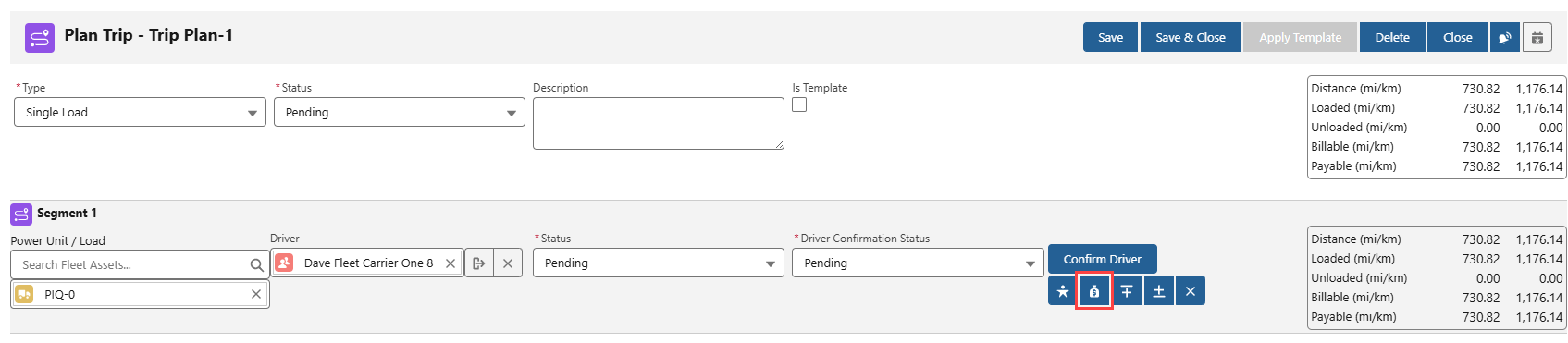
A set of Pay Estimates is generated and are immediately displayed within the Trip Planner LWC UI (one estimate per Driver/Fleet Asset) with a detailed breakdown of each tier/accessorial rule that matched.
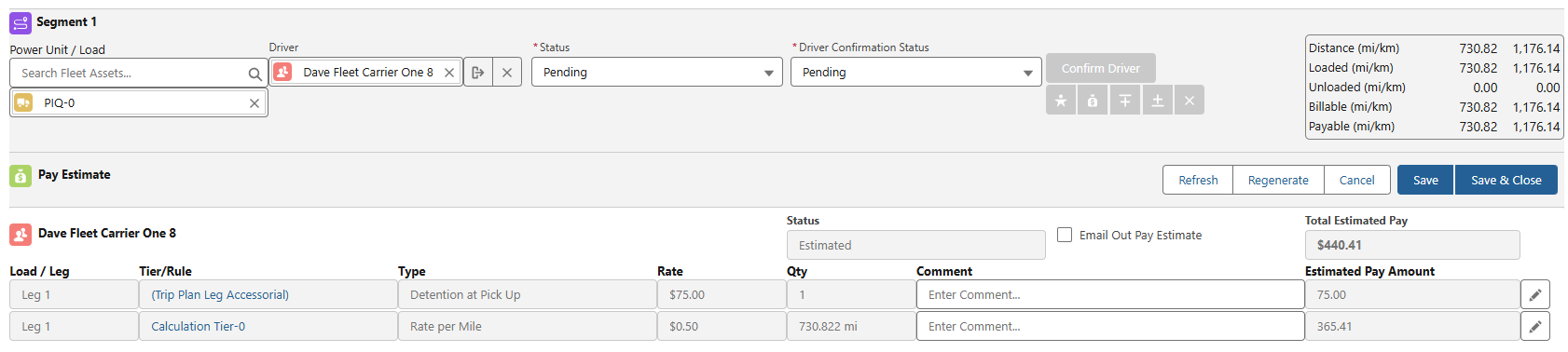
The following actions may be performed on the Pay Estimate.
Refresh - Reloads the currently displayed estimate and is enabled after the estimate is saved.
Regenerate - Creates a new estimate from the PayIQ Program. This automatically expires the previous estimate if saved.
Cancel - Closes the Pay Estimate view without saving.
Save - Saves the Pay Estimate and leaves the view open.
Save & Close - Saves the Pay Estimate and closes the Pay Estimate view.
Edit - (pencil icon) adjusts the Pay Estimate.
A Pay Estimate must be saved to include it in the Driver Confirmation email.
Each Pay Estimate contains the following.
Status - The status displayed of each estimate and follows the driver confirmation process.
Email out pay estimate - Controls if the Pay Estimate report is attached to the Driver Confirmation email as a .PDF. Check the box on the Participant to default to Checked when generating a new estimate.
Total Estimated Pay - The total for the given estimate.
Each Pay Estimate Detail contains the following.
Load / Leg - The Leg or Load the Pay Estimate Detail is for.
Tier / Rule - The Calculation Tier or Accessorial Rule that generated this Pay Estimate Detail.
Type - The text description of the calculation method.
Rate - The rate applied from the tier/Accessorial Rule.
Qty - The quantity the rate was applied against.
Comment - A form fillable text field that allows for sending a note to the Driver on a particular Pay Estimate Detail (why it was adjusted).
Estimated Pay Amount - The Calculated Item total for the Pay Estimate Detail. This value may be overridden if it was generated from a Trip Plan Leg role and the Allow Overriding Estimates was selected on the current active User.
Once a Driver accepts or declines a Confirmation, the Pay Estimate cannot be changed and the controlling buttons are not actionable. Set the Trip Plan Segment Status to Pending to change or update the Pay Estimate for a Driver.
Adjusting Pay Estimates
The Upper and Lower Estimate Adjustment Limits operate relative to the original calculated pay estimate, per estimate row.
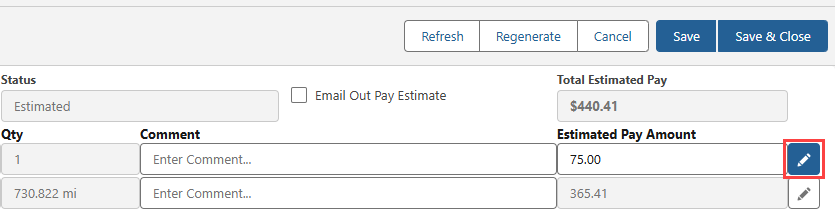
Select the pencil edit icon to adjust a Pay Estimate.
Limits are set based on on the total of the estimate row, not per transaction.
Users cannot adjust an estimate, save, and then again attempt to edit the estimate beyond the limit.
Original estimate values are displayed as read-only fields and the pencil icon retains the white background.
Click the pencil icon so that it shows the blue background to override the original estimate. Save the value as entered.
Selecting the pencil icon again reverts the value of the Estimated Pay Amount back to the original calculated value. Enter additional edits (within the bounds of the Upper and Lower Estimate Adjustment Limits) and save as necessary.
Confirm that each user has the appropriate permissions in order to adjust the Pay Estimates on a Trip Plan Segment. See the User Setup section above for more information.
The Comment field provides a field to enter context for the Estimated Pay Amount adjustment. Add notes to include for the Driver in the Driver Confirmation.
View Pay Estimates
Pay Estimates for a given Trip Plan Segment may be viewed by opening the Trip Plan from the Fleet Management Console and clicking the money bag icon. Any existing Pay Estimates are displayed instead of generating a new Pay Estimate after the initial Pay Estimates are saved.
Pay Estimates are available from a tab accessible from the App Launcher.