Administering PayIQ
Scheduling Jobs
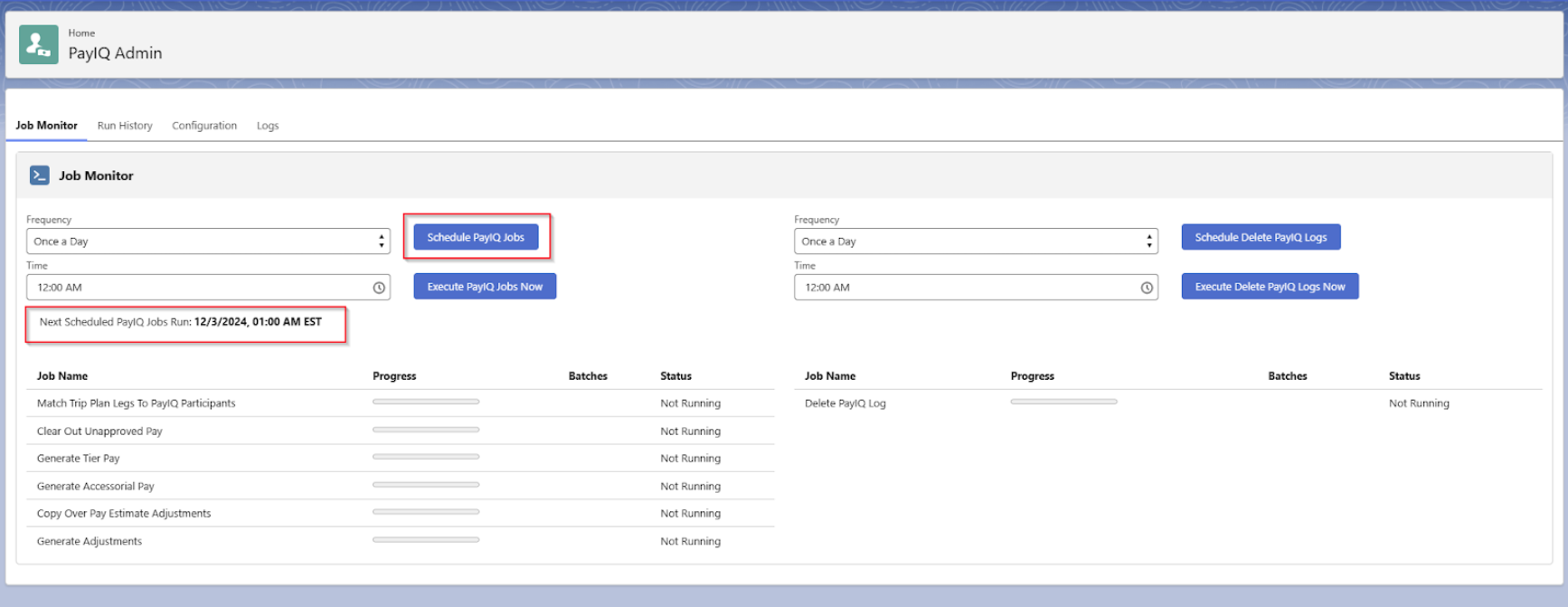
Scheduling the batch jobs is completed within the Job Monitor tab on PayIQ Admin. It is recommended to schedule the PayIQ jobs to execute automatically unless there is a valid business reason to run them manually.
Choose the Frequency and Time according to business need from the appropriate section and click the Schedule PayIQ Jobs button.
The Frequency may be set to Once a Day, Twice a Day (every 12 hours), or Thrice a Day (every 8 hours).
If the job is already scheduled, the new schedule overrides the previous. Once the PayIQ Jobs have been scheduled to run, the next scheduled time is displayed below the time.
It is recommended to run the PayIQ jobs once a day.
The Schedule time is always performed in the User timezone that scheduled the jobs. Use caution when businesses operate across multiple time zones as the job schedule impacts when pay records are created.
The User timezone is found on the User record under setup.
Cancelling a Scheduled PayIQ Run
Once PayIQ jobs are scheduled, they may be updated to run at any time. Select a different Frequency and/or Time and choose Schedule PayIQ Jobs. The PayIQ jobs may also be cancelled.
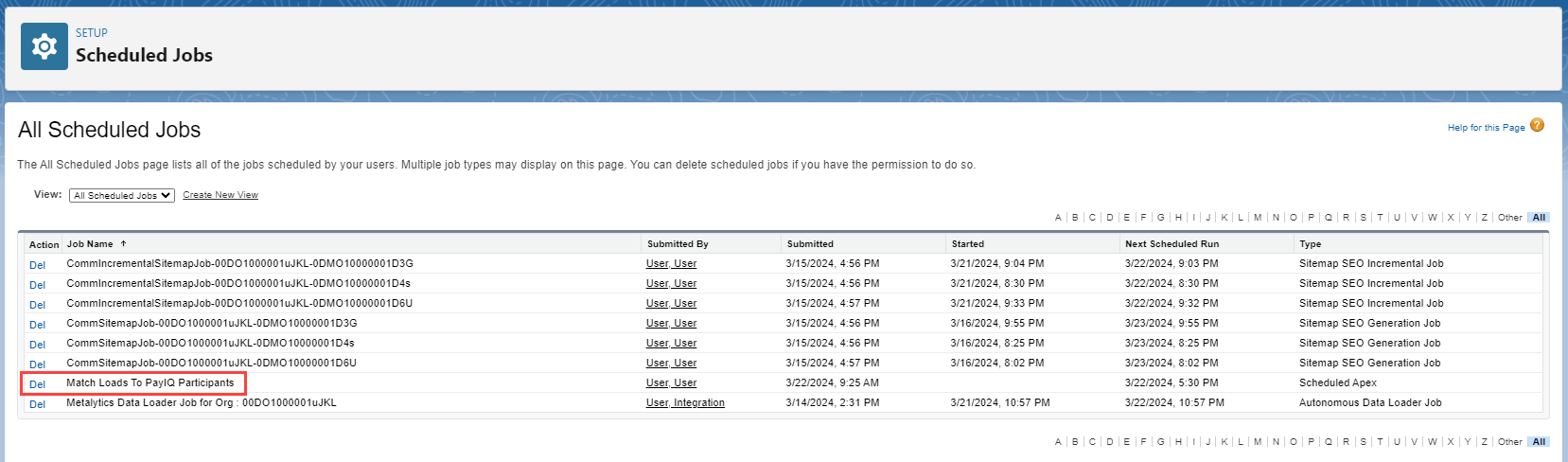
Navigate to Setup and search for Scheduled Jobs.
From the list, find the first job listed in the PayIQ job chain in the Job Monitor tab of PayIQ Admin.
Click the Del link.
PayIQ On-Demand Execution
To run the PayIQ jobs immediately, click the Execute PayIQ Jobs Now button.
View the status of each job immediately below in the Job Monitor tab. If more detailed information is needed, the run history tab contains more detailed status information. Any unexpected error messages are listed on the tab. (See Run History under the PayIQ Admin section for more information).
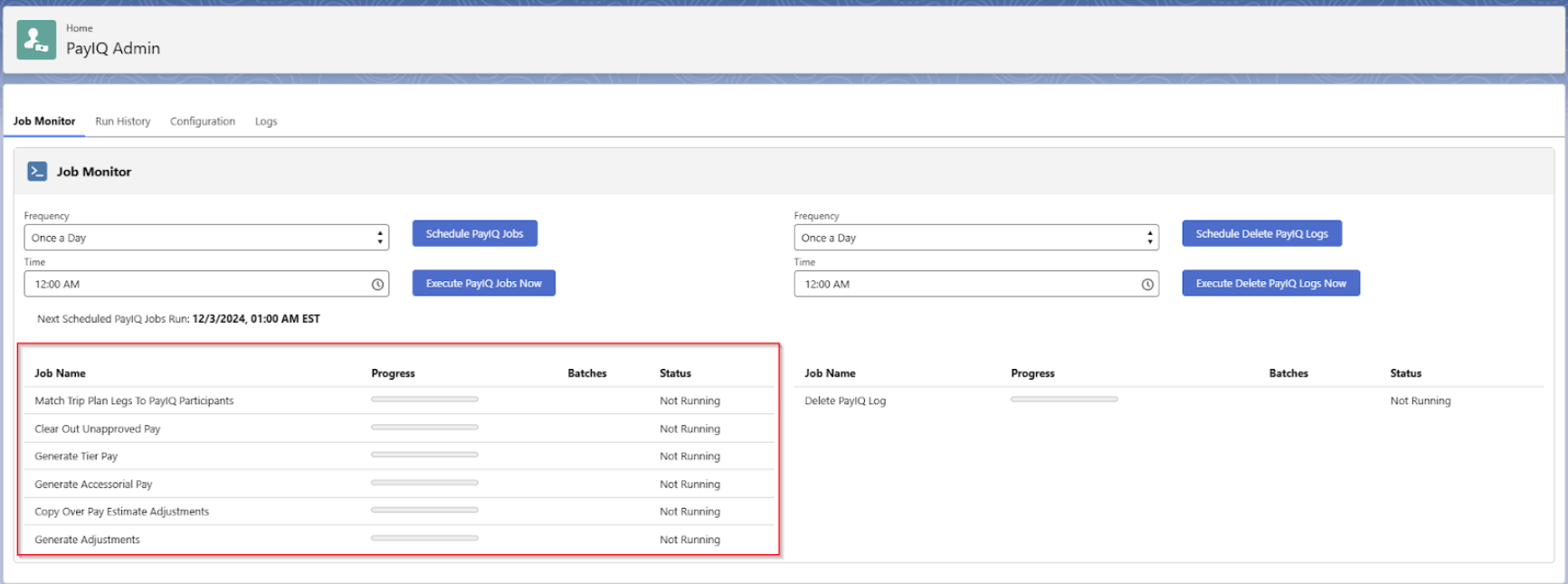
The Job status for each job auto-refreshes every 5 seconds.
Locking Loads for Payment
Customize the Load Lightning record page to include PayIQ fields and related lists where appropriate.
PayIQ adds the PayIQ Locked checkbox field to the Load page to exclude Loads from processing.
When Checked, the Load is excluded from processing effectively freezing the Load in terms of its pay. Any participant matches/pay details already created on the Load are not impacted. To use this field, add it to all appliable Load layouts and appropriate permission sets.
Add the Pay Details, Participant Matches, and/or PayIQ Log related lists to all applicable Load layouts to view relevant PayIQ information for each Load. Add fields to any appropriate permission sets as necessary.
Managing Pay
Review pay numbers to to ensure compensation is correct for the financial information generated.
Where to Find Pay Numbers
There are a number of locations to find how much a participant is paid.
On the Load
If paying off of loads, Pay Details are associated with the Load that generated pay. It is recommended to add the Pay Details related list to view a breakdown of all who were paid on a given Load.
If the system admin has added PayIQ information to the Load page for the organization, the pay information is located on each Load. If using a custom page layout, add the appropriate related lists as necessary.
Viewing Pay Detail Information
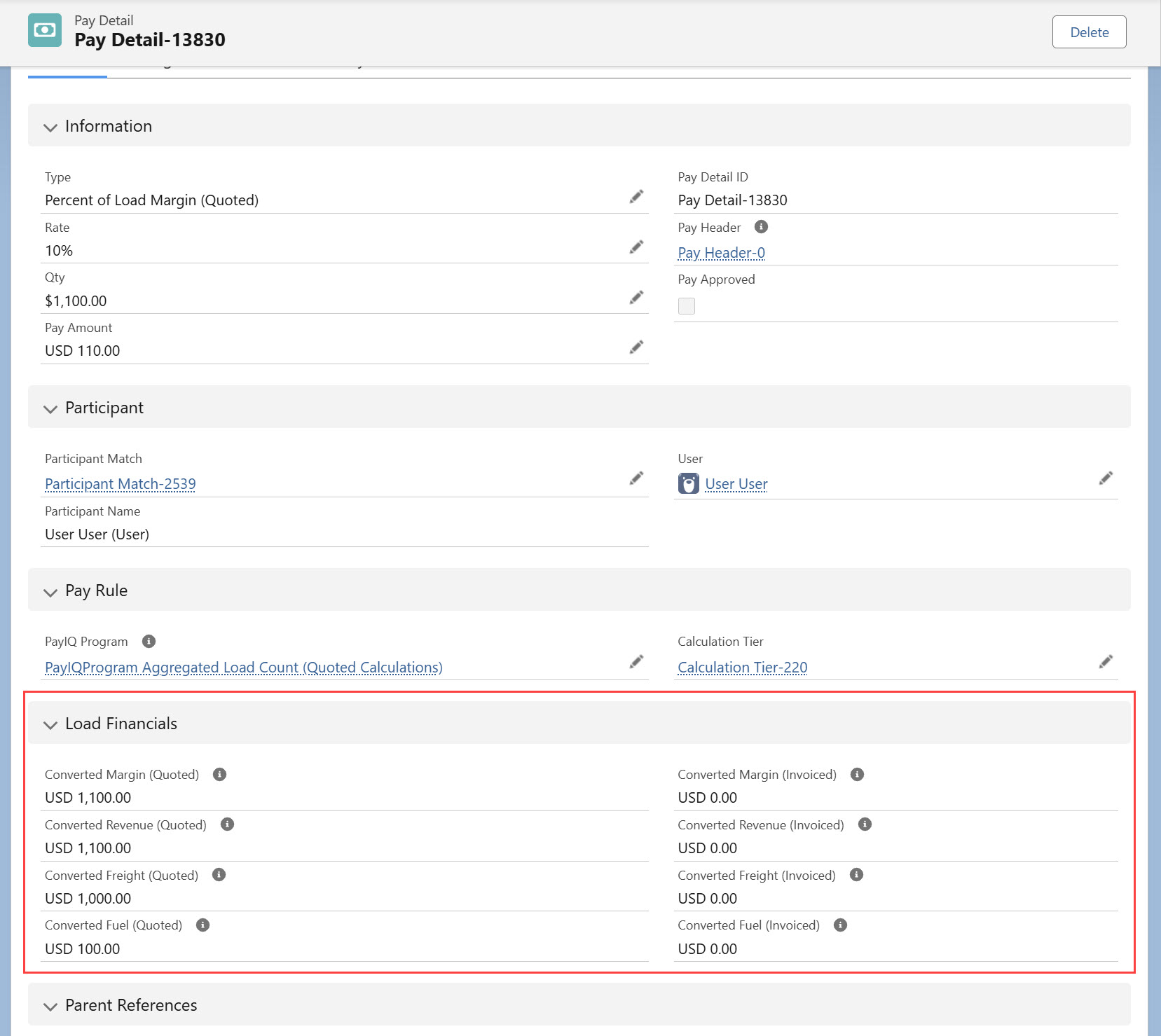
Click the Pay Detail record to view the Pay Amount and the Calculation Tier/Accessorial Rule the Pay Detail was generated from.
.jpg)
If the Pay Detail was generated from a Load, included on the Pay Detail is a reference to the Load financial information used to calculate the Pay Amount. For a multi-currency org, this value is converted to the participant’s currency.
Driver Logs
If paying off of Driver Logs, Pay Details are associated with the Driver Log that generated pay. It is recommended to add Pay Details as a related list to view a breakdown of all who were paid on a given Driver Log.
Trip Plan Legs
If paying off of Trip Plan Legs, Pay Details are associated with the Trip Plan Leg. However, Trip Plans have their own UI that does not allow adding related lists. Instead, view breakdowns from the Pay Header or Pay Details list view with appropriate filters for Driver, Fleet Asset, and/or Trip Plan.
Pay Headers
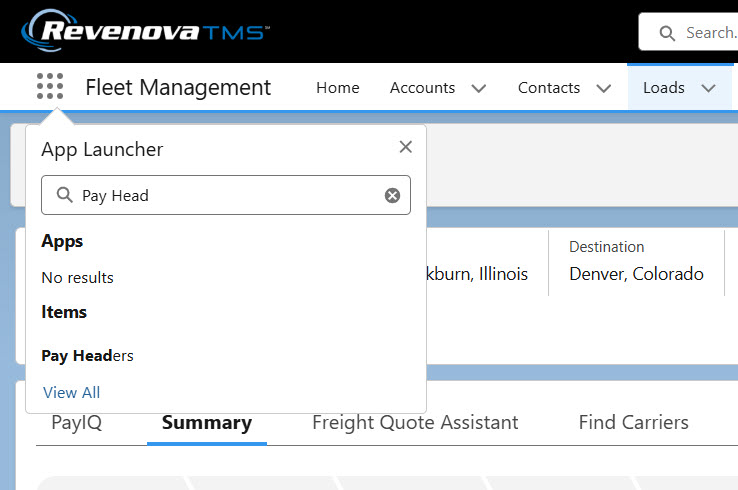
A summary of the pay for the current period is located on the Pay Header record. The Pay Header record is a collection of all the Pay Details for a Participant. It represents the payment to the Participant for the Pay Period. View Pay Headers by opening the System Menu and enter Pay Headers. The Pay Headers list view is shown below. Pay Header records display amounts in the Participant’s currency.
When the PayIQ jobs run, existing Pay Header records are not deleted. Pay Header records with a Pending Payment Status are updated as necessary, but left in the currency they were originally generated. If an employee/contractor changes currency mid-tenure, any pending Pay Header records for active (or past) Pay Periods are left in the original currency. If an employee/contractor requires their pay updated to the new currency, the Pay Header records may be safely deleted. PayIQ regenerates them in the new currency.
Pay Headers with a Payment Status of Approved or Paid lock the following records and prevents them from updating.
The Pay Schedule containing the Pay Header record.
The Pay Period Beginning or Ending Date fields.
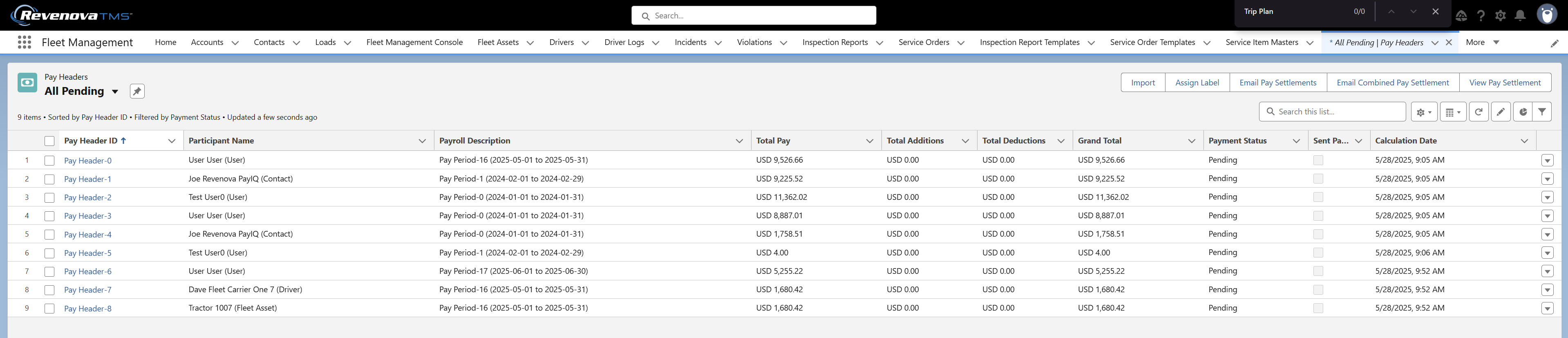
Click the Recently Viewed dropdown menu and select the All Pending list view. Any Pay Headers that are pending payment display in the list.
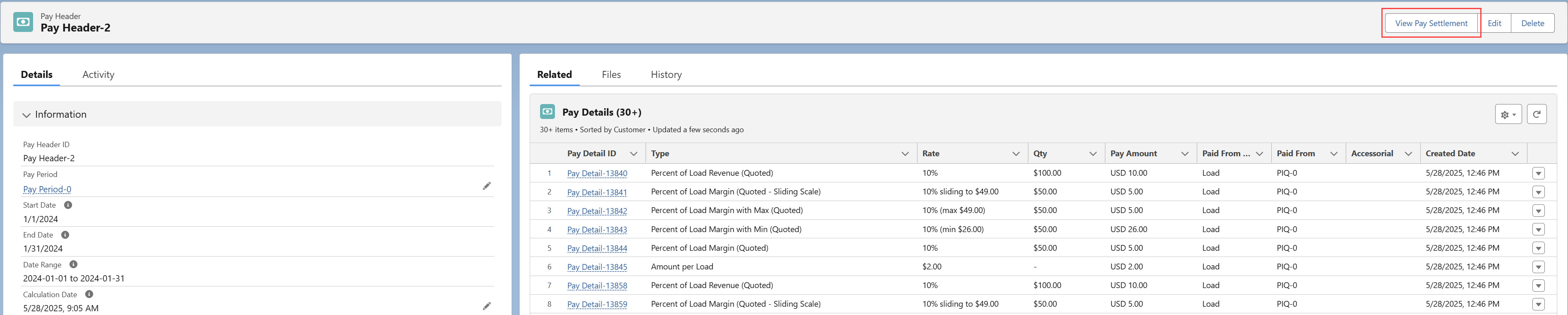
Click the Pay Header to view the Pay Details, subtotals, and payroll status. Pay Settlements are also available to download or print on the Pay Header. Click the View Pay Settlement button.
Pay Details
Pay Details may also be viewed and filtered directly from their own list view. It is recommended to view Pay Details by the record that generated them, the Pay Header (pay summed-up for that Pay period), and/or the payee.
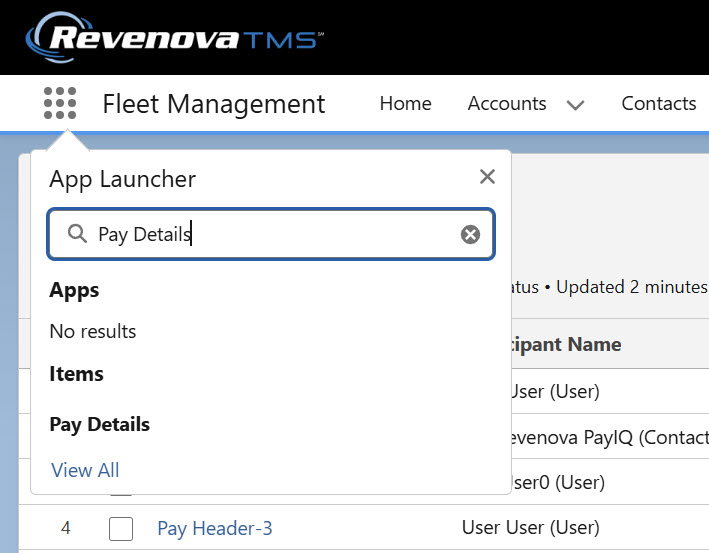
Search for and select Pay Details from the App Launcher.
Adjustments
If an adjustment must be made to the payment for a Participant, add an adjustment to the applicable Pay Header record. Click New on the Pay Adjustments related list to add an adjustment.
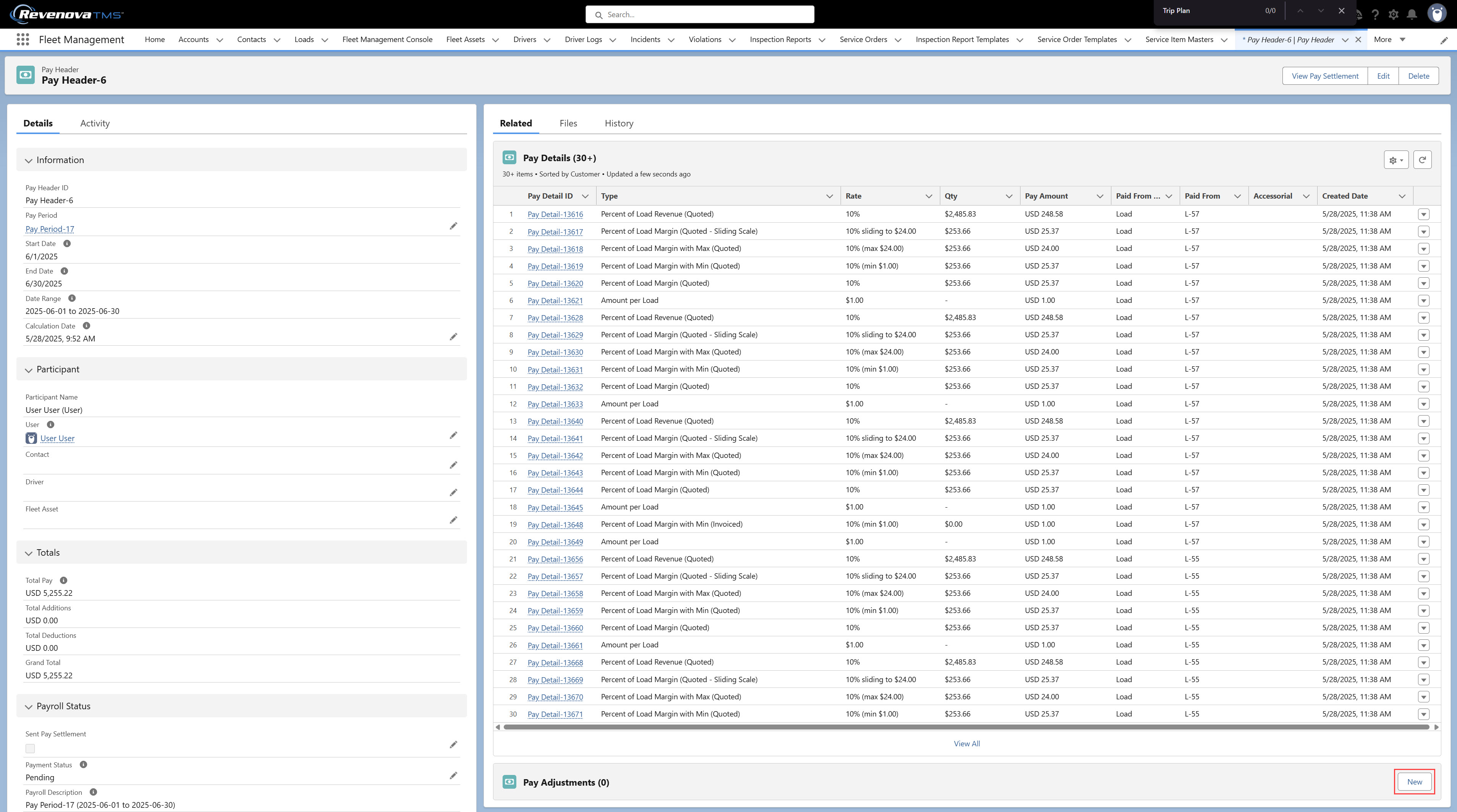
Select the following options to add an adjustment.
Category: Addition adds to the pay amount. Deduction subtracts from the pay amount. (required)
Type: A few common types are listed. When Other is selected, a Description must be entered for that adjustment. (required)
Generated: Field to indicate that the adjustment was generated by PayIQ jobs. If this field is Checked, PayIQ jobs attempts to delete and regenerate the adjustment. The default value is Unchecked.
Description: An optional field to describe the type of pay adjustment. (required if the Type is “Other”)
Transaction Date: The date for the adjustment. The default value is today.
Qty: The number of items for the adjustment. This value is multiplied by the rate to calculate the total. (required)
Rate: The rate per item. (required)
Receipt Attached: To attach a receipt, Check the box and save the record. Attach an image of the receipt.
Pay Header: The Pay Header reference the adjustment is applied to. (required)
Load: Optional Load reference for the adjustment.
Pay Advance: Reference to the Pay Advance if the adjustment was auto-generated from a Pay Advance. This field is set automatically when a Pay Adjustment is generated. In cases when a Pay Advance is scheduled to generate an amount across more than 1 Pay Period, one Pay Adjustment record is generated per Pay Period, per Participant. When pay is Approved or Paid for a given Pay Period and another adjustment for the same Pay Period is created, the Pay Advance record is not re-adjusted.
Minimum Pay Rule: Reference to the minimum Pay Rule if the adjustment was auto-generated from a Minimum Pay Rule. This field is set automatically when a Pay Adjustment is generated.
Adjustment Approval
For users with the Approver role, adjust the Approval Status using the following fields on the adjustment:
Status: The current state of the adjustment approval. Values include Pending, Under Review, Approved, or Denied. (required)
Status as of: The Date and Time of the latest Status change.
Status Comments: An optional explanation of the review status.
Approver: If the org uses an approval process, set this value to the pay Approver.
Approval status does not modify numbers on the settlement sheet.
Click Save when complete.
Run the PayIQ jobs once if any pre-existing open Pay Headers have EPayments or Fuel Card Line Items. Pay Headers won’t calculate the Pay Adjustments correctly for any existing Pay Headers.
EPayments
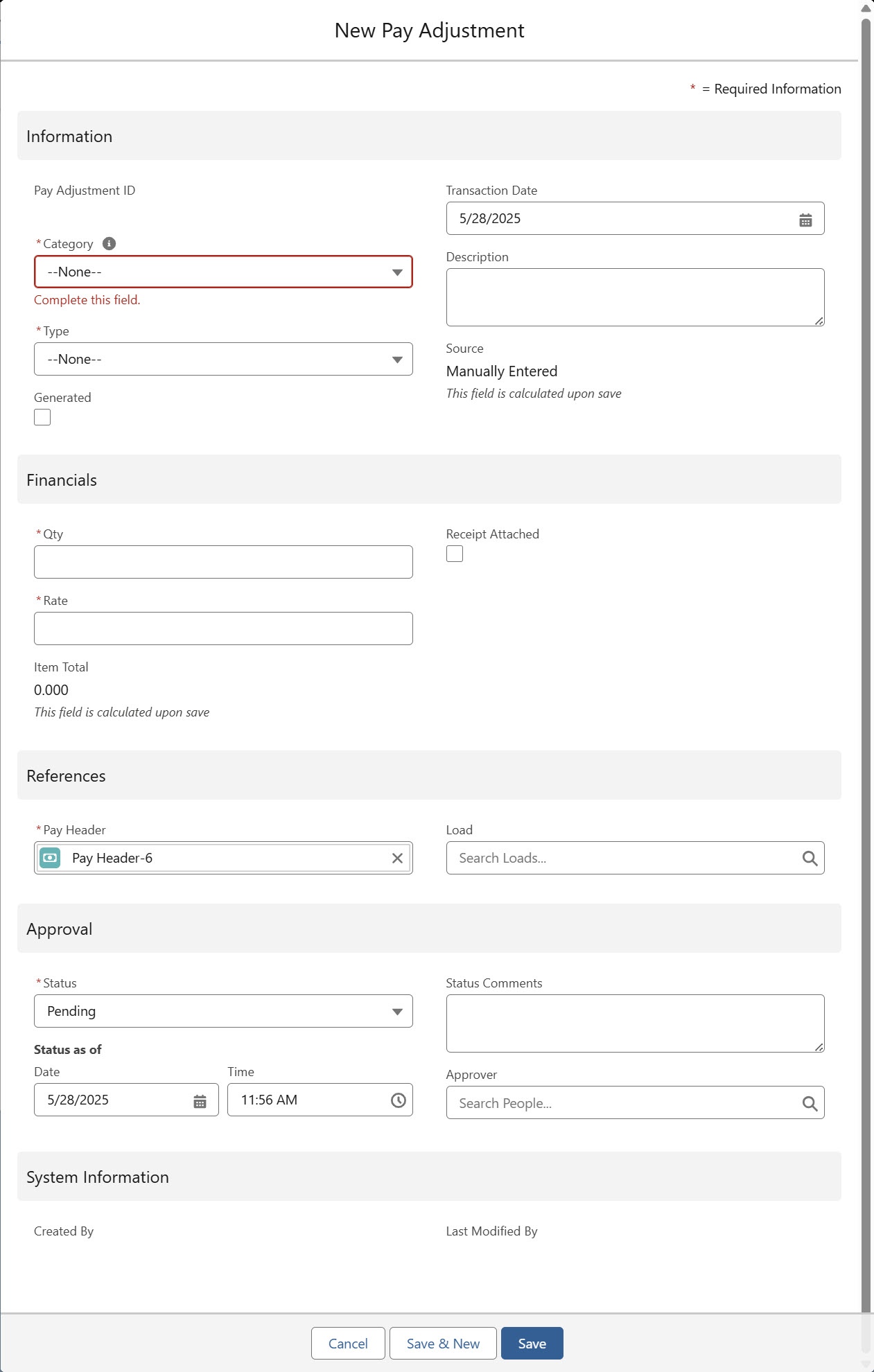
EPayments are converted to Pay Adjustments and added to the appropriate Pay Header by the Generate Adjustments job. and contain a lookback to the original Pay Adjustment record. Each EPayment is converted to the appropriate currency when appropriate.
The Generate Adjustments job only adds EPayments as a Pay Adjustment to Pay Headers when the following criteria are met.
EPayment Deductible field is Checked.
Create a flow or other automation to set this value appropriately.
The Generate Adjustments job only adds EPayment Pay Adjustments to Pay Headers when the EPayment Deductible field is Checked.
The EPayment Recipient must match the Pay Header Payee.
For Contact-type Participants, the Contact must match the Recipient field on the EPayment.
For Drivers, the Contact on the Driver must match the Recipient field on the EPayment.
The EPayment Created Date must fall within the Pay Header Start and End Dates.
For more information on creating EPayments, see documentation here.
.jpg)
Removing an EPayment
PayIQ handles stopped or deleted EPayments based on the following scenarios.
If the Pay Header is not created, the PayIQ jobs do not include the stopped EPayment.
Once the Pay Header is created, stopping an EPayment removes it from the Pay Header related list.
The subtracted EPayment Deduction remains on the Subtotal EPayment Deductions field and the Total Deductions field. The amount subtracted is the stopped EPayment Amount.
To remove these values from the Pay Header, complete the following actions.
For Pay Headers that are Pending, run the PayIQ jobs to update the Pay Header without the EPayment values.
For Approved Pay Headers, manually delete the Pay Adjustment to update the Pay Header. The total values update automatically when the Pay Adjustment is deleted.
Comdata allows for freezing Comchek EPayments. EPayments with a Payment Status of Frozen or Cancelled are included in the Grand Total on the appropriate Pay Header.
Stop and Delete the Comchek EPayment and run the PayIQ jobs to remove the EPayment amount from any applicable Pay Header records.
Fuel Card Transactions Line Items
Fuel Card Transaction Line Items are added as Pay Adjustment records to the appropriate Pay Header by the automated PayIQ process.
The Generate Adjustments job only adds Fuel Card Transaction Line Items as Pay Adjustments to Pay Headers when the Fuel Card Transaction Line Item Deductible field is Checked. Manually set the value in the modal shown below. It is also possible to create a flow or other automation to set this value appropriately.
Fuel Card Transaction Line Items are matched to the Driver, Fleet Asset, or Driver Contact. The Driver Contact must be a PayIQ Program Participant to match accordingly. The Fuel Card Transaction Line Item Transaction Date is the date for matching to a specific Pay Period.
For more information on Fuel Cards, see the documentation here and Comdata Fuel Cards here.
Pay Settlement
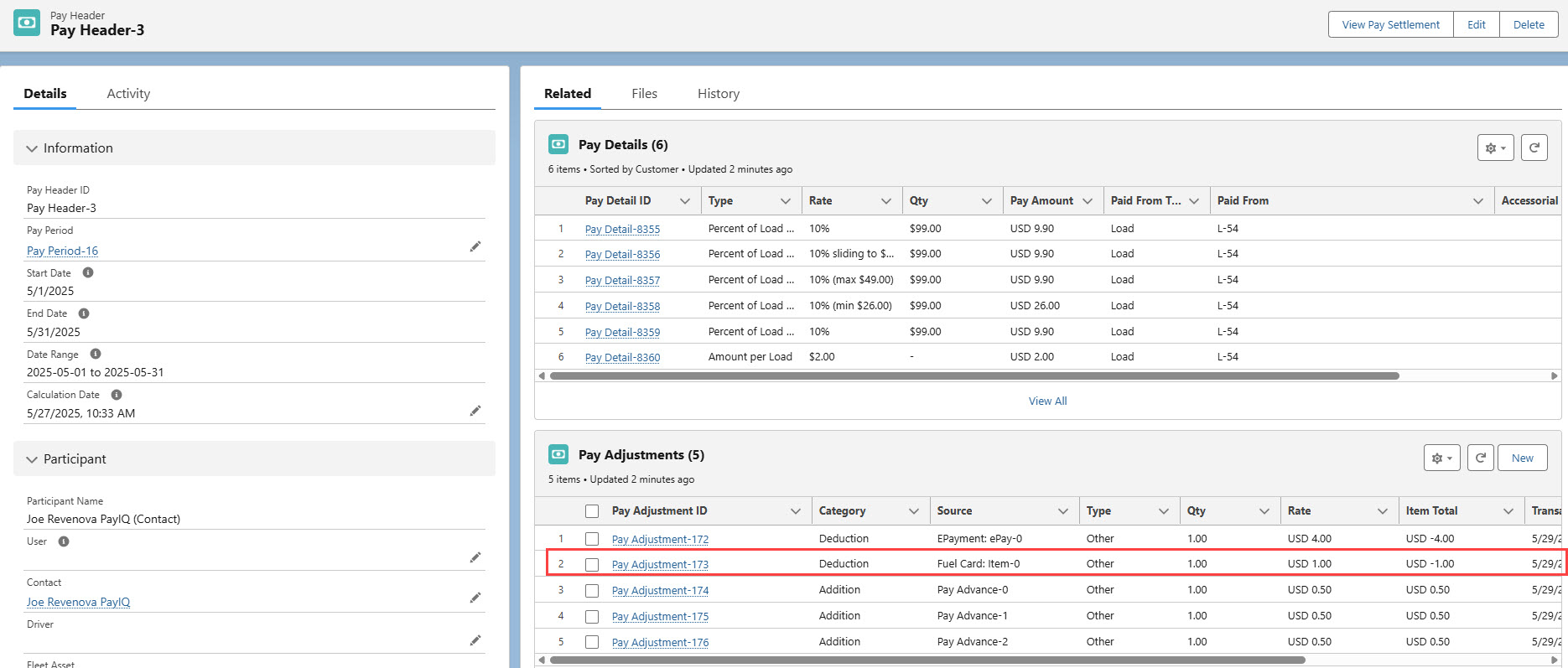
To print a Pay Settlement, click the View Pay Settlement button in the Pay Header toolbar.

This displays a downloadable PDF view of the Pay Header that contains a detailed breakdown of all the Pay Details and any addition or deduction adjustments.
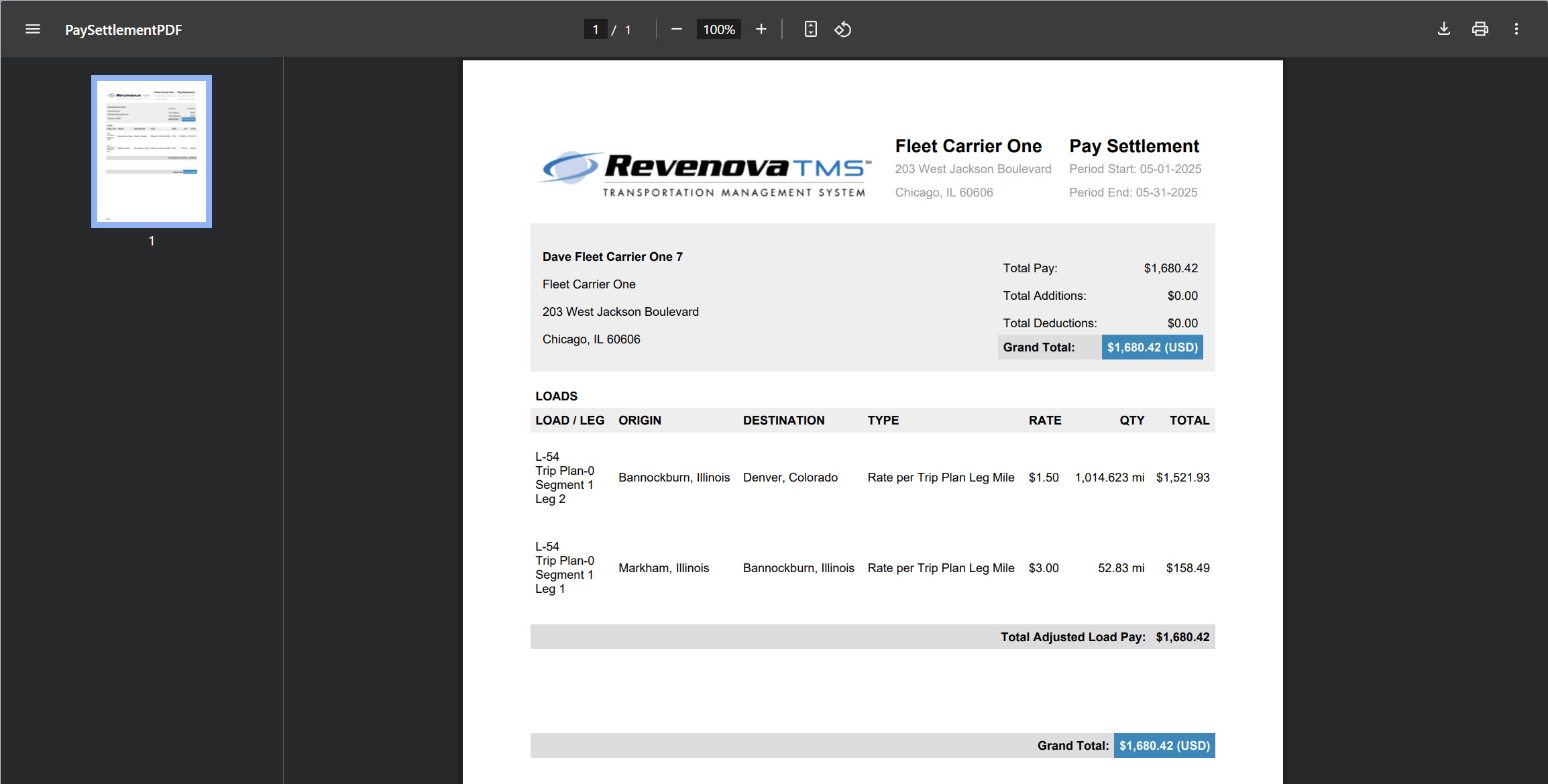
The logo on the Pay Settlement Sheet is populated by the image set as the Global Default found in Document Options.
The Company Name and Address that display in the Pay Settlement document header is determined based on the following logic.
For Drivers, the associated company and address are filled from the Contact record on the associated Account.
For Fleet Assets, the company and address are filled from the associated Company/Division.
For Users or Contacts, the company and address are filled from the Account selected in the Document Account field on the Document Options Global Default.
Settlement Sheets are sent to User or Contact Email associated with the Participant.
For Drivers, Settlement Sheets are sent to the User associated with the Driver. If no email is available for the User, the Contact associated with the Driver email is sent the Settlement Sheet.
When a Participant is a Fleet Asset, add one or more email addresses (separated by a semicolon) to the following fields on the Fleet Asset record.
Pay Settlement Email To
Pay Settlement Email CC
When Settlement Sheets are sent via email, each address in these fields receive a copy. If no email address is in the To field, no CC addresses receive a Pay Settlement email.
Individual Pay Settlements are emailed after all Pay Settlements are generated.
Consolidated Settlement Sheets

Pay Settlement Sheets may be sent from the Pay Header list view. Check each Pay Header to generate the Combined Settlement Sheet.
Click the Email Combined Pay Settlement button to generate the Settlement Sheet.
Consolidated Settlement Sheets contain the totals for each User, Contact, Truck (Fleet Asset), and/or Driver. The totals at the top of the Consolidated Settlement Sheet contain amounts for all Participants on the sheet.
Consolidated Settlement Sheets are generated immediately into a PDF document and an email is sent to the User that completed the action.
The Consolidated Settlement Sheet contains all applicable Participant types in one PDF document.
Pay Detail - Checking Calculations
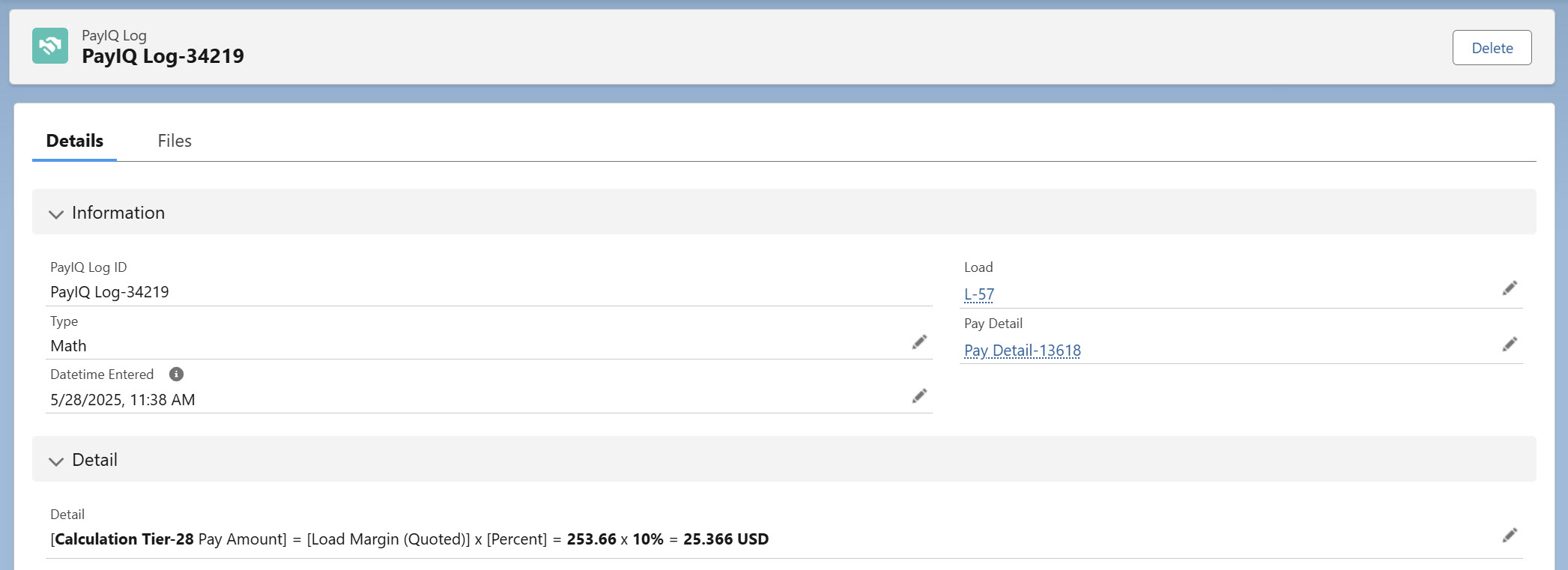
Confirm financial information by clicking on a Pay Detail record. View the PayIQ logs and verify the formula(s) used to calculate the Pay Detail.
.jpg)

Logs include the tier calculation and the math used to calculate the pay. In this example, the quoted Load margin of $253.66 multiplied by 10% for a rate of $25.366 is paid.
Currency Conversions
Participant currency conversions are based on the following criteria.
A Team Participant Type currency is converted first. Next, the Pay Details and Pay Adjustments are converted to the individual team member (Participant) currency based on the following date fields.
Driver Logs are converted on the Role Eligible Date Field.
Trip Plan Legs are converted on Role Eligible Date Field.
Pay Advances are converted on the Transaction Date.
Minimum Pay Rules are converted on the LastUpdated field.
EPayments are converted on the CreatedDate field.
Fuel Card Line Items are converted on the Fuel Card Transaction Transaction Date.
Fuel Card Transactions without a Transaction Date are converted on the individual Fuel Card Line Item record CreatedDate.
Approving Payment
Complete the pay approval process to close a financial period. This process locks the pay generated by PayIQ. Any future pay generated on the same records subtracts any amount already paid.
Pay Approval Process
The pay approval process is completed on the Pay Header record. From the system menu, enter “Pay Headers” to open the Pay Header list view.
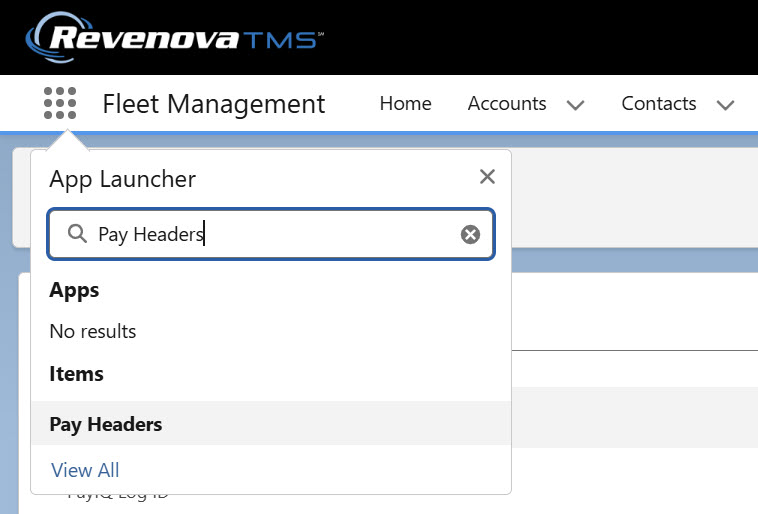
Select the All Pending list view. Click each Pay Header to review any records that require approval. When complete, return to the list view and click the pencil icon for the Payment Status. Select Approved from the dropdown, and click Save.


The Pay Header is now in an Approved status and is fiscally closed out. All applicable Pay Detail records are automatically set to Approved by this process.
Both the Approved and Paid statuses function identically. The Paid status is for informational purposes to indicate an employee or contractor was sent payment.
Pay Calculation Post Payment Close Out
Pay Calculations may be performed on a Load after closing the payment. This calculation is done on a per-participant, per-tier/accessorial rule basis. The Pay Calculation is subtracted from the existing Pay Detail records from an Approved Pay Header. If the Pay Detail resolves to $0.00, a new Pay Detail record is not generated.
When the Pay Detail does not resolve to $0.00, a second Pay Detail record is generated.
If a Participant was under-paid for a load this value is positive.
If the Participant was over-paid this value is negative.
Any new Pay Detail record(s) are included on a new Pay Header record for the same Pay Period.
Troubleshooting PayIQ
Performance
If experiencing trouble with performance, turn on Performance logging using the Log Performance checkbox in the configuration tab of PayIQ Admin. Performance logs may be viewed by an administrator in the Logs tab of PayIQ Admin. The past 100 logs may be viewed and filtered. Use Performance as Type to view only Performance Logs.

Batch sizes can impact performance dramatically. Consult with Revenova Support for guidance setting values as high as the system allows. This type of performance tuning can cause failures and should be completed with the assistance of Revenova Support.
Governor Limits
Each batch job is designed to avoid Salesforce governor limits. Setting batch sizes too large may result in reaching a governor limit. If a governor limit is reached, the error appears in the Details section of each job in the Run History tab within PayIQ Admin. View performance regarding governor limits by enabling logging on the Configuration tab within PayIQ Admin. Set Log Governor Limits to Checked. Governor Limits logs may be viewed by an administrator in the Logs tab within PayIQ Admin.
Unhandled Errors
Any unhandled errors the jobs encounter are displayed in the Details section in the Run History tab within PayIQ Admin and should be escalated to Revenova Support. All non-governor limit related errors are treated as bugs in the platform. All expected failure scenarios are intentionally saved as logs.