Revenova PayIQ is an extension module for the Revenova TMS that performs fully automated generation of pay for brokers, contractors, drivers, or Fleet Assets based on the model that is defined in the PayIQ program. All pay calculations and the criteria to determine whether a given record is paid are logged on each record and final payout. This allows for auditing of the entire payment process.
The Revenova PayIQ package provides the ability to configure and manage the following actions.
Who is paid.
Which roles are considered for payment.
Which metrics are used to determine the amount of pay.
Which records are eligible for payment.
When a record is paid out.
Pay estimation for driver rate confirmations.
As a fully-native force.com managed package, Revenova PayIQ seamlessly connects to your CRM environment and takes advantage of all the capabilities within the Salesforce platform. These include mobile support, point-and-click reports and dashboards, anytime/anywhere access, and industry-leading reliability, scalability, and security.
Contact a Revenova representative for package pricing and licensing information.
Definitions
A PayIQ Program is the header record that defines a pay structure for a set of users or contacts. A PayIQ Program consists of the following.
Pay Schedule
Roles
Participants
Calculation Tiers
Accessorial Rules
Filters
The Pay Schedule is made up of Pay Periods. A Pay Period is an amount of time corresponding to an organization’s payroll schedule.
A Participant is an employee, contractor, Driver, Fleet Asset, or Team that matches to Loads.
Participant Matches occur based on Role, who is in the participant list, eligible date falling within a Pay Schedule, and customizable Filters. These records indicate that a given payee is eligible for pay.
A Calculation Tier determines the pay brackets for a PayIQ Program. Target ranges can be set here on a number of provided metrics.
Accessorial Rules determine how accessorial charges are paid for a given PayIQ Program. In the case of Trip Plan Leg accessorial charges (which are always paid to the Driver) auto-fill rules.
A Filter is a customizable set of criteria to determine whether a Load, Driver Log, or Trip Plan Leg should be included in a given PayIQ Program.
A Pay Header is a collection of adjusted pay for a given Pay Period for payroll.
A Pay Detail is a breakdown of the pay as calculated from each applicable calculation tier and each accessorial rule within the PayIQ Program.
Batch Processes/Jobs
Pay is calculated using a chain of separate and linked batch processes. After each batch process runs, the next one in the chain is triggered. Which batch processes run is dependent on the type of programs that are enabled. Track the progress of each job in the Job Monitor tab within PayIQ Admin.
Match Loads to PayIQ Participants (Enabled if there are any active Load Roles):This process matches Loads to eligible Participants (Contacts, Users, or Team Members) within PayIQ programs. The PayIQ Program pulls Participants from the Roles defined within the PayIQ Program (which fields on the Load to search for eligible Participants). The process also checks if the eligible date defined in the Role settings falls within the periods defined for the schedule of the PayIQ Program. Load filters defined on the PayIQ Program are also applied at this stage. The process also checks if any Loads have the PayIQ Locked checkbox field Unchecked. If these conditions are met, a Participant Match record is created with the following attributes.
The financial information from the Load (and any associated freight plans) is copied over and converted into the Participant’s currency.
Lookups to the Load/Freight Plan that this Participant Match was generated.
Lookups to the Participant, Program, Pay Period, etc. that were matched.
Match Trip Plan Legs to PayIQ Participants (Enabled if there are any active Trip Plan Leg Roles): This process matches Trip Plan Legs to eligible Participants (Drivers or Fleet Assets) within PayIQ Programs. The PayIQ Program pulls Participants from the Roles defined within the PayIQ Program (either Drivers or the Fleet Asset on the Trip Plan Segment). The process also checks if the eligible date defined in the Role settings falls within the periods defined for the schedule of the PayIQ Program. If the Participant is set to pay off the Load instead of the Trip Plan Leg, the Load information is pulled instead of the Trip Plan Leg metrics. Either Trip Plan Leg filters or Load filters are applied at this stage depending on if the Participant is set to match to Load or not. If these conditions are met, a Participant Match record is created with the following attributes.
If paying off the Load, the financial information from the Load (and any associated Freight Plans) is copied over and converted into the Participant’s currency.
If paying off the Load, lookups to the Load/Freight Plan that the Participant Match was generated.
Lookups to the Participant, Program, Pay Period, etc. that were matched.
Match Driver Logs to PayIQ Participants (Enabled if there are any active Driver Log Roles): This process matches Driver Logs to eligible Participants (Drivers only) within PayIQ Programs. The PayIQ Program pulls Participants from the Roles of the PayIQ Program. The Process also checks if the eligible date defined in the Role settings falls within the periods defined for the schedule defined on the PayIQ Program. Driver Log filters are applied at this stage. If these conditions are met, a Participant Match record is created with the following attributes.
Lookups to the Participant, Program, Pay Period, etc. that were matched.
Each matching job only displays on the PayIQ Admin Job Monitor when a Load, Trip Plan Leg, or Driver Log Role occurs for an open PayIQ Program.
Clear Out Unapproved Pay: This process removes any orphaned Participant Matches, Unapproved Pay Details, and Unapproved generated Pay Adjustments. This allows regenerating these records against the latest metrics (that may have changed since the last PayIQ run). Pay Header records are not impacted.
If a User in a multi-currency org changes their pay currency, any existing Pay Header records remain in the old currency. Any existing Pay Headers must be deleted to regenerate the record in the new currency.
Generate Tier Pay: This process takes the Participant Matches generated by the first three Match X to PayIQ Participants jobs and generates Pay Detail records based on calculation tiers set up on the PayIQ Program. Pay is split amongst team members, if applicable. Any pay that was already approved (and paid via the payroll process) is subtracted from the generated pay. Any Loads with the PayIQ Locked checkbox field Checked do not generate pay (if the Participant is paying off of the Load).
Generate Accessorial Pay (Enabled if any active Load Roles or Trip Plan Leg Roles exist): This process takes the Participant Matches generated by the first three Match X to PayIQ Participants jobs and generates Pay Detail records based on accessorial charges and the Accessorial Rules set up on the PayIQ Program. Pay is split amongst team members, if applicable. Any pay that was already approved (and paid via the payroll process) is subtracted from the generated pay. Any Loads with the PayIQ Locked checkbox field Checked do not generate pay (if the Participant is paying off the Load).
Copy Over Pay Estimate Adjustments (Enabled if any active Trip Plan Leg roles exist): This process copies over adjustment amounts from Pay Estimates and enters corresponding adjustments on the Pay Header. For Trip Plan Leg-based pay, the adjustment is included in the earliest Pay Header the Load falls into.
Generate Adjustments: This process generates all other adjustments set up for automated generation. This involves converting EPayments and Fuel Card Transaction Line Items to Pay Adjustments and added to the Pay Headers generated by the two Generate Pay jobs. EPayment Created Date and Deductible fields determine applicable EPayments. Contacts and Drivers are matched based on the Contact on the EPayment. The Fuel Card Transaction Date and Fuel Card Transaction Line Item Deductible fields determine if a Fuel Card transaction applies. Contacts and Drivers are matched based on the Driver on the Fuel Card Transaction and the Fleet Asset to the Fleet Asset set on the Fuel Card Transaction. Adjustments to account for minimum pay rules are generated. This process also takes any pay advances with a remaining balance and generates adjustments according to their adjustment plan. All subtotals are updated on the corresponding Pay Headers.
It may be necessary to increase the batch size for the Generate Adjustments job for users that rely heavily on using Pay Advances with financial changes after Pay Approval for a given Pay Period.
In addition to the main PayIQ Job chain, there is a separate batch process available.
Delete PayIQ Logs: This optional process deletes old PayIQ logs to free up storage space in the org with lookback days/category filters.
PayIQ Admin
All global settings for PayIQ exist within the PayIQ Admin screen. A system administrator or Revenova Support should assist with initial setup. The PayIQ Admin screen is separated into four tabbed sections.
Job Monitor
Run History
Configuration
Logs
Job Monitor
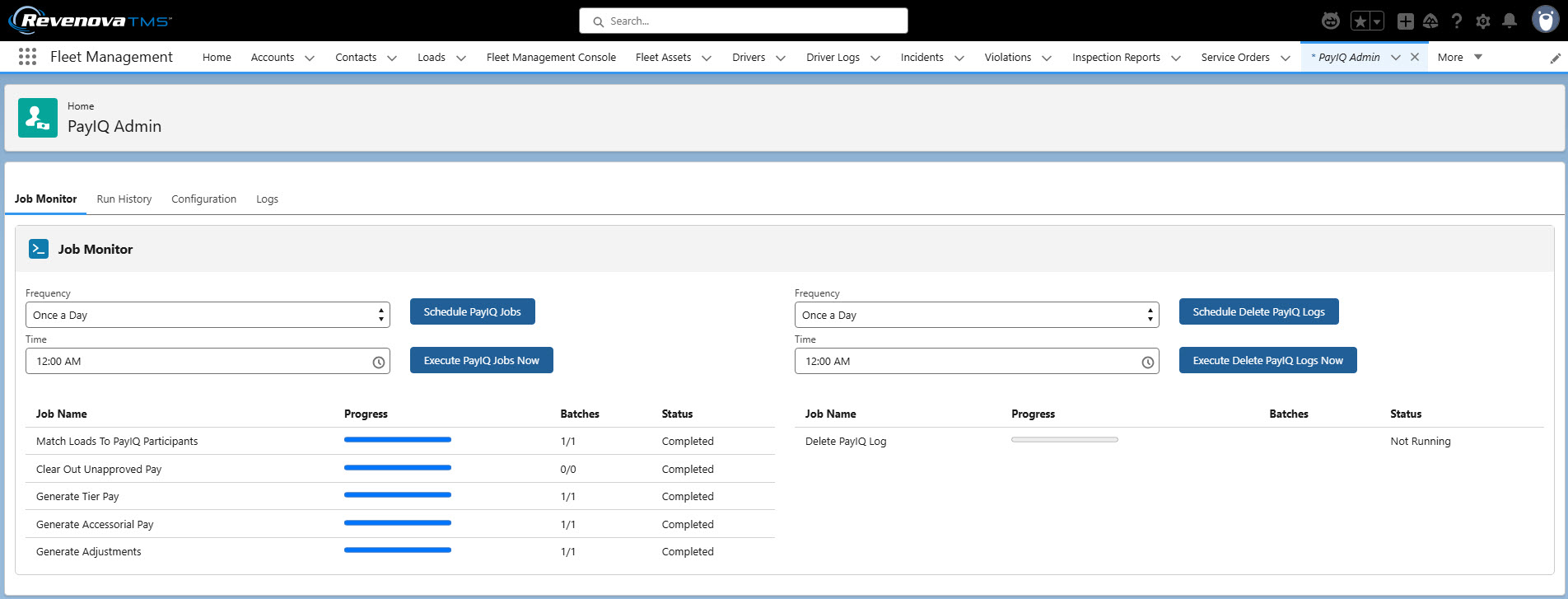
The Job Monitor tab in PayIQ Admin contains three functions.
Schedule or immediately perform the main PayIQ Job chain.
The Schedule PayIQ Jobs button schedules the job chain. To schedule, select a Frequency from the picklist and a Time of day. Options include Once a Day, Twice a Day (every 12 hours), Thrice a Day (every 8 hours). When scheduled, the next run time displays below the Frequency and Time fields.
The Execute PayIQ Jobs Now button runs the chain immediately.
Schedule or immediately delete PayIQ Logs.
The Schedule Delete PayIQ Logs button schedules the delete job. To schedule, select a Frequency from the picklist and a Time of day. Options include Once a Day, Twice a Day (every 12 hours), Thrice a Day (every 8 hours). When scheduled, the next run time displays below the Frequency and Time fields.
The Execute Delete PayIQ Logs Now button runs the job immediately.
Monitor the current status/progress of currently running PayIQ jobs. The main PayIQ job chain and the delete PayIQ logs job statuses are under their respective scheduling options, and automatically refreshes every 5 seconds to show the latest status.
Run History
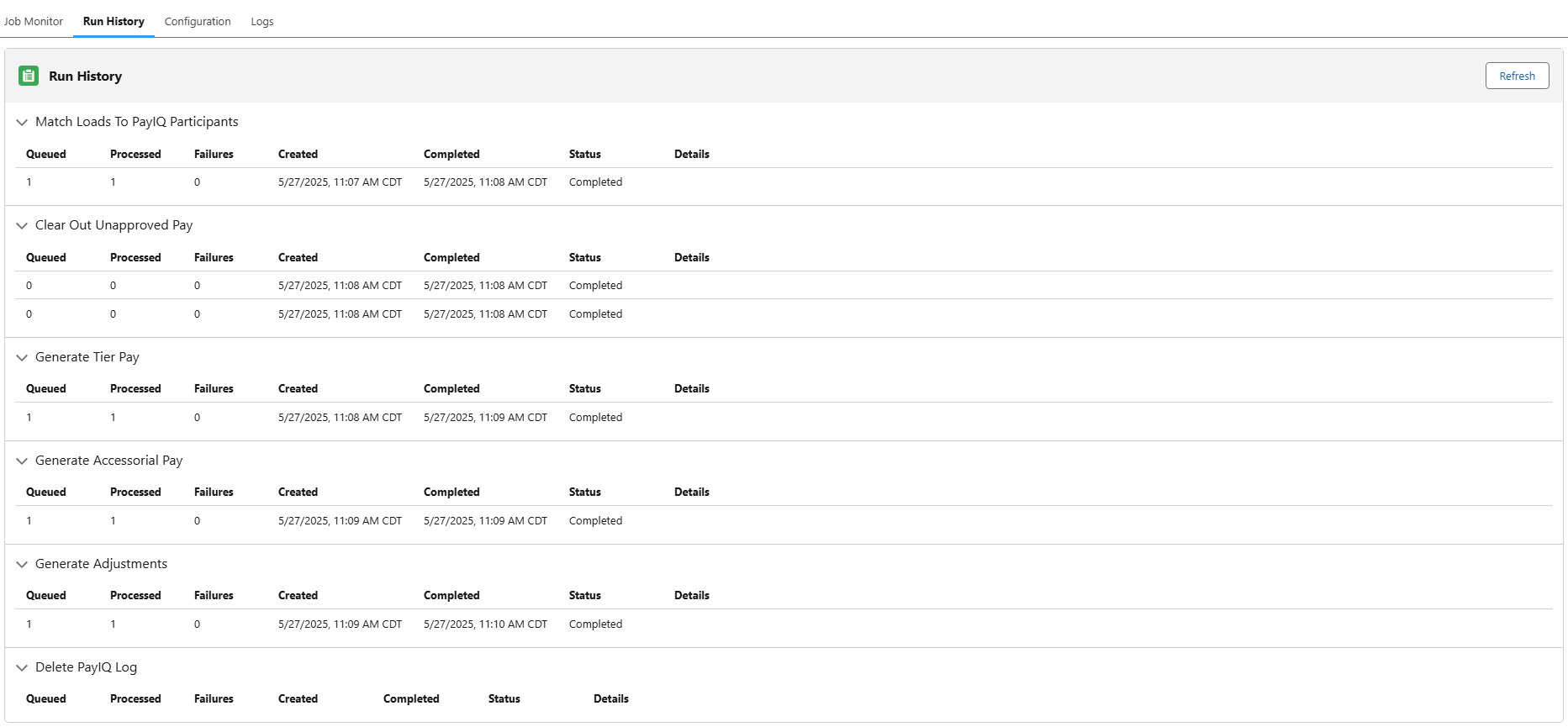
The Run History tab contains detailed status information for each of the batch processes including processed/failures, created/completed dates, status, and error details.
The columns contain the following information. Queued: Displays the number of iterations prepared for execution. Processed: Displays the number of iterations successfully completed. Failures: Displays the number of iterations that encountered unrecoverable errors. Created: Displays the date and time the job entered into the queue. Completed: Displays the date and time the job completed processing. Status: Displays the current status of the job. Details: Displays any details for unexpected errors. Any expected scenarios/misconfigurations where a record might not be paid are saved in the PayIQ logs.
Configuration
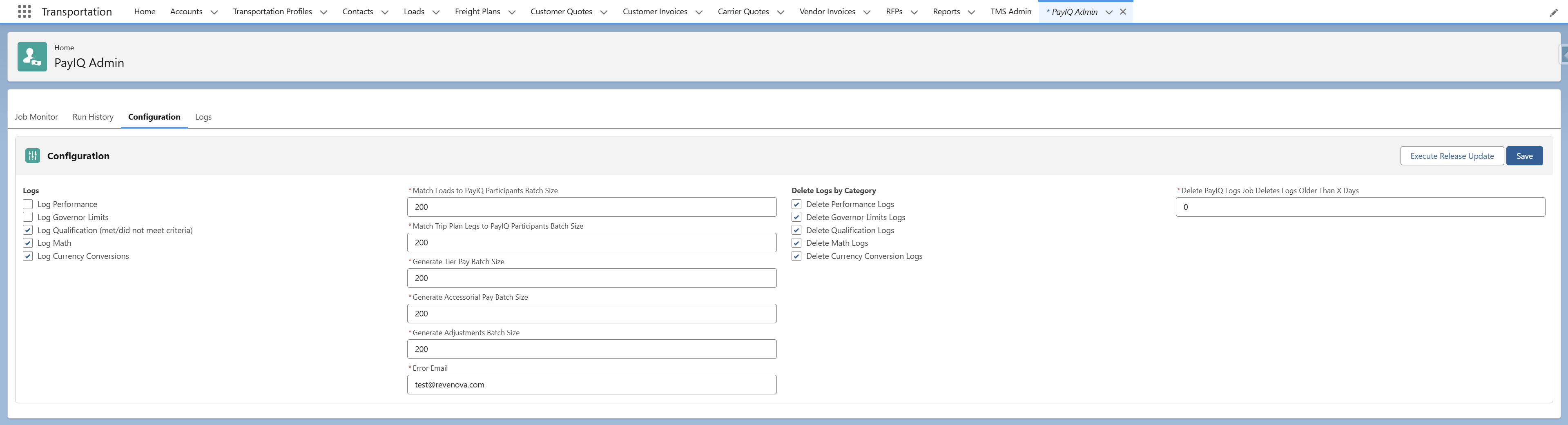
The Configuration tab allows for controlling the following PayIQ options.
Choose Logs to record pay information.
Configure PayIQ batch sizes for optimal system performance.
Choose which categories of PayIQ Logs to delete in the Delete payIQ Logs job.
Select a number of lookback days for the Delete PayIQ Logs job.
Enter an Error Email. Any uncaught exceptions are sent to this email address. A valid email address required.
The email address should belong to the user administrating PayIQ. Review any PayIQ Programs based on emails received. If necessary, escalate to Revenova by submitting a case.
Only 1 email address is permitted in this field.
Logs
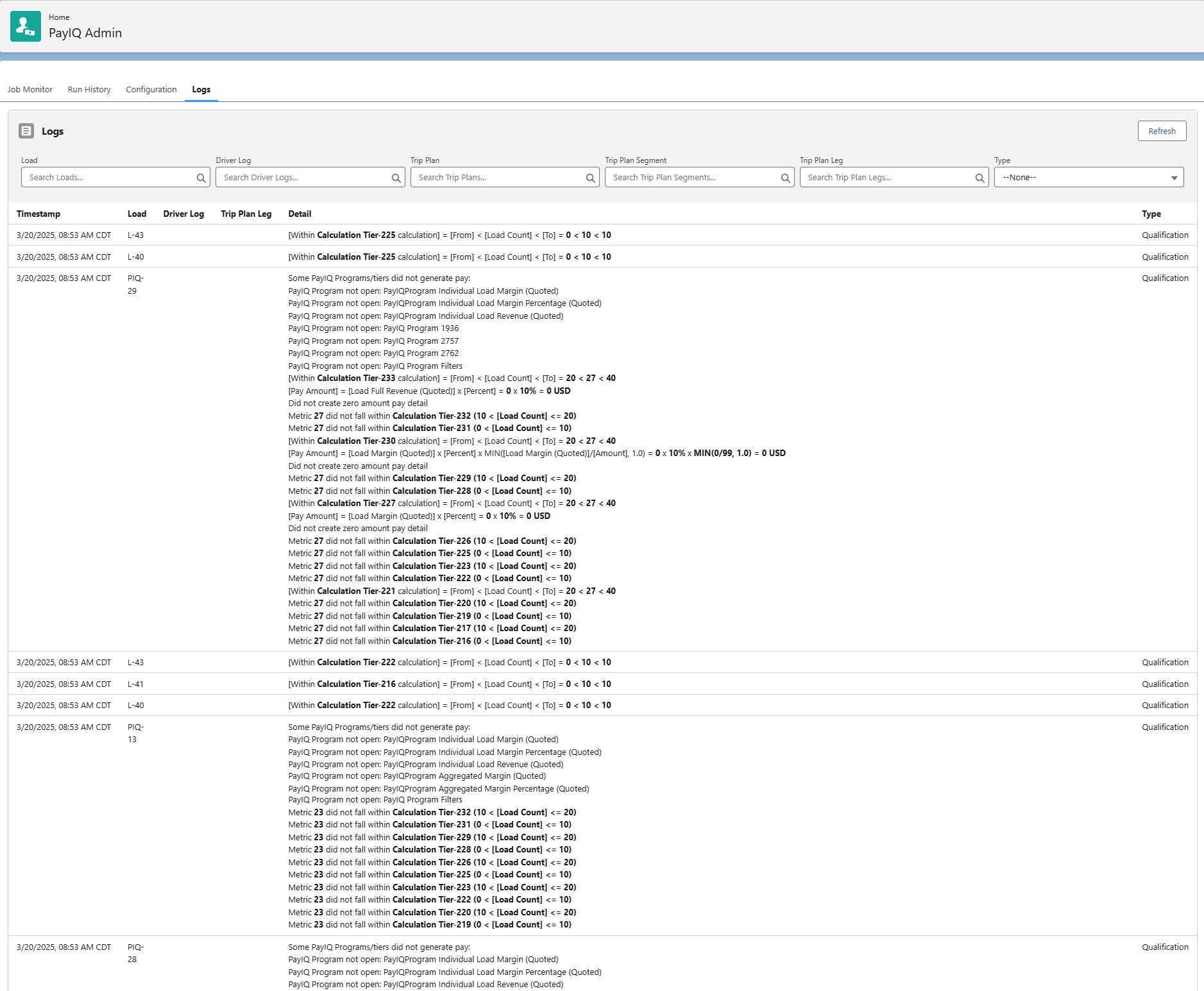
The Logs tab in PayIQ allows searching for log messages filtered by Load, Driver Log, Trip Plan, Trip Plan Segment, Trip Plan Leg, or Type. These filters are hierarchical. Clearing out a Trip Plan clears out the Trip Plan Segments and Legs associated with that Trip Plan. PayIQ takes the most specific option for filtering. The Trip Plan Leg returns first, then the Trip Plan Segment, then the Trip Plan, and finally the associated Load. Filter results are shown with the Trip Plan, Segment, and Leg separated by slashes.
This list is limited to the first 100 logs found for a given search criteria. If something more elaborate is needed, build a report on the PayIQ Log object.
The Logs section determines which logs are created when matching Loads to participants, and generating pay. There are five Log types that may be created.
To save storage space in an org, Qualification and Currency records are only created once per record per Log type with all log messages consolidated into a single log.
Log Performance: The default option is NOT Checked. These logs are not tied to any Loads, or other records. They provide a measurement for package performance. It is strongly recommended to leave these logs off unless troubleshooting with a member of Revenova support. Every time a job is initiated, the following is recorded.
The time to startup.
The time each cycle takes.
The time to complete the job.
Log Governor Limits: The default option is NOT Checked. These logs are intended for advanced troubleshooting for custom configurations that may cause performance-related errors. It is strongly recommended to leave these logs off unless troubleshooting with a member of Revenova support. Every time a job is initiated, the following is recorded.
The time to startup.
The time each cycle takes.
The time to complete the job.
Log Qualification (met/did not meet criteria): The default option is Checked. These logs provide a record of when a user is not paid for a given record. Every time a job is initiated, the following is recorded.
Any criteria NOT met when matching a record to a participant.
Any criteria NOT met when generating pay. One consolidated log per record is created. The Detail field contains the programs and reasons for not qualifying.
Log Math: The default option is Checked. These logs provide a record of the calculations made to generate a payment amount. All math logs are in the currency of the org. Every time a job is initiated, the following is recorded.
Every math calculation performed.
Log Currency Conversions: This option is only available if multicurrency is enabled. Every time a job is initiated, the following is recorded.
Any instance when a currency is converted.
The exchange rate that was used.
One consolidated log per record is created. The Detail field contains the currency conversions in a list.
For a detailed listing of each log message, see the PayIQ Log Dictionary.
Batch Sizes
PayIQ job batch sizes may be modified in this section of configuration. The default values are optimal for most orgs. They may be optimized for better performance based on the size of the org.
Consult with Revenova Support to determine the optimal settings based on the amount of data the org processes.
For more information on configuration and performance, see the Performance section in Troubleshooting PayIQ.
Enter a number of days in the Delete PayIQ Logs Job Deletes Logs Older than X Days field. Click Save.
The Delete PayIQ Logs Logs Older Than X Days field follows these rules.
0 deletes all logs.
1 deletes logs created before the beginning of yesterday.
The default value is 0 days.
By default, all log types are Checked.
Customizing PayIQ
It is highly recommended to consult Revenova support to customize PayIQ functionality.
Cascading Programs
Multiple participants may be paid different rates on the same Load with cascading programs. Clone or copy all necessary criteria to a second PayIQ program, and set up a different Role and percentage to pay. If experiencing difficulty determining the pay structure, contact Revenova Support for assistance.
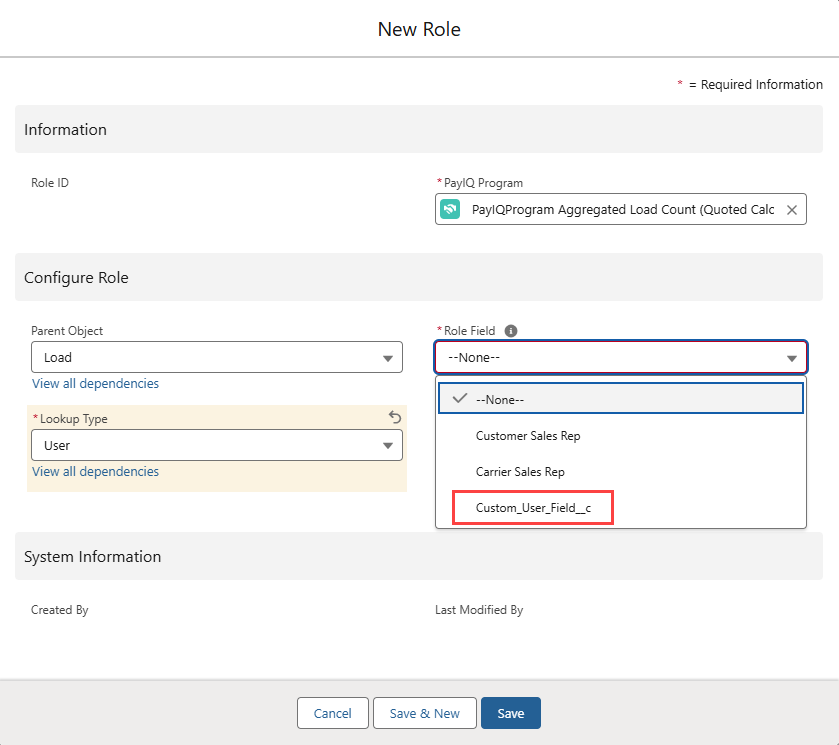
Custom Roles
Custom Roles are only supported for Load-based Roles.
Create custom Roles to allow selecting for Role fields not included in the PayIQ Program that are not included in the PayIQ package.
Navigate to Setup.
Select Object Manager.
Find the Role object.
Click the Fields & Relationships link.
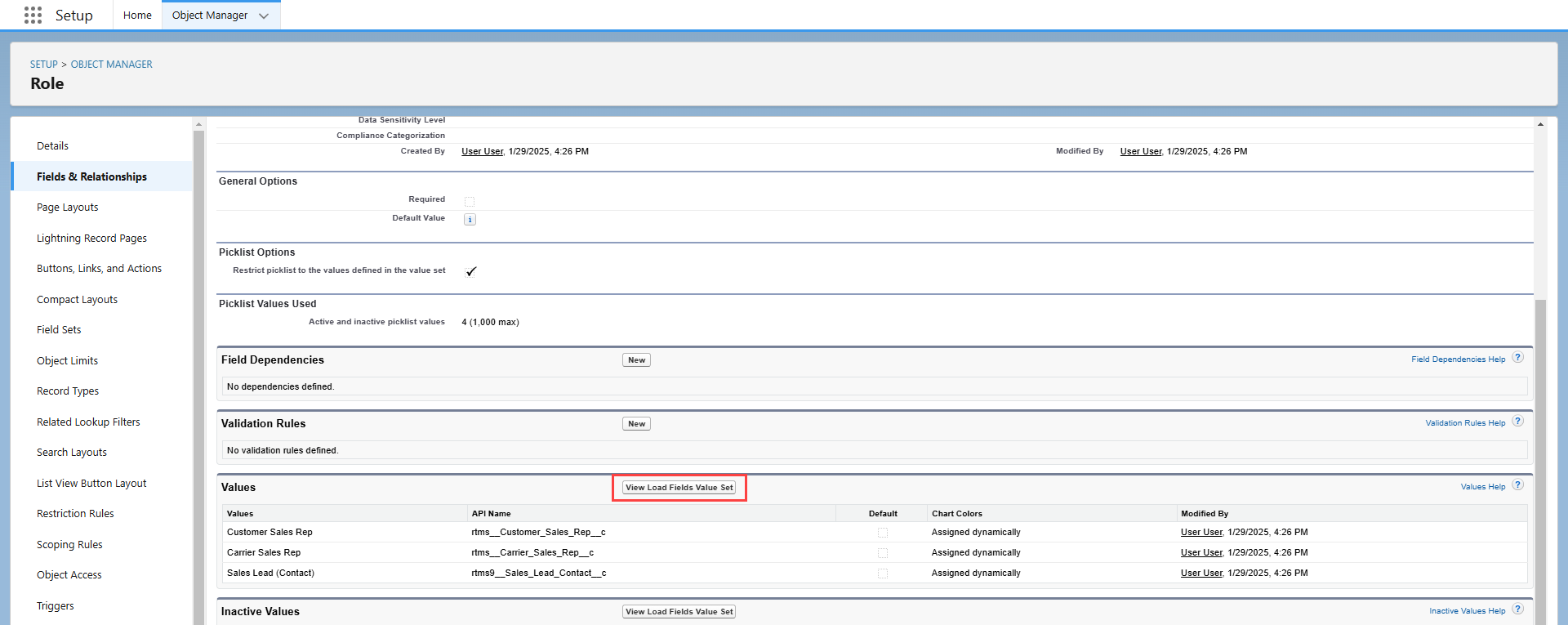
Choose Role Field.
Select “View Load Fields Value Set.”
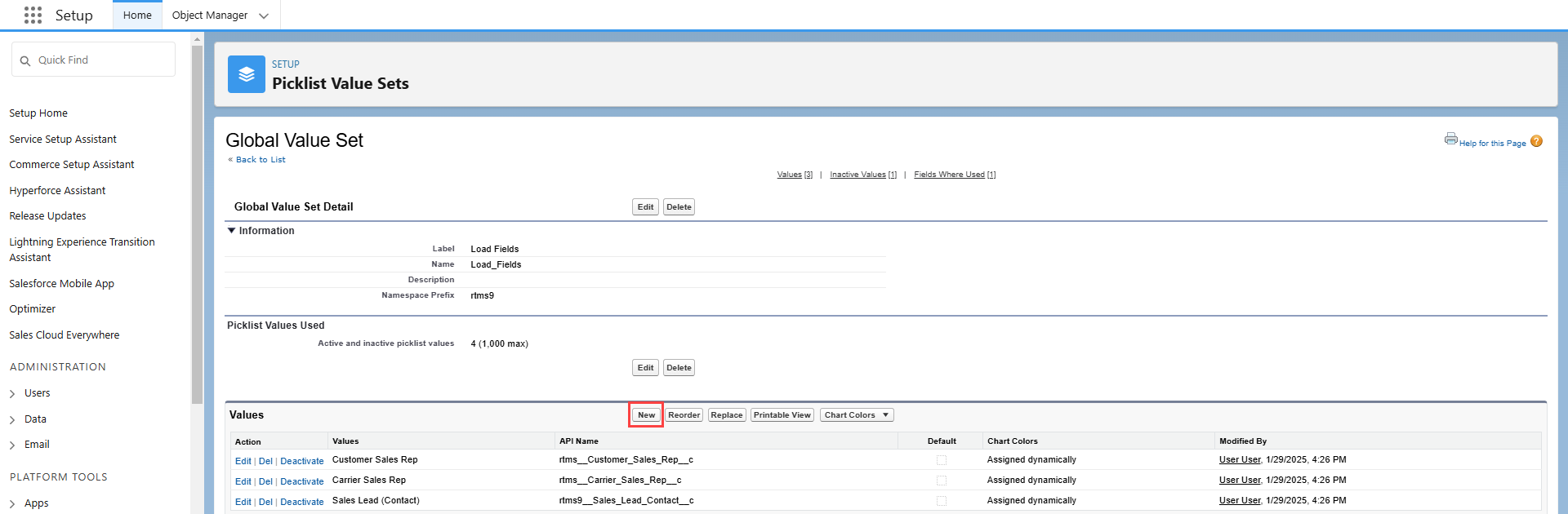
Click New.
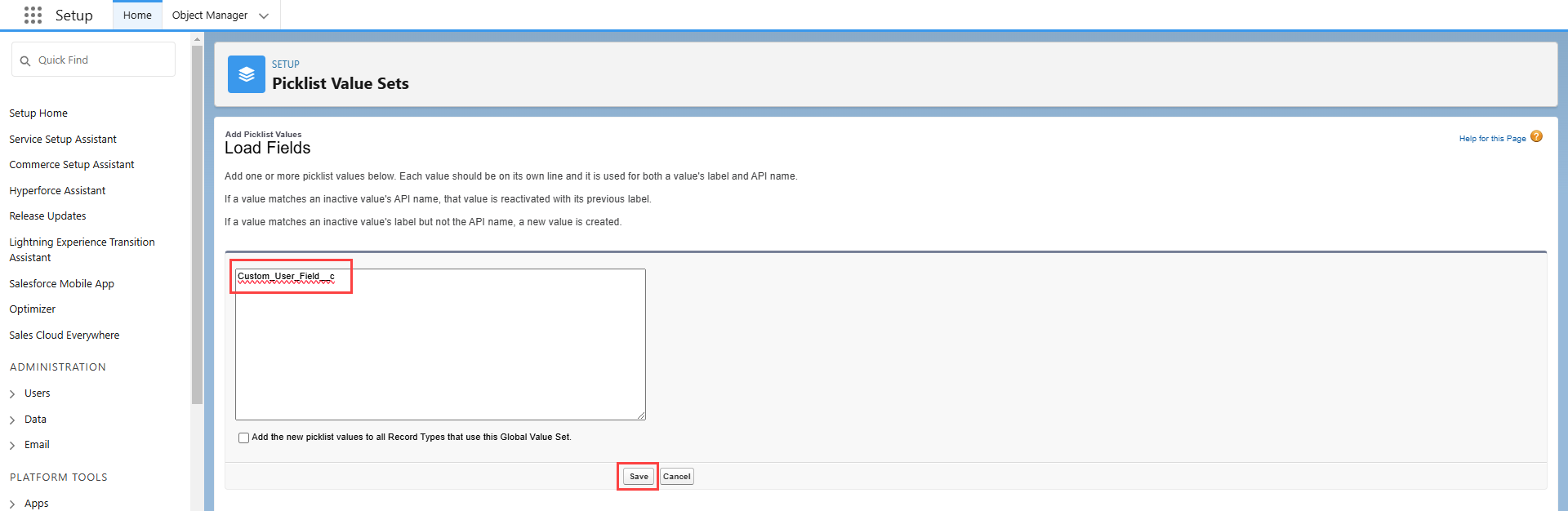
Enter the API Name of the Load field to support in the entry box and click Save.
Add an optional friendly label by clicking Edit.

Once added, return to Setup → Object Manager → Role → Fields & Relationships.
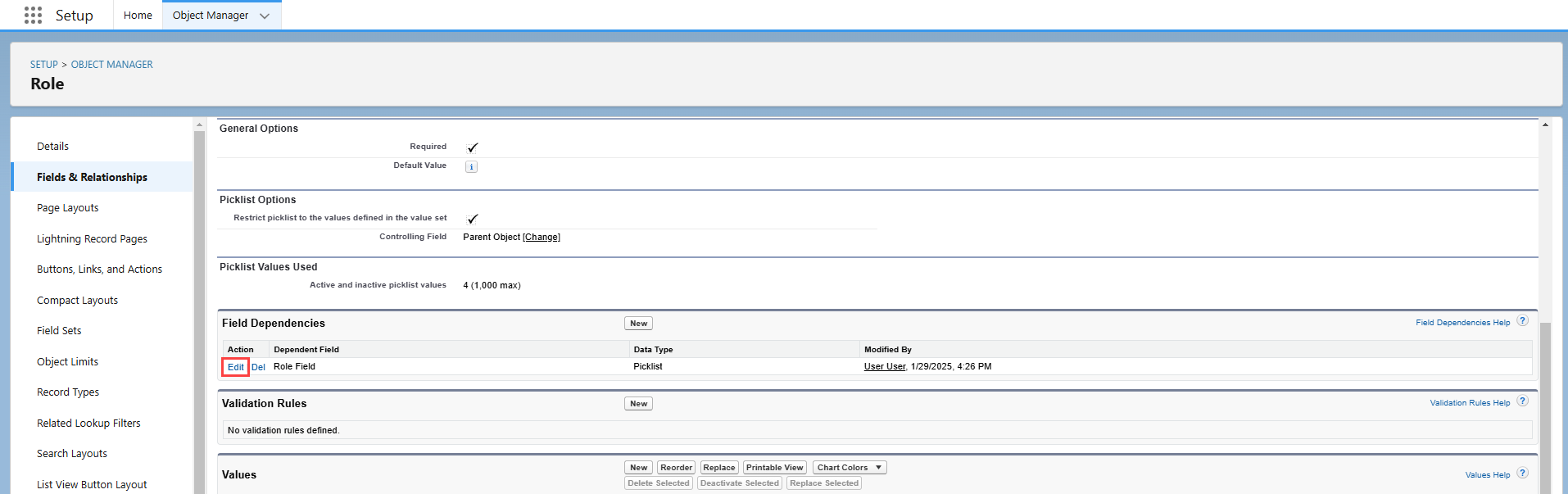
Select the Lookup Type field. Under the Field Dependency heading, click Edit.
Determine if the new field is a User or a Contact. In the grid the lookup type is either User or Contact. Click the appropriate grid cell to select it.
Choose Include Values and click Save. The new field is selectable under the lookup type it was added to.
Customize PayIQ Eligible Date
If Loads are to be paid on an eligible date other than Expected Ship Date or Expected Delivery Date, add options to select other date fields.
Add additional date fields to the Eligible Date Fields Global Value Set.
Navigate to Setup and search for and select Picklist Value Sets.
Choose the Eligible Date Fields Global Value Set.
Click the New button.
Enter the API Name for the date field.
Click Save.
Select Custom PayIQ Eligible Date on the Role. This is added to the Load object by the PayIQ package as a placeholder field for use by custom-code (a flow, trigger, batch process, or some other means). Please contact Revenova support with your business requirements for assistance setting up custom eligible dates.
Custom PayIQ Amount
Create a Custom PayIQ Amount when Loads need to be paid an amount that isn’t supported by PayIQ or need to have the sales targets set to something other than the default options. By default, a Custom PayIQ Amount field is added to the Load object as a placeholder field for use by custom code (a flow, trigger, batch process, or some other means). Contact Revenova Support with business requirements for assistance setting up custom Load amount-based calculation tiers.
Set Up Custom Fields as Filters
Custom fields are supported as filters. Customize logic to determine the pay structures that apply to which records. Formula and Boolean type fields are allowed if more complex logic is necessary. Flows, triggers, and batch processes may also update fields used for filtering records in PayIQ. Please contact Revenova support with business requirements for assistance setting up custom filters.
Payroll System Integration Settings
The PayIQ Program contains three settings to assist with categorizing pay for payroll system integration. These settings include:
Payroll Description
Payroll Type
Payroll Code
These fields are informational and are included in reports that are exported to the external payroll system.