Warning: When configuring Customer Portals, confirm that data isn’t accessible and is secured within security Profiles, Permission Sets, and Sharing Settings. Review all security adjustments to ensure they meet business needs without compromising sensitive data.
Creating a Customer Portal is integral to ensuring the customer is involved in the Load lifecycle.
Additionally, a Customer Portal user can only view Loads, invoices, Quotes, and Lane Preferences associated with their Customer Transportation Profile.
Note: Portal users can never be deleted. They can only be deactivated.
Sharing Rules
Configure sharing rules by navigating to Setup → Security → Sharing Settings. The following sharing rules are set for all Customer Portal users:
Object Name | Access Level |
|---|---|
Account | Read |
User | Read |
Accessorial | Read |
Carrier Markup | Read |
Carrier Markup Group | Read |
Commodity | Read |
Customer Invoice Document | Read |
Document Options | Read |
Equipment Type | Read |
Freight Class Calculation | Read |
Freight Plan | Read |
Fuel Index | Read |
Lane | Read |
Load | Read/Write |
Mode | Read |
Payment Terms | Read |
Portal Configuration | Read |
TMS Document | Read |
Transportation Profile | Read/Write |
Permission Set Access
Warning: The TMS supports specific default objects and fields to ensure LWCs accurately render with the applicable information. Ensure that Read-only access is provided to the Account and Contact objects. Keep in mind that Invoice object and related fields are not packaged in the Customer Community with Login permission set. Configure the Invoice object and related fields as applicable for business needs.
Change or create custom permissions for objects and fields to best fit business needs by cloning the permission set and navigating to Setup → Users → Permission Sets → TMS Customer Community with Login → View Summary. Additionally, because the object and field permissions are provided for external access, take caution when editing object and field permissions to ensure sensitive data is not compromised.
Customer Portal users operate as an authenticated user. The TMS Customer Community with Login permission set should be assigned to the customer User record for Customer Portal users.
The TMS Customer Community with Login permission set grants the Customer Portal user limited Read, Create, Edit, and Delete permissions on specific objects and fields to process data from transactions that match to fields populated in the TMS and the Customer Portal.
Customer Portal
See the Digital Experiences Sites article for more information on creating a Customer Portal.
The Customer Portal can be accessed by logged in users. There are two ways to view the Customer Portal:
Via Log In to Experience as a User
Via the link in Setup → Digital Experiences Sites → All Sites → Customer_Portal
Log In to Experience as a Customer Portal User
Warning: Before logging in as a user, ensure the User record includes a Customer Community Plus Login license and Profile.
Additionally, ensure that the Contact Page Layout includes at least the following actions:
Enable Customer User
Disable Customer User
Log In to Experience as User
Edit the Contact Page Layout by navigating to Setup → Object Manager → Contact → Page Layouts → Contact - Revenova Default.
To log in to experience as a Customer Portal user, complete the following steps:
From the org’s Global Search bar, type in the customer’s name whom can view the Customer Portal.
Select the Contact record of the customer.
In the Contact record, click the drop down (caret) on the right-side next to the View Contact Hierarchy button.
Click the Log in to Experience as User option.
A small modal titled, “Log In as Site User,” appears. This modal includes the Digital Experiences Sites related to the Contact record where permission sets and Profiles were assigned. Choose the Customer_Portal option.
In the Customer Portal, view any associated Lightning Web Components (LWC) and VisualForce pages (VFP).
Note: The Portal may require access to certain VFPs.
Drag the VFP component on the page and select a VFP related to customers to add to the Customer Portal. Any obsolete VFPs show a small message on the left-side of the VFP component in the Experience Builder.
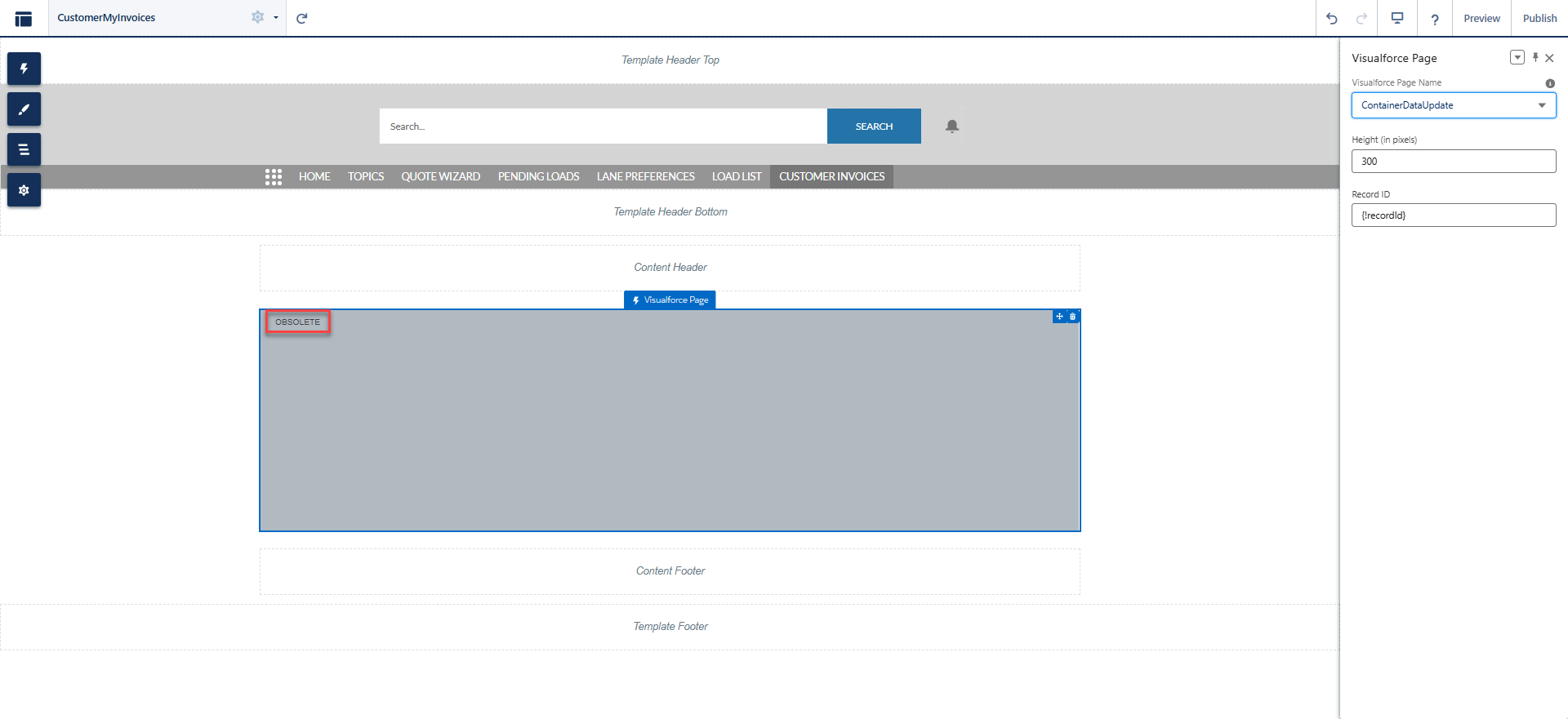
Note: Although it is recommended to only include VFPs relevant to the TMS Type, each Portal has access to all VFPs.
Configure messages, text, and instructions for the Customer Portal by navigating to the TMS Admin → Configuration → Customer Portal Configuration.
See the Customer Guest Shipment Tracking article for more information on customer Load tracking.
Customer Portal Lightning Web Components (LWCs)
The following are LWCs used in the Customer Portal:
Quote Wizard LWC
Pending Loads LWC
Load Options LWC
Use these LWCs to submit quotes, view pending Loads, create preferences for commonly used Lanes, view/send documentation, and view additional cargo insurance.