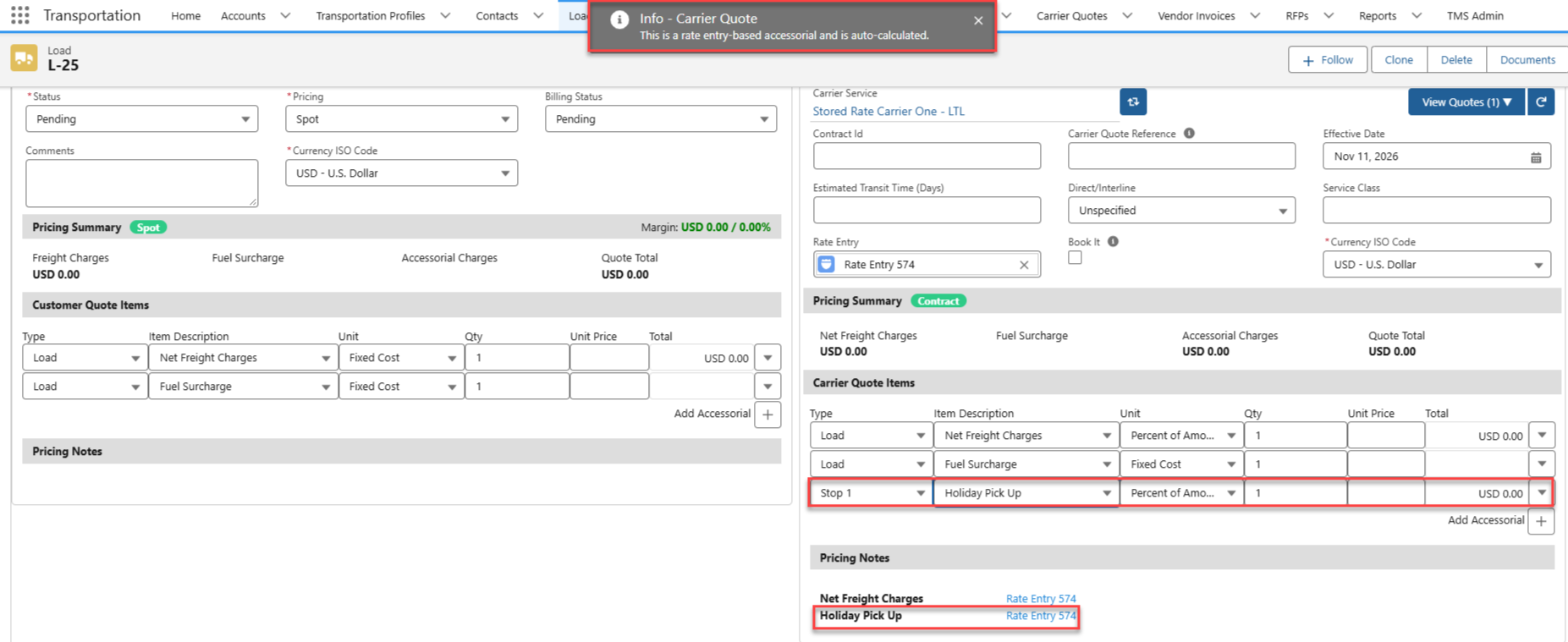
Carrier Liability Limits can be found in the TMS Admin → Carriers → Carrier Liability Limits. Carrier Liability Limits allows users to calculate and display Load-specific limits on Carrier Quotes, both for the Freight Quote Assistant (FQA) and the Customer Portal.
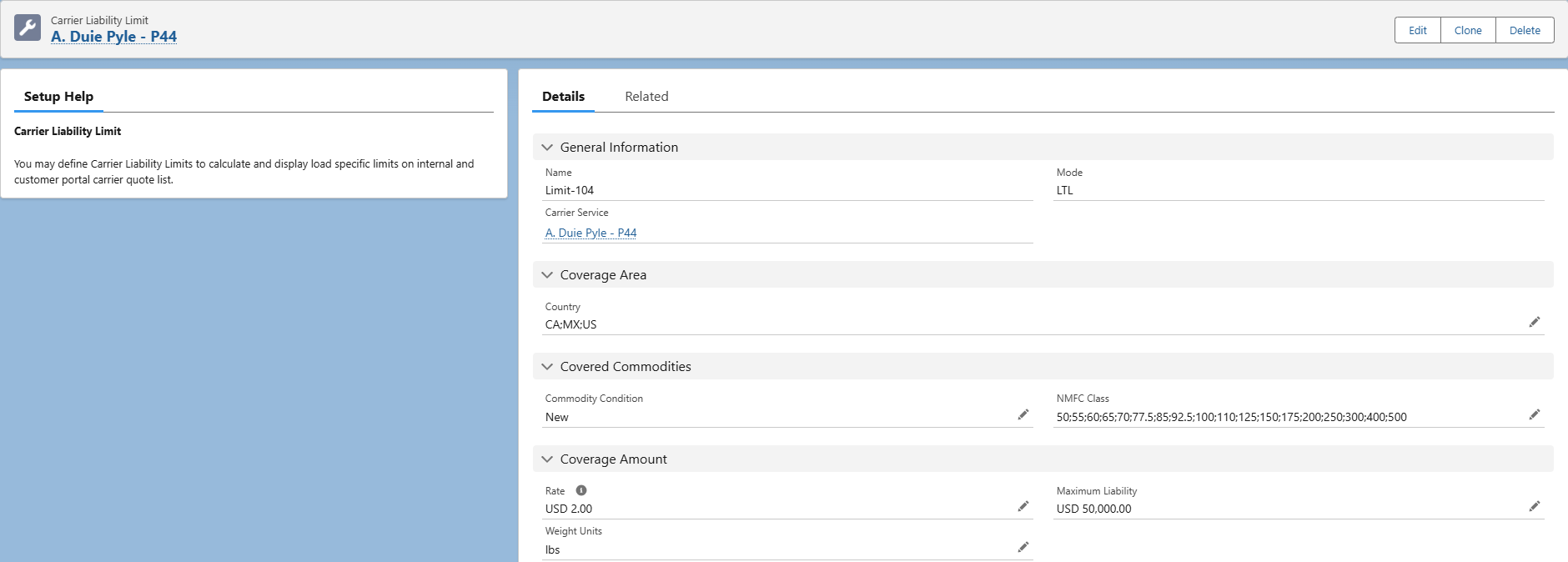
Create Carrier Liability Limits
Complete the following steps to create a Carrier Liability Limit:
Navigate to the TMS Admin → Carriers → Carrier Liability Limits.
In the Carrier Liability Limit Visualforce Page (VFP), click the New Carrier Liability Limit button.
Once the New Carrier Liability Limit modal appears, enter the following information:
Field Name | Field Type | Field Options | Required? |
|---|---|---|---|
Carrier Service | Lookup | Y | |
Country | Multi-Picklist |
| Y |
Commodity Condition | Picklist |
| Y |
NMFC Class | Multi-Picklist |
| N |
Rate | Text | Y | |
Weight Units | Picklist |
| Y |
Maximum Liability | Text | N |
Click Save.
Loads and Carrier Quotes
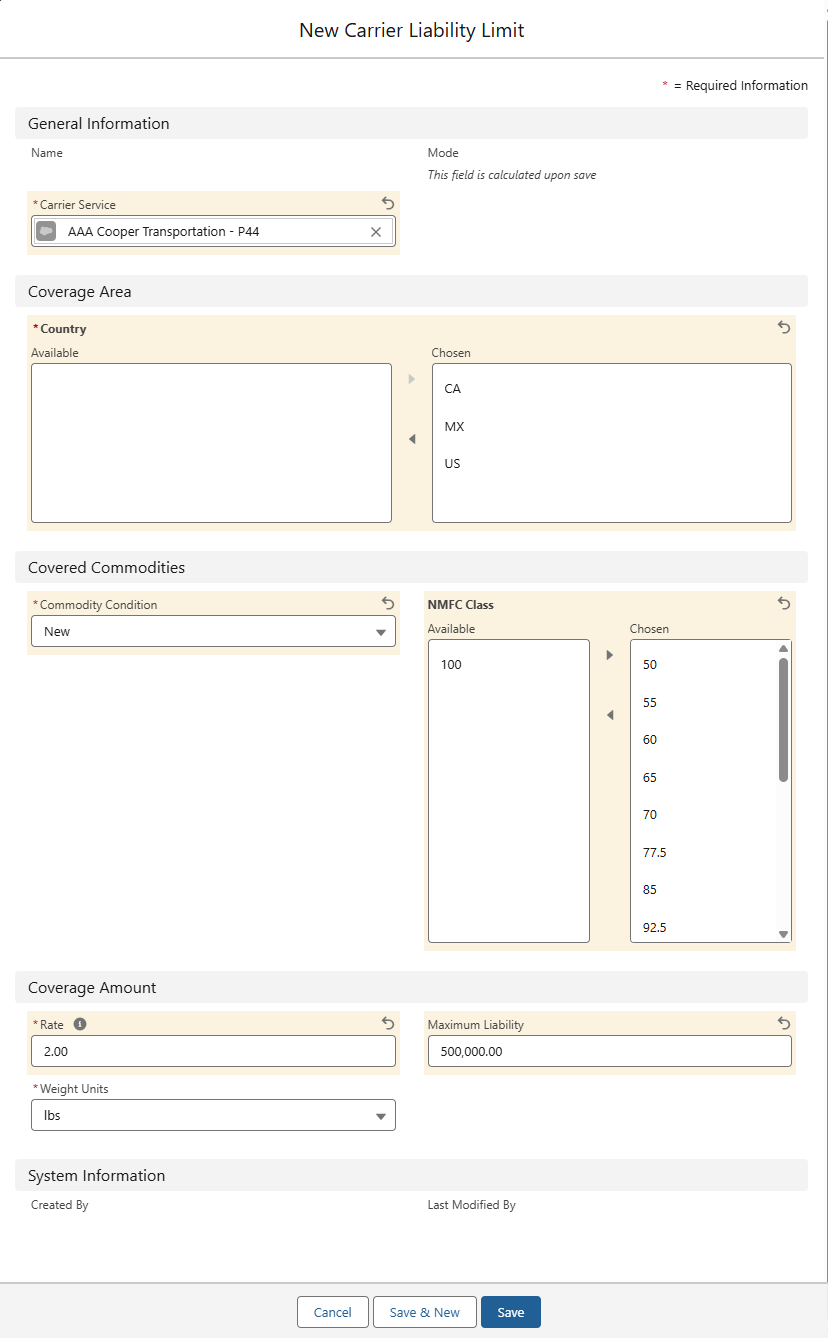
Create a Load that applies to a Carrier Service’s Rate Entry. Once the Load is created, review the Carrier Quote in the FQA to ensure the Carrier Service and Rate Entry is applied accordingly.
For stored rates, the Carrier Quote Liability Coverage and Liability Coverage Exceeded By fields are auto-calculated if the Load Commodity Condition field is populated, a Cargo Value is applied to the Load, and a Carrier Liability Limit is defined for the Carrier Service on the quote.
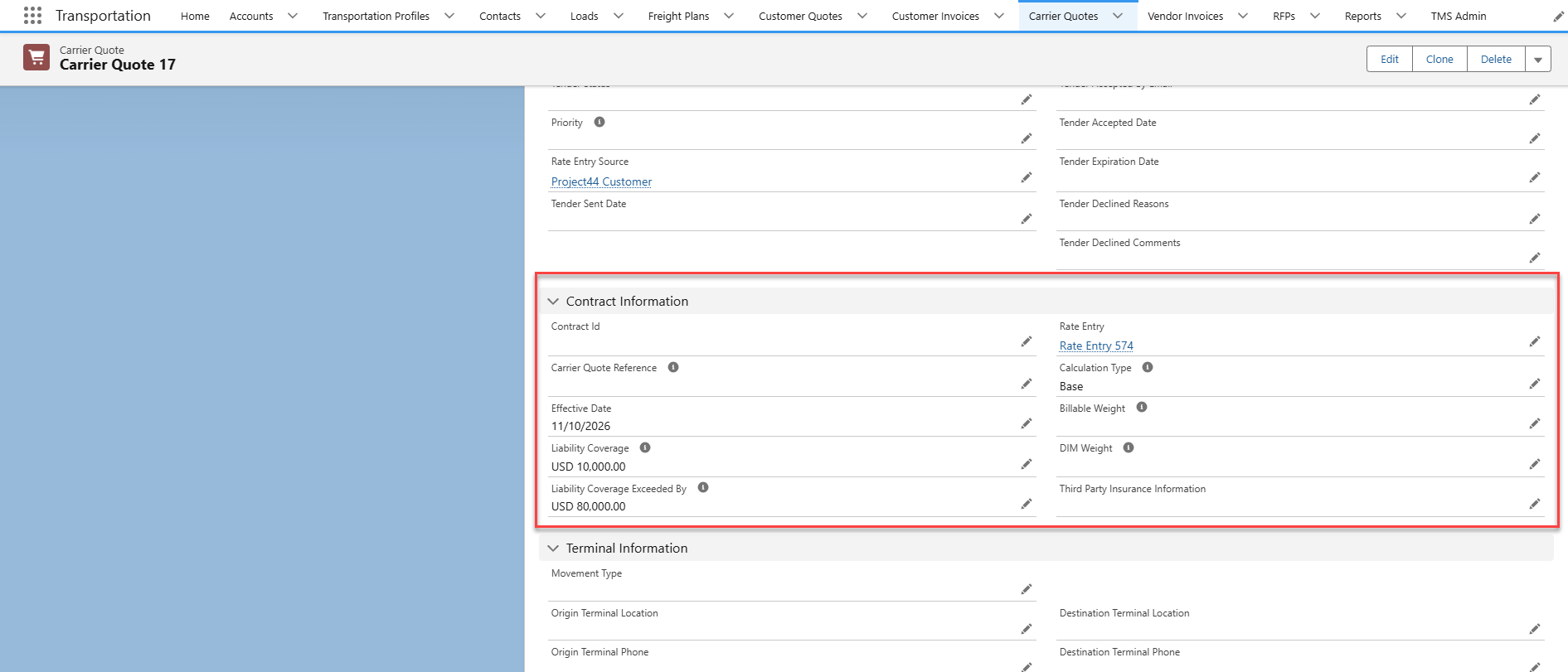
Liability Coverage Exceeded By is equal to the Cargo Value minus the Liability Coverage. If there are no values for those fields, then the field is 0.
The TMS does not prevent Assigning or Tendering a Carrier to a Load if the Carrier’s insurance coverage is less than the Cargo Value for that Load. It is recommended to create a process to prevent Tendering a Carrier to the Load in such cases.
To view the Liability Coverage and Liability Coverage Exceeded By fields, select the Carrier Quote and navigate to the Contract Information section. The Liability Coverage, Liability Cover Exceeded By, Calculation Type, and Rate Entry fields do not need to be populated for the Effective Date field to be populated.
Additionally, quickly view the Carrier Liability Limit and Commodity Condition under the FQA.

Customer Portal
View the Liability Coverage and Liability Coverage Exceeded By fields on the Carrier Quote in the Customer Portal.
The Commodity Condition, Cargo Value, Liability Coverage, and Liability Coverage Exceeded By fields may need to be added to the Carrier Quote and Load objects.
To add the Liability Coverage and Liability Coverage Exceeded By fields to the Carrier Quote object, complete the following steps:
Navigate to Setup → Object Manager.
Search and select the Carrier Quote object.
In the Carrier Quote object, click the Field Sets tab.
Select the TMS6 field set.
Add the Liability Coverage and Liability Coverage Exceeded By fields to the TMS6 field set.
Click Save.
To add the Commodity Condition and Cargo Value fields to the Load object, complete the following steps:
Navigate to Setup → Object Manager.
Search and select the Load object.
In the Load object, click the Field Sets tab.
Select the TMS10 field set.
Add the Commodity Condition and Cargo Value fields to the TMS10 field set.
Click Save.
If the Customer Portal user does not have access to the Liability Coverage and Liability Coverage Exceeded By fields on the Carrier Quote, set field-level security access by completing the following steps:
In the Carrier Quote object, click the Fields & Relationships tab.
Search for and select the Liability Coverage field.
In the field, click the Set Field-Level Security button.
For the Customer Community Plus Login User, check the Visible box.
Click Save.
Repeat the above steps for the Liability Coverage Exceeded By field.
When creating an LTL Load in the Quote Wizard, include the following information to view the Liability Coverage and Liability Coverage Exceeded By fields:
Commodity Condition
Cargo Value
Stops
Line Item information
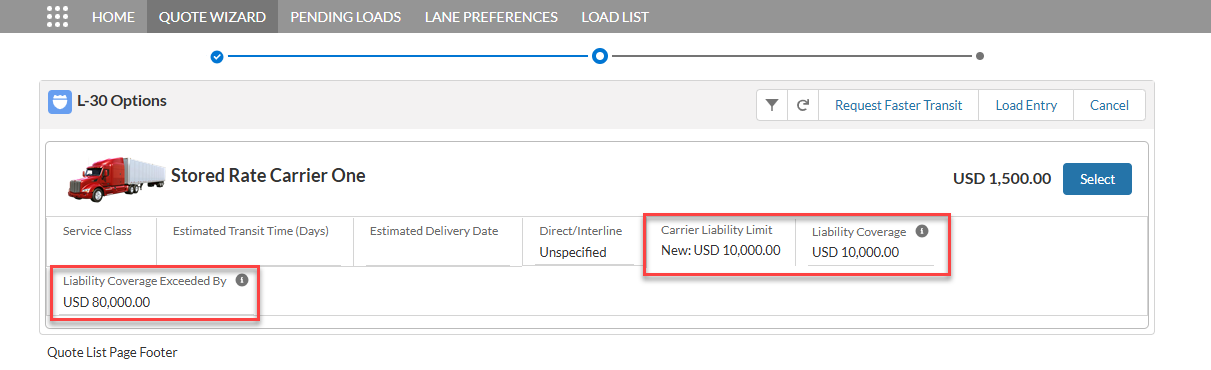
After clicking the Get Quotes button, the Carrier Quote displays values in the Carrier Liability Limit, Liability Coverage, and Liability Coverage Exceeded By fields.
Excess Liability Coverage Accessorial Pricing
The Rate Entry Rate Methods Per 100.00 of Amount or Percent of Amount allows for selecting a value from the Carrier Quote Amount field. The Excess Liability Coverage accessorial is auto-calculated based on this amount.