Equipment Types are important as an informational element on quote and tender documents, as well as for Ocean FCL loads.
View the list of Equipment Types from TMS Admin → Equipment Types.
.png)
Each Load can have an associated Equipment Type, which allows for volume/weight calculations and optimizations.
Create Equipment Types
Create a new Equipment Type by clicking the New Equipment Type button from the list view. The New Equipment Type modal opens, allowing you to enter the necessary information.
.png)
The required fields for creating a new Equipment Type include the following:
Name
Mode
Category
Max Weight
Weight Units
Default Equipment Type
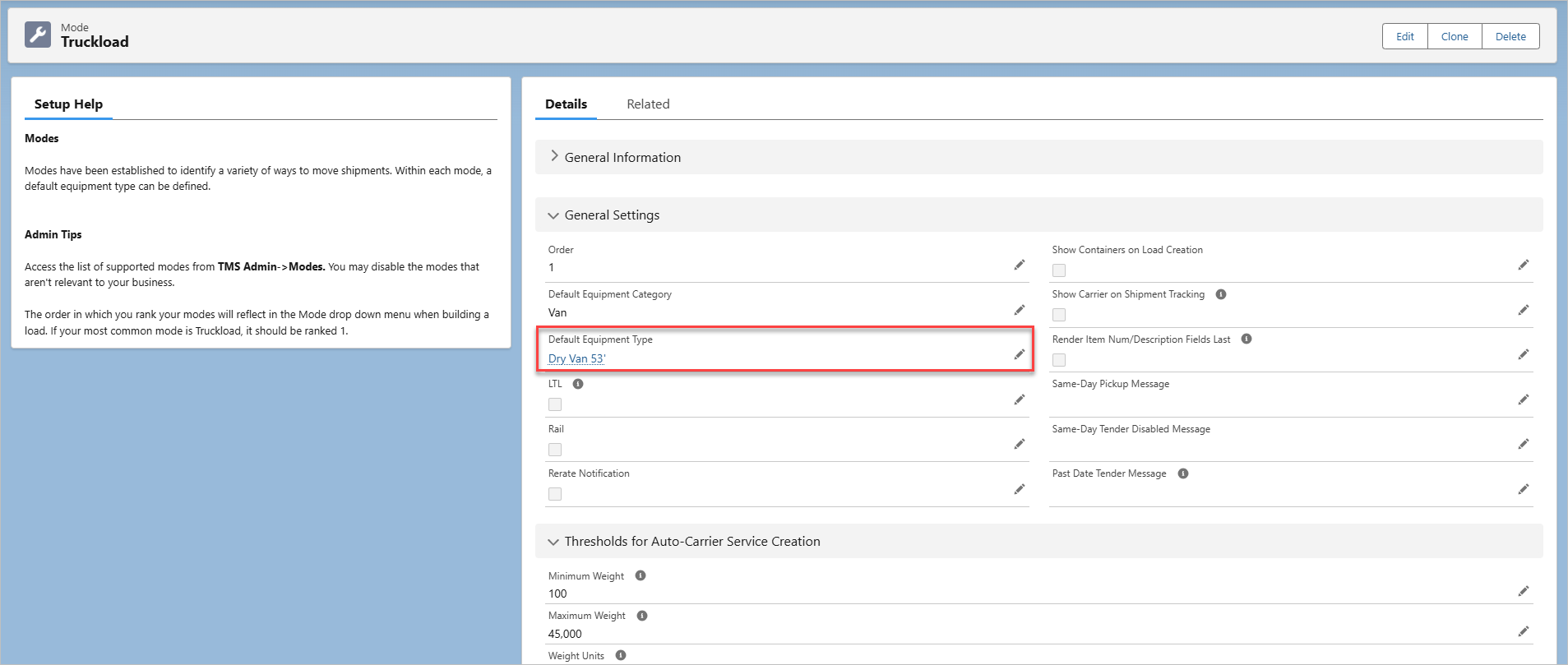
Configure a Default Equipment Type for each Mode. When users select a Mode during Load creation, the Equipment Type field in the Load Configuration LWC auto-populates.
To set up Default Equipment Types, complete the following steps:
Navigate to TMS Admin → Configuration.
Set Assign Default Equipment Type to checked.
Navigate to TMS Admin → Modes and select the desired Mode.
Set the Default Equipment Type for the selected Mode.
Note: Only Enabled Equipment Types will auto-populate in the Load Configuration LWC. If a Mode has a Default Equipment Type set to a Disabled Equipment Type and the Assign Default Equipment Type is checked, the LWC will not assign the disabled Equipment Type, even if it is set as the default for that Mode.
Lightning Web Components (LWC) Configuration
Set the Equipment Type fields to work with the following Lightning Web Components.
Load Posting LWC
When posting Loads with the Load Posting LWC, the truck length is based on the Equipment Type settings. Set the dimension fields (Length, Width, Height) and Dimension Units on the Equipment Type and click Save.
Load Configuration LWC
When creating a new load with the Load Configuration LWC, only Enabled Equipment Types for the Mode selected are available to choose from. Disabled Equipment Types are not included in the list.
Text to Truck Posting LWC
To have Artimus™ AI parse Equipment Types for the Text to Truck Posting LWC or from Truck Posting emails, check the AI Enabled box for the Equipment Type. Only enable Equipment Types necessary for business needs.
Note: If there are no Equipment Types that are AI Enabled, then Artimus will not automatically create any Truck Postings.
Troubleshooting
Error: “Default Equipment Type: You must select an enabled Equipment Type.”
This error occurs when you select the Reset Reference Data button in TMS Admin → Configuration, usually during a TMS installation or upgrade.
Resolution
Navigate to TMS Admin → Equipment Types and ensure that all Equipment Types are Enabled.