Manage EDI trading partner identifiers and locations with EDI Location records by navigating to TMS Admin → EDI Locations in the Accounts section.
View the EDI Location List Visualforce page and enter the EDI identifiers for each EDI trading partner. Create a new EDI Location record by selecting the New EDI Location button.

There are two types of EDI Location records:
Trading Partner EDI ID records: The Trading Partner and Location fields are identical, and the Trading Partner ID flag is true.
Caution: The Trading Partner ID field should be checked for only one per Trading Partner, including the SCAC field.
There are two types of trading partners:
Carrier Trading Partner: The Trading Partner is tied to a Carrier Account.
Trading Partner: The Trading Partner is tied to a Shipper/Consignee/Customer Account.
Trading Partner location records: Codes for specific locations, by trading partner, are identified.
Note: This list automatically populates EDI Location records as EDI 204 Load Tenders are processed—if they contain location codes.
Trading partners for inbound EDI 204 tenders are the customers or the customers' bill-to. Trading partners for outbound EDI 204 tenders are the carriers.
Several account records can be associated with the same customer trading partner by populating the SCAC field. Both the Location Code and SCAC fields must be unique. This allows for division-specific treatment of trading partners.
Settings for receiving or updating inbound 204 Load tenders for each Trading Partner are located on the EDI Location record. Check the field for the appropriate Trading Partner Settings to one of the following.
EDI 990 Load Tender Response transactions are sent by setting the EDI Status field to Accept or Decline. Enter a value in the Load EDI Decline Reason field to include it in the 990 response.
Trading Partners that auto-accept 204 updates result in the EDI Status field value set to Updated by Customer or Cancelled by Customer depending on the update. Any updated Load tenders must be re-accepted in the TMS.
Trading Partners using the EDI Order Update Console results in the EDI Status field value set to Update Pending from Customer when the tender is received in the TMS. A user must process the Load tender update in the EDI Order Update Console.
Location Matching Logic for Inbound 204 Transactions
To avoid creating duplicate accounts, the TMS searches existing records to determine location information. There are two scenarios that determine how the TMS matches location information:
When a Location Code is provided in the payload, and
When a Location Code is not provided in the payload.
This Location Code corresponds to the companyId field for Stops in the payload. Refer to the InboundEdi204 payload schema in the Accepts Inbound EDI Events endpoint for more details.
Location Code Provided
When a Location Code is provided with a Stop, the TMS searches for an EDI Location record with a matching Location Code in the payload (companyId). The matching EDI Location record contains the Trading Partner (Account) lookup field. This lookup field must reference the Customer Account on the Load.
EDI Location Match
If the Location Code in the payload and the Trading Partner field on the EDI Location record successfully match, several fields are compared:
Account Name
Shipping Street
Shipping City
Shipping State
Shipping Postal Code
Shipping Country
Note: If any of these fields differ, the Account record is updated with the values from the payload.
No EDI Location Match
If the Location Code in the payload and the Trading Partner field on the EDI Location record do not match, the TMS searches for a matching Account record. The search must exactly match the following fields in the payload:
Account Name
Shipping Street
Shipping City
Shipping State
Shipping Postal Code
Account Match
If a match is found, the TMS searches for a matching EDI Location record. The Location field must reference the matched Account AND the Trading Partner field must reference the Customer Account on the Load.
EDI Location Match Found: If a matching EDI Location is found, a new Account record is created AND a new EDI Location record is created that references the new Account and Location Code. Existing Account and EDI Location records are not changed. In this scenario, multiple Account records can be associated with multiple EDI Locations for the same Trading Partner, each referring to the same Location (Account) lookup field with different Location Codes.
No EDI Location Match: If a matching EDI Location is not found, a new EDI Location record is created for the matched Account record.
No Account Match
If a matching Account record is not found, a new Account record is created AND a new EDI Location record is created.
Location Code Not Provided
When a Location Code is not provided with a Stop, the TMS searches for an Account record exactly matching the following fields received in the payload:
Account Name
Shipping Street
Shipping City
Shipping State
Shipping Postal Codes
Account Match
If a match is found, that Account is used to create a Stop on the Load. No EDI Location is created.
No Account Match
If a matching Account record is not found, a new Account record is created. This new Account is used to create a Stop on the Load. No EDI Location is created.
Create EDI Load Reference Records
Each EDI Location record contains a related list for creating EDI Load References.

EDI Load Reference records allow you to dynamically create Load References and map EDI information in the TMS. EDI Load References map values to TMS records and are included with outbound EDI 210, 214, and 990 transactions.
Select the New button in the related list to open the New EDI Load Reference modal.

The following fields are required to create an EDI Load Reference record:
EDI Location: The current EDI Location record.
Label: The text to be passed to the Load Reference.
Type: The type of text that will be passed to the Load Reference.
TMS Object: Select from Load, Stop, or Line Item.
TMS Field: Dependent on the value selected in the TMS Object field. Refer to the following table.
Object | Field |
|---|---|
Load | Order Date |
PO Number | |
PRO Number | |
Stop | Arrival Date |
Departure Date | |
Pickup/Delivery Number | |
Line Item | HazMat Number |
Item Number |
EDI Load References for Load fields are included in outbound 990 EDI transactions. Stop and Line Item references are not included in outbound 990 EDI transactions.
Direction Field
The optional Direction field controls when the EDI Load References are added to the transaction and how they are mapped into the TMS.
Inbound: Fields from the EDI 204 update, based on the Load, Stop, or Line Item object and record. These fields are not included as a Load Reference in outbound EDI 990, 210, or 214 transactions.
Example: PO Number is selected for the Load object. The PO Number on the Load is updated.
Outbound: References are added to and sent with the outbound EDI 990, 210, and 214 transactions. Load, Stop, or Line Item fields not received in the 204 transaction or not included in the standard payload. This allows sending information not originally received in the customer 204 transaction back to the customer in the outbound transaction.
Both: Line Item, Load, or Stop fields are mapped or updated from the EDI 204 transaction and added to the Load Reference object. The Load References are added to and sent as part of outbound EDI 990, 210, and 214 transactions.
TMS Field
Add field values to the TMS Field picklist to choose them as Load Reference elements. The Stop Appointment Time field is added as an example.
Navigate to Setup → Object Manager and choose the EDI Load Reference object.
Choose the Fields & Relationships tab.
Select the TMS Field field.
In the Values section, add the appropriate field name in the text box.
Click Save.
For the new field choose the Edit link.
Copy the API Name into the field from the Load, Stop, or Line Item object field.
The API Name must match exactly. Remove the rtms__ prefix for any TMS fields as shown in the image below.
Click Save.
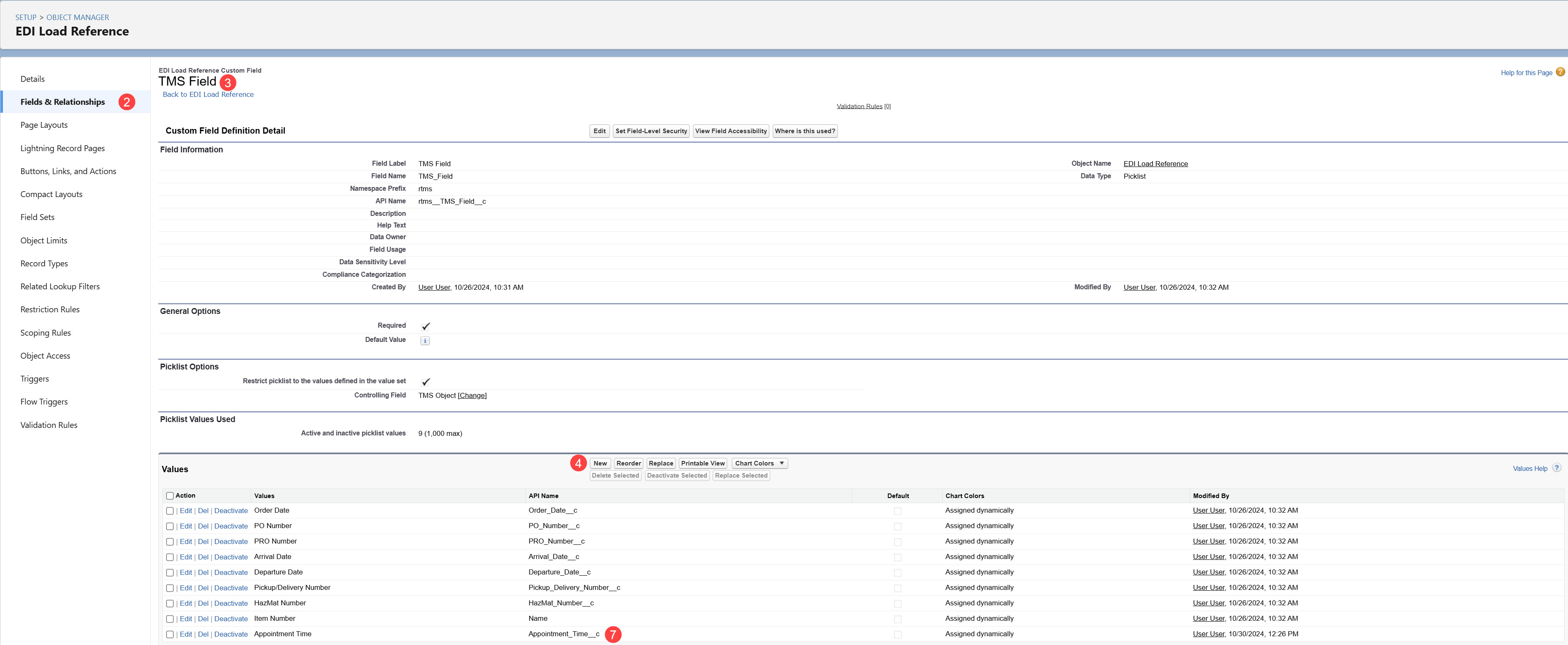
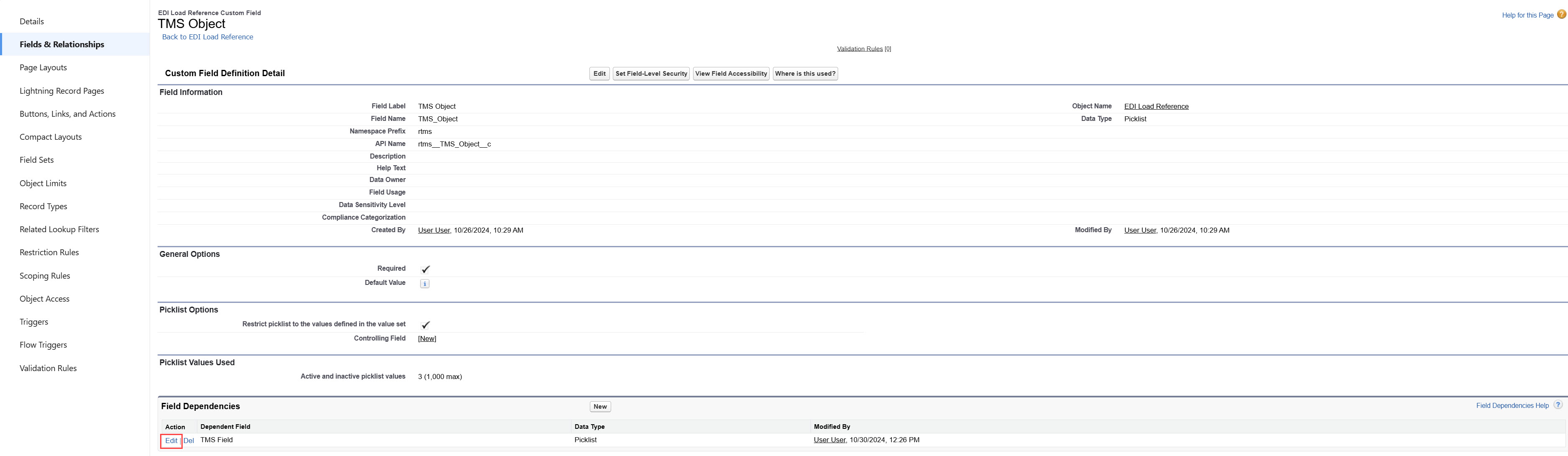
Return to the Fields & Relationships tab and select the TMS Object field. In the Field Dependencies section, click the Edit link for TMS Field.
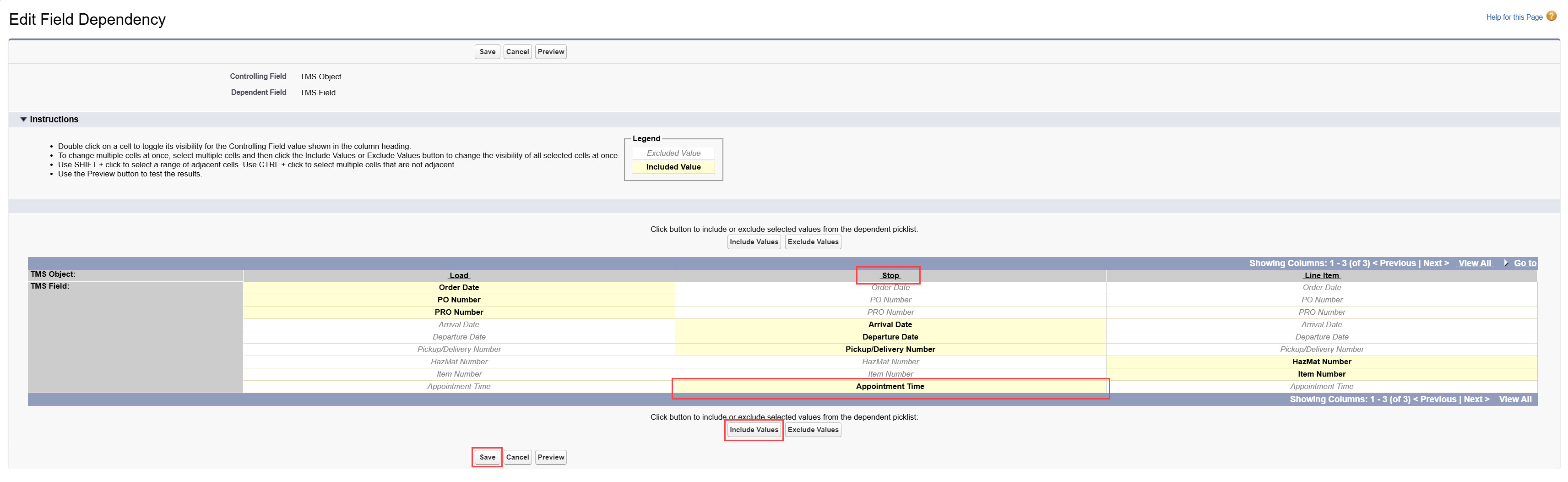
In the appropriate Object (Load, Stop, or Line Item) column, choose the field. Click the Include Values button, then click Save.
Create EDI Update Settings Records
The EDI Update Setting records control which updates may be updated on a Load when an EDI 204 update is received. EDI Update Setting records are only applied if the trading partner is not using the EDI Order Update Console.

To create an EDI Update Settings record, select the New button on the related list to open the New EDI Update Setting modal.

The following fields are required to create an EDI Load Reference record:
EDI Location: The current EDI Location record.
Data: The object and/or field that can or cannot be updated.
Action: Either Allow Updates or Block Updates for the field selected.
Note: When no EDI Update Setting record exists for an EDI Location record, the default behavior is to allow updates.
The following table displays fields that may have EDI Update Setting records created to control field updates. Create EDI Update Setting records as necessary for the EDI Location.
Object/Array of Objects | Field/Objects |
|---|---|
Load | Bill of Lading Number |
Cargo Value | |
Distance (Miles) | |
Other Instructions | |
Order Number | |
PO Number | |
Stop | Appointment Required |
Appointment Time | |
Expected Date | |
Instructions | |
Location | |
Shipping/Receiving Contact | |
Shipping/Receiving Hours | |
Line Item | Line Items |
Load Reference | Load References |
Load References - Stop | |
Load References - Line Item | |
Customer Quote | Customer Quotes |
Customer Quote Actions
EDI Update Settings records may also be created to use stored rates instead of the Customer Quote values received in the EDI 204 transaction. Updated Customer Quote information from updated EDI 204 transactions may also be ignored. Select the appropriate EDI Update Setting action for the Customer Quote:
Allow Updates: Processes updates as they are received for Load Tender requests.
Example: A Customer Quote is created if there is a value in the totalCharge or charges in the EDI 204 transaction.
Block Updates: Creates the first Customer Quote but does not process any updates.
Ignore: Does not create a Customer Quote. The Customer Quote values in the Load Tender Request are ignored.
Use Stored Rate: Creates a Customer Quote from the matching Rate Entry.
Any rate information received in the EDI 204 transaction is ignored.
If no Rate Entry matches, no Customer Quote is created.

The Enable Save & Rate for Load Creation field under TMS Admin → Configuration determines which quoting actions occur when an EDI Load Tender is received. In cases when an EDI Update Setting is for Customer Quote data to Use Stored Rate, the following quotes are generated.
When Enable Save & Rate for Load Creation is Checked, the following occurs.
Customer quotes are automatically generated from stored rate calculations.
Carrier quotes are automatically generated from API and stored rate calculations.
For Loads without a Mode, users are prompted to add one when first opening the FQA.
When updated 204 transactions are received, this rating process does not occur.
When Enable Save & Rate for Load Creation is not Checked, the following occurs.
Customer quotes are automatically generated from stored rate calculations.
Stored rates are used to calculate new and updated EDI 204 transactions.
Divisional EDI Tendering
Setting the SCAC field on a Trading Partner EDI Location record allows for divisional EDI tendering. The same Location Code can be used for multiple accounts and differentiated by setting the SCAC field uniquely. Location Code + SCAC must be unique for each trading partner.
EDI Record Validation
To validate EDI Location records, select the appropriate records from the EDI Location List Visualforce page and selecting the Validate button. Records can be selected individually or check the box next to the Action column header to select all records.

All sections on the EDI Location Validation Visualforce page should be empty as displayed.
.png)
Invalid EDI Location records will display in the section that describes the issue. Select the Location Code link to enter the record and correct these issues.

EDI Transaction Routing Overrides
The following fields provide additional EDI functionality and should be set up only for Trading Partners in the EDI Location record:
Trading Partner 210 Override
Trading Partner 214 Override
Trading Partner 990 Override
Override the EDI Provider and the Trading Partner for EDI 990, 214, and 210 transactions on an account-specific basis from a trading partner EDI Location record.
