Several Revenova-supported integrations require a Salesforce Connected App to communicate data between the TMS and the integration partner. Create a Connected App for each third-party integration the customer uses. Run the Connected App as the API User.
For more information, see Salesforce documentation for Connected Apps.
Integration Partners
The following partner integrations require a Connected App to send and receive information with a customer org. The steps below show how to create a new Connected App or to complete the setup of a packaged Connected App. Some Connected Apps are packaged in the TMS. Additional setup is required for these existing Connected Apps before they may be used. See the Verify Connected App section below to finish the setup of packaged Connected Apps.
See additional information on Salesforce API integration here.
EDI Partner VANs
The Revenova TMS uses REST endpoints to allow for EDI Partner VANs to send EDI transactions to each customer org. To successfully receive these EDI transactions, each Partner VAN must have a Connected App created. Follow the instructions below to create a Connected App for each VAN. The TMS supports transactions from Kleinschmidt, Cleo, and a single Custom EDI/other partner VAN. Multiple connections are supported for a single org, but only with a single Custom EDI partner. See additional EDI information here.
Cleo
Custom EDI
Kleinschmidt
The time zone used by the REST API process is the automated process user's time zone. Time zones are first determined based on the time zone specified in the EDI Transaction. When a time zone is not specified or a location update does not contain a time zone, the time zone of the API User/context user set for the VAN on the Load is used to determine the time zone.
Best Practices
Create a Connected App for each required integration used in the customer org.
Create 1 API User and apply the appropriate packaged Permission Set(s) to that user for each required integration.
The RevenovaWebService does not include a packaged Permission Set. Create or add a permission set with the appropriate permissions as needed.
The API User requires a TMS and Salesforce integration license.
API User
Create an API User or Users to run the Connected Apps for a customer org. Add only the necessary permission sets for the integrations a customer is using.
Note: Each EDI Partner VAN/Connected App requires a unique API User/Context User to properly sort and process EDI Transactions. Create an API User for each Partner VAN integration.
Create the API User
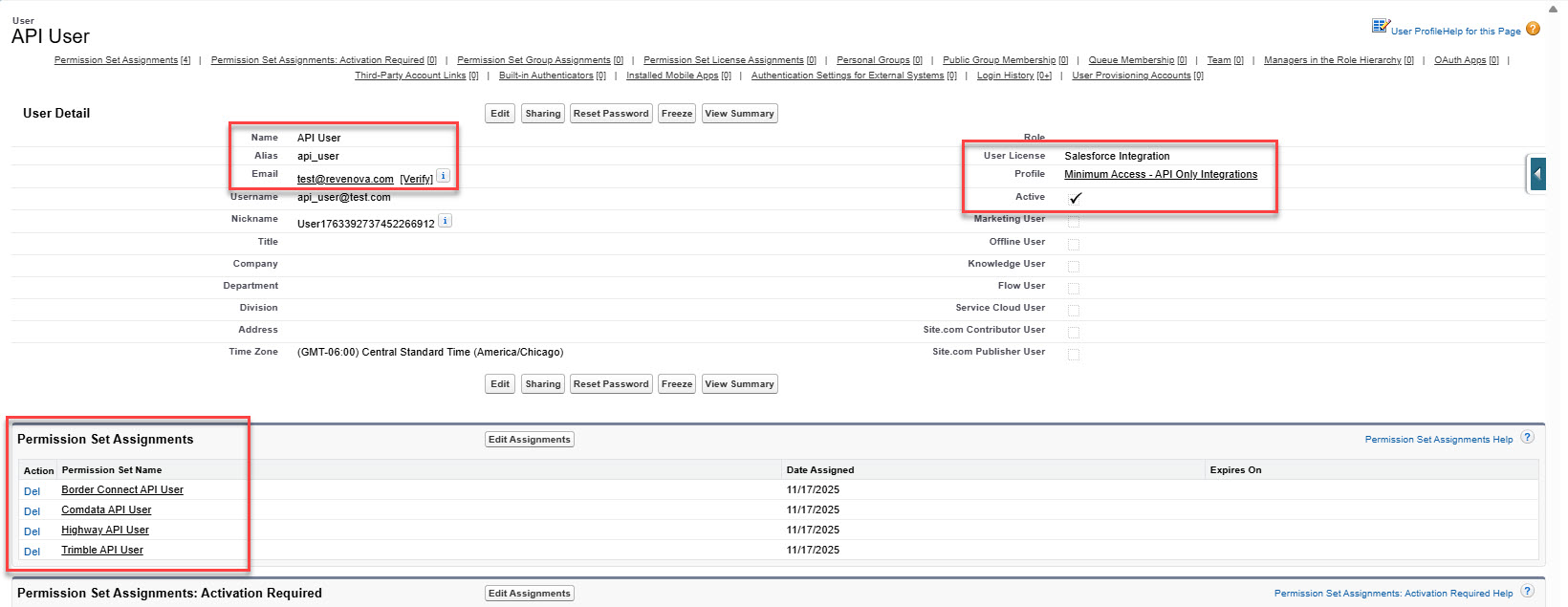
Navigate to Setup → Users, click New User and create a User with the following values.
First Name: API
Last Name: User
Email: Set to the System Administrator’s email address.
Username: Automatically generated. Change if necessary.
User License: Salesforce Integration
Profile: Minimum Access - API Only Integrations
Active: Checked.
Set the remaining required User fields as desired.
Click Save.
Navigate to the list of Users and select the API User.
From the Permission Set Assignments section, click Edit Assignments.
Select each permission set for all integrations the customer uses. Click the Add button to add the permission set(s) to the Enabled Permission Sets column. The following permission sets are packaged in the TMS and intended for use with the associated integration in parentheses.
Border Connect API User (Border Connect)
Comdata API User (Comdata Fuel Cards)
Highway API User (Highway Carrier Onboarding)
TMS Accounting Integration (Pub/Sub Accounting)
TMS Blue Yonder API (Blue Yonder)
TMS EDI API (Cleo, Custom EDI, and Kleinschmidt REST EDI integrations)
Trimble API User (Trimble Maps)
Click Save.
Set up Connected App Access
Connected Apps allow third-party applications to integrate with Salesforce by using APIs with standard protocols to authenticate and authorize these applications. Create a Connected App for each partner integration that requires one. While the API User is used by multiple Connected Apps, a single Connected App does not work for multiple partner integrations.
See Salesforce Connected App information here.
Create all required Connected Apps by following the steps below.
Note: The Blue Yonder integration has additional steps outlined below. Complete the additional Blue Yonder setup steps before navigating from the Connected App setup.
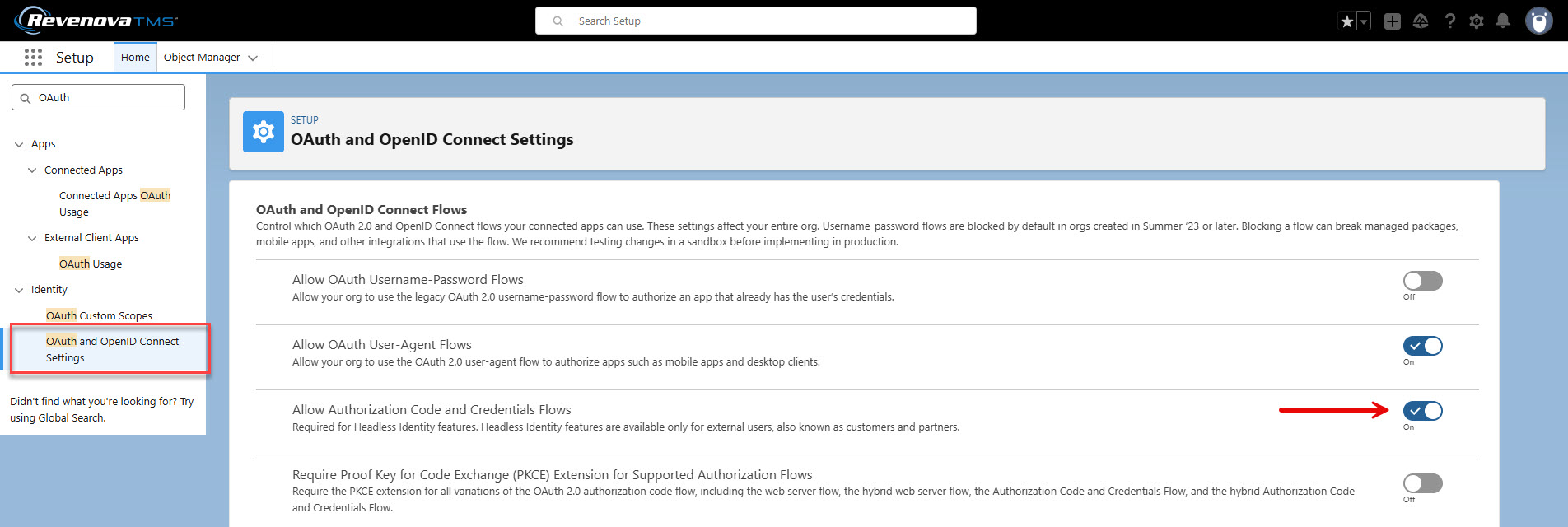
Step 1: Allow Authorization Code and Credentials Flows
From Setup → search and select OAuth and OpenID Connect Settings.
Set Allow Authorization Code and Credentials Flows to On.
Step 2: Enable App Creation
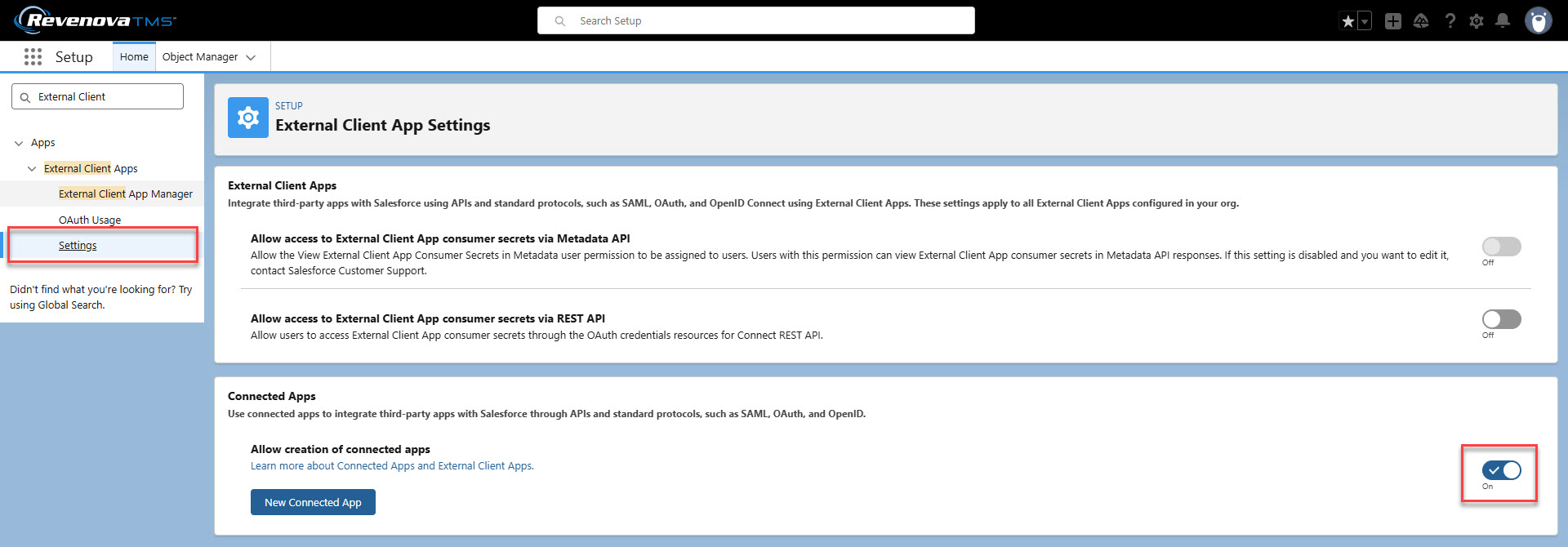
Navigate to Setup and search for External Client Apps and select the Settings link.
From the Connected Apps section, choose On for Allow creation of connected apps.
Click the Enable button on the modal to create Connected Apps.
Step 3: Create New Connected App
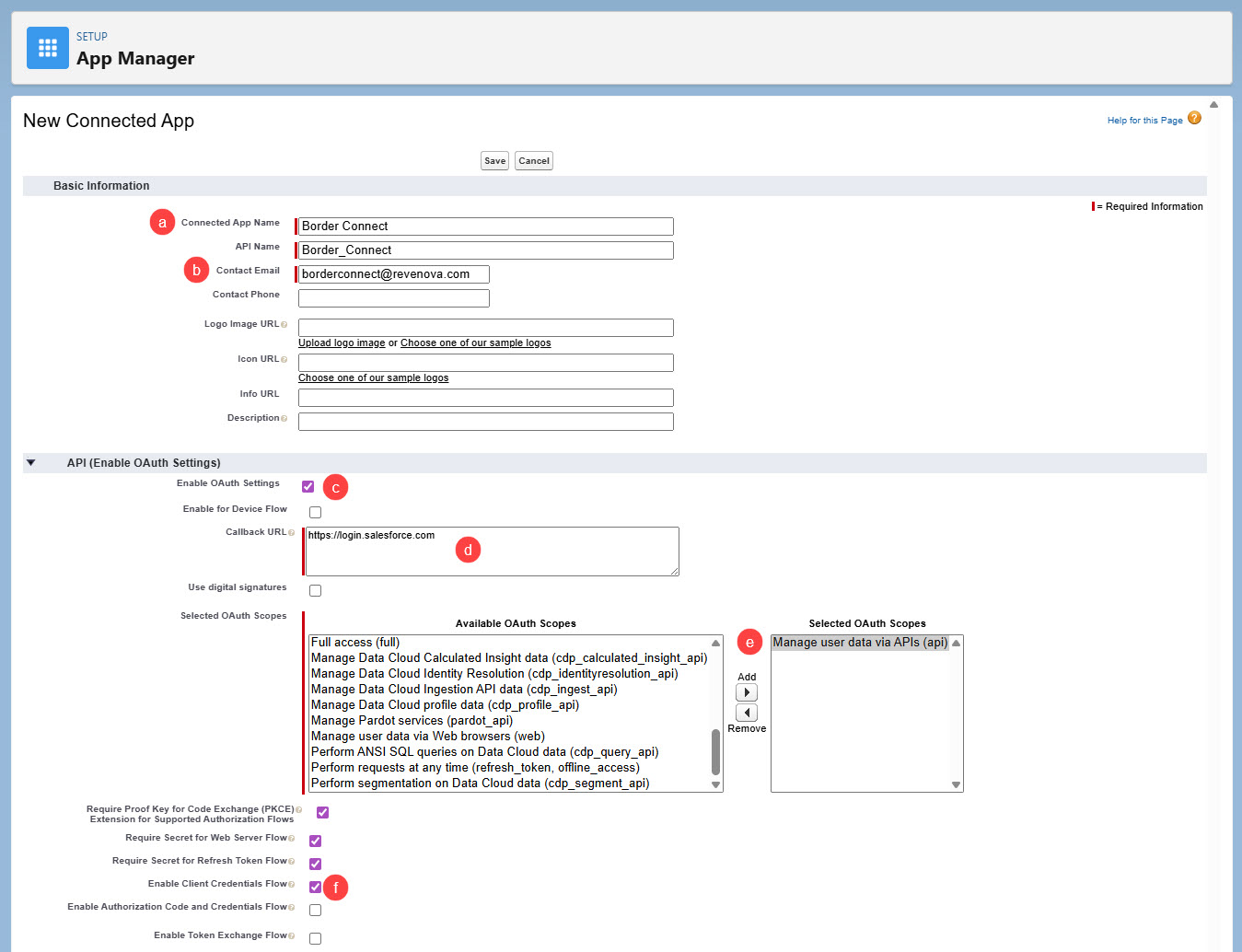
Create a Connected app by following the steps below. (Border Connect is shown as an example.)
Click the New Connected App button.
Enter the following information.
Connected App Name: Border Connect.
Contact Email: System Admin's email.
Enabled OAuth Setting: Checked.
Callback URL: https://login.salesforce.com/.
Selected OAuth Scopes: Add Manage user data via APIs (api).
Enable Client Credentials Flow: Checked.
Click Save.
Step 4: Access the Consumer Key and Consumer Secret
Several integrations require the Consumer Key and Consumer Secret to complete setup. Typically, the Consumer Key and Secret must be sent to Revenova along with the 18-character Organization ID to complete setup. See the specific integration documentation to determine if this information is required before completing the following steps. Instructions to find the 18-character Organization ID are provided below.
Navigate to Setup → App Manager.
Find the row for the integration and click the drop-down and select View. (Border Connect is shown as an example.)
.jpg)
Click the Manage Consumer Details button.
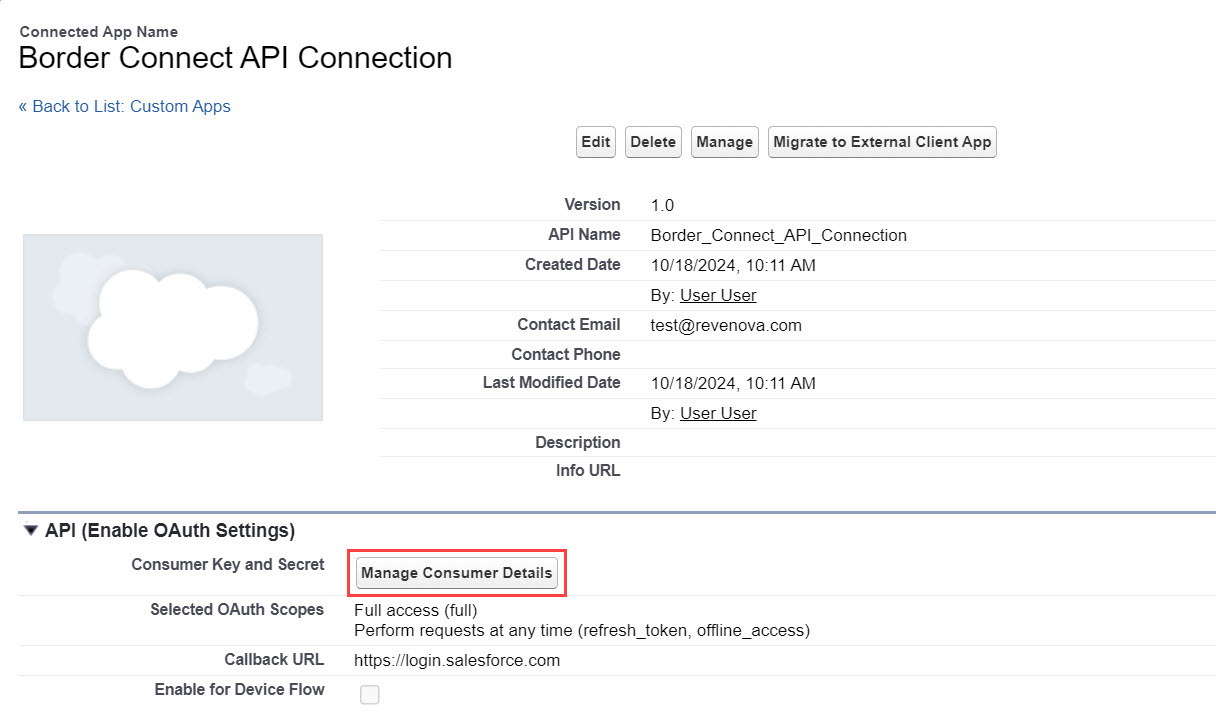
Salesforce sends a verification email to the system admin's email address. Enter this code in the Verify Your Identity page.
Copy the Consumer Key and Consumer Secret for later use.
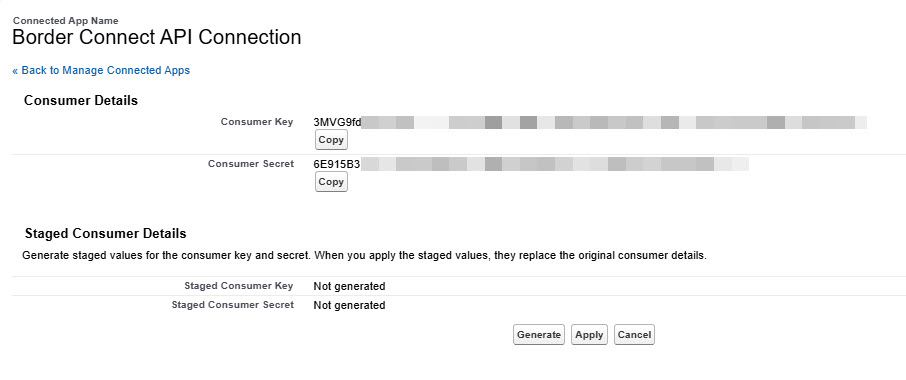
Copy 18-Character Organization ID
From the Setup drop-down, choose Developer Console.
Select the Query Editor tab.
Enter SELECT Id from Organization into the field.
Click the Execute button.
Copy the 18-character Organization ID for later use.
Step 5: Set Client Credentials Flow Run As user
Navigate to Setup → App Manager.
Find the row for the integration and click the arrow and select View. (Border Connect is shown as an example.)
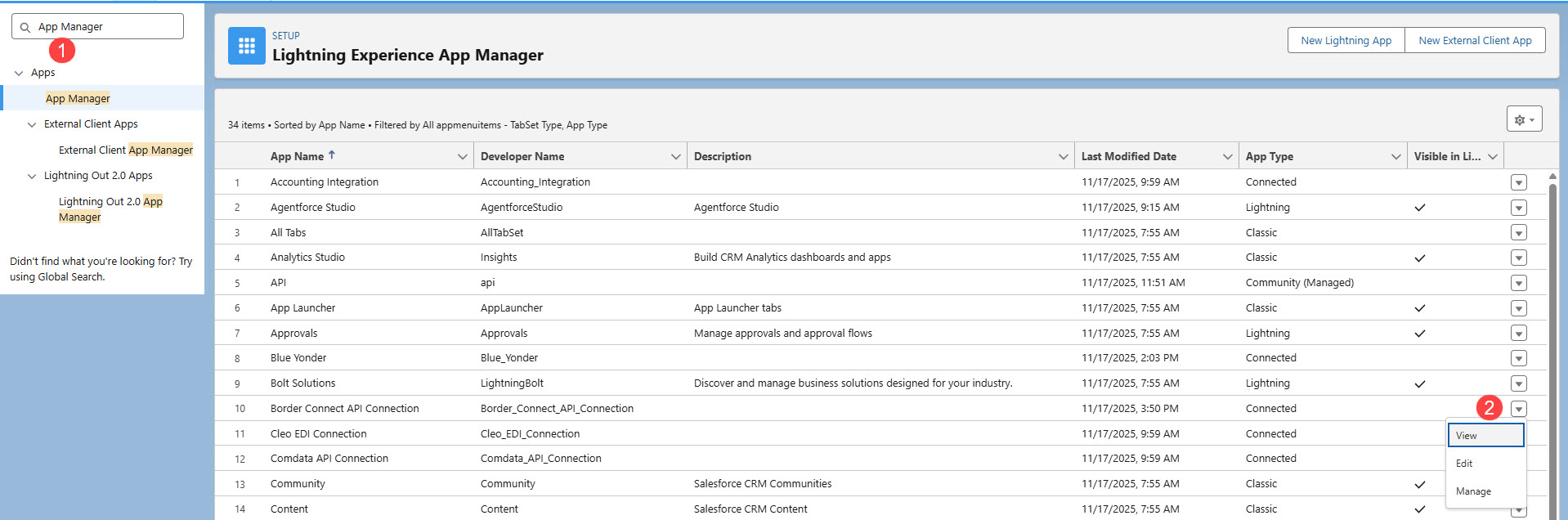
From the connected app, click the Manage button at the top of the page.

Click the Edit Policies button.
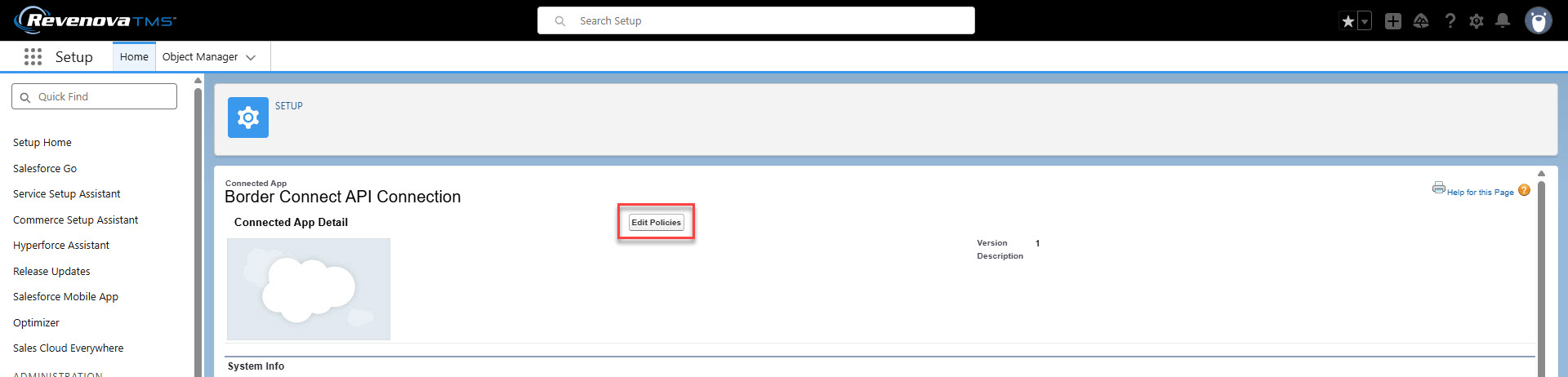
In the Client Credentials Flow section, use the search button to set the Run As user to the API User created above.
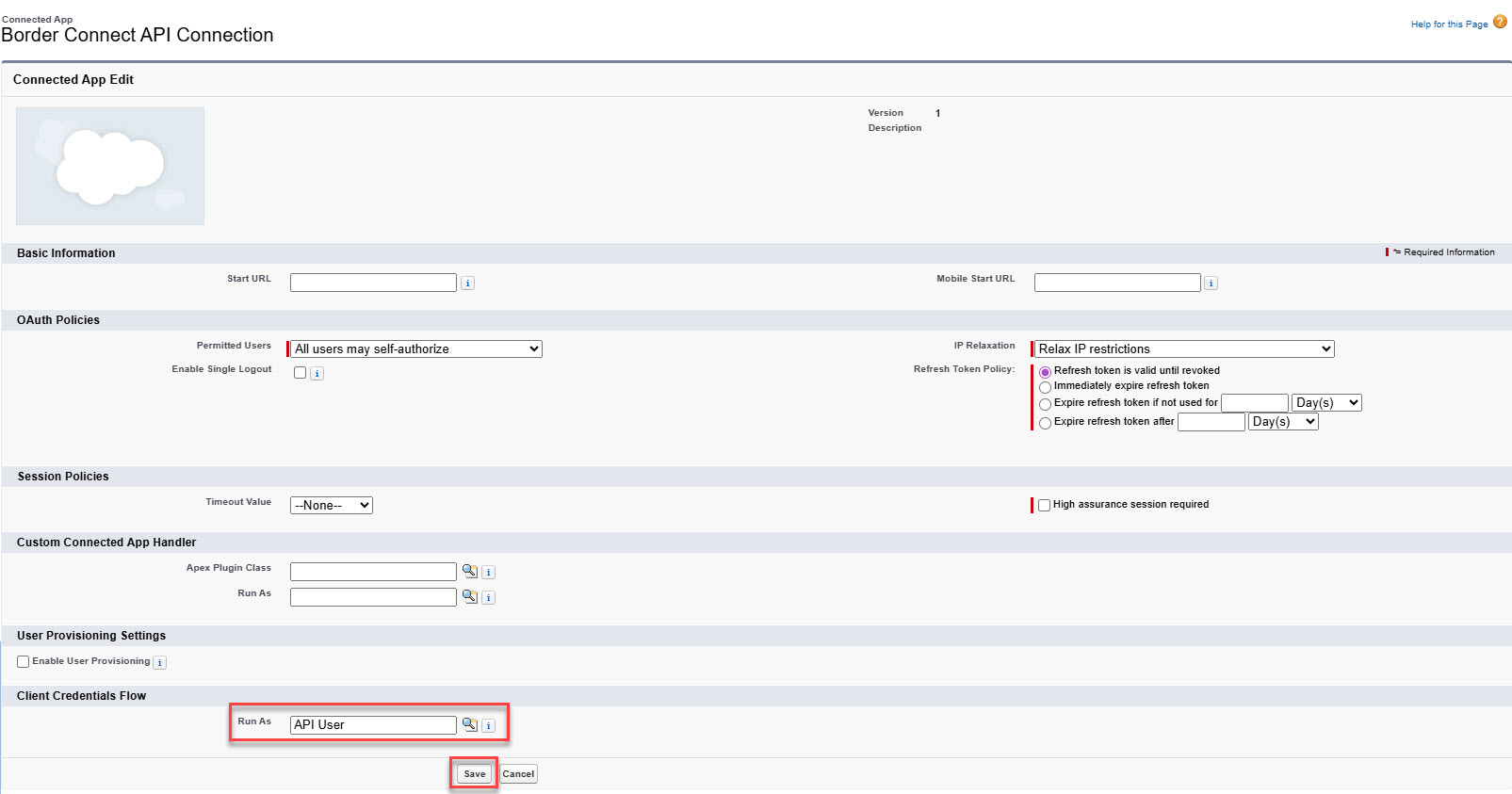
Click Save.
Blue Yonder Additional Setup
Add Trusted IP Range for OAuth Web Server Flow
If you navigated away from the newly created App, go to Setup → App Manager.
Find the Blue Yonder from the list of apps.
From the caret, click View on the Blue Yonder app.
Go to the Trusted IP Range for OAuth Web Server Flow section and click New.
Add the following IP ranges (repeat step 4 for each IP range).
Start IP Address, End IP Address: 20.122.40.48.
Start IP Address, End IP Address: 52.177.14.131.
Start IP Address, End IP Address: 52.247.78.106.
Click Save for each IP range.

Domain URL
The following endpoints are sent to Blue Yonder for setup within their system. Each org must send these endpoints to Blue Yonder to complete setup.
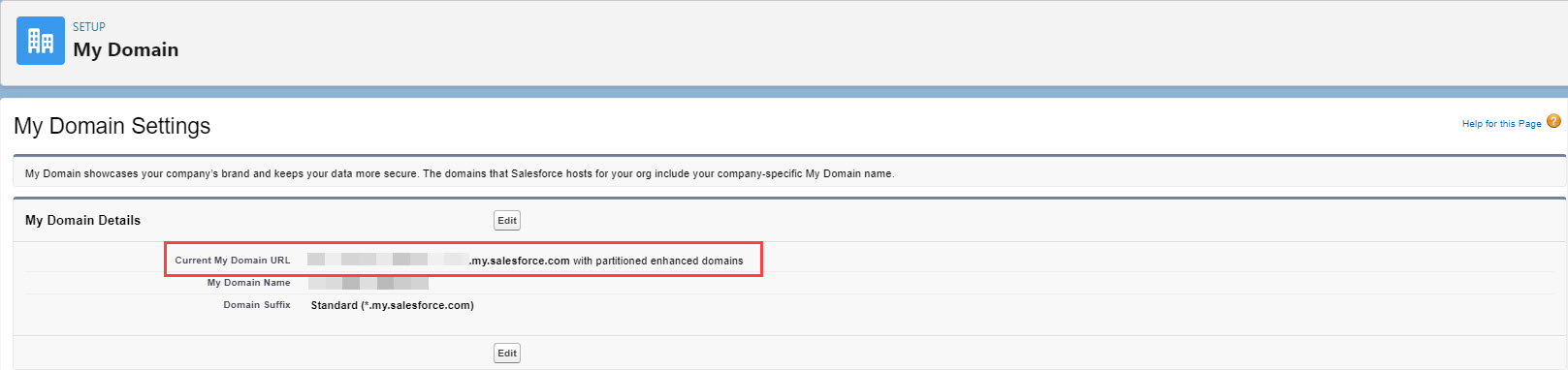
Note that “{domain}” can be found under Setup → My Domain → Current My Domain URL.
OAuth authorization endpoint: https://{domain}/services/oauth2/token
Quote request endpoint: https://{domain}/services/apexrest/rtms/blueyonderloadservice
Tender request endpoint: https://{domain}/services/apexrest/rtms/blueyondertenderservice
Pub/Sub Accounting Additional Setup
The accounting partner requires the domain for setup within their system. Each org must send its domain to the accounting partner to complete the setup.
Note that “{domain}” can be found under Setup → My Domain → Current My Domain URL.
Verify Connected App
Some integrations are included in the TMS package with pre-built Connected Apps (Border Connect, Highway, Trimble Maps, and others). For these existing Connected Apps, complete the following steps required for initial setup. (Border Connect is shown below as an example.)
Confirm that Connected Apps are enabled.
Navigate to Setup → External Client Apps and select the Settings link.
From the Connected Apps section, choose On for Allow creation of connected apps.
Click the On button to enable the creation of Connected Apps.
.jpg)
Navigate to Setup → App Manager and find the integration Connected App (Border Connect API Connect.)
Find the integration from the list and choose the caret, select Edit.
.jpg)
Check the Enable Client Credentials Flow box.
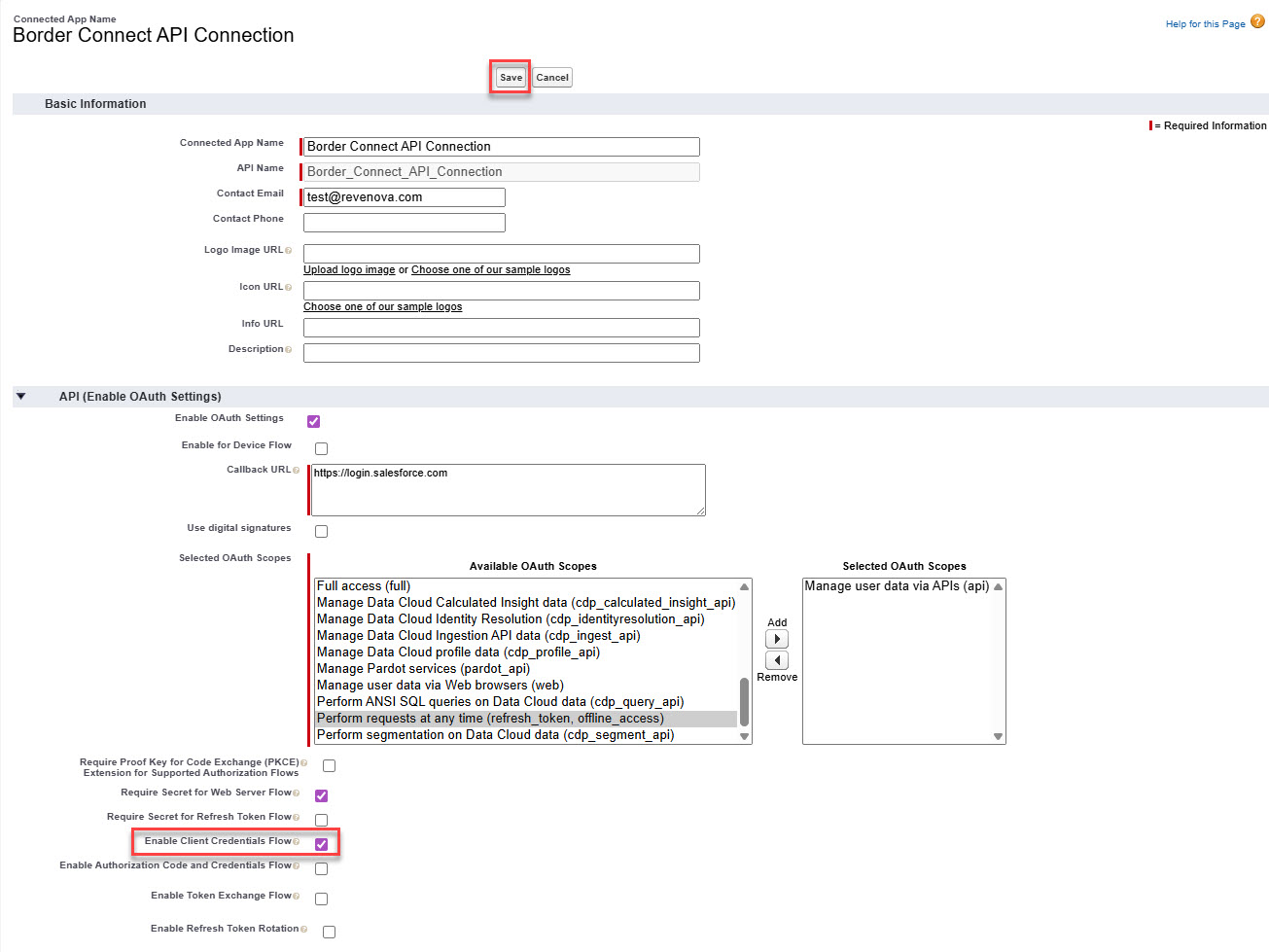
Click Save.
Return to Setup → App Manager.
Find the Connected App from the list and choose the caret, select Manage. (Border Connect API Connect.)
Choose the Edit Policies button.

In the Client Credentials Flow section, find the Run As field.
Click the Run As Lookup button.
Select the API User created above.
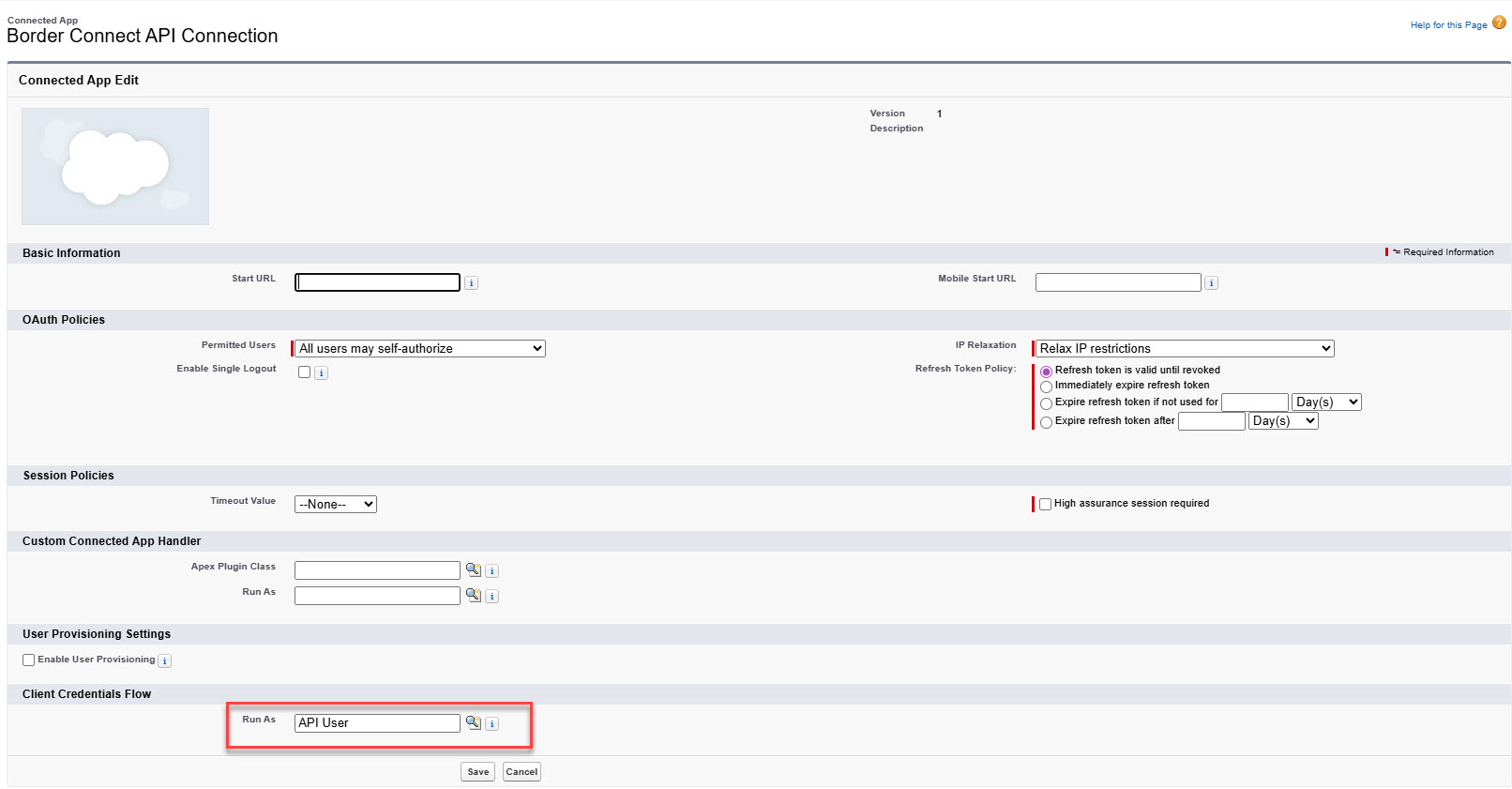
Click Save.