Overview
Send Email
The Send Email Lightning Web Component (LWC) allows users to send emails from various points in the load lifecycle. The three main tasks that display the Send Email LWC are:
Sending a Quote to a Customer.
Tendering a Load to a Carrier.
Sending an Invoice to a Customer.
When sending a Load Tender to a Carrier, the Tender Method on the Carrier Service must be set to Email.
When sending a Customer Invoice, the Billing Method on the customer Transportation Profile must be set to Email.
Bulk email send with the Twilio integration is also available in the Send Email LWC.
Customer Quote Confirmation
Send the Customer Quote Confirmation with the Send Email LWC by first clicking on the Send button of the Customer Quote Builder on the Freight Quote Assistant LWC.
Select the Email Template from the picklist. The default selections are provided first automatically, but other templates may be selected.
The account contact email for Quoting is provided in the To line of the email. Any default CC or BCC email addresses are also included.
A default subject line is provided with the customer quote number.
In a rich text editor, the body of the email is displayed based on the template settings for the email type.
An attachment previewer displays any other documents included on the email.
Additional documents may be added from a number of locations including the load or customer quote objects, and file upload.
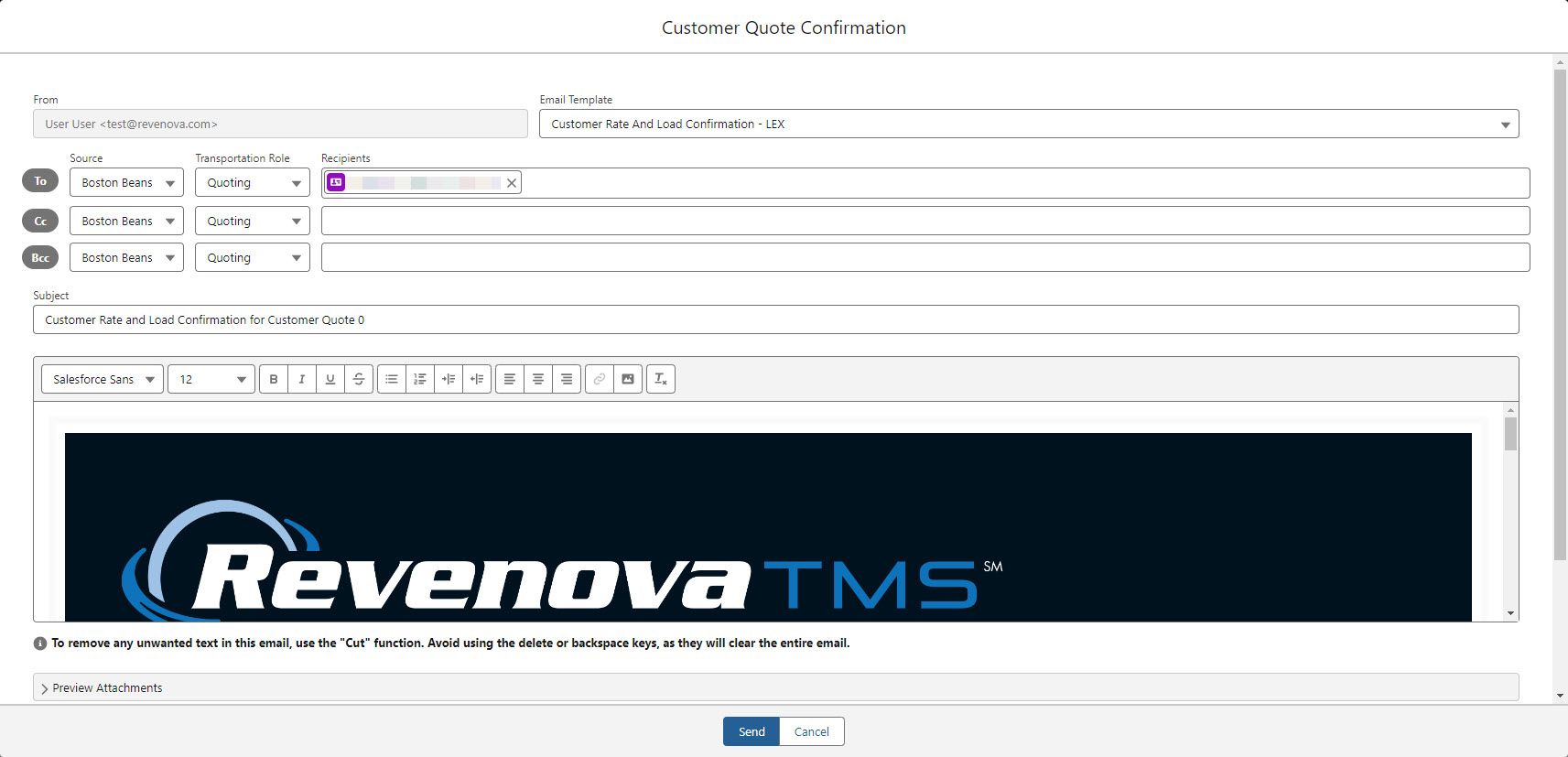
Avoid using delete or backspace keys in the email editor. They will clear all of the text from the email. Instead, remove unwanted text with the "Cut" function as described in the help text in the Send Email LWC.
Load Tender Confirmation
Send the Load Tender with the Send Email LWC by first clicking on the Tender button of the Carrier Quote Builder on the Freight Quote Assistant LWC.
Choose the action to complete with the Tender Email. Tender the load to the Carrier only, or Tender and Assign it to the Carrier with the Tender and Assign buttons.
Select the Email Template from the picklist. The default selections are provided first automatically, but other templates may be selected.
The account contact email for Tendering is provided in the To line of the email. Any default CC or BCC email addresses are also included.
A default subject line is provided with the Load number.
In a rich text editor, the body of the email is displayed based on the template settings for the email type.
An attachment previewer displays any other documents included on the email.
Additional documents may be added from a number of locations including the load object and file upload.

Customer Invoice
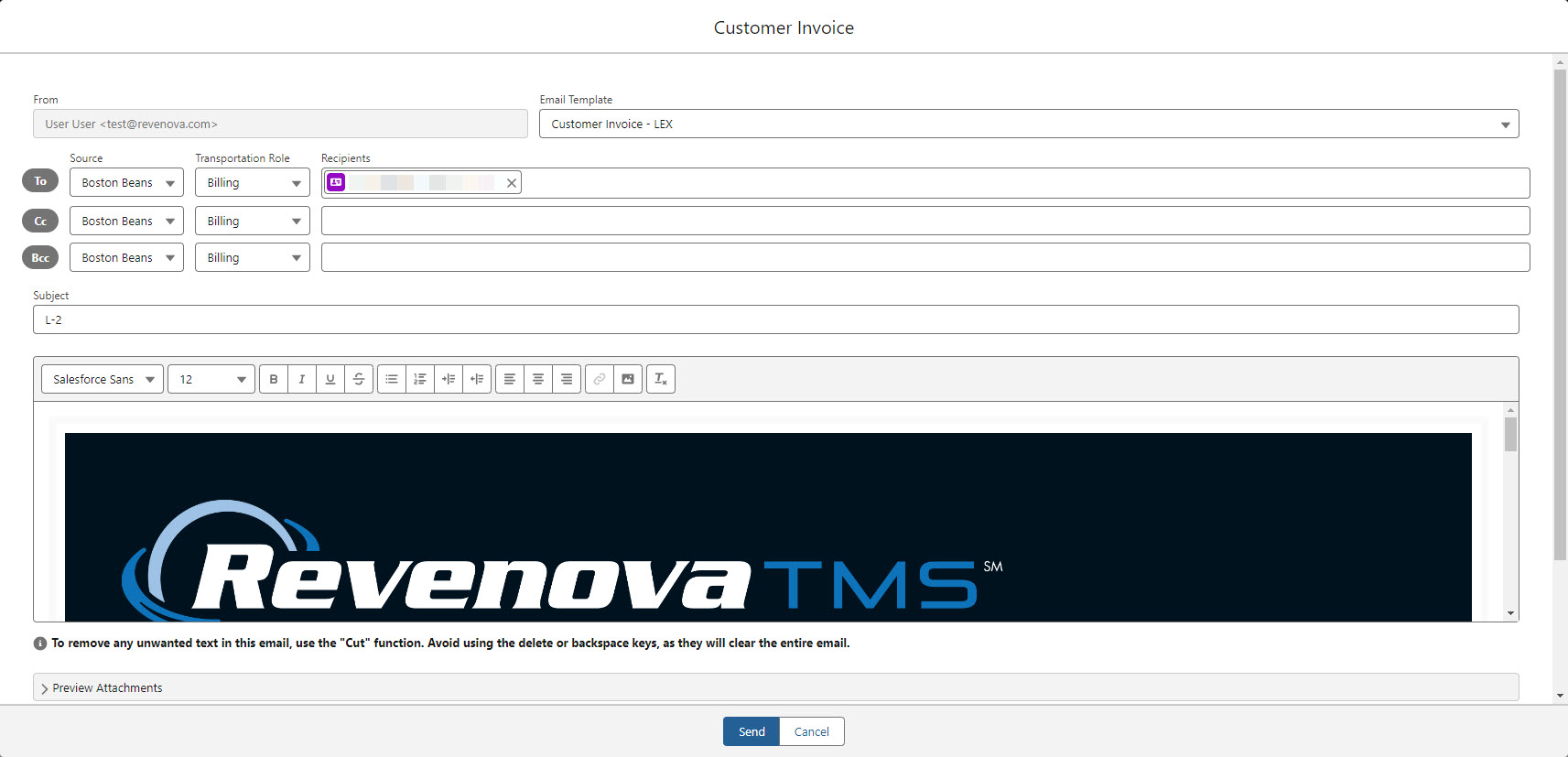
Send the Customer Invoice with the Send Email LWC by first clicking on the Generate and Send button on the Customer Invoice Banner LWC.
Select the Email Template from the picklist. The default selections are provided first automatically, but other templates may be selected.
The account contact email for Billing is provided in the To line of the email. Any default CC or BCC email addresses are also included.
A default subject line is provided with the customer quote number.
In a rich text editor, the body of the email is displayed based on the template settings for the email type.
An attachment previewer displays any other documents included on the email.
Additional documents may be added from a number of locations including the load or customer quote objects, and file upload.