Overview
Load Configuration

The Load Configuration Lightning Web Component (LWC) is a highly configurable component of the TMS and located on the new load creation layout. This component is the starting point for creating new loads. Multiple field sets control when fields display or may be entered based on a number of factors. Once a customer and mode are entered, the Stop and Line Item LWCs render, allowing for additional field customization. See the Field Set Summary for more information.
Load Field Set TMS1
Add fields to the Load Configuration LWC during load creation with the Load TMS1 field set. Mode-named Field Sets may also be created for Load TMS1 and populated to display specific fields for a particular Mode. (Example: TMS1 LTL)
In the default layout, search customers by name, address, city, or postal code and display account matches that meet those search criteria below the text boxes. Clicking on one of the customers auto-populates the fields on the top row of the LWC.

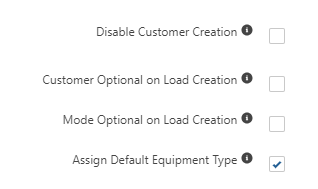
Load creation defaults can be modified by navigating to TMS Admin and selecting the Configuration link under the System section. Under Global Settings, find the checkbox to the right of Disable Customer Creation. Additional load settings include, Customer Optional on Load Creation, Mode Optional on Load Creation, and Assign Default Equipment Type.
Disable Customer Creation prevents a user from creating a new Account as record as described below. The Customer Optional and Mode Optional checkboxes renders those fields optional, and the Assign Default Equipment Type selects the default Equipment Type based on the Mode selected. Mode default equipment types are managed under the System section of TMS Admin and selecting the Modes link.
Customer search results only appear when a Shipping Address Country is selected from the drop-down as shown in the screenshot above. Customer Account records require at least a Shipping Address Country field to display as search results.
New customer records are created from the Load Configuration LWC by selecting the "plus" button on the right side of the top row.

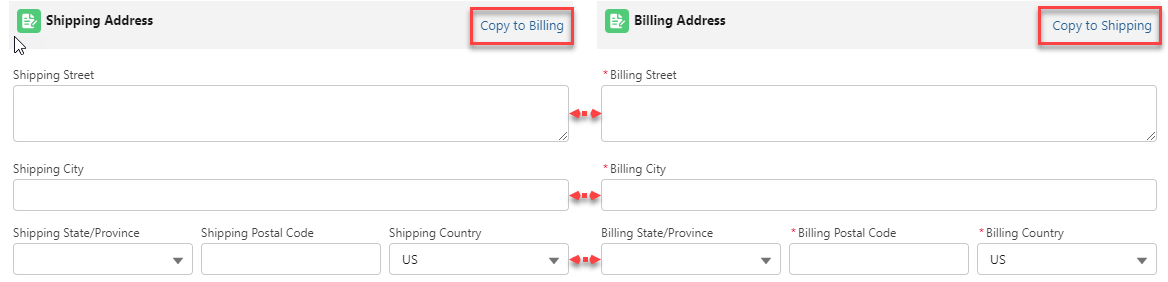
A Customer Account creation modal will appear to enter the necessary information for a new customer. Default required fields include the Customer Name, Billing Street, Billing City, Billing Postal Code, and Billing Country. Additional information may be added including: the TMS Type (Customer and the Shipper/Consignee selections are checked by default), The Shipping Address fields, Phone, Fax, Shipping & Receiving Hours, and finally checkboxes for requiring Pickup and Delivery Appointments.

The Copy to Billing and Copy to Shipping links populate the address information into the other section as selected.
Contact Record Creation
Below the Other Information section is another for creating new Contacts for this Customer Account. Choose the "plus" button below the Contacts section banner to open the New Contact modal.
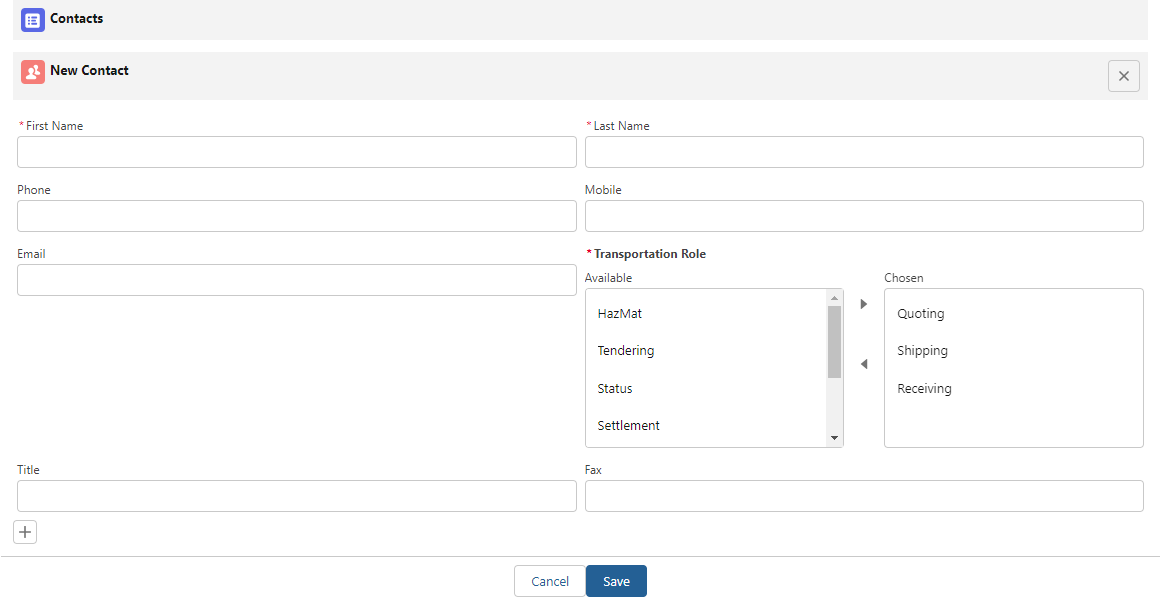
The First Name, Last Name fields, and Transportation Role are required for all New Contact records. Select roles from the Available column and add them to the Chosen column by clicking the "Right Arrow" button. Transportation Roles can be removed by selecting them in the Chosen column and clicking the "Left Arrow" button. Multiple selections may be made by holding the Control button on the keyboard while clicking Roles.
Contact Field Set TMS1
Additional fields may be added to the Contact creation modal with the TMS 1 field set on the Contact object.
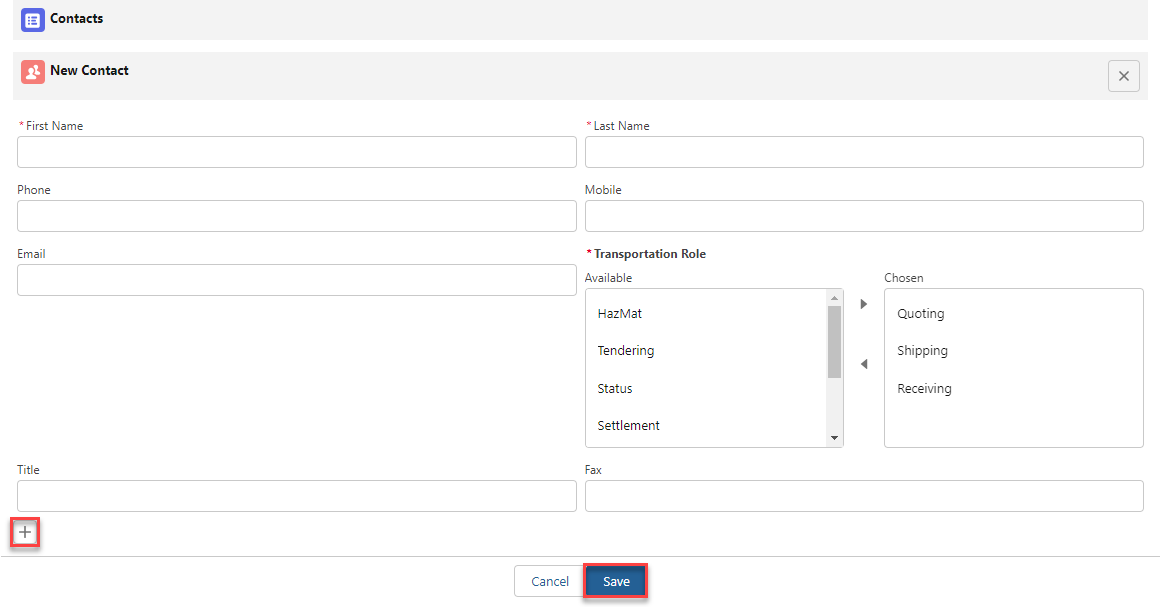
Additional contacts may be created by selecting the "plus" button at the bottom left of the New Contact modal. When complete, choose the "Save" button or "Cancel" to discard the new Contact.
When finished creating a Customer and any Contacts, the original Load Configuration displays along with Customer Account information. Before completing the load configuration, a Mode selection is required. The Mode selection contains a picklist of the Transportation Modes created in the TMS. An Equipment Type for the load can also be selected.

Enter Stop and Line Item information.
Complete the Load Configuration by selecting the Save button.
Auto-Generate Stored Rate Quotes
Loads can be rated before opening the Freight Quote Assistant based on API and rate entries available in the TMS.
Auto-generated quotes are only available for:
Manually created loads
Cloned loads (NOT including cloned Freight Plans)
Loads created via EDI
Enable auto-generating loads by navigating to TMS Admin → Configuration. Check the box for each of the following options:
Enable Save & Rate for Load Creation
Check Customer Rate Load
Check Carrier Rate Load
Enter load information on the Load Configuration LWC.

Click the Save & Rate button to auto-generate both customer and Carrier quotes.
The load status updates to Quotes Requested.
When the rating process is complete the load status updates to Quotes Received.
Quotes are provided in the FQA and Carrier Quote List LWC.
Stored Rates, Markups, and API rates are included.
Customer and Carrier quotes do NOT generate for Loads under the following conditions:
No Mode is selected on the Load.
Loads created with the RFP upload tool.
Loads created with the Blue Yonder integration.
LTL loads without an NMFC Class or dimensions.
The Total Weight exceeds the Max Weight of the selected Mode on the Load.
More than 2 stops on the load.
Customer Quotes generated via Carrier Markup Group.
The selected Mode on the load does not contain applicable Rate Entries.