Overview
Carrier Banner

The Carrier Banner Lightning Web Component (LWC) is located on the Summary tab of the Load page. It displays load fields and Carrier quote fields from the accepted Carrier quote both driven by field sets. By default, the Carrier Banner appears above the Customer Banner LWC on the load page. The Carrier banner only displays when a load record is a Carrier load and does not display for customer loads.
Banner Visibility
The TMS can display the Carrier Banner on customer loads, as well. The customer banner can also render on Carrier loads. Customize banner visibility by editing the appropriate page layout(s).
.png)
Carrier tracking information is shown on the Carrier Banner LWC and is customizable. LWC settings are changed in the Lightning App Builder. Select the Setup gear in the upper-right corner and choose Edit Page. Click the Carrier Banner component and on the right panel select the default tracking provider from the drop-down. The picklist is filtered by Mode. Available tracking options include Trucker Tools, MacroPoint, FourKites, and Project44 Tracking.
The fields displayed on the Carrier Banner LWC can also be customized with field sets. From the Object Manager, add and/or remove fields from the Load TMS16 and Carrier Quote TMS7 field sets. Once a Carrier is added to a load, the fields from these field sets will display on the Carrier Banner. Custom field sets may be created that are mode-specific and will override the default fields in the field set (e.g., TMS16 LTL).
For more information on field sets, see the Field Set Summary.
The status of the Carrier is indicated on the banner as a pill. For example, loads that do not have a Carrier assigned to them will display an "Unassigned" pill.
Carrier Assigned Load
Load Tracking, Request Carrier Status, and Remove Carrier buttons display on the banner when a Carrier is assigned. Select the Load Tracking button to open the Load Tracking Administration modal. Depending on the Tracking Provider, the Carrier Tracking fields display for the tracking provider in the modal. Enter the required tracking information and click the On button at the bottom of the modal to begin tracking the load.

Note the In Transit pill status on the Carrier Banner.
Carrier Integration Setup
Carrier tracking requires the appropriate tracking integration credentials. Navigate to TMS Admin, then Credentials on the Global Services tab and enter the required credentials.
Load Tracking
.png) The load tracking button opens the Load Tracking Administration modal, a child LWC of the Carrier Banner. Depending on the Tracking Provider selected, various fields display in the modal. Select the provider and enter any required fields and click On to begin tracking the load.
The load tracking button opens the Load Tracking Administration modal, a child LWC of the Carrier Banner. Depending on the Tracking Provider selected, various fields display in the modal. Select the provider and enter any required fields and click On to begin tracking the load.
Notes:
The default Tracking Provider for a Carrier is selected on the Carrier's Transportation Profile on the Settings tab.
Only tracking integrations with credentials display as possible options in the Tracking Provider picklist.
If the default Tracking Provider is not available (Project44 Tracking for an LTL load, for example), the first option in the picklist is selected.
Three field sets provide flexibility to display additional fields:
Load Field Set TMS35
Transportation Profile Field set TMS7
Transportation Profile Field set TMS8
See the Field Set Summary for more information.
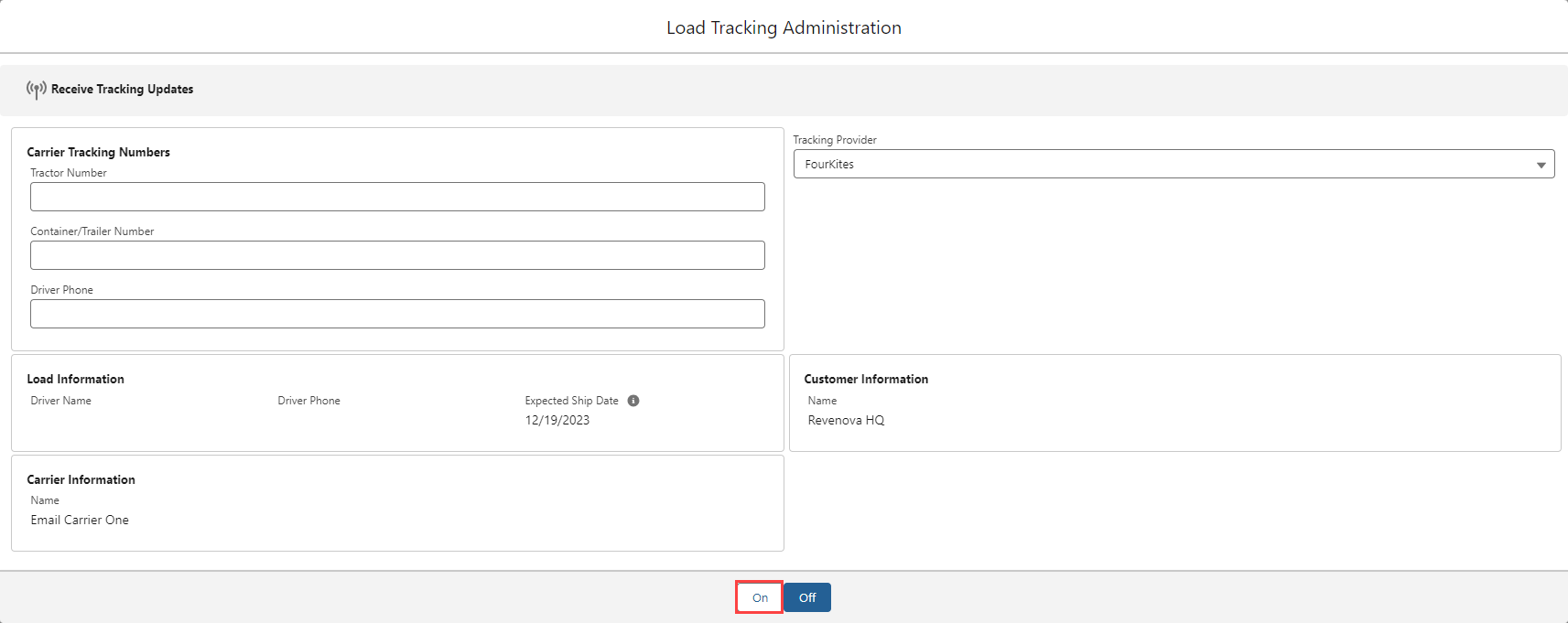
The Off button sends triggers the call to the Tracking Provider to end the tracking session. The Load Tracking Administration fields reset.
When initiating tracking a user receives the following Carrier Banner error:
‘Attempt to de-reference a null object.’
Review all Stops on the Load and enter complete Street Address, City, State, and Postal Code fields. Complete stop locations are required to initiate tracking.
Request Carrier Status
.png)
The middle "Request Carrier Status" button triggers a request to the Carrier for a status update. The Carrier Service contact is sent a request via the Status Method picklist. Available options include Email, Phone, and API. Requests are tracked under the Activity tab on the load page. Notes from a phone call can also be added under the Activity tab. After the is sent, the TMS will show a Toast message indicating that the email or API request is sent.
Remove Carrier
.png)
The Remove Carrier button is available on the Carrier Banner once the Carrier quote is accepted. Before removing the Carrier from the load, the Remove Carrier modal opens.
From the modal, the Remove Carrier button removes the Carrier from the load with no other action necessary.
Fields are available for a Removal Reason, a Removal Charge, and notice options for removing the Carrier.
A Removal Charge displays the Accessorial and Charge fields and the currency type. These field values are stored on the Carrier Quote record.
The default accessorial when removing a Carrier is found under TMS Admin, Configuration, in the Global Settings. Find the appropriate accessorial for the Carrier Removal Accessorial field. (See below, Vehicle Ordered Not Used)

Notices are sent to the tender contact and any additional email addresses added to the Email CC list. Select the appropriate Email Template from the picklist to format the email. By selecting the Attach Rate Confirmation checkbox, a Truck Order Not Used (TONU) confirmation is included with the email as a PDF.
When finished:
The load returns to an Unassigned status.
The Load Tracking Administration modal returns to the original state.
Calls are sent to the API tracking providers to end load tracking.
The Check Call Comments and Next Check Call fields are cleared.
Any default values from TMS Admin or Customer and Carrier Transportation Profiles display.
The Removal Reason is saved to the Carrier Quote record.
The Remove Carrier action ends any active load tracking session with the tracking provider.