Overview
Initial TMS Installation
- Use these instructions only if you are a first-time installer of Revenova TMS. Go to the Upgrading from a Previous Version section to perform an upgrade of a previous release.
- Obtain the URL and install the package, using the Install for all Users setting.
- Wait a few minutes for the application to complete the installation process. You will receive an email upon completion of the installation.
- From Setup 🡪 Installed Packages click on the Manage Licenses link for the TMS package and assign licenses to users.
- Turn on Country/State Picklists. Start with the United States as the only country unless you have more information.
- From Setup 🡪 Data Management🡪Data Integration Rules activate Geocodes for Account Shipping Address.
- Make sure the Bad Carrier Transportation Profile workflow rule is active or an equivalent method to invalidate unacceptable carriers.
- Turn off Matching Rules and Duplicate Rules for Accounts and Contacts as they can prevent auto-creation of accounts in the application.
- From TMS Admin 🡪 Configuration click on the Reset Reference Data button ONCE. Wait for this process to complete.
- From TMS Admin 🡪 Configuration fill out all the fields in the top section with valid values.
- Create a global (broker) transportation profile as the global default and set it from TMS Admin 🡪 Configuration.
- Set the four load board equipment types by visiting and filling out all information on each Equipment Type record.
- From Setup 🡪 Chatter Settings enable Chatter.
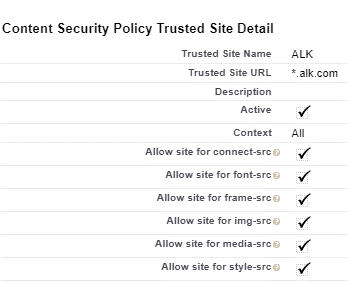
- From Setup 🡪 CSP Trusted Sites add an entry for ALK Maps:
- Make sure these custom Account fields are displayed for TMS users, properly secured:
- TMS Type
- Transportation Profile
- DBA Name
- Customer Sales Rep
- Default Payment Method
- Posting City
- Posting State/Province
- Time zone
- Make sure the Transportation Role field is displayed for TMS users on the Contact page layout.
- Provide appropriate CRUD access to each user profile for each TMS table.
- Tailor page layouts and lightning record pages as appropriate for each profile.
- Please read the Revenova TMS User Guide for a detailed description of other configuration settings and customizations available in the application.
Initial Accounting Seed Installation
- Install the Accounting Seed managed package and follow their configuration instructions.
- Install the TMS-Accounting Seed extension package.
- Add “Transportation” to the Product table ProductFamily field as a picklist choice.
- Make the new TMS Accounting Admin tab visible to the system administrators.
- From the TMS Accounting Admintab:
- Set all the Global Default fields you can and click Save.
- Click the Create Default Products button if you do not have default products available or selected on the right side of the Global Defaults section.
- If the Unlinked Items sections is not empty:
- Click the Create/Match Products for Unlinked Accessorials button to associate products to all your unlinked accessorials.
- Click the Create/Match Products for Unlinked Taxes button to associate products to all your unlinked sales taxes.
- After clicking these two buttons the Unlinked Items section should be empty.
- Provide access to appropriate internal users for the following Visualforce pages/data:
- TMSAccountingAdmin
- Add as a visible tab for appropriate internal user profiles.
- BillingAutoCreation
- Add the Create Billing button to the Customer Quote related list on the Load page layout.
- BillingTaxUpdate
- Add the Calc TMS Tax button to the Billing page layout.
- BillingEDISend
- Add the Send via EDI button to the Billing page layout.
- BillingGenerateAndSend
- Add the Send Invoices button to the Billing tab list view
- BillingBatchPost
- Add the Batch Post button to the Billing tab list view.
- BillingBatchUnpost
- Add the Batch Unpost button to the Billing tab list view.
- PayableAutoCreation
- Add the Create Payable button to the Carrier Quote related list on the Load page layout.
- PaymentProcessorSubmit
- Add the Submit to Payment Processor button to the Payable page layout.
- PaymentProcessorStatus
- Add the Payment ProcessorStatus button to the Payable page layout.
- PaymentProcessorSubmitBulk
- Add the Submit to Payment Processor button to the Payable list views
- PaymentProcessorStatusBulk
- Add the Payment ProcessorStatus button to the Payable list views.
- InvoiceAdjustment
- Add the Adjust button to the Payable page layout.
- PayableBatchPost
- Add the Batch Post button to the Payable tab list view.
- PayableBatchUnpost
- Add the Batch Unpost button to the Payable tab list view.
- EPaymentDetail
- Add the ePayment related list to the Load page layout.
- Add the New button to this related list.
- BatchPostAndPay
- Add the Post and Pay button to the Payable list view.
- TMSAccountingAdmin
- Drag all fields desired onto the Billing page layout.
- Drag all fields desired onto the Payable page layout. The Payment Processor XXX fields relate to the TriumphPay integration.
- From a list view, make sure all Product records have the appropriate Revenue GL Account and Expense GL Account values.
- Add the Unapplied Cash/Credit Memos field to the Shipper/Consignee Transportation Profile page layout right below the Credit Limit field.
- Remove all access and visibility to the Customer Invoice and Vendor Invoicetables:
- Remove related lists from Load page layout.
- CRUD access should be none for these tables for all profiles.
- Hide the Customer Invoice and Vendor Invoice tabs from all profiles.
- See the User Guide for instructions on setting up NACHA file generation.
- NO SECURITY PROFILES SHOULD HAVE DELETE RIGHTS ON THE EPAYMENT TABLE.
TMS Commissions – Installation Instructions
- Before installing the application,
- If the customer is using the Revenova Customer and Vendor Invoice objects then you will need to turn history tracking for the following tables/fields;
- rtms__CustomerInvoice__c.rtms__Invoice_Total__c
- rtms__CarrierInvoice__c.rtms__Accessorial_Charges__c
- rtms__CarrierInvoice__c.rtms__Adjustments__c
- rtms__CarrierInvoice__c.rtms__Line_Haul__c
- rtms__CarrierInvoice__c.rtms__Fuel_Surcharge__c
- If the customer is using Accounting Seed, then turn history tracking on for the following tables/fields;
- AcctSeed__Billing__History.AcctSeed__Status__c
- AcctSeed__Billing_Line__History.AcctSeed__Rate__c
- AcctSeed__Payable__History.AcctSeed__Status__c
- AcctSeed__Payable_Line__History.AcctSeed__Amount__c
- If the customer is using the Revenova Customer and Vendor Invoice objects then you will need to turn history tracking for the following tables/fields;
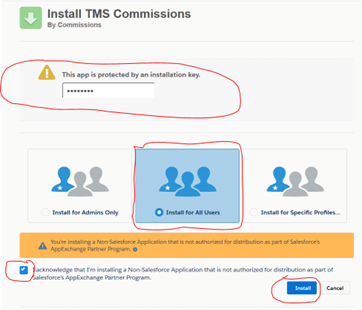
- Obtain the current installation URL and password from your Revenova representative.
- Check the option to "Install for All Users"
- Check the "I acknowledge…" checkbox
- Click the "Install" button"
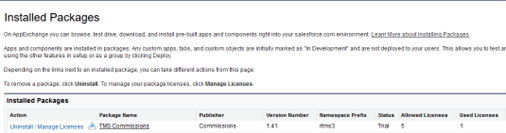
- Once the application is installed, assign licenses TMS Commission license to user who require access to the data.
- Setup the Incentive Payment Configuration.
- Go to Setup > Develop > Custom Settings
- Click on the link RTMSIncentivePaymentConfiguration

- Click on the Manage button
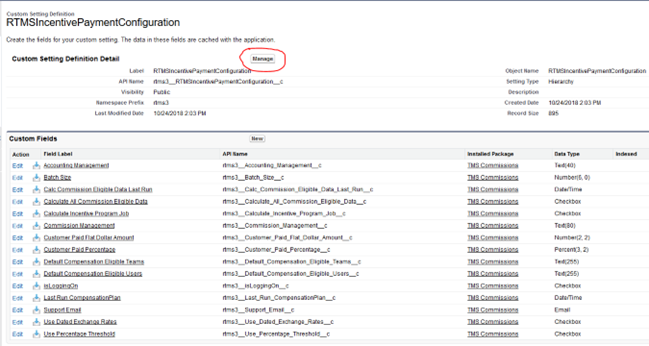
- Click on the New button
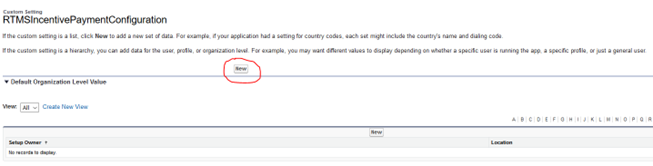
- Enter the following information
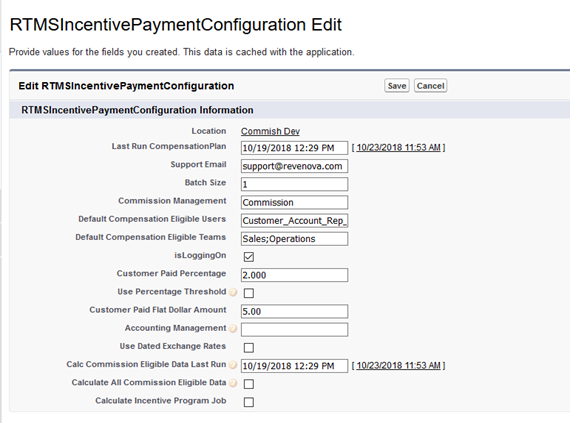 NOTE: If you are installing the app in an org that has Accounting Seed then enter ASAccounting in the Accounting Management field.
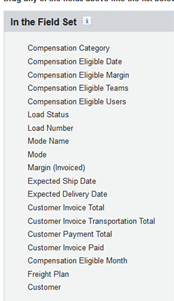
 - If you’re performing an upgrade, ensure that the Load field set ‘Commission’ has the following selected:
- You’re all set up!
Upgrading from a Previous Version
You must perform each set of upgrade tasks (EXCEPT for the package installation step which can skip from any release to the latest) if you are upgrading from a release prior to the previous release.
Follow the upgrade steps from the oldest release to the newest release, in order, for any upgrades that span multiple releases.
You must obtain an earlier version of this document if you are upgrading from a release earlier than 7.3.
Release 7.9 Upgrade Instructions
Release 7.9 TMS Upgrade Instructions (ETC: 90 minutes)
Accounting Package Compatibility
Prior to TMS package installation, confirm there is a compatible accounting package version for the options below.
Sage API (Sage 300)
Sage Flat File
Dynamics GP
Contact Professional Services with any questions.
Items in blue can be skipped if the feature is not being used. Structural changes in red should always be made.
- You must install and test in the sandbox before upgrading production.
- You must have installed and completely configured Release 7.8 before installing this release.
- SFDC/TMS Pre-Configuration
- For Accounting Seed customers, do not install this TMS release until you have the Accounting Seed Bridge package URL also. They must be upgraded at the same time.
- Turn off/review carefully de-duplication rules and Account/Contact validation rules as they may prevent automatic creation of accounts and contacts in various TMS pages.
- From Setup à Data Management à Data Integration Rules activate Geocodes for Account Shipping Address.
- Turn on State and Country Picklists unless there is a backward-compatibility issue with other packages or customizations.
- Make sure the customer has not added any values to the Load table’s Sales Status or Load Status picklist fields or the Stop table’s Stop Status picklist field.
- If you have trouble deleting items in the Lightning UI, change to the Classic UI to perform the deletions.
- Turn on History Tracking for the Transportation Profile table.
- For customers utilizing the Customer or Carrier Portal, the Files related list on the load detail page and the Salesforce Files List component cannot be used in the portal. Both carrier and customer facing documents will be now be visible in those components and must be removed prior to install if being utilized.
- You must enable ‘Folders and Enhanced Sharing’ for the new Lighting Email Templates feature. To do this go to SetupLightning Email Templates’ in the Quick Find toolbar and click that toolbar link toggle ON the ‘Folders and Enhanced Sharing’ feature if it is not already on.
- You must also create and assign a new Permission Set to the user who you are logged in as and will be performing the upgrade/install with. To do this:
- Go to Setup à Permission Sets in the Quick Find toolbar and click that toolbar link
- Click the ‘New’ button at the top of the list of Permission Sets
- Label the new Permission Set “Manage Public Lightning Email Templates and Drag-and-Drop Content Builder” and click ‘Save’
- Search for these two System Permissions and add them to the Permission Set:
- Manage Public Lightning Email Templates
- Access drag-and-drop content builder
- Assign the Permission Set to the user you are logged in as and will be performing the upgrade/install with.
- Obtain the 7.9 installation URL and password from your Revenova representative.
- Install the upgrade. Wait for the “installation succeeded” email.
- From TMS Admin à Configuration click on the Reset Reference Data button ONCE and wait for the email indicating completion. The process does the following:
- Updates all Lanes with new Match Priority values.
- Updates all Rate Entries with Lane’s Match Priority values.
- Populates Category and Entry Type fields on all Zone Entries.
- Populates Country field on Zone Entries where it is missing.
- Populates the Billing Email Attachment Format field for customer Transportation Profiles.
- Populates the new Item Description field (rtms__Item_Description2__c) and Discount % field (rtms__Discount2__c) on all Customer Quote Freight Charges Items.
- Populates the new Markup Type field for all Carrier Markup records and creates three records – Freight, Fuel, and Accessorial -- for each original record.
- Populates the new Item Description field (rtms__Item_Description2__c) and Discount % field (rtms__Discount2__c) on all Carrier Quote Freight Charges Items.
- Populates the three new Document Options record fields used to format quote and invoice PDF documents.
- Delete the following obsolete fields:
- Zone Entry table Type field
- Customer Quote Freight Charge Item table Item Description field (rtms__Item_Description__c)
- Customer Quote Freight Charge Item table Discount field (rtms__Discount __c)
- Carrier Quote Freight Charge Item table Item Description field (rtms__Item_Description__c)
- Carrier Quote Freight Charge Item table Discount field (rtms__Discount __c)
- Add “Mixed” as a picklist choice to the Zone table Type field.
- RateIQ Enhancements
- Add the new Lane and Match Priority fields to the Rate Calculation page layout and set as needed.
- Note that the Match Priority default comes from the Lane selected.
- Note that you can now support custom data sources for RateIQ. One custom source is provided in the package, but you can add to the Data Source picklists if you need more.
- Use the Data button on the new RateIQ Calculation Rules LWC to import custom data.
- Replace the Visualforce page on the Rate Calculation Rule page layout with the RateIQ CalculationRules LWC.
- Add Custom Source as a picklist choice for the Rate Calculation Rule table Data Source field.
- Update the three dependent picklists as follows (Equipment Category, Paid/Posted, Search Radius):


- PerformanceIQ
- Add the PerformanceIQ component to the home page.
- If utilizing the monitoring capabilities of the PerformanceIQ, contact the Revenova Support team for the remainder of the setup.
- Customer Invoicing (TMS Accounting only):
- Add “Approved” and “On Hold” picklist choices to the Invoice Status field of the Customer Invoice table.
- Add the “Invoice Status Comments” field to the Customer Invoice page layout.
- Customer Invoices tab: note that the “Generate & Email” button is now called “Generate & Send”. This button behaves like the “Generate & Email” button with one additional feature: it also sends customer invoices via EDI.
- Remove the “Send Via EDI” button from the customer invoices tab if the client wants to change their list views and use the “Generate & Send” to process invoices for all Billing Methods.
- Perform the following configuration steps if the client wants to take advantage of the automated invoice generation and sending via the new job:
- Add the following 4 new fields to the “Customer Billing” section of the “Shipper/Consignee” page layout of the transportation profile:
 See the User Guide for details on these fields.
 - Configure the “Customer Invoice Job First Run of the Day” and “Customer Invoice Job Run Frequency” fields in the Configuration page:

- Run the CustomerInvoiceGenerationJob from the Job Monitor LWC.
- Add the following 4 new fields to the “Customer Billing” section of the “Shipper/Consignee” page layout of the transportation profile:
- Add the new Master Bill of Lading Number field to the Container and Load page layouts if desired.
- Add the new Vessel field to the Container page layout.
- Note that the RFP Banner upload process has a new CSV file format that supports multiple carrier services, API rate entries, and SMC3 data.
- Delete the following obsolete Visualforce pages:
BatchProcesses DetailesStatusWidget LineItemList LoadTracking StopStatusEntry CustomerInvoiceApplyTerms FreightPlan2Display LoadDynamicWidget LoadTrackingLog2 TariffScheduleList CustomerInvoiceDocCreation LaneDetail LoadMap ManageContainers CustomerInvoiceDocuments LaneRateSetup LoadRemoveCarrier QuoteTender CustomerInvoiceEDIOne LaneRateUpload LoadStatus QuoteTender2 CUstomerInvoiceTaxUpdate LegPricing LoadTender RateEntry - Delete the following obsolete Rate Entry table fields:
Cost__c Full_Truck_Length__c Maximum_Range__c NMFC_Class__c Weight_Units__c DIM_Factor__c Handling_Units__c Maximum_Weight__c Rate__c Distance__c HS_Code__c Minimum_Cost__c Service_Route__c Distance_Units__c HU_Calculation_Method__c Minimum_Count__c Tariff_Schedule__c Equipment_Type__c HU_Max_Weight__c Minimum_Range__c Type__c Full_Truck_Cost__c Maximum_Count__c Minimum_Weight__c Volume_Units__c - Add the new Company Type field to the Carrier Transportation Profile page layouts.
- If implementing the Inbound EDI 210 transaction, you MUST notify the customer’s VAN (ie. Kleinschmidt, Cleo or Custom EDI Connector). This will require modifications to their web service. Provide the VAN with the “Revenova TMS 7.9 EDI Specification” and specifically identify that you are activating this new API call – GetLoadInvoices Operation.
- Lightning Email Templates
- If the customer would like to use the new Lightning Email Templates, they will need to update their existing Document Option records to reference the new Lightning Email Template records.
- To do this go to TMS AdminDocument Options go into each Document Option record one by one 🡪 change the email template picklist values in the right-hand column of the ‘General Info / Email Templates’ section to reference the “XXXXXXXXX – LEX” values.
- These new templates are the out-of-the-box templates, and so some adjustments may be required if the customer has modified the Classic Email Templates and they want to maintain those modifications with the new Lightning Email Templates.
- To update the Lightning Email Templates go to the App Launcher 🡪 type ‘Email Templates’ in the search bar and click on that tab click the ‘All Folders” toolbar link 🡪 click into the ‘TMS Lightning’ folder click into each of the templates that require adjustments.
- Note that each email template also has an optional Lookup field to an ‘Enhanced Letterhead’. If the customer would like to leverage letterheads in their Lightning Email Templates, you will need to create the new letterhead and associate it with the templates. To do this go to the App Launcher 🡪 type ‘Enhanced Letterheads’ in the search bar and click on that tab 🡪 click the ‘New’ button to create the letterhead. After creating the letterhead, you can associate it with the templates.
- Be aware that in order to see and use these new Lightning Email Templates in the Document Options email template picklists, they MUST be stored in the “TMS Lightning” email template folder.
- If the customer would like to use the new Lightning Email Templates, they will need to update their existing Document Option records to reference the new Lightning Email Template records.
- Carrier Markup Enhancements
- Add the Carrier Markup fields in the table below to the Carrier Markup page layout.
- Add the Freight Markup, Fuel Markup, and Carrier Quote fields to the Customer Quote page layout.
- Add fine-grained carrier markup records to handle Freight, Fuel, and Accessorials more independently, as needed.
- Delete the obsolete Customer Quote table Marked Up field.
- SMC3 Enhancements
- Add the following fields to the Customer Quote and Carrier Quote page layouts in SMC3 sections if applicable:
- Discount %
- Tariff Minimum
- Add the following fields to the Customer Quote and Carrier Quote page layouts in SMC3 sections if applicable:
- Add the new Ignore Invoice Document Requirements field to the Customer Invoice page layout if you send TONU invoices or credit memos to customers.
- Add “Per HU Position” to the following picklist fields (under Per Handling Unit):
- Vendor Invoice Accessorial: Unit
- Carrier Quote: Freight Charge Unit
- Carrier Quote Accessorial: Unit
- Customer Invoice Accessorial: Unit
- Customer Quote: Freight Charge Unit
- Customer Quote Accessorial: Unit
- Rate Entry Calculation: Rate Method (and update controlling field matrix identical to Per Handling Unit)
- Add “Partner” as a picklist choice to the RFP table Direct/Interline field.
- Quote/Invoice Cost Detail Enhancements
- Note the new eight cost detail fields for the Customer Invoice and Carrier Invoice tables below and add to page layouts as desired.
- Set these new Document Optionsrecord fields as desired to define the layout of cost information for quote and invoice documents:
- Customer Quote PDF Format Options
- Customer Invoice PDF Format Options
- Carrier Quote PDF Format Options
- Delete the obsolete Document Options table Customer Invoice PDF Pricing Options field.
- Barcode Generation
- Add the following section and fields to the Carrier section of the Transportation Profile lightning record page(s) and/or carrier page layouts:

- Set up the Password 1 field for the TEC-IT credentials record:
 Note that TEC-IT only requires an access key which needs to be set in the Password 1 field.
 - See the User Guide for additional details.
- Add the following section and fields to the Carrier section of the Transportation Profile lightning record page(s) and/or carrier page layouts:
- Customer Portal Threshold Parameters:
- Add the following three fields to the Portal subtab of the Customer Transportation Profile record:
- Portal Quote HU Count Threshold
- Portal Quote Weight Threshold
- Weight Units
- When either one of the two threshold values is exceeded, the customer will not be able to tender the load from the customer portal. The carrier quotes list page will be skipped, and the user will navigate to the Finalize Load Details page where they will see the appropriate message at the top of the page.
- An internal user will need to review and tender the load.
- Add the following three fields to the Portal subtab of the Customer Transportation Profile record:
- Blue Yonder integration:
- Add “Blue Yonder” to the API Provider picklist on the API Accessorial table.
- Add the Blue Yonder Id field to the Customer and Shipper/Consignee Transportation Profile page layouts.
- Add the Blue Yonder Code and Blue Yonder Mode fields to the Equipment Type page layouts.
- Enter the Blue Yonder credentials or disable them if not used.
- See the User Guide for remaining setup and configuration of Blue Yonder
- Add “Carrier Application Signer” to the Transportation Role picklist field on the Contact table.
- Run all RTMS namespace unit tests to completion and investigate any failures.
- Make sure all relevant TMS batch jobs are running and/or scheduled. See User Guide for suggested run times.
Release 7.9 Field/Field Set Modification Summary – TMS
| Object | Field/Field Set | Action | Populated | Notes |
|---|---|---|---|---|
API Accessorial | API Provider | Modify | Manual | Added “Blue Yonder” |
Carrier Invoice | Freight Charge Notes | Add | Auto | Cost Detail Support |
Carrier Invoice | Freight Charge Quantity | Add | Auto | Cost Detail Support |
Carrier Invoice | Freight Charge Unit | Add | Auto | Cost Detail Support |
Carrier Invoice | Freight Charge Unit Price | Add | Auto | Cost Detail Support |
Carrier Invoice | Fuel Surcharge Notes | Add | Auto | Cost Detail Support |
Carrier Invoice | Fuel Surcharge Quantity | Add | Auto | Cost Detail Support |
Carrier Invoice | Fuel Surcharge Unit | Add | Auto | Cost Detail Support |
Carrier Invoice | Fuel Surcharge Unit Price | Add | Auto | Cost Detail Support |
Carrier Invoice Accessorial | Unit | Modify | Auto | Per HU Position support |
Carrier Markup | Accessorial | Add | Manual | Carrier Markup Support |
Carrier Markup | Fuel Surcharge | Add | Manual | Carrier Markup Support |
Carrier Markup | Markup Type | Add | Manual | Carrier Markup Support |
Carrier Markup | Maximum Load Weight | Add | Manual | Carrier Markup Support |
Carrier Markup | Maximum Markup Amount – Floor | Add | Manual | Carrier Markup Support |
Carrier Markup | Maximum Markup Amount – Minimum | Add | Manual | Carrier Markup Support |
Carrier Markup | Maximum Markup Amount – Tariff Rate | Add | Manual | Carrier Markup Support |
Carrier Markup | Minimum Customer Freight Charge | Add | Manual | Carrier Markup Support |
Carrier Markup | Minimum Load Weight | Add | Manual | Carrier Markup Support |
Carrier Markup | Minimum Markup Amount – Floor | Add | Manual | Carrier Markup Support |
Carrier Markup | Minimum Markup Amount – Minimum | Add | Manual | Carrier Markup Support |
Carrier Markup | Minimum Markup Amount – Tariff Rate | Add | Manual | Carrier Markup Support |
Carrier Markup | Minimum Markup Percent – Floor | Add | Manual | Carrier Markup Support |
Carrier Markup | Minimum Markup Percent – Minimum | Add | Manual | Carrier Markup Support |
Carrier Markup | Minimum Markup Percent – Tariff Rate | Add | Manual | Carrier Markup Support |
Carrier Markup | Target Markup Percent – Floor | Add | Manual | Carrier Markup Support |
Carrier Markup | Target Markup Percent – Minimum | Add | Manual | Carrier Markup Support |
Carrier Markup | Target Markup Percent – Tariff Rate | Add | Manual | Carrier Markup Support |
Carrier Markup | Weight Units | Add | Manual | Carrier Markup Support |
Carrier Quote | Freight Charge Unit | Modify | Auto | Per HU Position support |
Carrier Quote | Tariff Minimum | Add | Auto | SMC3 support |
Carrier Quote Accessorial | Freight Charge Unit | Modify | Auto | Per HU Position support |
Carrier Quote Freight Charge Item | Discount % (rtms__Discount2__c) | Add | Auto | SMC3 support |
Carrier Quote Freight Charge Item | Discount % (rtms__Discount__c) | Delete | N/A | SMC3 support |
Carrier Quote Freight Charge Item | Item Description (rtms__Item_Description2__c) | Add | Auto | SMC3 support |
Carrier Quote Freight Charge Item | Item Description (rtms__Item_Description__c) | Delete | N/A | SMC3 support |
Container | Master Bill of Lading Number | Add | Manual | Container Tracking Support |
Container | Vessel | Add | Auto | Container Tracking Support |
Customer Invoice | Freight Charge Notes | Add | Auto | Cost Detail Support |
Customer Invoice | Freight Charge Quantity | Add | Auto | Cost Detail Support |
Customer Invoice | Freight Charge Unit | Add | Auto | Cost Detail Support |
Customer Invoice | Freight Charge Unit Price | Add | Auto | Cost Detail Support |
Customer Invoice | Fuel Surcharge Notes | Add | Auto | Cost Detail Support |
Customer Invoice | Fuel Surcharge Quantity | Add | Auto | Cost Detail Support |
Customer Invoice | Fuel Surcharge Unit | Add | Auto | Cost Detail Support |
Customer Invoice | Fuel Surcharge Unit Price | Add | Auto | Cost Detail Support |
Customer Invoice | Ignore Invoice Document Requirements | Add | Manual | No-Doc Customer Invoices |
Customer Invoice | Invoice Status | Change | Auto/Manual | Add “Approved”, “On Hold” |
Customer Invoice | Invoice Status Comments | Add | Auto | Customer Invoice generation |
Carrier Invoice Accessorial | Unit | Modify | Auto | Per HU Position support |
Customer Quote | Carrier Quote | Add | Auto | Carrier Markup Support |
Customer Quote | Freight Charge Unit | Modify | Auto | Per HU Position support |
Customer Quote | Freight Charges | Add | Auto | SMC3 support |
Customer Quote | Freight Charges After Discount | Add | Auto | SMC3 support |
Customer Quote | Freight Markup | Add | Auto | Carrier Markup Support |
Customer Quote | Fuel Markup | Add | Auto | Carrier Markup Support |
Customer Quote | Marked Up | Delete | N/A | Obsolete field |
Customer Quote | Tariff Minimum | Add | Auto | SMC3 support |
Customer Quote Accessorial | Markup | Add | Auto | Carrier Markup Support |
Customer Quote Accessorial | Unit | Modify | Auto | Per HU Position support |
Customer Quote Freight Charge Item | Discount % (rtms__Discount2__c) | Add | Auto | SMC3 support |
Customer Quote Freight Charge Item | Discount % (rtms__Discount__c) | Delete | N/A | SMC3 support |
Customer Quote Freight Charge Item | Item Description (rtms__Item_Description2__c) | Add | Auto | SMC3 support |
Customer Quote Freight Charge Item | Item Description (rtms__Item_Description__c) | Delete | N/A | SMC3 support |
Document Options | Carrier Quote PDF Format Options | Add | Manual | Cost Detail Support |
Document Options | Customer Invoice PDF Format Options | Add | Manual | Cost Detail Support |
Document Options | Customer Quote PDF Format Options | Add | Manual | Cost Detail Support |
Document Options | Customer Invoice PDF Pricing Options | Delete | N/A | Obsolete field |
Blue Yonder Code | Add | Manual | Blue Yonder support | |
Equipment Type | Blue Yonder Mode | Add | Manual | Blue Yonder support |
Field Export Definition | New table | Add | Manual | Fields for a specific record |
File Export Definition | New table | Add | Manual | CSV file definition |
Record Export Definition | New table | Add | Manual | Records for a CSV file definition |
Load | Master Bill of Lading Number | Add | Manual | Container Tracking Support |
PeformanceIQ Configuration | New Table | Add | Auto/Manual | PerformanceIQ support |
Rate Calculation | Lane | Add | Manual | Lane-Based RateIQ support |
Rate Calculation | Match Priority | Add | Auto/Manual | Lane-Based RateIQ support |
Rate Calculation Rule | Data Source | Modify | Manual | RateIQ Custom Data support |
Rate Calculation Rule | Equipment Category | Modify | Manual | RateIQ Custom Data support |
Rate Calculation Rule | Paid/Posted | Modify | Manual | RateIQ Custom Data support |
Rate Calculation Rule | Search Radius | Modify | Manual | RateIQ Custom Data support |
Rate Entry | Match Priority | Add | Auto/Manual | Rate Entry override support |
Rate Entry | 25 Fields – see above | Delete | N/A | Obsolete field removal |
Rate Entry Calculation | Rate Method | Modify | Manual | Per HU Position support |
RFP | Direct/Interline | Modify | Manual | Added “Partner” picklist choice |
Transportation Profile | Auto-Send Invoices | Add | Manual | Automated Customer Invoicing |
Transportation Profile | Barcode Height | Add | Manual | Barcode generation |
Transportation Profile | Barcode Type | Add | Manual | Barcode generation |
Transportation Profile | Barcode Units | Add | Manual | Barcode generation |
Transportation Profile | Barcode Width | Add | Manual | Barcode generation |
Transportation Profile | Blue Yonder Id | Add | Manual | Blue Yonder support |
Transportation Profile | Billing Email Attachment Format | Add | Auto/Manual | Defaults to “PDF”. |
Transportation Profile | Company Type | Add | Auto | Carrier API populated |
Transportation Profile | Customer Invoice Day | Add | Manual | Automated Customer Invoicing |
Transportation Profile | Customer Invoice Export File | Add | Manual | Automated Customer Invoicing |
Transportation Profile | Image Resolution | Add | Manual | Barcode generation |
Transportation Profile | Manually Regenerate Barcode | Add | Manual | Barcode generation |
Transportation Profile | Portal Quote HU Count Threshold | Add | Manual | Customer Portal Threshold Parameters |
Transportation Profile | Portal Quote Weight Threshold | Add | Manual | Customer Portal Threshold Parameters |
Transportation Profile | Remove Special Characters | Add | Manual | Barcode generation |
Transportation Profile | Show Text | Add | Manual | Barcode generation |
Transportation Profile | Text Align | Add | Manual | Barcode generation |
Transportation Profile | Text Color | Add | Manual | Barcode generation |
Transportation Profile | Text Distance | Add | Manual | Barcode generation |
Transportation Profile | Text Font | Add | Manual | Barcode generation |
Transportation Profile | Text Position | Add | Manual | Barcode generation |
Transportation Profile | Weight Units | Add | Manual | Customer Portal Threshold Parameters |
Transportation Profile | White Space Border | Add | Manual | Barcode generation |
Zone | Type | Add | Manual | Added “Mixed” picklist choice |
Zone Entry | Category | Add | Manual | Zone Exclusion support |
Zone Entry | Entry Type | Add | Manual | Mixed Zone support |
Zone Entry | Type | Delete | N/A | Obsolete Field |
Release 7.9 Accounting Seed Integration Upgrade Instructions (ETC: 15 Minutes)
Accounting Seed customers must have BOTH the TMS and Accounting Seed Bridge packages before upgrading. Complete the TMS Upgrade installation before installing the Accounting Seed Bridge package.
Items in blue can be skipped if the feature is not being used. Structural changes in red should always be made.
- You must install and test in the sandbox before upgrading production.
- You must have installed Release 7.8 before installing this release.
- Obtain the 7.9 installation URL and password from your Revenova representative.
- Install the upgrade. Wait for the “installation succeeded” email.
- Run all RTMS2 namespace unit tests to completion and investigate any failures.
Release 7.9 Field/Field Set Modification Summary – Accounting Seed Integration
| Object | Field/Field Set | Action | Populated | Notes |
|---|---|---|---|---|