Modes are different means of transportation for Loads. The TMS supports 10 different modes:
Air Freight
Bulk
Drayage
Flatbed
Intermodal
LTL
Ocean (FCL)
Ocean (LCL)
Parcel
Truckload
Additional Modes can be also created based on business needs and can be defined by a hierarchical order.
Setup
Configure and create Modes as necessary by navigating to the TMS Admin → System → Modes.
.png)
Modes Visualforce Page (VFP)
The following options are available to be edited for the Modes VFP list view:
VFP Option | VFP Option Description | VFP Option Type |
|---|---|---|
Action | Prompts internal user to either Edit or Delete the Mode. | Edit; Del links |
Name | The name of the Mode. | Link |
Order | Indicates the hierarchical order of the Mode, ranging from the minimum number (1) of Modes to the maximum number of Modes. | Text field |
Enabled | Indicates if the Mode is currently active for use when creating Loads. | Checkbox |
AI Enabled | Indicates if the Mode is currently active for use when creating Loads via Artimus™ AI. | Checkbox |
LTL | Indicates if the Mode can be used for LTL Loads.
| Checkbox |
Rail | Indicates if the Mode is associated with Rail-related Loads.
| Checkbox |
Customer Portal Selection | Indicates if the Mode is currently active for selection in the Customer Portal. | Checkbox |
Minimum Weight | The minimum weight of the means of transport to be categorized as a specific Mode. | Text field |
Maximum Weight | The maximum weight of the means of transport to be categorized as a specific Mode. | Text field |
Weight Units | The metric type associated with the Mode, either lbs or kg. | Picklist |
Required Application Documents | Documents associated with the Carrier Application that are required to be included when a specific Mode is selected.
| Picklist (Multi-Select) |
RMIS Code | Carrier onboarding code retrieved from the RMIS API integration associated with a specific Mode. | Text field |
Default Equipment | Equipment associated with a specific Mode. | Lookup |
For orgs using the DAT Contribute API feature, select an option in the DAT Mode field to send rate information to DAT. By default, the TMS-packaged Modes have this field set to a default value based on the Mode type.
See the Data Dictionary for more information on additional settings that can be configured for the Mode.
Create New Modes
Create a new Mode by cloning a TMS-packaged Mode.
Navigate to the TMS Admin → System → Modes.
From the list of TMS-packaged Modes, select a Mode name link.
Once in the Mode Lightning Record Page (LRP), click the Clone button.
Enter details for the Mode.
Click Save.
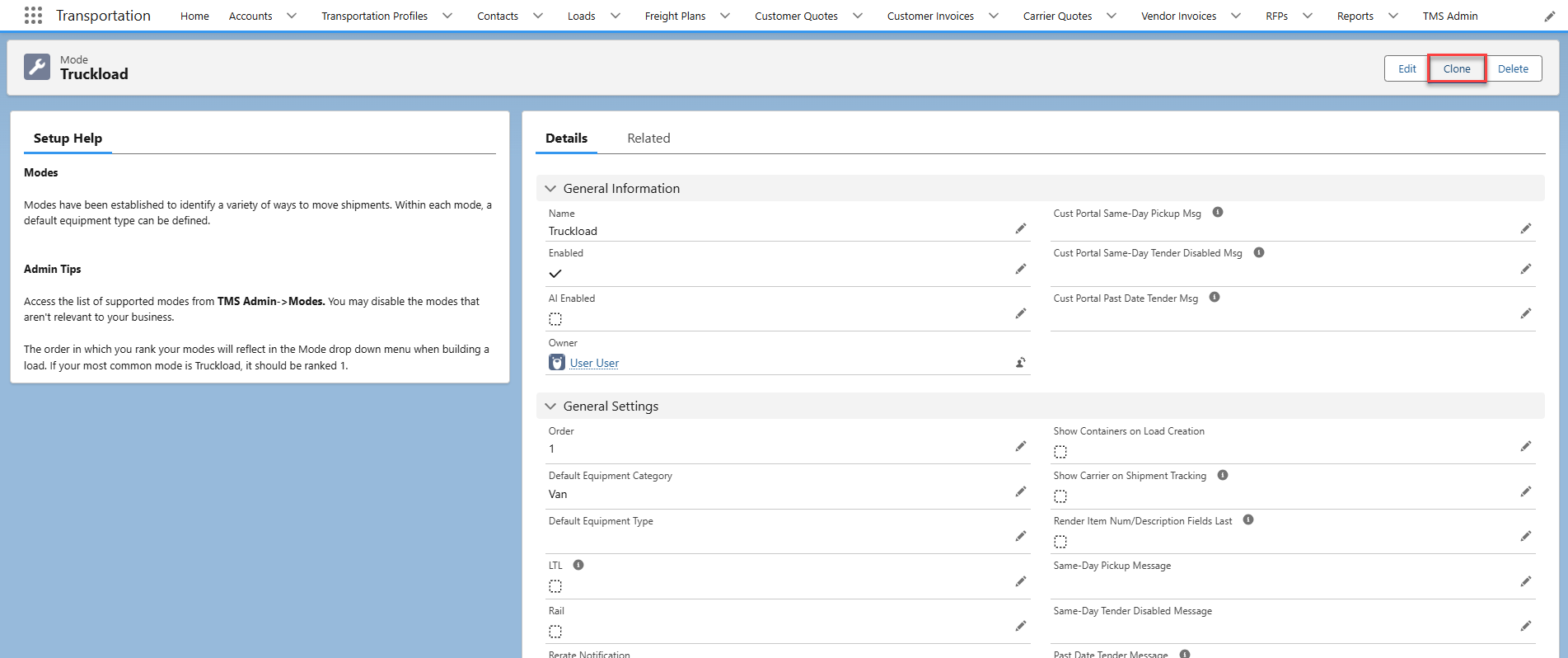
Note: Cloning Modes to create a new one stores settings from the original Mode record. Ensure to all settings are properly configured before saving.
Modes as Picklist Values
Newly created Mode types should be added to the Global Picklist as values for objects that reference the Mode such as the Transportation Profile or Accessorials.
Add new Mode picklist values by completing the following steps:
From Setup, search and select Picklist Value Sets.
Click the Modes link.
Select New.
Enter the Mode name. Click Save.
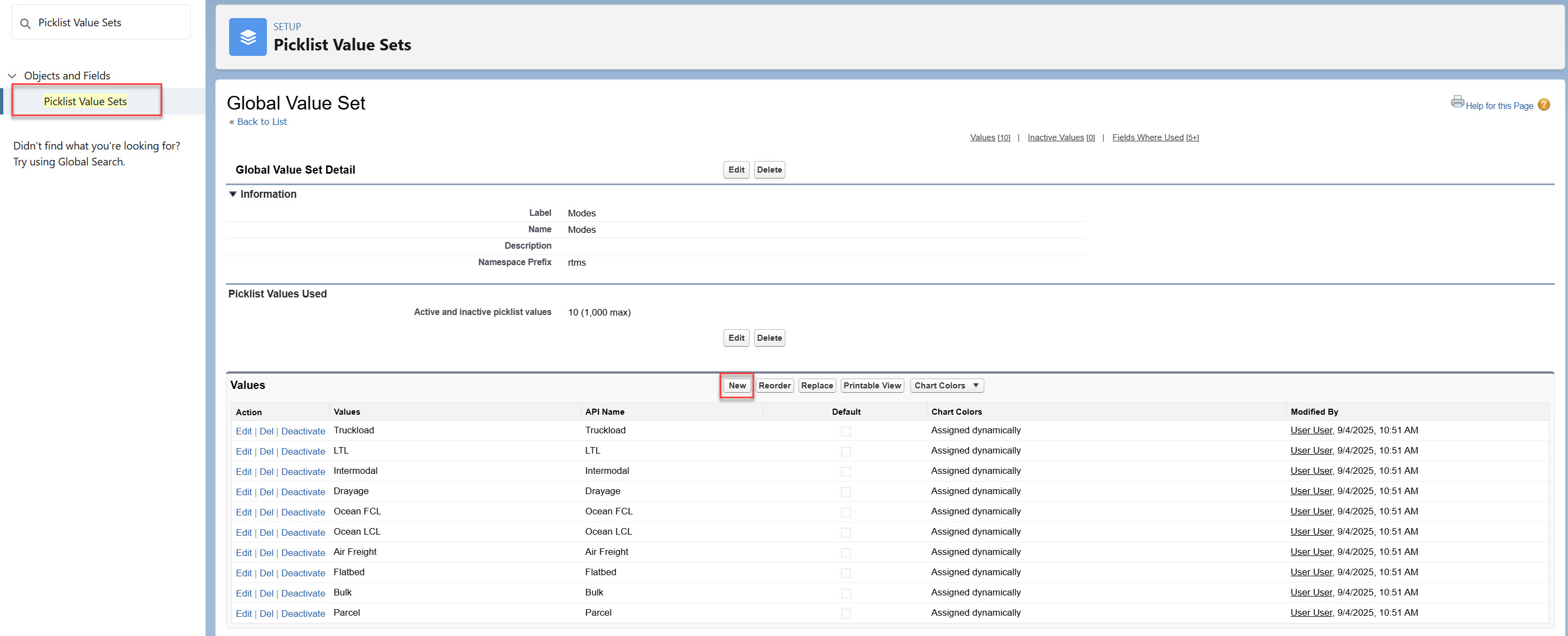
Reorder or replace values as applicable.
Delete Mode records via:
Modes VFP
Mode LRP
Global Value Set
Add New Mode to Accessorials
When the new Mode is added to this Global picklist, review the accessorial charge list in TMS Admin → Accessorials.
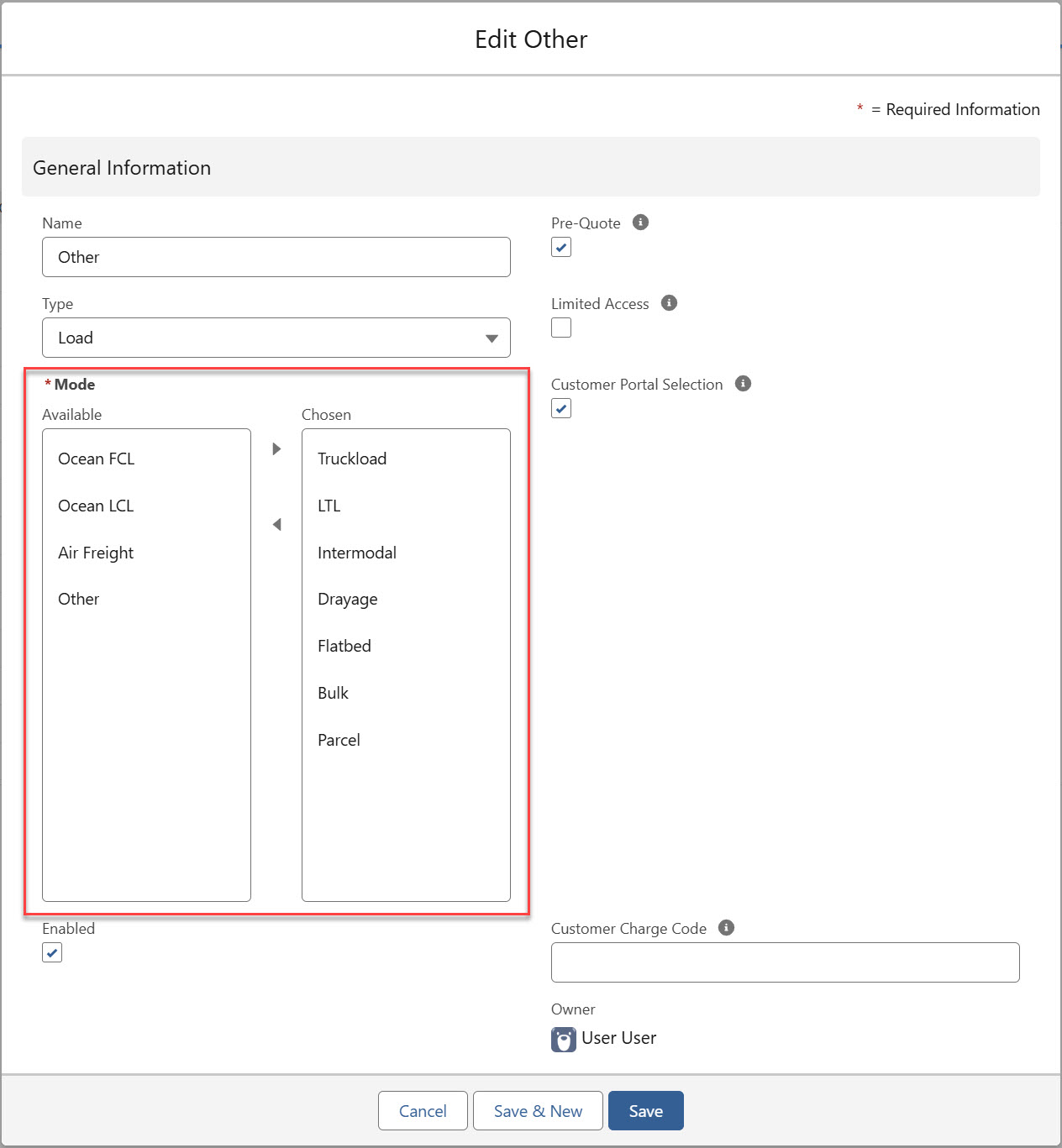
Ensure that any accessorial charges related to the new Mode are properly configured. The Mode must exist in the Accessorial record multi-select picklist to be an option when configuring Loads.
Add New Mode to Equipment Types
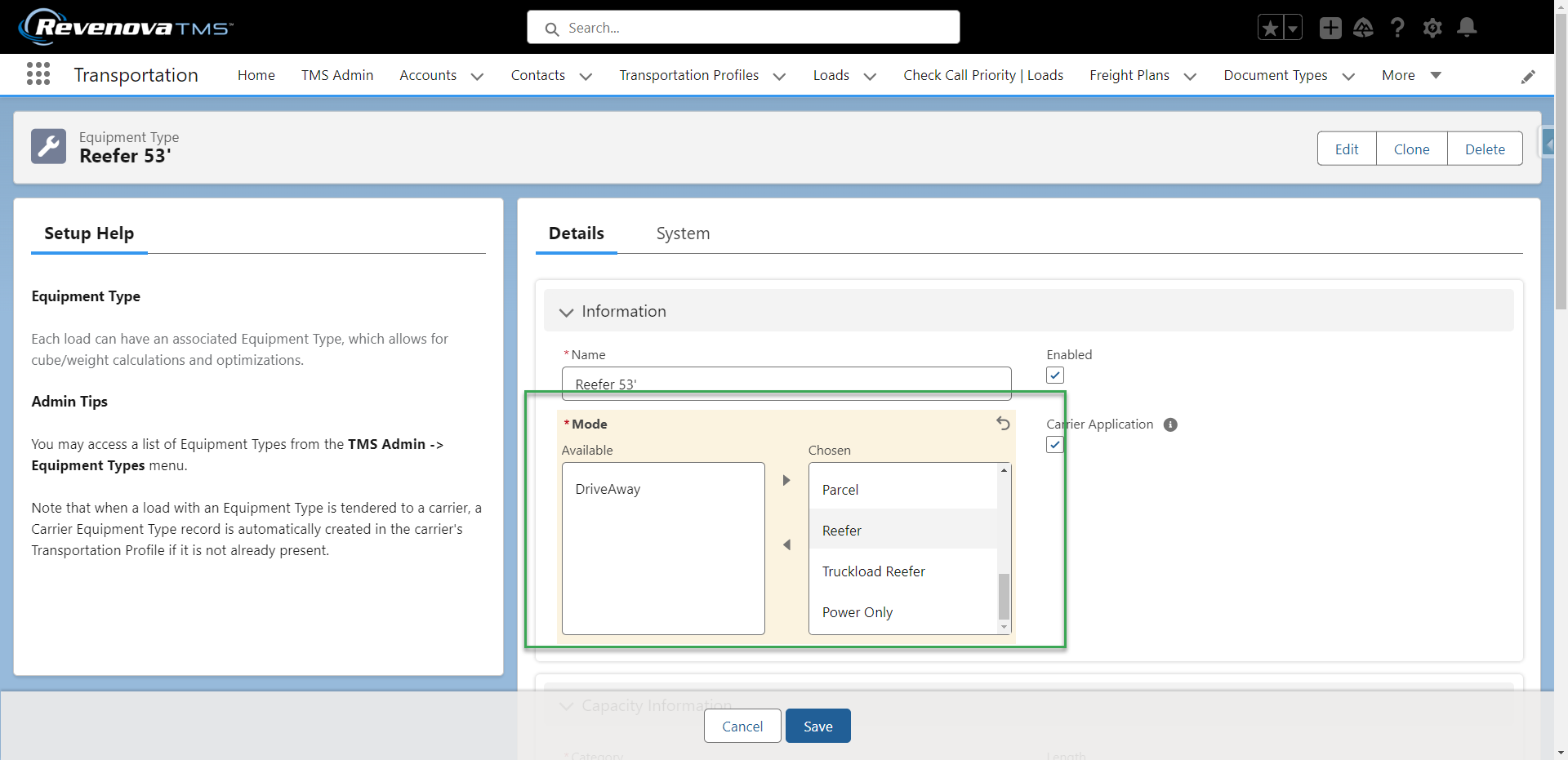
From TMS Admin → Equipment Types, add the new Mode to all Equipment Types as needed.