The Appointment Console Lightning Web Component (LWC) enables searching and filtering of records to schedule appointments. Each appointment record, when associated with a Load, also shows the Load, Stop, and Line Item information for that Load.
Open the Appointment Console LWC by opening the App Launcher and searching for Appointment Console. Open the Console to manage appointments.
The Appointment Console LWC is intended for use by both Brokerage and Fleet customers. Ordering and filtering criteria based on Trip Plan Leg records is intended for use by Fleet customers.
For Fleet Management, see Appointment Views and Appointment Setting information.
The TMS defines appointments in two ways: as a Trip Plan Leg or a Stop appointment.
Trip Plan Leg appointments are those associated with a specific Trip Plan.
Brokerage-only TMS users do not create or manage Trip Plan Leg appointments.
Trip Plan Leg appointments are set in the Fleet Management Console.
Stop appointments are those associated with a Load but not a Trip Plan.
Field Tracking History
To track changes that have occurred for an appointment, confirm that the following fields have history tracking enabled.
Stop
Arrival Date
Arrival Time
Departure Date
Departure Time
Expected Date
Appointment Time
Appointment Required
Fleet Management customers should also include field tracking for the following Trip Plan Leg fields.
Appointment Date
Appointment Start Time
Appointment End Time
Appointment Status
Appointment Confirmed By
Appointment Requested By
Create Views
Create Appointment Views to manage the appointments for Load Stops.
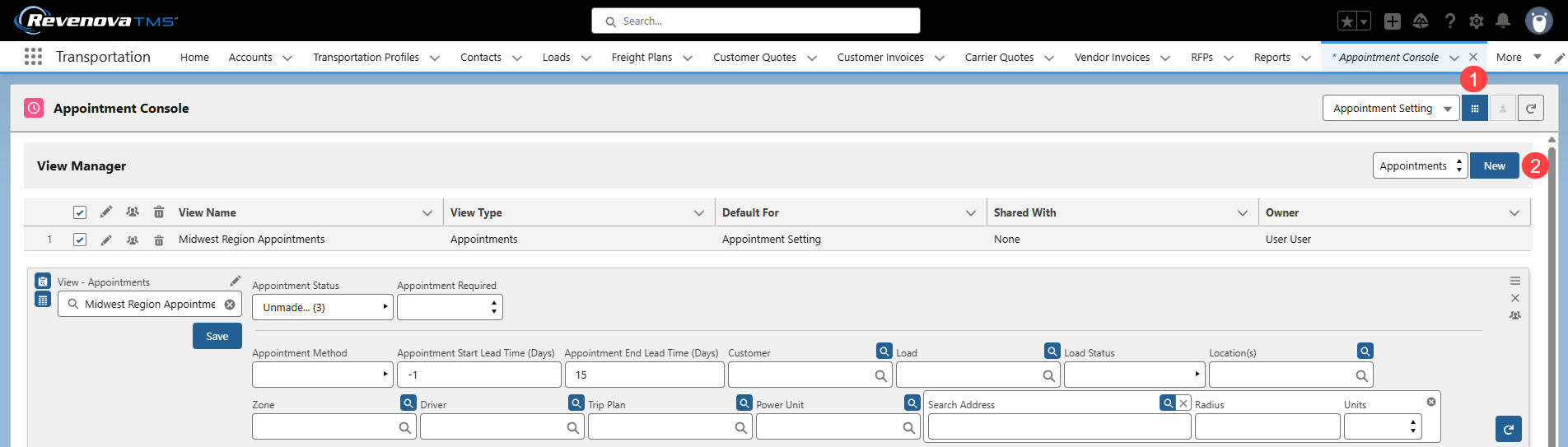
Click the View Manager button to view existing views.
Click the New button to create a new view.
.jpg)
Enter a name for the view in the View Name field.
Select Appointment Setting in the Default For field.
Click Save to create the new view.
Manage Views
Manage multiple appointment views with the following icons.
Check the box(es) to select a view or views.
Checked views appear listed in the Appointment Console.
Checking or Unchecking views automatically updates and refreshes the Appointment Console.
The pencil icon
 edits the existing view.
The multiple icon
.jpg "image(1).png") clones the view.
clones the view.The delete icon
 deletes the view.

The Header
 icon expands and collapses the view to show or hide header filter fields.
The Grid
.jpg) icon expands and collapses the Appointment section to show or hide appointments that meet filter criteria.
icon expands and collapses the Appointment section to show or hide appointments that meet filter criteria.The pencil icon
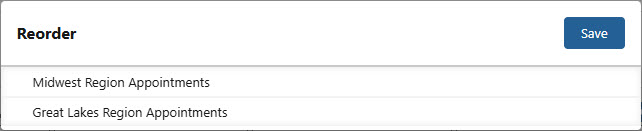
edits the existing view.Click the Reorder
 icon to adjust the order of the views.
Move views up and down in the list as necessary and click Save.
The X icon
.png "image(2).png") deletes the view.
deletes the view.The multiple icon
clones the view.
.jpg)
The Save button retains the filter criteria in the header.
The Refresh button updates the Load, Stop, and Line Item information in the Load Details section for each appointment.
.jpg)
Header Filters
The fields in the top section of the Appointment Console act as header filters. They limit the Stop locations shown, allowing you to focus on appointments that match the selected filter criteria.
Appointment Status
Select one or more Appointment Statuses to filter the Appointment Console and display only Stops that match the selected Statuses.
The following values are available.
Unmade
Requested
Confirmed
Appointment Required
Choose an Appointment Required to only show Stops that either require or do not require an appointment in the Appointment Console.
No value returns all results.
Yes
No
Appointment Method
Select one or more appointment methods to filter the Appointment Console and display only Stops that match the chosen methods.
The following values are available.
Phone
Email
Website
Appointment Start Lead Time (Days)
Determined by the current date.
A Lead Time of 1 day is the day following the current date.
A Lead Time of 15 days is 15 days from the day after the current date.
Use Negative numbers to find missing appointments in the past.
-10 searches the past 10 days to find appointments that are not set.
Appointment End Lead Time (Days)
Determined by the current date.
A Lead Time of 1 day is the day following the current date.
A Lead Time of 15 days is 15 days from the day after the current date.
Use Negative numbers to find missing appointments in the past.
-10 searches the past 10 days to find appointments that are not set.
Customer
Select multiple Customer records to filter the Appointment Console and only display Loads associated with those Customers.
A lookup to the Customer Account record.
Load
Multi-select Load records.
Search by Load Number to view all Stop locations associated with that Load.
Load Status
Select one or more Load Status(es) to filter the Appointment Console and only display Loads that match the selected statuses.
No value returns all results.
Multi-select Load Status values.
Unassigned
Quotes Requested
Quotes Received
Tendered
Assigned
Dispatched
In Transit
Delivered
Completed
Cancelled
Declined
Expired
Location(s)
Choose one or more locations to only show Load Stops associated with the selected locations in the Appointment Console.
Multi-select Location records.
Zone
Select one or more Zones to filter the Appointment Console and display only Loads Stops within the chosen Zones.
Multi-select Zone records.
The geolocation of the Load delivery Stop.
A Stop and Zone selection must be entered for Zone matching functionality.
Driver
Choose one or more Drivers to only display Loads assigned to the selected Drivers in the Appointment Console.
Multi-select Driver records.
Trip Plan
Select one or more Trip Plans to filter the Appointment Console and display only Loads associated with the chosen Trip Plans.
Multi-select Trip Plan records.
This search is not recommended for Brokerage-only TMS users.
Power Unit
Choose one or more Power Units to show only Trip Plan locations assigned to the selected Power Units in the Appointment Console.
Multi-select Fleet Asset records.
This search is not recommended for Brokerage-only TMS users.
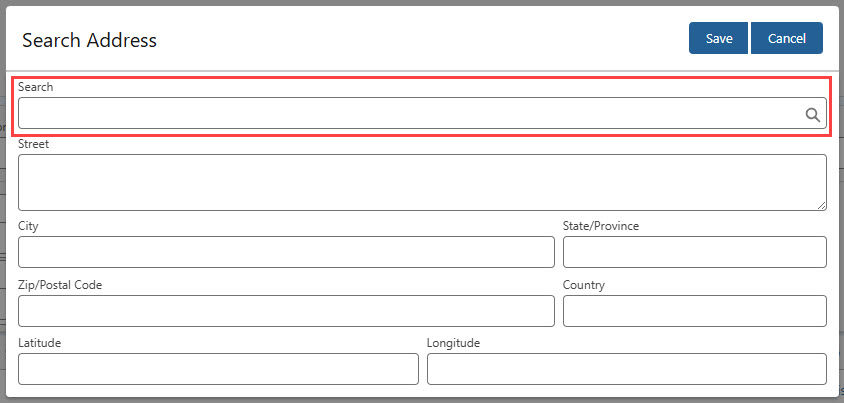
Address Search
Radius Search
The timezone displayed in the Appointment view is from the Stop. If the Stop timezone does not have a value, the timezone of the Stop location is displayed.
Console Sections
Create and manage appointments by using filters to view Stops requiring appointments.
Search for records with the header filter criteria and use Order-By sorting to create appointments for locations.
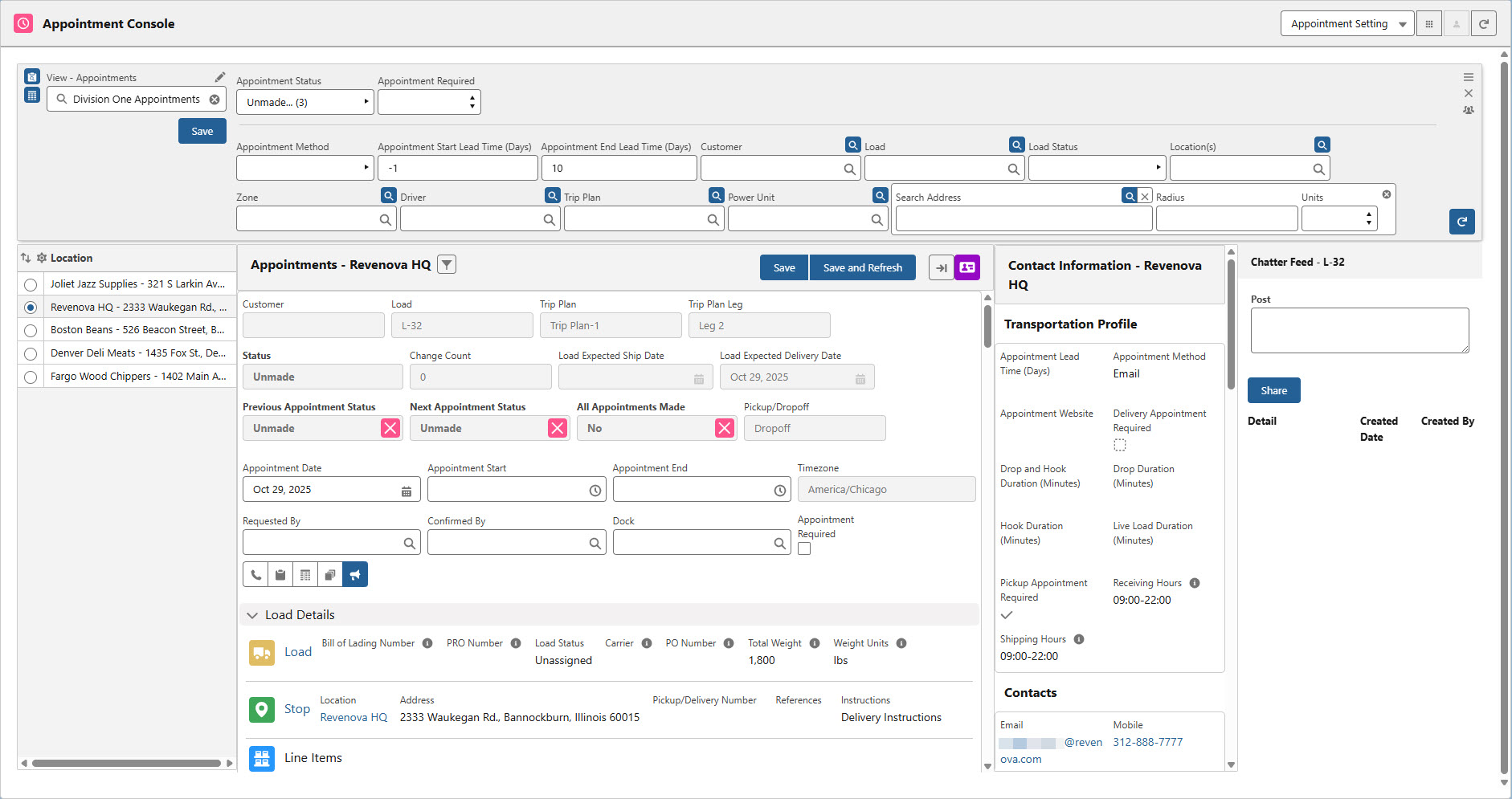
Below the search header fields, the Appointment View is split into the four sections below.
A list of Stop locations that may be selected one at a time to create all applicable appointments.
The list view of appointments for Stop locations and the fields necessary to set the appointment fields.
Contacts/Transportation Profiles
The Contact records and Transportation Profile information relevant to creating appointments for the location.
Communicate appointment information to Drivers and other stakeholders to store on the Load record.
Locations
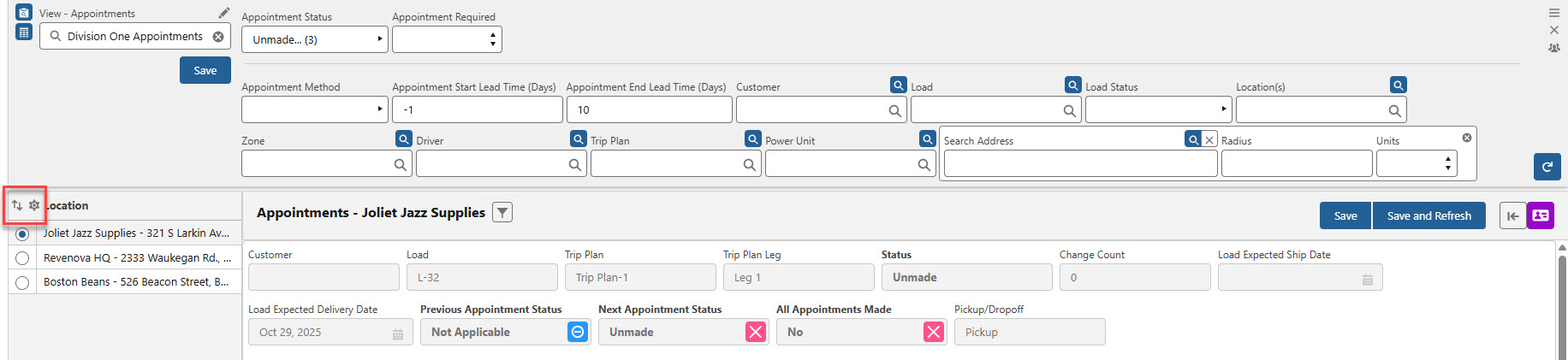
Locations are displayed on the left side of the component. To appear in the list, a location must meet the filter criteria set in the header.
Select the radio button for a Stop location to view its related appointments in the Appointments section.
Control how fields are sorted and displayed with the following functions.
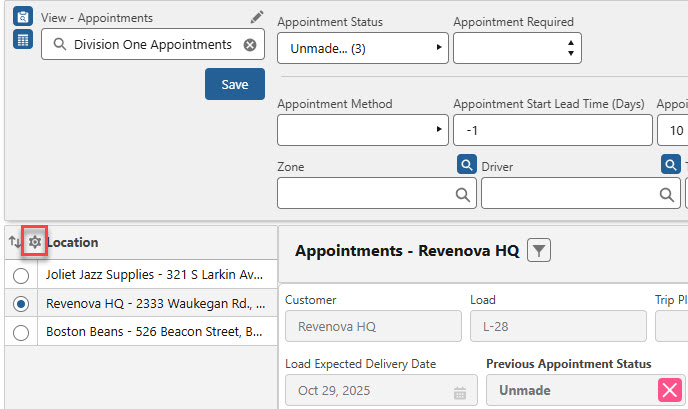
Configuration
Click the Configuration icon above the list of locations to choose which fields are displayed in the Appointments section. Fields can be added or removed as needed.
Hide Stop Appointments
When Checked, only Loads included on a Trip Plan Leg appear in the appointment list.
Load, Stop, and Line Item fields remain available in the Order-By and Configuration sections.
Appointment Filtering is only available by Load and Stop fields. See below for examples.
Hide Trip Plan Leg Appointments
When Checked, any appointments associated with a Trip Plan Leg and not linked to a Load do not appear in the Appointment List.
Trip Plan Leg fields are not available to add as columns. For Trip Plan Leg fields already included in columns, a triangle warning is displayed on the field. See the Order-By section below for an example.
This setting is recommended for Brokerage customers.
Sort the appointments in the Appointment Console by Derived Field, Trip Plan Leg, or Stop fields to control the order in which the appointments are displayed.
Derived Fields (Derived and Trip Plan Leg Columns)
Trip Plan Leg Fields (Derived and Trip Plan Leg Columns)

Click the Load Details drop-down to view the Load, Stop, and Line Item fields associated with the appointment.
Load Fields (Load Columns)
Stop Fields (Stop Columns)
Line Item Fields (Line Item Columns)

When Load, Stop, or Line Items are updated, use the Refresh button to see Load, Stop, or Line Item field changes. When the Appointment view is refreshed the section must be opened again.
Load, Stop, and Line Item records are hyperlinked. Click the link to view the Load, Stop, and Line Item record.
Logic Filtering
Select a Location from the list and then click the Filter button to further refine the appointment location information displayed.

Add field filtering by clicking the filter button. Fields from the following objects provide additional search and filtering for the location.
Load
Stop
Trip Plan Legs
Trip Plan Leg fields are only available when Hide Trip Plan Leg Appointments is not Checked.
Brokerage-only TMS users likely should not filter on Trip Plan Leg fields.
Logic filters may be applied by selecting the down caret from the filter field.
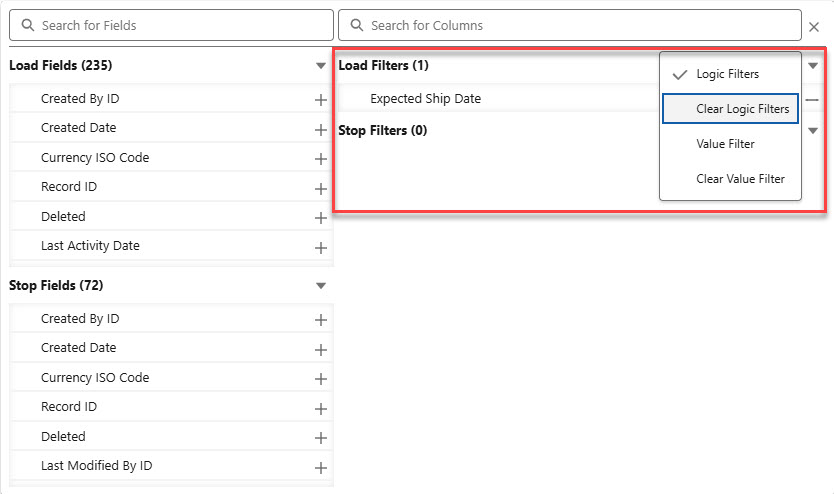
When appointments are filtered by selected logic fields, the Filter button is blue.
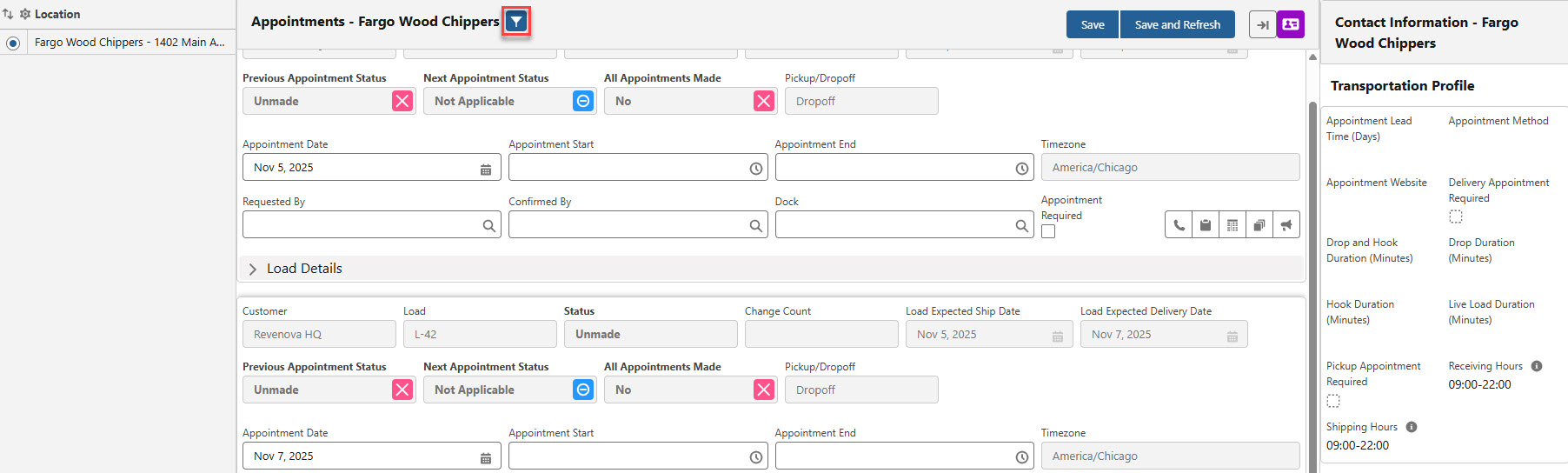
Apply and remove logic filters to identify Load appointments as necessary.
Derived Fields
The following Derived fields are available for Appointment views.
Trip Plan Leg
If an appointment Stop is not associated with a Trip Plan, the field is displayed with a blank value.
This Derived field is not recommended for Brokerage-only TMS users.
Customer
Load
Load Expected Ship Date
Load Expected Delivery Date
Trip Plan
This Derived field is not recommended for Brokerage-only TMS users.
Status
Unmade
Requested
Confirmed
Not Applicable
Change Count
The count of times an appointment is updated.
Previous Appointment Status
If no Load is associated, the label is Previous Leg Appointment Status.
When Appointment values are changed, click Save & Refresh to update and view changes.
Next Appointment Status
If no Load is associated, the label is Next Leg Appointment Status.
When Appointment values are changed, click Save & Refresh to update and view changes.
All Appointments Made
If no Load is associated, the label is All Leg Appointments Made.
When Appointment values are changed, click Save & Refresh to update and view changes.
Pickup/Dropoff
Determined by the Pickup Stop and Delivery Stop fields on the Line Item record.
Order-By
Click the Order-By icon to open a menu to select the criteria used to determine the sorting order of appointments.
Select which fields are displayed and their order from the Derived Field, Load, Stop, Line Item, and Trip Plan Leg objects. This also includes any custom fields for those objects.
When no fields are selected for the Order-By field selector, the following order is used to filter appointments.
Location Name
End Stop Location Name
End Expected Date/Time
Add or remove fields from the appointment list and Load Details section with Derived Fields, Trip Plan Leg, and Stop fields.
When the Hide Trip Plan Leg Appointments field is not Checked, Trip Plan Leg fields may be added to the columns.
If the Hide Trip Plan Leg Appointments field is Checked while sorting by Trip Plan Leg fields, a warning appears next to the field in the Order By Columns section. This happens because the Hide Trip Plan Leg Appointments setting hides Trip Plan Leg appointments, but sorting by Trip Plan Leg fields requires those same appointments to be visible.
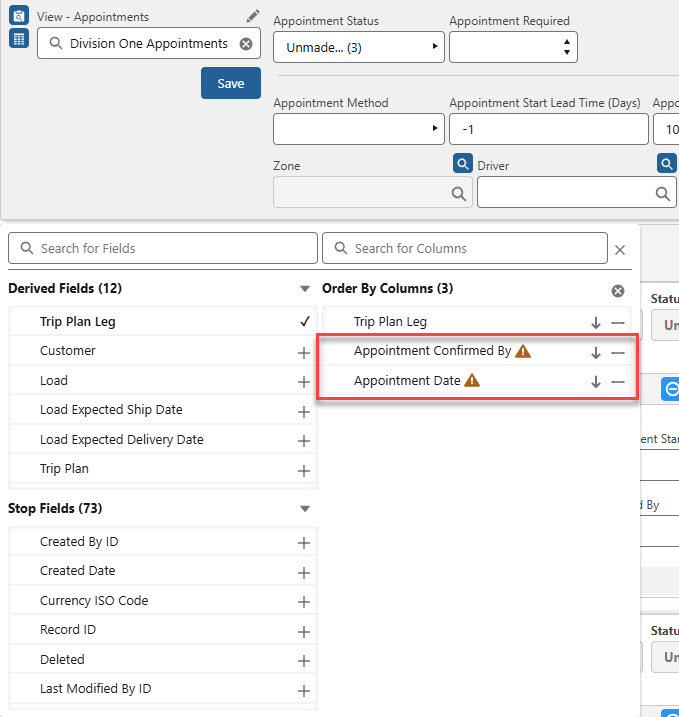
Any Trip Plan Leg fields should be removed from the Order-By column selection. The warnings are removed when the fields are no longer included in the Order-By columns.
Appointments
The Appointments section displays the list of appointments for locations that match the header search criteria and Order-By settings.
As fields are saved in the Appointment, the following fields are saved to the corresponding Stop record.
Appointment Date (saved to Stop Expected Date)
Appointment Start (saved to Stop Appointment Time)
Appointment End
Requested By
Confirmed By
Dock
Appointment Status
When the Appointment Required field is set, the Stop is updated. The value on the corresponding Transportation Profile does not update.
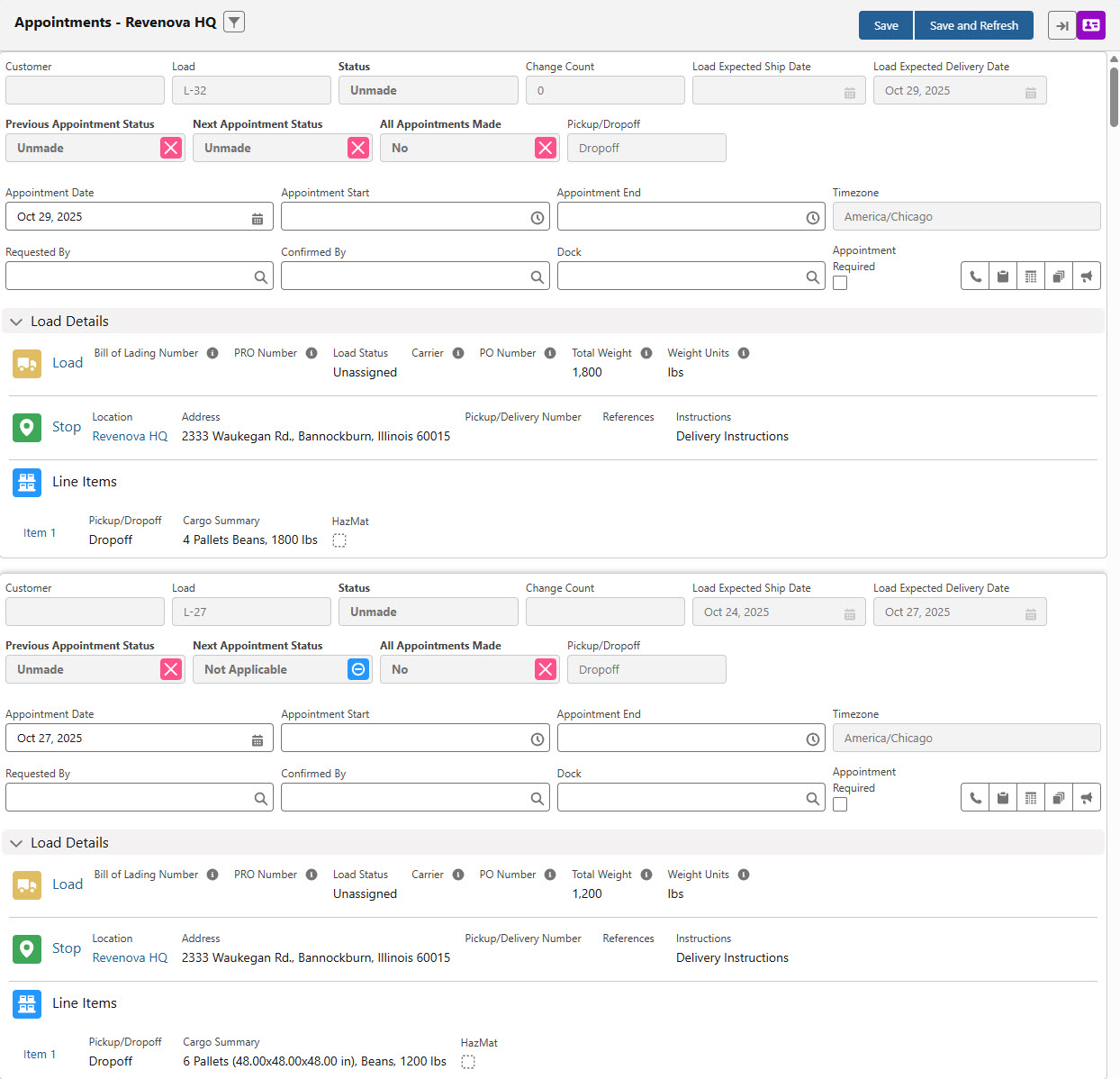
The following Derived fields include additional icons to help you quickly identify the appointment status.
Previous Appointment Status
Next Appointment Status
All Appointments Made
Appointments can have one of the four statuses listed below. Each status is represented by its corresponding icon.
Unmade

Requested
Confirmed

Not Applicable

If changes are made in the Appointments section and a user clicks Save, the Previous Appointment Status, Next Appointment Status, and All Appointments Made fields do not update automatically. To update these fields, click Save and Refresh after making changes to the appointment record.
Update the Appointment Status field by requesting or confirming the appointment using the toolbar buttons described below.
The Change Count field tracks the number of times appointment values have changed. View additional change information in the History modal shown below.
The toolbar allows for completing the following appointment actions.

Requested
 button enters the User record completing the action in the Requested By field. The Appointment Status updates to Requested.
 This User record lookup is set automatically when the user completes the action.
Confirmed
 button enters the User record that completes the appointment in the Confirmed By field. The Appointment Status updates to Confirmed.
When Confirmed, the icon
 is orange.
 This User record lookup is set automatically when the user completes the action.
The History
 button opens a modal containing old and new field values with the User record and date/time the value changed.
Click the Close button to return to the Appointment list.
The Trip Plan
.jpg) button opens the Fleet Trip Planner LWC.
button opens the Fleet Trip Planner LWC. View the Trip Plan requiring appointments.
In order to display in a view, Trip Plans must be saved and contain a Due Out Date.
This button is not recommended for Brokerage-only TMS users.
The Chatter
 button selects the Load record requiring the appointment.
 When selected, the icon
 is blue.
The Chatter Feed displays the Load record on the appointment.
Type your note in the Chatter feed and click Share.
Contact Information
The Transportation Profile and Contacts for the selected Location can be viewed on the right side of the Appointments section.
Select the Expand Contact Information  button next to the purple Contact icon
 .png) to open and view the Contact Information section. Select the Collapse Contact Information
to open and view the Contact Information section. Select the Collapse Contact Information  button to hide this section.

Note: Only Contacts that include the Appointments value in the Transportation Role field are visible in this section. All other Contacts related to the Location are filtered.
The following Transportation Profile fields are visible in this section:
Appointment Lead Time (Days)
Appointment Method
Appointment Website
Pickup Appointment Required
Delivery Appointment Required
Shipping Hours
Receiving Hours
Drop Duration (Minutes)
Hook Duration (Minutes)
Drop and Hook Duration (Minutes)
Live Load Duration (Minutes)
Note: To change the values in these fields, set them accordingly in the Customer Transportation Profile.
Contacts related to the Account Location are filtered to display only those that have the Appointments value in the Transportation Role field.
The following Contact fields are visible in this section:
Email
Mobile
Name
Pone
Transportation Role
Chatter
Click the Chatter icon to display the Chatter Lightning Web Component to the right of the Appointment section. Use the Chatter component to add information or notes to the Load record associated with the appointment.
The Chatter feature is not available for appointments that do not include a Load.
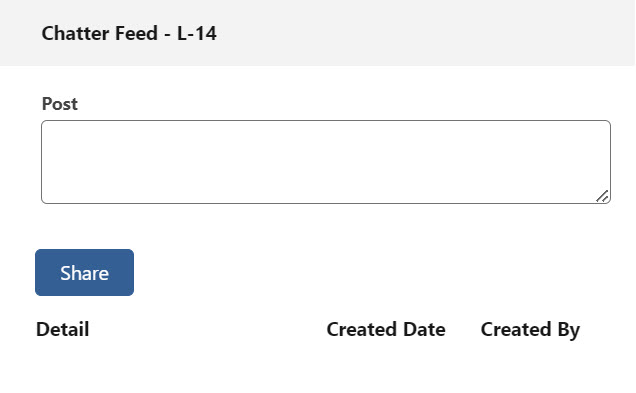
The selected Load is displayed in the Chatter Feed banner.
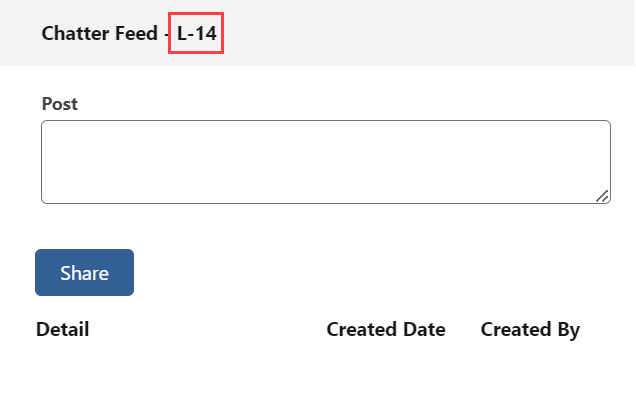
When the Chatter note is complete, click Share.
Email Appointment Requests
Email Appointment Requests from the Appointment Setting view in the Fleet Management Console. Complete the Appointment Request setup and ensure that the Show Appointment Request box is checked.
The Email Appointment Requests toggle is presented in the Appointments section header and is Disabled by default.
.png)
Selecting the toggle to Enabled adds a checkbox next to each Stop or Trip Plan Leg listed in the Appointments section for a specific Location. The checkbox in the header next to the Send Email Appointment Request button selects all Loads in the list.
If no Stops or Trip Plan Legs are selected, the Send Email Appointment Request button is greyed out. If at least one in the list is selected, the checkbox in the section header is checked, and the button is available for selection.
Select the Stops and Trip Plan Legs to make Appointment Requests for a specific Location.
.png)
Send Email
Selecting the Send Email Appointment Request button opens the Send Email LWC with the Appointment Request email template. The “To” recipients are automatically populated with Contacts that have the Appointments value chosen in the Transportation Role field and the Contact is associated with the Stop Location’s Account.
Warning: Be sure that there is at least one Contact as a recipient in the “To” address field before sending the email.
.png)
Note: If more than one Load was selected, the Appointment Requests are consolidated into one email with all Loads listed in the subject and body. If only one Load is selected and that Load has Load Email related records that have the Document Option Actions field include the Appointment Request, then those values will automatically enter the Contact, User, or email address into the designated recipient type field (“To,” “Cc,” or “Bcc”).
The Appointment Request Expiration field in the modal is determined by the value of the Default Appointment Request Expiration field in the following cascading order:
(1) Customer Transportation Profile > (2) Global Transportation Profile > (3) 24 hours from today
Time Zone Note
The time zone used in the Appointment Request Expiration field is determined by the value of the Timezone field in the Stop record (if the Location field is blank) or the Timezone field in the Account record used for the Location field. If the Timezone field is blank, the timezone of the User requesting the appointment is used.
The appointment request expiration in the body of the packaged email template is dynamically updated based on the Appointment Request Expiration field. The date format is YYYY-MM-DD, the time format uses the 24-hour clock, and the time zone is set based on your browser or computer system’s time zone—not the User’s time zone.
If the Appointment Request Expiration field is blank, then the request doesn’t expire.
Select Send to email the Appointment Request to the recipients. Once the Appointment Request email is sent, the Status field of the Stops or Trip Plan Legs for each selected Load updates its value to Requested. The Requested By field is updated to the User who sent the request.

Appointment Requests Information
A new Appointment Request section is added to the Stop or Trip Plan Leg after sending at least one Appointment Request email.

All Appointment Requests information is displayed here, with the number of proposed requests and their status.
If an Appointment Request email was sent without a value in the Appointment Start field, the email recipients would need to propose a new appointment time and submit it with the Appointment Request Response LWC.
Once the Contact proposes a new time, the initial Appointment Request becomes Declined, a new Proposed Appointment Request is created, and the Appointment Status field updates to Alternative Proposed - Pending Review for the Stop or Trip Plan Leg. You can either confirm a proposed appointment time or send a new appointment request with the Send Email Appointment Request button.
.png)
Note: Email recipients can send multiple Appointment Request proposals.
If you select Confirm from a proposed appointment time, the following fields are updated:
The Status of the appointment updates to Confirmed,
The Confirmed By field is updated to the User who confirmed the proposal,
The Confirmed icon
.png) turns orange, indicating the confirmed status, and
turns orange, indicating the confirmed status, andThe Appointment Date, Appointment Start, and Appointment End fields are updated to the proposed appointment date and time.

Note: If there are multiple proposals to select from, confirming a proposed time will set the Status field for all other proposals to Declined.
If the Confirmation Method is set to Email Me, the Contact is emailed a notice confirming the proposed appointment time.
If an Appointment Request email is sent with values in the Appointment Date, Appointment Start, and Appointment End fields, the email recipients can either confirm, decline, or propose a new appointment time.
If the Contact confirms the Appointment Request, the following fields are updated:
The Status of the appointment updates to Confirmed,
The Confirmed By field is updated to the Automated Process user, and
The Confirmed icon
 turns orange, indicating the confirmed status.

If the Contact declines the Appointment Request, the Status of the appointment updates to Declined.

Caution: If the Appointment Request expires by surpassing the date and time specified in the Appointment Request Expiration field, the request is removed from the list, and a new Appointment Request must be manually sent.