Overview
Stop Configuration Quick
Stop information is entered on the Load Configuration LWC a couple of different ways. After a customer and Mode is entered, the Stop Configuration Quick Lightning Web Component (LWC) displays the stop fields to enter for the load. One pickup and one delivery location are displayed. Additional pickup and drop-off locations may be added with the + button below the first pickup and first delivery locations for more complex routes.
.png)
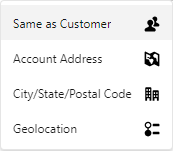
There are multiple ways to search for stop locations. New stop information may be created, as well. Four search criteria may be selected from the pick-list selections to the left of each stop location. The four selections are: "Same as Customer," "Account Address," "City/State/Postal Code," and "Geolocation." Selected stop locations display on the map to the right of the stop location search fields.
Selecting Same as Customer auto-populates the customer information entered in the Load Configuration. The address fields populate the Shipping Address and do not populate if only the Billing Address fields are entered.
Account Address renders search fields for Location, Street Address, City, and Postal Code. Entering criteria in any of the fields displays matching accounts. Choose the location and the remaining fields auto-populates with the remaining information from that stop location.
Selecting City/State/Postal Code from the pick-list displays search fields for the city and postal code. Entering criteria in these fields displays matching stop location information that when clicked auto-populates the remaining information into the fields.
Locations may also be searched via latitude and longitude coordinates. Select Geolocation from the pick-list and fields for Latitude and Longitude display. Enter values in these two fields to enter a stop location.
All modes except LTL require an expected date for pickup and delivery stops.