Overview
Quote Wizard
The Quote Wizard Lightning Web Component (LWC) is located in the Customer Portal. There are two child LWCs on the Quote Wizard, the Stop Configuration Portal LWC and the Location Account Name Lookup LWC.
Customer-created LTL and non-LTL loads follow the same flow through the Quote Wizard LWC:
Configure the load.
Retrieve a list of quotes:
For LTL loads a list of marked-up carrier quotes from stored rate and API Carriers.
For non-LTL loads a single customer quote from a stored rate.
Select one quote from the list.
Complete the load configuration.
Tender the load.
LTL loads have a status of Tendered or Assigned when there is an accepted Customer Quote and an accepted Carrier Quote. For non-LTL loads, the load is in an Unassigned status with an accepted Customer Quote.
LTL API-quoted loads can be tendered in one of two ways:
Via an API
Via email
Initial Setup
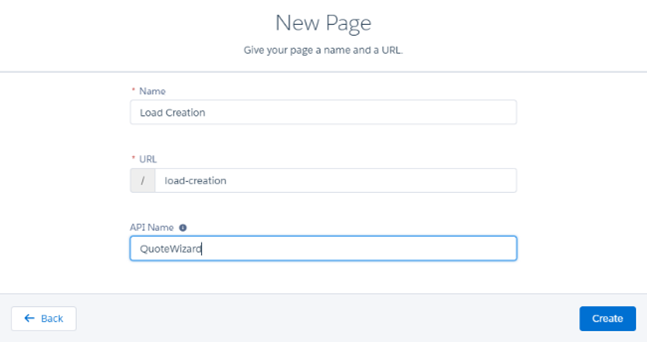
To initially configure the Quote Wizard LWC, a new Standard Page must be created in the Portal. The Name/URL of the page can be anything, but the API Name must be QuoteWizard.
From the Custom Components drag the Quote Wizard onto the page. A new tab is added to the Navigation Menu for the page, as well.
See the Portal Text Configuration page for initial text setup.
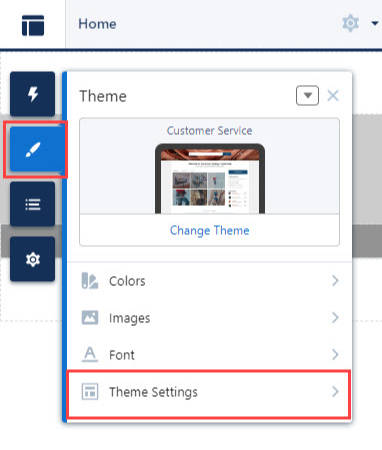
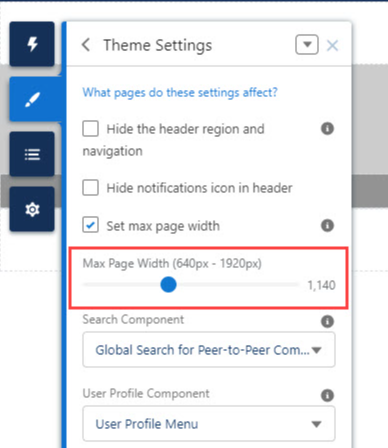
If elements in the UI overlap, open the Builder and click the Theme Settings tab. Increase the Max Page Width with the slider.
Mode Selection Page
On the mode selection page, users select a mode for new loads.
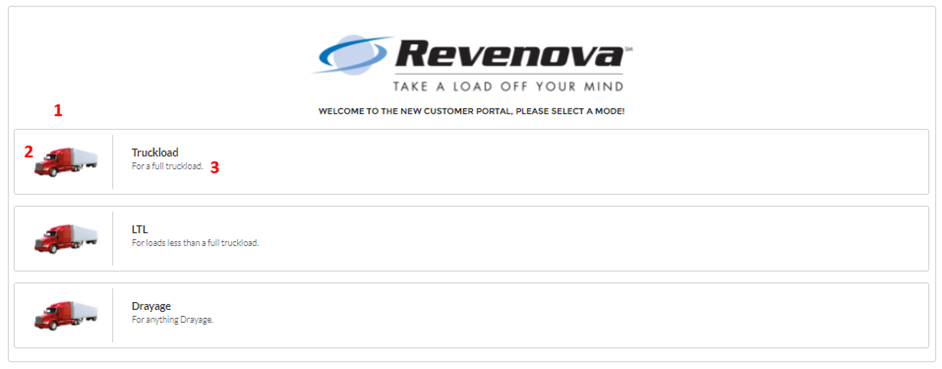
For configuration:
Modes that have Customer Portal Selection checked will be available for selection.
A custom image can be used for each mode by:
Uploading an image into a publicly accessible document directory.
Populating the mode Customer Portal Icon field with the Salesforce 18-character ID of the image.
Note the image is designed for the following dimensions: width: 109 px, height: 50 px.
The mode’s description can be set by populating the mode’s Customer Portal Description field.
Load Entry Page
From the load entry page, users can enter load, stop, and line item details. Then, they can either get quotes or save the load. Additionally, if an insurance API is enabled, users can select Show Cargo Insurance Options to see the insurance options on their quotes.

When creating Loads in the Quote Wizard, the currency picklist is set by the Load currency field.
In single currency organizations, the value is the currency of the organization.
In multi-currency organizations, the value is set by the Customer account record.
For configuration:
Excluding Mode and Customer, additional fields can be added to this section using Load field set TMS10 (mode-specific field sets supported).
Additional stop fields can be added to the stop sections using Stop field set TMS4 (mode-specific field sets supported)
From TMS Admin → Accessorials, load and stop accessorials can be enabled for the Portal by checking the Customer Portal Selection field.
Additional line item fields can be added to the line item sections using Line Item field set TMS6 (mode-specific field sets supported).
The Cargo Insurance Option picklist field on the customer’s Transportation Profile:
If blank or “Hide,” Show Cargo Insurance Options is not be visible with the two links.
If “Opt In,” Show Cargo Insurance Options is checked by default.
If “Opt Out,” Show Cargo Insurance Options is unchecked by default.
Quote Selection Page
On the Quote Selection page, users can select an LTL or non-LTL quote, refresh quotes, return to the Load Entry page, and/or filter LTL quotes. Additionally, if API cargo insurance was requested, the user can include or exclude the insurance and see the price difference.
LTL load:
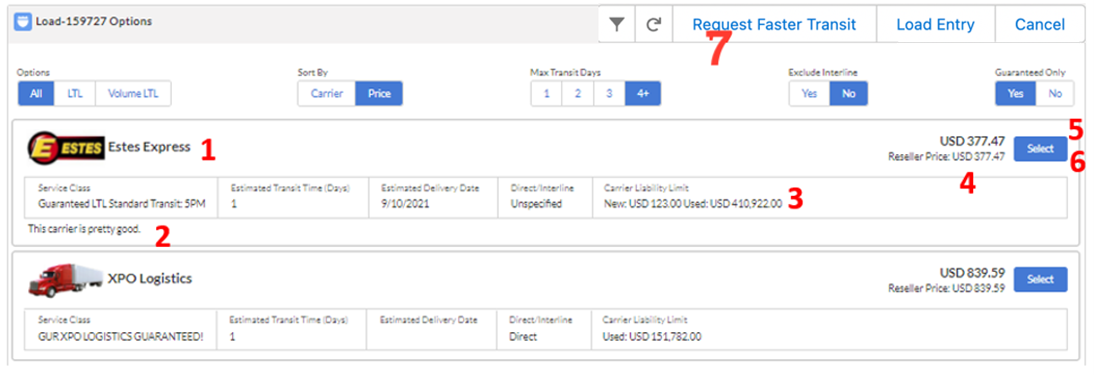
Non-LTL load:

Configuration:
A custom image can be used for each carrier service by:
Uploading an image into a publicly accessible document directory.
Populating the Carrier Service Logo Document Id field with the Salesforce 18-character ID of the image.
Note the image is designed for the following dimensions: width: 109 px, height: 50 px.
The Carrier Service Service Notes fields can be used to add additional information about the Carrier Service.
Additional Carrier quotes fields can be added using Carrier Quote field set TMS6 (mode-specific field sets supported).
A reseller markup can be utilized by populating the Reseller Markup Group field with a Carrier markup group on the customer’s Transportation Profile or global Transportation Profile (see Carrier Markup Groups).
The LTL Quote Refresh field can be populated on the customer’s Transportation Profile which prevents the selection of LTL quotes if the timeframe has passed.
When selecting an LTL quote, the Customer Portal Tender Options picklist field on the user object will:
If blank or “Any Quotes,” allow the user to select any quote with no other input.
If “Any Quote With Reason,” allow the user to select any quote, but require a reason* if the quote is not the lowest cost.
If “Lowest Quote Only,” only allow the user to select the quote of the lowest cost. *reasons for selecting a quote are managed by the Selection Reason field on the Carrier Quote which is where the information is also stored.
For LTL loads, a portal customer can click the Request Faster Transit button if the transit times on the quotes provided are not fast enough. A dialog box opens and allows the user to enter a date, a time, and comments. Internal users need to handle these special requests. The portal users inputs are saved to the Load record. Workflows, triggers, or special list views may be set up to facilitate management of these Faster Transit Requests.
There is an additional user picklist field, Customer Portal Quote Visibility, which limits LTL quote visibility to the user:
If “Lowest Quote Only,” the user will only be able to see the lowest cost quotes.
If “Fastest Transit Only,” the user will only be able to see quotes with the lowest transit times.
If blank or “All Quotes,” the user will see all quotes.
Load Tender Page
On the Load Tender page:
Finalize stop details (locations and contacts).
Enter additional load details.
Enter additional load references.
Perform the final authorization for API insurance.
Tender the load.
Users can additionally navigate back to the Load Entry page or choose a different quote. Line items, accessorials, and the selected quote are displayed on the page for review.
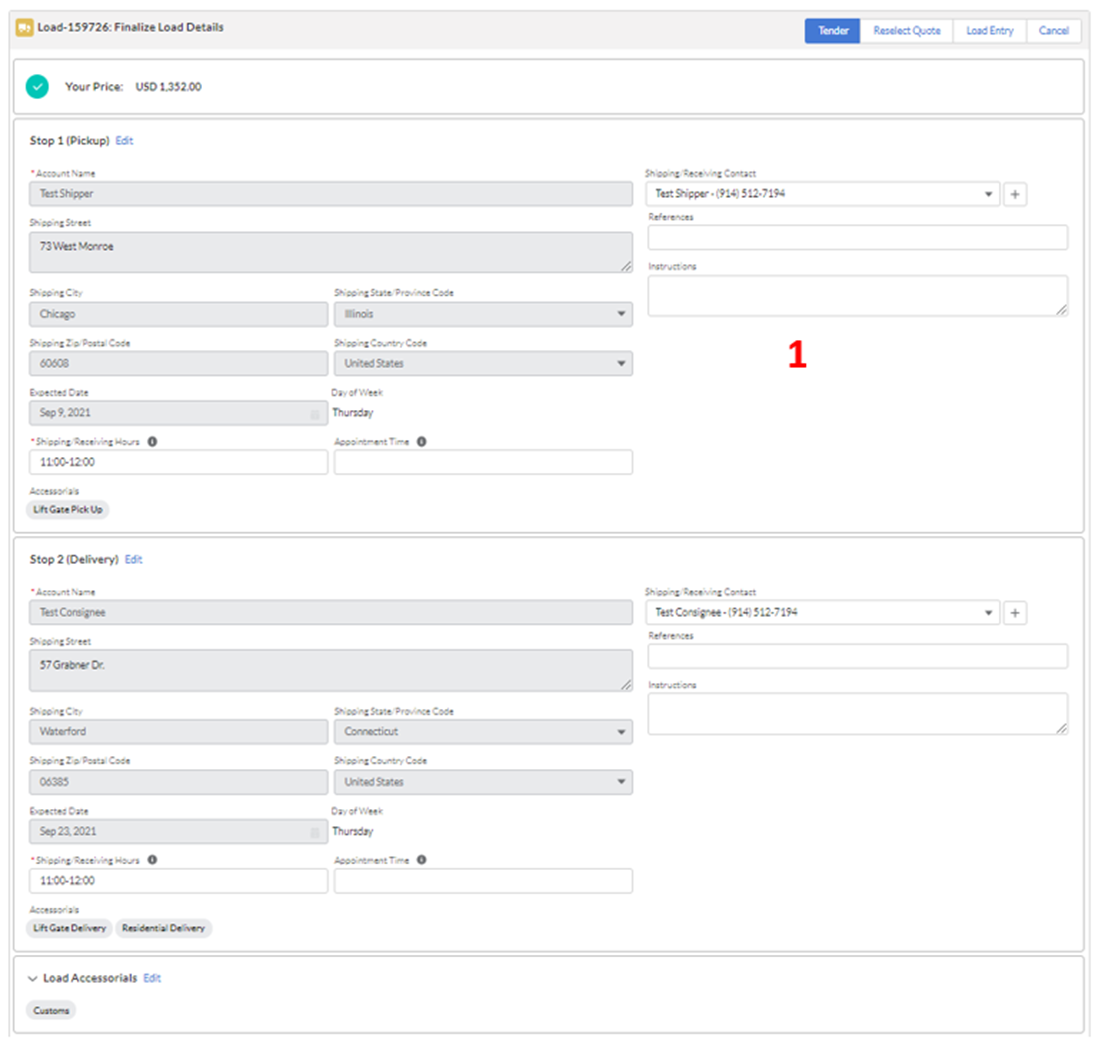
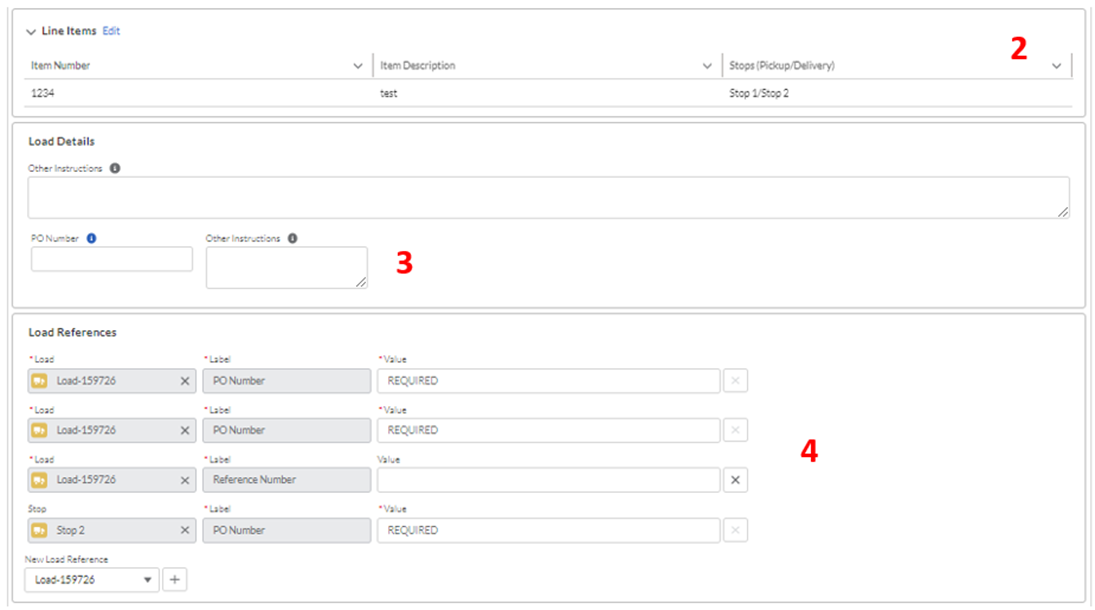
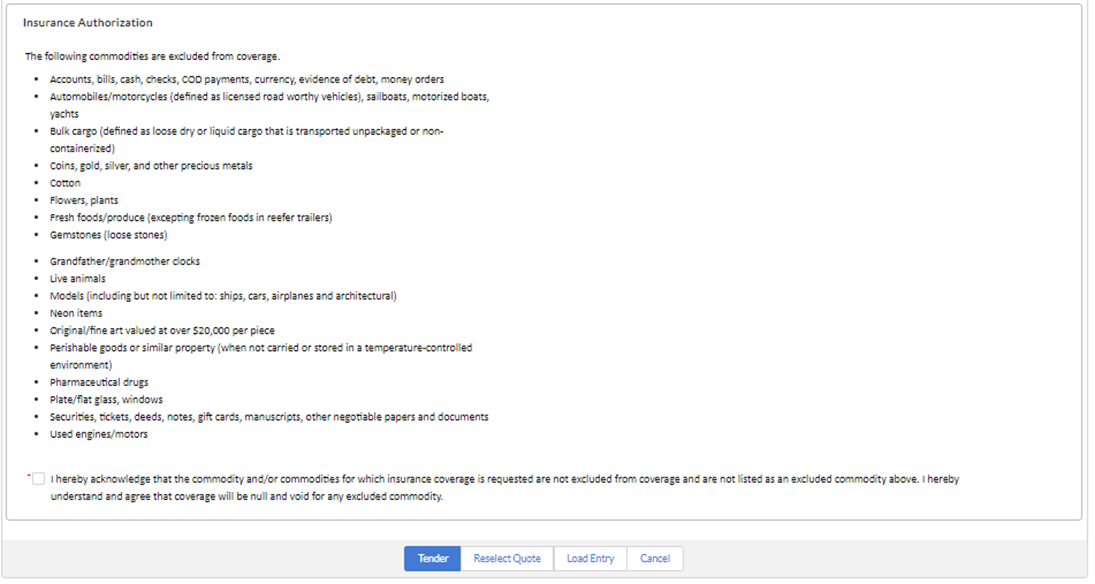
Portal users receive an error when attempting to Save or Tender a load with a ship date in the past. Adjust the date to tender the load.
For configuration:
Additional stop fields can be added using Stop field set TMS10 (mode specific field sets supported)
Additional line item fields can be added using Line Item field set TMS4.
Additional load fields can be added using Load field set TMS7 (mode specific field sets supported)
See Load Entry References section for setting up dynamic load references.
Tender Failures
Warning:
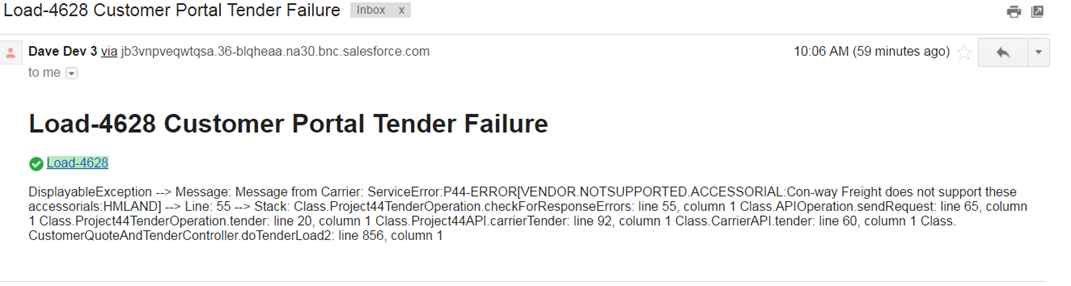
If the tender fails for some reason, the customer is NOT made aware of this fact. The behavior of the Portal is the same whether the tender succeeds or fails – it is assumed that the failure of a valid quote’s tender operation is a technical “glitch” that can be resolved.
The Load remains in Quotes Received status, and an alert email is sent to the designated address:
The same behavior is mimicked for API insurance authorization. If the API insurance authorization fails, the customer will not see the error, and an alert email is sent to the designated address.