Overview
Queued Transactions
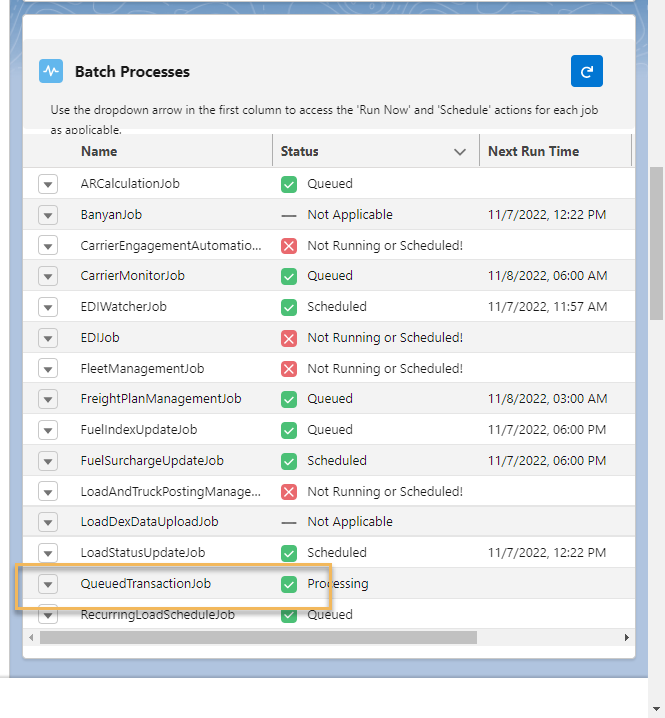
The following transactions are queued in the Queued Transaction table and then processed by the QueuedTransactionJob, which runs every minute.
Inbound Transactions
“Email Loop” transactions from customers and Carriers.
Carrier App Update Transportation Profile.
Carrier App Generate .PDF.
FourKites load tracking updates.
Project44 load tracking updates.
Outbound Transactions
Load Posting removal for covered loads.
Requests for quotes.
EDI 214 transactions – Appointment, Arrival, Departure, Loading Complete, Unloading Complete.
EDI 990 transactions (for some customers).
To reduce the footprint of this set of jobs, some traffic is sent to the Queued Transaction Event for asynchronous non-batch processing.
The EDI Job batch process handles inbound 204 load tenders, 990 load tender responses, 214 load statuses, 210 load invoice transactions.
Also handles outbound 214 location updates and 990 auto-accept for some customers.
Restart Queued Transactions
If the QueuedTransactionJob (or another scheduled batch job) has stopped, complete the following steps to restart the job.
Log in as the System Administrator user.
From Setup, search Scheduled Jobs. Is the current date/time past the schedule date/time?
If yes, click the Delete (Del) link.
If the job is restarted without deleting, this job will continue to stop as the scheduled date/time is in the past.

Check the Queued Transactions table for any Retry Failed or Failed transactions.
Are there any transactions set to Retry Failed or Failed? If yes, update these transactions to Pending.
From the home page, the Monitor Processes/Batch Processes LWC should be visible.
To the left of QueuedTransactionJob, click the action menu. Click Run.