Overview
HubTran provides an AI-based vendor invoice parsing/reading capability that helps automate the quote/invoice reconciliation process.
HubTran provides “push” status updates to the TMS via a sites-based web service. Inbound load status packets from HubTran are processed by Platform Events.
From TMS Admin, Configuration, confirm that the box for HubTran and Remote Documents are checked.
The HubTranDataLoad batch process controls when load lane/revenue/cost information is sent to HubTran.
Enter Credentials
Enable the HubTran integration by:
Navigating to TMS Admin,
Select Credentials.
Select the Global Services tab,
Find HubTran in the list and open the card.
Check the Enabled box.
Enter the User ID, Password 1, and Password 2 into the text fields.
Click the Save button when finished.
Valid credentials are required from a HubTran subscription.
Credentials can be group-specific. Set the HubTran Credentials Selector field to use group-based credentials and enter all the credentials from TMS Admin → Credentials.
See examples in the table below.
User ID | Password 1 | Password 2 | Customer Number |
|---|---|---|---|
Revenova | Revenova | API Token (Looks like bf5f267000ae8e8e6pe0ef656746588x) |
Inbound Packet IP Ranges: Any load status post-backs from HubTran that do not originate from this IP mask are rejected as a security feature. Any changes to this range are provided by Revenova.
HubTran provides login credentials to users to access their web portal. From the portal, users review and approve invoices, and manage exceptions related to the auto-parsing of invoices and other documents.
Remote Site Settings
Upgrading from previous versions of the TMS may have outdated information. Check that the Remote Site Settings for the HubTran integration URL are up to date.
Click the Setup gear icon in the top right corner.
From the drop-down, click Setup.
In the Quick Find Toolbar type Remote Site Settings and click the link.
From the list of remote sites find HubTran and click the Edit link.
Update the Remote Site URL to match the Service URL below.
Service URL: https://api.hubtran.com
Test Service URL: https://api.hubtran.com
Partner Community Setup
The HubTran integration requires a webhook to send tracking information to the TMS. Create an API Site to accept inbound API traffic.
Create a Salesforce Site for API Guest User Access.
Set the public access for the Site.
Activate and Publish the Site.
Enter the API URL into the field for Inbound API Community URL under TMS Admin, in the Configuration section.
Example: https://full-revesc1.cs64.force.com/api
Add the following extension to the end of the URL to match the example below: /services/apexrest/rtms/tmslistener?org=[18-character org id]&source=HubTran&pwd=[credentials code field]
{API Community URL} /services/apexrest/rtms/tmslistener?org= {18-character org id} &source=HubTran&pwd= {credentials code field}
Example: https://revenova.my.site.com/api/ services/apexrest/rtms/tmslistener?org= 00D180000008oA9EAI&source=HubTran&pwd=4wGFDgnT950Ovg1
TMS Admin
Configuration
The following field may be set under TMS Admin, Configuration to use as the group-based credentials when using HubTran.
HubTran Credentials Selector: The picklist field on the Load object that determines which credentials to use.
Click the HubTran Data load button to pre-load Carriers and loads into HubTran. Only loads for participating Carriers are uploaded to HubTran. This button may be pressed multiple times.
Transportation Profile
One field must be set for HubTran for each Carrier on their Transportation Profile.
Vendor Invoice Processor: For all participating Carriers, set this value to "HubTran."
Carrier Remit To: When this field is updated, the updated Carrier information is sent to HubTran.
To maximize the performance of HubTran, populate the SCAC, MC Number, US DOT Number, and Billing Address fields on all participating Carrier Transportation Profiles.
Load
Multiple fields that may be populated by HubTran.
Bill of Lading Number
Vendor Invoice Processor: Set this field to "HubTran." This field can also be set on Carrier Assignment.
Carrier Quote
Add the following fields to the Carrier Quote record page as Read-Only. HubTran populates these fields.
Vendor Invoice Number
Vender Settlement Total
Vendor Settlement Variance
Vendor Invoice Date
Add all Carrier contact emails and ensure they are up to date. The email used for Carrier documents that is sent to HubTran may cause issues in properly routing invoices to/from HubTran.
Changes to Load information triggers load information to resend to HubTran. Changes include:
Sales Status
Load Status
Weight
Distance
Customer & Carrier Quote Totals
Customer & Carrier Invoice Totals
"Flex" reference fields may be added to 2 field sets and passed to HubTran. Load TMS19 and Stop TMS2 field sets may be configured to control which fields are sent.
The Accounting Notes field on the Load Object is sent to HubTran.
The document "fingerprint" data for a load is maintained for 200 days to prevent duplicate documents saving to the load.
Customer Invoice Documents
It is possible that when using the HubTran integration that Customer Invoice documents are attached to the Load record. However, the Customer Invoice Documents Received checkbox is NOT checked.
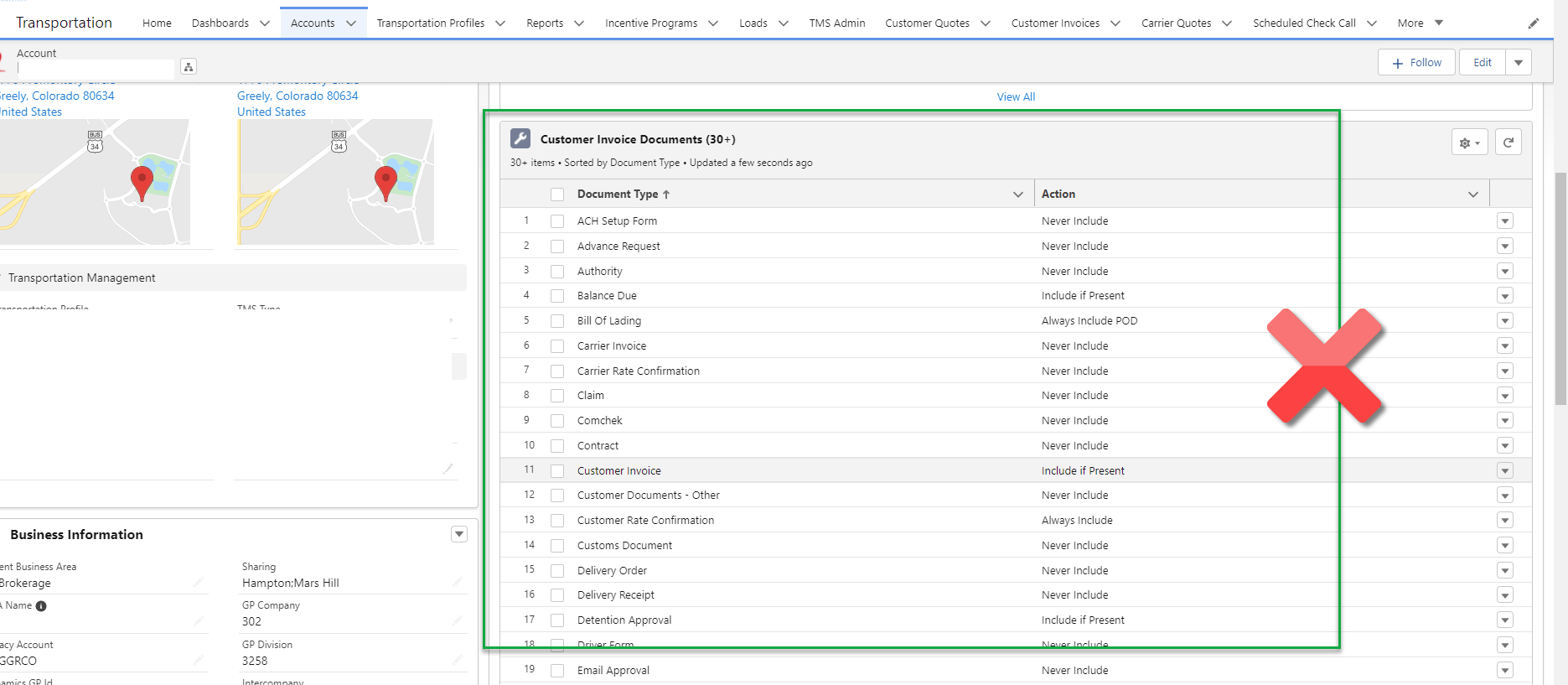
Customer Invoice Documents actions may be configured using the related list on the Account page layout. This can prevent the Customer Invoice Documents checkbox field on the Load from populating during HubTran operation.
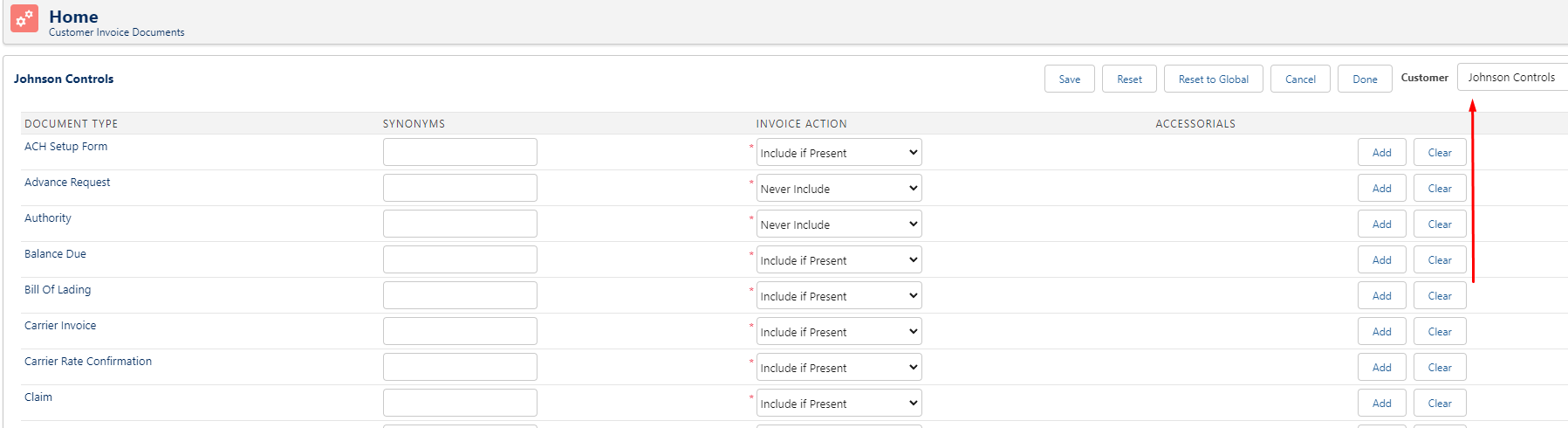
Review the customer Account page layout and search for the Customer Invoice Documents related list. If records are present in this list, there will be issues. Customer Invoice Documents should only be managed through TMS Admin, Customer Invoice Documents.
Is the Customer Invoice Documents Received field populated when all document requirements from the Customer Invoice Document required object are present on the load?
The Customer Invoice Documents field on the Load object is a HubTran related enhancement that only responds properly if the documents are received through HubTran. When HubTran sends the Carrier invoice document with POD documents to Revenova, the TMS looks to see if all required POD documents were received. If all appropriate documents were received according to the customer's Customer Invoice Document Requirements setup, then checkbox on the Load is checked.