Overview
Freight Plan Setup
The Freight Plan Console Lightning Web Component contains several child LWCs for managing freight plans in the TMS. Multiple field sets to provide additional information customization for managing freight plans.
The child LWCs include:
Freight Plan Template LWC
Freight Plan Customer Load Filter LWC
Freight Plan New Carrier Load LWC
Freight Plan Financial Summary LWC
See the field set descriptions below.
From TMS Admin, navigate to the Freight Plan section to enable and setup how Freight Plans function. Check Freight Plans Enabled to enable Freight Plans.

Check Freight Plans Enabled. Other options include the Monochrome Freight Planner, which will render all loads in the Freight Planner in gray.
Select the Freight Plan Cost Allocation Method from the picklist, and then check the boxes for the TMS Type Freight Plan Stops to include in the Freight Plan Stops lookup.
The RecurringLoadSchedule job should be Scheduled to run each morning. This job creates the cloned/scheduled loads and freight plans. Performance IQ / Job Details:
Job Name | Function | Run Time | Run Time |
|---|---|---|---|
FreightPlanManagementJob | Calculates Freight Plan cost allocations and status. | Active – runs job immediately | Active – schedules job for 5 pm |
RecurringLoadScheduleJob | Clones recurring Loads and Freight Plans based on creation schedules. | Active - runs job immediately | Active - schedules job for 4 am |
Important Considerations
Freight Plan Carrier loads cannot be tendered if they contain line items for a customer load on credit hold.
Master Book Scheduling
Loads and freight plans can be scheduled to repeat on weekly or bi-weekly basis using the Master Book Scheduling feature. To create a schedule, click on the TMS Admin → Recurring Load Schedules link
Recurring Freight Plans – The freight plans to be cloned according to the schedule.
Scheduled Freight Plans – The cloned freight plans based on schedule execution.
Think of Recurring Loads and Recurring Freight Plans as “cookie cutters” and Scheduled Loads and Scheduled Freight Plans as “cookies” made from them.
Freight Plans
Freight Plans allow you to create complex, multi-carrier, multi-mode, and cross-dock load execution plans. Freight Plans allow for detailed tracking, status, and costing of complex moves, such as:
Load consolidations.
Cross-border moves with carrier hand-offs at the border.
Hub-and-spoke pickups and deliveries with cross-dock legs in between.
Multi-carrier, Multi-mode loads.
Freight Plans consist of an ordered list of:
One customer load to be covered by the freight plan.
One or more carrier loads created to cover the customer load.
Note that carrier loads can be shared across freight plans. For example, a five customer load consolidation would become five freight plans with one customer load and one (shared) carrier load in each freight plan.
Freight Plan Console
The Freight Plan Console (tab) is where all freight planning occurs:
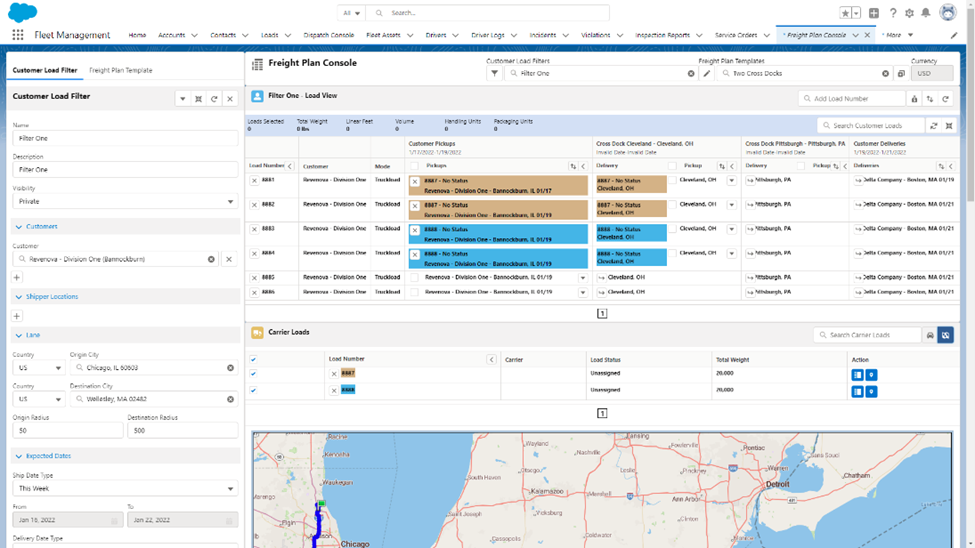
Access to the Freight Plan Console is provided by:
Clicking on the Freight Plan Console tab.
Clicking on the Freight Plan button icon on the Load Detail LWC.
Clicking the New button from the Freight Plan tab.
Clicking on an existing Freight Plan.
Selecting several loads and clicking on the Freight Plan list button.
A typical freight planning session consists of the following steps:
Retrieving all relevant customer loads that are to be freight planned.
Adding cross dock stops, as needed.
Combining customer loads into carrier loads.
Freight can be planned at the load or line item level. This allows for “load splitting” whereby one customer load’s line items are on different carrier loads.
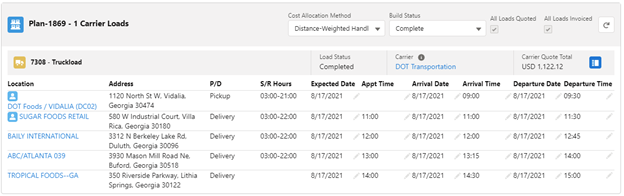
Carrier Stop Detail Component
This component should be placed on the Load page layout and have a filter so it is only visible for customer loads in a freight plan:
Freight Plan Console Configuration
The following configuration settings are available for the freight plan console:
Load TMS24 Field Set: Display additional fields in the Auto Load Creation Settings section of the Freight Plan Template.
Load TMS25 Field Set: Display additional columns in the Customer load list of the Freight Plan Console in the absence of a filter.
Load TMS26 Field Set: Display additional columns in the Carrier load list of the Freight Plan Console in the absence of a filter.
Load TMS27 Field Set: Display additional fields when creating Carrier loads in the Freight Plan Console.
Line Item TMS5 Field Set: Displayed on the Freight Plan Console customer line item list for 'flex' fields.
Customer Load Filters also define which fields are displayed in the customer and carrier load lists.
See the Field Set Summary for more information regarding these field sets.
Freight Plan Cost Allocation
Carrier load costs can be allocated to customer loads in a freight plan based on the following criteria:
Weight: Based on the weight of each line item as a percentage of the total for that Carrier leg.
Linear Feet: Based on the linear footage of each line item as a percentage of the total for that Carrier leg.
Handling Unit Count: Based on pro-rata handling unit count of each customer load in the plan.
Packaging Unit Count: Based on pro-rata packaging unit count of each customer load in the plan.
Distance-Weighted Handling Unit Count: Costs are first allocated to legs pro-rata based on leg mileage, then pro-rata within a leg based on handling unit count.
Distance-Weighted Packaging Unit Count: Costs are first allocated to legs pro-rata based on leg mileage, then pro-rata within a leg based on packaging unit count.
This is applied on a carrier load leg-specific basis. Those carrier legs that contain multiple customer loads use the allocation method selected. Those carrier legs dedicated to a single customer load have all the costs allocated to that customer load.
Load financial rollup fields DO NOT incorporate this cost allocation. It is available on the Freight Plan Load table in the Quote Cost Allocation and Invoice Cost Allocation fields (for the customer loads).
Click on the Financial Summary icon in the Freight Plan Console to see the Freight Plan Financial Summary LWC which provides the revenue and allocated costs for all customer loads in the console:

Freight Plan Data “Sync”
Changes to a line item in a freight plan automatically propagate to “sibling” line items. The fields that propagate are defined in the Line Item TMS3 field set.
Changes to a carrier load stop in a freight plan automatically propagate to “sibling” customer load stops. The fields that propagate are defined in the Stop TMS11 field set.
Object | Field Set | Field Set Description | Required? | Mode-Specific? |
|---|---|---|---|---|
Line Item | TMS3 | Used to synchronize changes to a line item in a freight plan with other “sibling” line items. | N | N |
Line Item | TMS5 | Used on Freight Plan Console customer line item list for 'flex' fields. | N | N |
Load | TMS24 | Used to display additional fields in the Auto Load Creation Settings section of the Freight Plan Console Template panel. | N | N |
Load | TMS25 | Used to display additional columns in the customer load list of the Freight Plan Console in the absence of a filter. | N | N |
Load | TMS26 | Used to display additional columns in the carrier load list of the Freight Plan Console in the absence of a filter. | N | N |
Load | TMS27 | Used to display additional fields when creating carrier loads in the Freight Plan Console. | N | N |
Stop | TMS9 | Used when creating carrier loads using the single freight plan page. Defines which additional fields are copied from the customer load(s) to the carrier load(s). | N | N |
Stop | TMS11 | Used to synchronize changes to a carrier load stop in a freight plan with sibling customer load stops. | N | N |
See the Field Set Summary for more information regarding these field sets.